Onboarding
Welcome aboard! Here's a quick walkthrough of the smooth onboarding process that appears right after you complete your signup. This setup flow helps you personalize your account and get your workspace ready—quickly and effortlessly.
This onboarding screen shows up only once, right after your first login.
Step 1: Review Your Pre-Filled Details
Once you signed up, you’ll be redirected to the Onboarding Page, where some of your details—like your organization name, domain, and mobile number—are automatically filled in based on your signup information.
You can customize the following:
Domain Name
Organization Name
Organization Logo / Image
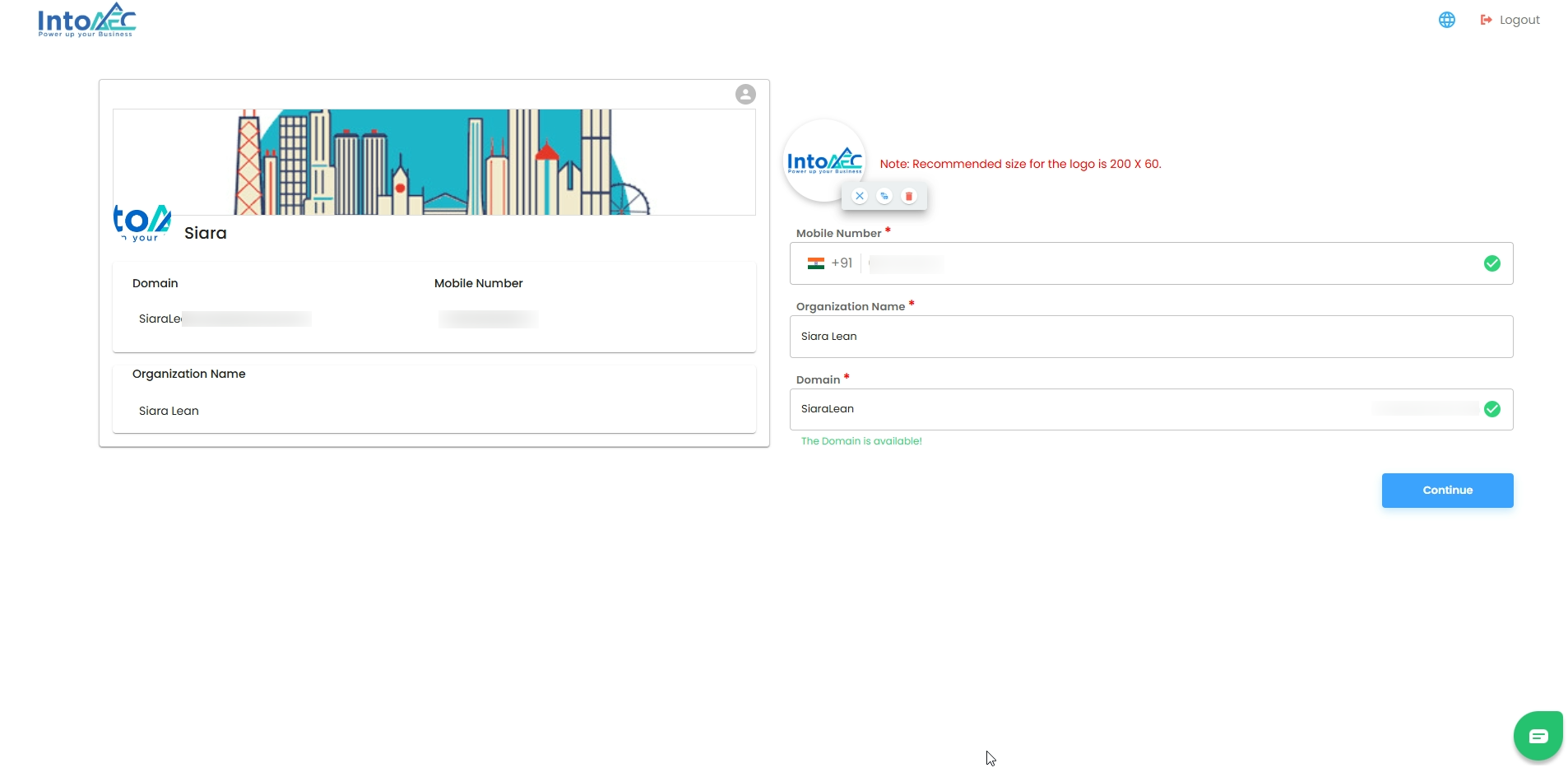
If you uploaded an image and want to change, delete, or remove it, simply use the image controls beside the preview.
Step 2: Customize Your Branding
This step helps you set up your organization’s identity across the platform.
Update your domain if needed
Upload a new logo (Recommended size: 200 × 60 px)
Ensure your organization name is correct
Once everything looks good, click Continue.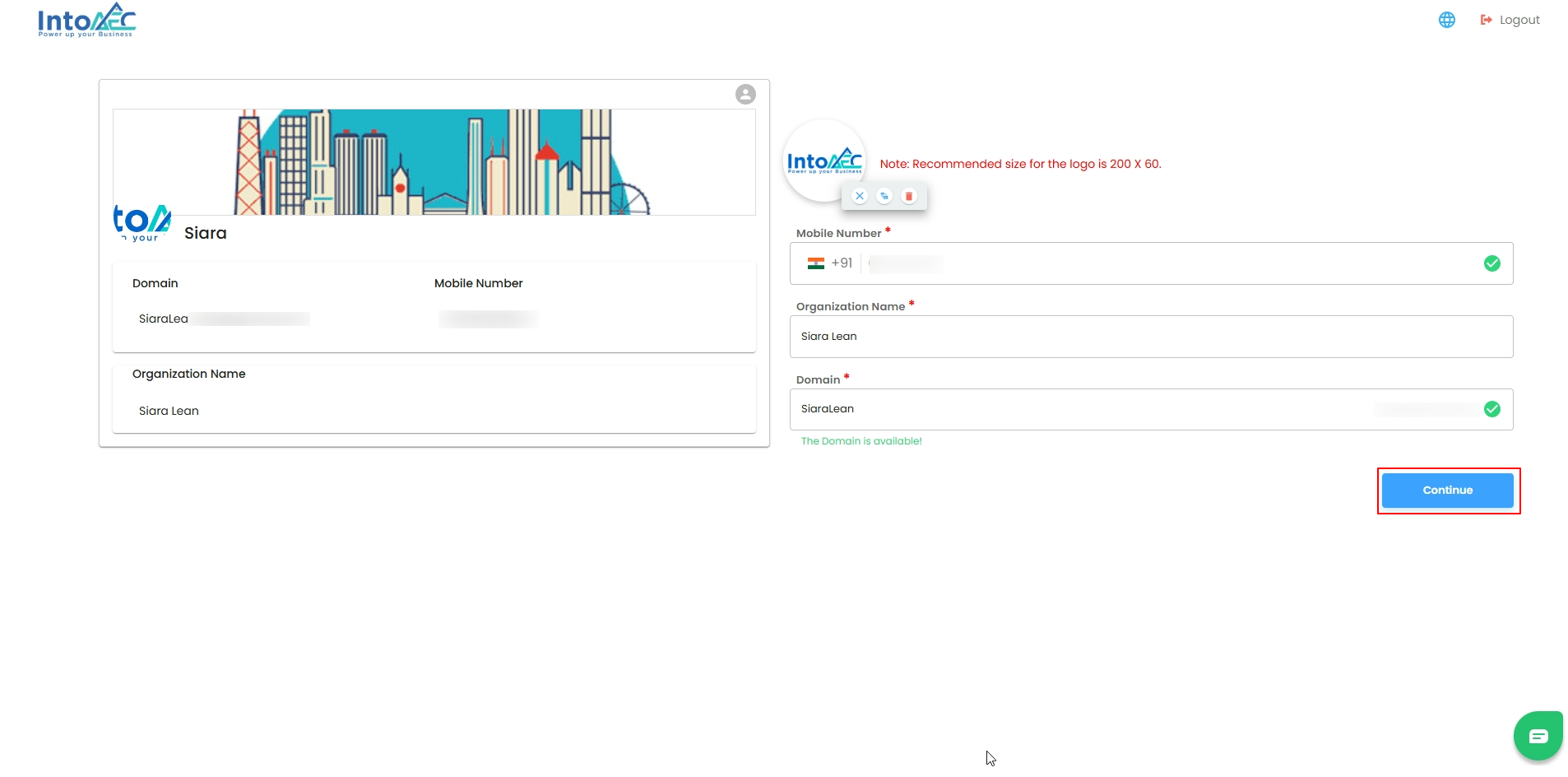
What Happens Next?
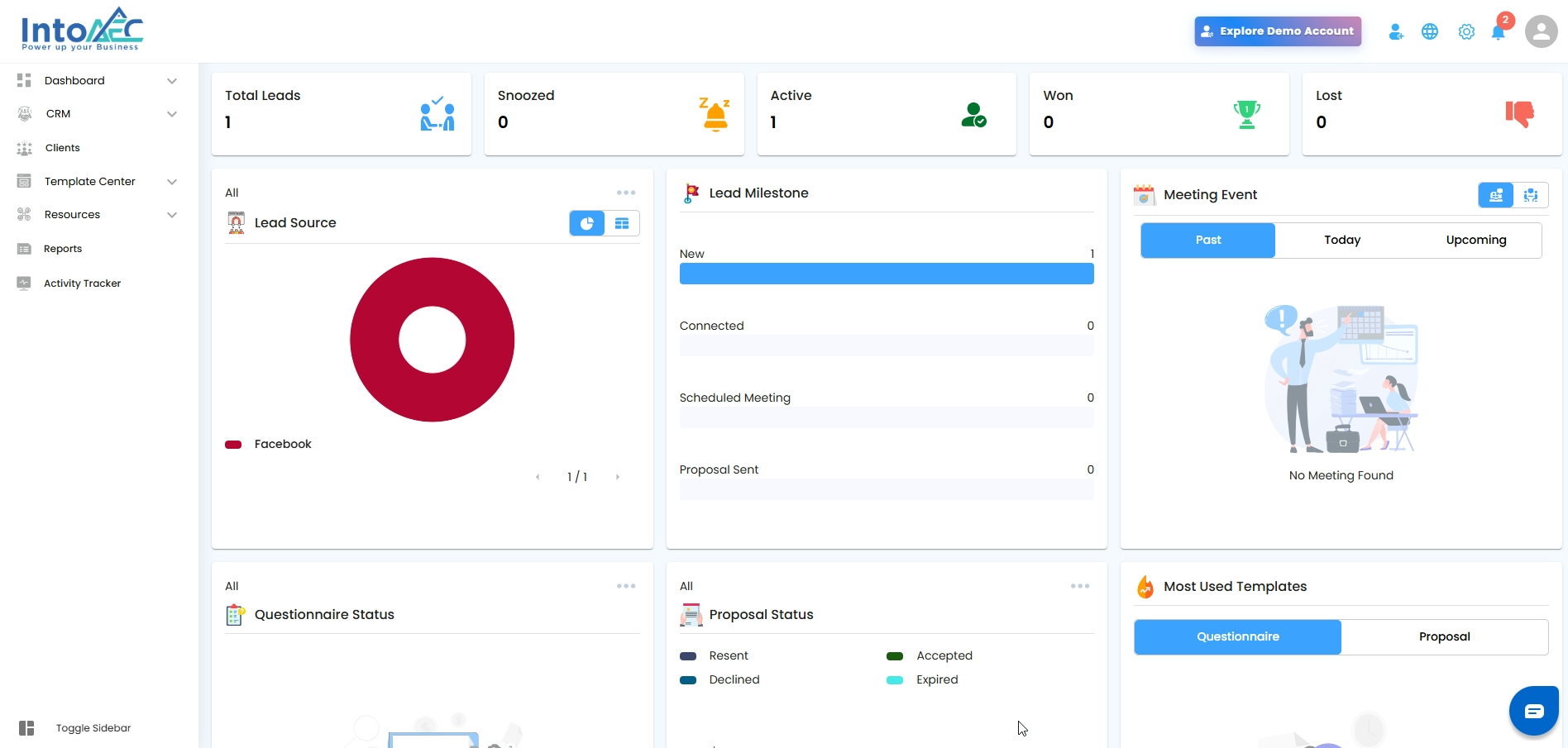
You’ll be instantly redirected to your Dashboard, where you can begin exploring the platform, adding your data, and setting up your workflow.
Why This Page Matters
This Onboarding page helps you:
Establish your branding from the start
Ensure your domain is unique and professional
Set up a clean workspace before you begin using the system
Provide consistent details across modules like Estimates, P.O., Clients, and more
Pro Tip
Use a simple and recognizable domain name—it becomes part of your workspace URL.
For the best visual quality, always upload a logo in the recommended 200 × 60 px size.
Was this article helpful?
That’s Great!
Thank you for your feedback
Sorry! We couldn't be helpful
Thank you for your feedback
Feedback sent
We appreciate your effort and will try to fix the article