Google Configuration
Bring your workflow and data under one roof — with Google seamlessly integrated into IntoAEC.
When Google connects with IntoAEC, collaboration becomes effortless. Your files, contacts, and schedules align perfectly with your projects, ensuring smooth coordination and productivity. No switching tabs, no manual syncs — just unified, real-time access across your workspace.
How to Configure Google
Step into the Integration Hub
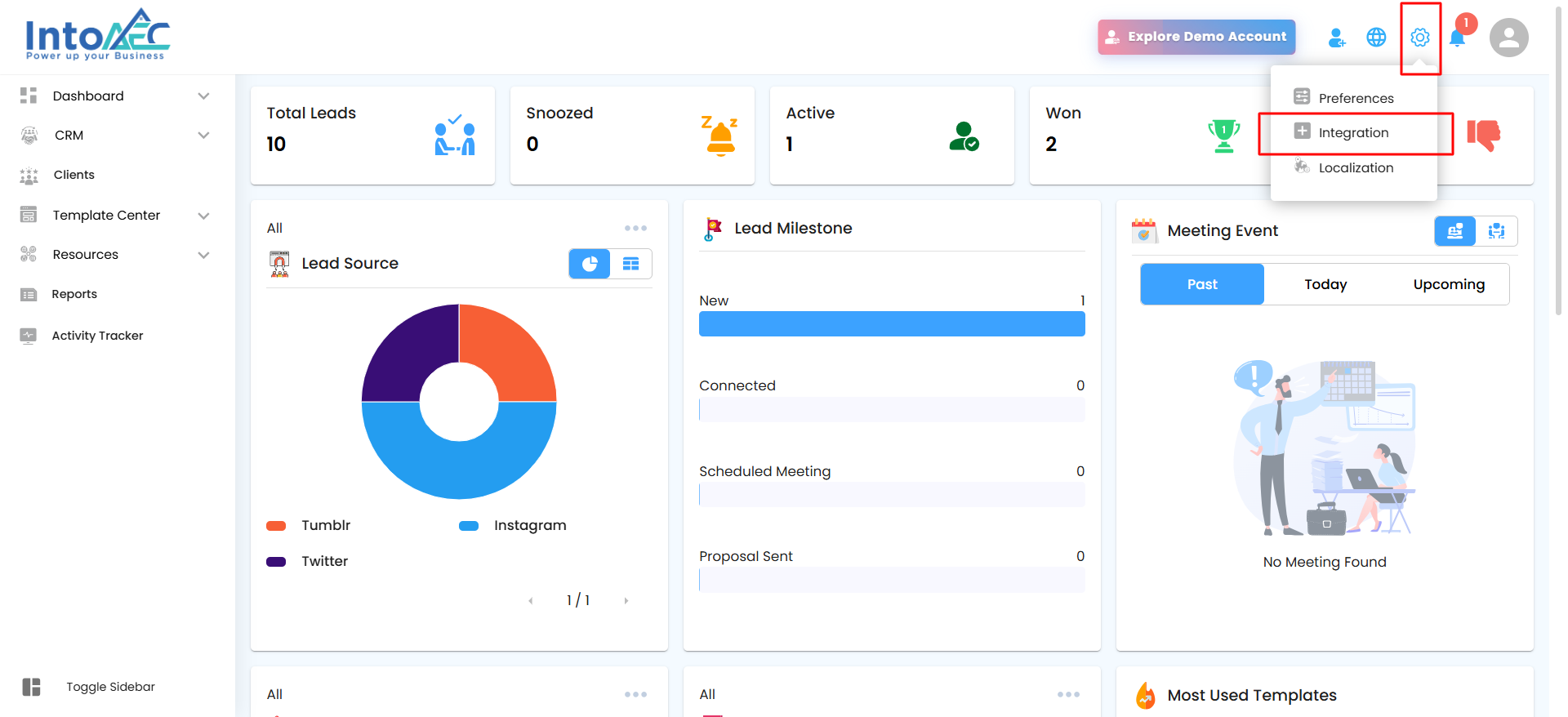
- Navigate to Settings → Integration and select Google Configuration to connect your Google account.
On the Integration page, spot Google and hit Connect.
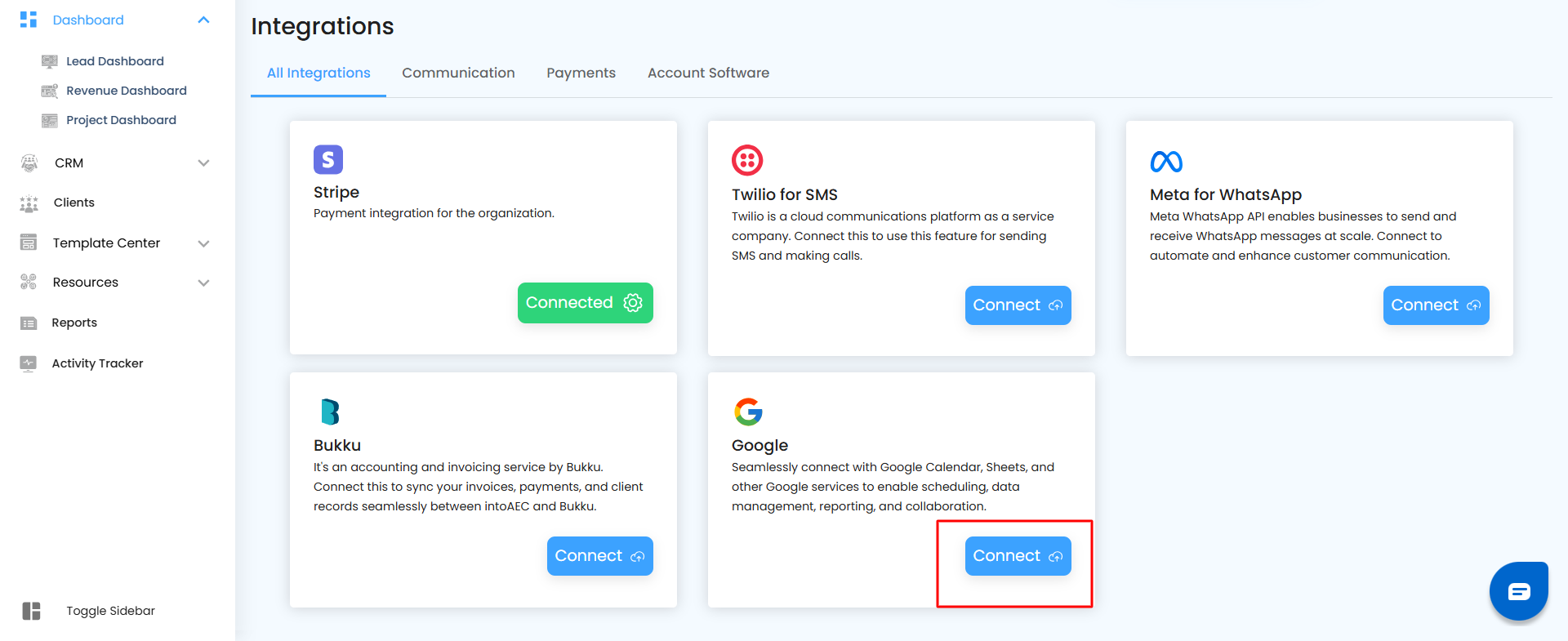
Click Configure
Signing In with Google
- When setting up your integration, the process is quick, simple, and secure.
- A Google Sign-in popup will appear on your screen.
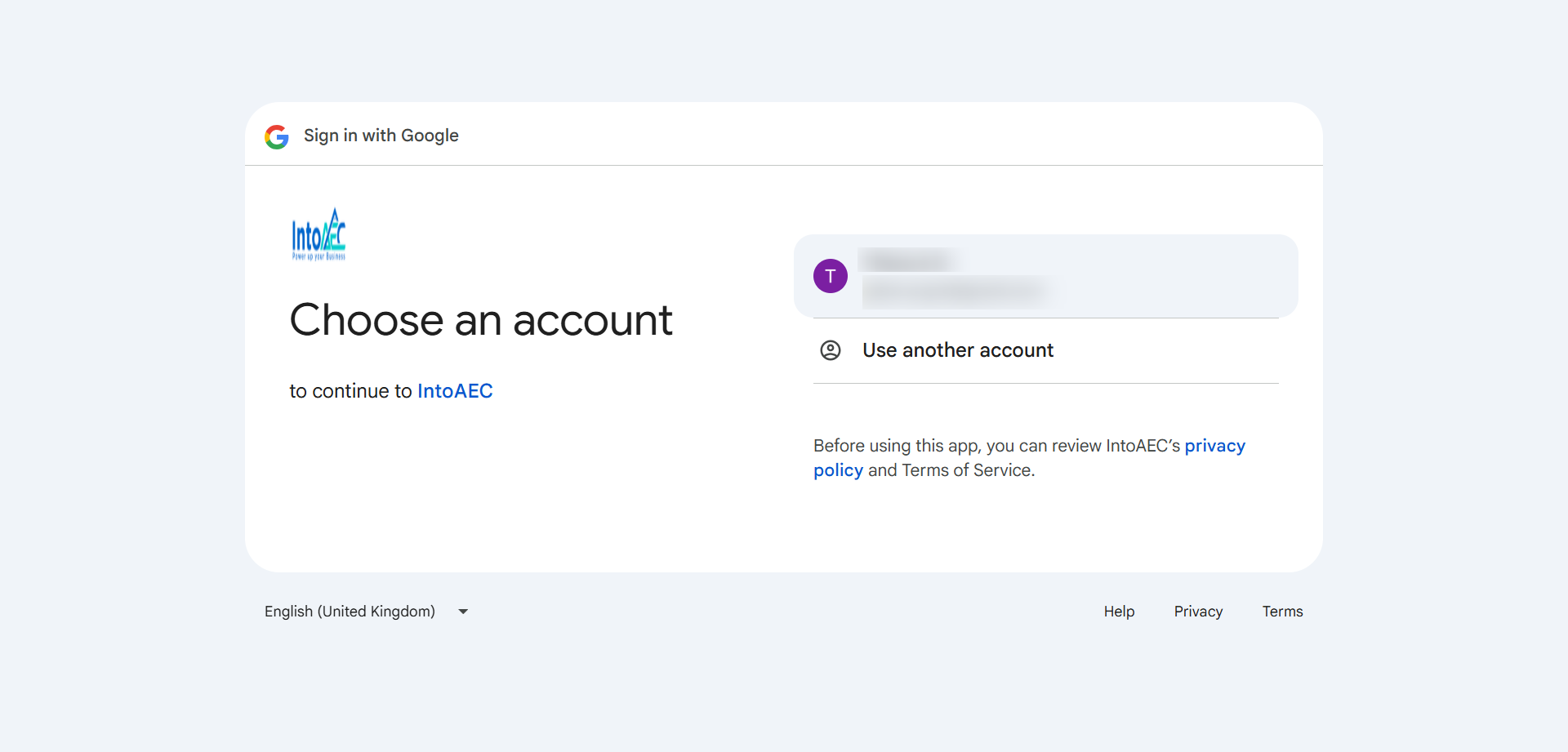
- Choose the Google account you want to connect with IntoAEC and grant the required permissions.
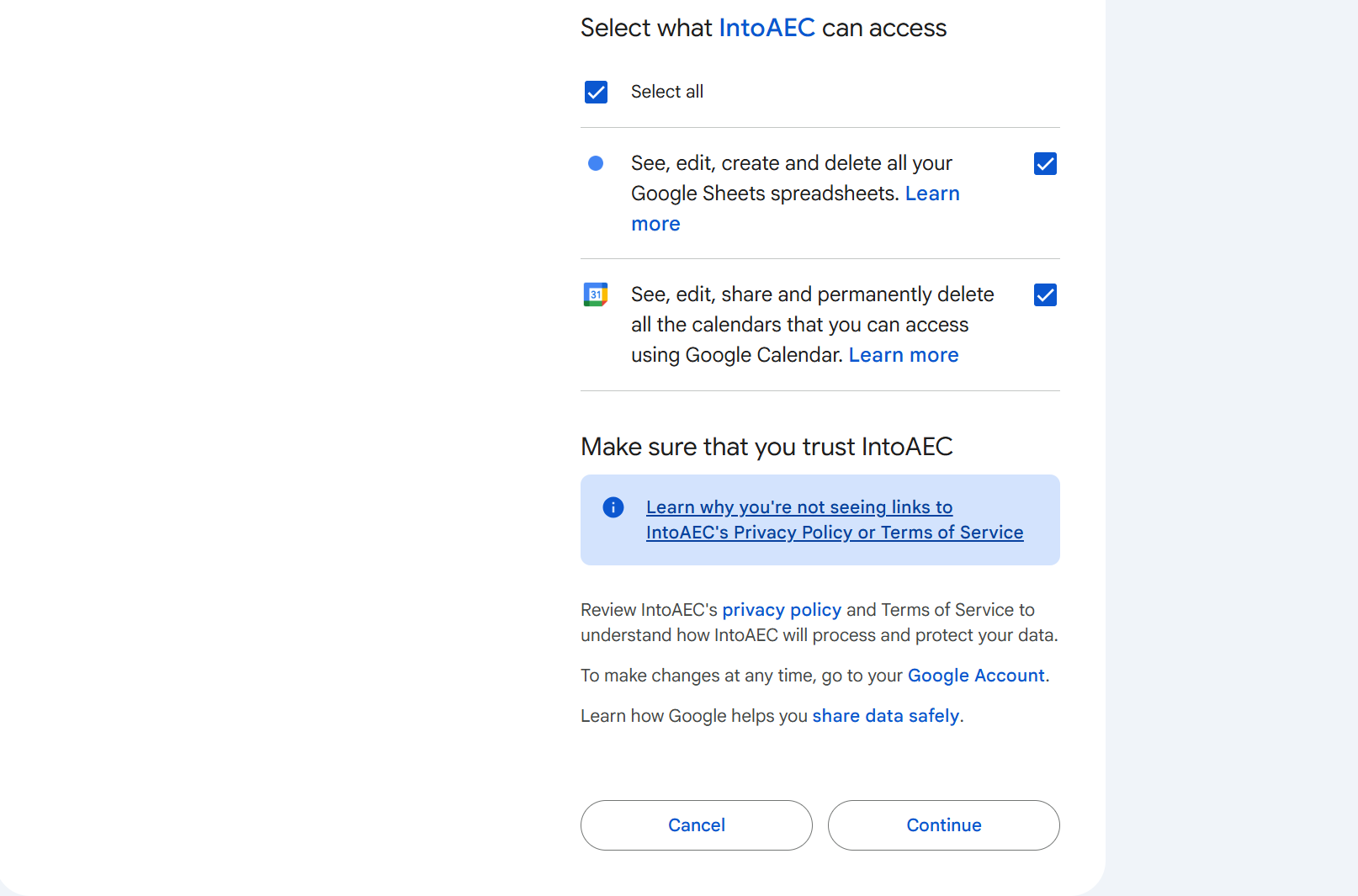
- Next, review the permissions carefully—these allow your data to sync smoothly and securely.
- Once reviewed, click Continue to complete the connection.
Configure Google Account – Stay in Sync Effortlessly
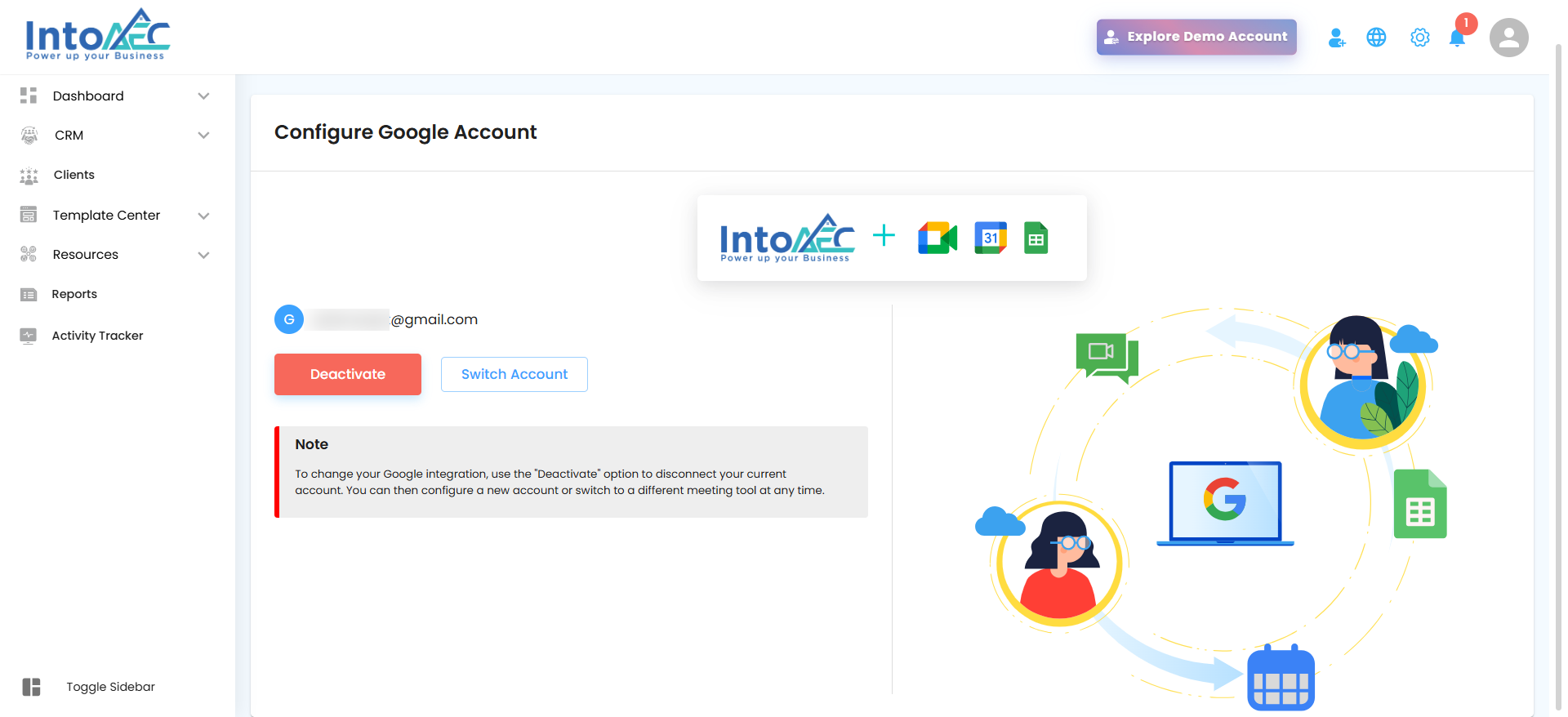
Once your Google integration is set up, managing your connected account is simple and intuitive. This section gives you full control over your Google connection — whether you want to switch accounts, deactivate, or verify your setup.
What You Can Do Here
- View Connected Account: Instantly see which Google account is currently active.
- Switch Account: Need to use another email for meetings or sheets? Switch seamlessly without losing your setup.
- Deactivate Integration: Disconnect your current Google account anytime with a single click.
How It Works
- After signing in, your connected Google account will appear on this page.
- To disconnect, click Deactivate.
- To link a different account, select Switch Account and follow the sign-in steps.
Note
- To change your Google integration, use the Deactivate option first. Once disconnected, you can add a new account or switch to another meeting tool at any time.
Pro Tip
For smoother collaboration, always connect the same Google account used for your calendar and sheets — it keeps all your meetings, tasks, and data perfectly aligned
Was this article helpful?
That’s Great!
Thank you for your feedback
Sorry! We couldn't be helpful
Thank you for your feedback
Feedback sent
We appreciate your effort and will try to fix the article