Role-Based Features in IntoAEC help administrators control user access by assigning permissions based on specific roles. This ensures that every team member can access only the modules and features relevant to their responsibilities.
Steps to Configure Role-Based Features
Step 1: Open User Hub
Navigate to the top-right corner of the dashboard and click the profile/settings menu. From the dropdown options, select User Hub.
This section is used to manage users, teams, and permission settings within the organization.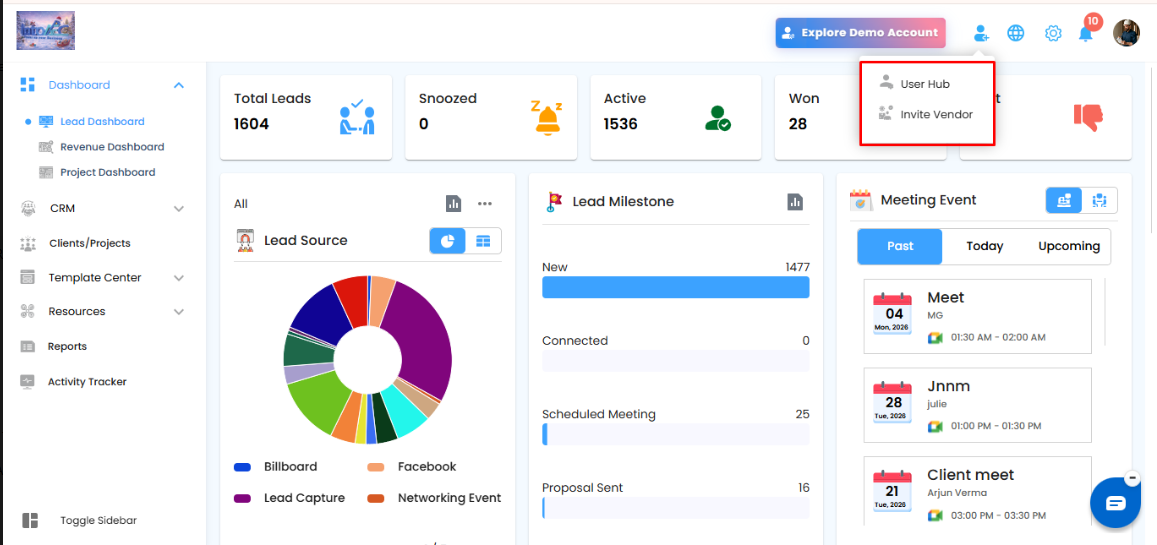
Step 2: Open Invite User
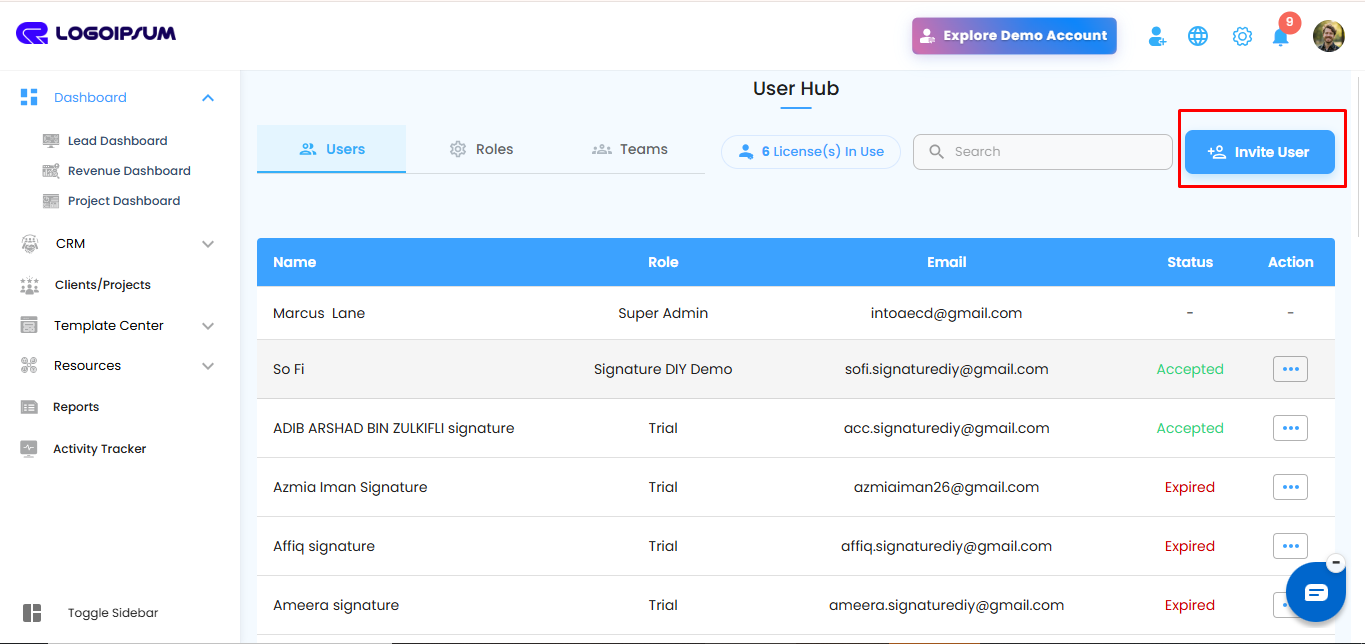
Inside the User Hub, click the Invite User button available at the top-right corner of the page.
The Invite User screen allows administrators to add new users and define their access permissions.
Step 3: Configure Role-Based Permissions
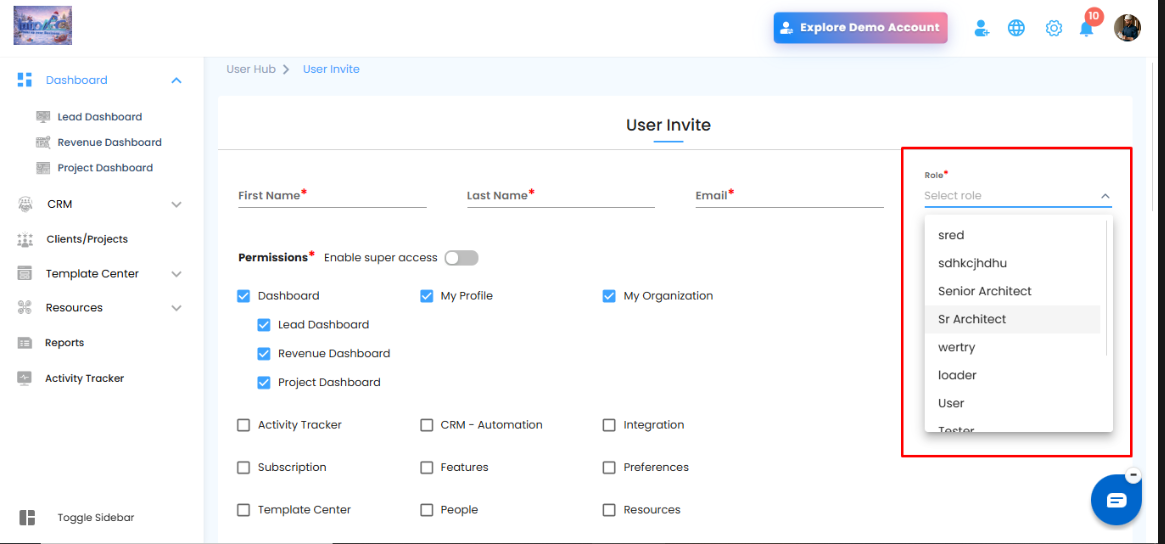
On the User Invite screen, enter the required user details such as:
- First Name
- Last Name
- Email Address
After entering the user details:
- Select a role from the Role dropdown list.
- Enable or disable permissions based on the user’s responsibilities.
- Assign module-level access using the available checkboxes.
Available Permission Controls
Administrators can provide access to modules such as:
- Dashboard
- Lead Dashboard
- Revenue Dashboard
- Project Dashboard
- Activity Tracker
- CRM – Automation
- Integration
- Subscription
- Features
- Preferences
- Template Center
- People
- Resources
- My Profile
- My Organization
Was this article helpful?
That’s Great!
Thank you for your feedback
Sorry! We couldn't be helpful
Thank you for your feedback
Feedback sent
We appreciate your effort and will try to fix the article