How to Add and Manage Call Logs for a Lead
Overview
The Call Log feature keeps a record of every call you make to a lead. You can upload the recorded audio and get an automatic summary, or just note down what happened manually. Either way, the call gets logged against the lead so anyone on the team can look back and see what was discussed.
Prerequisites
The lead you're logging a call for must already exist in your CRM.
Adding a Call Log
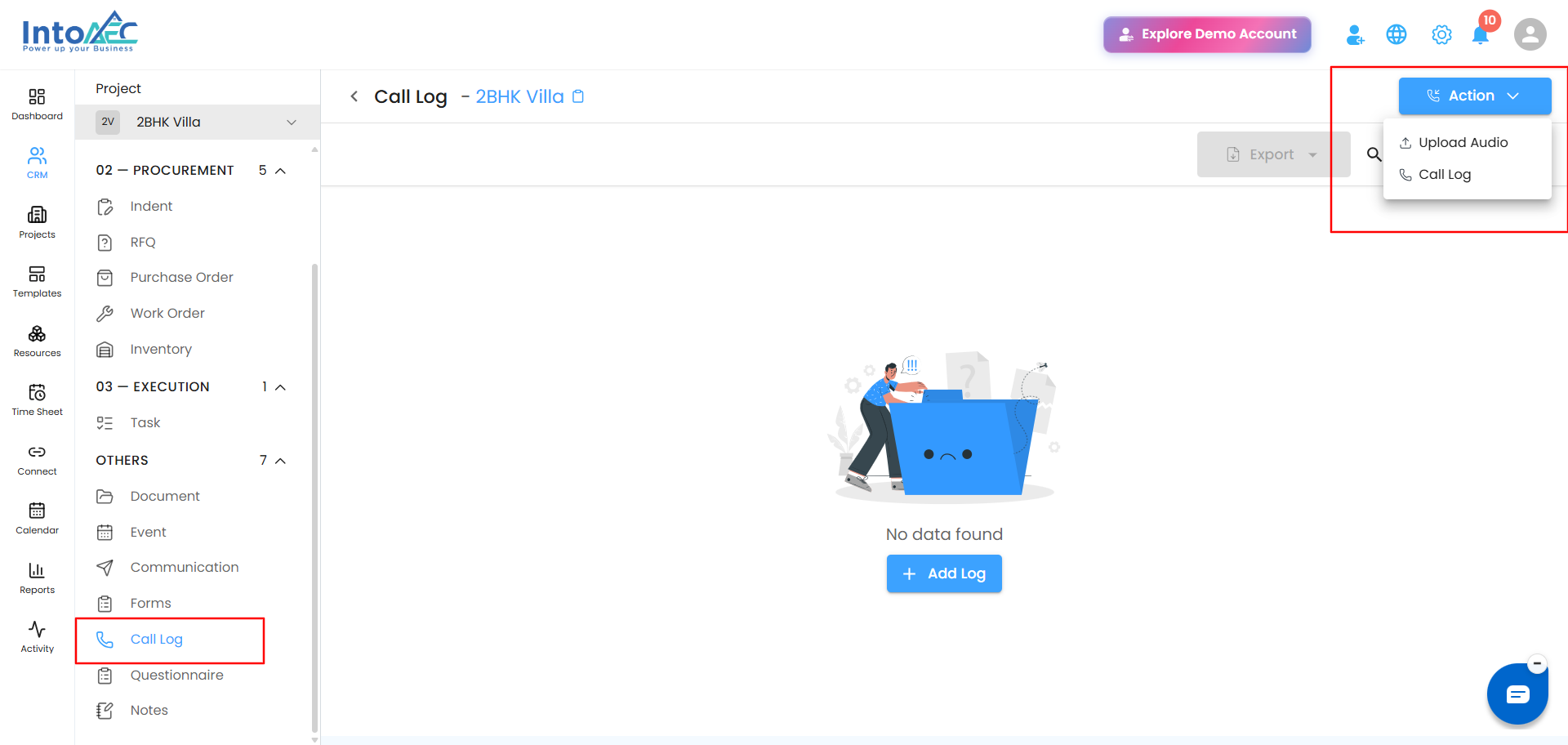
Step 1. Open the lead, then go to the Call Log tab.
Step 2. Click Action in the top right, then choose how you want to log the call:
- Upload Audio - attach a recording of the call
- Call Log - skip the recording and fill in the details yourself
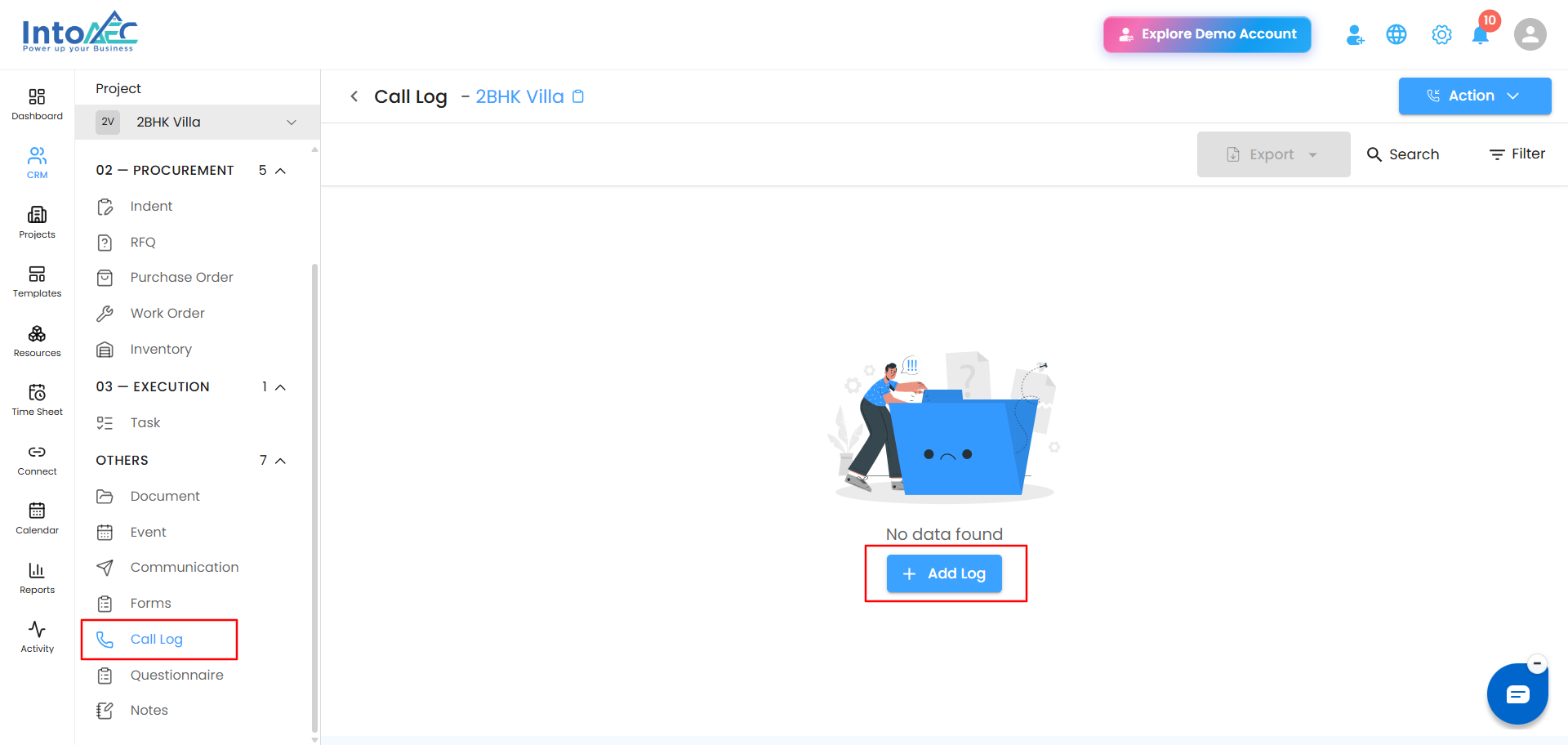
 If there's no call logged yet, you'll see an empty state with an Add Log button - this opens the same form.
 If you upload audio:
The call recording appears with a playback bar so you can listen back. Click Summarize to get an automatic summary of what was discussed - handy if you don't want to relisten to the whole call before filling in the details.
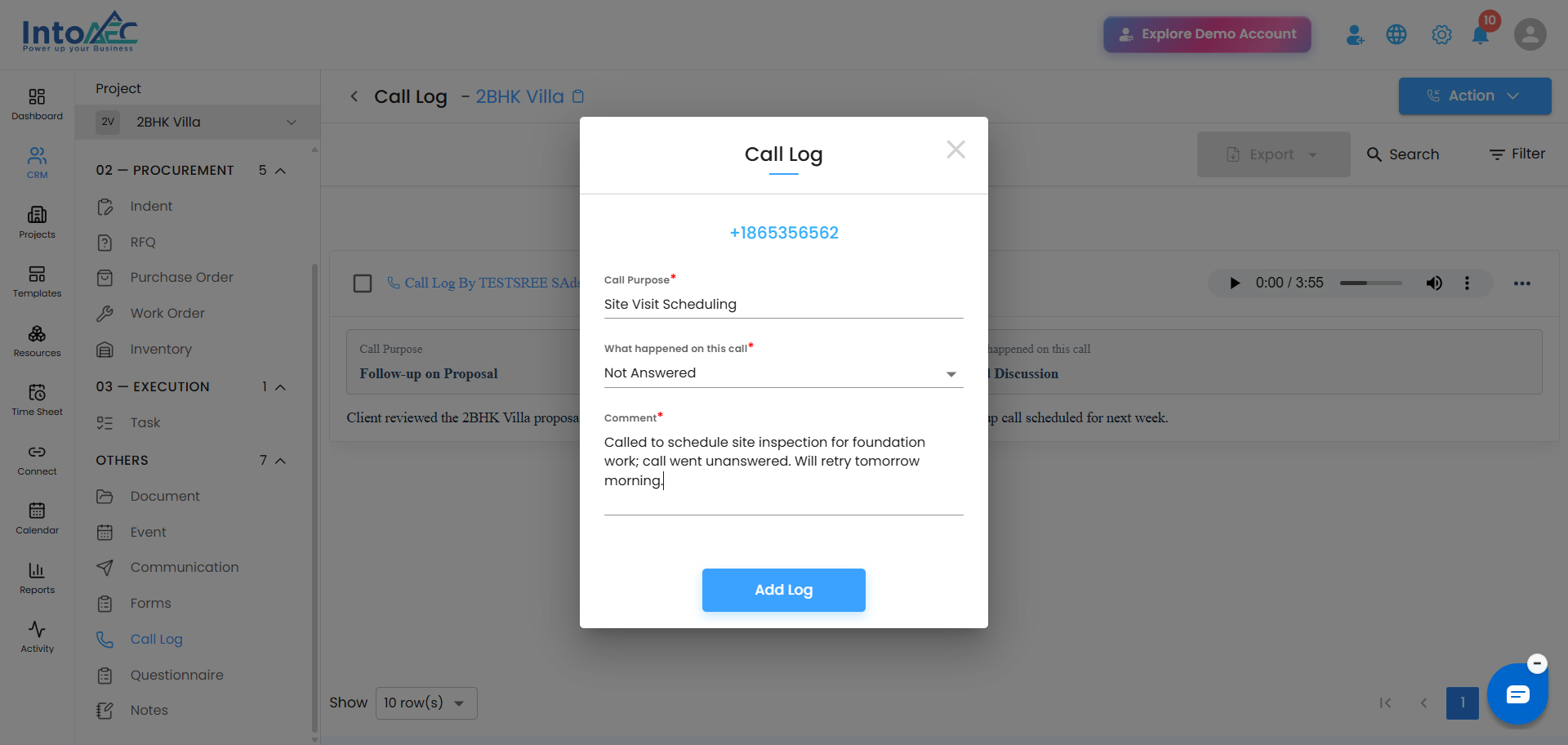
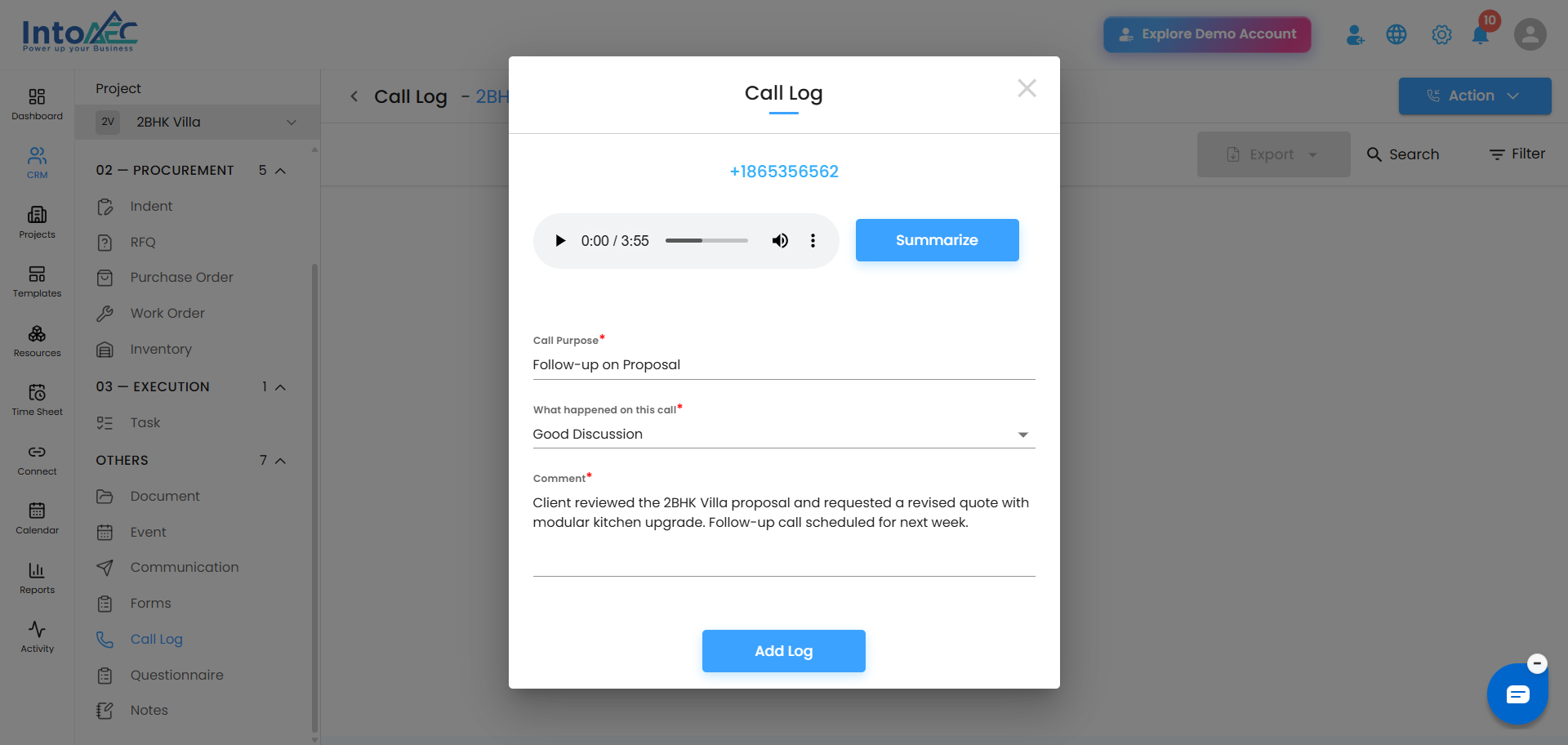 Then fill in:
- Call Purpose - why the call was made (required)
- What happened on this call - pick an outcome: Good Discussion, Call Later, Not Answered, or Not Interested (required)
- Comment - any additional notes (required)
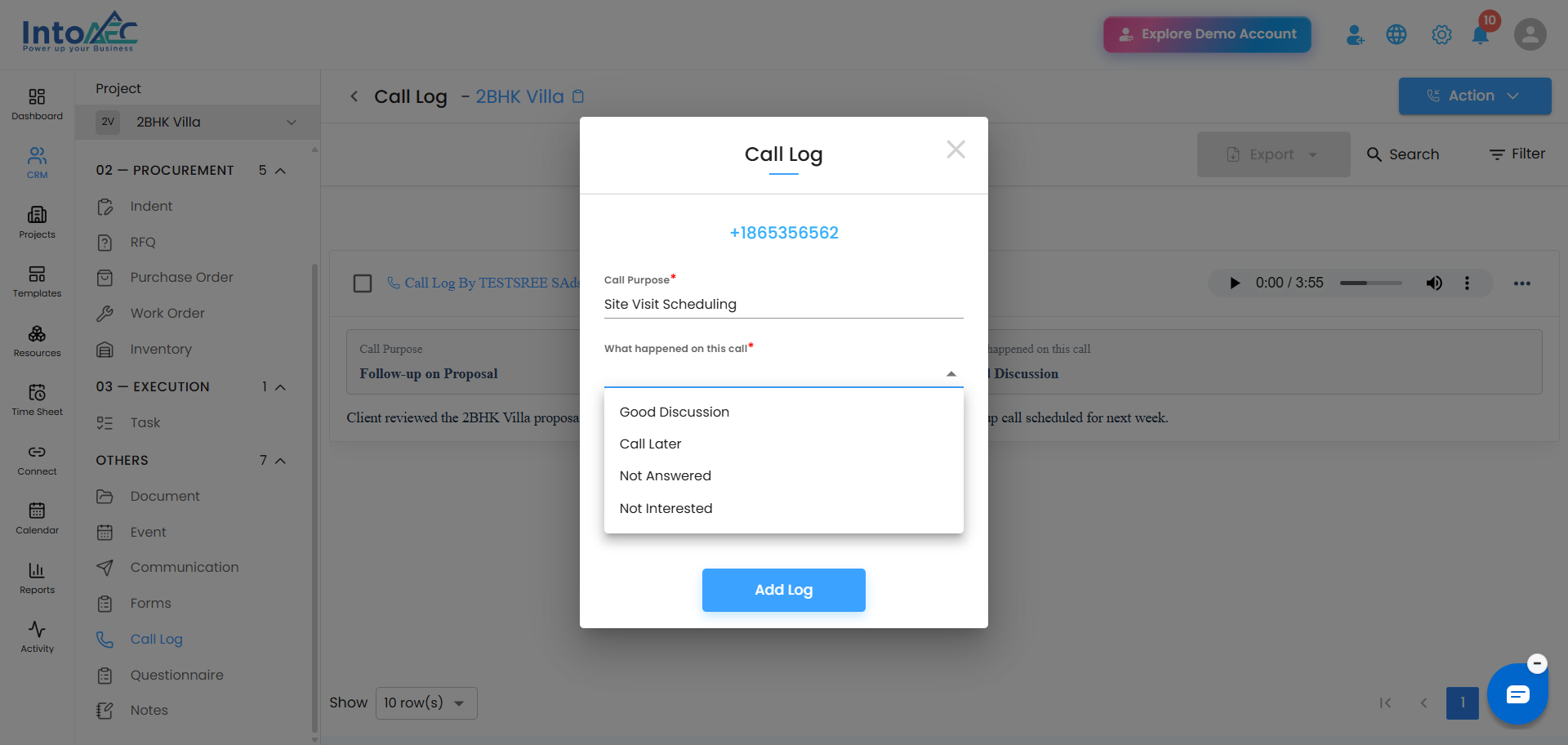 Step 3. Click Add Log to save it.
 Editing or Deleting a Call Log
Open any existing call log entry to edit the details, or delete it if it was logged by mistake.
Exporting Call Logs
Click Export at the top of the Call Log list to download all logs as an Excel file.
Filtering and Searching Call Logs
Use the search bar to find a specific call log, or filter the list by who created the entry (user role) or by a date range to see activity within a specific period.
Was this article helpful?
That’s Great!
Thank you for your feedback
Sorry! We couldn't be helpful
Thank you for your feedback
Feedback sent
We appreciate your effort and will try to fix the article