Syncing Invoices with Bukku – Keep Your Financial Data Aligned
Once you've integrated Bukku with IntoAEC, keeping your financial records in sync is simple and seamless. Whether it’s Invoices, Credit Notes, Payments, or Refunds, everything stays accurate and up-to-date across both platforms.
Connect Bukku with IntoAEC
Before syncing can begin, you’ll need to connect Bukku with IntoAEC.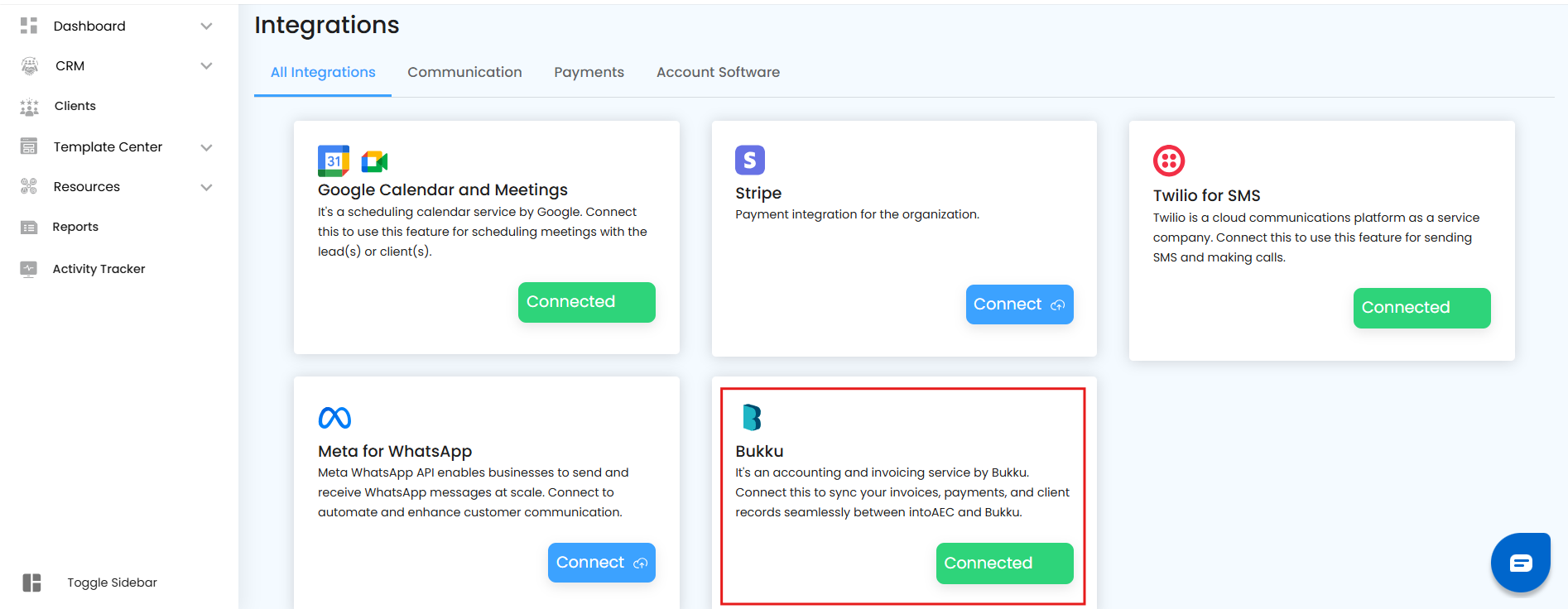 Click here to learn how to set up the integration.
Manual Sync – Right From Money Matters
Need real-time updates? Whether you're reconciling accounts, meeting a client, or closing your books, you can trigger manual syncing directly from the Money Matters section.
Here's How It Works:
1. Copy and Paste Project ID in Bukku
Open IntoAEC, Go to the Projects list.
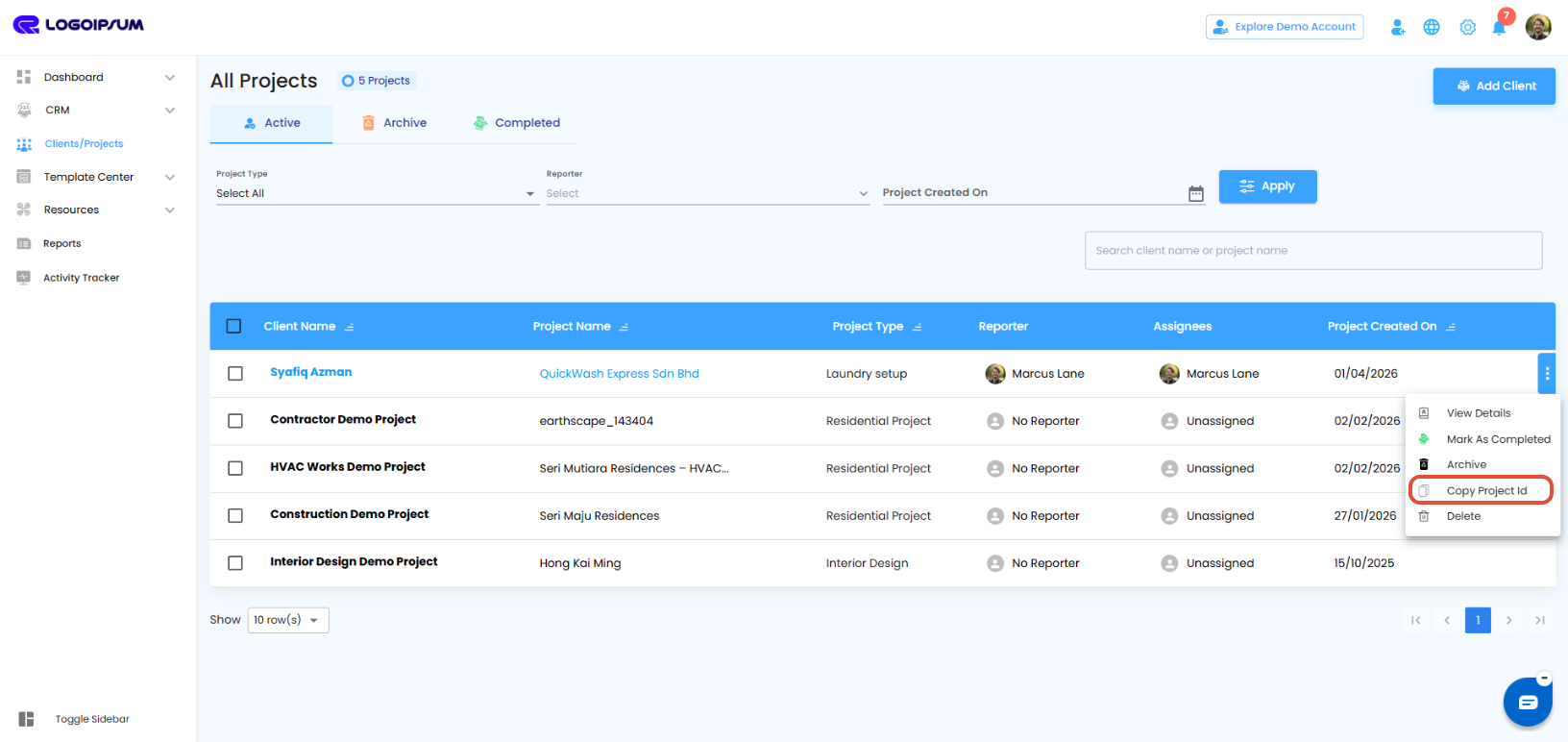
Click on the three dots (⋮) next to the project and select 'Copy Project ID', or open the project and copy the Project ID using the copy icon.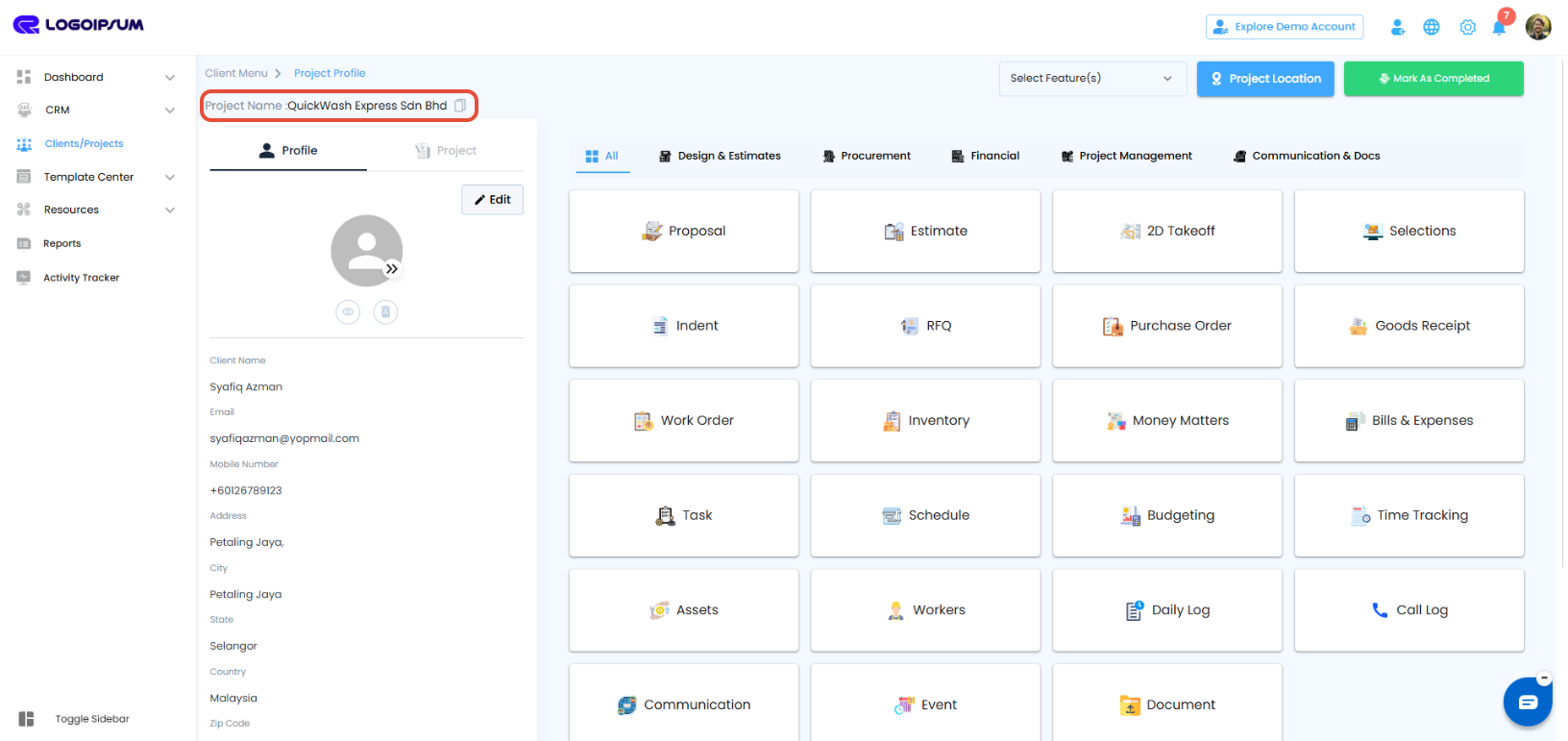
Log in to Bukku, Paste the IntoAEC Project ID into the relevant field in Bukku.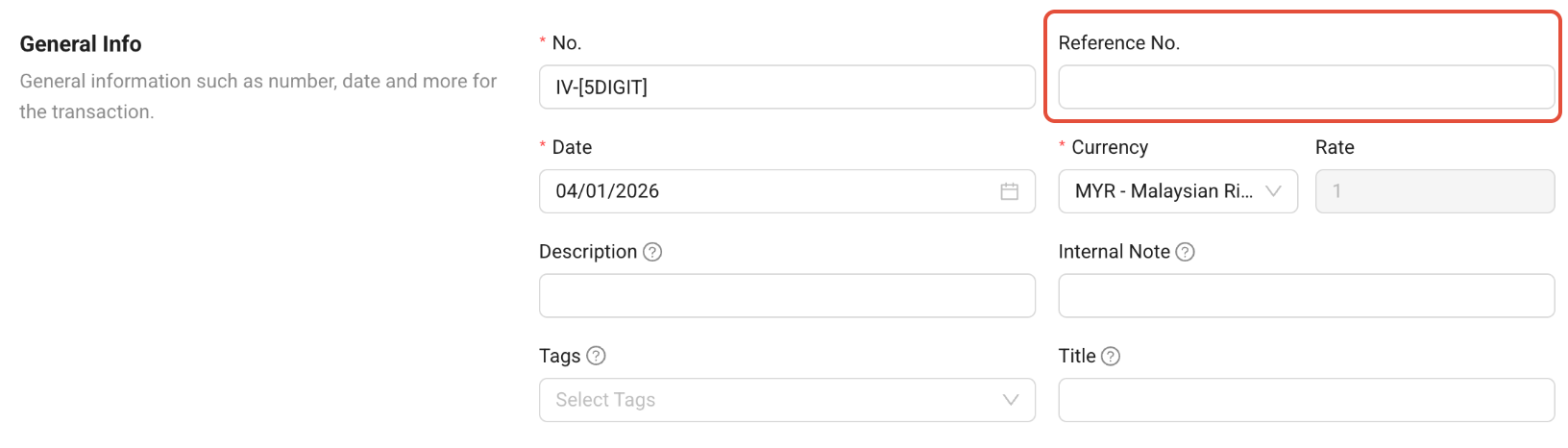
From within each Money Matters module — Invoice, Credit Note, Payment, or Refund — you can sync records separately with a single click.
2. Sync Bukku Payments
Go to Money Matters in IntoAEC.
Open the section you want to sync:
Invoices
Credit Notes
Payments
Refunds
- Click the Sync from Bukku button.
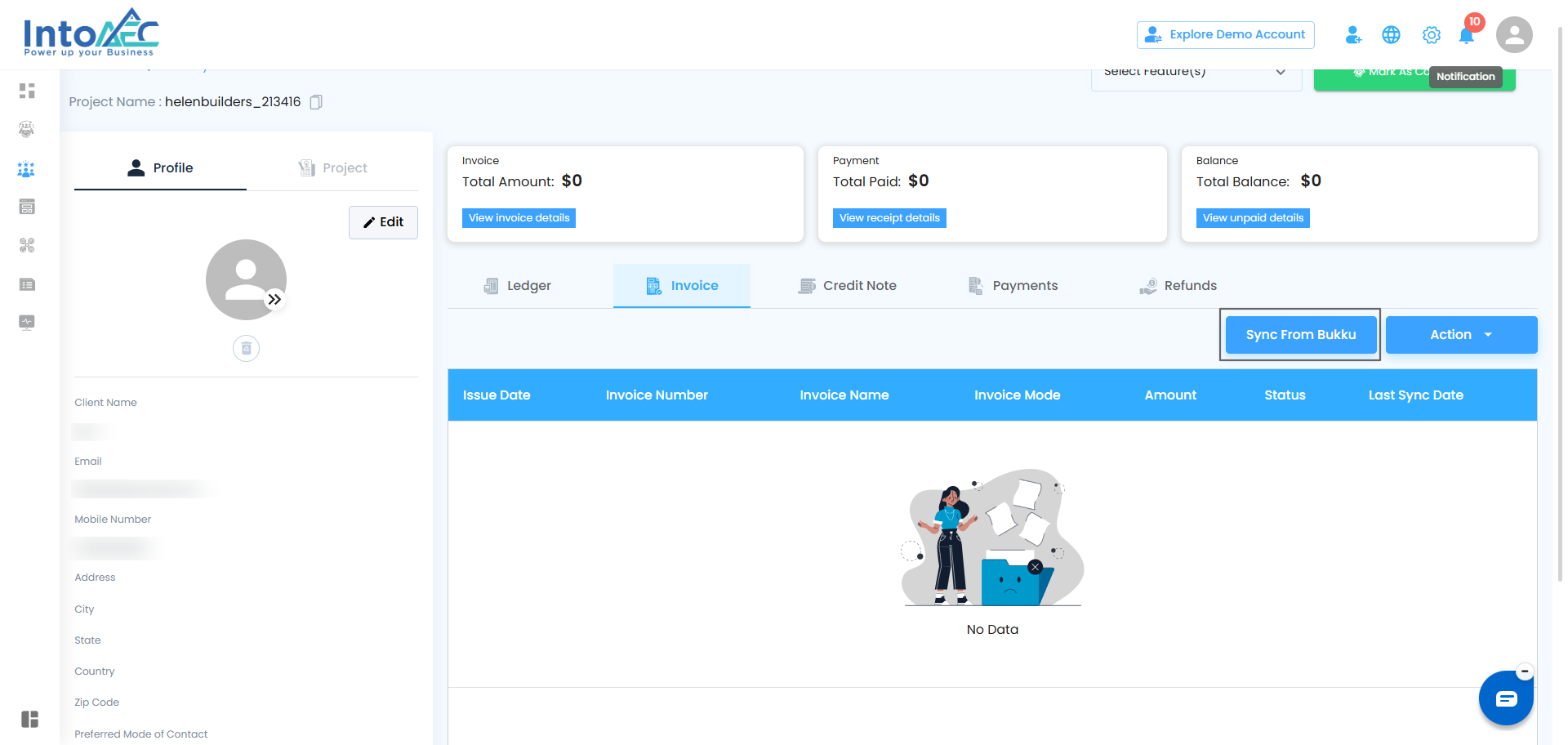
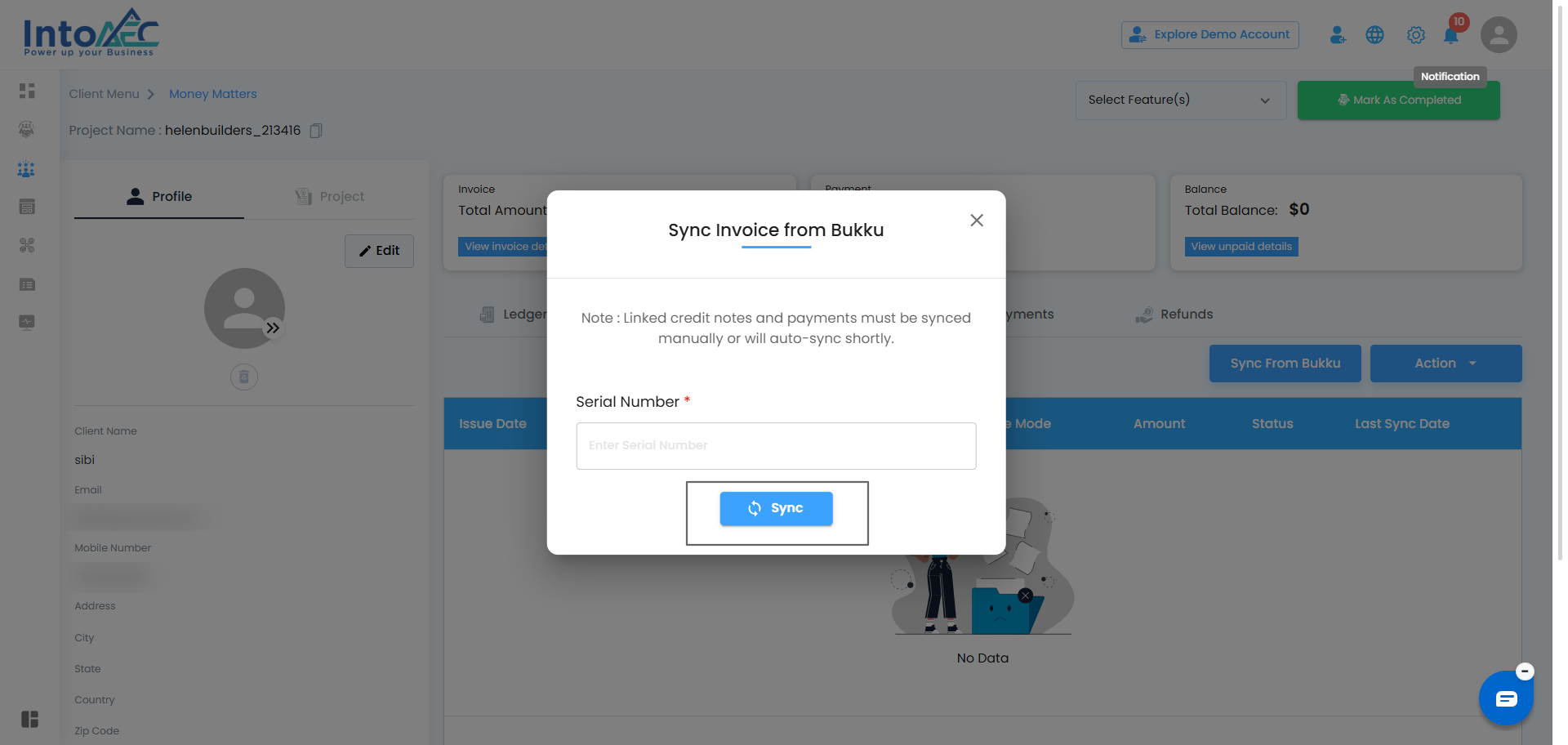
- A popup will appear, Enter the Serial Number of the record you want to sync in the text field.
To get the Serial Number go to Bukku, copy the Project ID.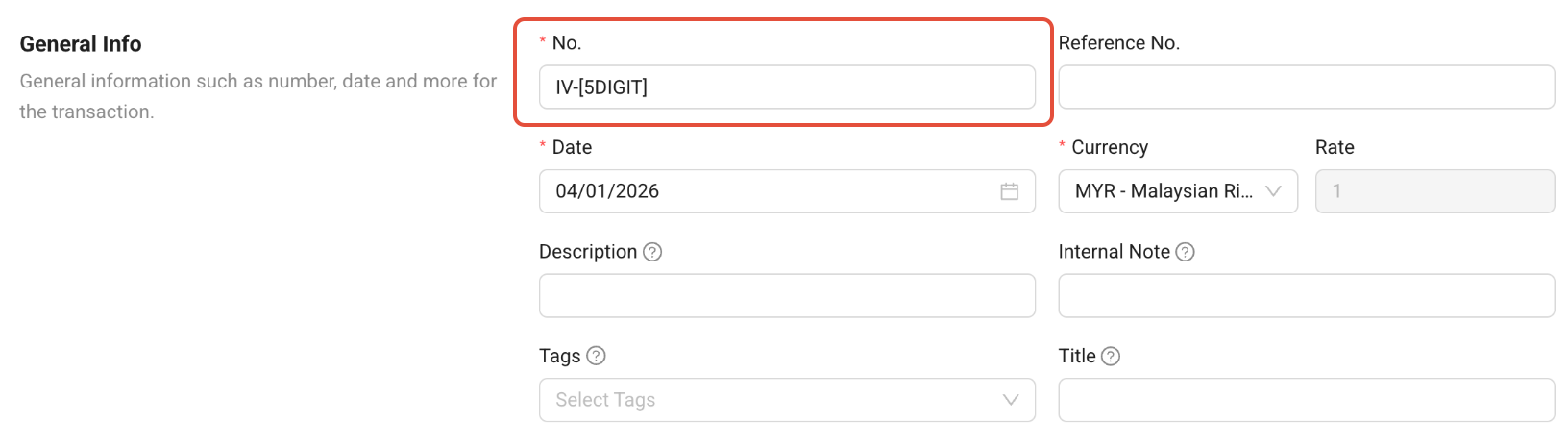
- Now hit Sync – and the data is instantly updated in IntoAEC.
Automatic Syncing
Once the integration is active, all financial records created in Bukku — including Invoices, Credit Notes, Payments, and Refunds — will be automatically reflected in IntoAEC shortly after creation.
This ensures your financial data stays consistent without any manual effort.
The respective Invoice, Credit Note, Payment, or Refund will be instantly pulled from Bukku and linked in IntoAEC.
Doing a month-end closing, handling a client query, or preparing for an audit?
Use the manual sync option in each Money Matters section to ensure your data is fully up-to-date before you finalize reports or make decisions.
Was this article helpful?
That’s Great!
Thank you for your feedback
Sorry! We couldn't be helpful
Thank you for your feedback
Feedback sent
We appreciate your effort and will try to fix the article