Set the Record Straight: Create and Manage Credit Notes
Billed a little too much? Client paid extra? Materials returned from site? It happens on every project. A credit note lets you fix it the right way, without cancelling your original invoice.
What Is a Credit Note?
A credit note is a document you give your client to reduce the amount they owe on an invoice you've already sent. Think of it as an "IOU" from you to your client.
You'll use it most often for:
- Overpayments: Your client paid more than they needed to.
- Returned goods: Materials or items were sent back.
- Billing mistakes: Something on the invoice was charged incorrectly.
Find Your Credit Notes
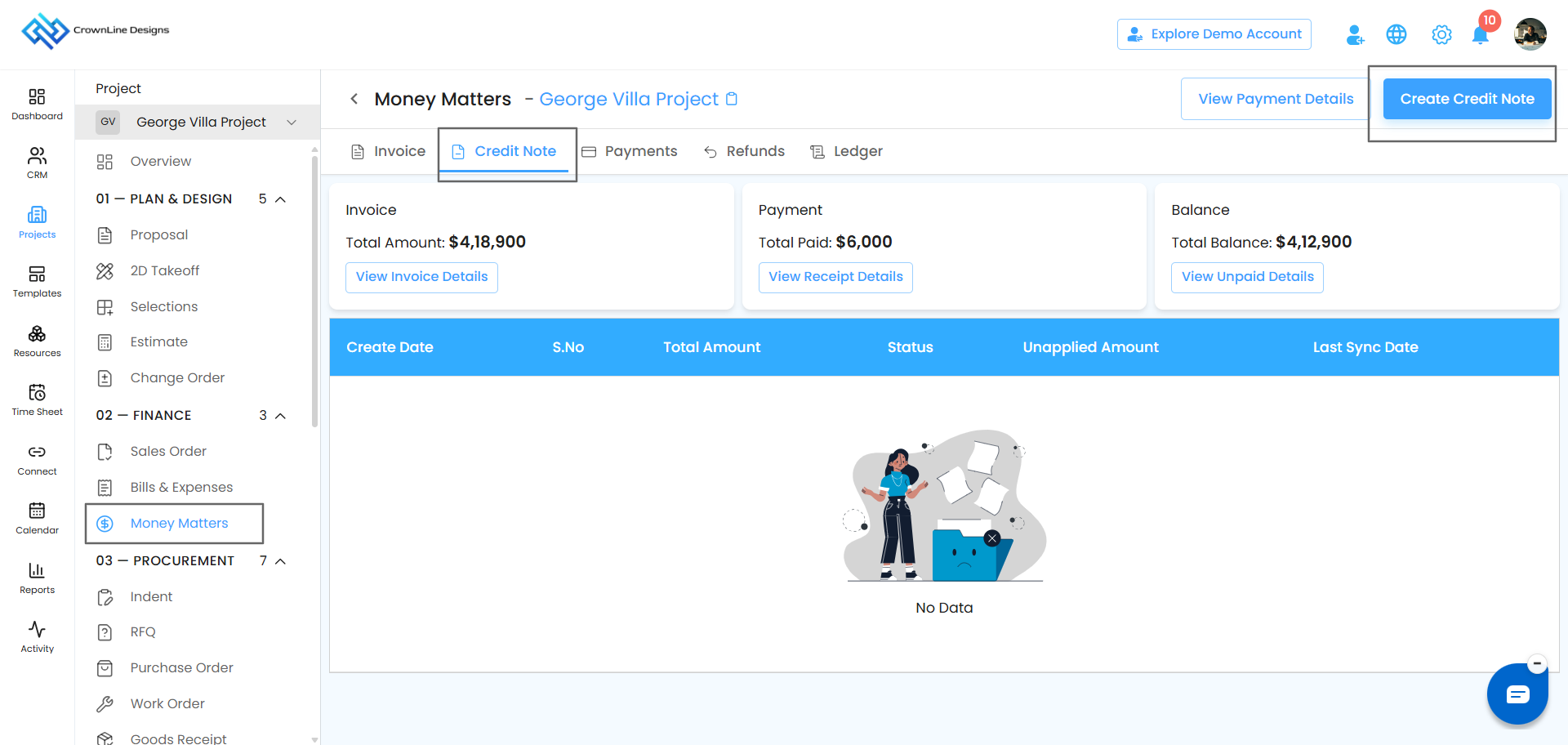
- Open Money Matters from the side menu.
- Click the Credit Note tab.
If you haven't created any credit notes yet, you'll see a "No Data Found" message. That's normal, and you're ready to create your first one.
Create a Credit Note
- On the Credit Note page, click Create.
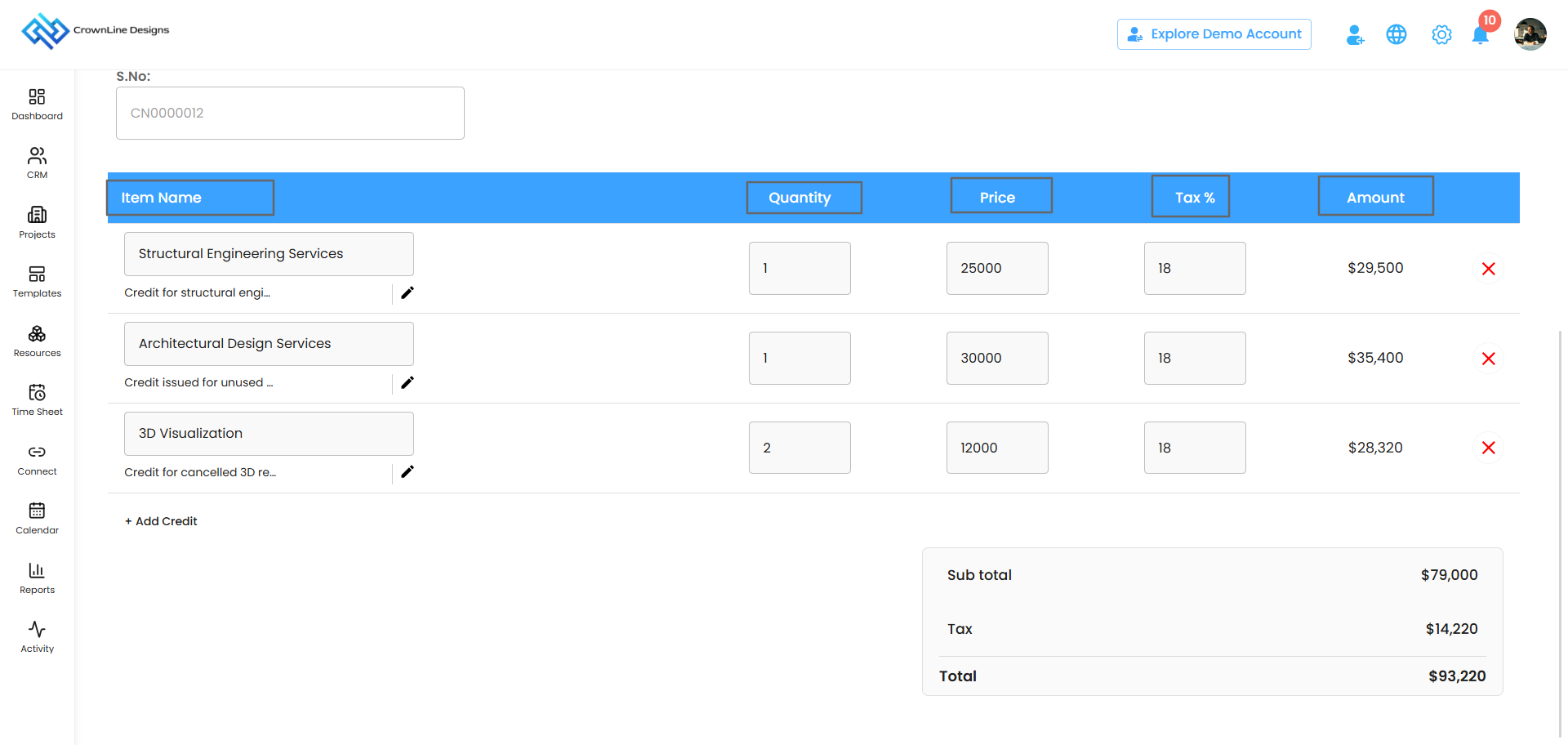
- The Create Credit Note form opens.
- Add a new credit entry and enter the quantity, price, and tax.
- The total amount is calculated for you automatically.
- Click Create, and your credit note is ready!
Where You'll Find It
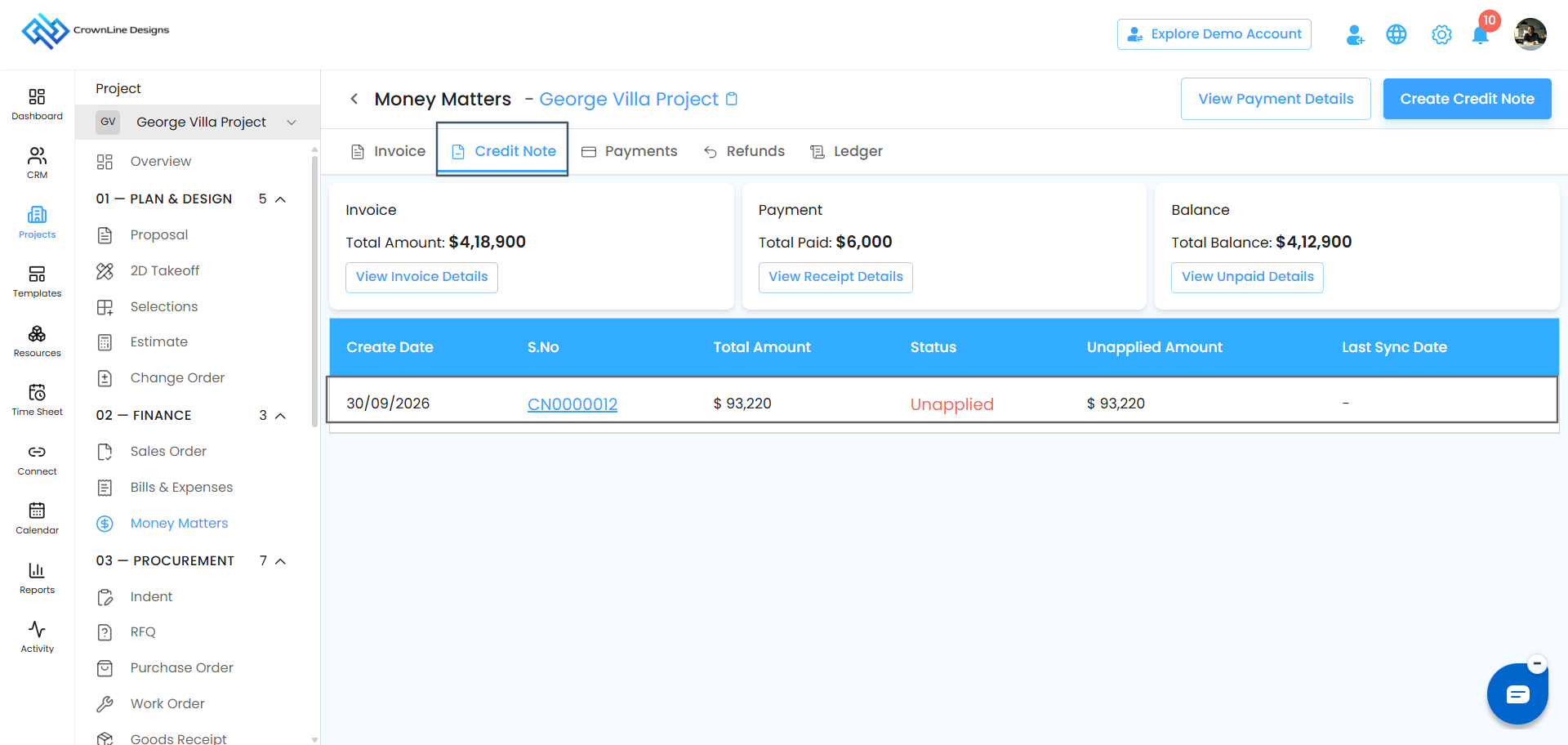
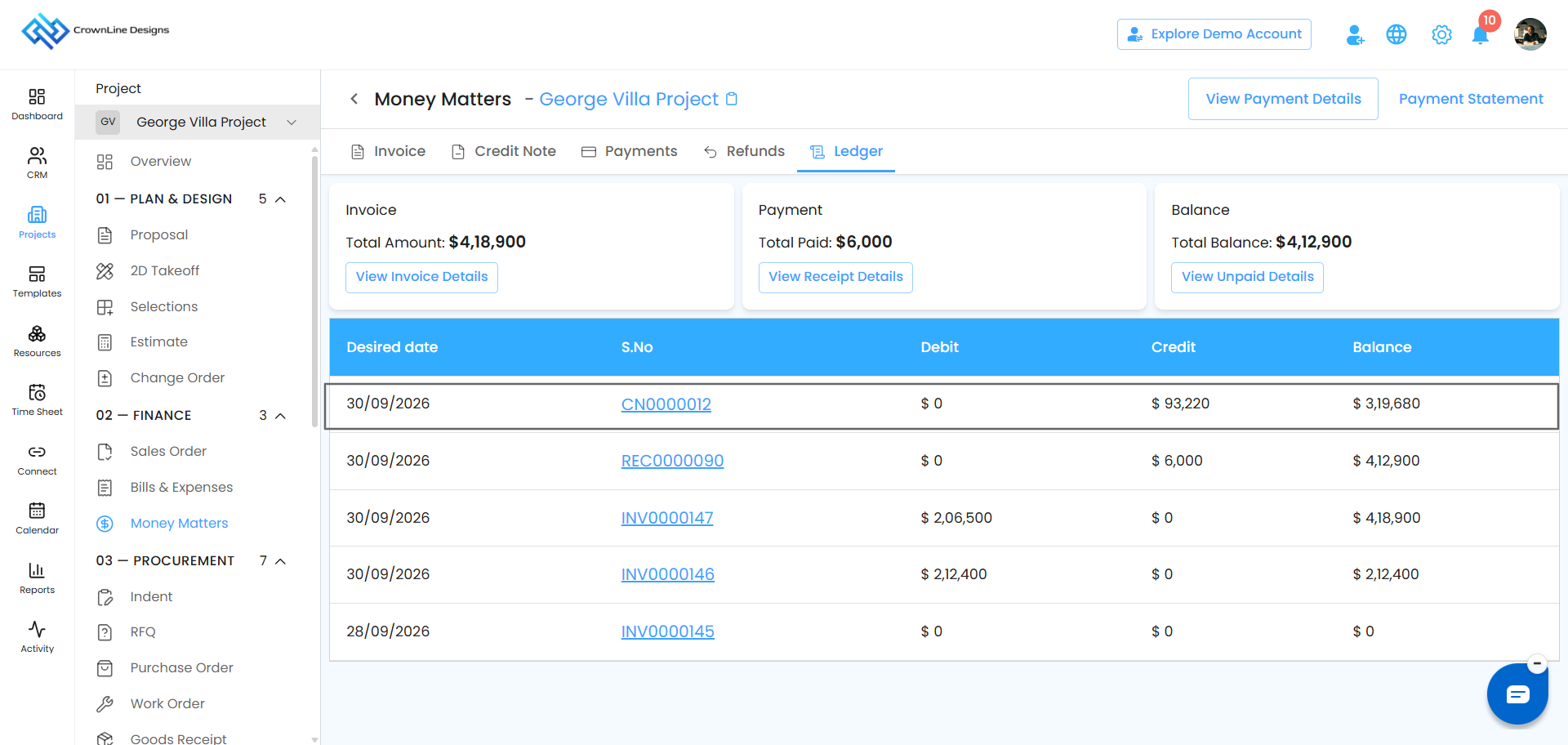
Once created, your credit note shows up in two places:
- The Credit Note tab.
- The Ledger under Money Matters, so your accounts always stay accurate.
Understand Credit Note Statuses
Each credit note shows a status, so you always know how much of it has been used. The status updates automatically as you use it.
Unapplied: Ready to Use
None of the credit has been used yet, so the full amount is available. You can edit, apply, delete, or void it.
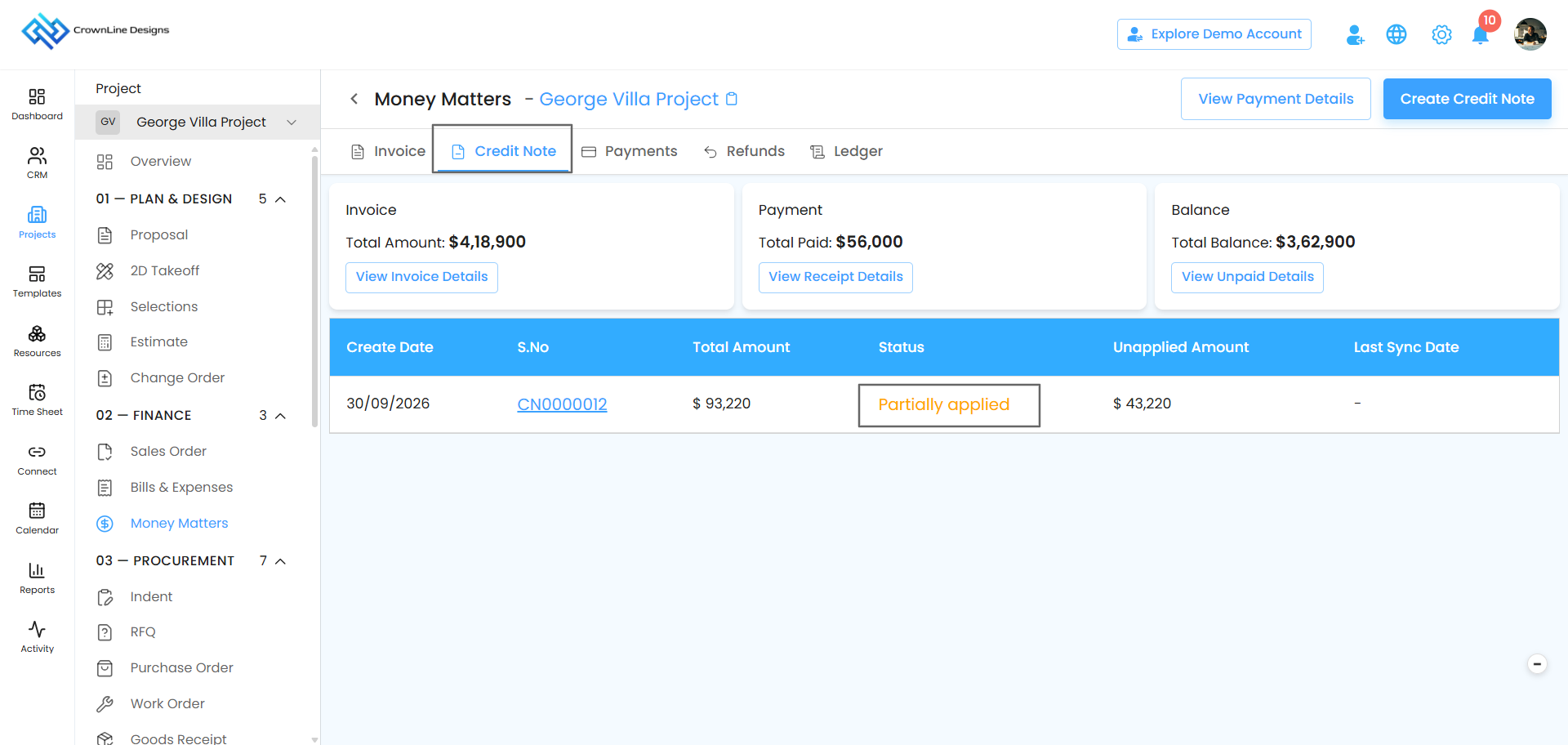
Partially Applied: Some Credit Left
Part of the credit has been used on invoices, and the rest is still available. You can still:
- Apply the remaining credit.
- Edit the credit note (this removes the amount already applied).
- Delete it if you no longer need it.
Fully Applied: All Credit Used
The full credit amount has been used on one or more invoices. You can still edit it, but keep in mind that editing removes all the applied amounts from those invoices, and their status changes back to Awaiting Payment. You can then apply the updated credit note again.
Everything You Can Do With a Credit Note
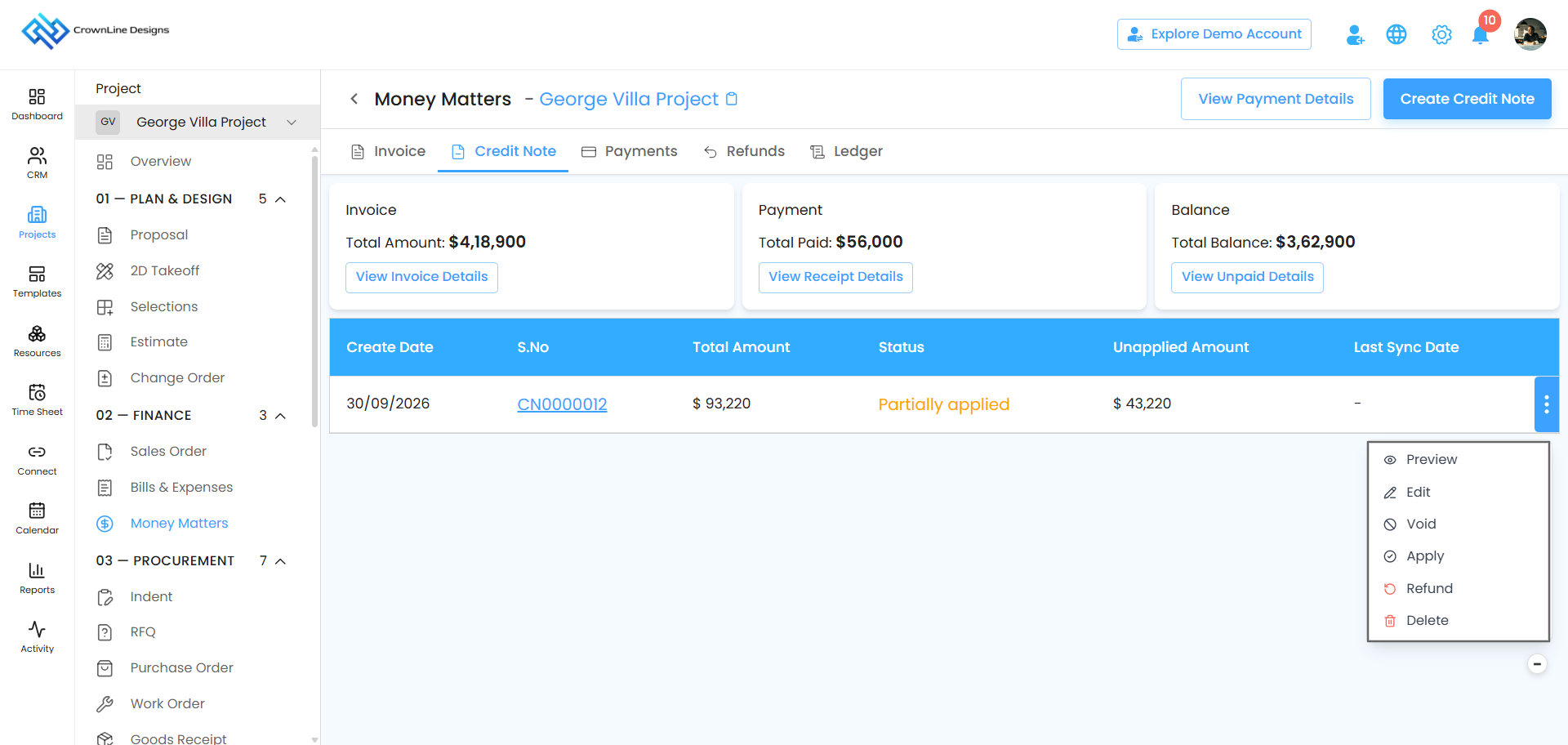
All actions for a credit note are in one place. Just click the three-dot menu (⋮) next to the credit note in the Credit Note tab. You'll find Edit, Void, Apply, Refund, Delete, and Preview.
Edit a Credit Note: Make Changes Anytime
You can edit a credit note at any time, even after it's been fully used on an invoice.
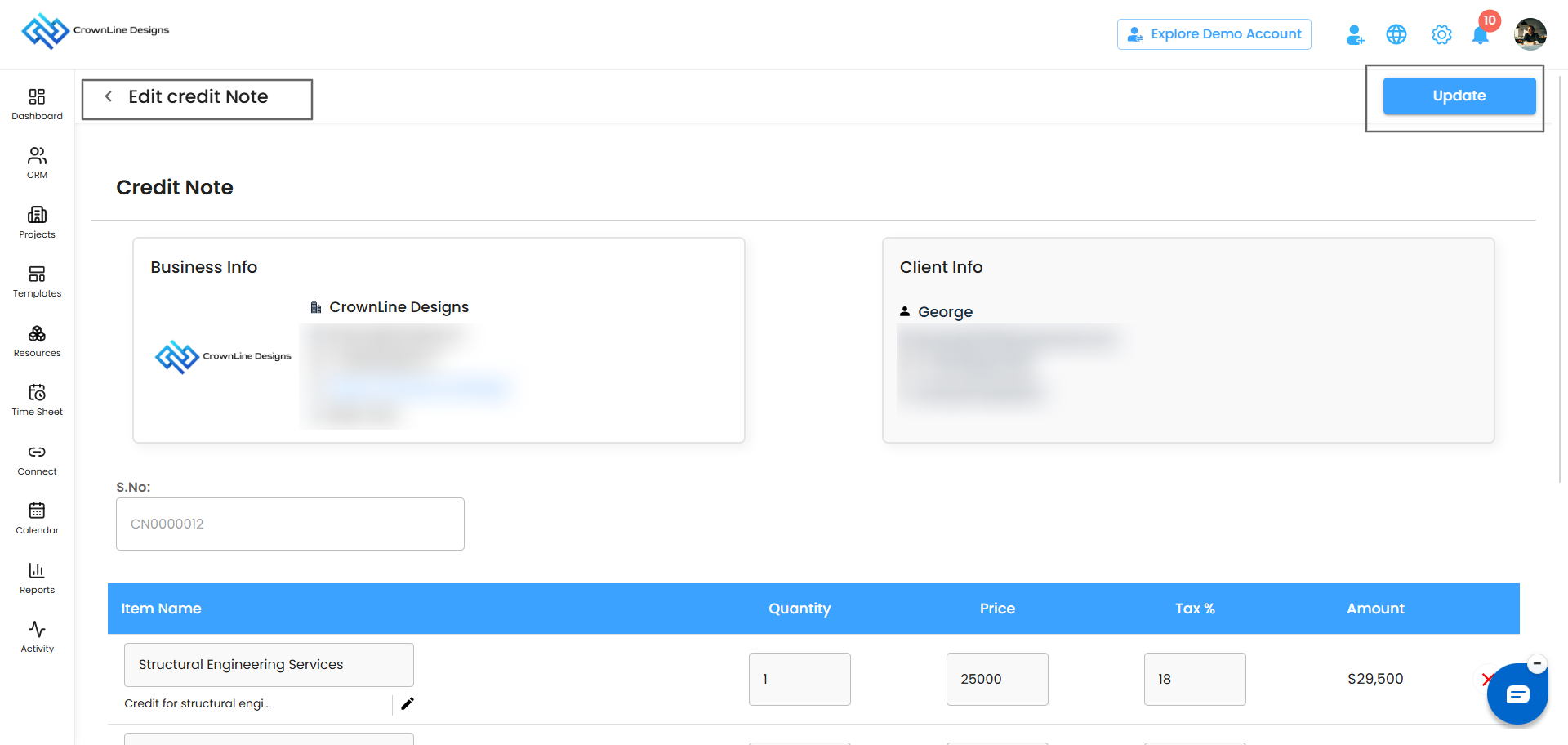
- Click the three-dot menu (⋮) and select Edit.
- The Edit Credit Note page opens.
- Update what you need, such as items, descriptions, quantity, price, tax, or notes.
- Click Update to save your changes.
Good to know: If the credit note has already been applied to an invoice (fully or partly), editing it removes the applied amount from that invoice. The invoice goes back to Awaiting Payment, and the full invoice amount is due again. Once you've made your changes, simply apply the credit note again.
Apply a Credit Note: Reduce What Your Client Owes
Use your credit note to lower the balance on one or more invoices. You can use all of the credit at once or split it across several invoices.
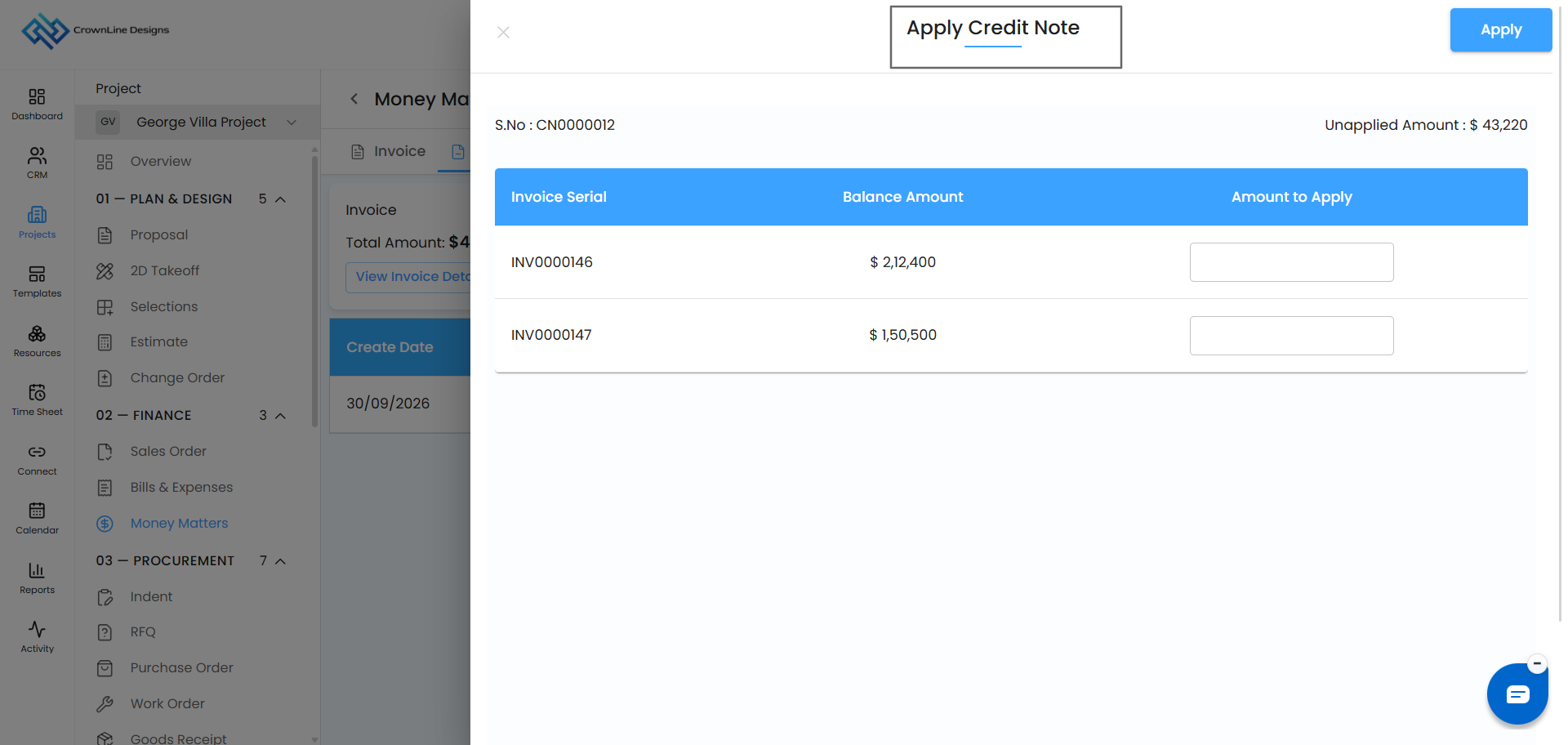
- Click the three-dot menu (⋮) and select Apply.
- A panel slides in from the side, showing:
- Unapplied Amount: The credit you still have available.
- Invoice Serial: The invoices you can apply the credit to.
- Balance Amount: What's still due on each invoice.
- Amount to Apply: Enter how much credit to use on each invoice.
- Click Save.
The status of both your credit note and the invoices updates automatically. The change is also recorded in the invoice, the Credit Note tab, and the Ledger.
? Tip: Have one credit note and a few open invoices? Split the credit across them to clear smaller balances quickly.
Refund a Credit Note: Give the Money Back
If your client would rather have the money back than use it on future invoices, you can refund the credit note.
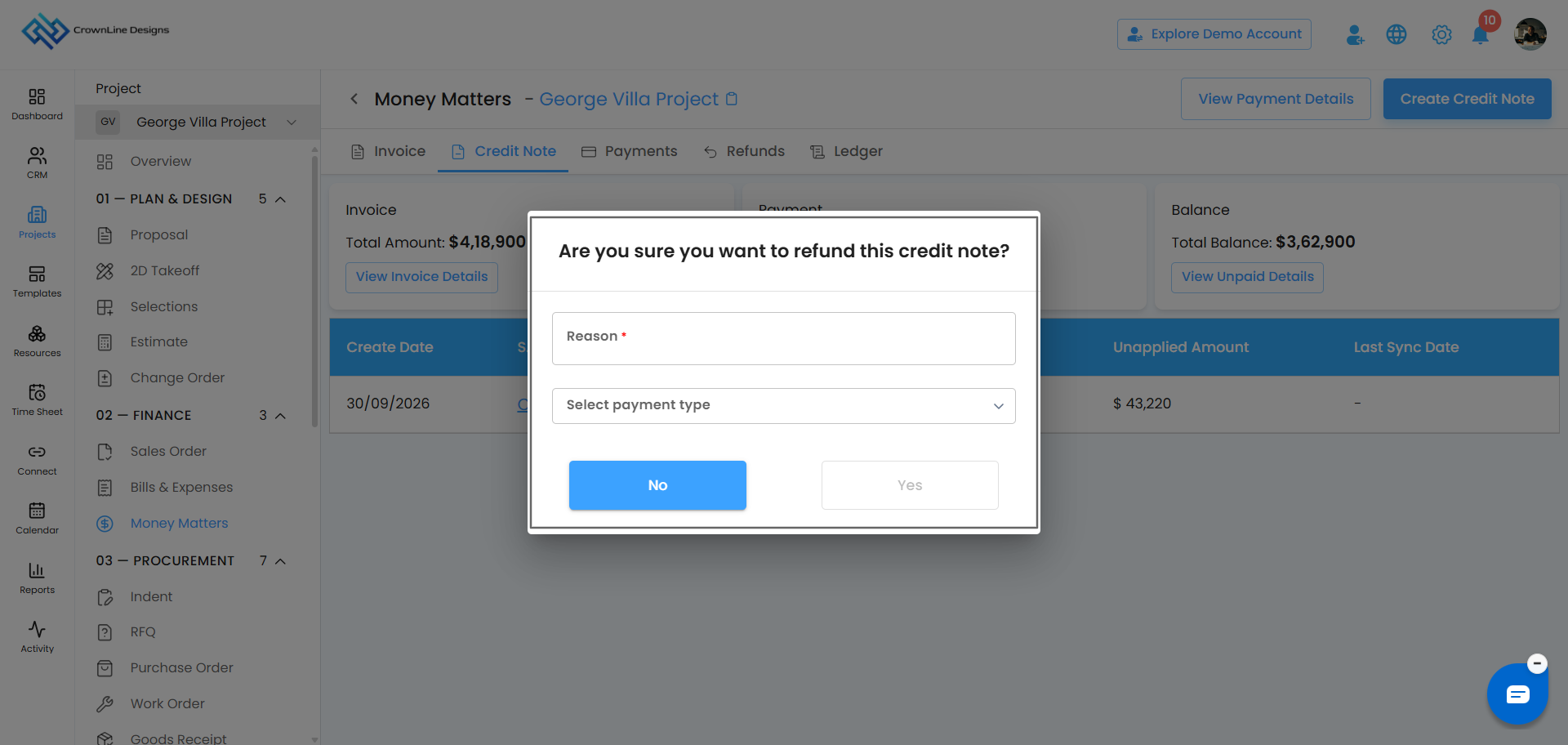
- Click the three-dot menu (⋮) and select Refund.
- A pop-up asks you to confirm.
- Enter the reason for the refund and choose the Payment Type, such as Bank Transfer, Cash, or UPI.
- Click Yes to complete the refund.
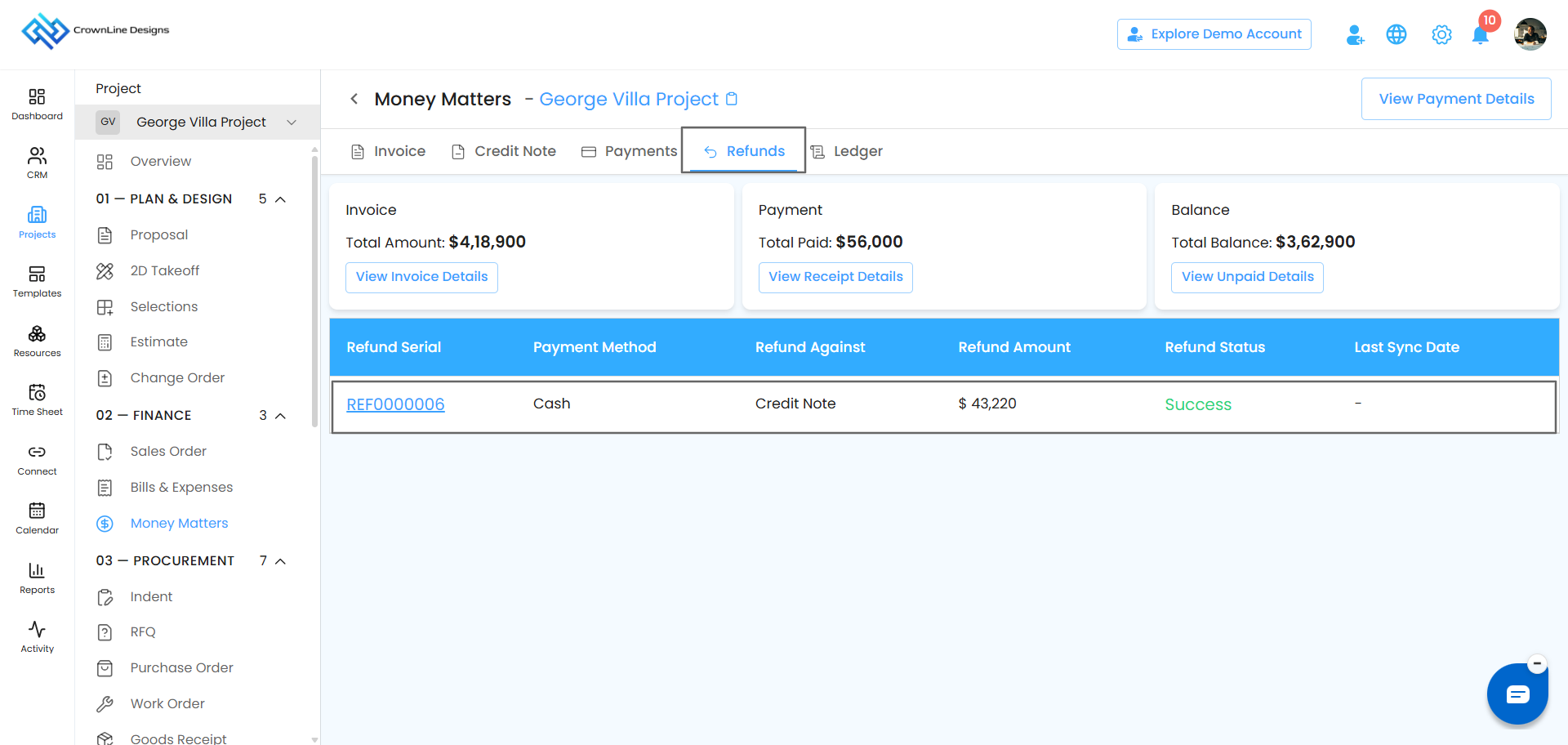
Your refund is recorded and shows up in the Refunds tab.
Void a Credit Note: Cancel It, Keep the Record
Created a credit note by mistake or no longer need it? Voiding cancels it but keeps it in your records.
- Click the three-dot menu (⋮) and select Void.
- A pop-up asks you to confirm.
- Enter a reason for voiding it and click Yes.
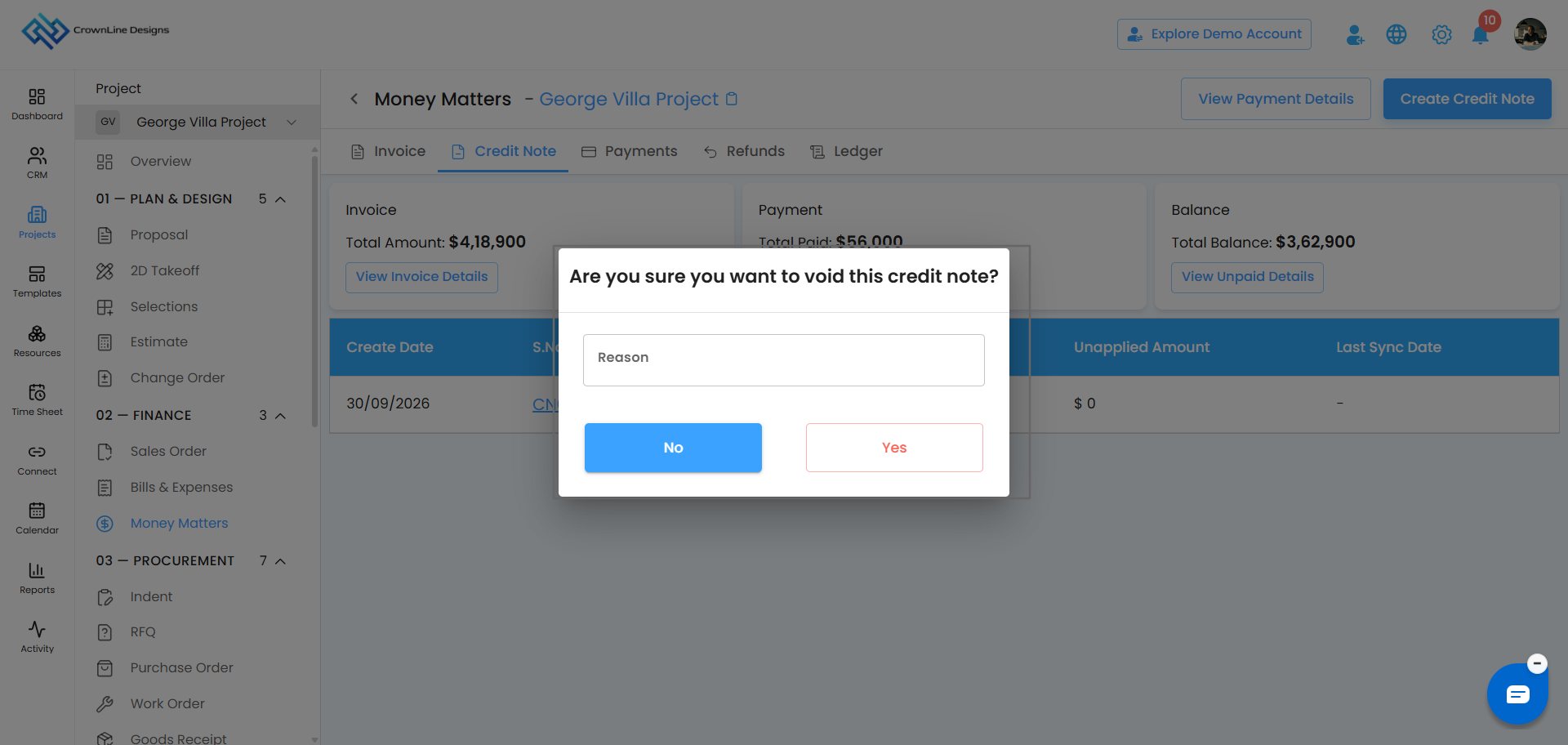
A voided credit note can't be applied or edited again, but it stays in your Ledger marked as voided.
Delete a Credit Note: Remove It Completely
You can delete a credit note at any stage, whether it's unapplied, partially applied, or fully applied.
- Click the three-dot menu (⋮) and select Delete.
- A pop-up asks you to confirm.
- Enter a reason for deleting it and click Yes.
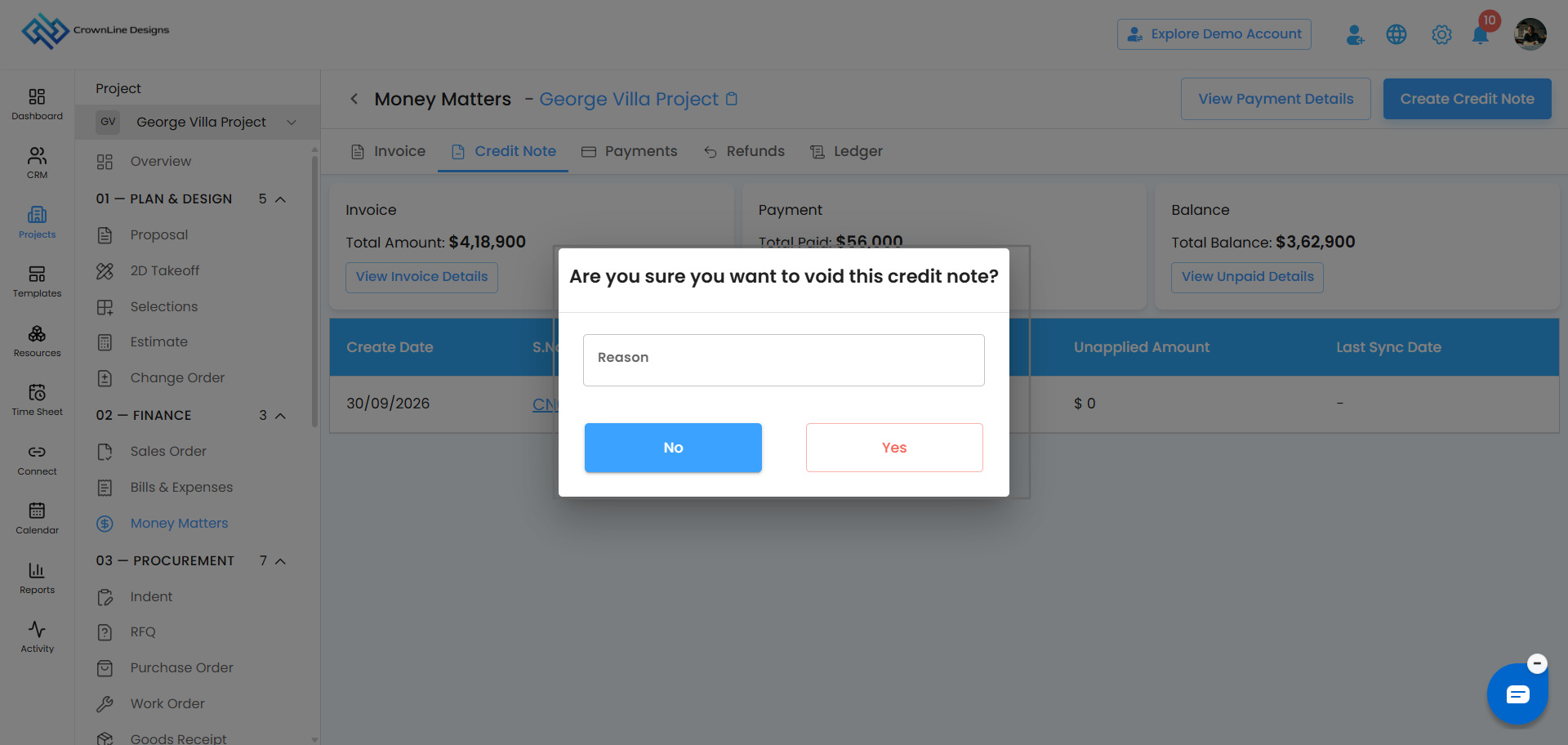
If the credit note was applied to any invoices, the applied amount is removed, the invoice balances go back to what they were, and their status changes to Awaiting Payment.
Good to know: Deleting permanently removes the credit note and its Ledger entry. If you'd like to keep a record, choose Void instead.
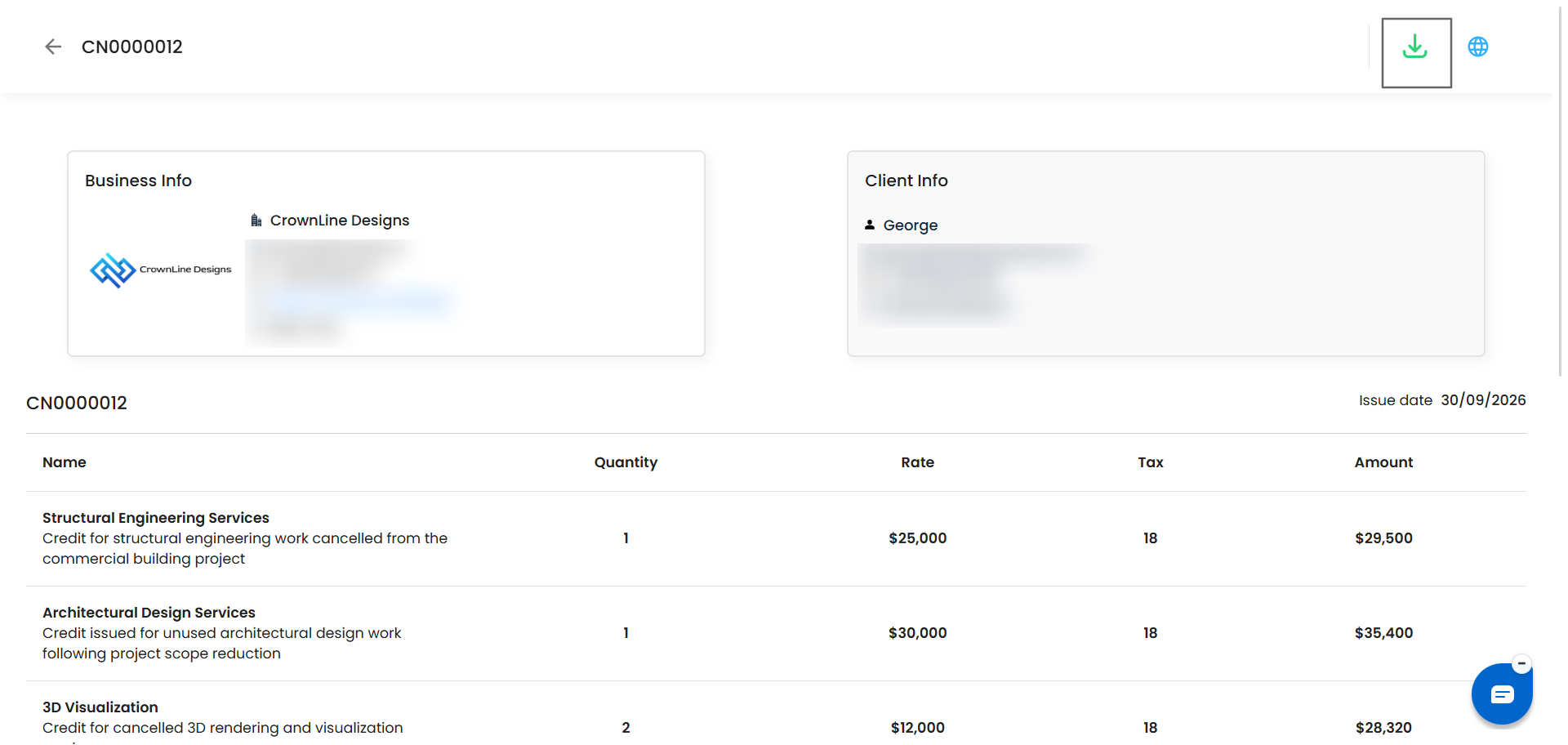
Preview a Credit Note: See It Before You Share It
- Click the three-dot menu (⋮) and select Preview.
- Review all the credit note details.
- Download it as a PDF to keep for your records or share with your client.
Was this article helpful?
That’s Great!
Thank you for your feedback
Sorry! We couldn't be helpful
Thank you for your feedback
Feedback sent
We appreciate your effort and will try to fix the article