From Invoice to Income: Request and Register Client Payments
Every milestone deserves a payday. Whether your client pays online or hands you a cheque on site, IntoAEC makes it easy to collect payments and keep every rupee on record. Send a payment link in seconds, or log payments you've already received, and your Ledger stays up to date automatically.
Two Ways to Collect Payments
| Request Payment | Register Payment |
|---|---|
| Send your client a secure link to pay online | Record a payment you've already received |
| Client pays from their inbox in a few clicks | Works for cash, cheque, or bank transfer |
| Best when you want to get paid faster | Best for payments received offline |
Request Payment: Let Your Clients Pay Online
No more chasing clients for dues. Send them a secure payment link by email, and they can pay online in just a few clicks.
Send a Payment Request
- Go to Clients, select your client, and open Money Matters.
- In the Invoice tab, click the Action button.
- Select Request Payment.
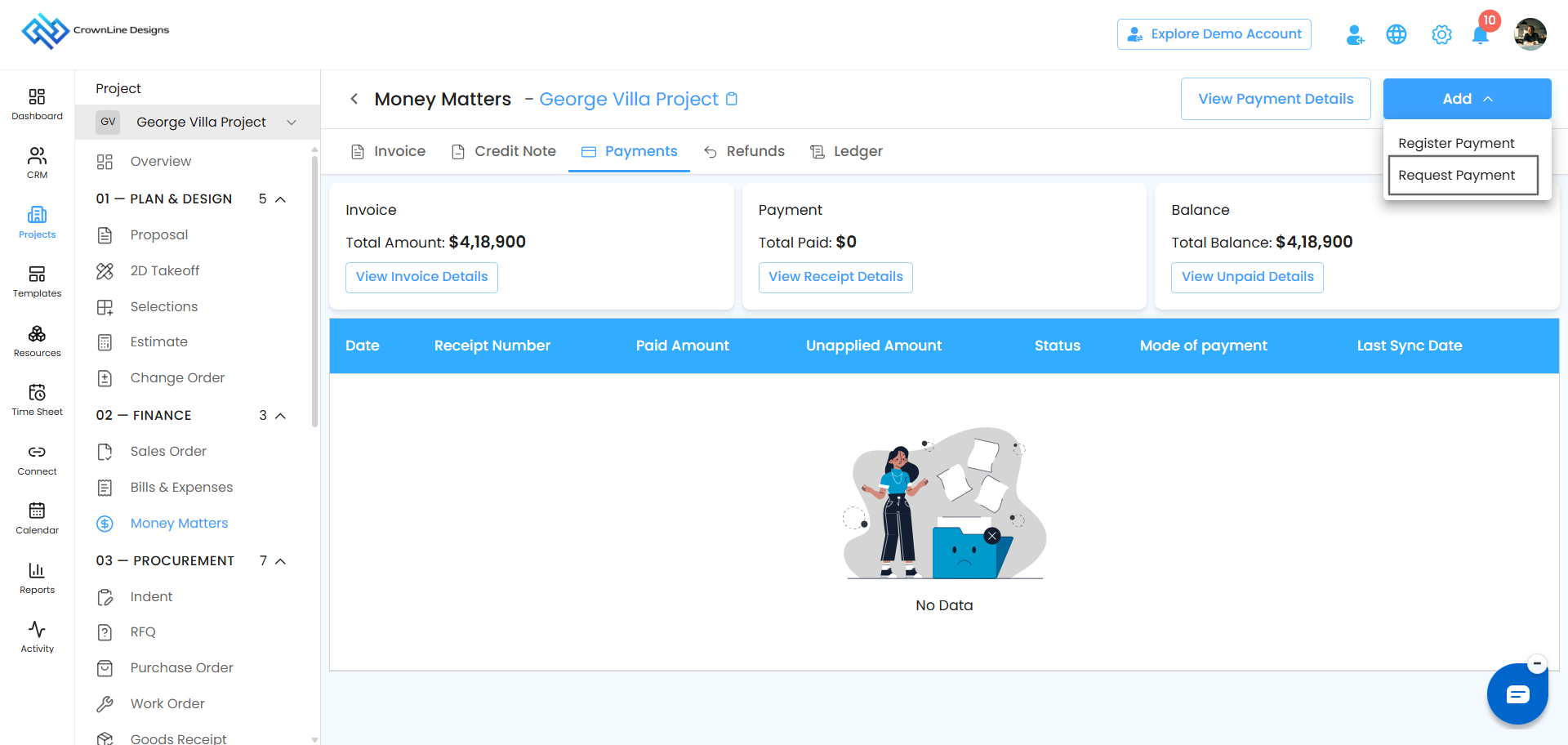
- An email window opens with everything ready to go:
- Your client's email address is already filled in.
- You can edit the subject and message to make it more personal.
- The secure payment link is added automatically.
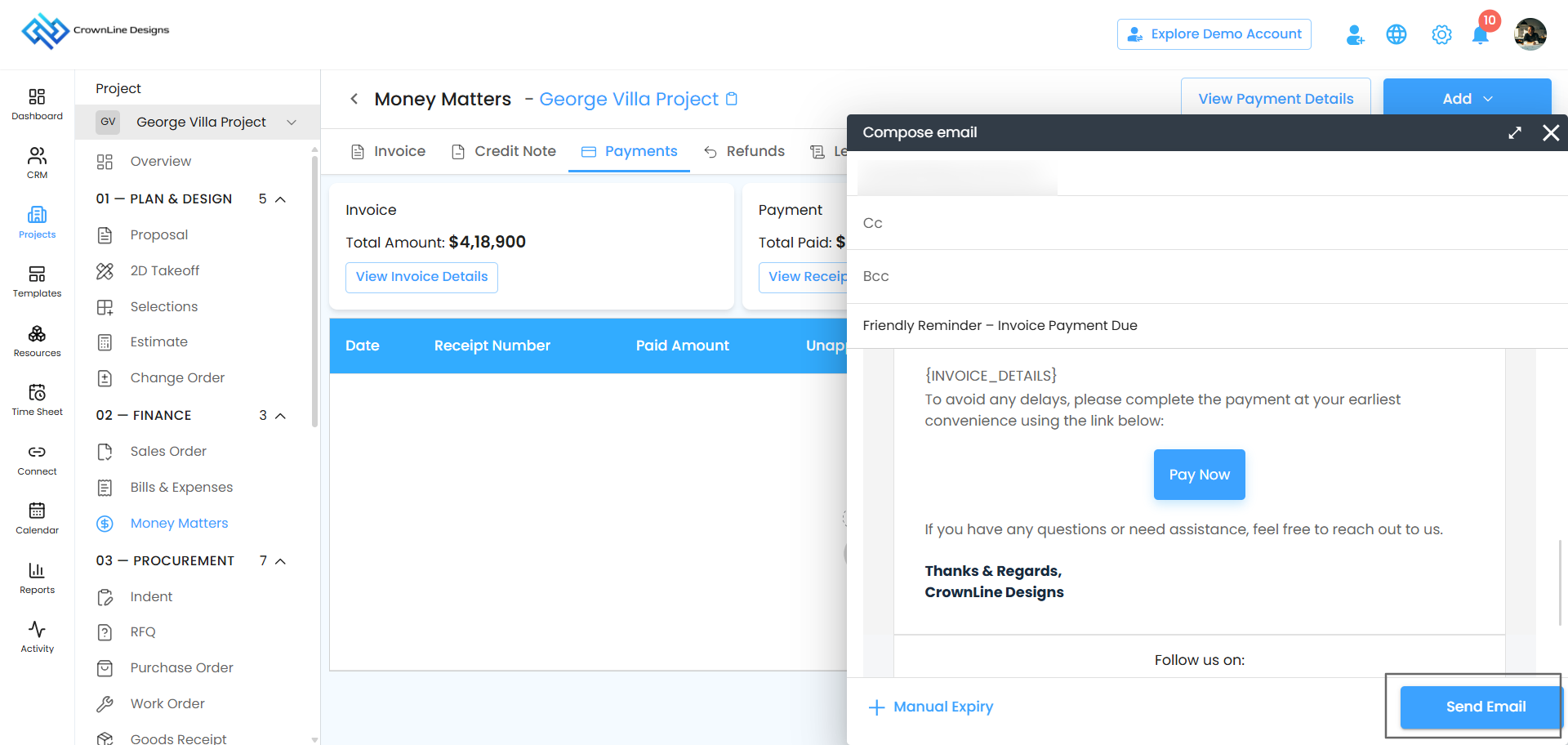
- Click Send Email. Your client receives the request instantly, and IntoAEC keeps a note that the request was sent.
? Tip: Add a short, friendly line mentioning the project or milestone, like "Payment for Foundation Work – Phase 1." Clients pay faster when they know exactly what they're paying for.
How Your Client Pays
Your client gets a smooth, professional payment experience:
- They open the email and click the payment link.
- A secure Checkout page opens, where they can review the payment details, choose a saved payment method or add a new one, and update their billing details if needed.
- They click Proceed Payment.
- A "Thank You for Your Payment" message confirms that the payment went through.
Track Online Payments
As soon as your client pays, IntoAEC takes care of the rest:
- The payment appears in your Ledger under Money Matters right away.
- A receipt is created automatically.
- You can open or download the receipt anytime to keep for your records or share with your client.
There's nothing to update yourself. Everything stays in sync.
Register Payment: Record Payments You've Received
Got paid by cash, cheque, or bank transfer? Record it in IntoAEC so every payment is tracked and your balances stay accurate.
Open Register Payment
- Go to Clients, select your client, and open Money Matters.
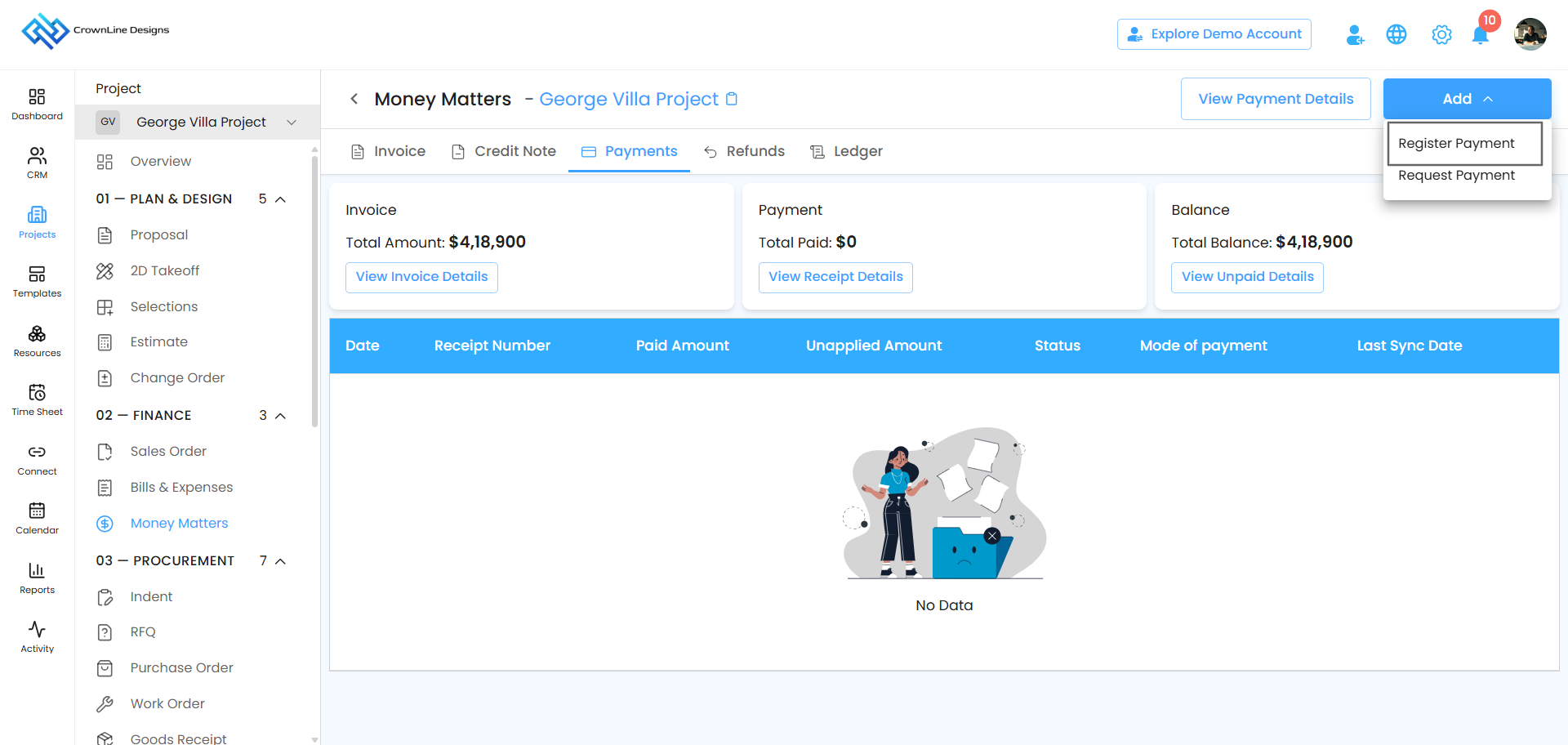
- In the Invoice tab, click the Action button.
- Select Register Payment.
Choose Which Invoice the Payment Is For
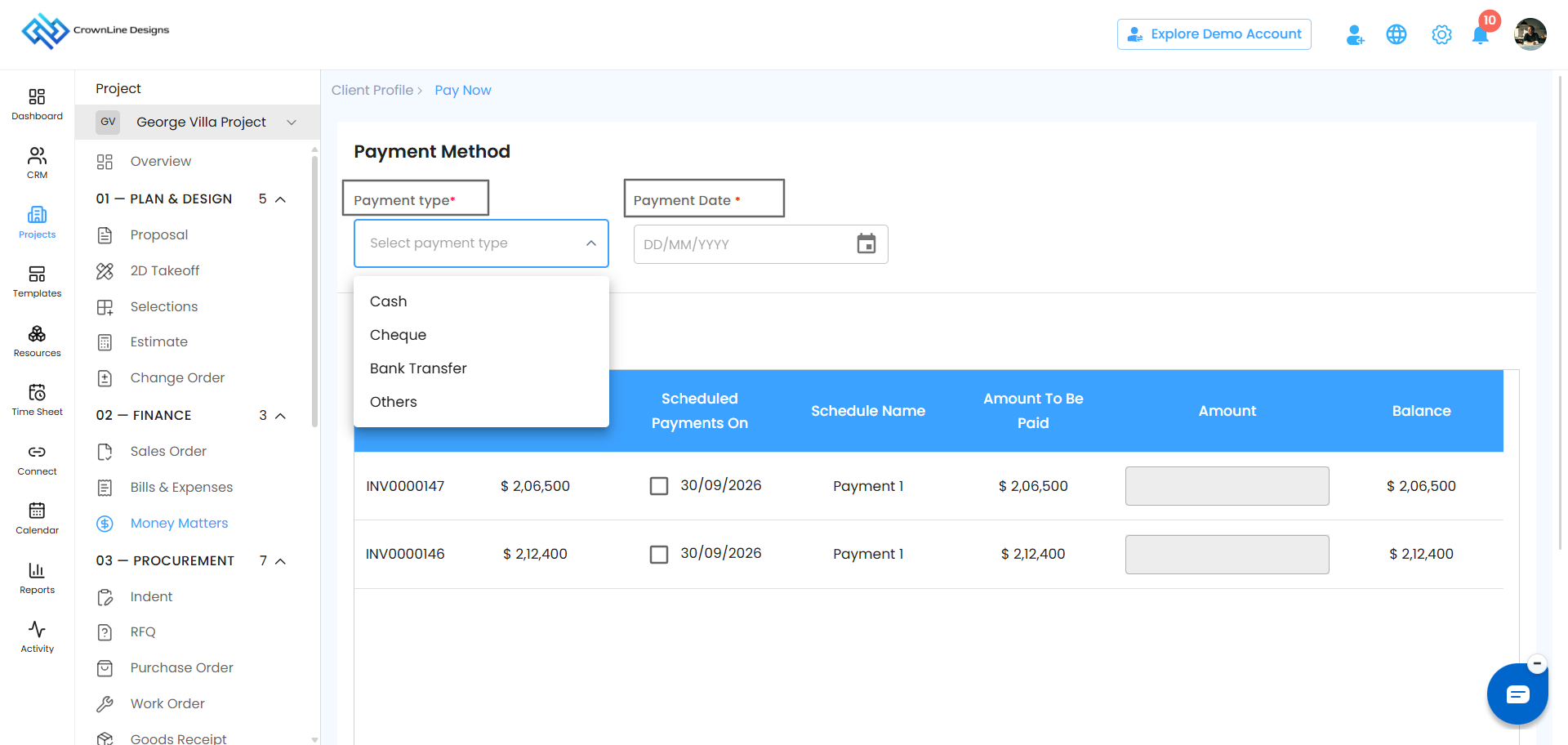
You'll see a list of all invoices that still have money due. Here's what each column shows:
- Invoice: The invoice number.
- Total: The full invoice amount.
- Scheduled Payments On: Due dates for each milestone payment, if the invoice has a payment schedule.
- Amount to be Paid: The amount due for that milestone or the full invoice.
- Schedule Payment: Pick the milestone this payment belongs to.
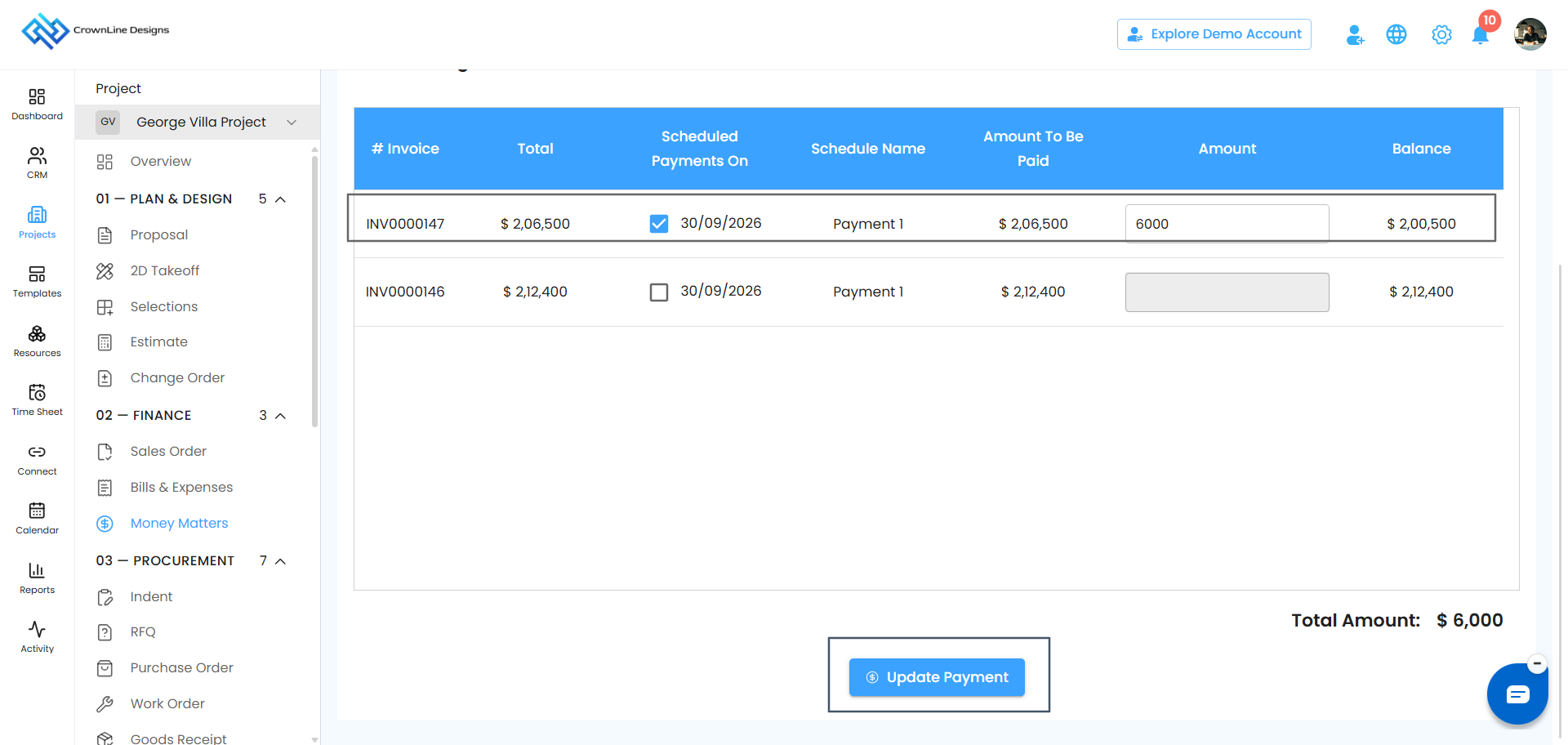
- Add Amount: Enter the amount your client paid.
- Balance: The amount still due, calculated for you.
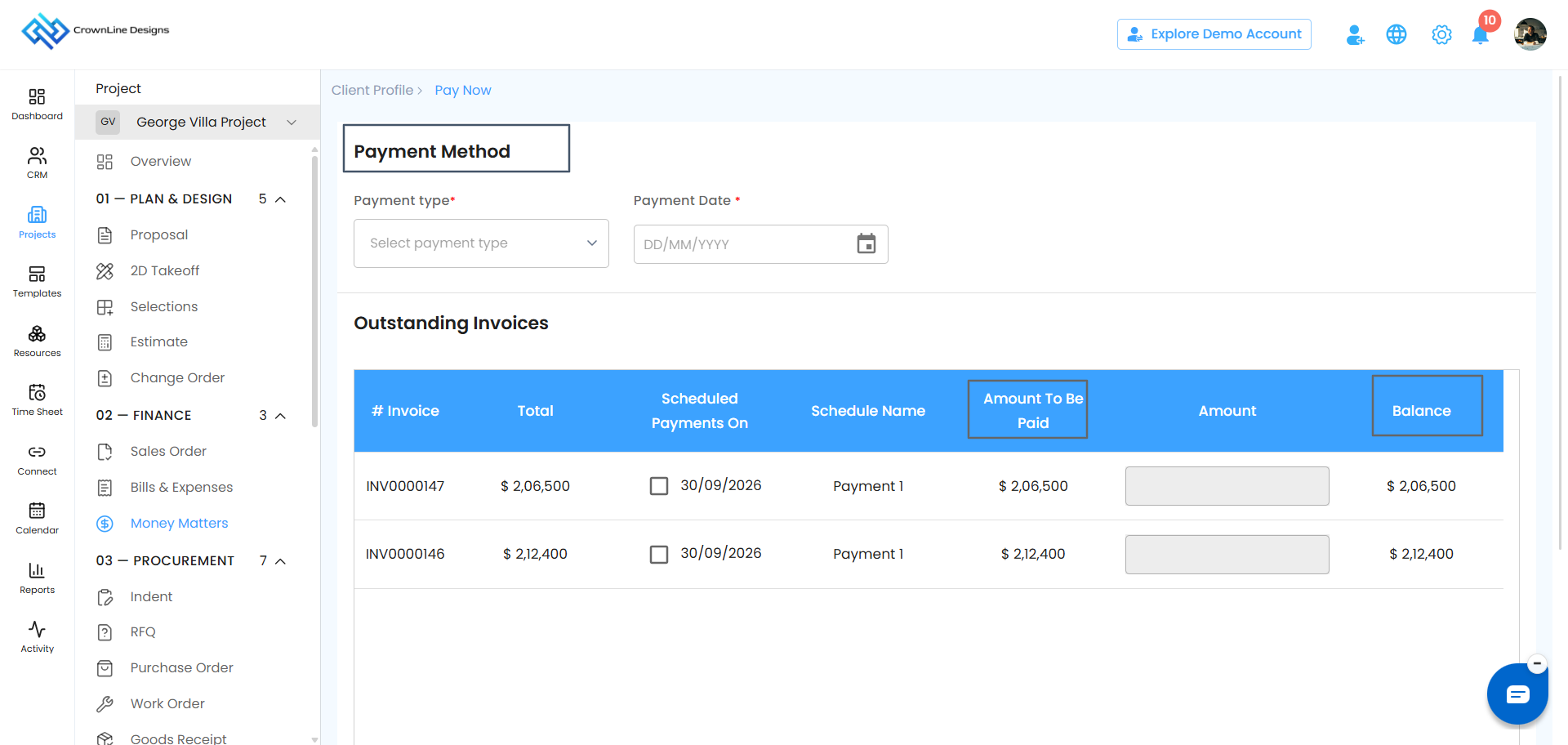
Whether your client pays the full invoice, one milestone, or just part of an amount, you can record it exactly as it was paid.
Add the Payment Details
Tell IntoAEC how and when you received the payment:
- Payment Type: Choose Cash, Cheque, or Bank Transfer.
- Payment Date: Enter the date you received the payment.
Save the Payment
Click Update Payment. That's it!
? Tip: Record payments on the day you receive them, especially cash and cheques collected on site. It keeps your balances accurate and makes follow-ups much easier.
Your Ledger Updates Automatically
As soon as you save the payment:
- A receipt is added to your Ledger under Money Matters.
- The client's balance updates instantly.
- You can view or download the receipt anytime.
Every Payment, Always Accounted For
Whether your client pays online or offline, IntoAEC keeps a clear record of every payment, giving you and your clients complete confidence in the numbers from the first milestone to the final handover.
Was this article helpful?
That’s Great!
Thank you for your feedback
Sorry! We couldn't be helpful
Thank you for your feedback
Feedback sent
We appreciate your effort and will try to fix the article