Every Refund, Clearly Recorded
Money going back to a client should be just as clear as money coming in. The Refunds tab in Money Matters keeps every refund you've issued in one place, whether it came from a credit note or a payment receipt. No guesswork, no missing records.
Find Your Refunds
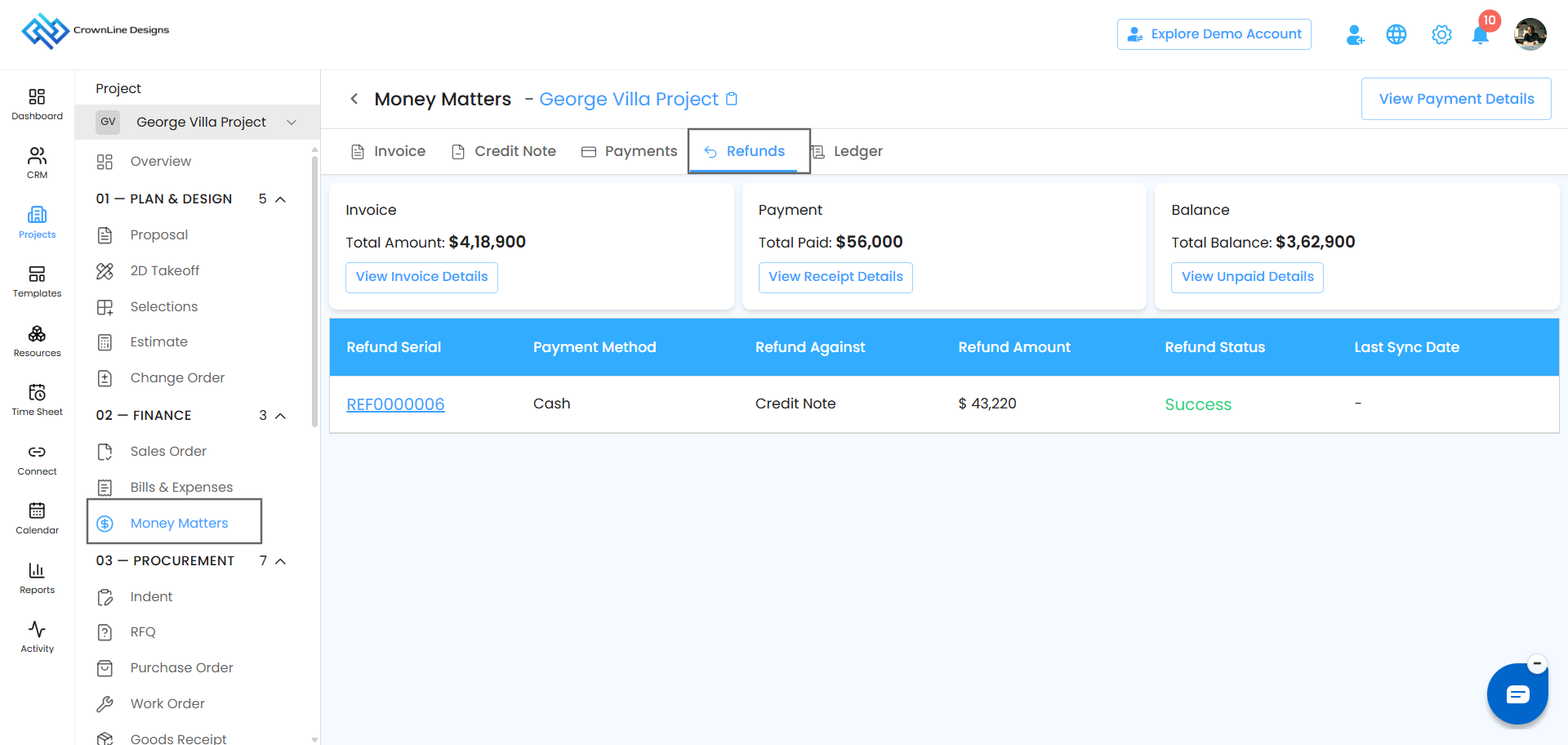
- Open Money Matters.
- Click the Refunds tab.
No Refunds Yet?
If you haven't issued any refunds, you'll see a "No Data" message. That simply means there's nothing to show yet. A s soon as you issue a refund, it will appear here.
Your Refunds List
Once you've issued refunds, they're all listed neatly in one place. Here's what each column tells you:
- Refund Serial: The unique number for each refund, so it's easy to find later.
- Payment Method: How the money was returned, such as Bank Transfer, Cash, Card, or Cheque.
- Refund Against: Where the refund came from, either a Credit Note or a Receipt.
- Refund Amount: The total amount refunded to your client.
- Refund Status: Where the refund stands. For example, Success means the refund was completed.
Tip: Use the Refund Against column to quickly see whether a refund came from a credit note or a payment. It makes matching refunds to the right invoice or payment much easier.
Preview a Refund
Want to see the full details of a refund? It only takes a click.
- Click the three-dot menu (⋮) at the end of the refund row.
- Select Preview.
- The preview shows everything about the refund, including the amount, payment method, and where it came from.
- Need a copy? Download it as a PDF to keep for your records or share with your client.
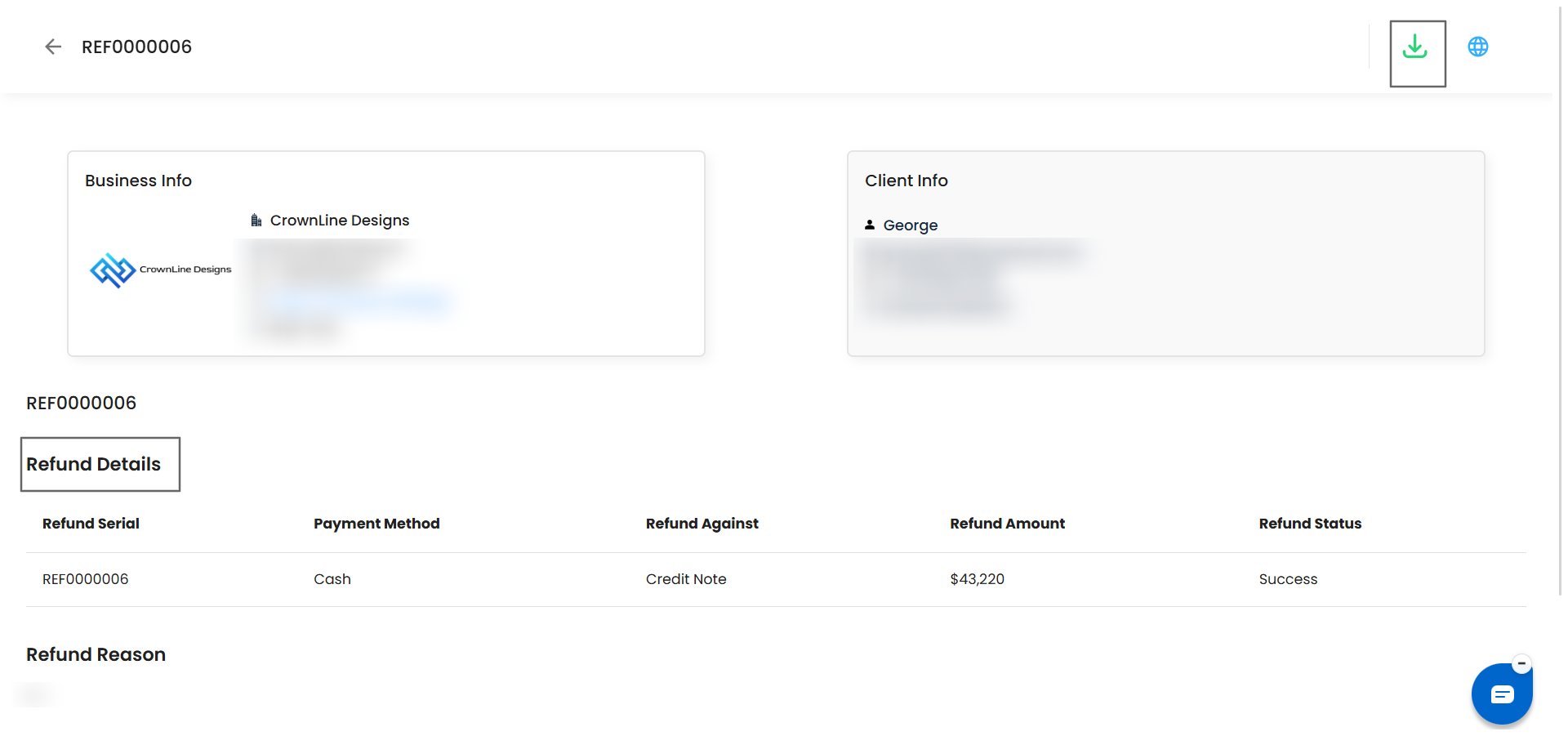
Tip: Download and share the refund PDF with your client right after the refund is done. It gives them clear proof that the money is on its way and builds trust.
Was this article helpful?
That’s Great!
Thank you for your feedback
Sorry! We couldn't be helpful
Thank you for your feedback
Feedback sent
We appreciate your effort and will try to fix the article