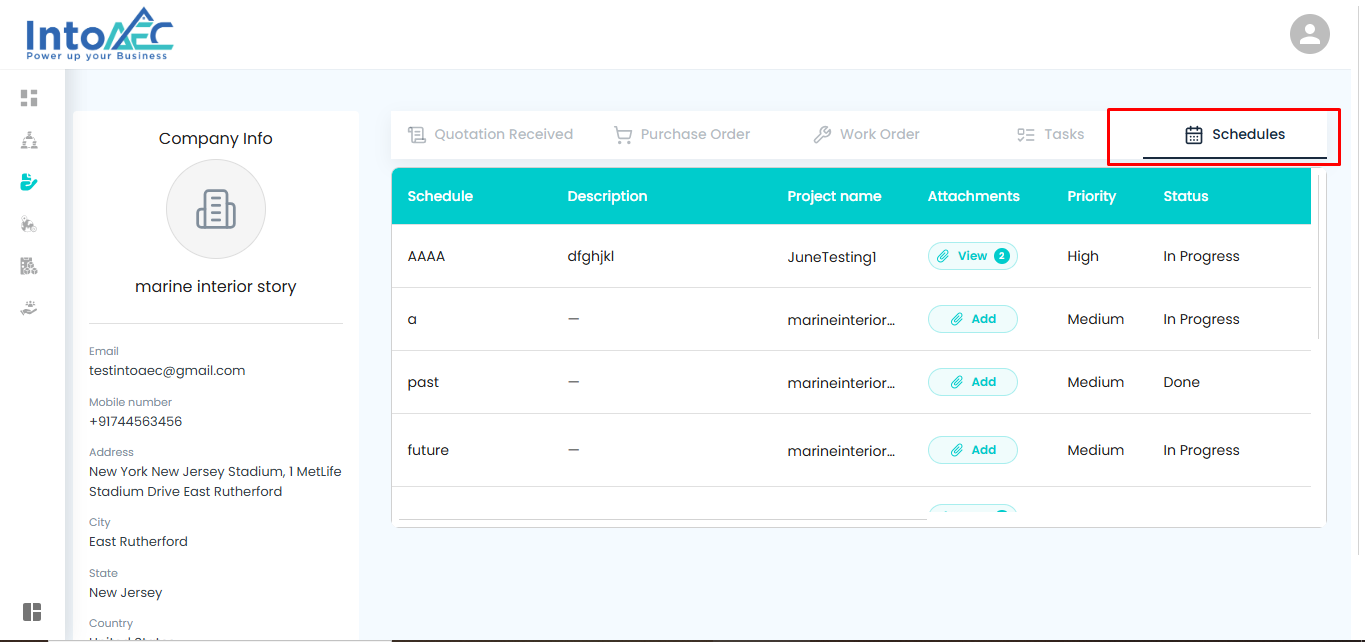
 The Vendor Portal allows vendors to log in and manage their assigned procurement, network, localization, inventory, and service details. Vendors can view connected AEC users, manage procurement-related records, update account preferences, and maintain service information from one place.
How to Login to Vendor Portal
- Open the Vendor Portal login page.
- Enter your Email/Mobile Number.
- Enter your Password.
- Click Login.
After successful login, you will be redirected to the Vendor Portal dashboard.
Dashboard
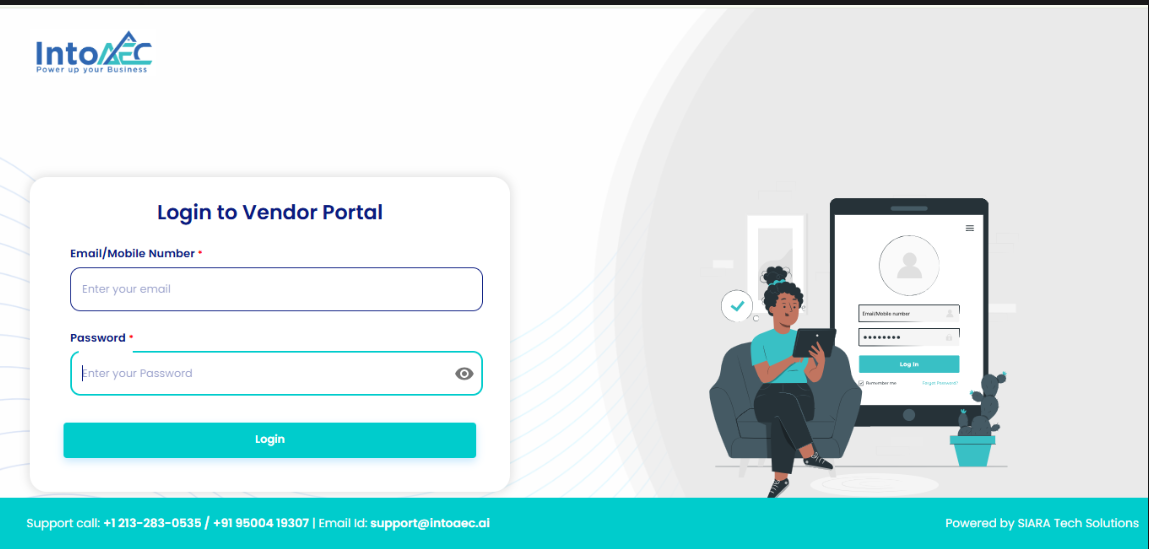
The Dashboard provides a quick overview of vendor-related activities.
In the dashboard, you can view the count of procurement-related items such as:
| Section | Description |
|---|---|
| RFQ | Displays the total number of Request for Quotations |
| PO | Displays the total number of Purchase Orders |
| WO | Displays the total number of Work Orders |
| Task | Displays the total number of assigned tasks |
This helps vendors quickly understand their pending and active work items.
Your Network
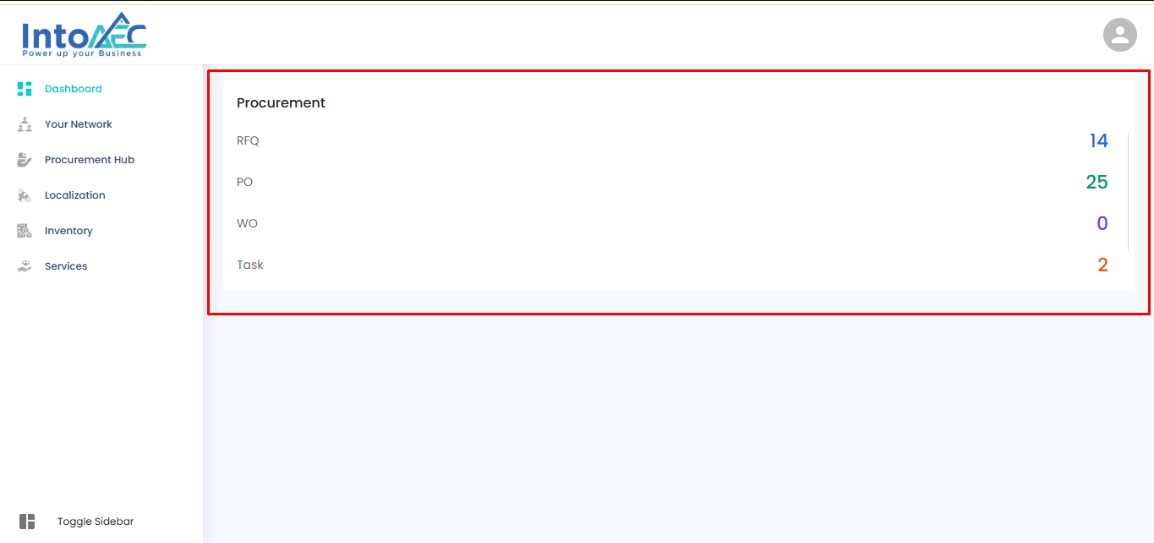
The Your Network section displays the AEC users or organizations connected with the vendor.
Here, you can view:
| Field | Description |
|---|---|
| Architect Name | Name of the connected architect or organization user |
| Email Address | Registered email address of the connected user |
| Contact Number | Mobile/contact number of the connected user |
| Status | Shows whether the connection is active or connected |
This section helps vendors track their connected clients or project partners.
Procurement Hub
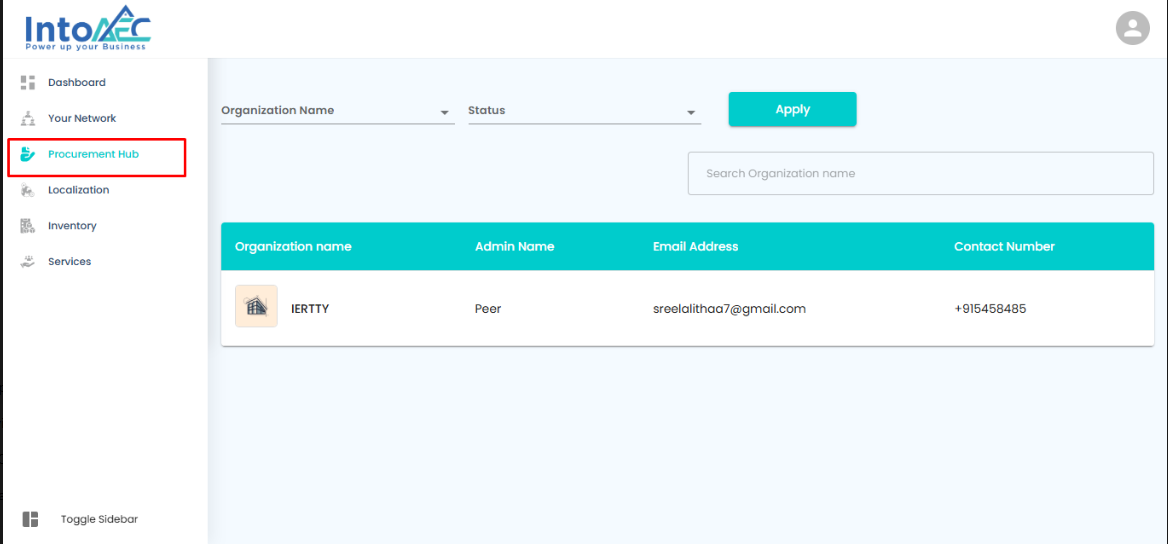
The Procurement Hub allows vendors to view procurement-related organization details.
You can filter and search records using:
| Filter | Description |
|---|---|
| Organization Name | Filter records based on the organization |
| Status | Filter records based on the current status |
| Search Organization Name | Search for a specific organization |
The table displays details such as:
| Field | Description |
|---|---|
| Organization Name | Name of the connected organization |
| Admin Name | Name of the organization admin |
| Email Address | Admin or organization email address |
| Contact Number | Contact number of the organization |
This section helps vendors manage procurement connections and related organization information.
Localization
The Localization section allows vendors to update account preferences based on their region and business requirements.
Available preferences include:
| Field | Description |
|---|---|
| Time Zone | Select the preferred time zone |
| Date Format | Choose the required date display format |
| Currency | Select the currency used for transactions |
| Number Format | Set the preferred number format |
After making changes, click Save to update the account preferences.
Inventory
The Inventory section is used to manage vendor inventory-related details.
Vendors can use this section to view or manage available inventory items that are connected with their procurement or service activities.
This helps vendors keep track of materials, stock, and other inventory-related information.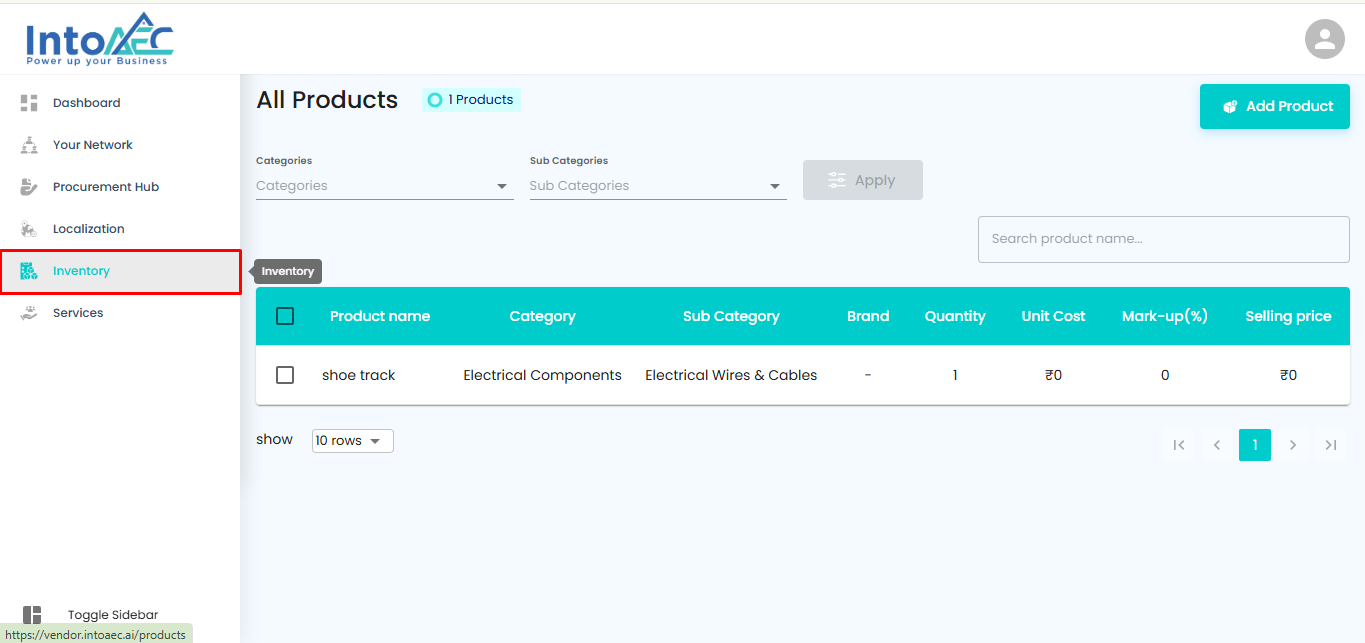
Services
The Services section displays all services created or managed by the vendor.
On this page, vendors can:
- View existing services
- Search service names
- Filter by category and service type
- Add a new service
- Edit or manage existing service details
The service list displays:
| Field | Description |
|---|---|
| Service Name | Name of the service |
| Service Category | Category under which the service belongs |
| Service Type | Type of service provided |
| Description | Additional details about the service |
| Unit | Unit of measurement |
| Cost | Service cost |
| Taxable | Shows whether the service is taxable or not |
To create a new service, click Add Service from the top-right corner.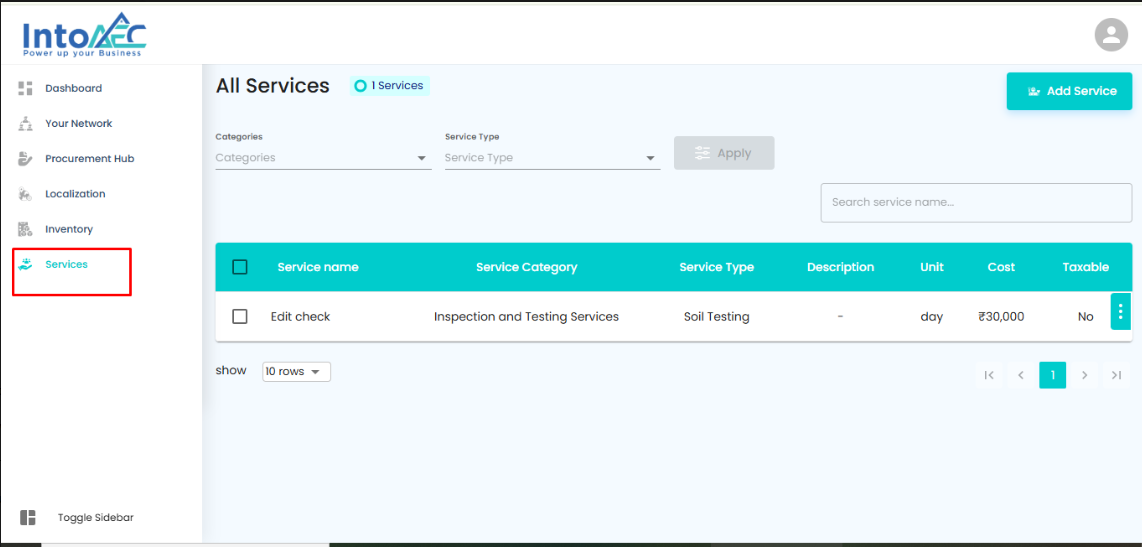
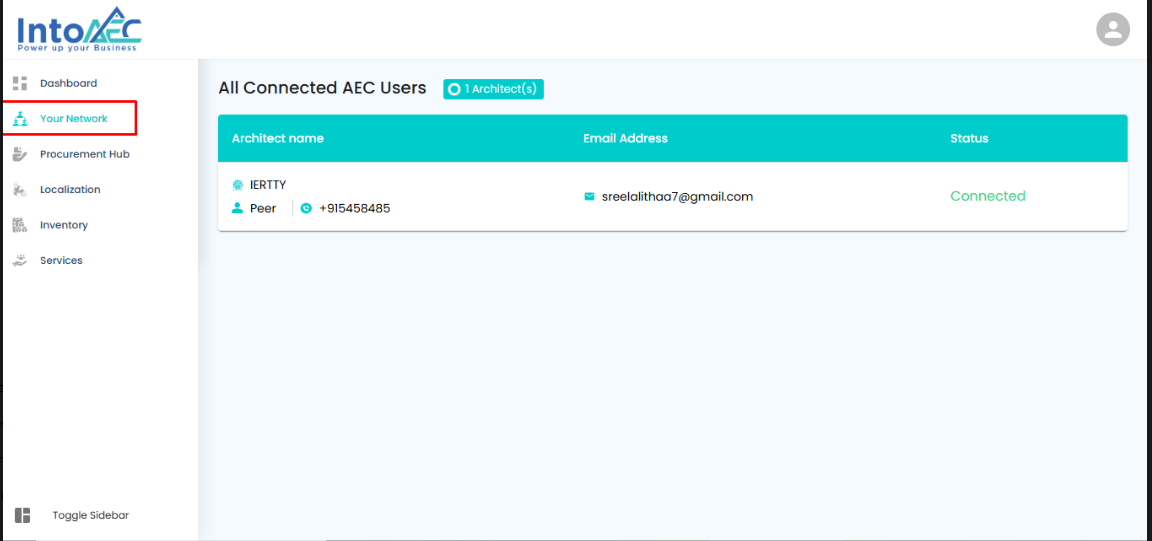
Vendor Attachments in Task and Schedule
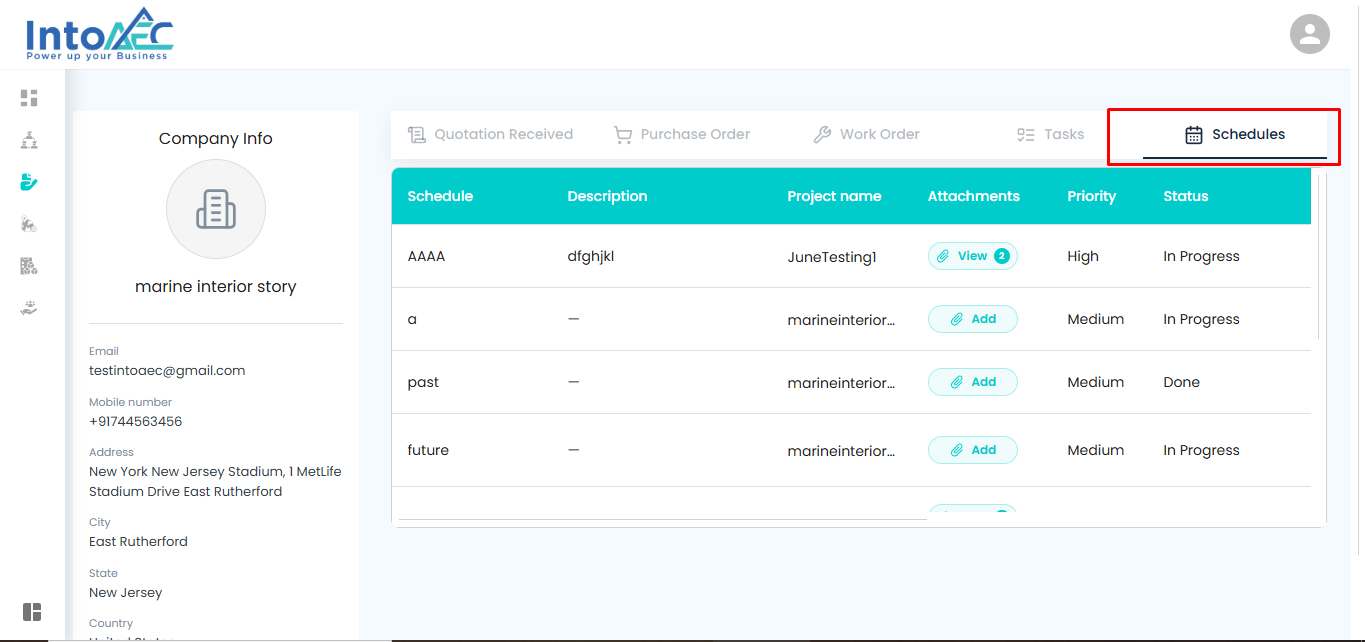
Vendors can now add or view attachments in Task and Schedule sections from the Vendor Portal. This helps vendors upload supporting documents, work proof, and related files directly against assigned tasks or schedules. 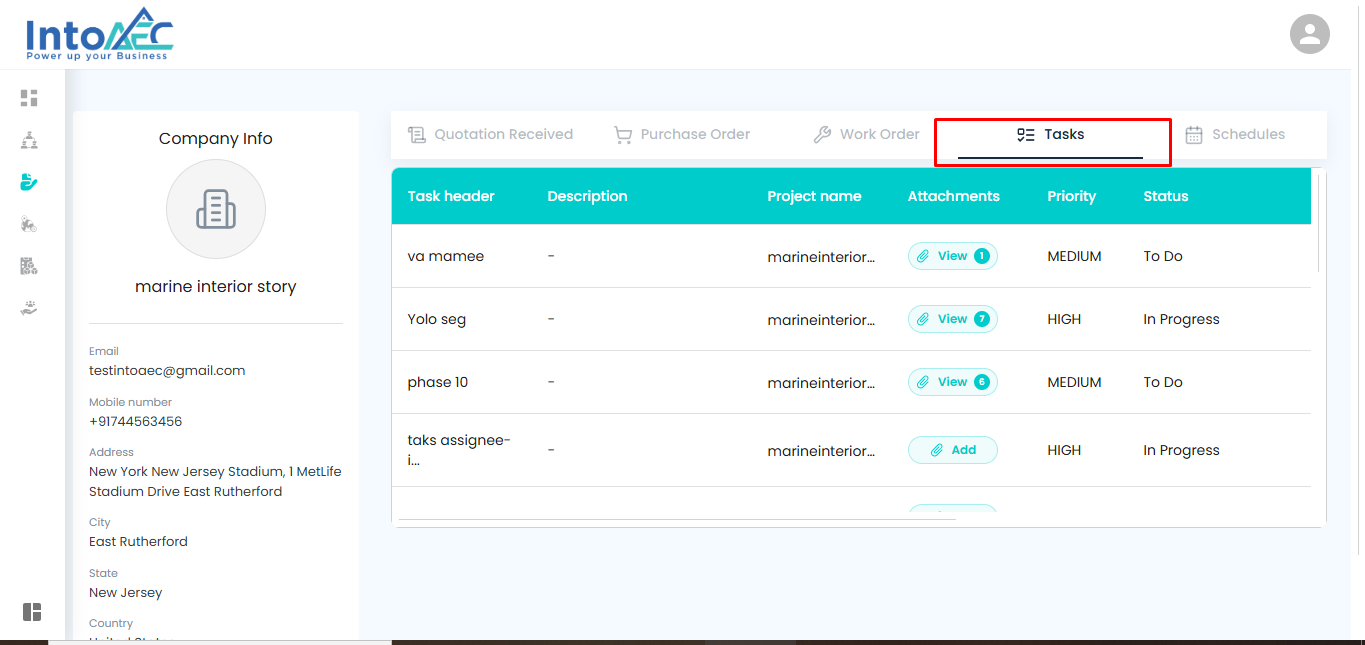
Was this article helpful?
That’s Great!
Thank you for your feedback
Sorry! We couldn't be helpful
Thank you for your feedback
Feedback sent
We appreciate your effort and will try to fix the article