The Xero integration allows you to connect your Xero accounting account with IntoAEC. Once connected, IntoAEC can sync accounting-related data such as invoices, payments, client records, and ledger details between both platforms.
How to Open Xero Integration
- Go to Dashboard from the left-side menu.
- Open Integrations.
- Select the Account Software category or view it from All Integrations.
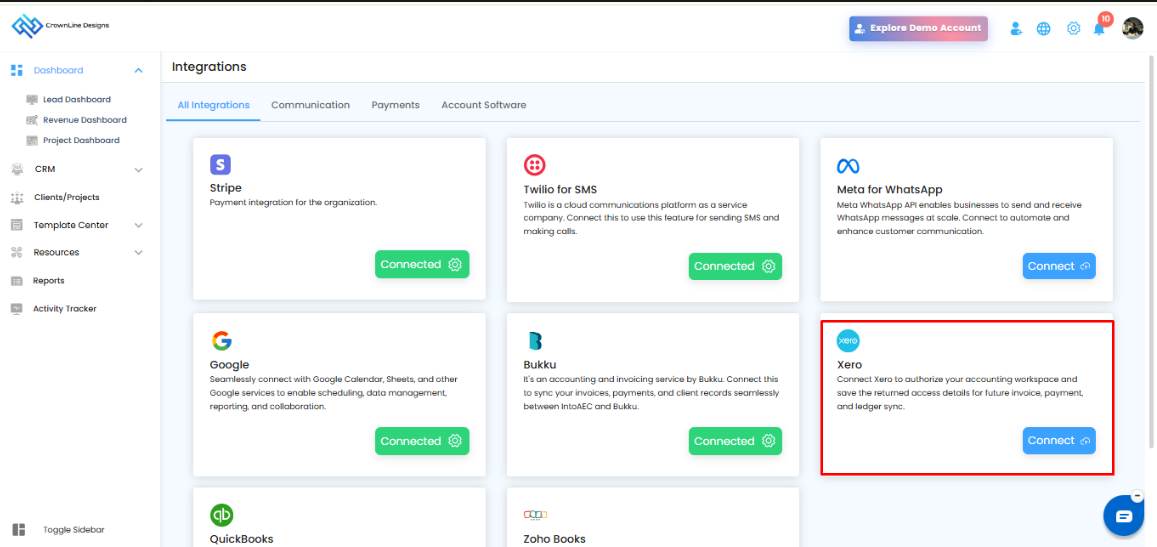
- Find the Xero integration card.
- Click Connect.
This will open the Configure Xero page.
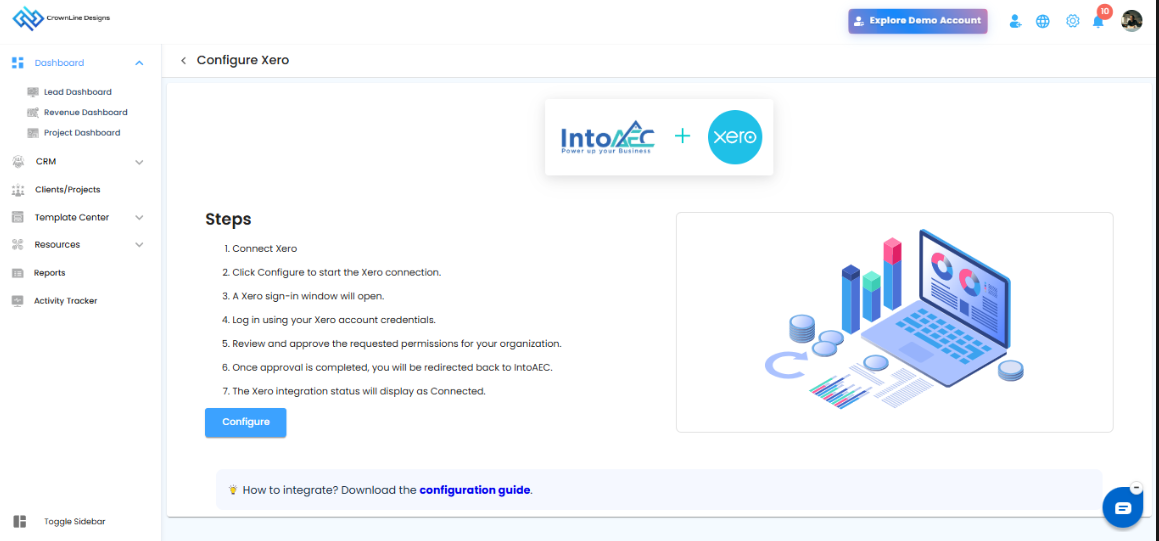
Configure Xero
On the Configure Xero page, you can start the connection between IntoAEC and Xero.
The page displays the integration steps for connecting Xero with IntoAEC.
Steps to Configure Xero
- Click Connect Xero from the Integrations page.
- You will be redirected to the Configure Xero page.
- Click the Configure button.
- A Xero sign-in window will open.
- Enter your Xero account email address and password.
- Review and approve the requested permissions for your organization.
- Once the approval is completed, you will be redirected back to IntoAEC.
- The Xero integration status will be displayed as Connected.
Login to Xero
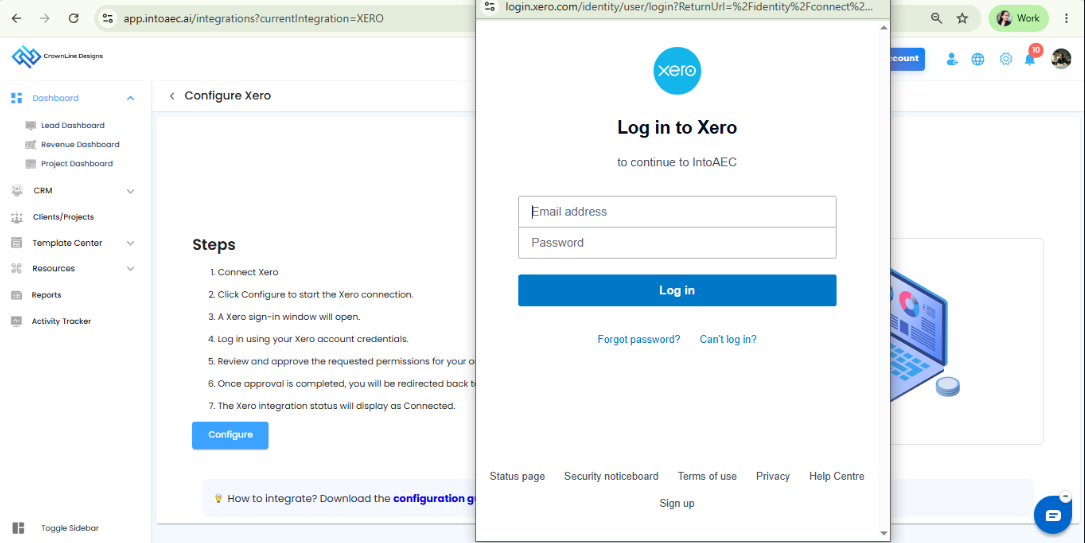
After clicking Configure, the Xero login window will be displayed.
Enter the following details:
| Field | Description |
|---|---|
| Email Address | Enter your registered Xero email address |
| Password | Enter your Xero account password |
After entering the credentials, click Log in.
Once logged in, Xero will ask you to authorize IntoAEC to access the required accounting information. Review the permission details and approve the connection.
After Successful Connection
Once Xero is connected successfully:
| Status | Description |
|---|---|
| Connected | The Xero account is successfully linked with IntoAEC |
| Sync Enabled | Accounting data can be synced between Xero and IntoAEC |
| Future Access Saved | IntoAEC can continue syncing the approved data based on the integration permission |
You can return to the Integrations page to verify the Xero connection status.
What Xero Integration Helps With
The Xero integration helps you manage accounting data without manually updating the same information in both systems.
It can be used for syncing:
| Data | Purpose |
|---|---|
| Invoices | Sync invoice details from Xero to IntoAEC |
| Payments | Track payment records linked with invoices |
| Clients | Sync client/customer information |
| Ledger Details | Maintain accounting-related records for project financial tracking |
Was this article helpful?
That’s Great!
Thank you for your feedback
Sorry! We couldn't be helpful
Thank you for your feedback
Feedback sent
We appreciate your effort and will try to fix the article