What Automation Does
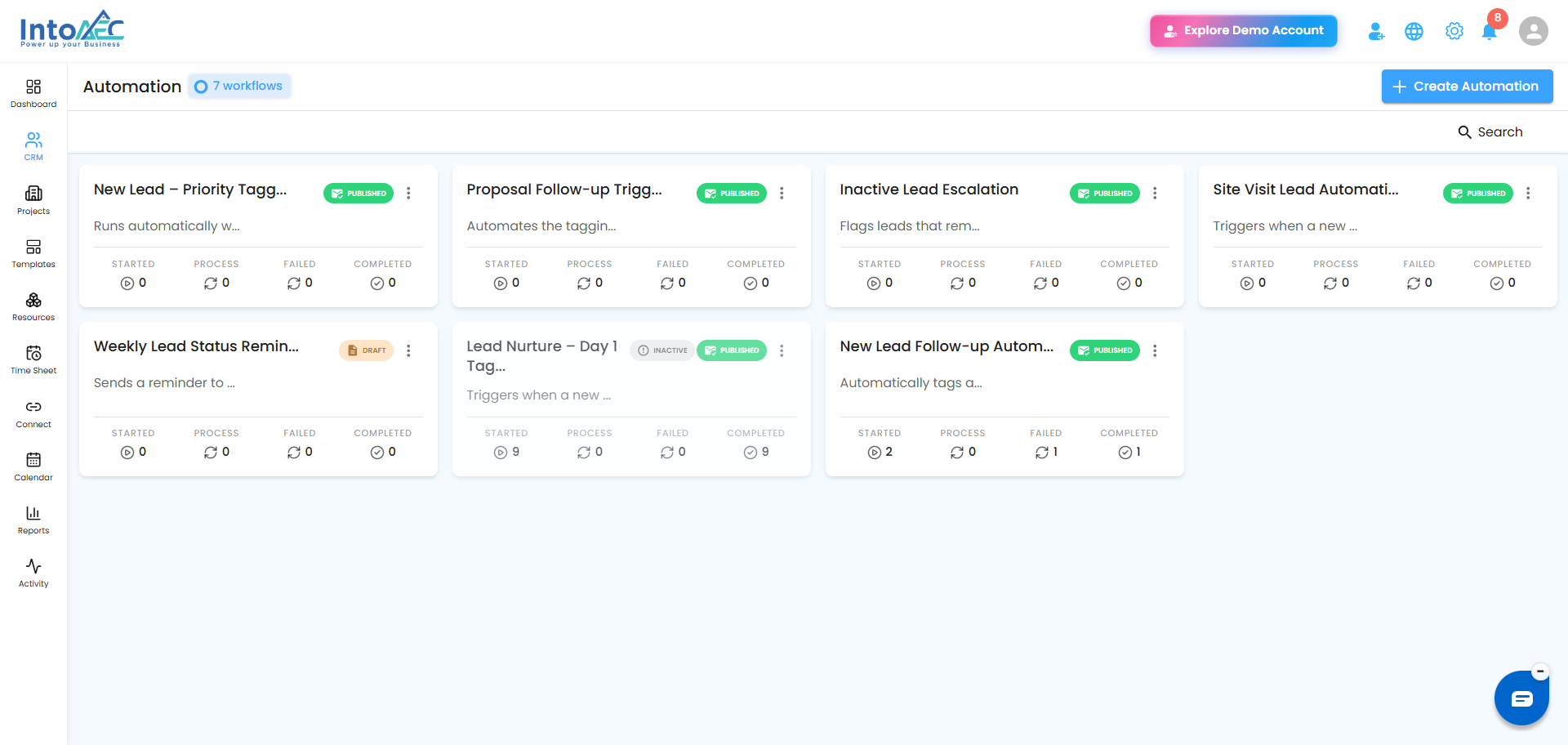
Automation lets you set up workflows that run on their own, so you don't have to manually send follow-up emails, create tasks, or remind your team about deadlines. Set the rule up once - like "when an estimate's payment term is due soon, send a reminder and create a follow-up task" - and the system takes care of it every time that situation comes up.
 The Building Blocks
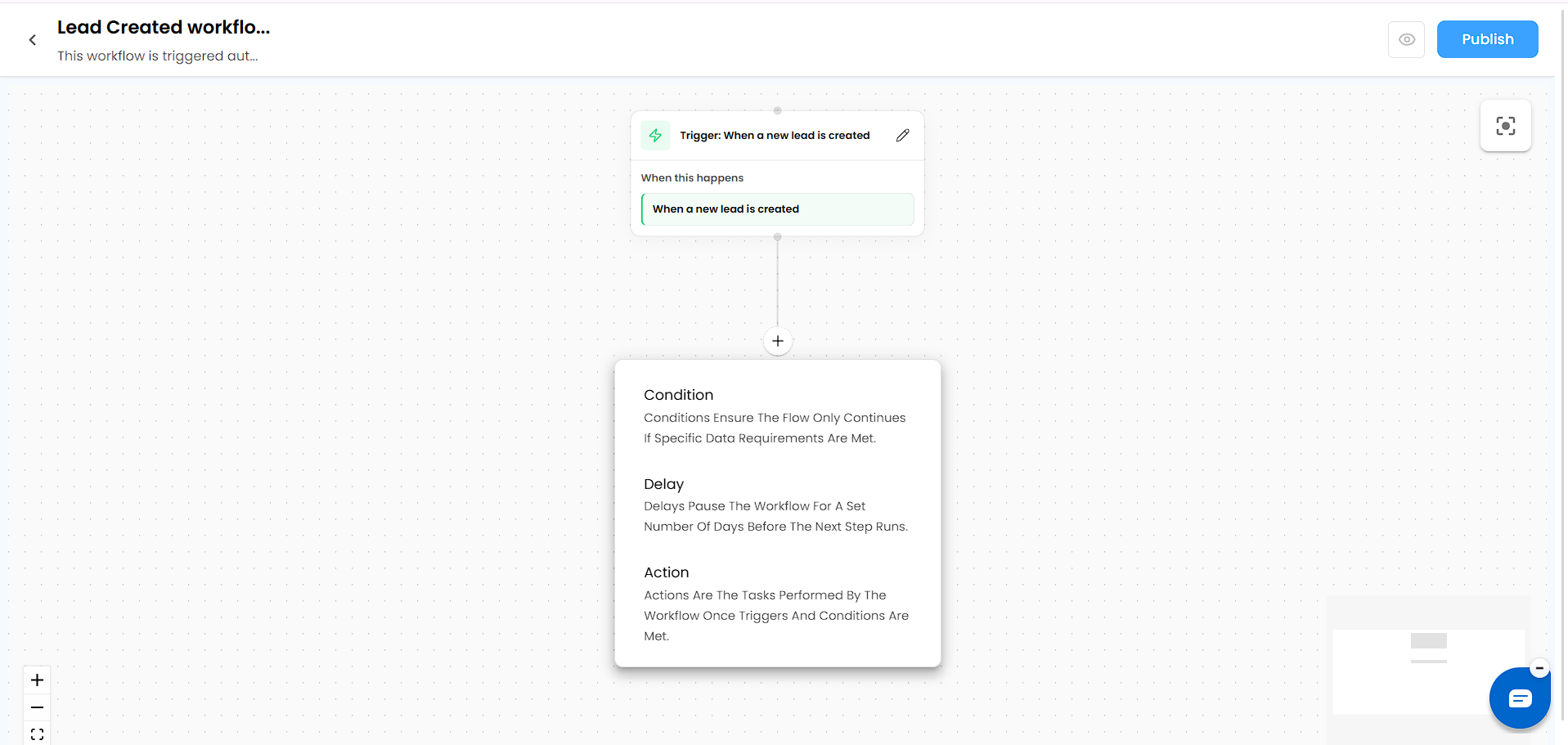
Every automation is built by connecting a few types of blocks (called nodes) on a canvas:
| Node | What it does |
|---|---|
| Trigger | The event that starts the workflow - e.g., an estimate payment term reminder is due, a lead is created, a proposal is viewed |
| Action | What happens as a result - e.g., send an email, create a task, set a reminder for a user |
| Delay | A wait period before the next step runs - e.g., wait 1 week, then create a task |
| Condition | A branch point that checks a value and splits the flow into Yes/No paths - e.g., if Project Type equals a certain value, do one thing; otherwise, do another |
Workflow Status: Draft vs. Published
Every automation is either a Draft or Published:
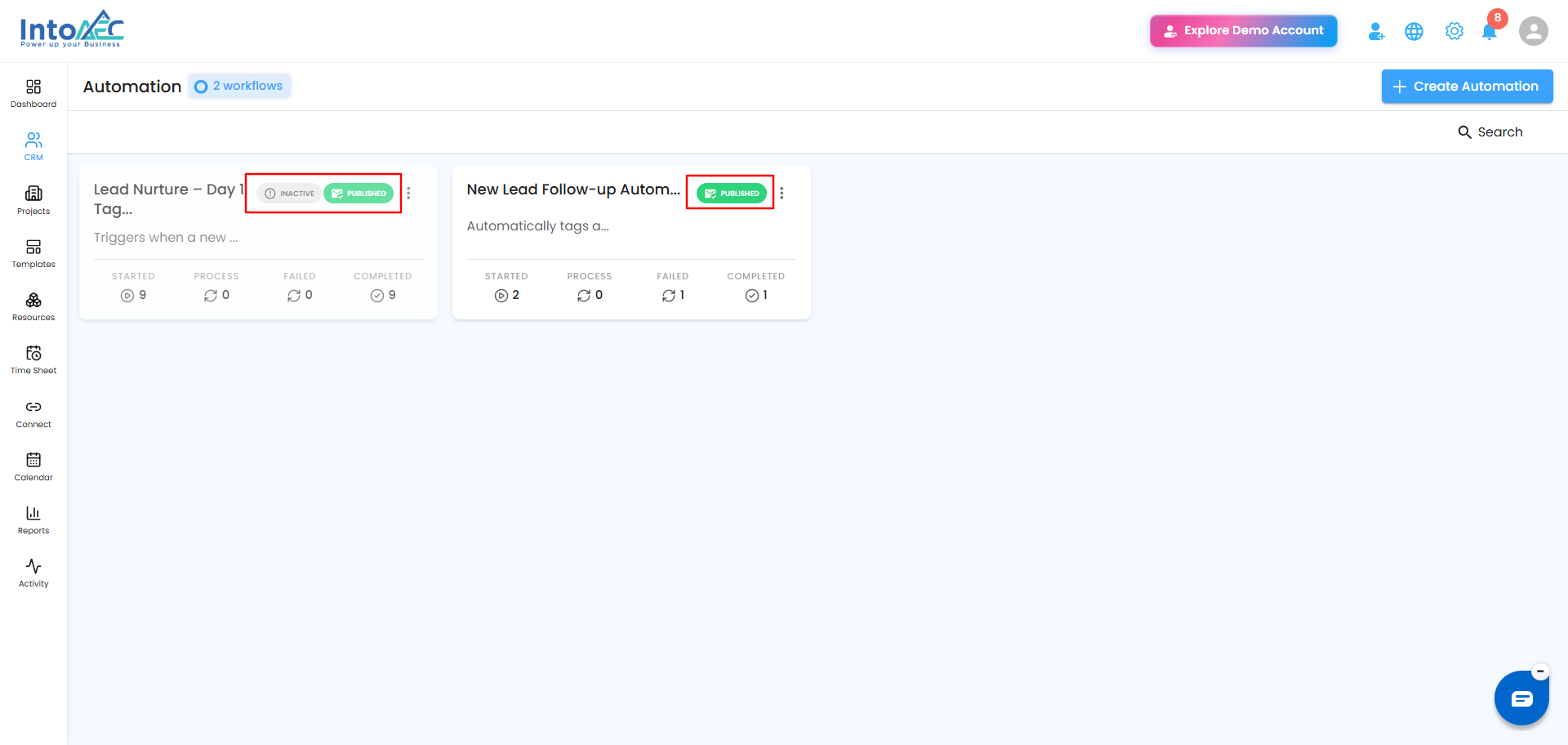
- Draft - the workflow is still being built. It won't run, no matter what.
- Published - the workflow is complete and ready to run.
Active vs. Inactive
A Published workflow can also be Active or Inactive. Deactivating a workflow pauses it without deleting it - handy if you want to temporarily stop it (say, while you review or update the process) without rebuilding it later.
 Tracking Performance
Each automation card shows a quick performance snapshot:
- Started - how many times the workflow has been triggered
- Process - how many runs are currently in progress
- Failed - how many runs didn't complete successfully
- Completed - how many runs finished successfully
Was this article helpful?
That’s Great!
Thank you for your feedback
Sorry! We couldn't be helpful
Thank you for your feedback
Feedback sent
We appreciate your effort and will try to fix the article