Step 1: Start a New Automation
Go to CRM > Automation, then click Create Automation in the top right.
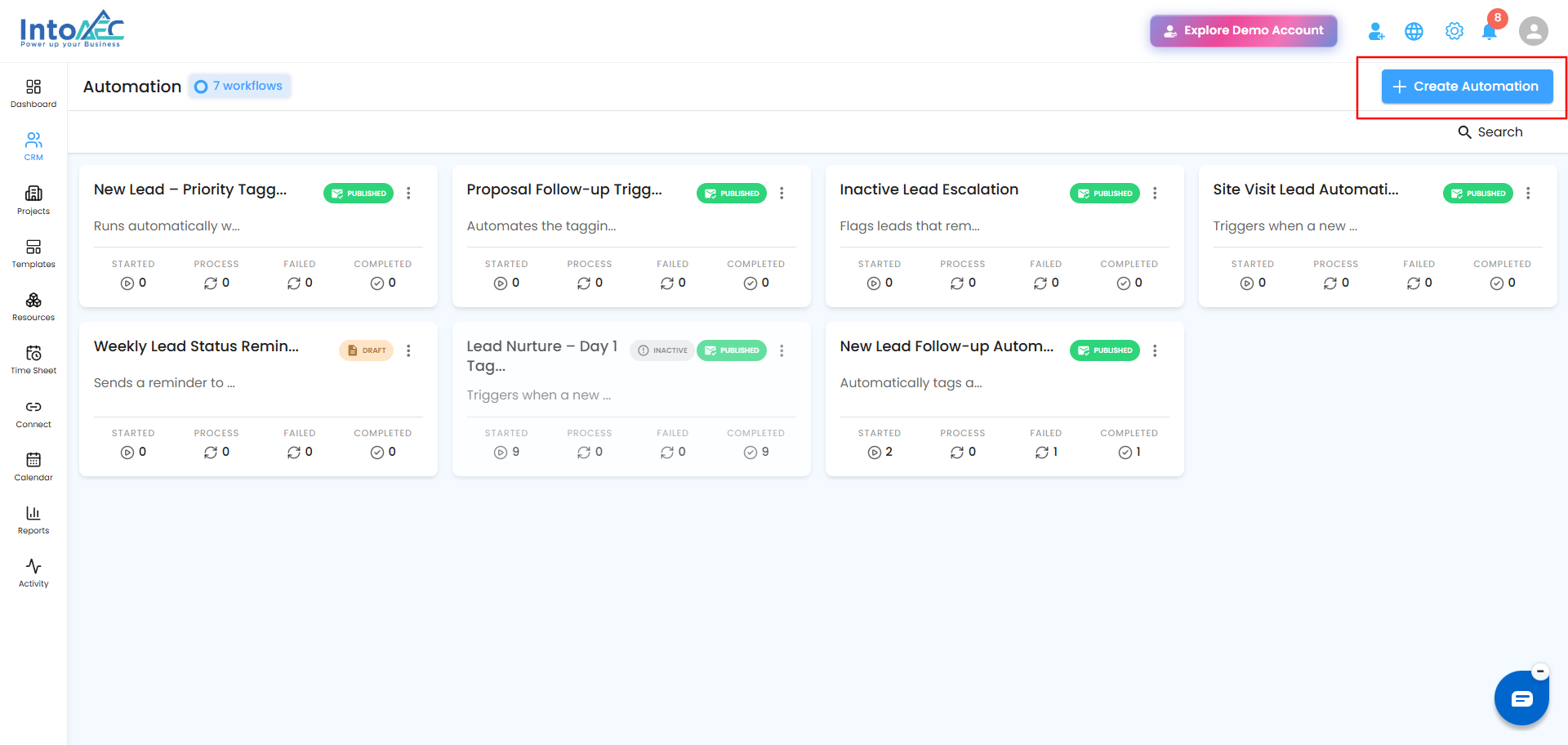 Step 2: Add a Trigger
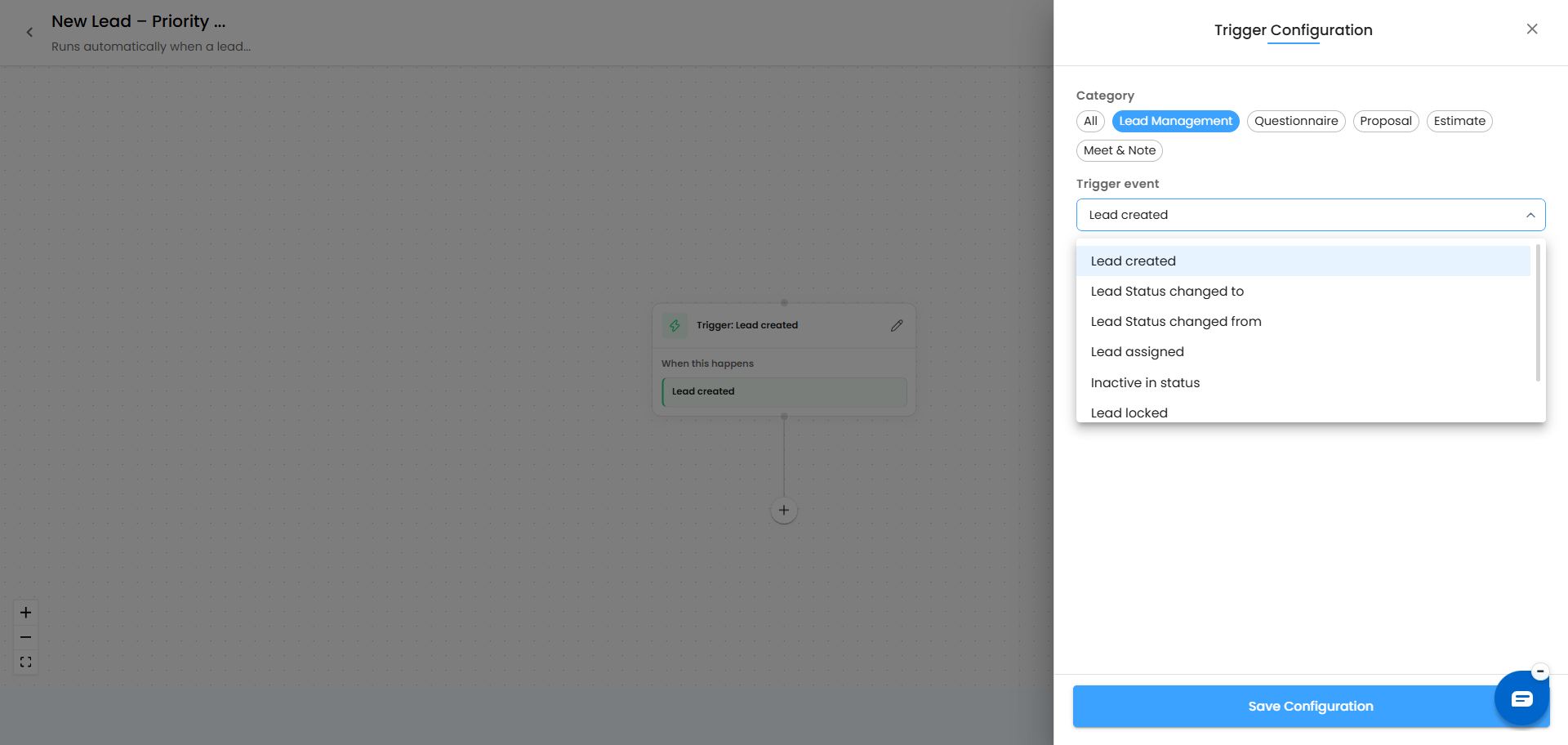
Every workflow starts with a trigger - the event that kicks everything off. Click the trigger node to open Trigger Configuration:
- Pick a Category - All, Lead Management, Questionnaire, Proposal, Estimate, or Meet & Note
- Choose the specific Trigger event from the dropdown (e.g., "Estimate payment term reminder")
- Some triggers need no further setup; others may show additional fields depending on the event you pick
Click Save Configuration once you're done.
 Trigger Category Quick Reference
Not sure which category to pick? Here's what each one generally covers:
| Category | Covers triggers related to... |
|---|---|
| All | Every available trigger event, across all categories - useful when you're not sure which category an event falls under |
| Lead Management | Actions on a lead itself - for example, a lead being created, updated, or moving through your pipeline |
| Questionnaire | Events tied to questionnaires sent to or completed by a lead |
| Proposal | Events around proposals - such as a proposal being sent, opened, viewed, or commented on |
| Estimate | Events tied to estimates - such as payment term reminders or estimate status changes |
| Meet & Note | Events related to meetings and notes logged against a lead |
Step 3: Add Actions, Delays, or Conditions
After the trigger, build out the rest of the flow by adding nodes below it. Each node type opens its own configuration panel.
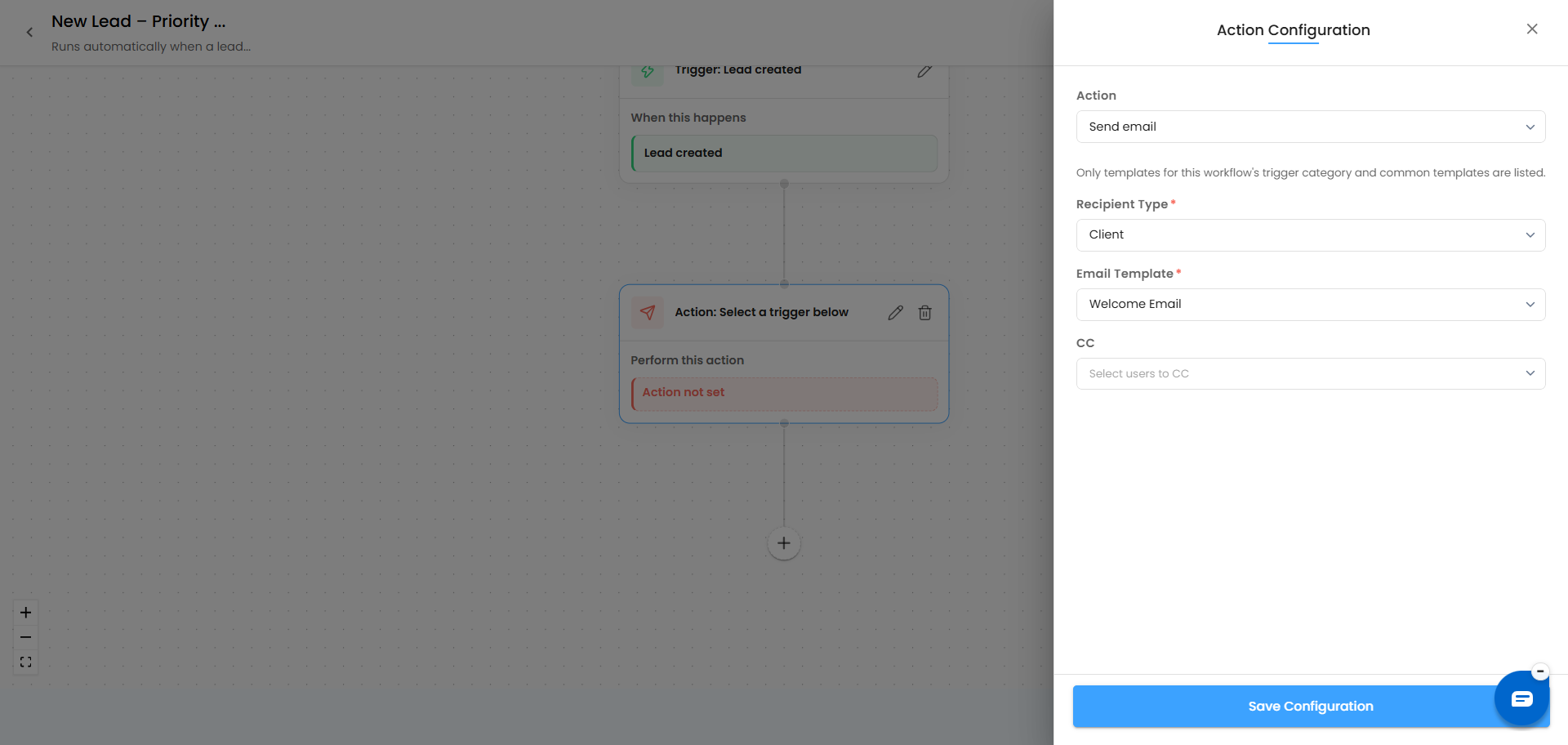
Action Configuration
Use this when you want the workflow to actually do something - like sending an email or creating a task.
- Choose the Action (e.g., Send Email)
- Set the Recipient Type (e.g., Client)
- Pick an Email Template, and add anyone to CC if needed
- Fill in any Template macro bindings - these are the placeholders inside the template, like Amount or Due Date, that get filled in automatically when the email is sent
 Delay Configuration
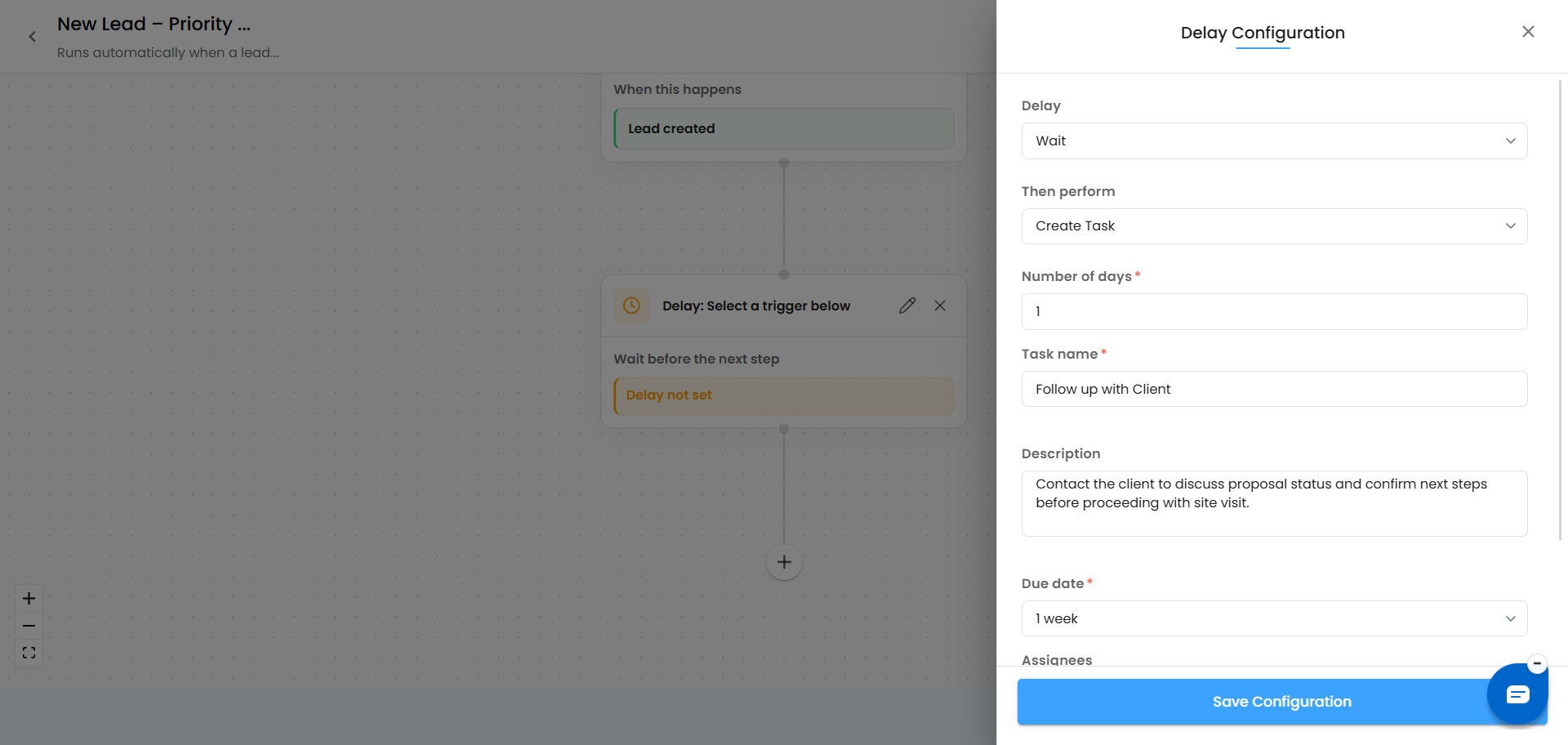
Use this to make the workflow wait before moving to the next step.
- Set the Delay type (e.g., Wait)
- Choose what to do after the wait under Then perform (e.g., Create Task)
- Enter the Number of days to wait, then fill in the follow-on action's details — Task name, Description, Due date, Assignees, and Priority
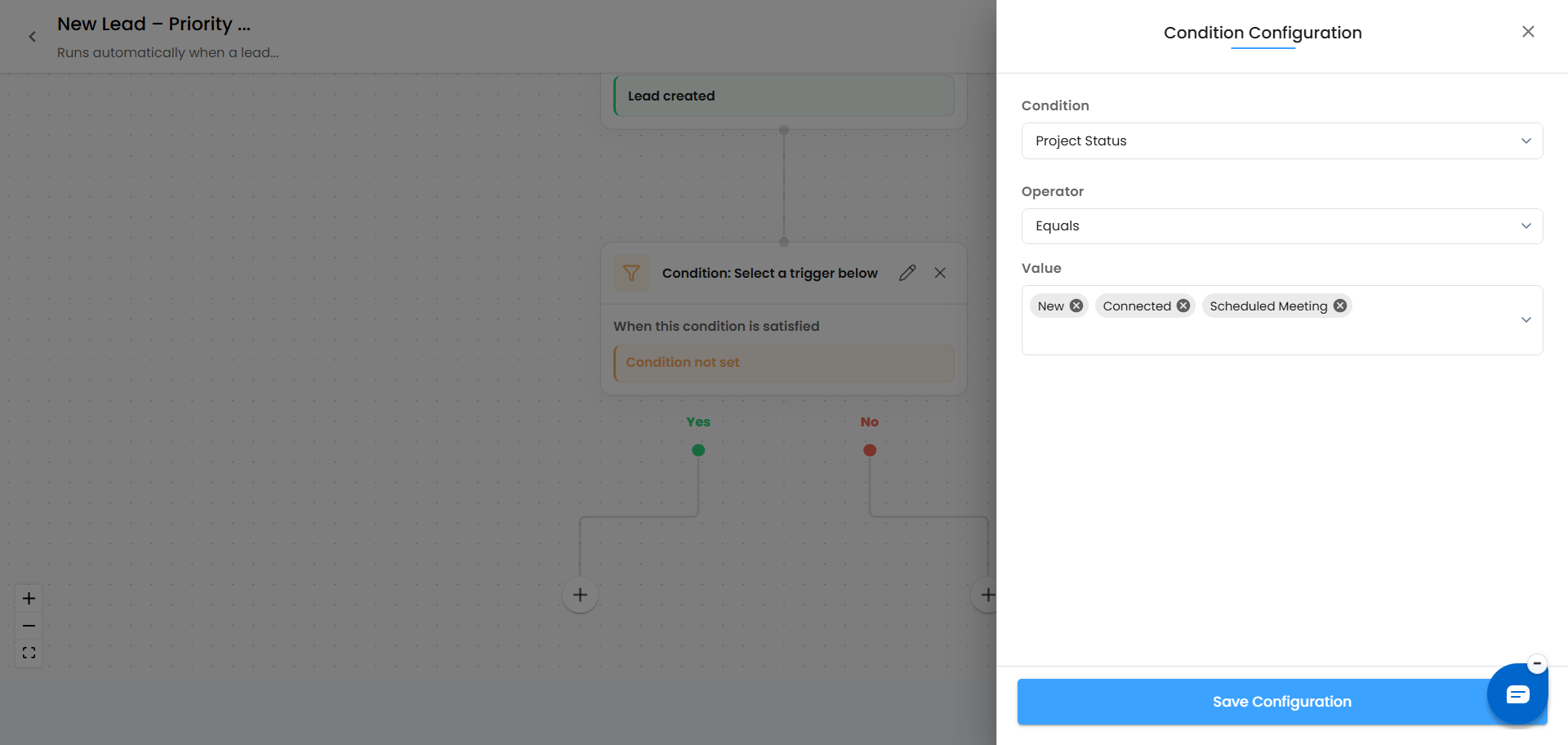
 Condition Configuration
Use this to branch the workflow depending on a value - like sending it down a different path for different project types.
- Choose the field to check under Condition (e.g., Project Type)
- Pick an Operator (e.g., Equals)
- Set the Value to compare against
Once saved, the workflow splits into Yes and No paths. Click the + icon under either path to keep building from there.
 Step 4: Navigate the Canvas
Use the zoom controls (+, –, and fit-to-screen) in the bottom left to move around larger workflows as you add more steps.
Step 5: Save or Publish
Your workflow is saved as a Draft while you're building it. Once it's ready to actually run, publish it — and make sure it's also set to Active, since a Draft or Inactive workflow won't execute.
Was this article helpful?
That’s Great!
Thank you for your feedback
Sorry! We couldn't be helpful
Thank you for your feedback
Feedback sent
We appreciate your effort and will try to fix the article