Viewing Your Automations
Go to CRM > Automation to see every workflow you've built, shown as cards. The count at the top tells you how many workflows exist in total.
Each card shows:
- The workflow's name (or "Untitled workflow" if it hasn't been named yet)
- Its status - Draft or Published, and if Published, whether it's Active or Inactive
- A short description, if one was added
- Performance stats: Started, Process, Failed, and Completed
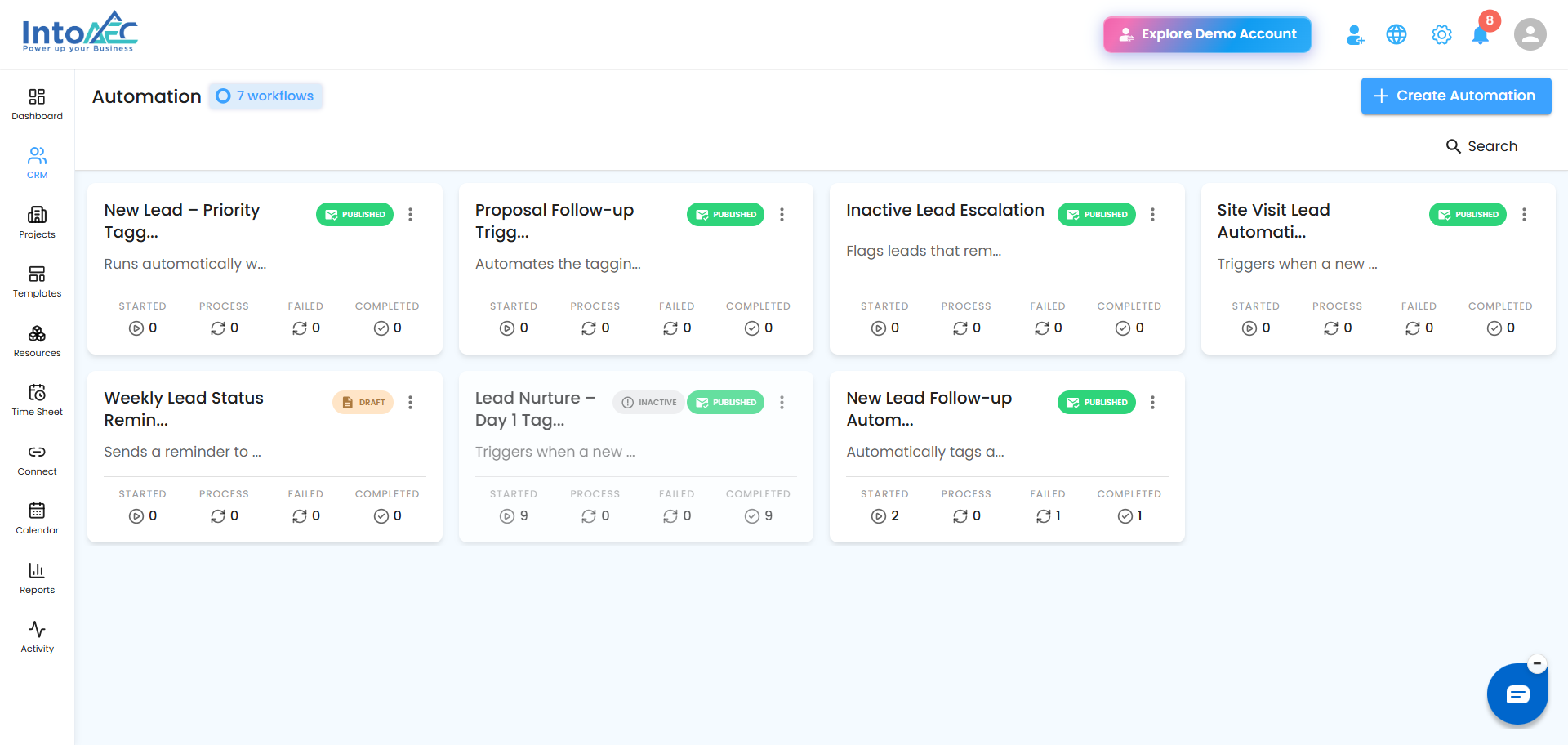 Use Search in the top right to quickly find a specific workflow by name.
Editing a Workflow
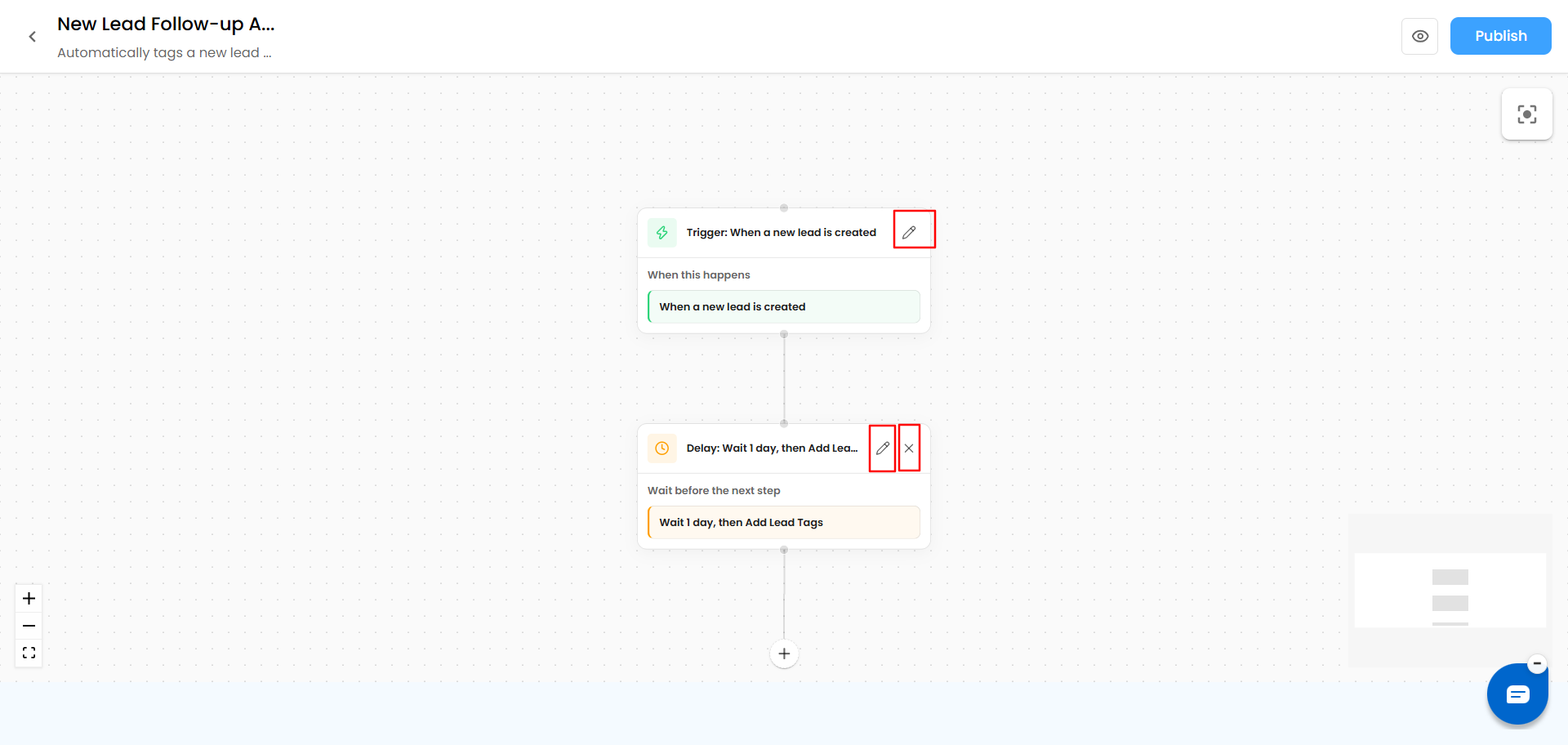
Click on any workflow card to open it on the canvas. From there, you can add new nodes, edit existing ones (click the pencil icon on a node), or remove a step (click the trash icon).
Activating or Deactivating a Workflow
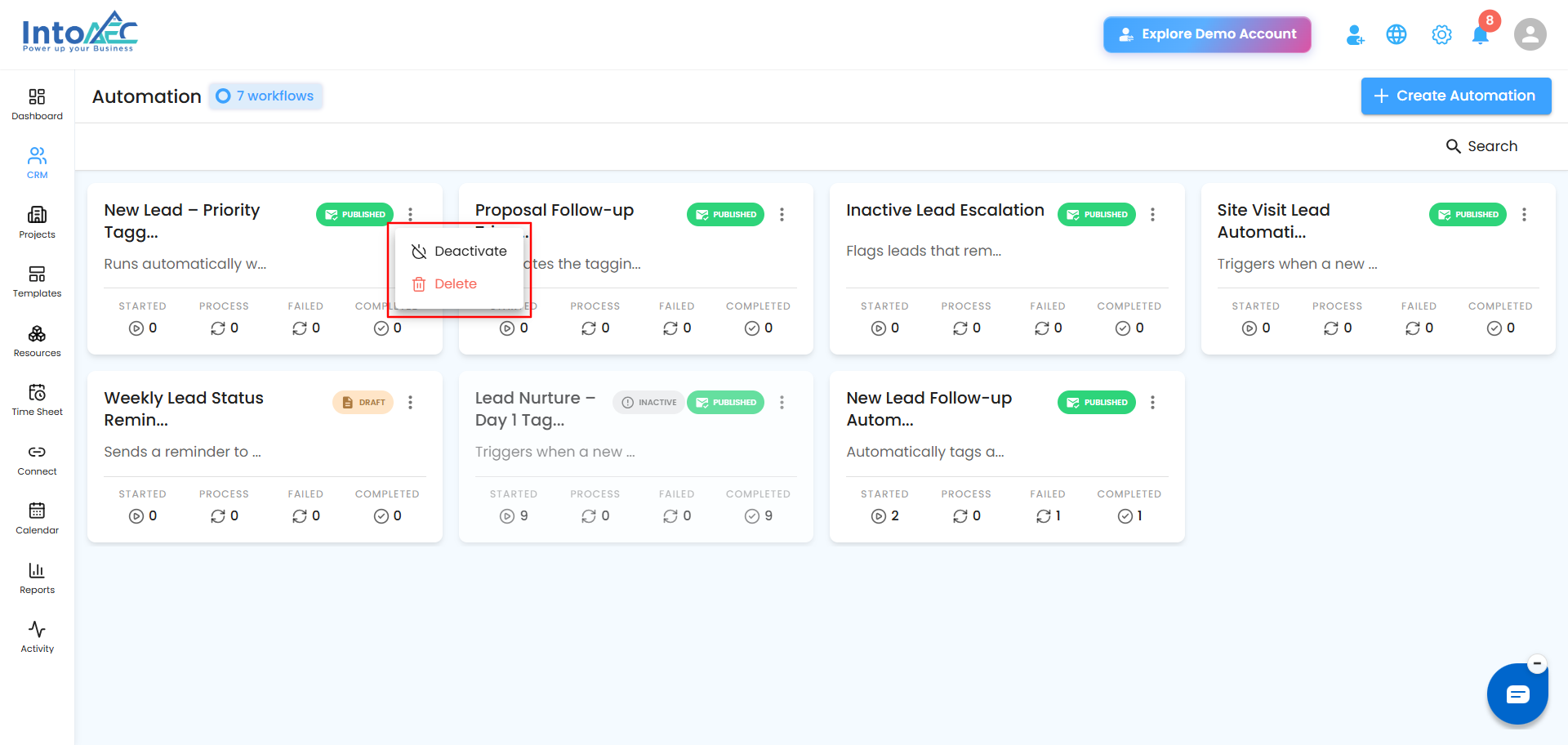
Click the three-dot menu on any workflow card:
- Deactivate - appears on an active workflow. Pauses it without deleting it, so it stops running but stays intact for later.
- Activate - appears on an inactive workflow. Turns it back on so it starts running again.
Reminder: only workflows that are both Published and Active will actually run. Deactivating one is a safe way to pause it temporarily without losing your setup.
Deleting a Workflow
From the same three-dot menu, click Delete to remove a workflow permanently.
Important: Deleting a workflow can't be undone. If you might need it again later, consider deactivating it instead of deleting it.
Was this article helpful?
That’s Great!
Thank you for your feedback
Sorry! We couldn't be helpful
Thank you for your feedback
Feedback sent
We appreciate your effort and will try to fix the article