Overview
The Default Notification Template is a preloaded notification template available in the Template Center. It provides a ready-to-use structure for sending notifications without creating a template from scratch.
You can manage the default template based on your requirements. You can:
View the default notification template.
Edit the template content and available settings.
Duplicate the template to create a separate custom version.
Control whether a template is visible or hidden.
Access the Default Notification Template
To view the default notification template:
From the side navigation menu, open Template Center.
Select Notification Template.
Locate the default notification template.
Select the template to view its available actions.
The default template is available under the Default section.
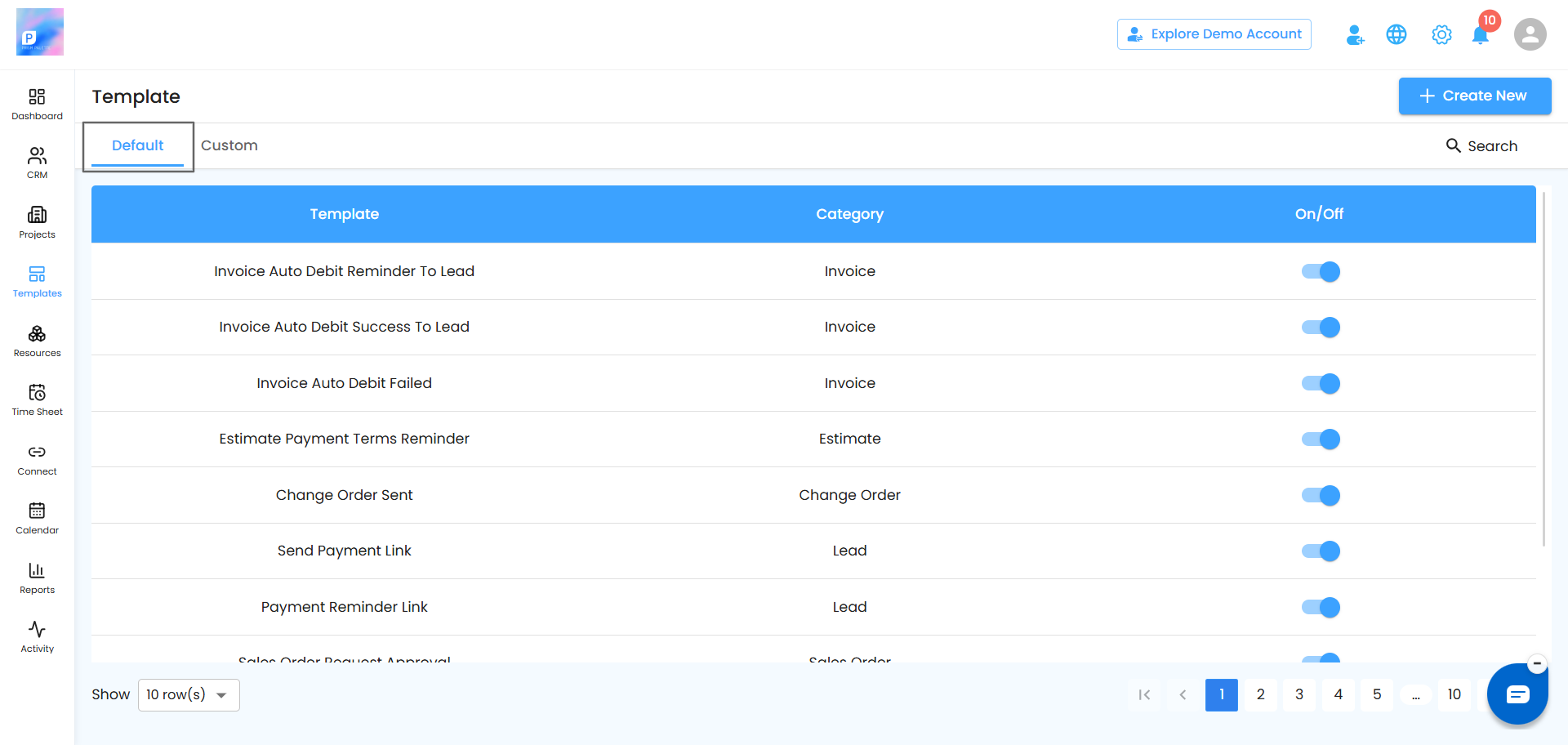
Manage the Default Notification Template
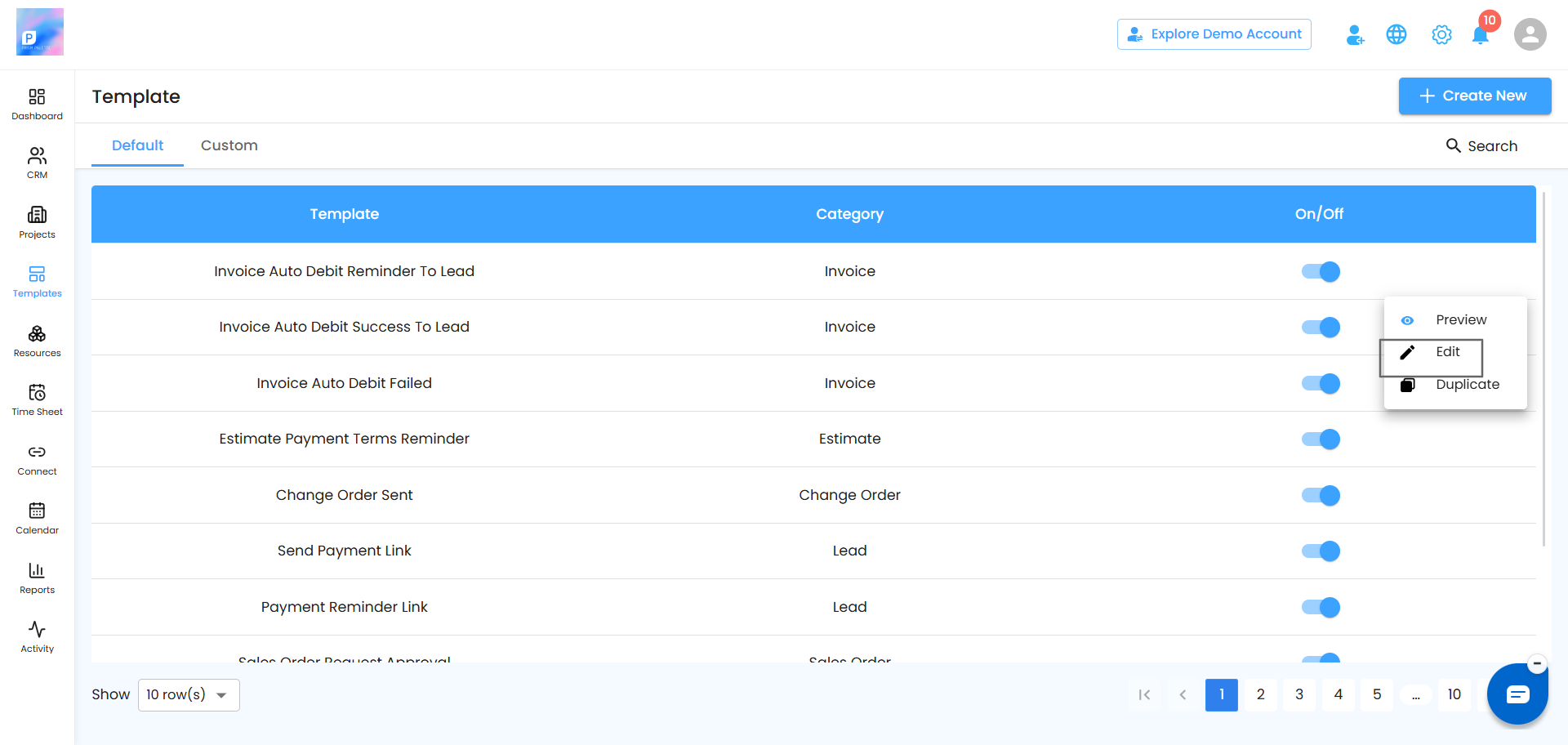
After opening the notification template, you can use the available actions to manage it.
Edit
Use Edit when you want to make changes to the existing template.
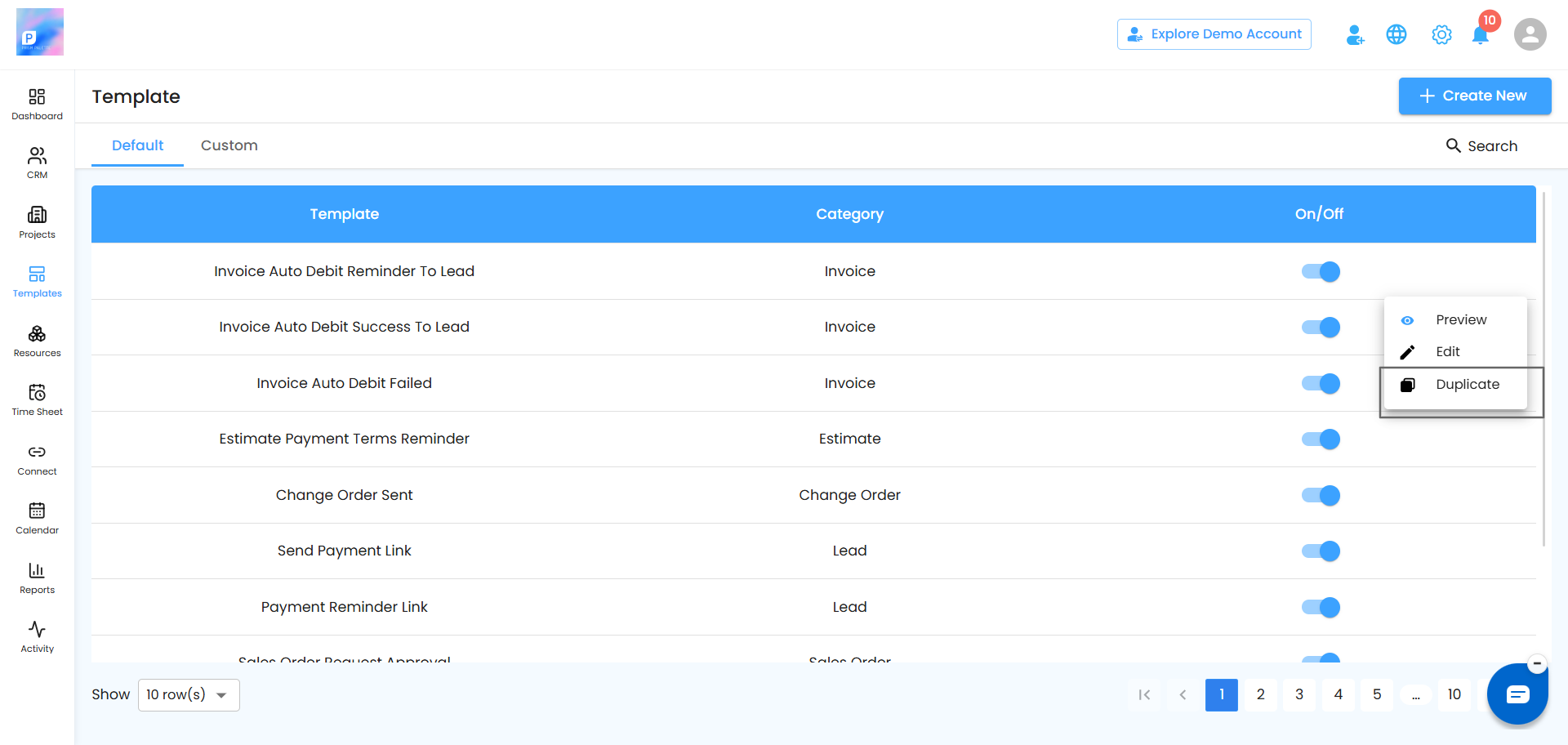
Duplicate
Use Duplicate when you want to create a separate copy of the template and customize it without working on the original.
Show/Hide
Use the Show/Hide toggle to control whether the template is visible and available for use.
Edit the Default Notification Template
You can update the default notification template to suit your requirements.
To edit the template:
Go to Template Center → Notification Template.
Select the default notification template.
Click Edit.
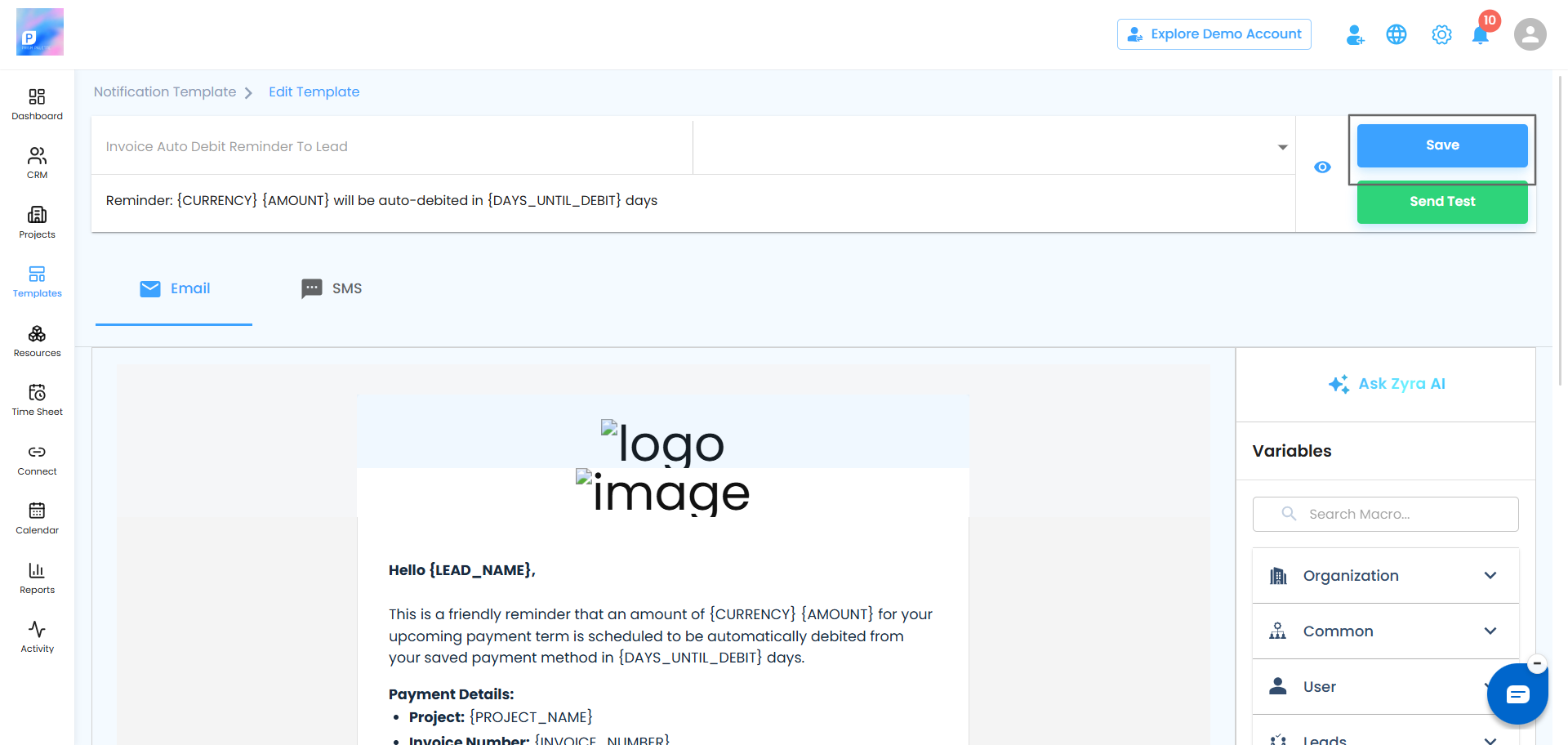
Make the required changes to the template.
Click Save.
The changes are saved to the notification template.
Save Your Changes
After editing the template, make sure to save your changes.
Review the updated content.
Click Save.
Verify that the updated template is displayed correctly.
Note: Editing the default template changes the existing default template. If you want to keep the original version unchanged, use Duplicate instead.
Duplicate the Notification Template
If you need a different version of the notification template, you can create a copy using Duplicate.
Duplicating is useful when you want to customize a template for a specific purpose while keeping the existing template available.
To duplicate a notification template:
Go to Template Center → Notification Template.
Select the template you want to copy.
Click Duplicate.
Enter a name for the new template.
Click Yes to confirm.
The new template is created as a separate copy.
Name the Duplicated Template
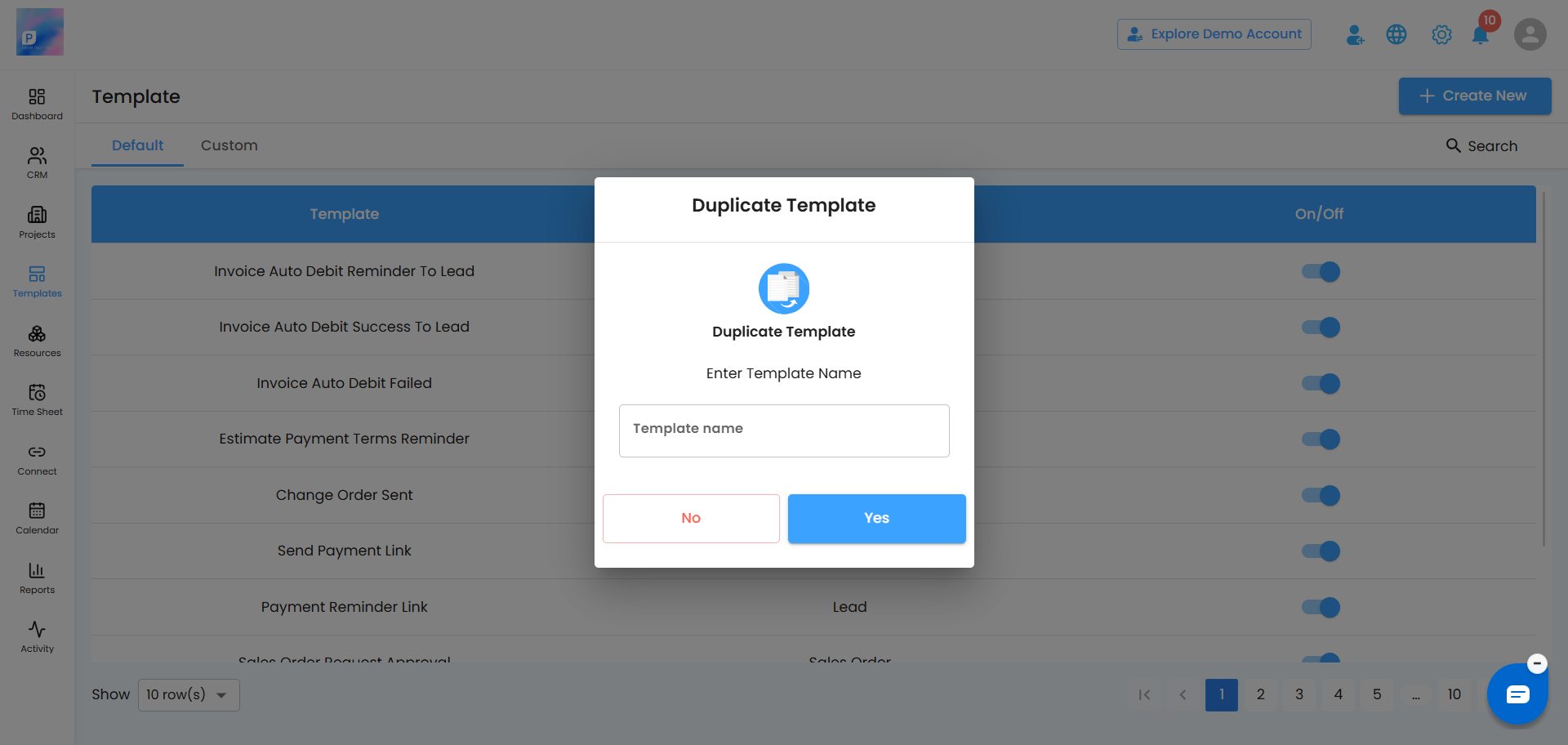
When you select Duplicate, a pop-up appears asking you to provide a name for the new template.
Enter a unique and descriptive name so the template can be easily identified later.
Enter the template name.
Click Yes.
The duplicated template is created.
The duplicated template is automatically added to the Custom section.
You can then edit and customize the copied template without affecting the original template.
Show or Hide a Notification Template
The Show/Hide toggle controls the visibility of notification templates.
You can use this option for templates in both the Default and Custom sections.
Show a Template
Turn the toggle ON when you want the template to be visible and available for use.
Hide a Template
Turn the toggle OFF when you do not want the template to be visible.
Hiding a template keeps it available in the template list, so you can make it visible again when needed.
Tip: If a template is no longer required but may be needed later, hide it instead of deleting it.
Default and Custom Templates
Notification templates are organized into Default and Custom sections.
Default – Contains the notification templates provided with IntoAEC.
Custom – Contains templates created by duplicating and customizing existing templates.
This separation helps you identify the templates provided by the system and the templates
Was this article helpful?
That’s Great!
Thank you for your feedback
Sorry! We couldn't be helpful
Thank you for your feedback
Feedback sent
We appreciate your effort and will try to fix the article