Managing Terms and Conditions Templates
Overview
Instead of typing out your terms and conditions every time, set them up once as a template. When you're creating a proposal, estimate, or invoice, you can then pick the relevant template and attach it - no rewriting the same clauses every time, and everything stays consistent across documents.
Getting to Terms and Conditions
Go to Templates in the left sidebar, then select Terms And Conditions from the menu.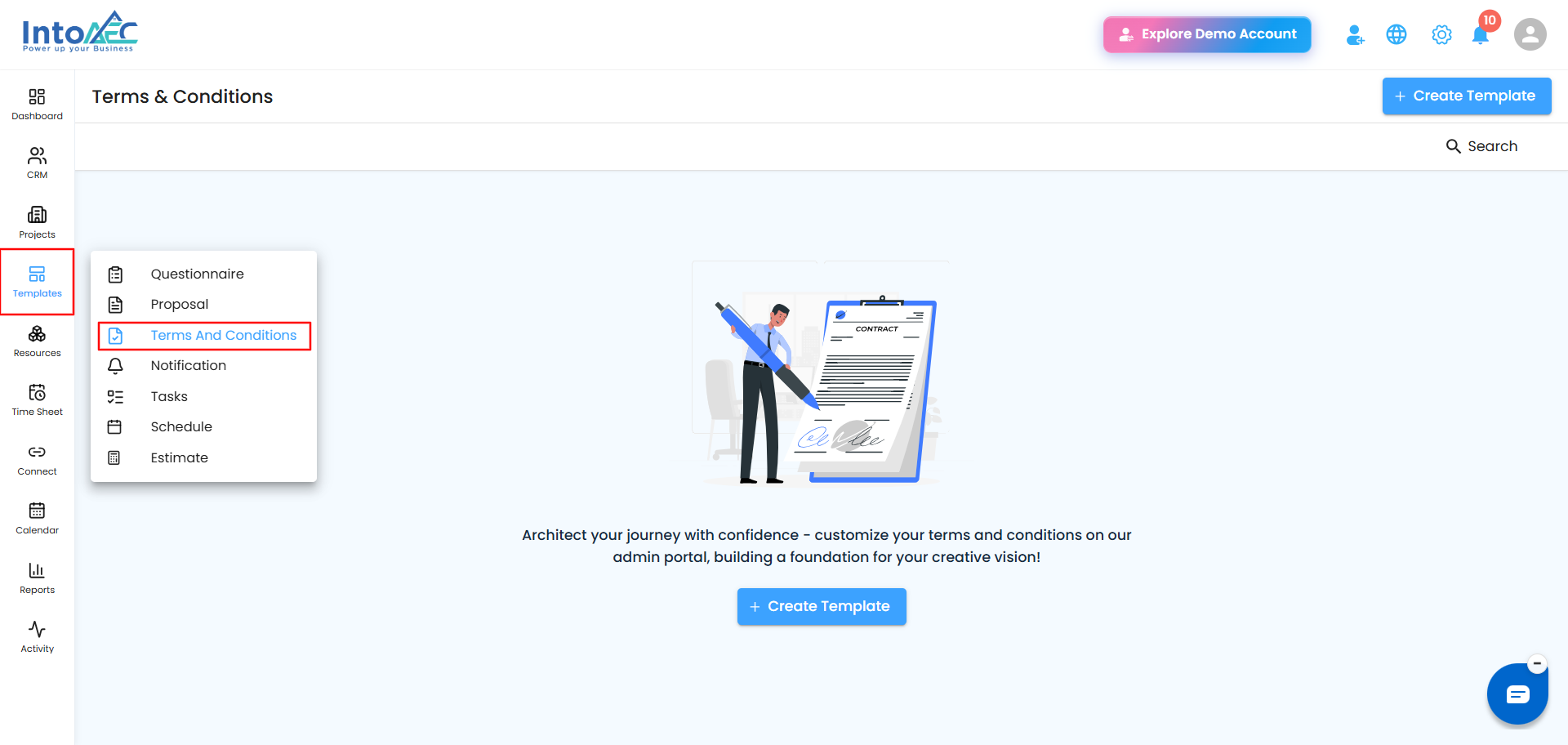 Creating a New Template
Step 1. Click Create Template in the top right.
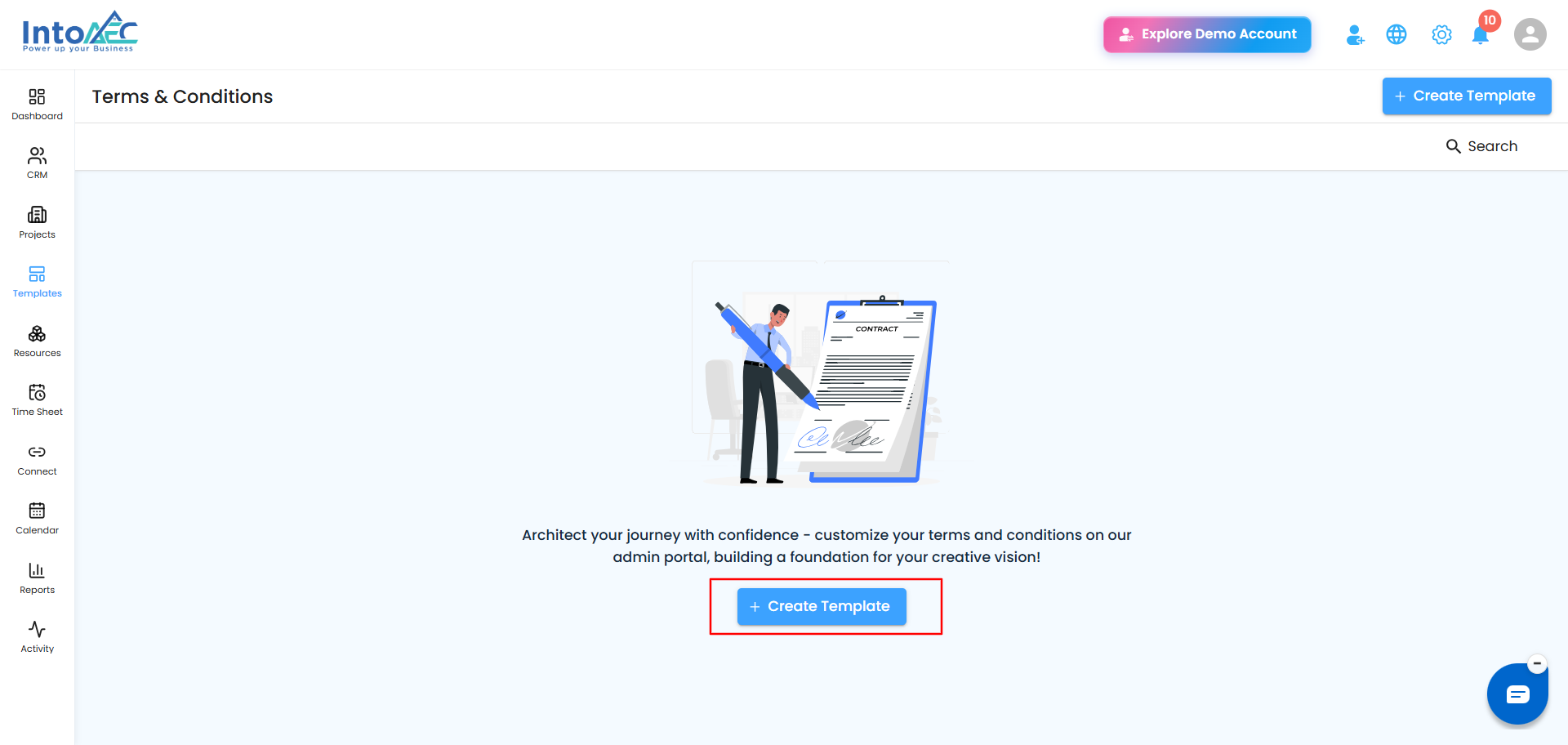 Step 2. Fill in the details:
- Template Name - give it a clear, descriptive name so it's easy to find later
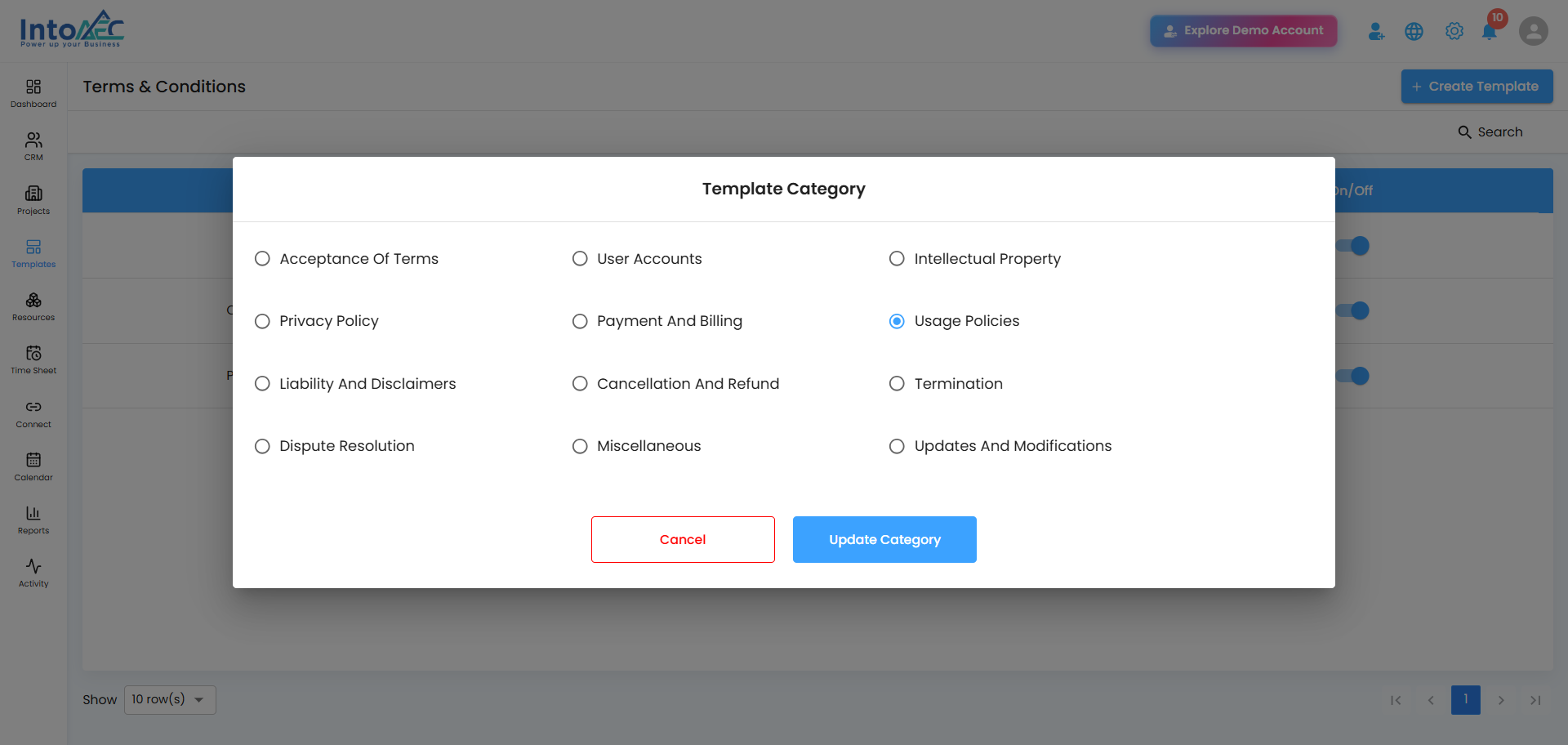
- Categories - pick a category from the dropdown (Acceptance Of Terms, User Accounts, Intellectual Property, Privacy Policy, Payment And Billing, Usage Policies, Liability And Disclaimers, Cancellation And Refund, Termination, Dispute Resolution, Miscellaneous, or Updates And Modifications)
- Terms and Conditions - type or paste the actual content into the editor, using the toolbar to format text as needed
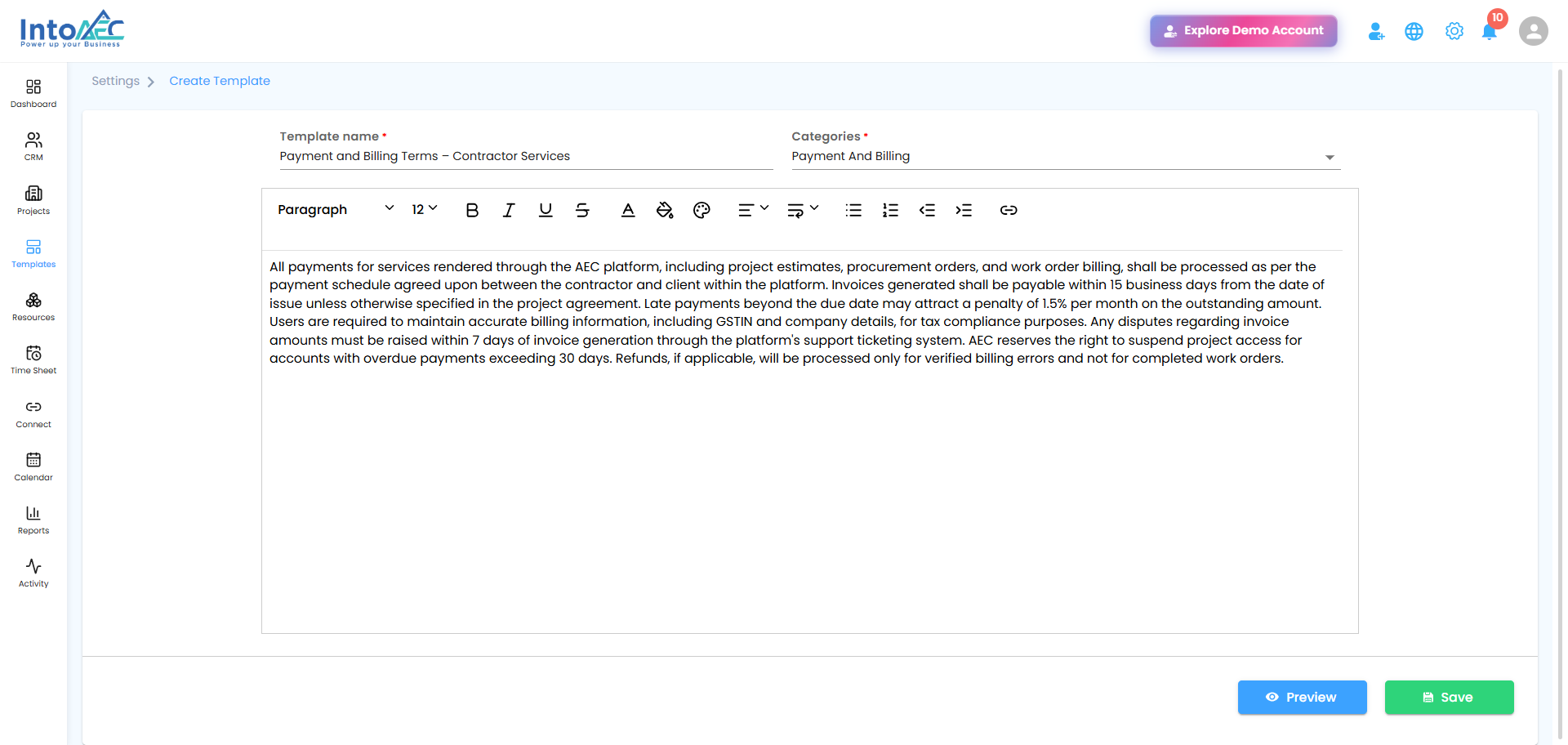 Step 3. Click Preview to check how the content looks before saving, then click Save to finalize the template.
Tip: A clear name and the right category make templates much faster to find and reuse later, especially once you've built up a few of them.
Where Your Templates Show Up
Once saved, a template appears in the Terms & Conditions grid with its name, category, and an On/Off toggle.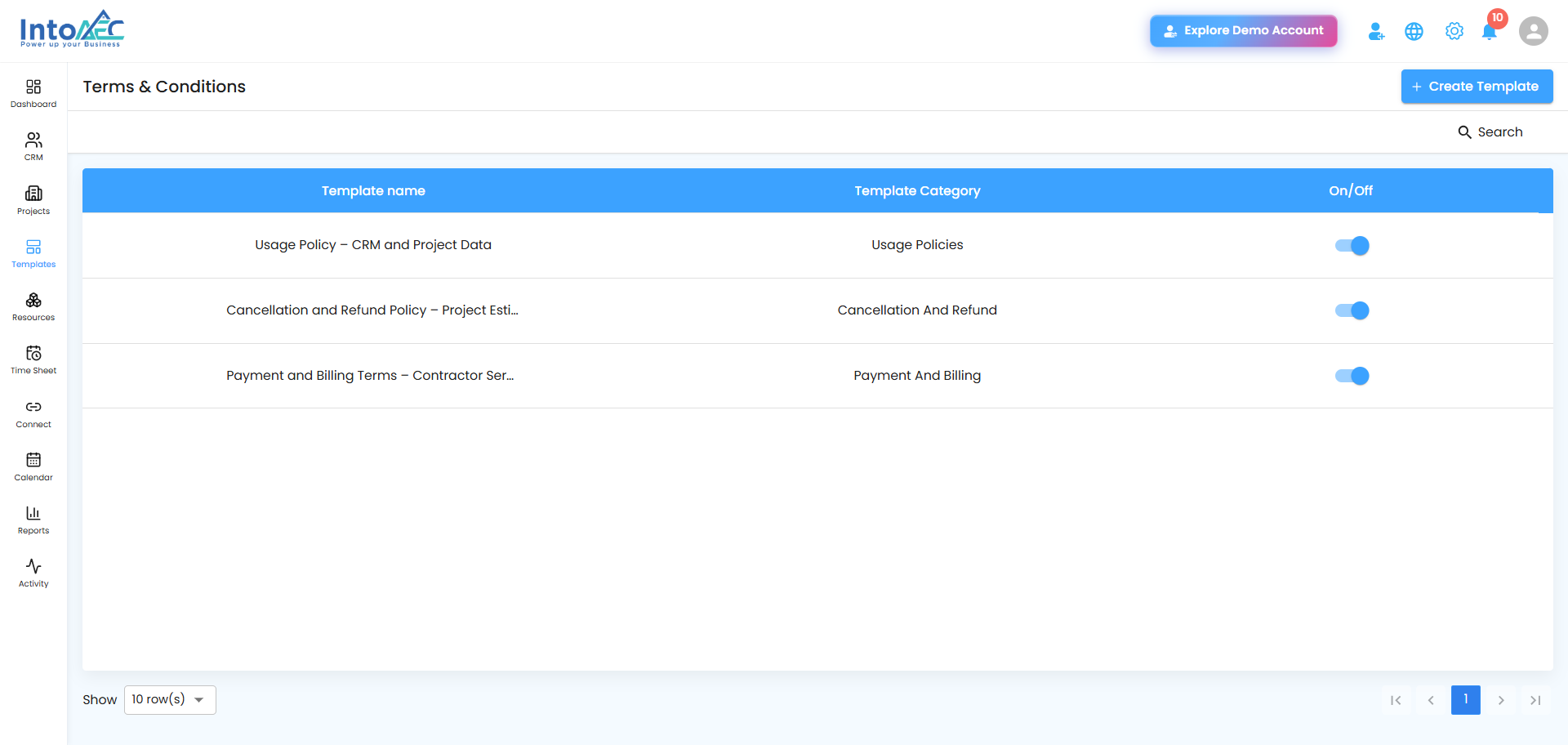 Managing a Template
Click the three-dot menu next to any template to:
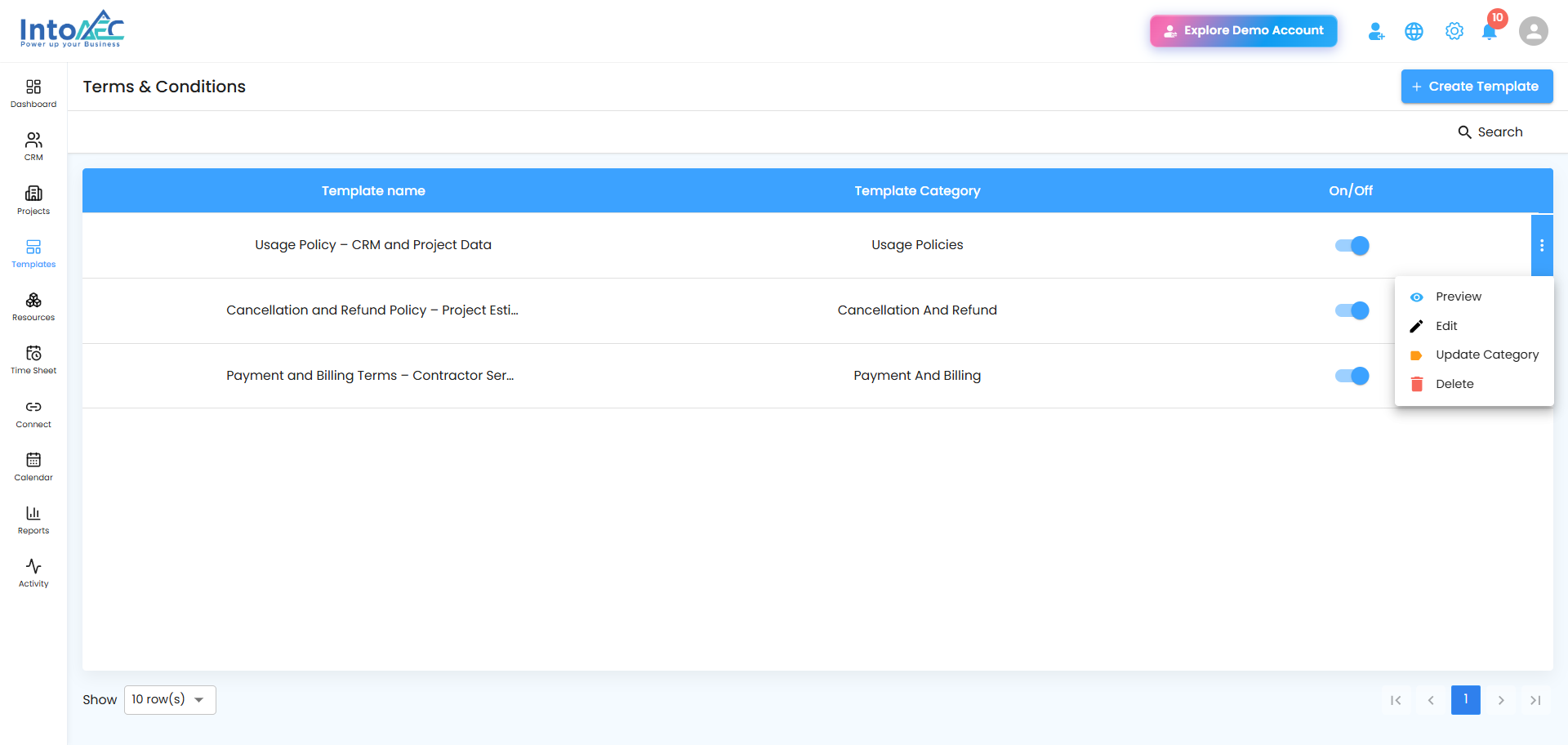 Preview
Opens the full content of the template so you can check the clauses and formatting before applying it anywhere.
Edit
Lets you update the content, then click Save to apply the changes.
Update Category
Opens a window where you can pick a different category and click Update Category to reassign it.
 Delete
Asks you to enter a reason before removing the template. Click Yes to confirm - this is permanent, so the template won't show up in the grid afterward.
Tip: If you're not sure whether you'll need a template again, duplicate it first before deleting - that way you keep a backup just in case.
Showing or Hiding a Template
Use the On/Off toggle in the grid to control whether a template is available for use. Turning it off hides the template so it can't be accidentally selected - useful for drafts or templates under review - without deleting it. You can turn it back on anytime.