Lead Dashboard – Your Ultimate Command Center
Once you land in the software, the Lead Dashboard is the first thing you’ll see — it’s your strategic hub for managing leads, tracking engagement, and optimizing sales workflows. Designed with multiple dynamic widgets and visual insights, the dashboard provides a 360° view of your leads, proposals, meetings, and activities, enabling quick decision-making and smarter follow-ups.
Accessing the Lead Dashboard
From the Side Menu, click Dashboard.
Select Lead Dashboard.
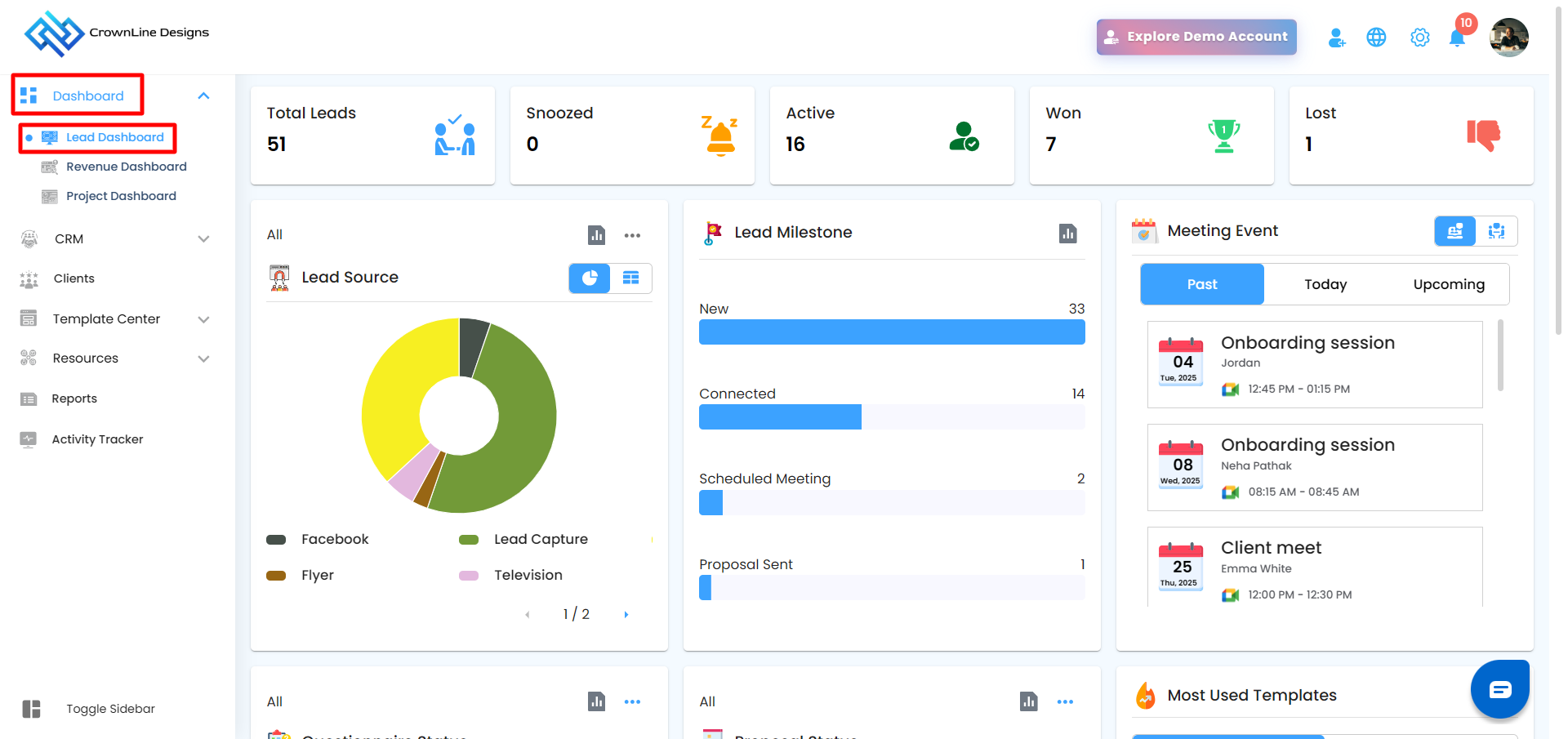
The Lead Dashboard page will open, giving you real-time visibility into your lead pipeline, milestones, sources, meetings, and user activities.
Active Leads Card – Nurture Your Current Opportunities
The Active Leads Card represents leads that are currently being engaged and are under active follow-up. These are your live opportunities — leads that can convert into clients with timely attention.
Snoozed Leads Card – Manage Paused Opportunities
The Snoozed Leads Card captures leads that have been temporarily paused — for instance, when a client requests a follow-up at a later date or a project is on hold. These leads are not forgotten but are temporarily inactive.
Won Leads Card – Celebrate Conversions
The Won Leads Card highlights all leads that have successfully converted into clients. This card is your success tracker, showing tangible results of your sales efforts.
Lost Leads Card – Learn & Improve
The Lost Leads Card displays leads that did not convert, helping you identify gaps, challenges, and opportunities for improvement. These are valuable learning points for refining your sales strategy.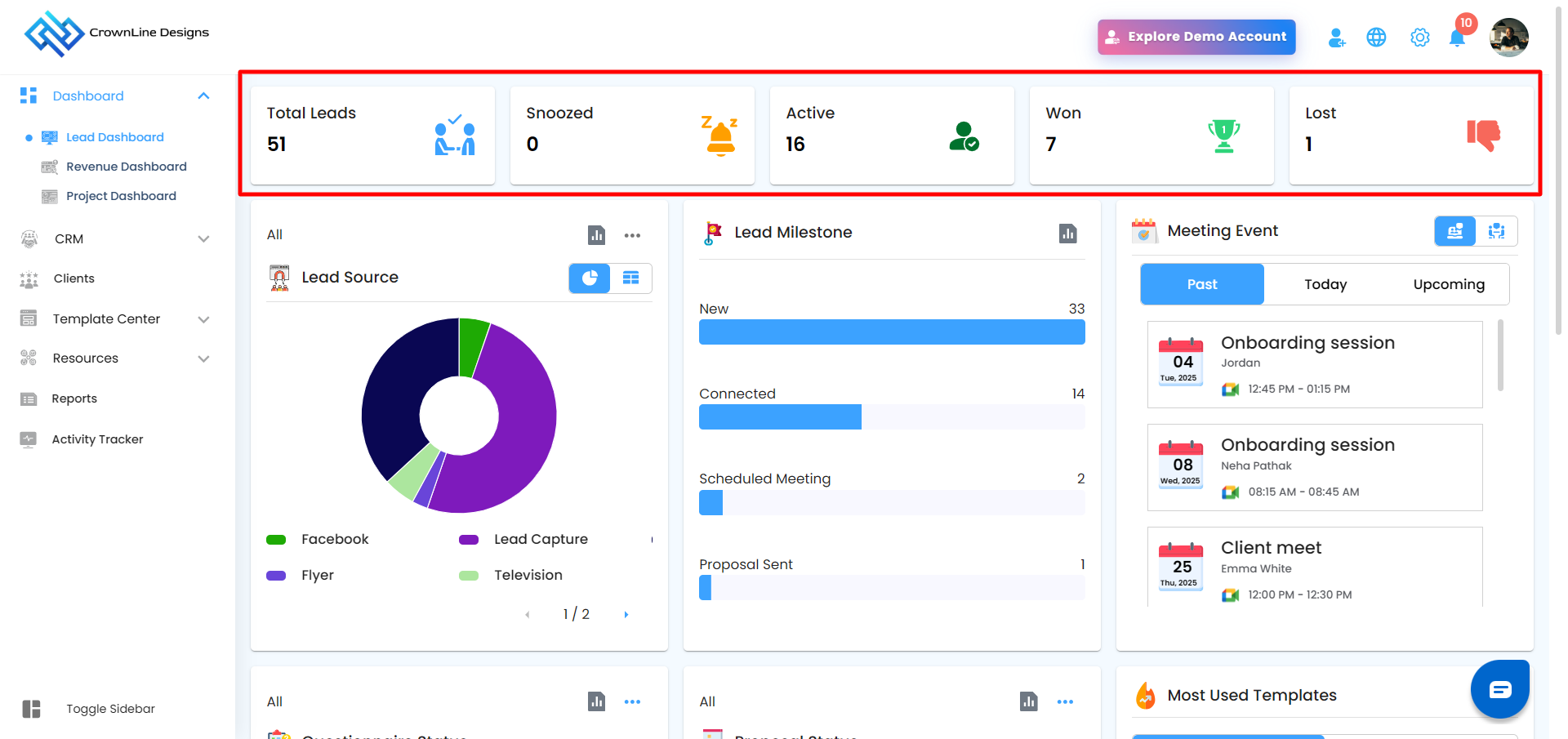
Interactive Card Navigation
The Lead Dashboard cards are now interactive, allowing quick navigation to detailed lead views.
Clicking the Total / Active Leads card redirects to
CRM → Lead Manager → Active Leads tabClicking the Snoozed Leads card redirects to
CRM → Lead Manager → Snoozed Leads tabClicking the Won Leads card redirects to
CRM → Lead Manager → Won Leads tabClicking the Lost Leads card redirects to
CRM → Lead Manager → Lost Leads tab
This enables faster drill-down from dashboard insights to actionable lead lists.
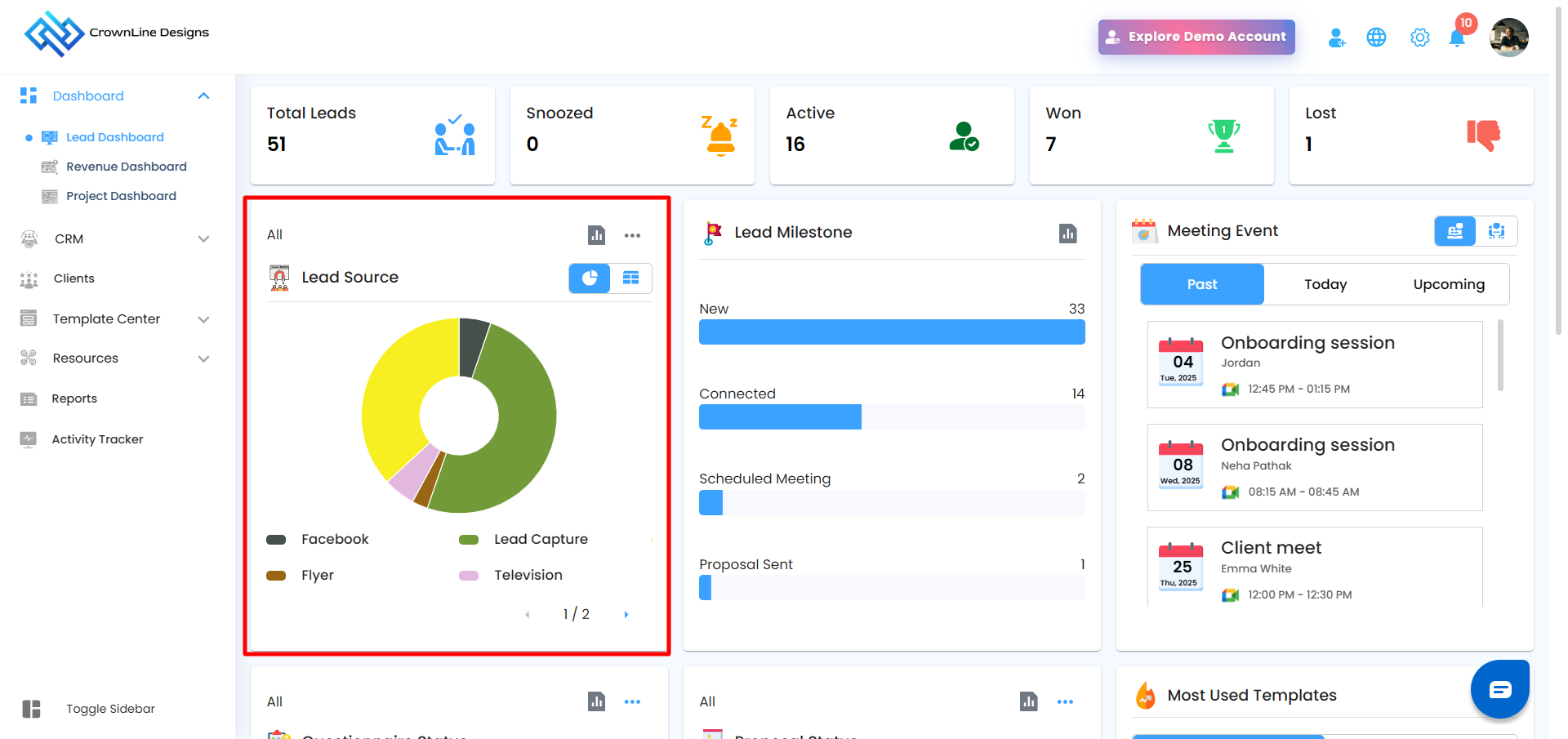
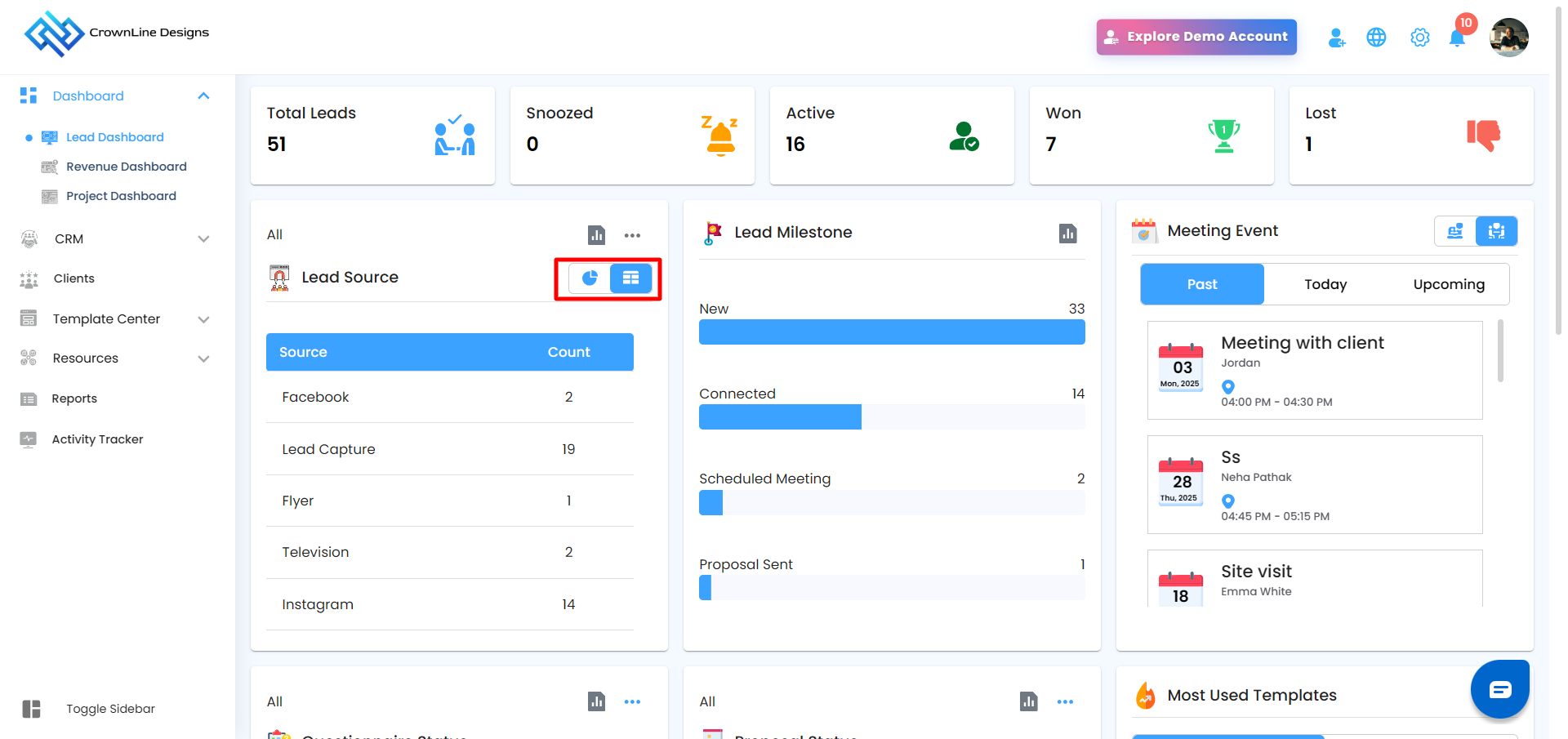
Lead Source Card
Common Sources: Bing, Television, Radio, Friends/Family, WhatsApp, Instagram, and more.
Filter & View Options:
Click the three-dot menu to select filters: All, Today, This Week, This Month.
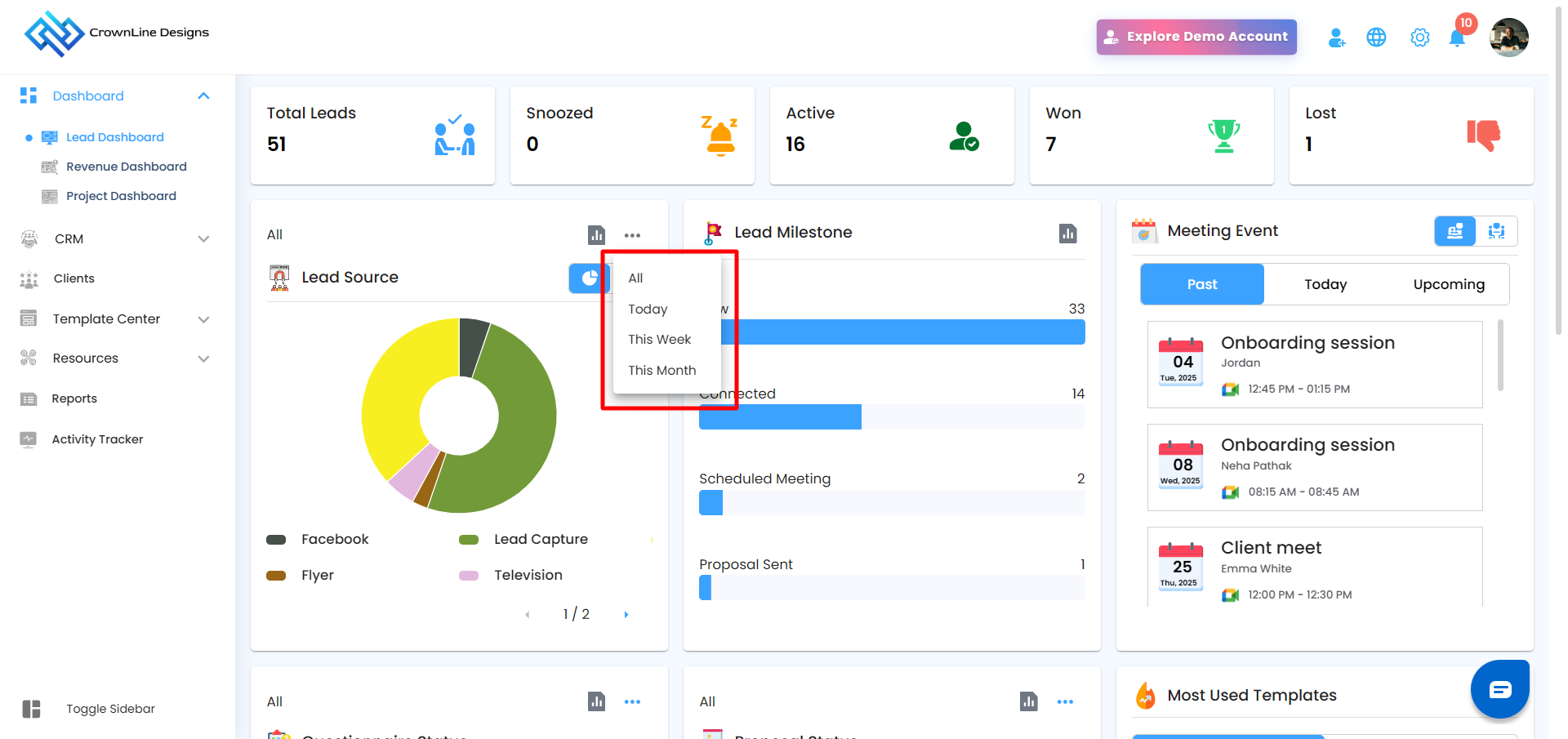
Toggle between Pie View (visual percentage split) and Table View (detailed list of leads per source).
Analytics Option
An Analytics icon is available on supported dashboard cards.
Hovering over the icon displays a tooltip “Analytics”
Clicking the icon opens a dedicated Analytics popup
Each popup includes:
Data specific to that card
A close (✕) icon to exit the view
It includes a search option for faster data lookup: Search by Lead Name or Project Name
Lead Source Analytics
Leads with a source assigned are listed first
Leads without a source are listed at the end
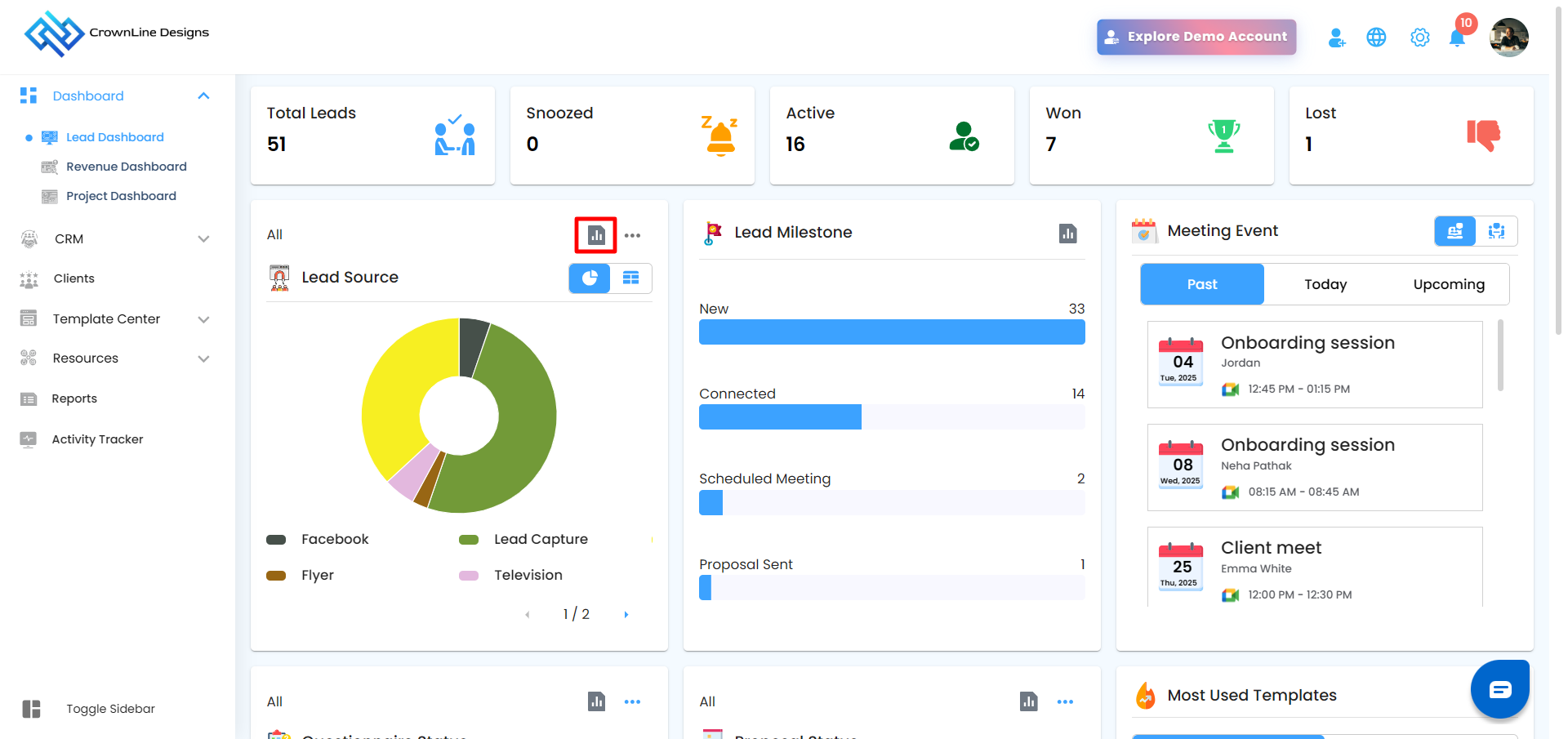
A three-dot menu (⋮) is available next to the Analytics icon
Filter options include:
All
Today
This Week
This Month
Analytics data updates based on the selected filter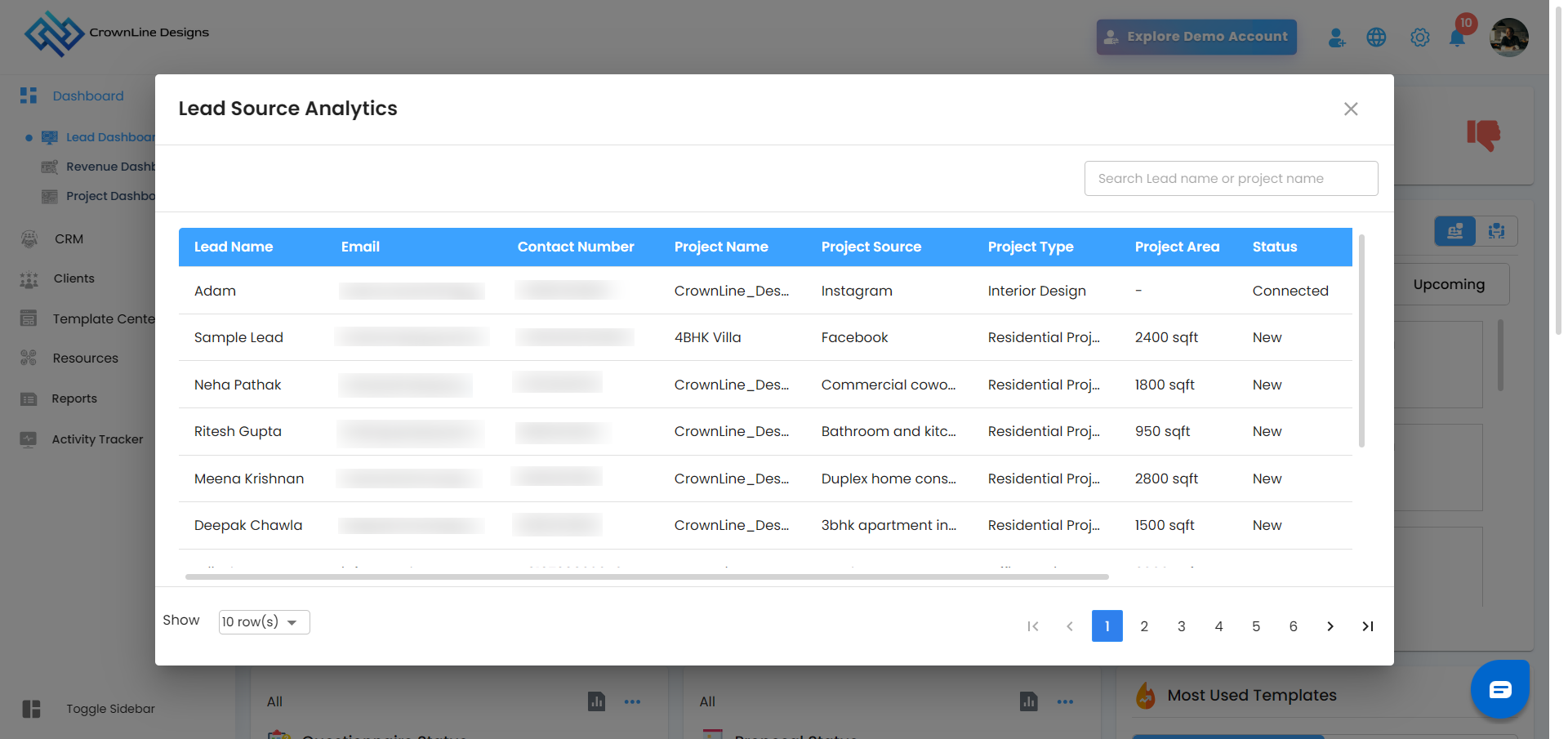
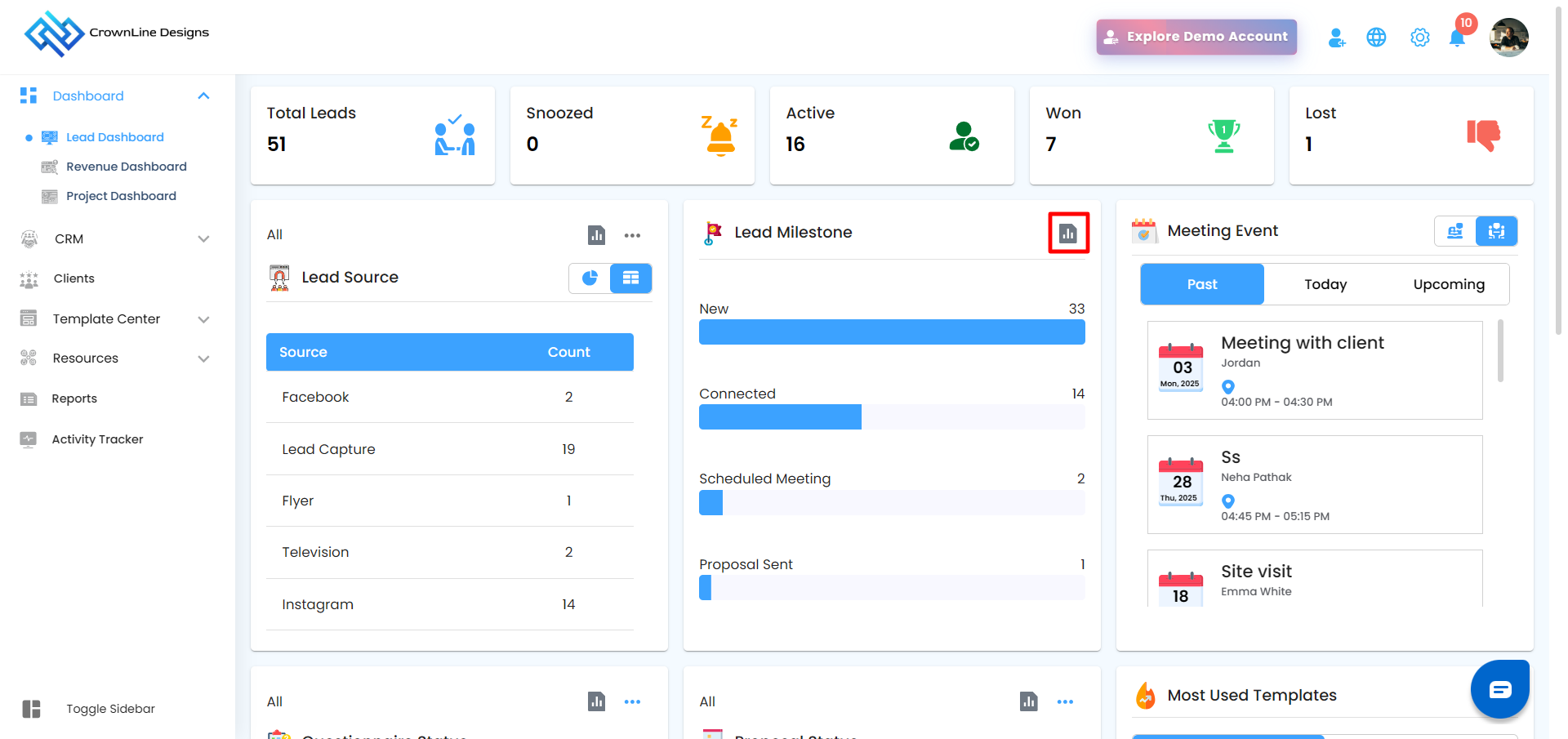
Lead Milestone Card
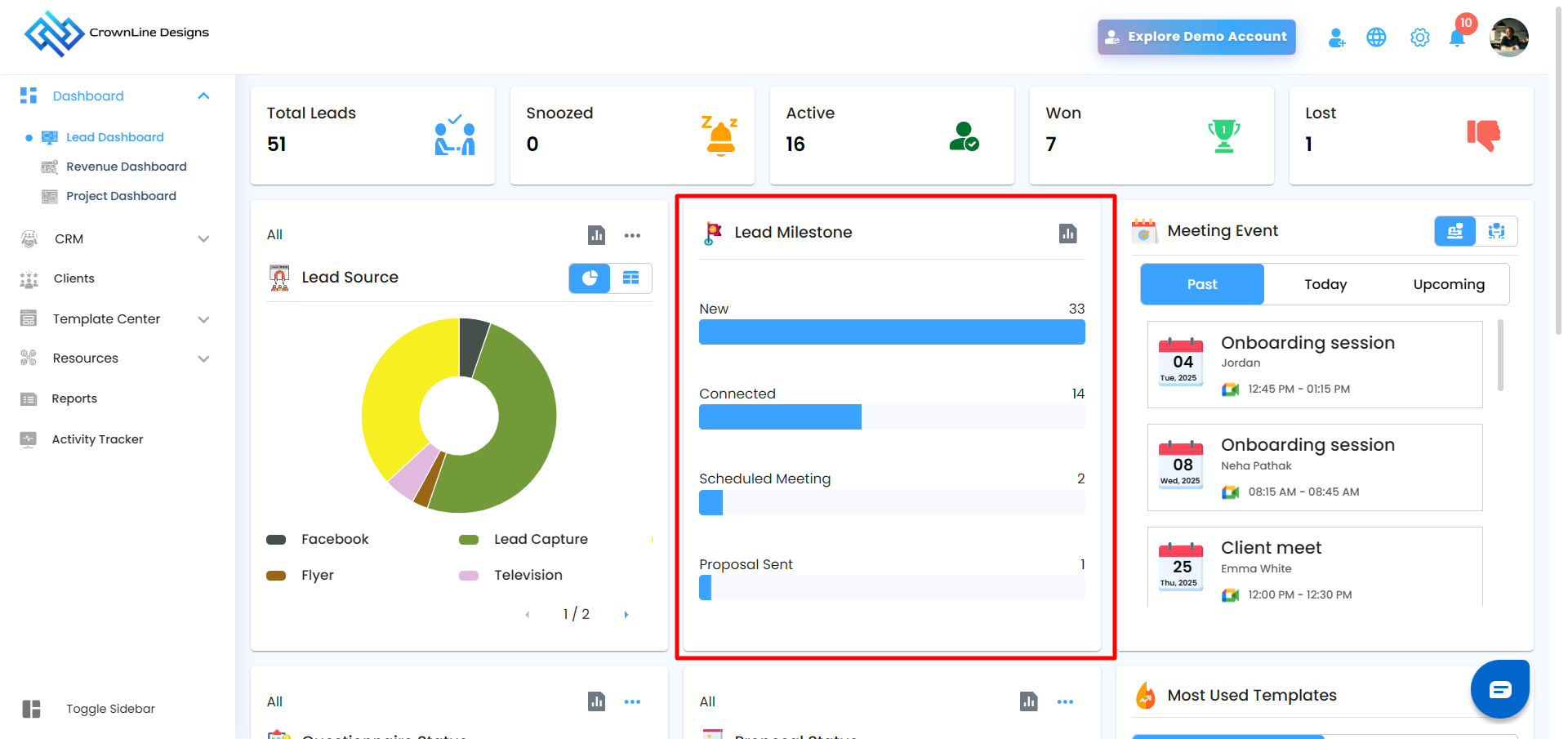
Track the journey of each lead from initial engagement to proposal submission.
New: Freshly added leads.
Connected: Leads with initial engagement or follow-ups completed.
Scheduled Meeting: Leads with upcoming or planned meetings.
Proposal Sent:Leads that have received proposals.
Analytics Option
An Analytics icon is available on supported dashboard cards.
Hovering over the icon displays a tooltip “Analytics”
Clicking the icon opens a dedicated Analytics popup
Each popup includes:
Data specific to that card
A close (✕) icon to exit the view
It includes a search option for faster data lookup: Search by Lead Name or Project Name
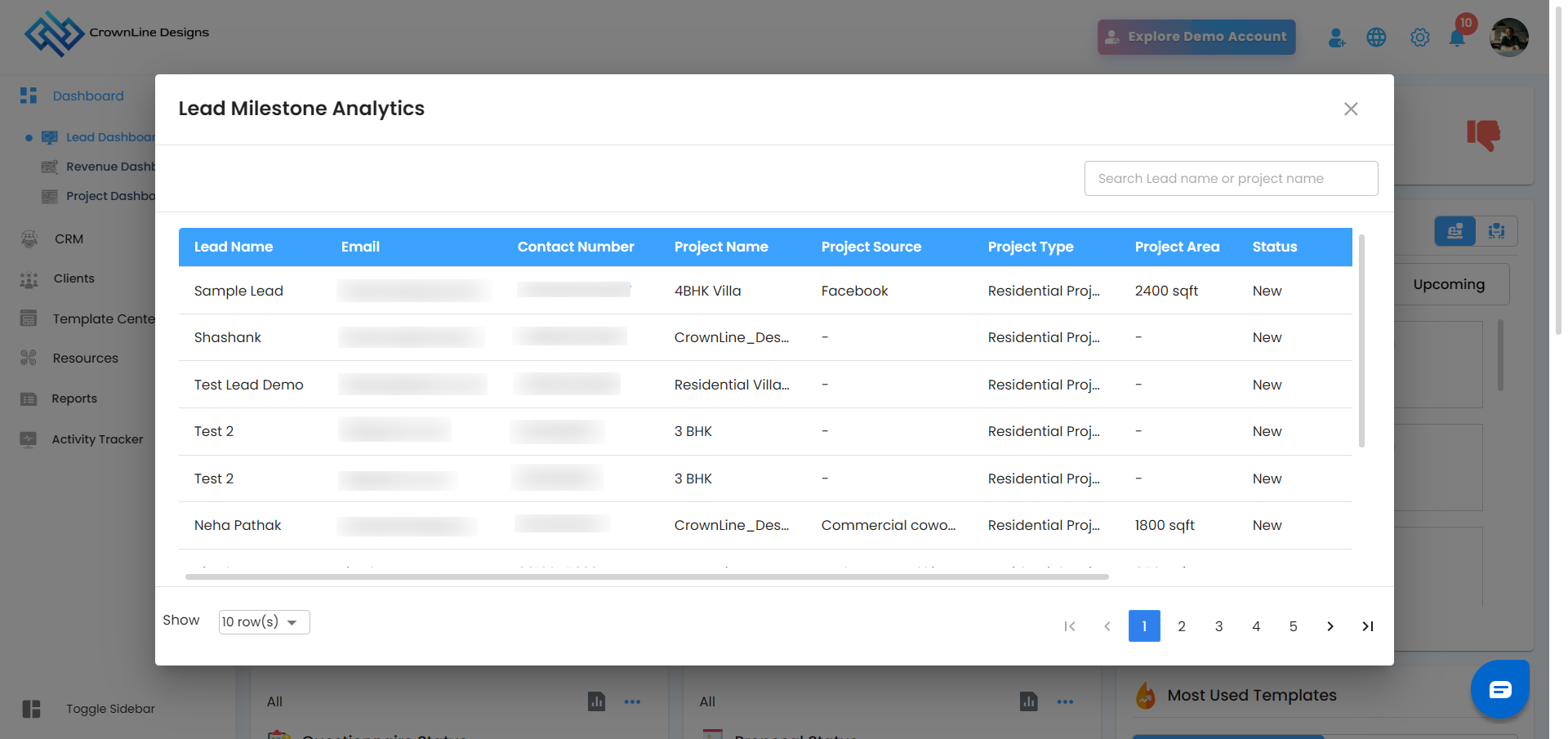
Lead Milestone Analytics
Leads are displayed in the following fixed order:
New
Connected
Scheduled Meeting
Proposal Sent
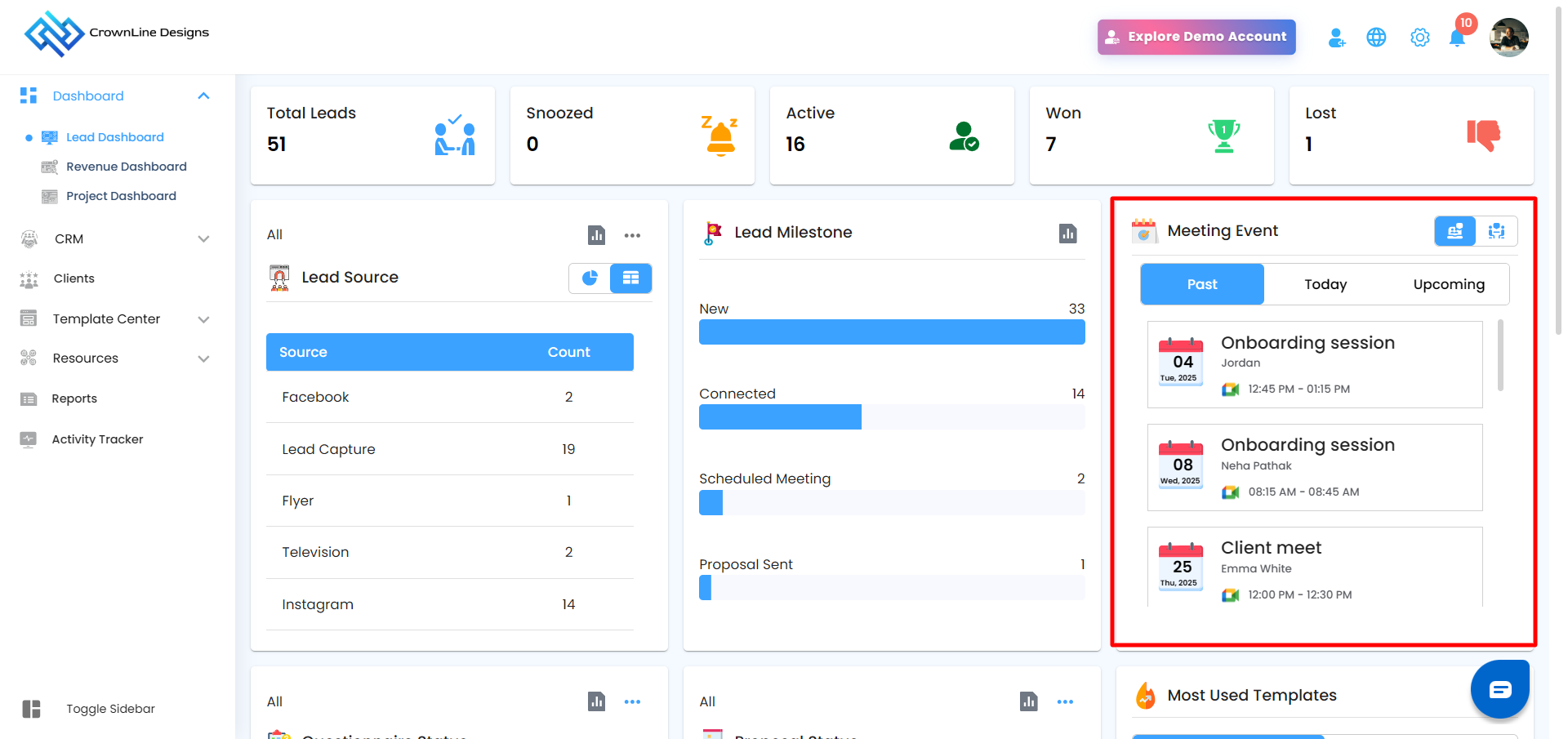
Meeting Event Card – Stay Organized
The Meeting Event Card breaks down all scheduled meetings into Past, Today, and Upcoming, allowing you to plan, track, and review efficiently.
Key Features:
Past Meetings: Review outcomes, notes, and follow-ups.
Today’s Meetings: Prepare for your current day with all agendas at a glance.
Upcoming Meetings: Plan your week efficiently and avoid scheduling conflicts.
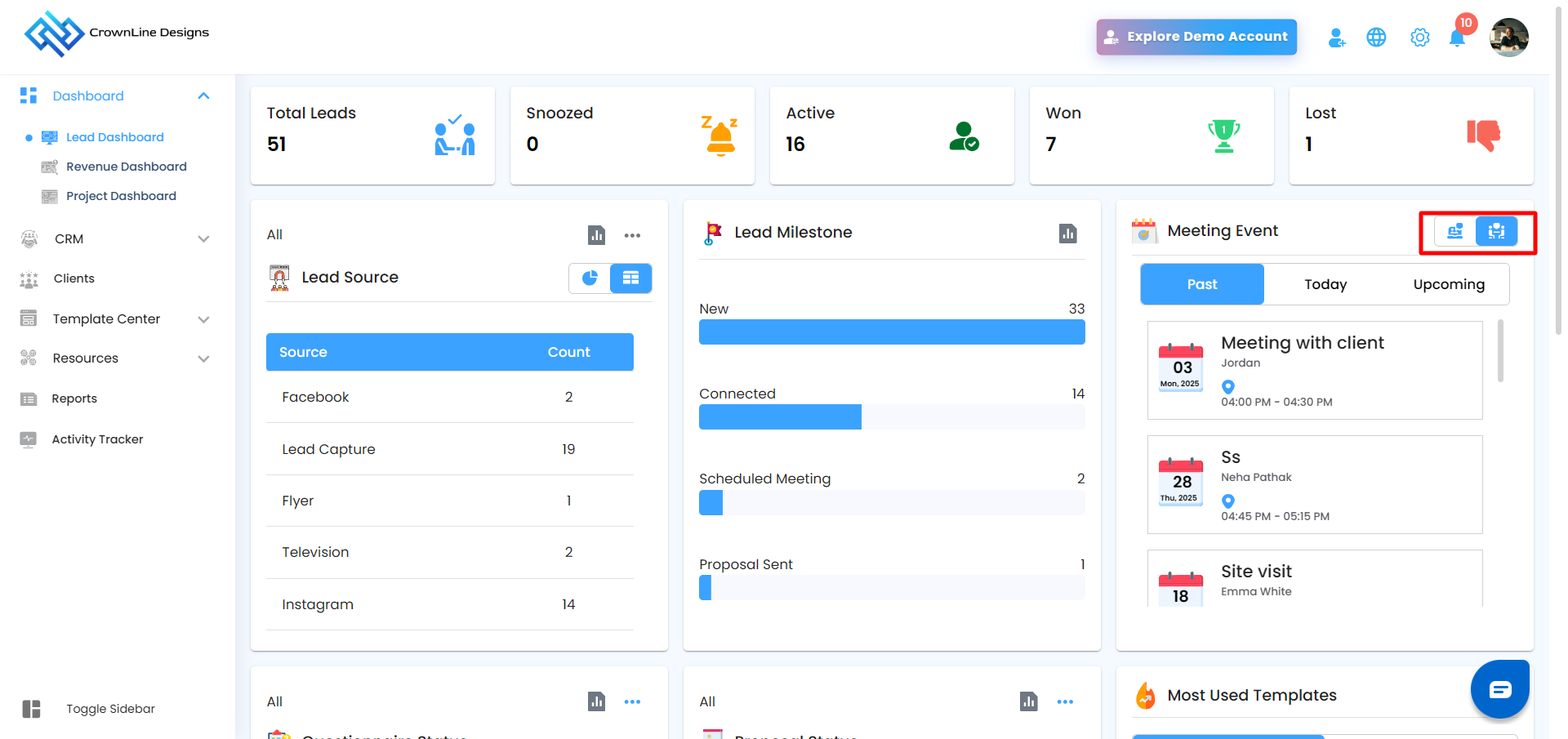 Online & Offline Tracking: Toggle between offline & online meetings seamlessly to manage both virtual and in-person meetings.
Pro Tip: Treat this card as your personal scheduling assistant — check daily to ensure no meeting is missed and every follow-up is executed.
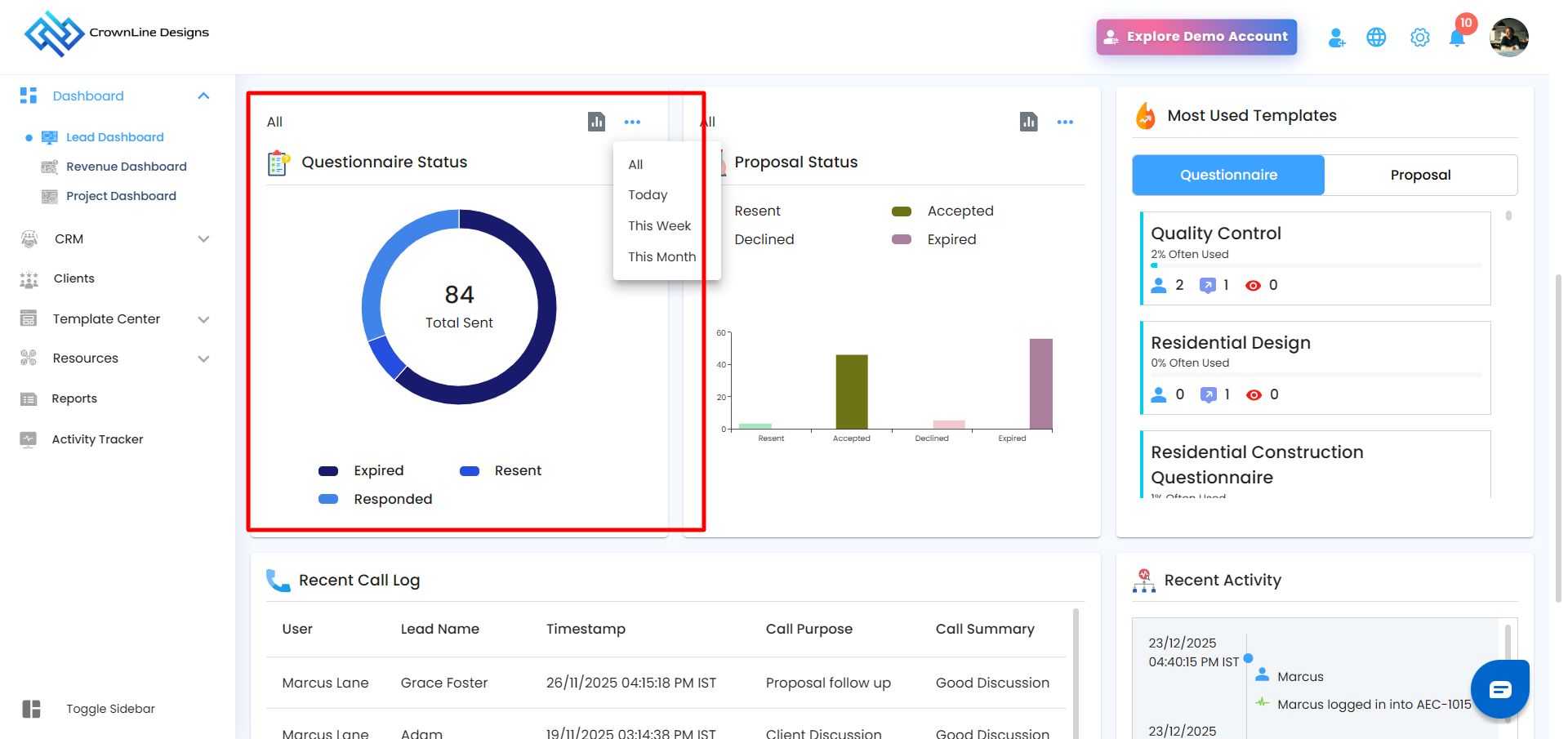
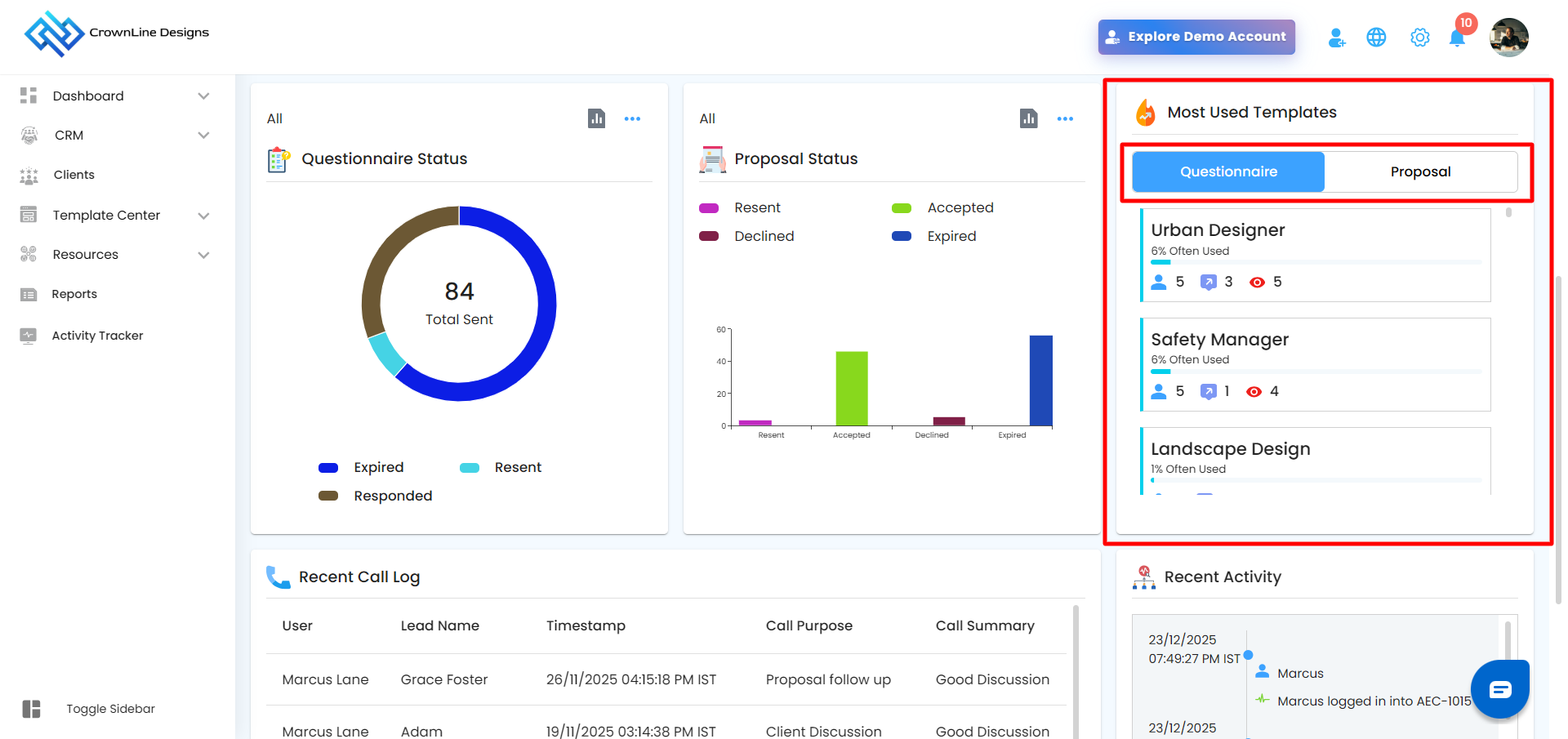
Questionnaire Status card
Monitor all questionnaires and track their engagement efficiently:
Responded: Successfully answered questionnaires.
Expired: Questionnaires that passed their deadlines.
Resent: Questionnaires resent to recipients for follow-up.
Sent Reminder: Questionnaires for which reminders have been issued.
Filter Options:
All: View all questionnaires regardless of status.
Today, This Week, This Month: Focus on the most relevant timeframes.
Analytics Option
An Analytics icon is available on supported dashboard cards.
Hovering over the icon displays a tooltip “Analytics”
Clicking the icon opens a dedicated Analytics popup
Each popup includes:
Data specific to that card
A close (✕) icon to exit the view
It includes a search option for faster data lookup: Search by Questionnaire Name or Project Name
Questionnaire Analytics
Entries are sorted by Sent Date
Most recently sent or resent questionnaires appear first
- A three-dot menu (⋮) is available next to the Analytics icon
Filter options include:
All
Today
This Week
This Month
Analytics data updates based on the selected filter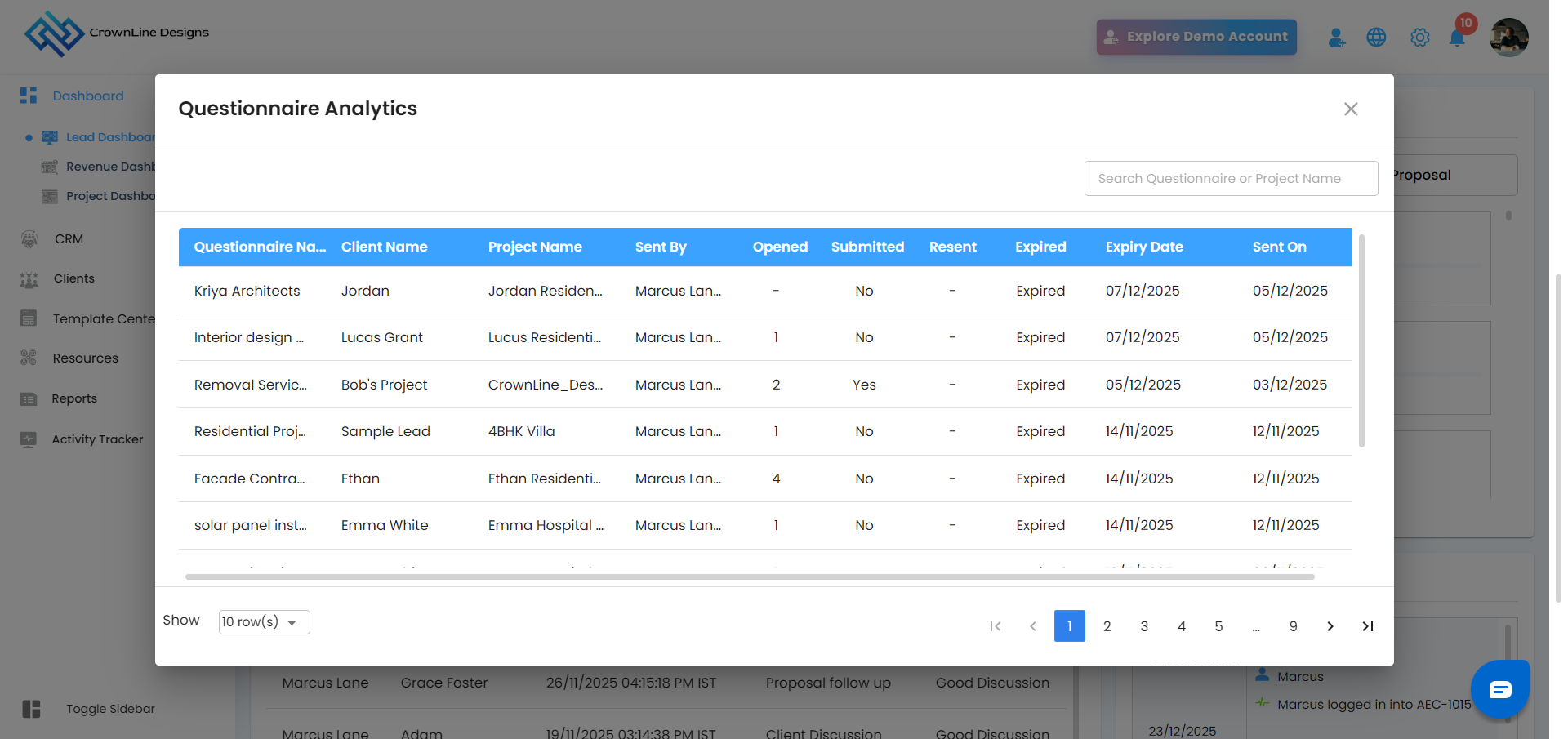
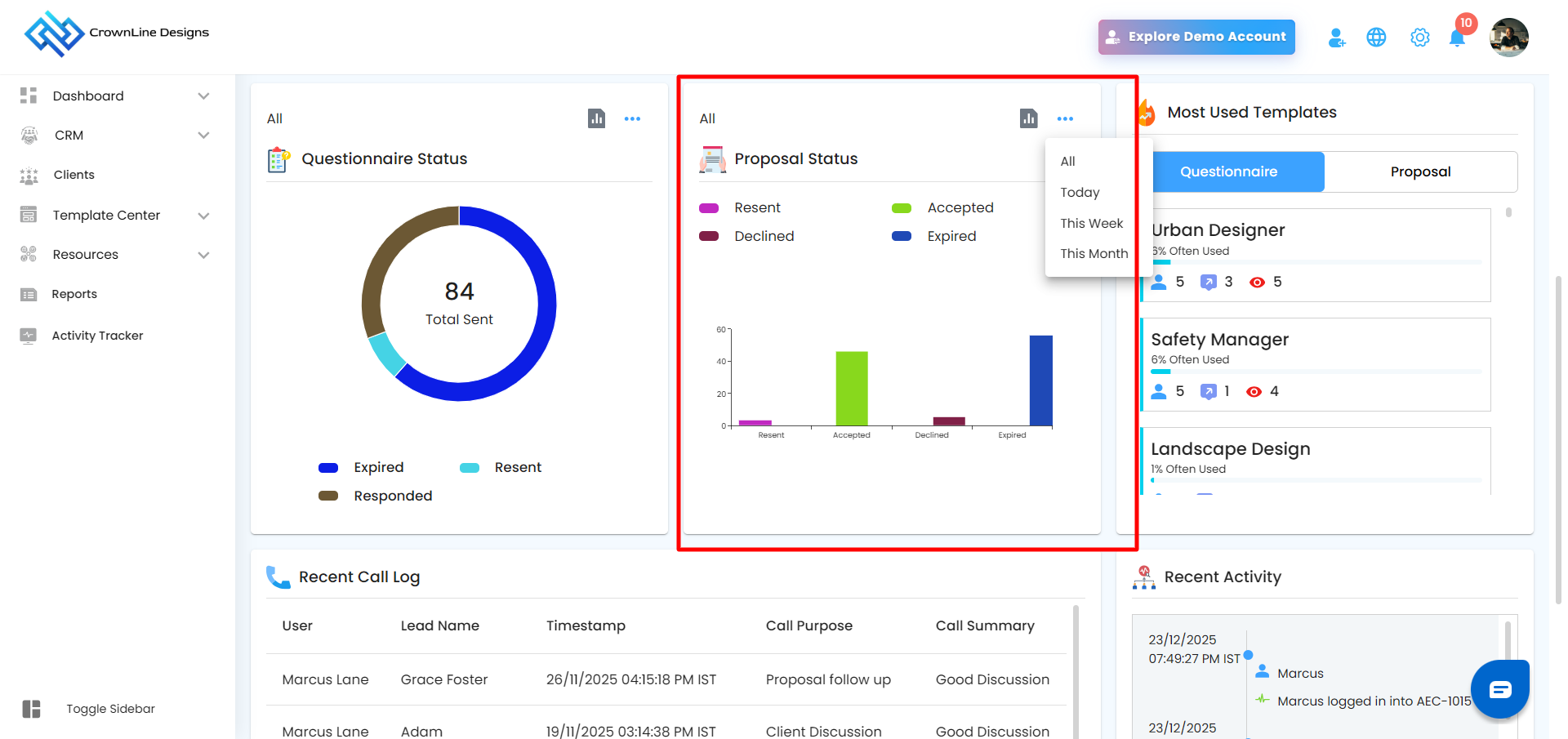
Proposal Status card
Keep a pulse on proposals and their outcomes:
Resent: Proposals sent again to leads.
Accepted: Proposals approved by leads.
Declined: Proposals rejected.
Expired: Proposals not opened or responded to.
Filter Options:
All, Today, This Week, This Month– refine the view according to your needs.
Analytics Option
An Analytics icon is available on supported dashboard cards.
Hovering over the icon displays a tooltip “Analytics”
Clicking the icon opens a dedicated Analytics popup
Each popup includes:
Data specific to that card
A close (✕) icon to exit the view
- It includes a search option for faster data lookup: Search by Proposal Name or Project Name
Proposal Analytics
Entries are sorted by Sent / Resent Date
Latest proposals are displayed at the top
- A three-dot menu (⋮) is available next to the Analytics icon
Filter options include:
All
Today
This Week
This Month
Analytics data updates based on the selected filter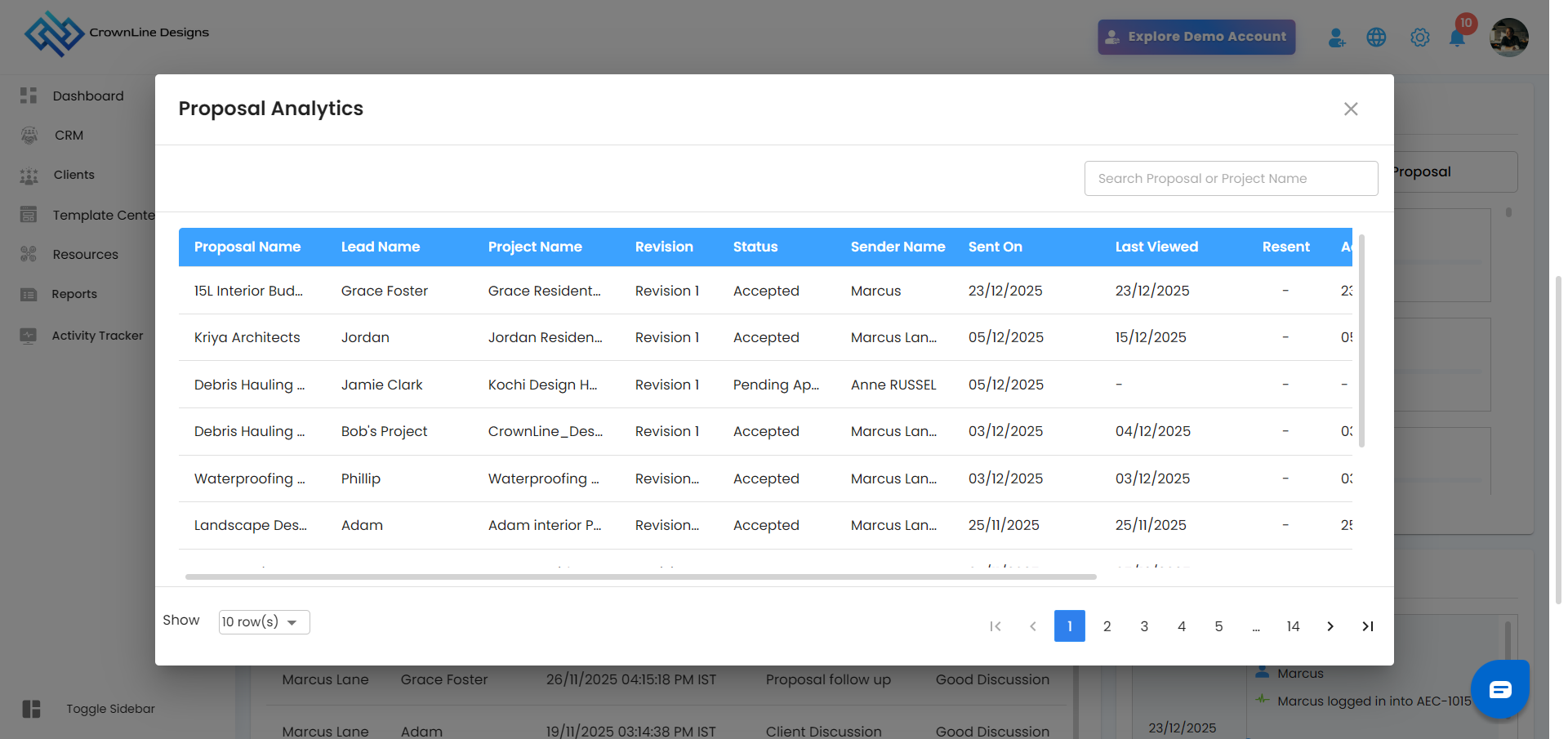
Most Used Template – Identify Productivity Drivers
Identify which templates are driving productivity by toggling between both views:
Questionnaire Templates: See which questionnaires are most frequently utilized, enabling you to replicate effective templates.
Proposal Templates: Understand which proposal formats are popular, helping to streamline creation and maintain consistency.
Recent Call Log Card
Quickly access all recent call activities. This card keeps your team informed and ensures that client communications are tracked efficiently.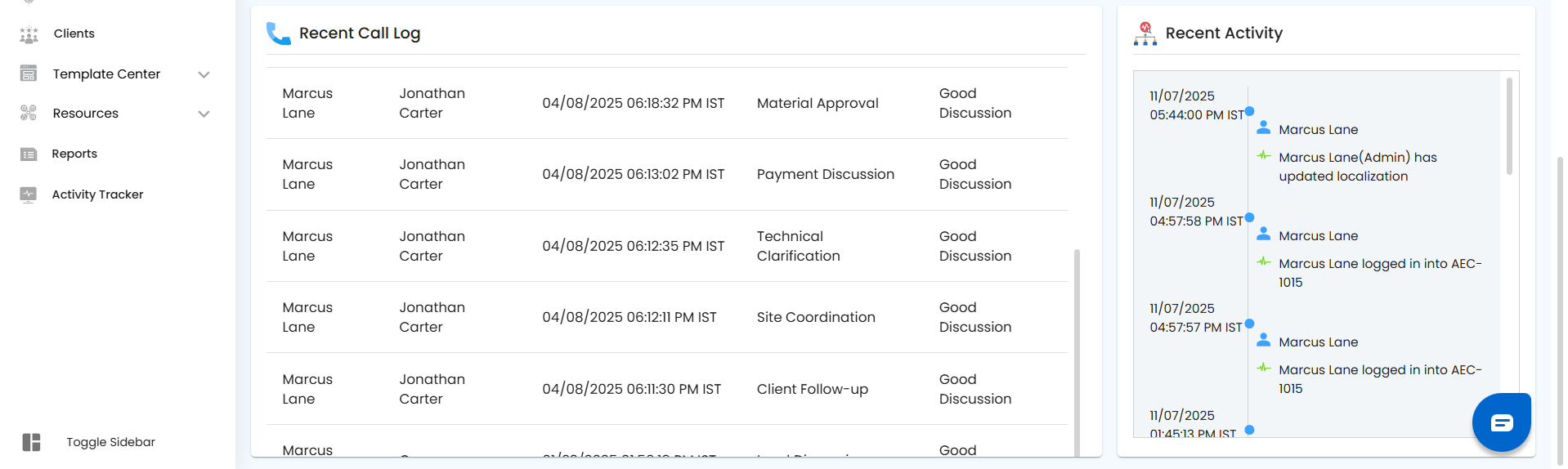
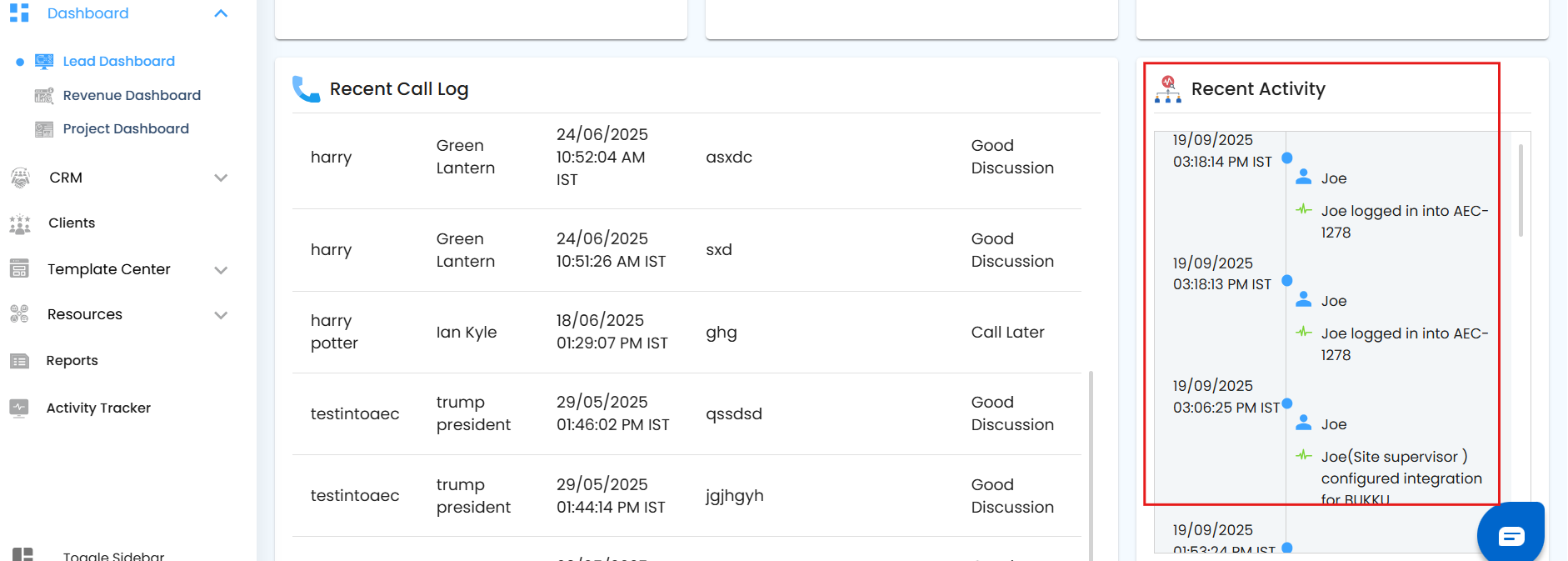
Recent Activity
Activity tracking ensures transparency and oversight for managers:
Monitor all user engagement across the platform.
Track recent updates, completed tasks, and interactions.
Make informed decisions based on real-time activity insights.
Pro Insight: Treat the Lead Dashboard as your mission control. Every metric, card, and widget is a tool to guide your team from initial contact to closed deals, ensuring no lead slips through the cracks.
Was this article helpful?
That’s Great!
Thank you for your feedback
Sorry! We couldn't be helpful
Thank you for your feedback
Feedback sent
We appreciate your effort and will try to fix the article