Revenue Dashboard – IntoAEC
The Revenue Dashboard in the IntoAEC application is your financial control tower. From one place, you can monitor revenue performance, project statuses, client conversions, invoices, expenses, and profits — all tied together with interactive visuals and smart insights.
This isn’t just a dashboard — it’s your financial compass, guiding you through business decisions with clarity and precision.
Where to Access
To open the Revenue Dashboard go to login>dashboard>revenue dashboard:
Log in to your IntoAEC account.
From the sidebar, click the Dashboard dropdown.
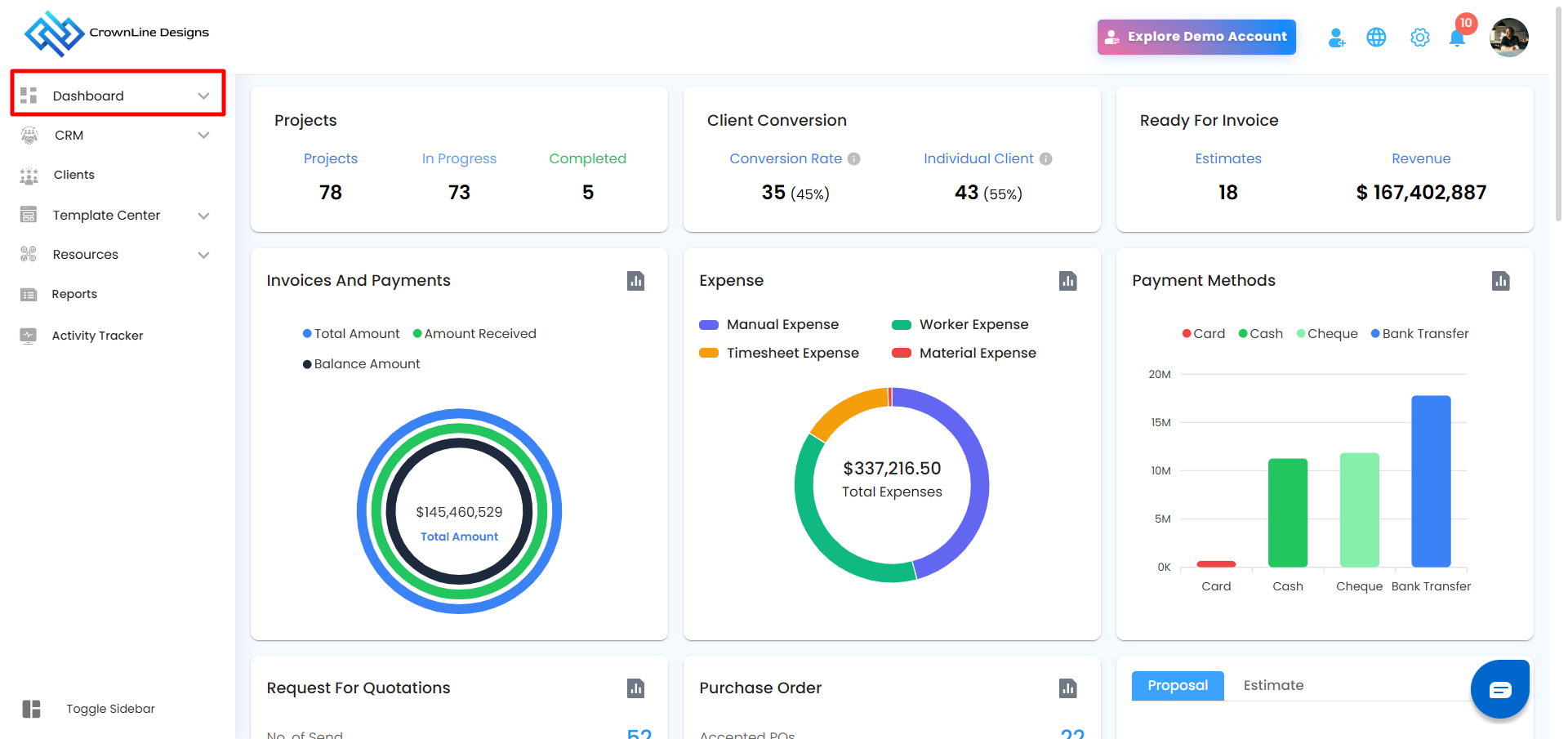
Select Revenue Dashboard from the list.
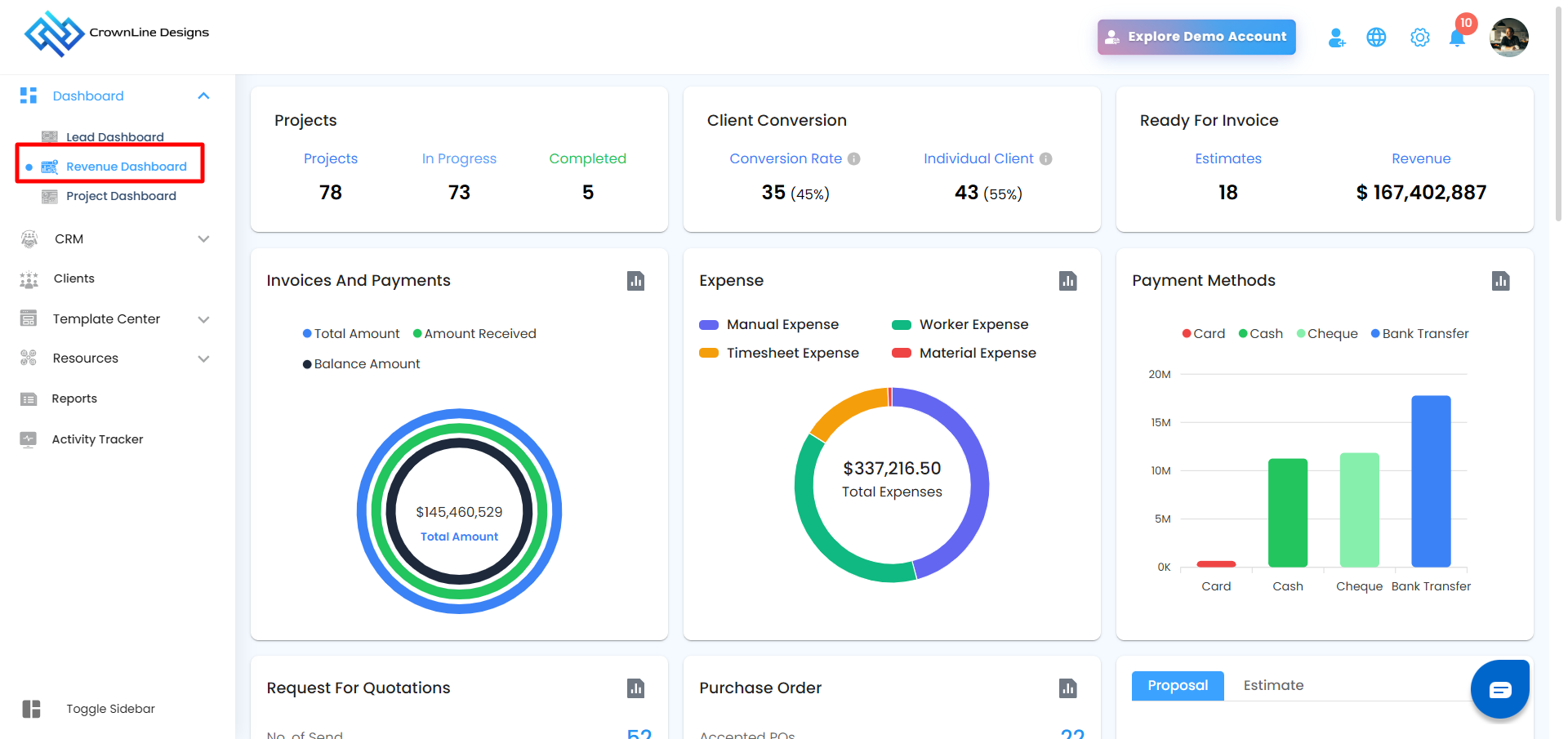
Project:
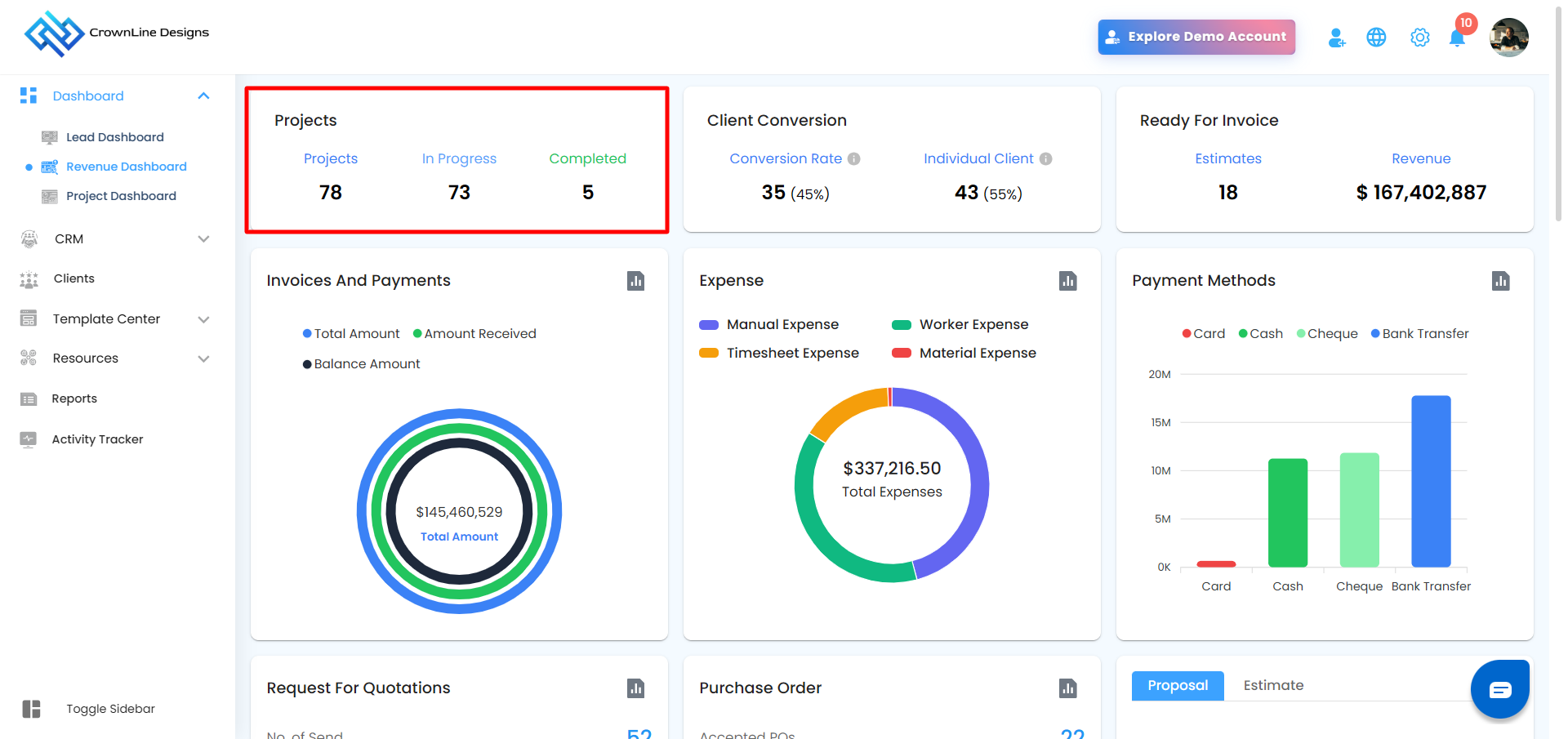
The Project Card offers a breakdown of the current project status within your organization. It includes the following details:
Total Projects: Displays the overall count of projects in the system.
In Progress: Shows the number of projects that are currently active and ongoing.
Completed: Indicates how many projects have been successfully completed.
Click-to-Navigate Behavior
The Project and Client Conversion cards are interactive, allowing direct navigation to detailed client views.
Clicking Projects or In Progress redirects to:
CRM → Clients → Active Clients tabClicking Completed Projects redirects to:
CRM → Clients → Completed Clients tab
Client Conversion:
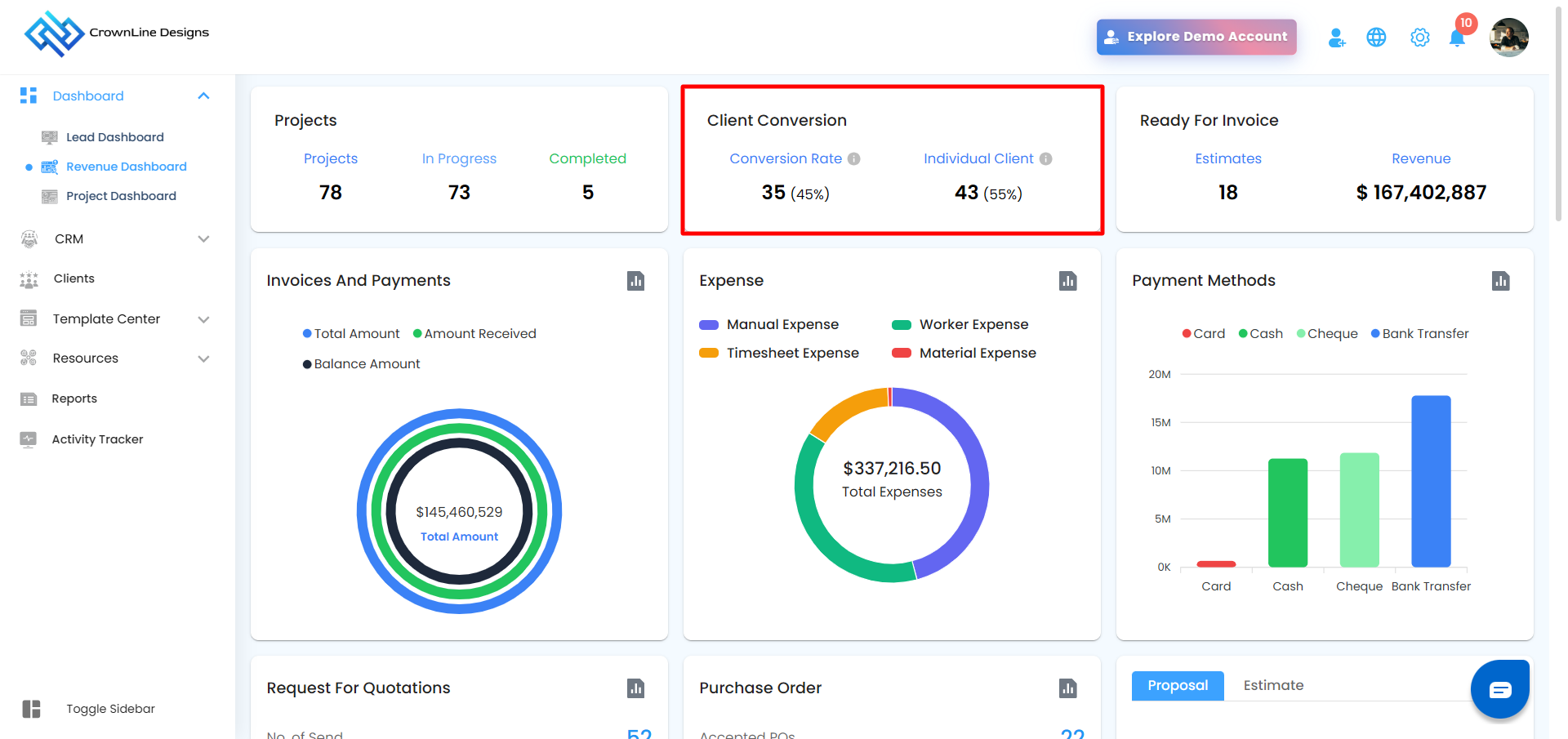
Lead to Client Conversion: Displays the number of leads that have been successfully converted into clients, along with the corresponding conversion percentage. This helps you evaluate how effectively your leads are turning into actual business.
Manually Added Clients: Shows the number of clients who were added directly into the system (without conversion from a lead), along with their percentage share of the total client base.
Click-to-Navigate Behavior
The Project and Client Conversion cards are interactive, allowing direct navigation to detailed client views.
In the Client Conversion card:
Clicking Conversion Rate or Individual Client redirects to:
CRM → Clients → Active Clients tab
This enables faster drill-down from high-level metrics to detailed client records.
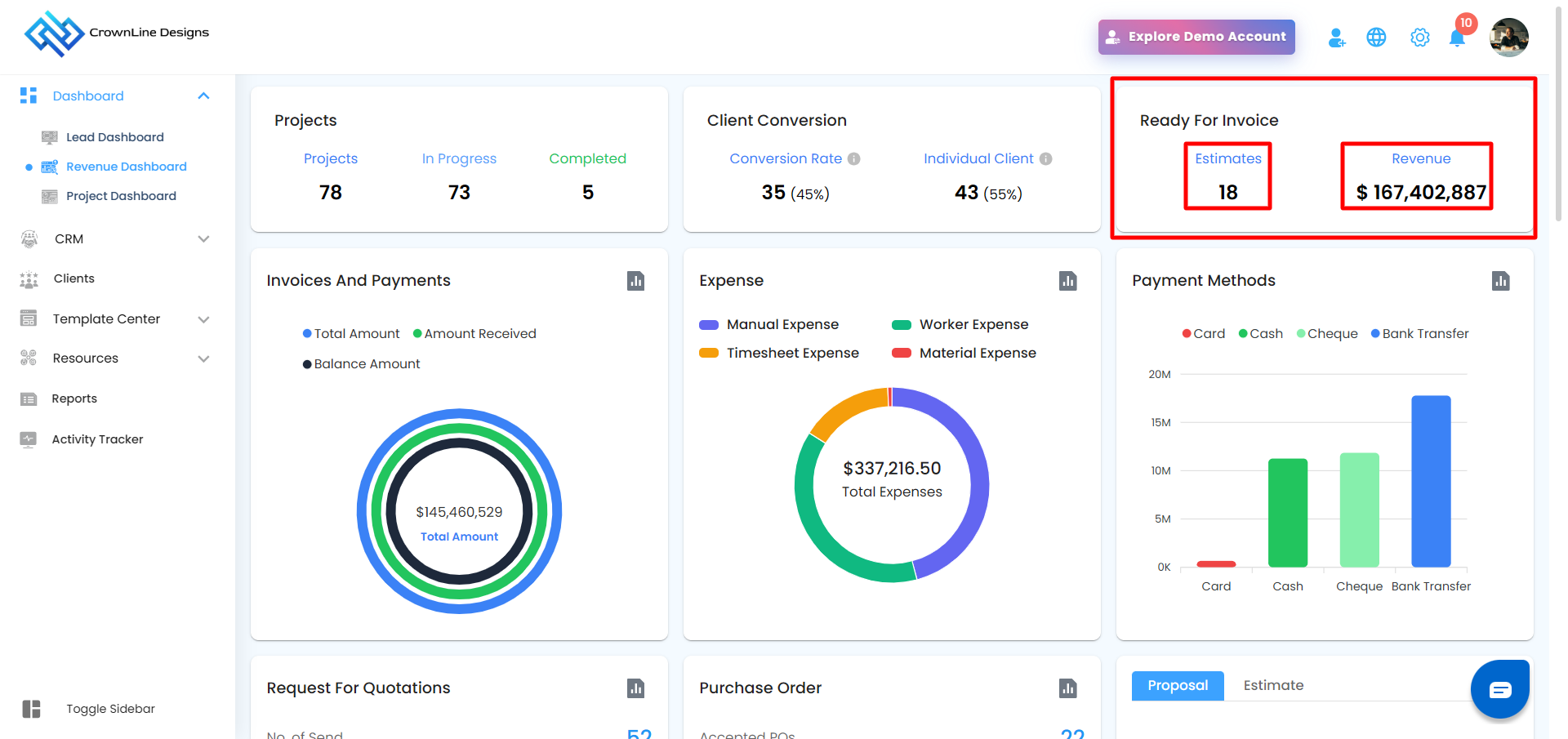
 Ready for Invoice
The Ready for Invoice Card displays key financial data related to estimates that are eligible for invoicing. It includes:
Estimate Count: Shows the total number of accepted estimates that are marked as ready to be converted into invoices.
Estimated Revenue: Displays the total revenue value associated with these accepted estimates.
Quick Access to EstimatesClicking Estimate Count or Estimated Revenue redirects to:
Reports → Estimates
This allows users to quickly review all estimates that are ready for invoicing.
 Invoice and Payment
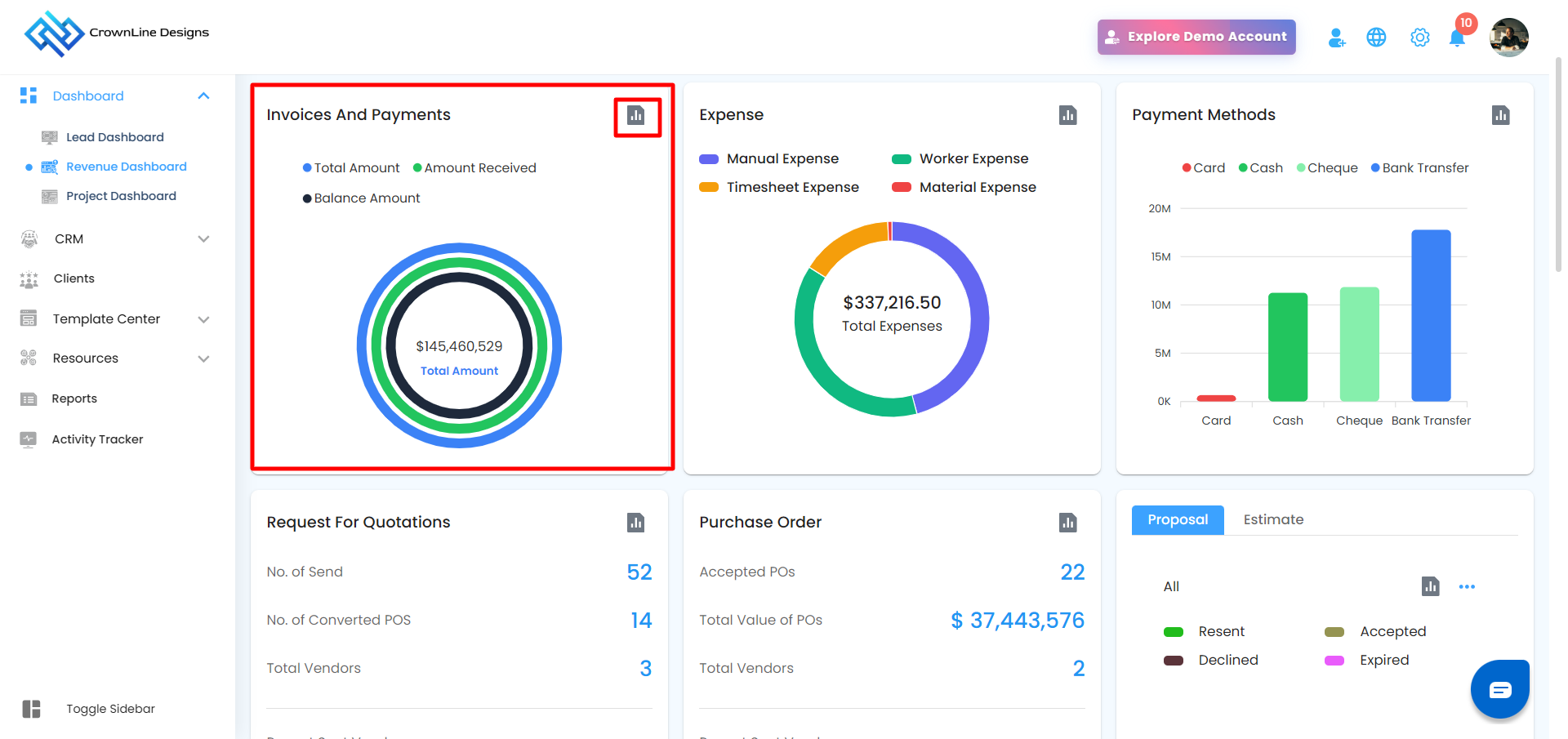
The Invoice and Payment Card provides an overview of your organization's invoicing and payment status across all projects. It displays the following key financial metrics:
Total Amount: The complete value of all invoices generated.
Amount Received: The total payment received from clients against those invoices.
Balance Amount: The remaining amount yet to be collected (Total Amount - Amount Received).
Analytics View
The Invoice and Payment card now includes an Analytics option.Hover over the Analytics icon to view the tooltip
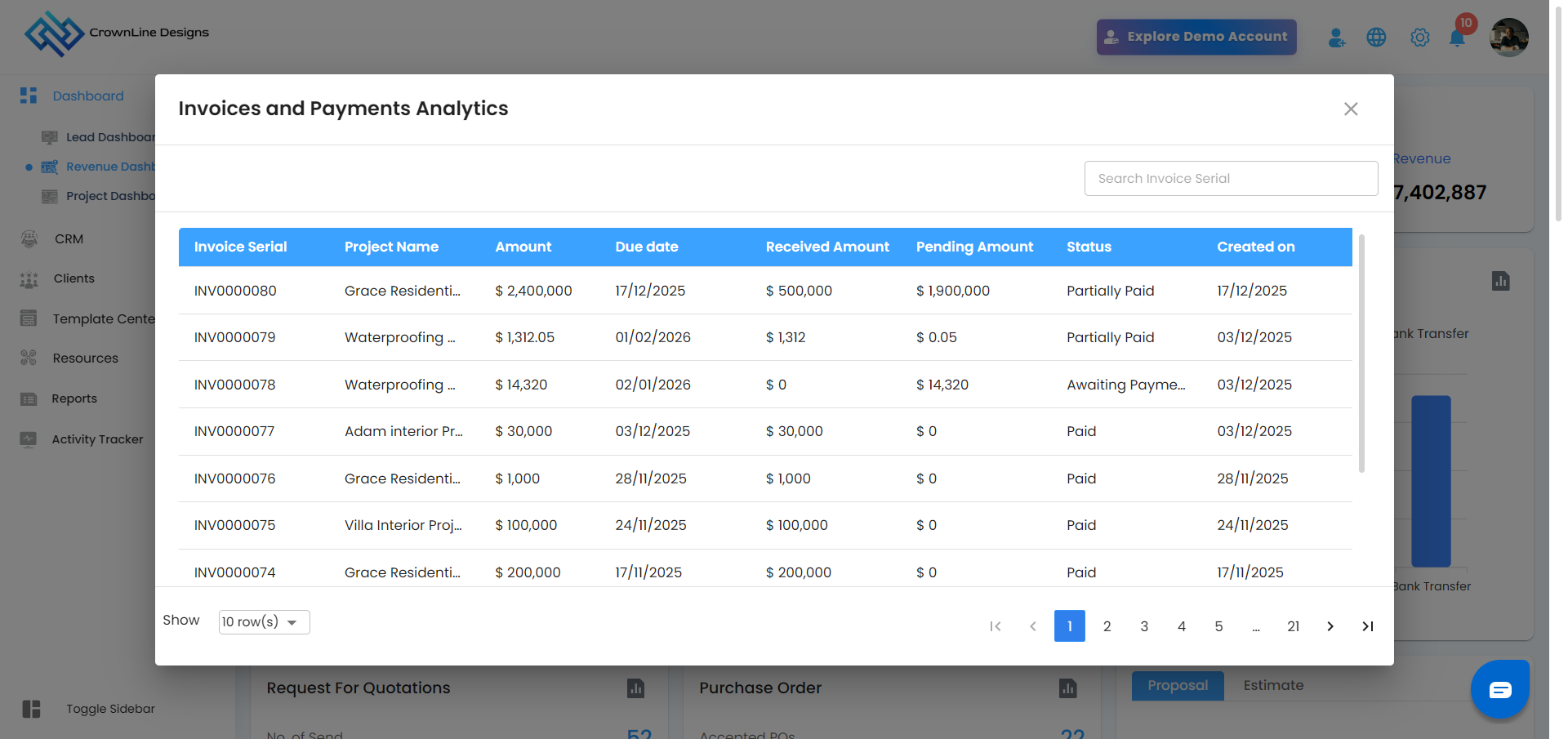
Click to open the Invoice & Payment Analytics popup
Data is:
Listed based on Created On date
Searchable by Invoice Serial Number
Popup includes a close (✕) icon
Expense Overview
A new Expense Card provides a visual breakdown of total expenses using a pie chart.
Expense categories include:
Manual
Worker
Timesheet
Material
Purchase order
work order
Petty cash
Site expenses

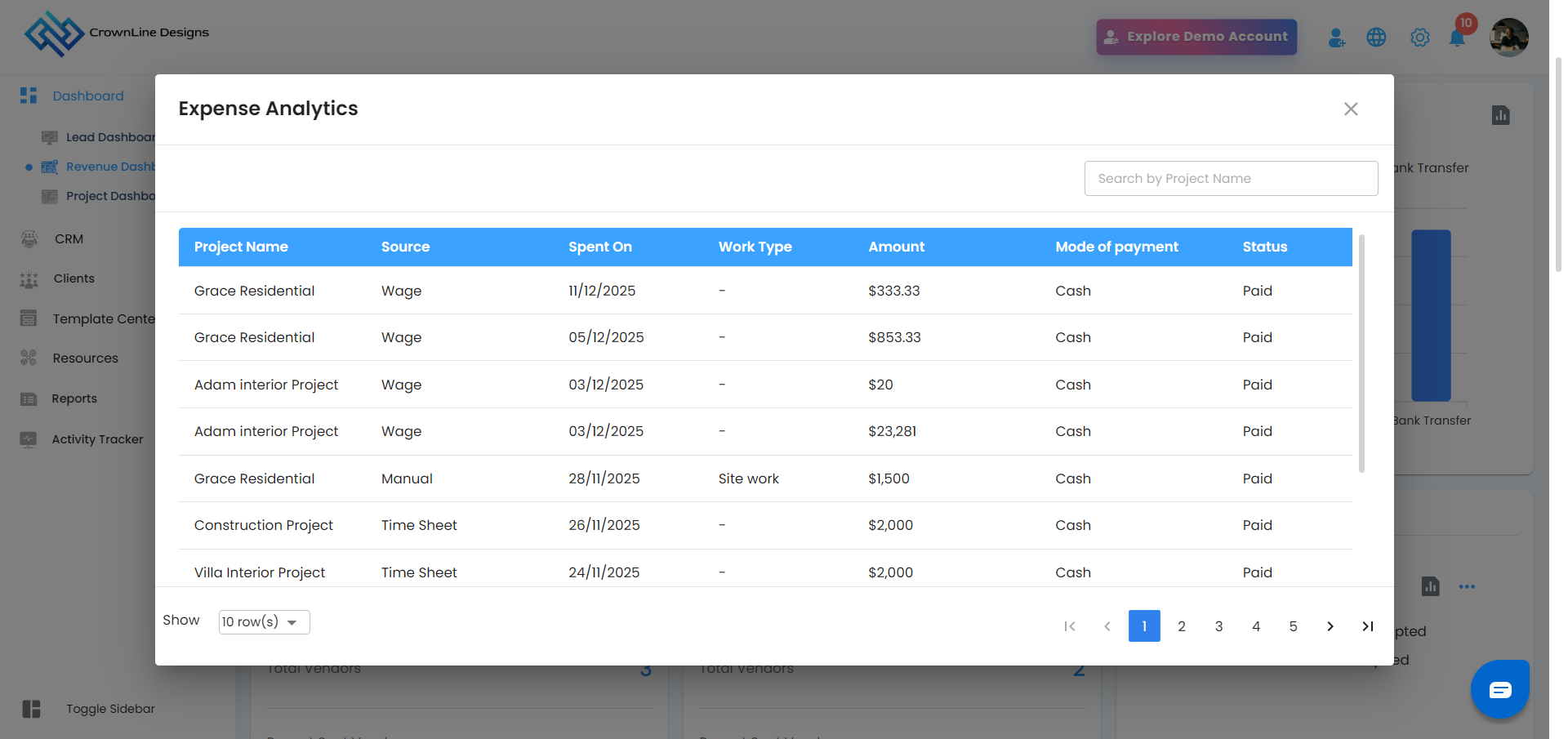
Expense Analytics
Click the Analytics icon to open Expense Analytics popup
Data is:
Listed based on Spent On date
Searchable by Project Name
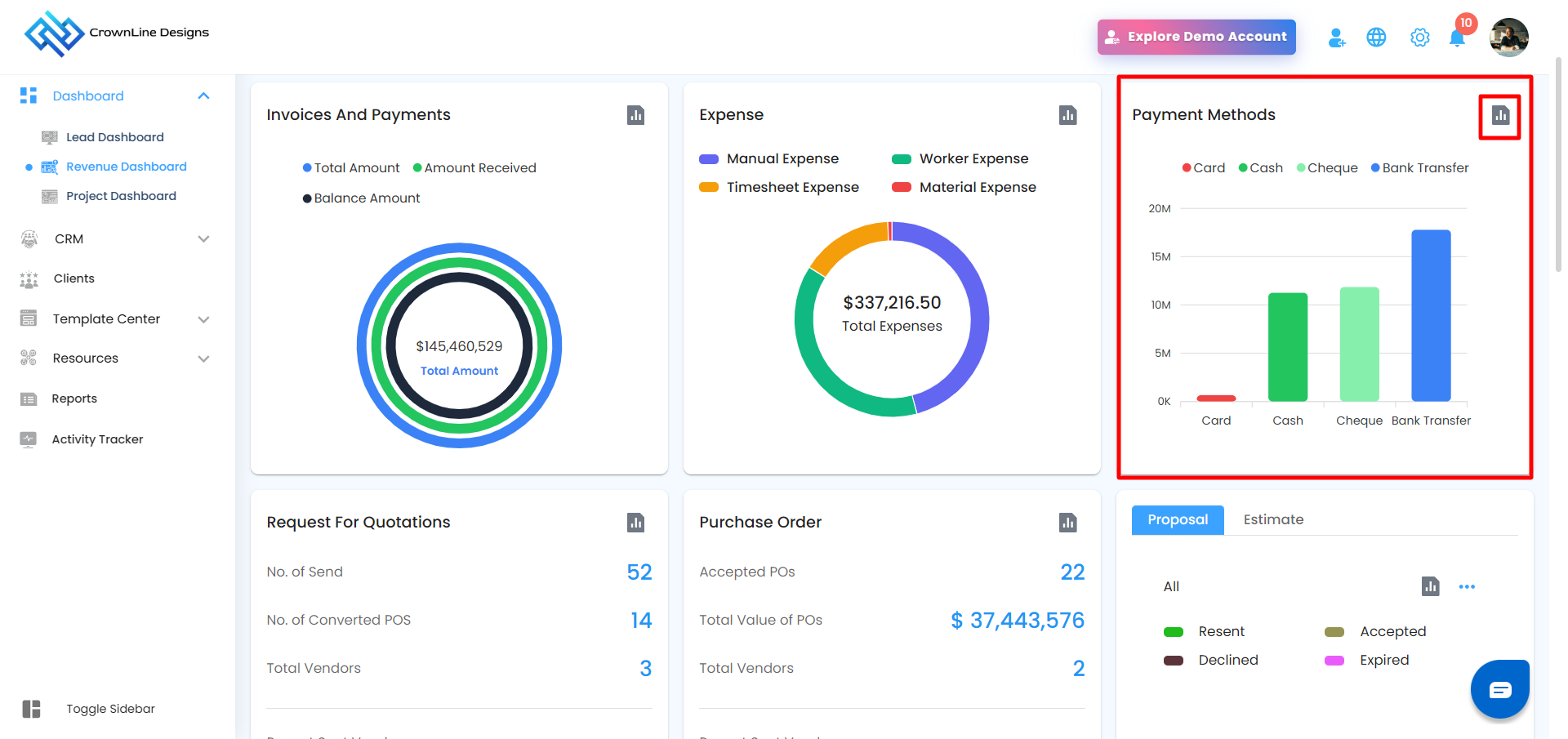
Payment Methods
The Payment Methods Bar Graph provides a visual breakdown of how payments were received for issued invoices across all projects. It displays the total amount collected through each of the following payment methods:
Card – Payments made using credit or debit cards.
Cash – Amounts paid in cash.
Cheque – Payments made by cheque.
Bank Transfer – Amounts transferred directly via bank transactions.
Analytics View
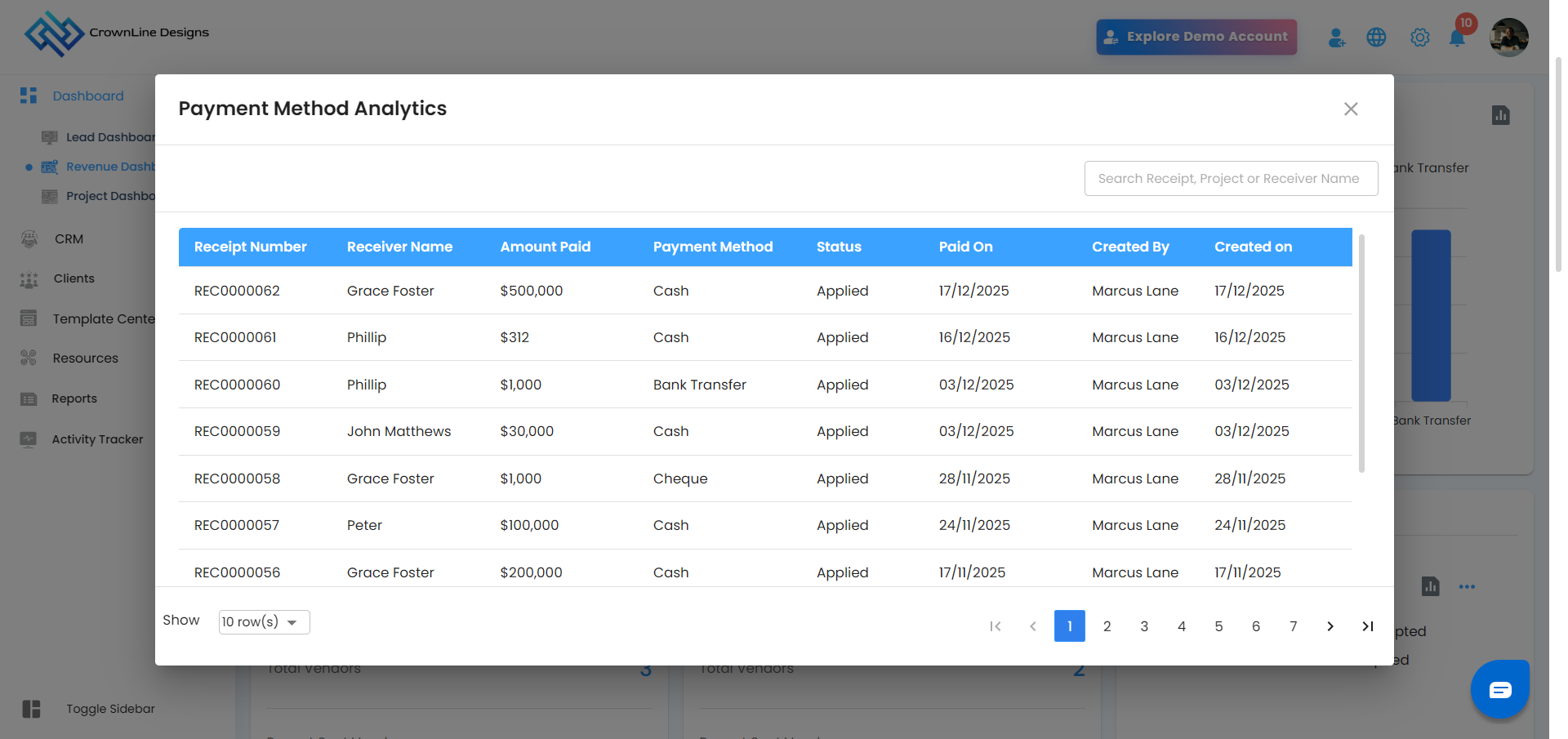
The Payment Methods card now includes Analytics.
Lists records based on Receipt Number
Search options include:
Receipt Number
Project Name
Receiver Name
Indent
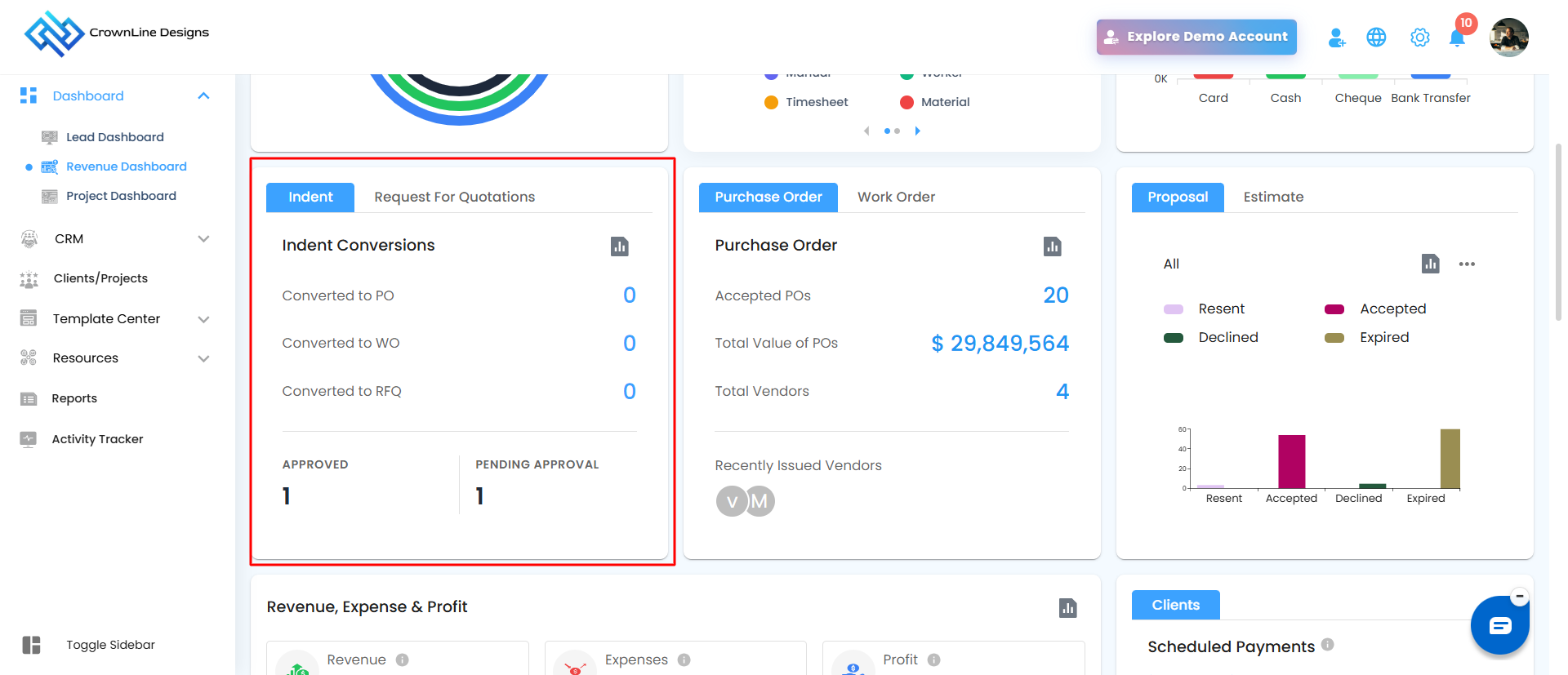
The Indent card on the Revenue Dashboard provides a high-level summary of material request conversions and current approval statuses, allowing you to track how site requests are progressing into official procurement documents.
What This Card Shows
Indent Conversions: Track the transition of indents into other procurement stages:
Converted to PO: Total number of indents turned into Purchase Orders.
Converted to WO: Total number of indents converted into Work Orders.
Converted to RFQ: Total number of indents used to generate Requests for Quotations.
Approval Status: View the current count of indents that are Approved or Pending Approval.
Indent Analytics
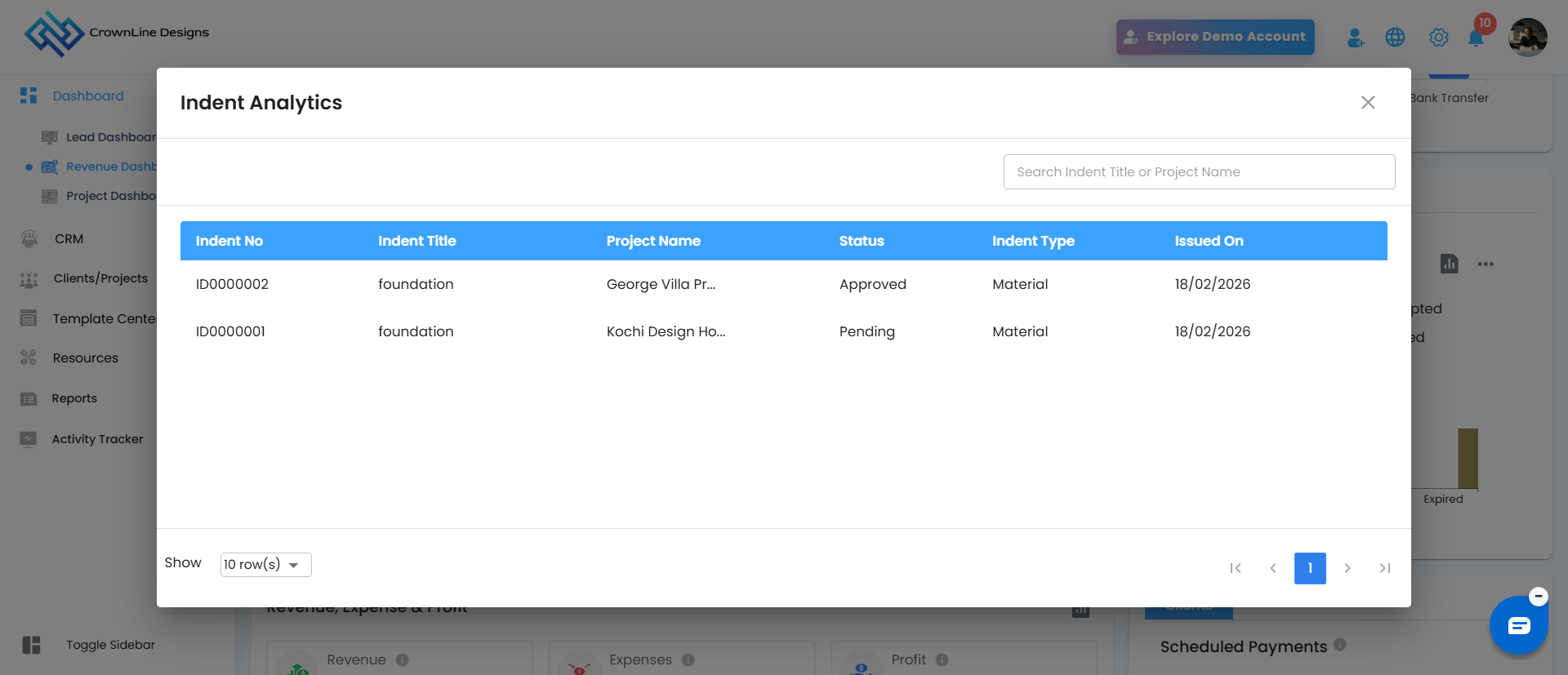
For a granular view of individual requests, the Indent card features an Analytics tool.
Accessing Analytics:
Locate the Analytics icon (bar chart symbol) in the top right corner of the Indent card.
Click the icon to open the Indent Analytics popup window.
Detailed View: The popup provides a table listing all active indents with the following details:
Indent No: The unique tracking number
Indent Title: The specific name or purpose of the request
Project Name: The project associated with the request.
Status: Current state of the indent, such as Pending or Approved.
Indent Type: Categorization of the request
Issued On: The date the indent was created.
Search & Navigation:
Search Bar: Quickly find specific records by typing the Indent Title or Project Name.
Close Icon: Click the (✕) in the top right corner to exit the analytics view.
Request for Quotations (RFQ)
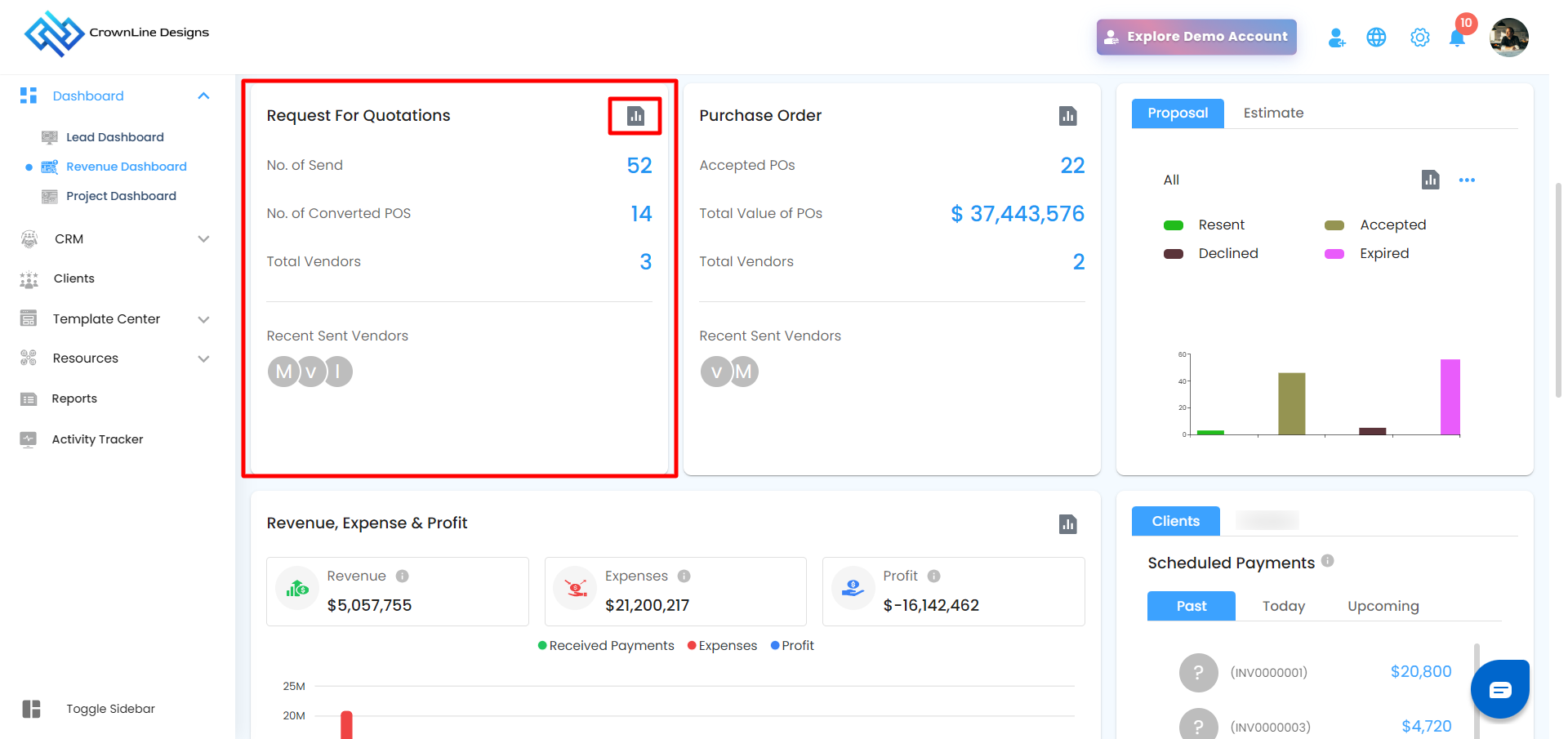
The Request for Quotations (RFQ) card provides visibility into all RFQs raised for vendors and helps track quotation activity across projects.
What This Card Shows
Number of Sent RFQs – Total RFQs sent to vendors
Converted POs – RFQs successfully converted into Purchase Orders
Total Vendors Sent – Number of unique vendors contacted
Recent Sent Vendors – Most recently contacted vendors
RFQ Analytics
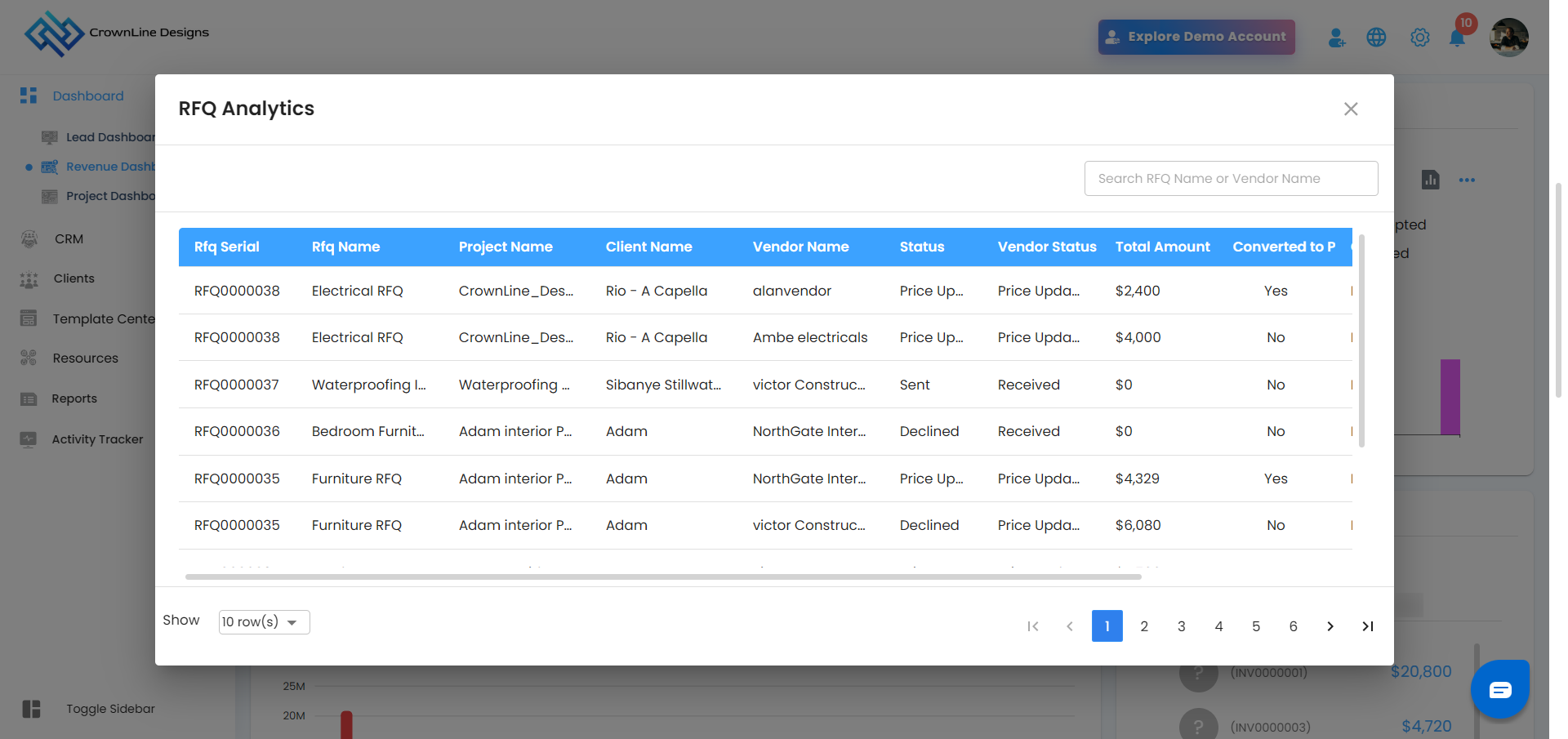
The RFQ card includes an Analytics option for detailed insights.
Hover over the Analytics icon to view the tooltip
Click the icon to open the RFQ Analytics popup
RFQs are listed based on RFQ Serial
Search options include:
RFQ Name
Vendor Name
The popup includes a close (✕) icon for easy exit
Purchase Orders (PO)
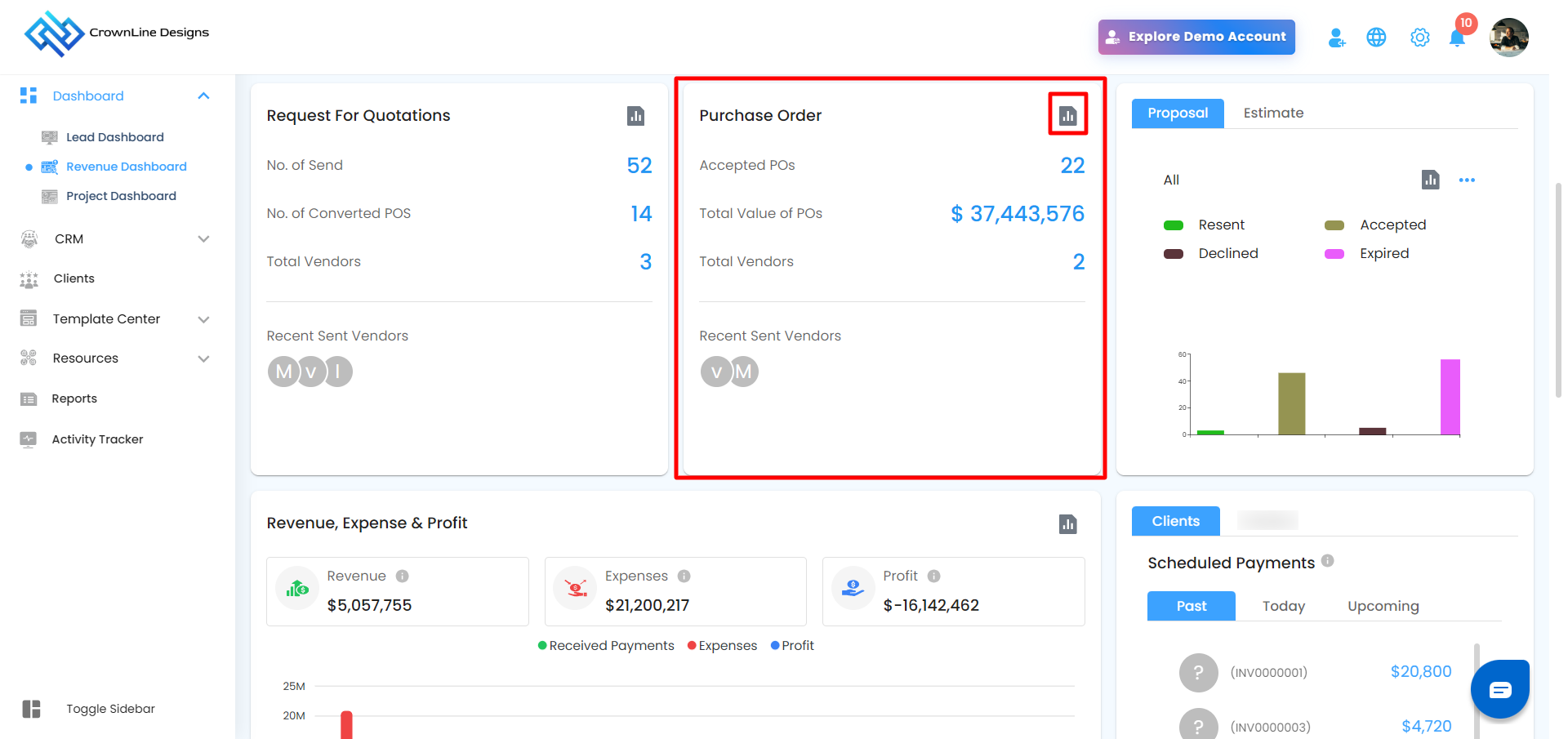
The Purchase Orders (PO) card provides a clear overview of all purchase orders raised within the organization, helping you track vendor commitments and procurement progress.
What This Card Shows
Total Purchase Orders – Overall count of POs created
Converted from RFQ – POs generated from RFQs
Vendors Involved – Number of vendors associated with POs
Recent Purchase Orders – Most recently created POs
Purchase Order Analytics
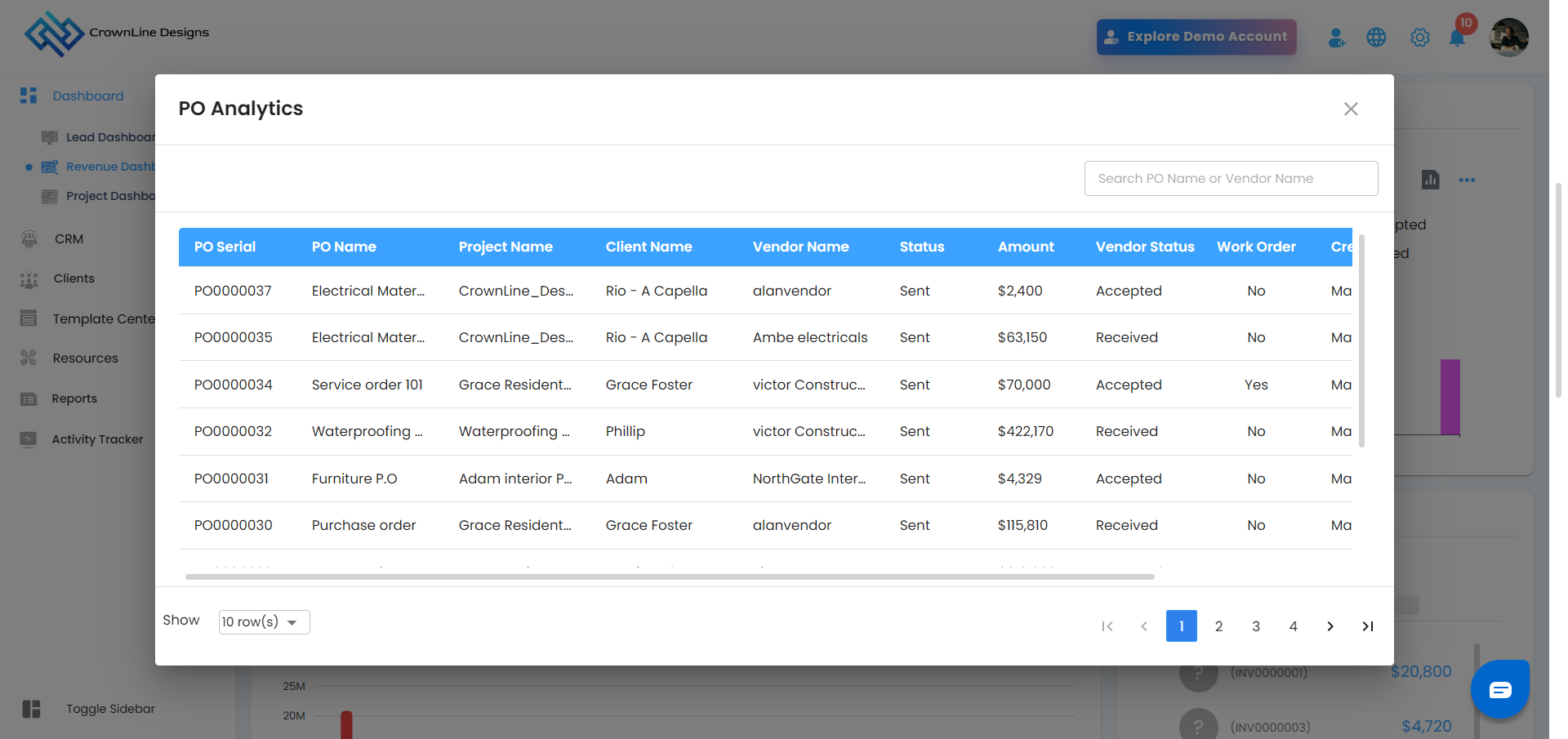
The PO card includes an Analytics option for deeper analysis.
Hover over the Analytics icon to view the tooltip
Click the icon to open the Purchase Order Analytics popup
POs are listed based on PO Serial
Search options include:
PO Name
Vendor Name
The popup includes a close (✕) icon
Work Orders (WO)
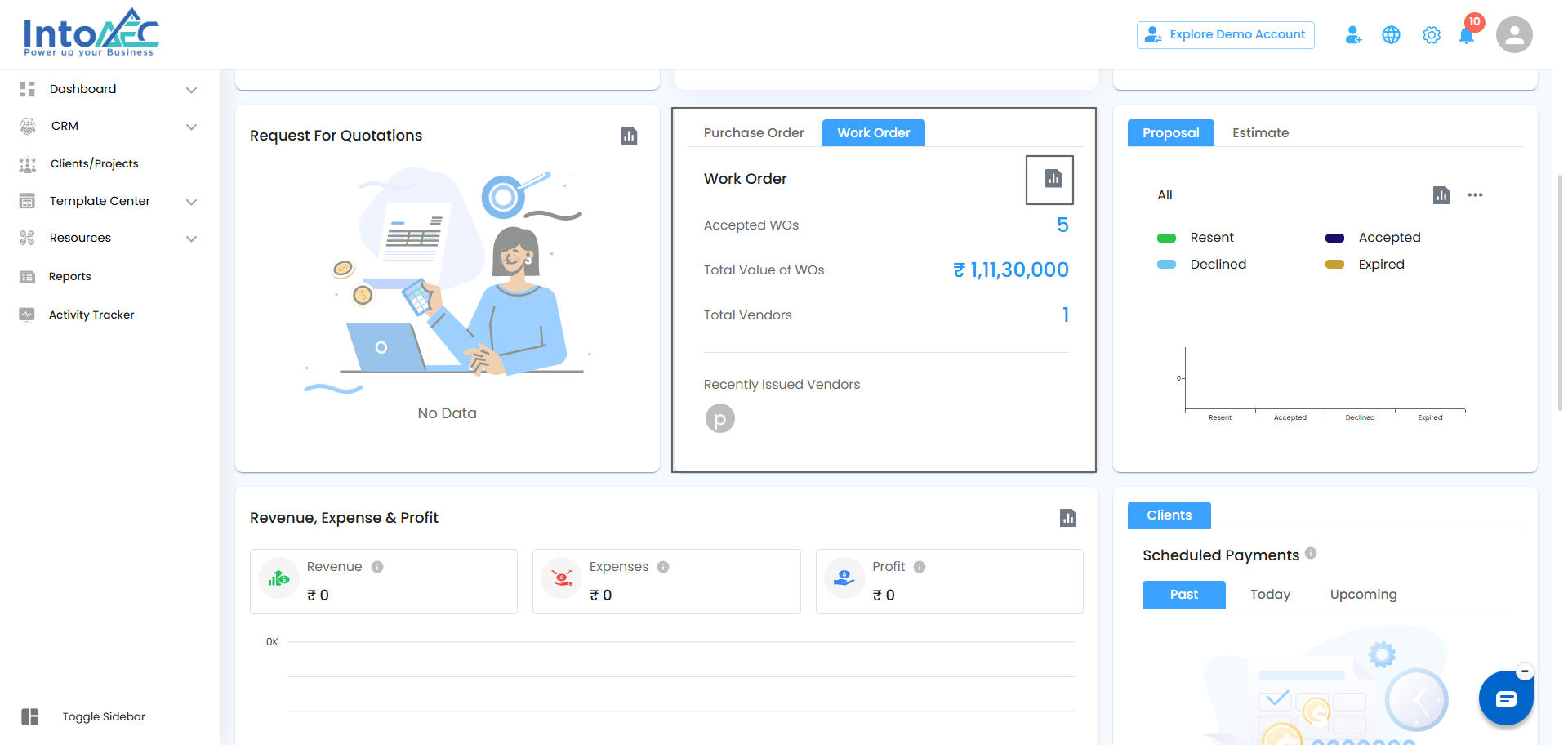
The Work Orders (WO) card provides a clear overview of all work orders raised within the organization, helping you track execution progress.
What This Card Shows
Total Accepted Work Orders – Overall count of work orders accepted
Vendors Involved – Number of vendors associated with work orders
Total value of work orders- Combined value of all accepted work orders
Recent Work Orders – Most recently created work orders
Work Order Analytics
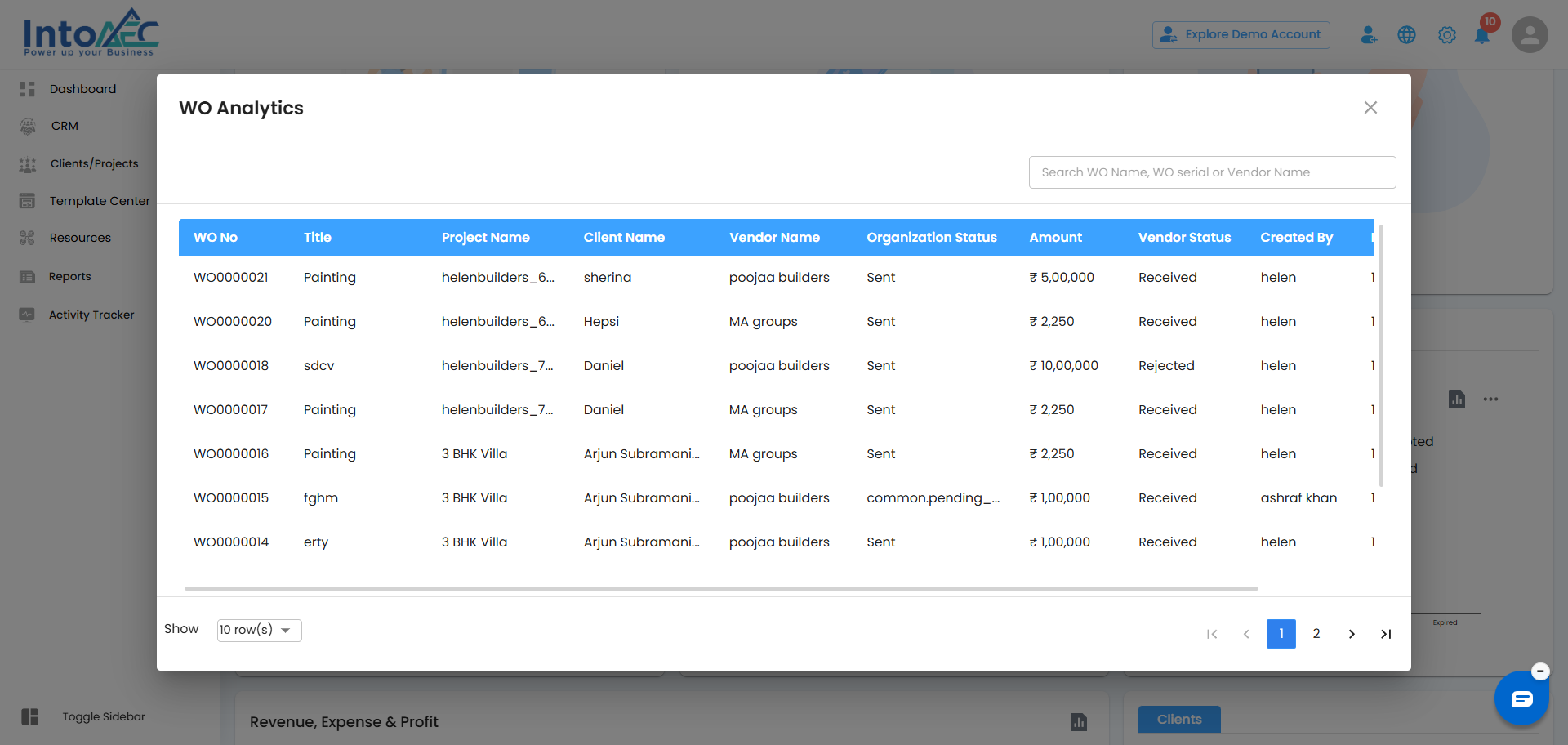
The WO card includes an Analytics option for deeper analysis.
Hover over the Analytics icon to view the tooltip
Click the icon to open the Work Order Analytics popup
Work orders are listed based on Work Order Serial
Search options include:
Work Order Name
Vendor Name
The popup includes a close (✕) icon
Proposal/Estimate
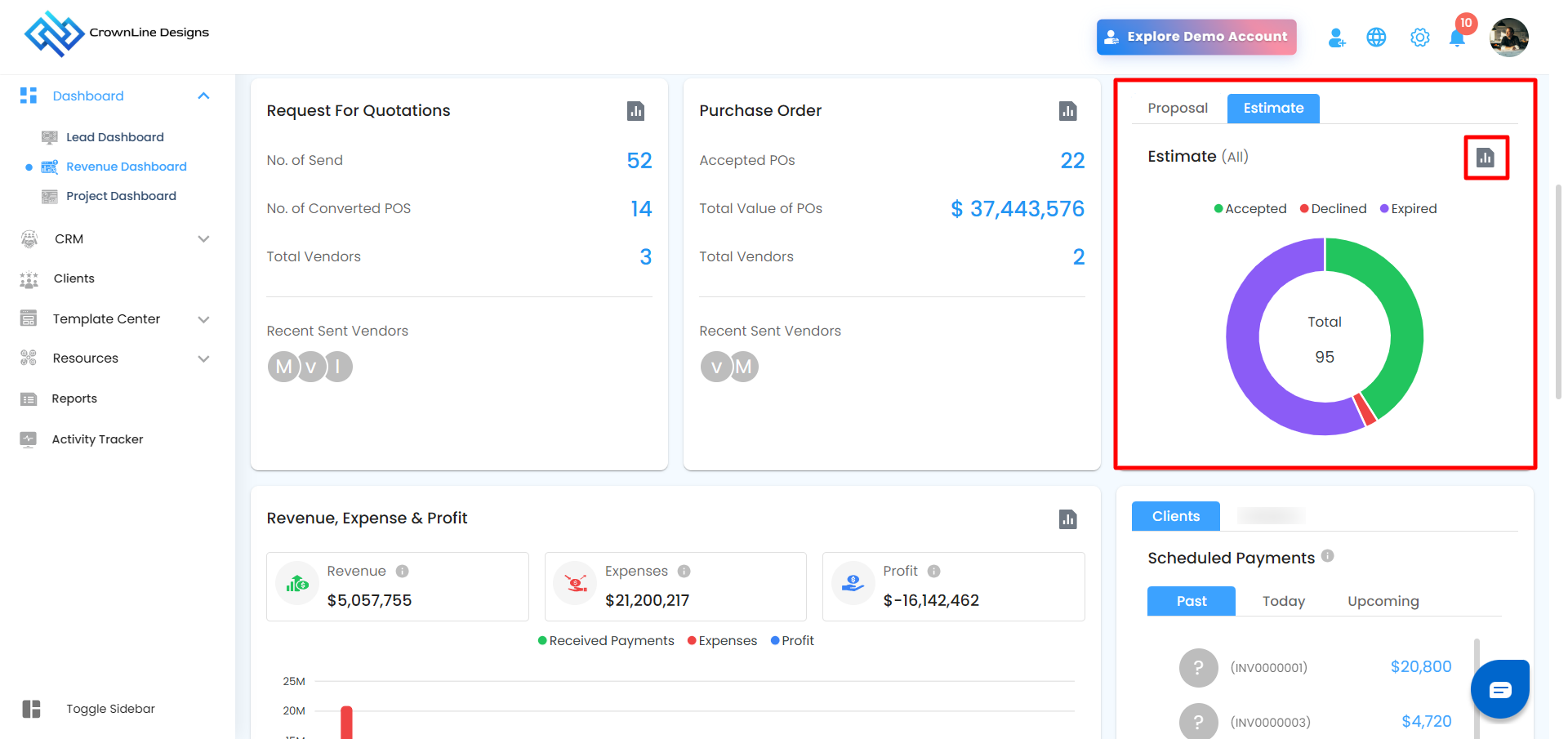
The Proposal/Estimate Switch Bar Graph provides a visual summary of both proposals and estimates, allowing users to switch between the two using a switch. It displays the count of documents under the following statuses:
Resent – Proposals or estimates that have been resent to the client.
Accepted – Documents approved by the client.
Declined – Documents that were rejected.
Expired – Proposals or estimates that expired without a client response.
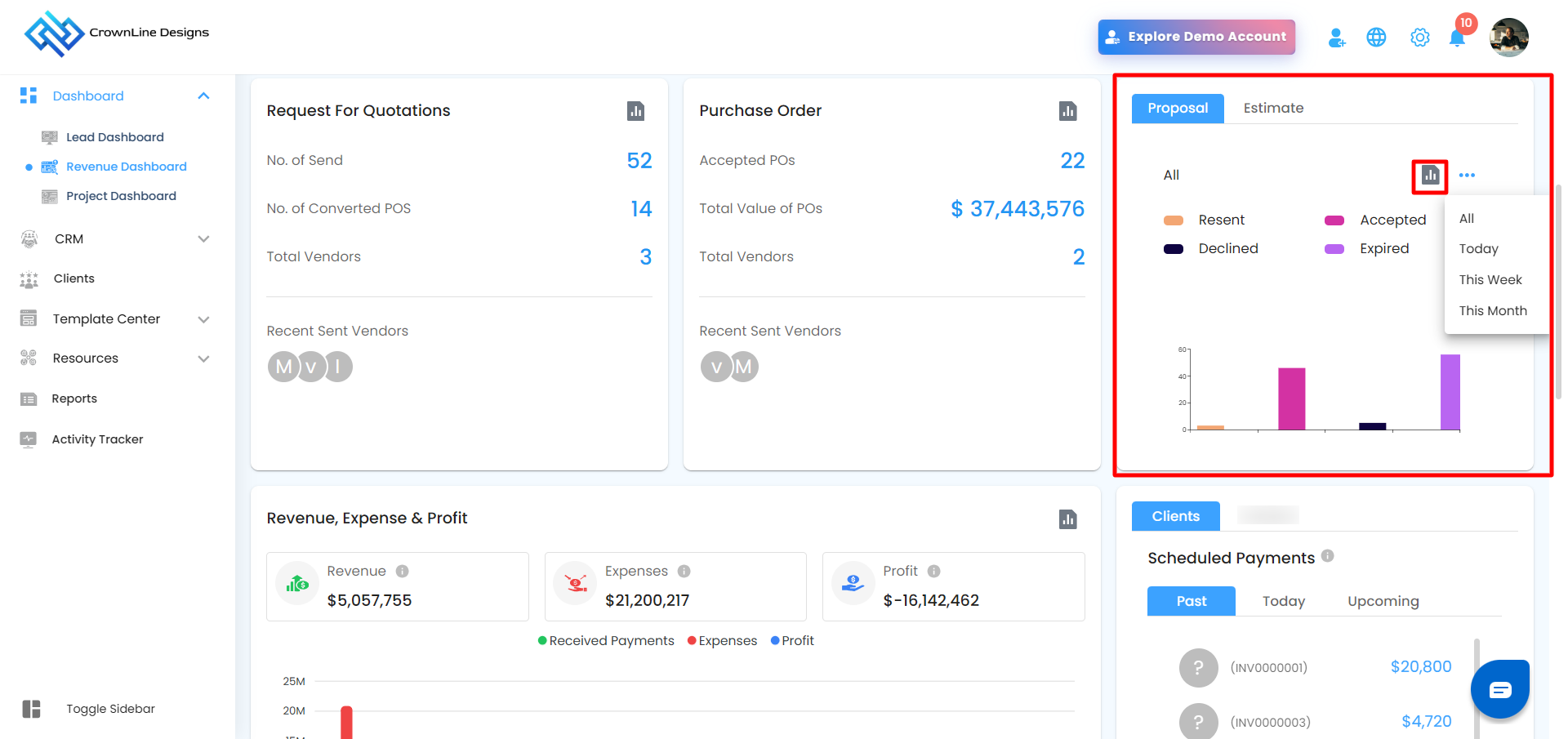
This card also includes time-based filters that apply to each status:
All – Displays the total count of resent, accepted, declined, and expired items across all time.
Today – Displays the count of proposals or estimates marked as resent, accepted, declined, or expired specifically on the current day.
This Week – Displays status data specific to the current week.
This Month – Shows the status breakdown for the current month.
Analytics View
The Proposal/Estimate card includes Analytics for both document types:
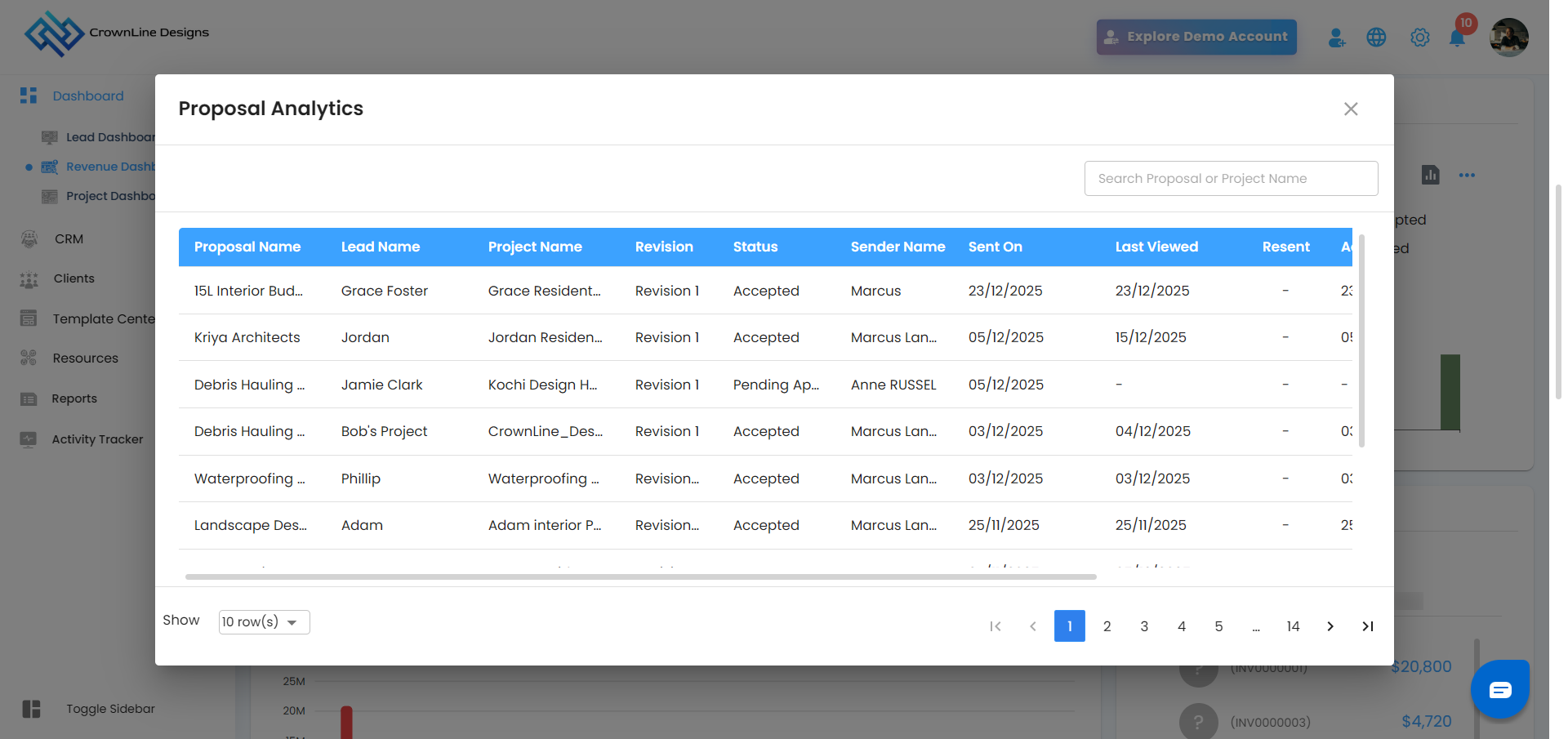
Proposal Analytics
Supports filters via three-dot menu:
All
Today
This Week
This Month
Listed based on Sent On date
Search by:
Proposal Name
Project Name
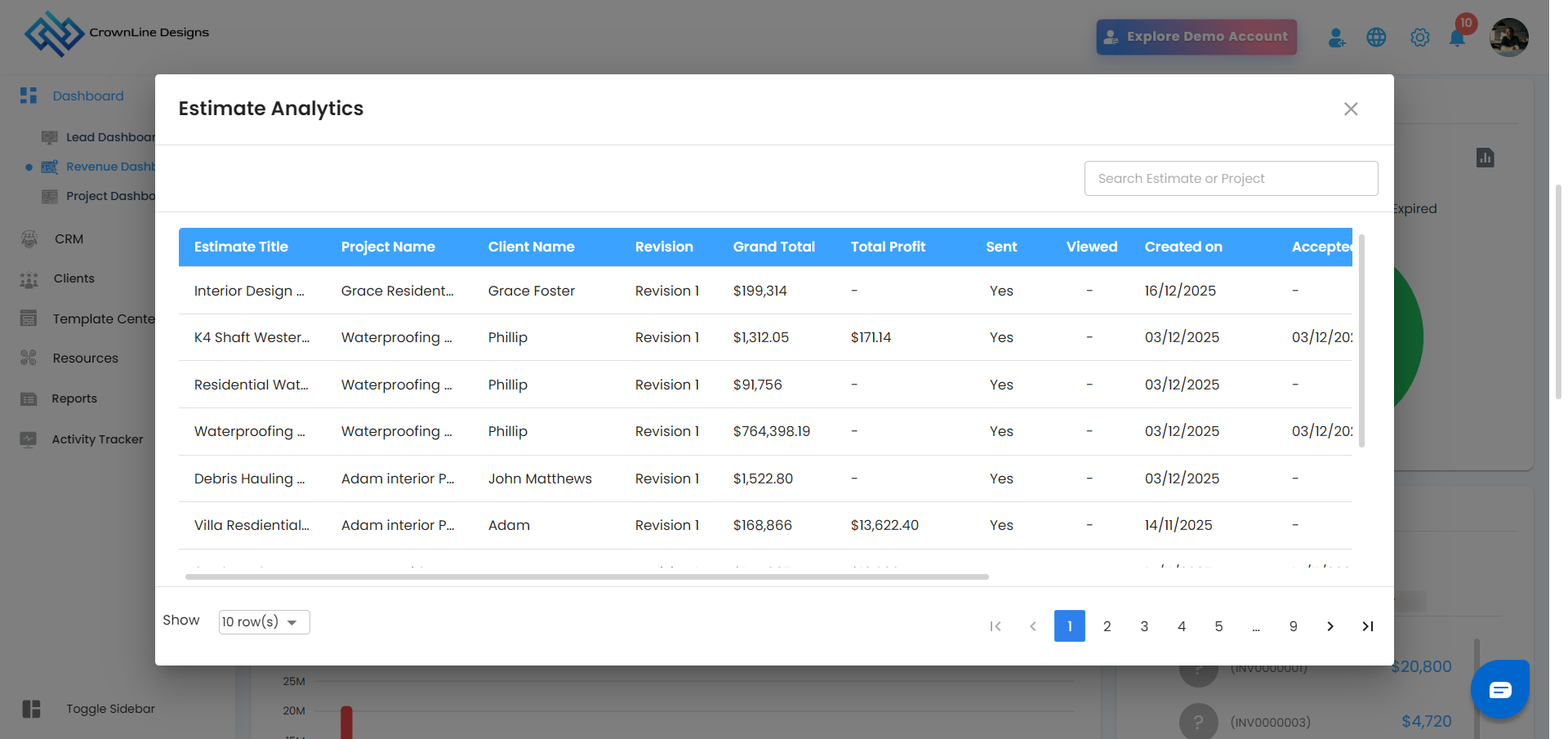
Estimate Analytics
No three-dot filter
Listed based on Created On date
Search by:
Estimate Name
Project Name
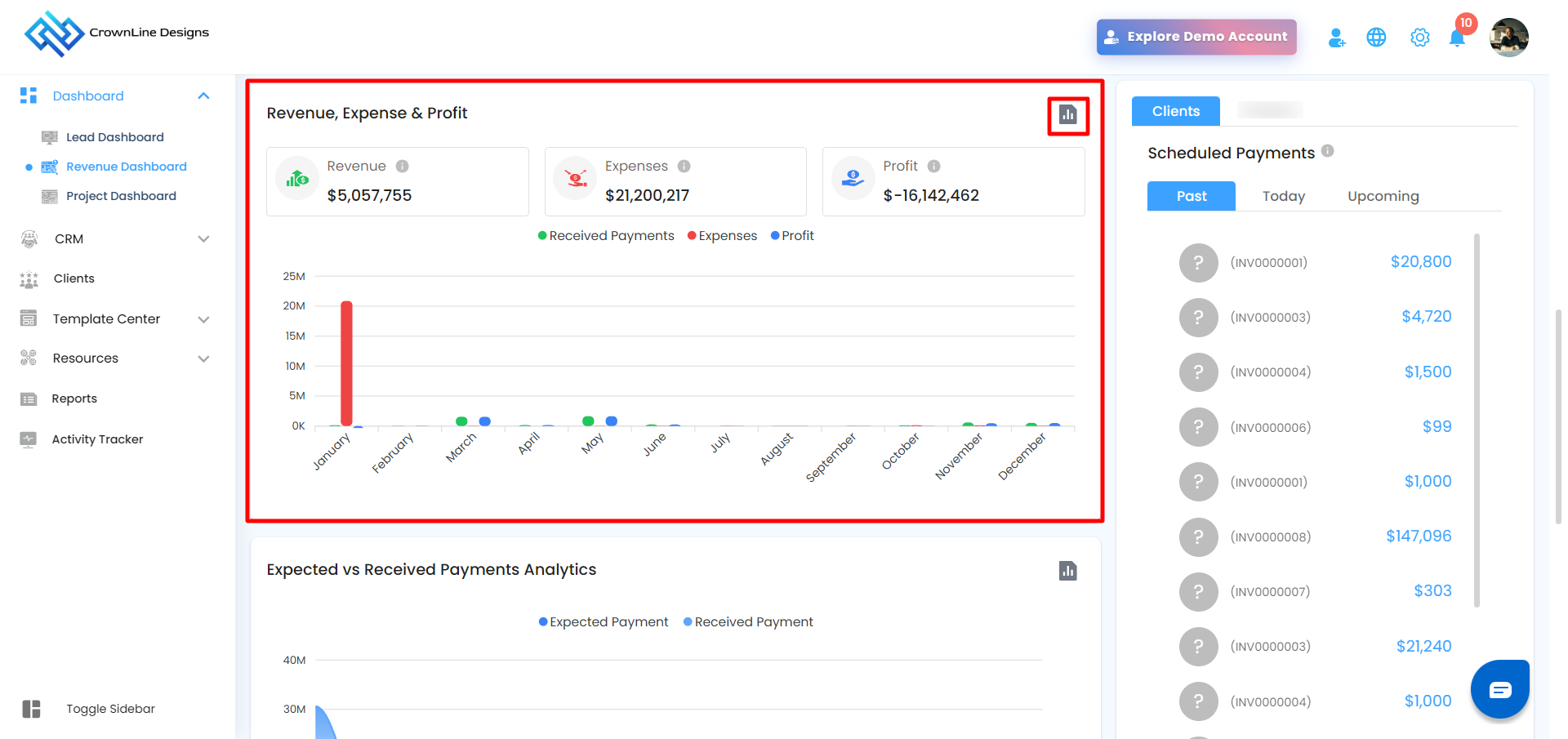
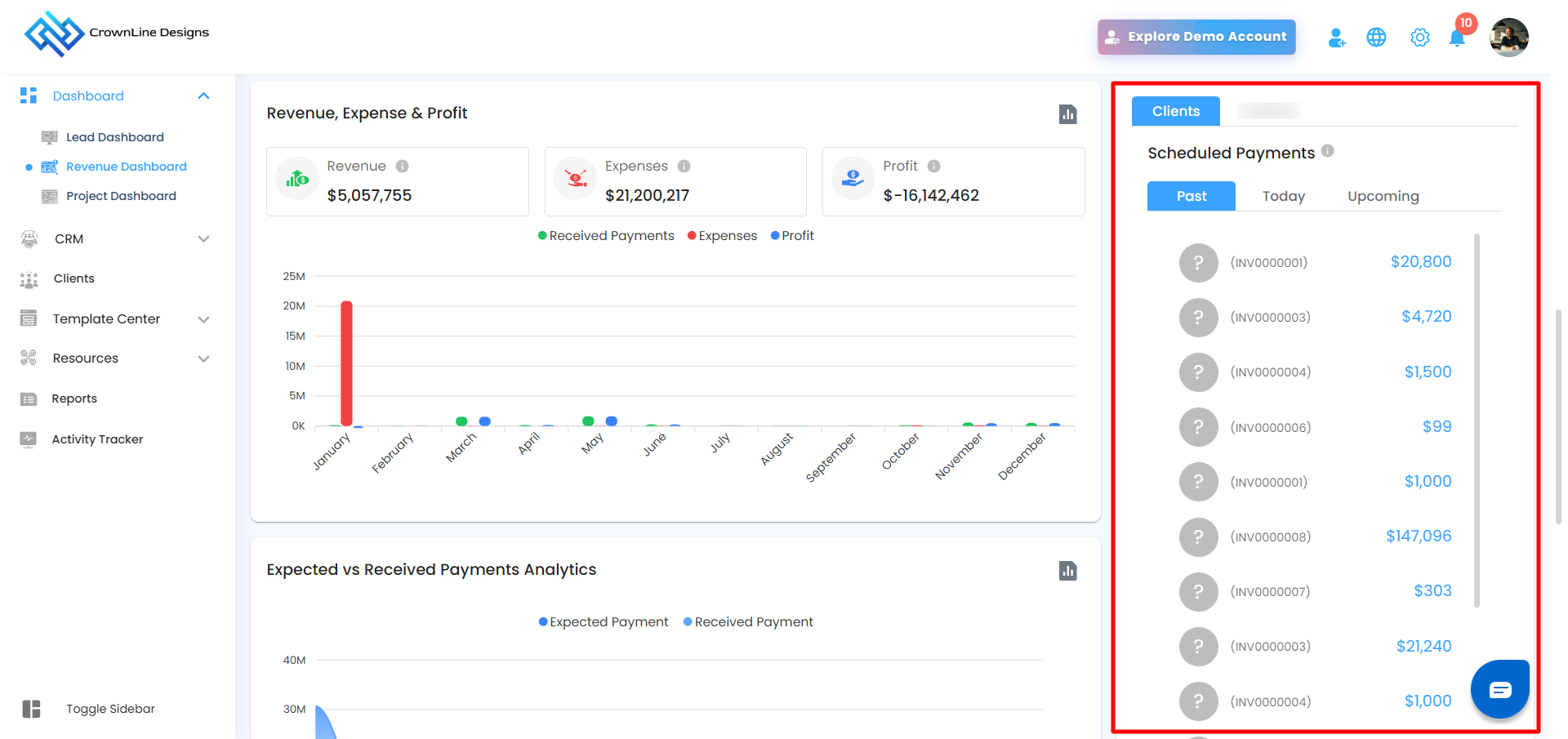
Revenue, Expense, and Profit
The Revenue, Expense, and Profit Bar Graph provides a visual comparison of your organization's financial performance across all projects. This graph displays:
Revenue – Calculated based on the invoices sent by the architect to the client.
Expenses – Includes multiple sources of project-related spending, such as:
Expenses manually added to the system
Time tracked through timesheets that has been converted into billable expenses
Inventory items that were converted into expenses
Amounts paid to vendors based on their submitted invoices
Profit – Automatically calculated as the difference between revenue and expenses.
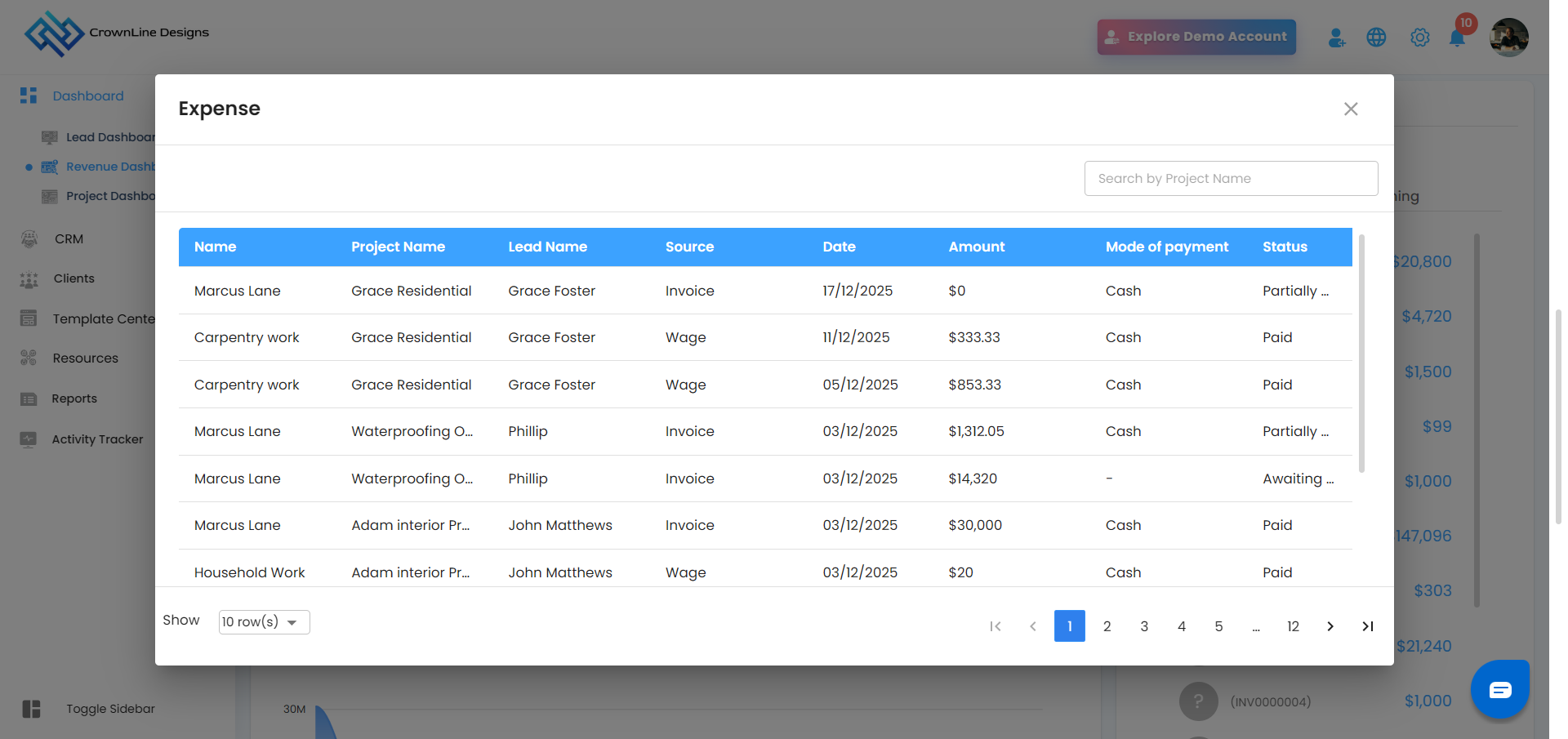
 Analytics View
Click Analytics icon to open popup
Listed based on Date
Search by Project Name
 Clients
The Clients Schedule Payment Switch section allows you to switch between scheduled payments for client invoices. The invoices are categorized based on their scheduled payment dates into the following segments:
Past – Invoices with scheduled payment dates before today. These may be completed or overdue.
Today – Invoices with payments scheduled for the current day.
Upcoming – Invoices with payments scheduled for future dates.
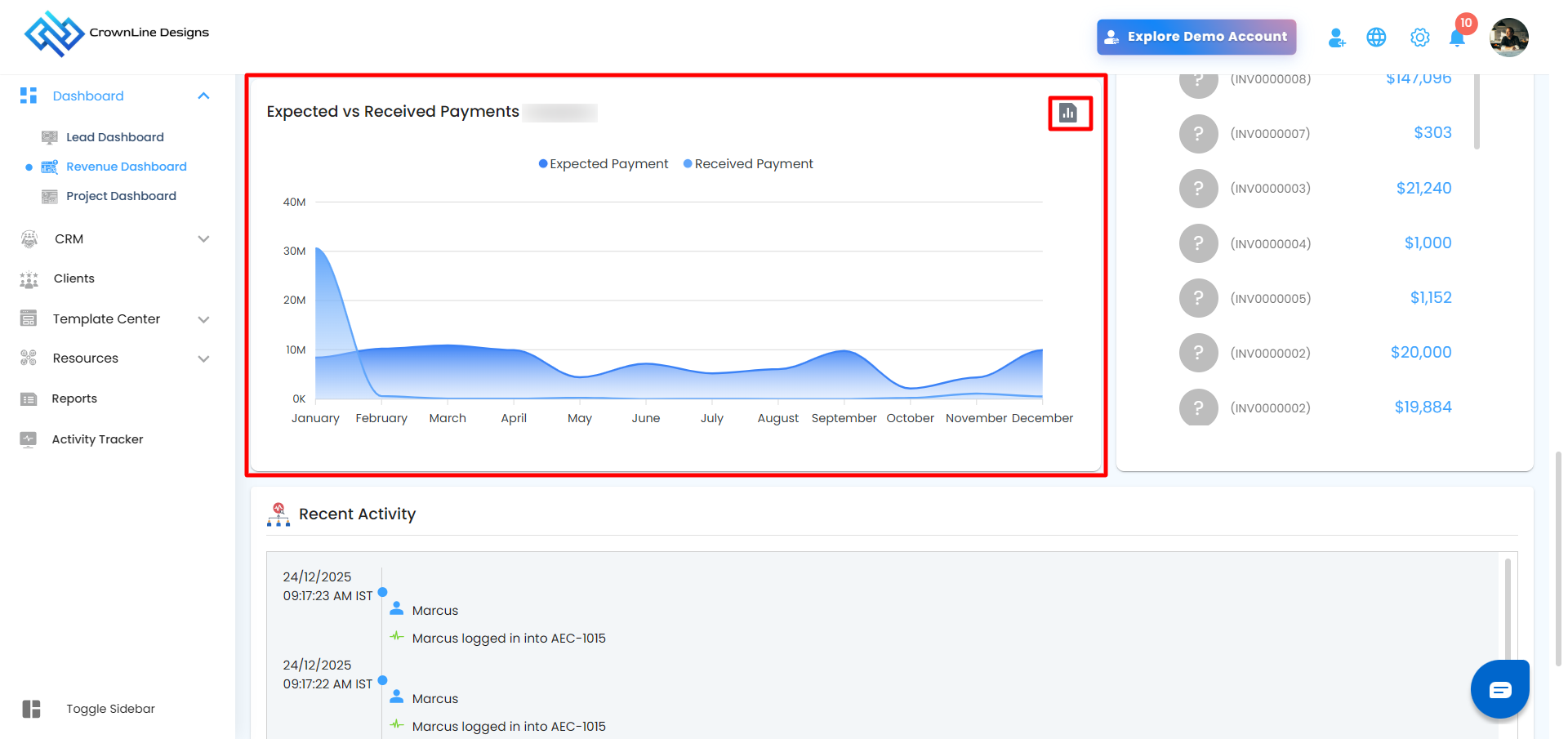
 Expected Payments vs Received Payments Graph
The Expected Payments vs Received Payments graph provides a clear comparison between the total amount invoiced and the actual amount received. It helps in tracking cash flow and identifying gaps between projected income and received payments.
Expected Payments – Represents the total amount of all invoices issued to clients.
Received Payments – Shows the actual amount collected against those invoices.
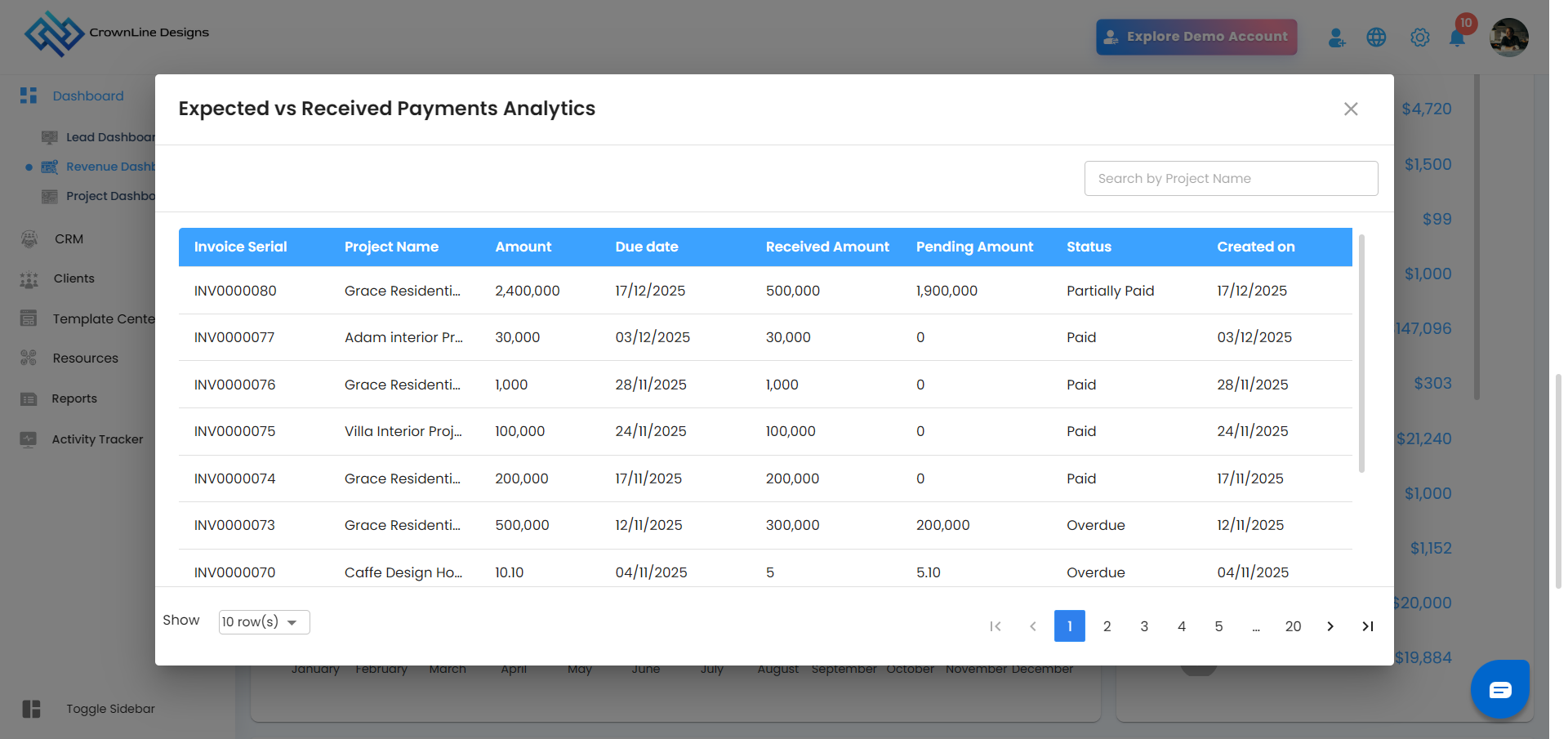
Analytics View
Click Analytics icon to open popup
Listed based on Invoice Serial
Search by Project Name
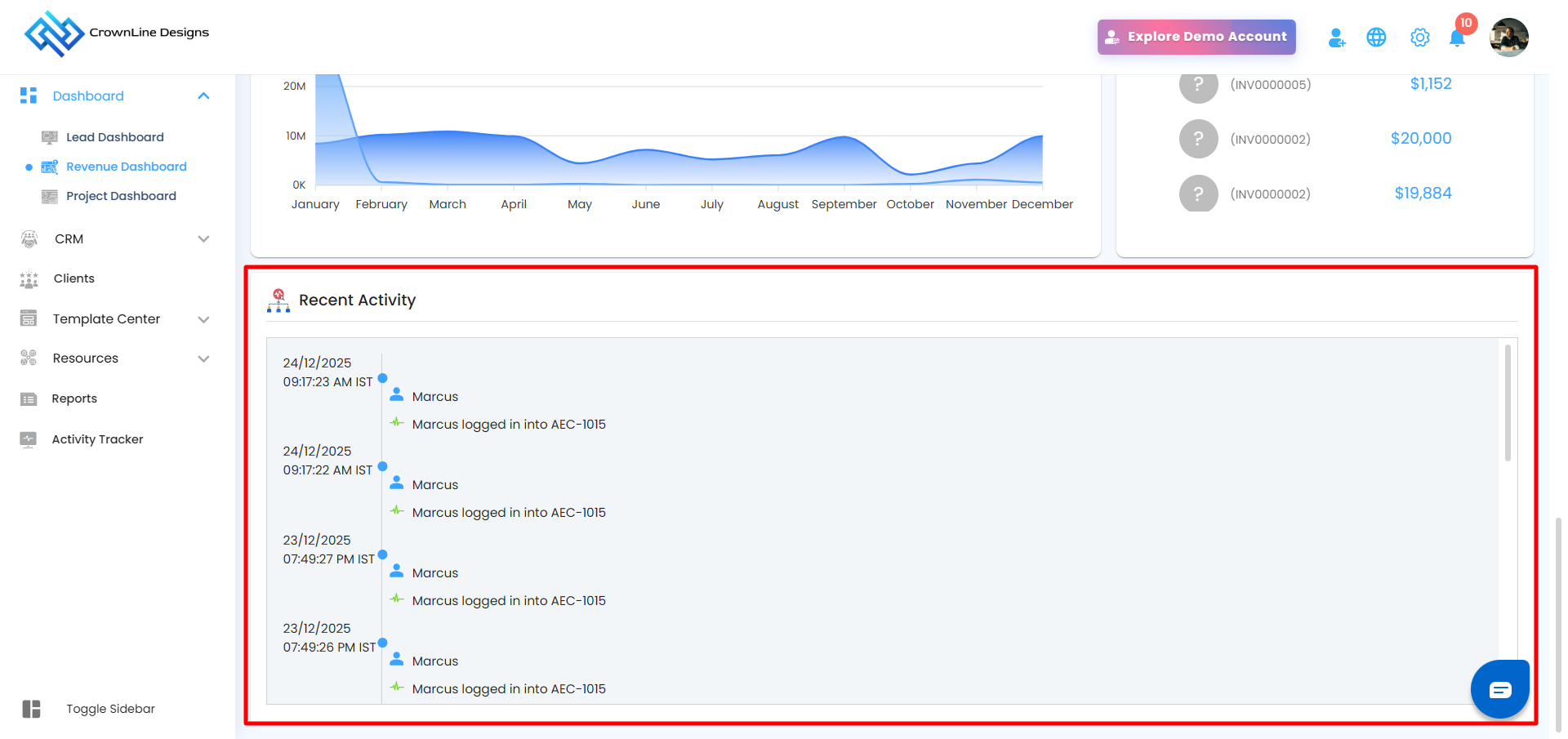
 Recent Activity:
The Recent Activity card shows the latest actions within the organization, along with the date, time, and time zone, helping you stay updated on recent changes and activities.
Was this article helpful?
That’s Great!
Thank you for your feedback
Sorry! We couldn't be helpful
Thank you for your feedback
Feedback sent
We appreciate your effort and will try to fix the article