How to Set Up and Customize Your Lead Capture Form
The Lead Capture form helps you collect information from potential clients who are interested in your services. You can customize it to ask exactly what you need — from project details to contact information.
Step 1: How to Get There
- Click Settings in the top-right corner of your screen.
- Select Preferences from the dropdown.
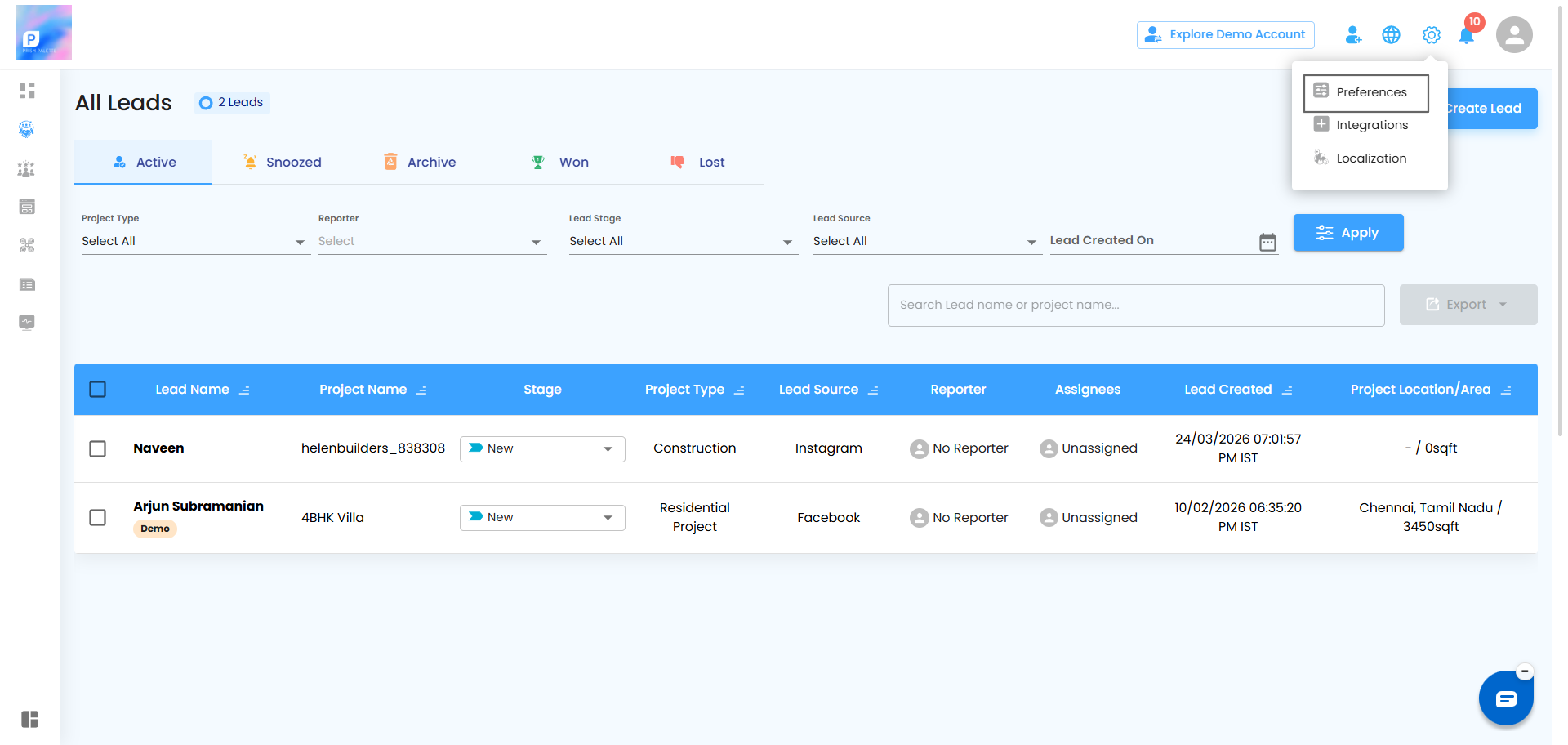
- Go to Lead > Lead Capture.
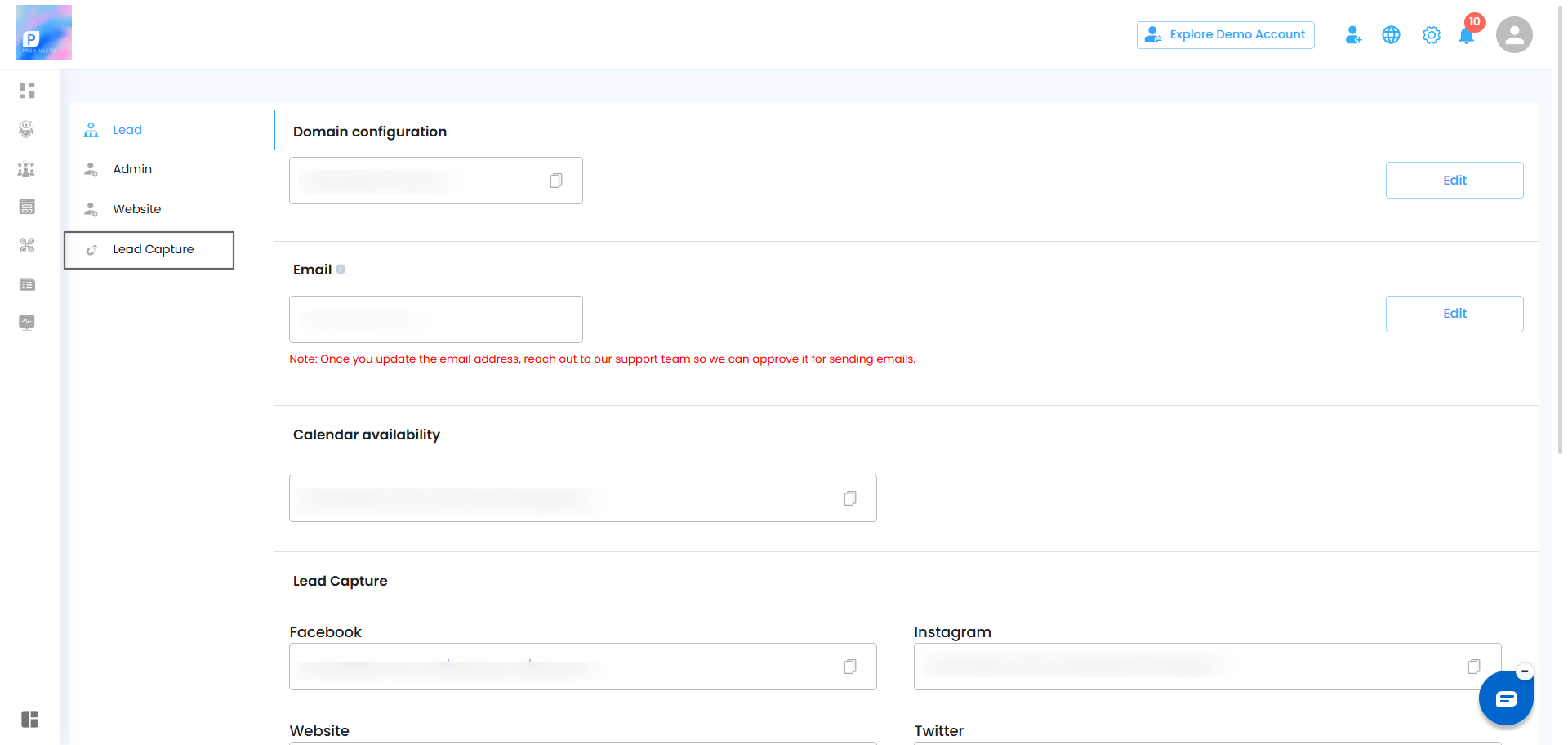
Create and manage your lead capture forms here. When someone fills your form via Facebook, Instagram, Website, or Twitter/X and LinkedIn they're instantly added as a lead in your CRM with the source automatically tracked.
Tracking Where Your Leads Come From:
- A lead fills out your form via any platform (Facebook, Instagram, LinkedIn, Website, etc.)
- They are automatically added to the CRM Lead Master Grid.
- The Lead Source column records where the lead came from.
- You can view each lead's source directly in the Master Grid.
Note: This helps you track which platform is bringing in the most leads for your business.
Step 2: Opening a Form to Edit
To make changes to an existing form:
- Find the form you want to edit from the list.
- Click the three-dot menu (⋮) on the right side of that form.
- Select Edit.
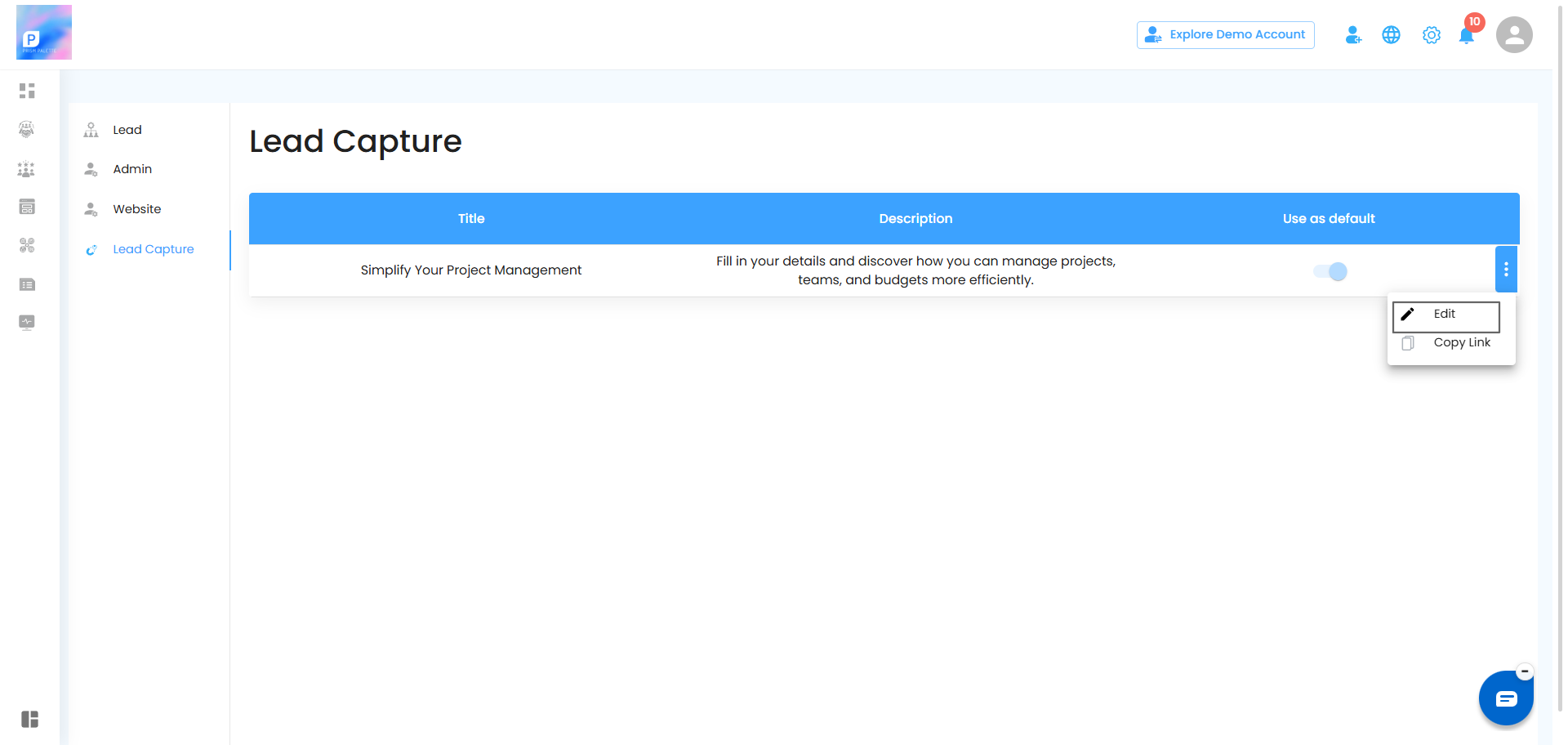
This opens the form editor where you can update the form name, description, and fields anytime as per your need.
Step 3: Building Your Form
Once you're inside the editor, you'll see your form is made up of multiple pages. Think of each page as one screen your lead will see while filling out the form.
Intro Page:
When a lead opens your form, the Intro Page is the first thing they see. By default, it displays your welcome message which you can edit anytime.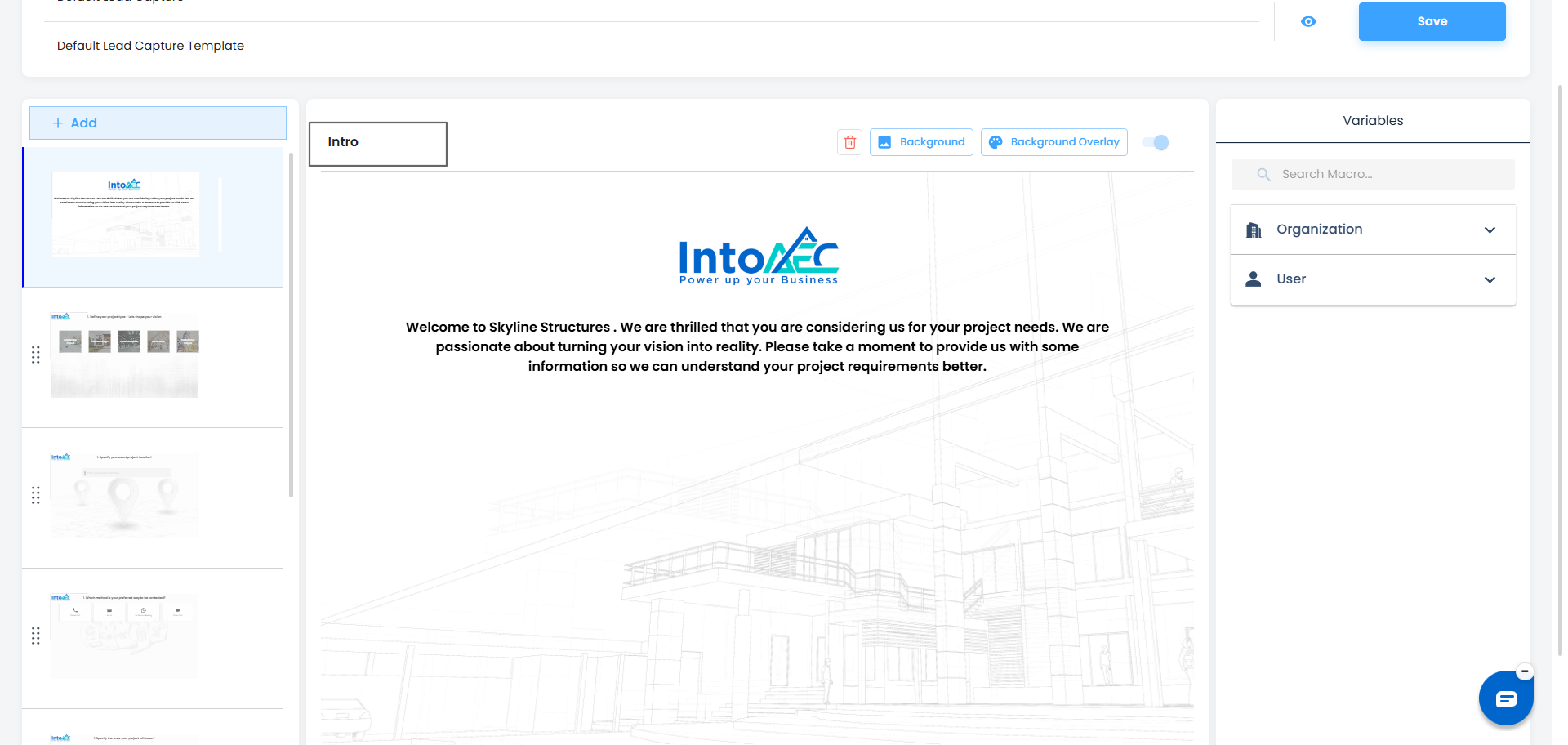
Things you can do on this page:
- Edit the content — Click on the text to update the welcome message as per your need
- Add Macros & Components — Make the page more relevant to your business
- Set a Background Image — Click the Background button to upload an image
- Add Background Overlay — Click Background Overlay to apply an overlay effect
- Remove Background — Click the Delete icon to remove the background image
Note: The Intro Page is mandatory — the toggle switch is disabled and this page cannot be turned off or deleted.
Add & Customise Pages:
- Click the + Add button on the left side panel.
- A new blank page will appear in the sidebar.
- Name it clearly so you know what it's for (e.g., "Project Details", "Budget Info").
- You can drag and reorder pages from the left sidebar anytime.
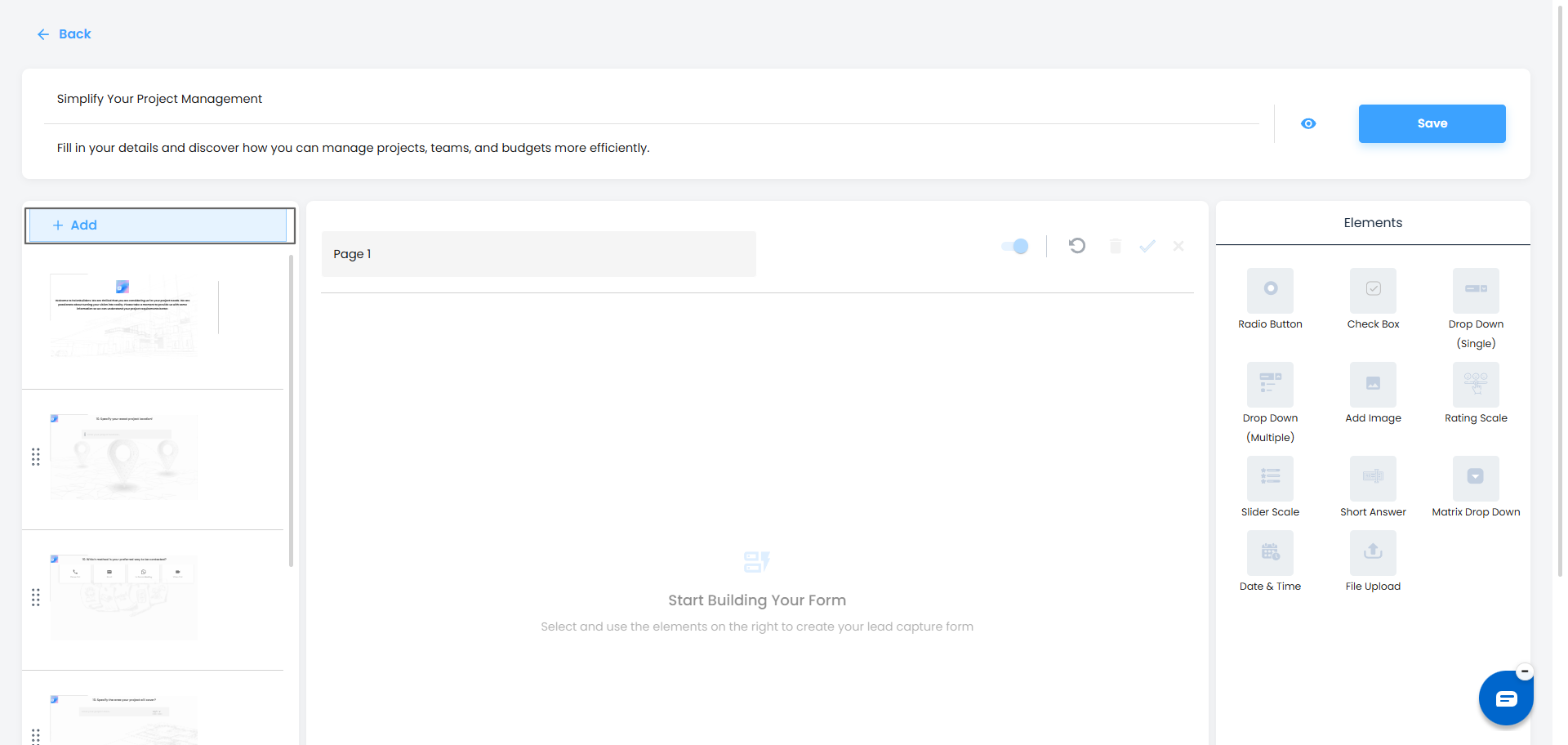
Note: Splitting your form into pages makes it easier for leads to fill out — instead of one long form, they go through it step by step.
Adding Fields to a Page
On the right side of the editor, you'll find the Elements panel — these are the types of questions or inputs you can add to any page:
- Radio Button – lets the lead pick one option from a list
- Check Box – lets the lead select multiple options
- Drop Down (Single) – a dropdown where only one option can be chosen
- Drop Down (Multiple) – a dropdown where multiple options can be chosen
- Add Image – lets you show image options for the lead to choose from
- Rating Scale – lets the lead rate something (e.g., 1 to 5)
- Slider Scale – lets the lead pick a value by sliding a bar
- Short Answer – a text box for the lead to type a response
- Matrix Drop Down – a grid-style question with multiple rows and dropdowns
- Date & Time – lets the lead pick a date or time
- File Upload – lets the lead upload a document or image
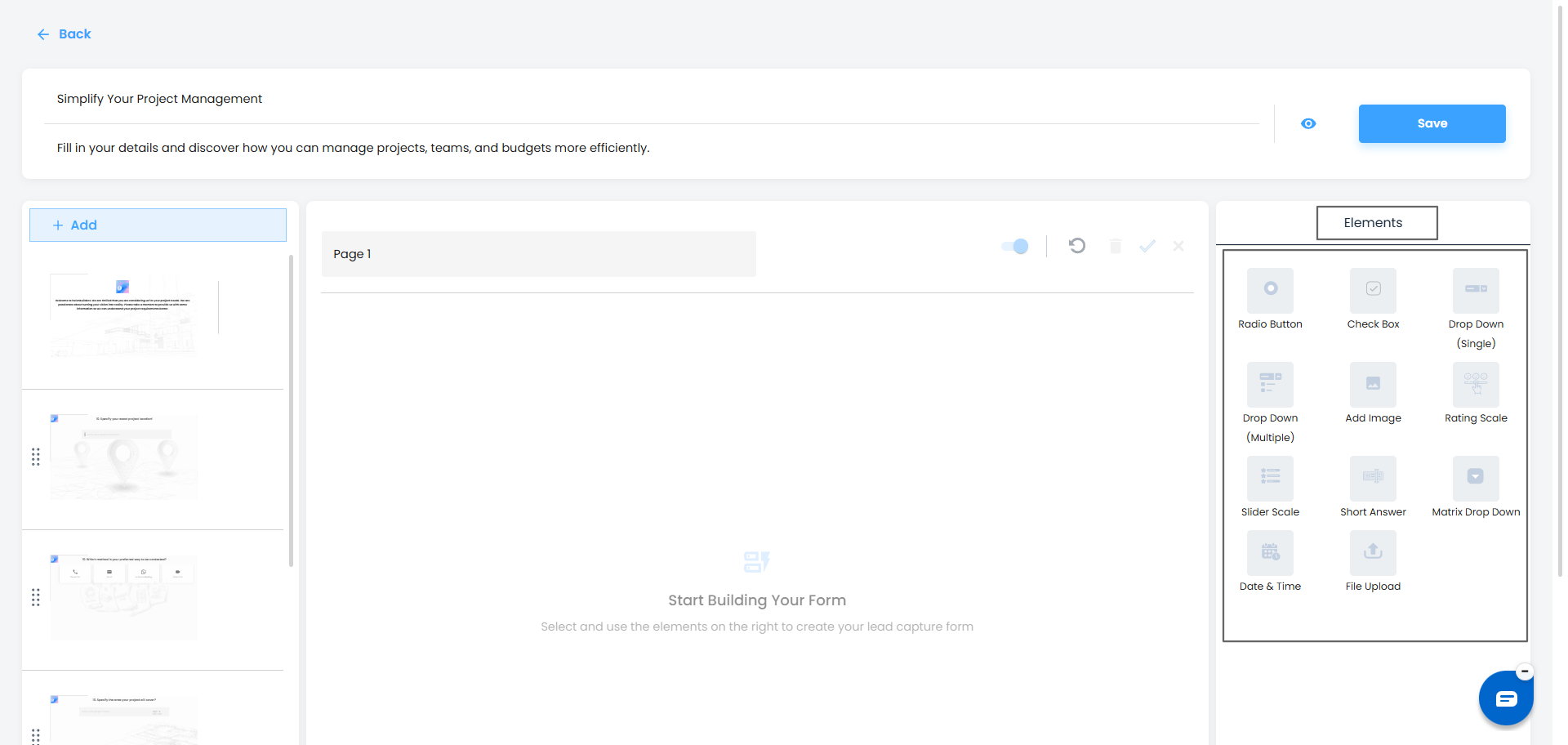
Just click on any element from the panel to add it to your current page.
Setting a Background for Each Page:
Each page can have its own background image to make your form look more professional. At the top of each page, you will see two options — Background and Background Overlay.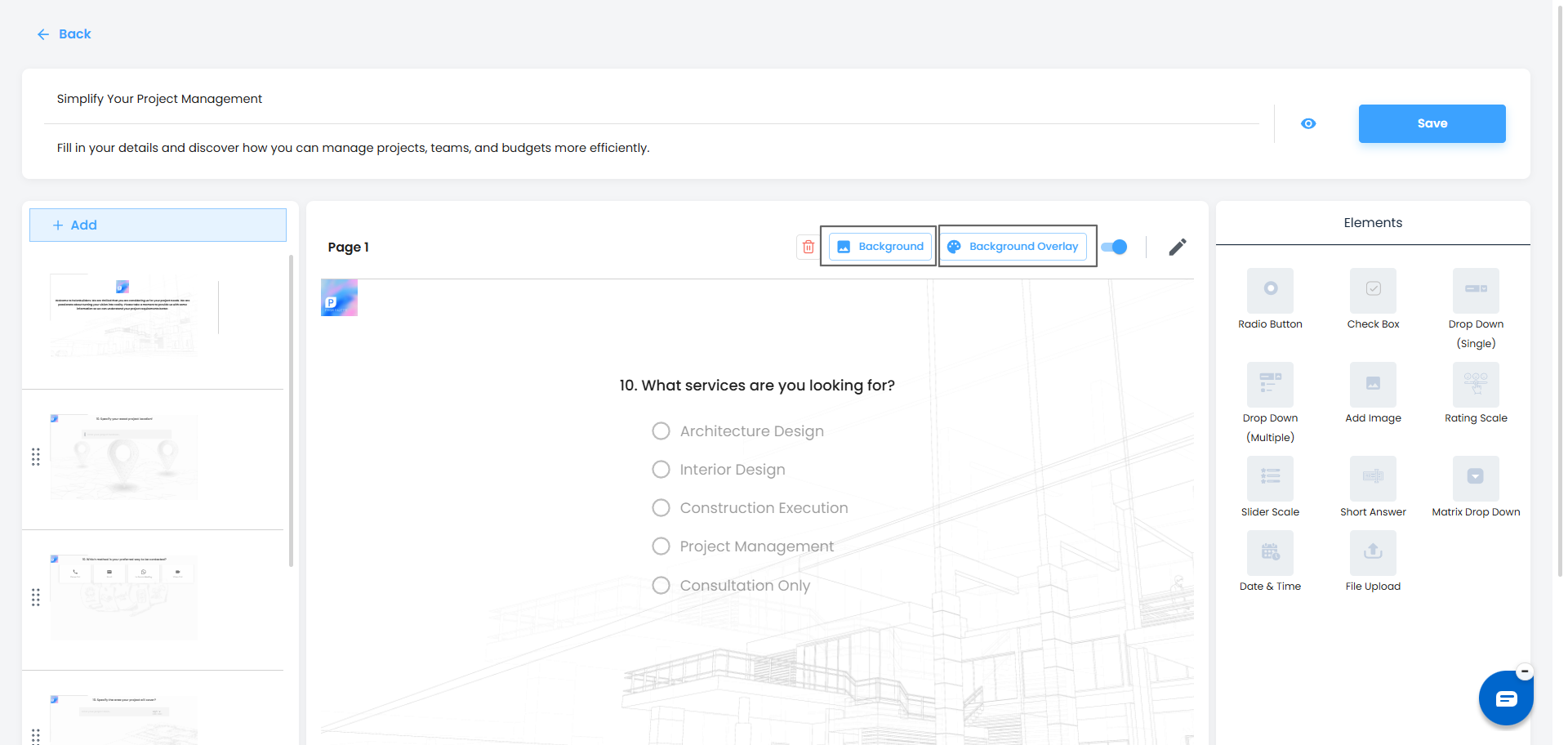
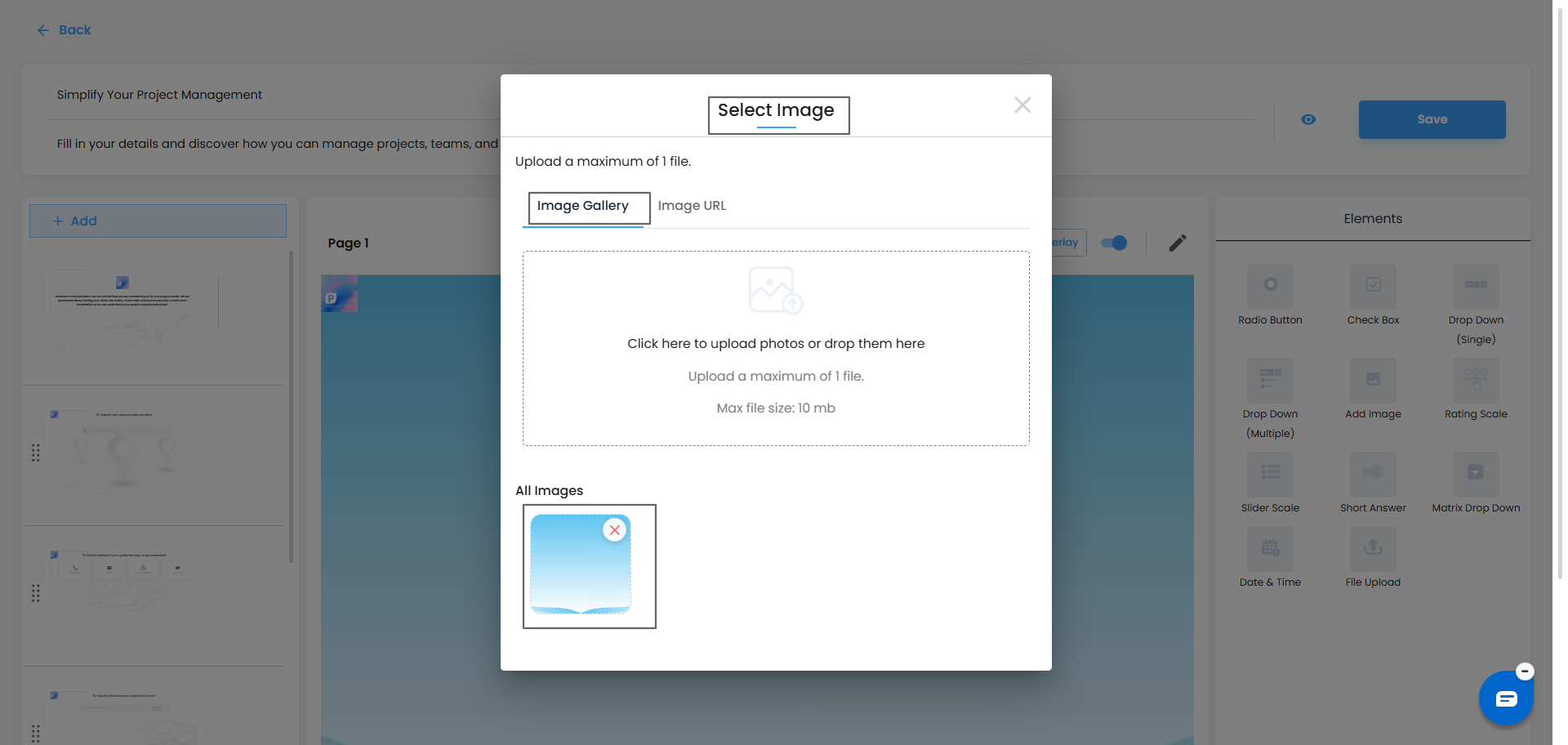
Background – Click this to add a background image. You can either:
- Upload an image from your device
- Paste an image URL to use an image from the web
Background Overlay – Click this to add a color layer over your background image. This helps keep your text easy to read when the background image is too bright or busy.
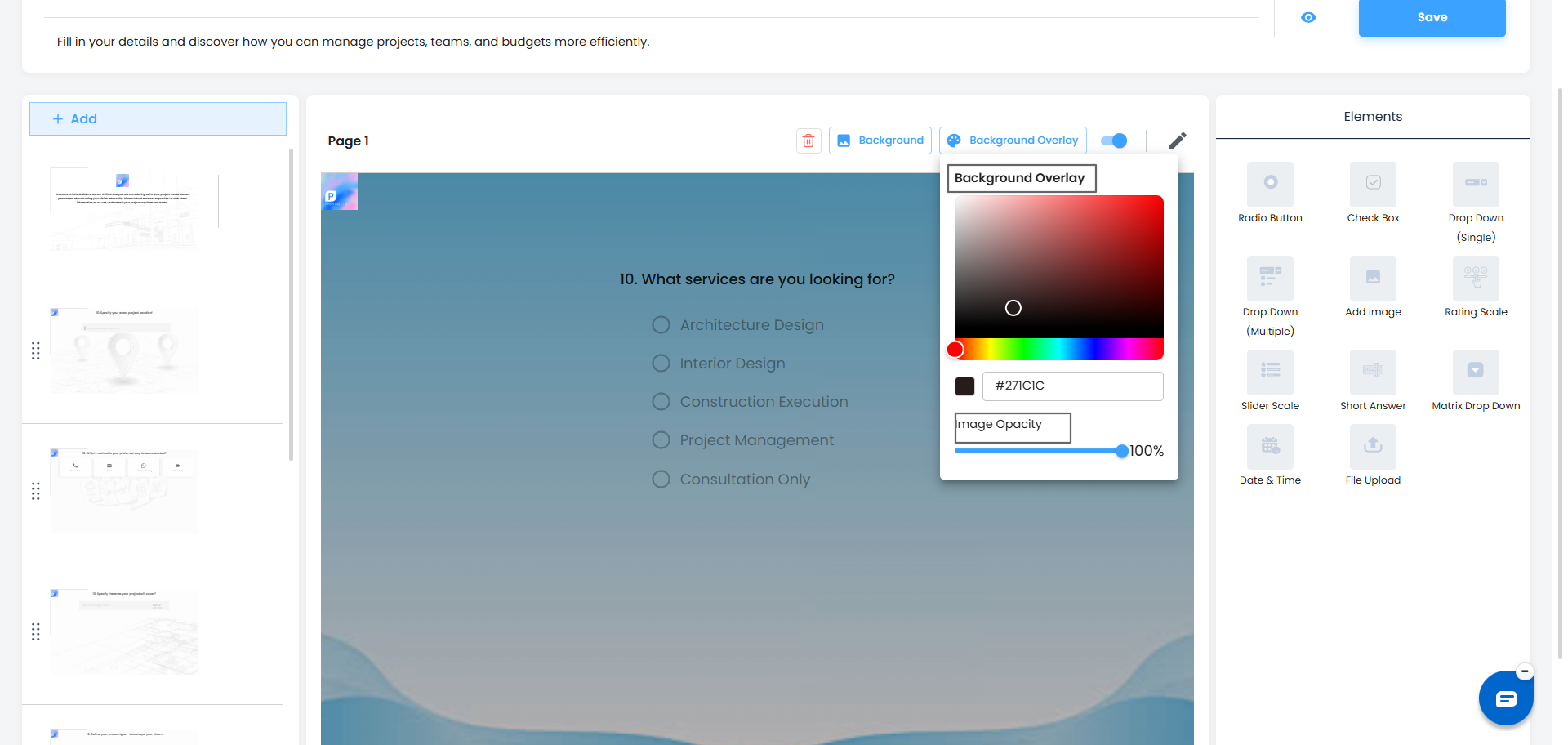
Note: Each page can have a different background, so your form looks clean and well-organized throughout.
Showing or Hiding a Page:
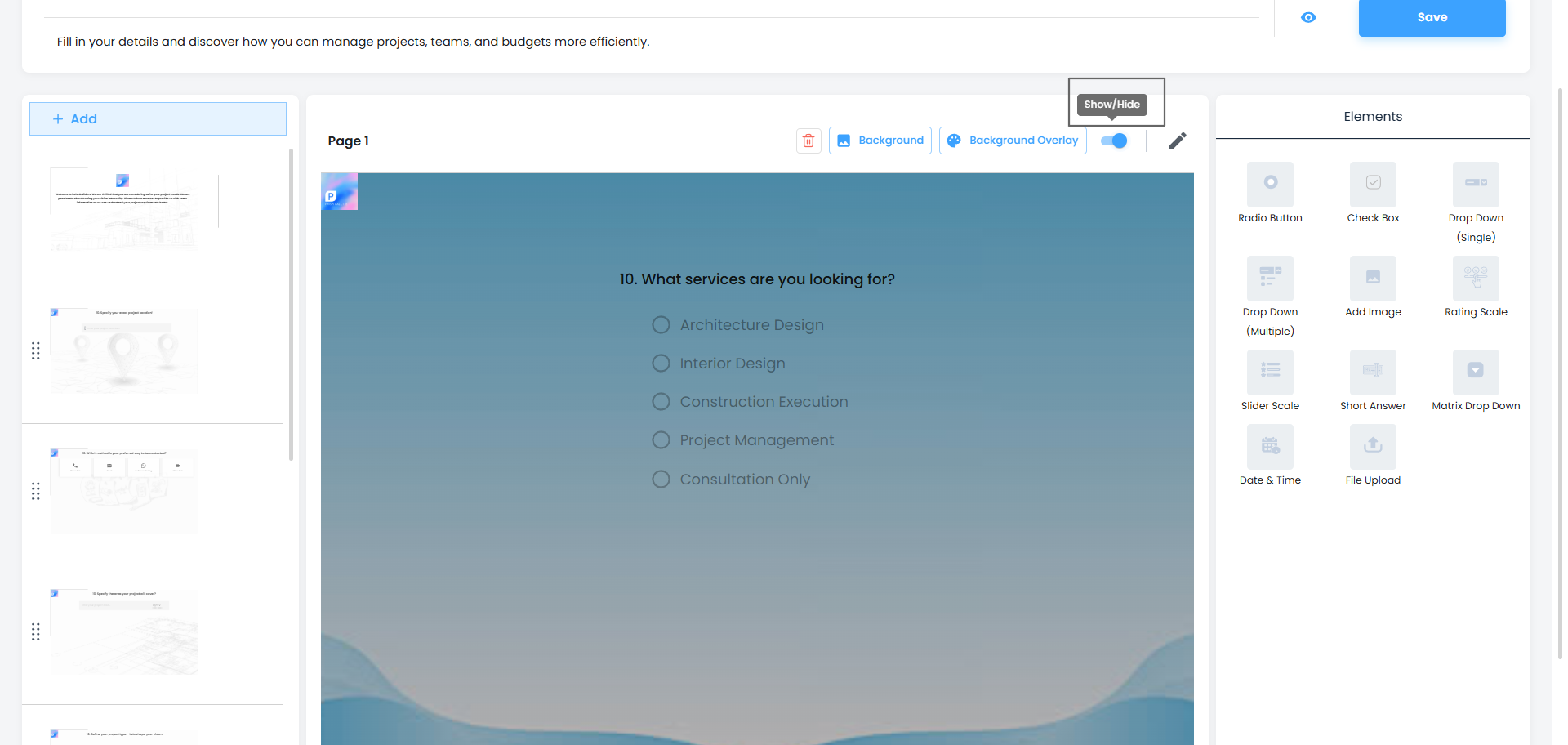
Each page has a Show/Hide toggle at the top:
- Toggle ON to show the page to leads
- Toggle OFF to hide it temporarily
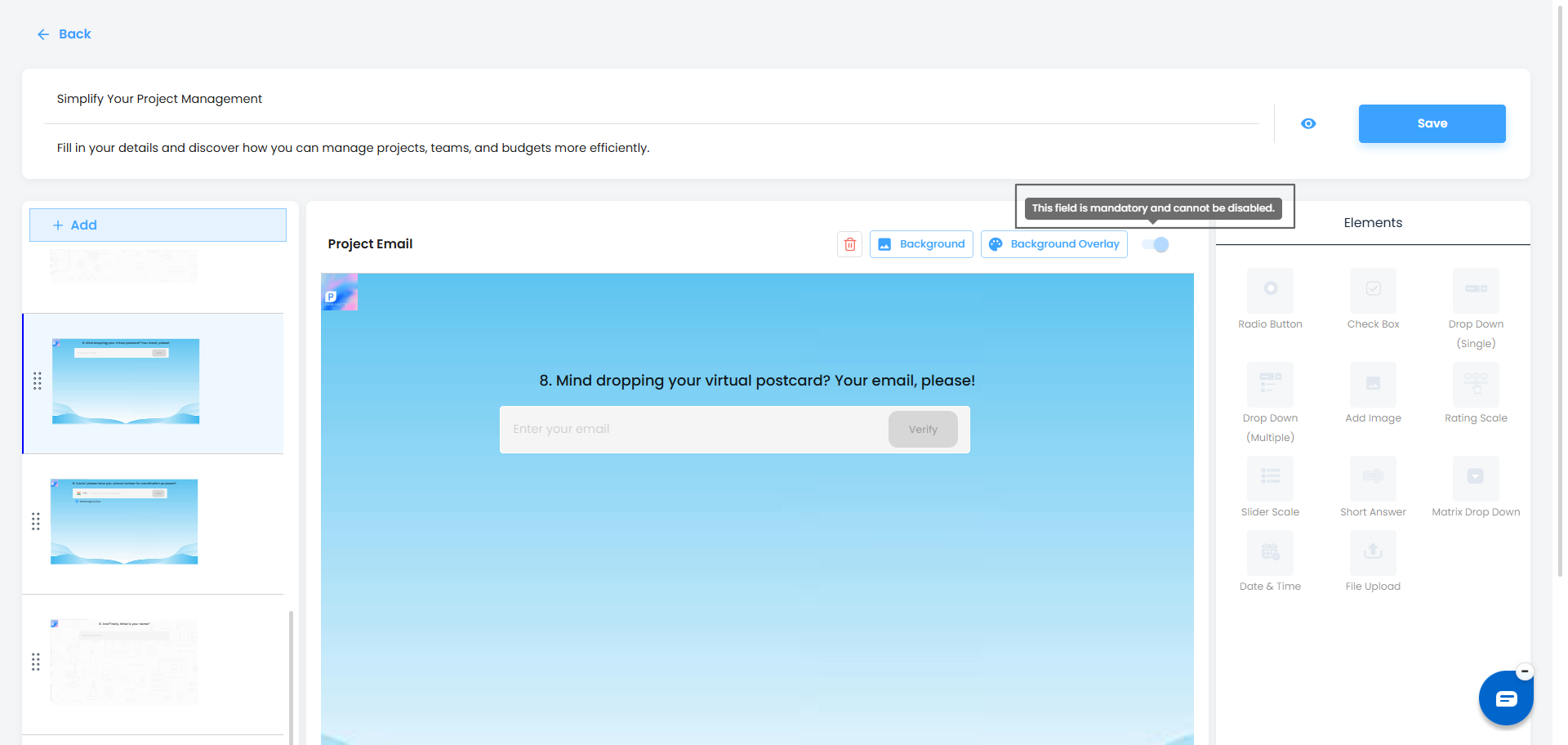
For some default (mandatory) pages, the toggle will be disabled.
- Tooltip: Show/Hide Page – for editable pages
- Tooltip: This field is mandatory and cannot be disabled – for restricted pages
Note: Mandatory pages cannot be hidden and will always remain visible.
Edit Form Actions:
When you click on the Edit option, the form opens in the editor. You will see the following actions in the header: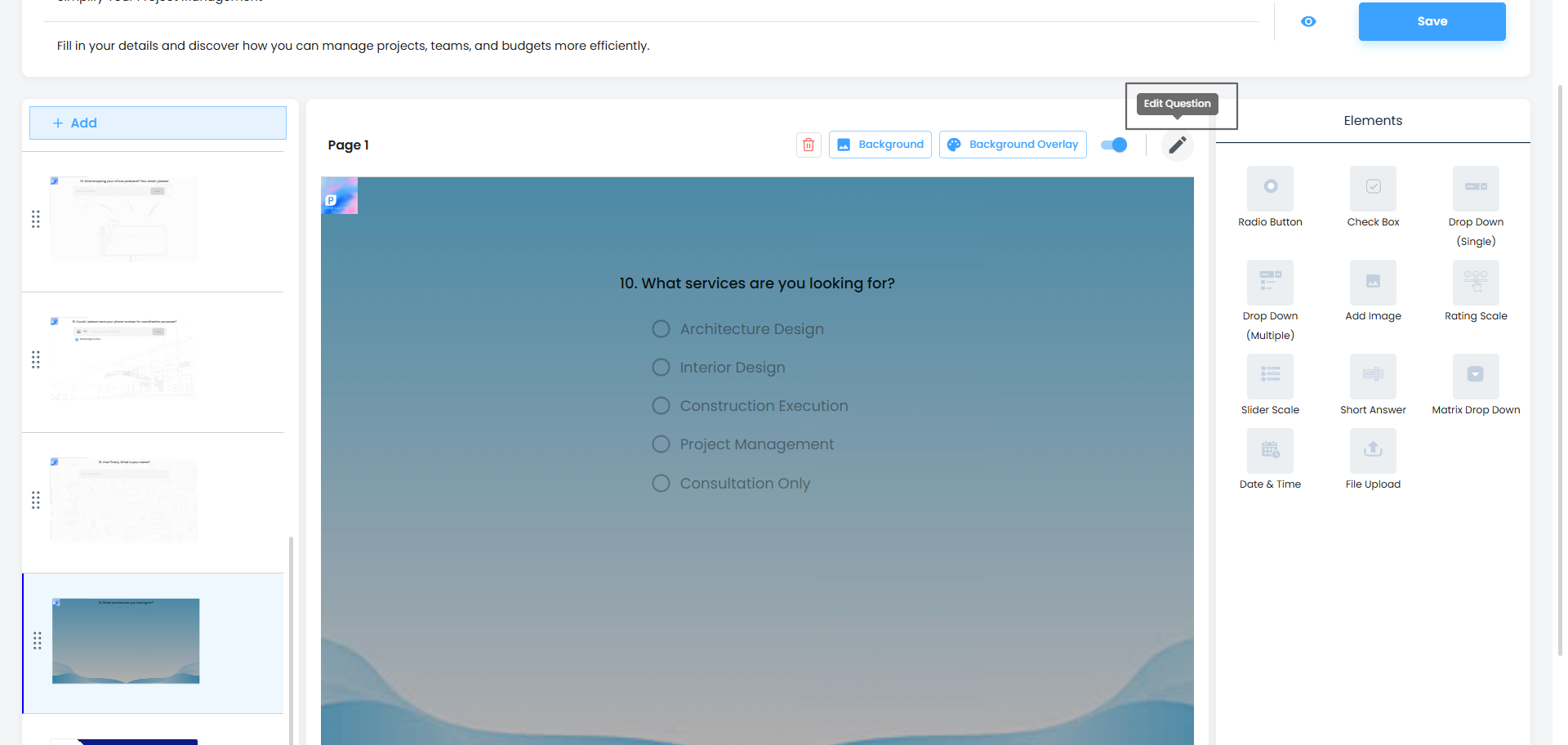
- Save:
Saves all the changes made to the form. - Cancel:
Closes the editor without saving any changes. - Reset:
Resets the form to the default template and removes all changes.
Note: This action cannot be undone. - Delete:
Permanently deletes the form.
Note: Deleted forms cannot be recovered.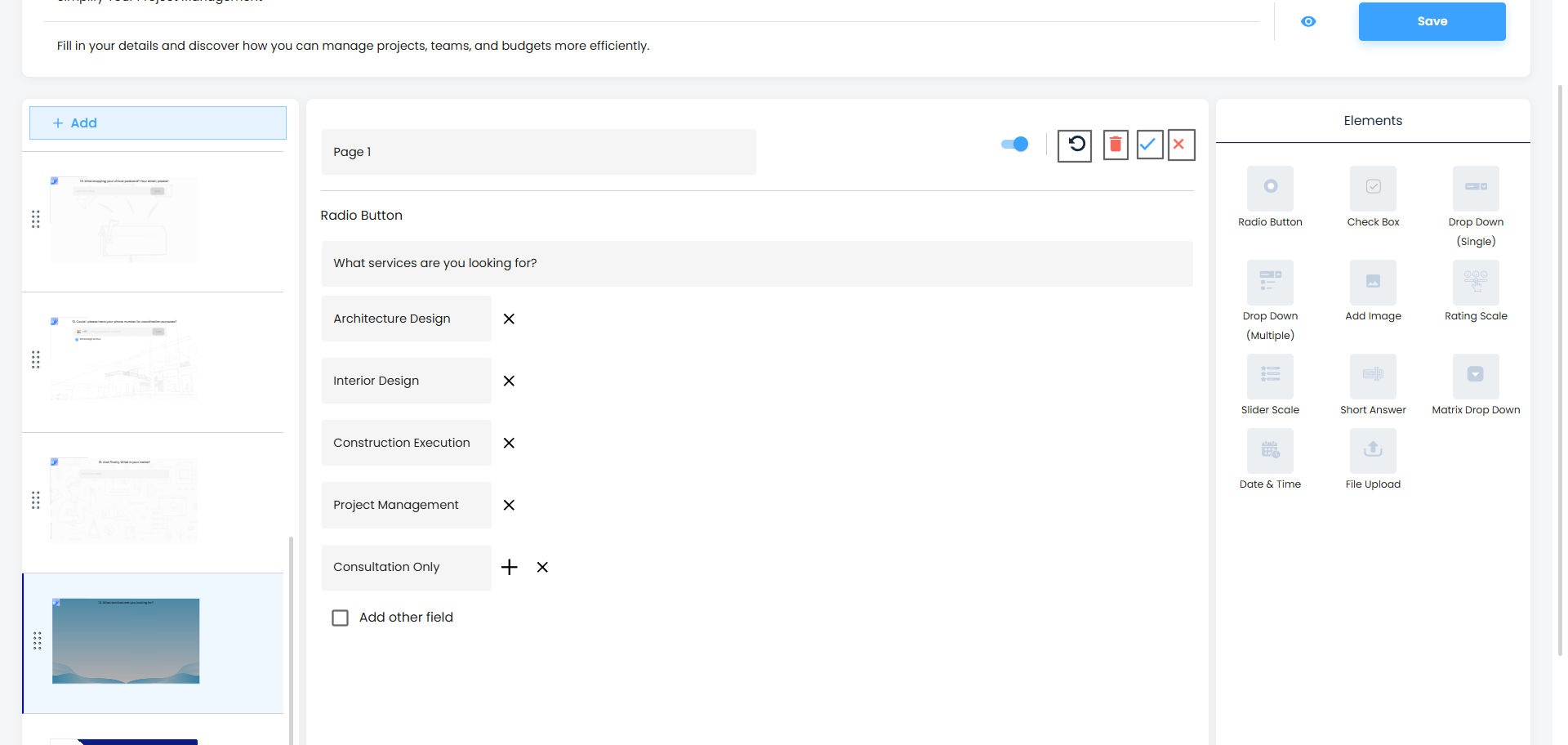
Previewing Your Form Before saving, you can check how your form looks to your leads at any time — without saving first.
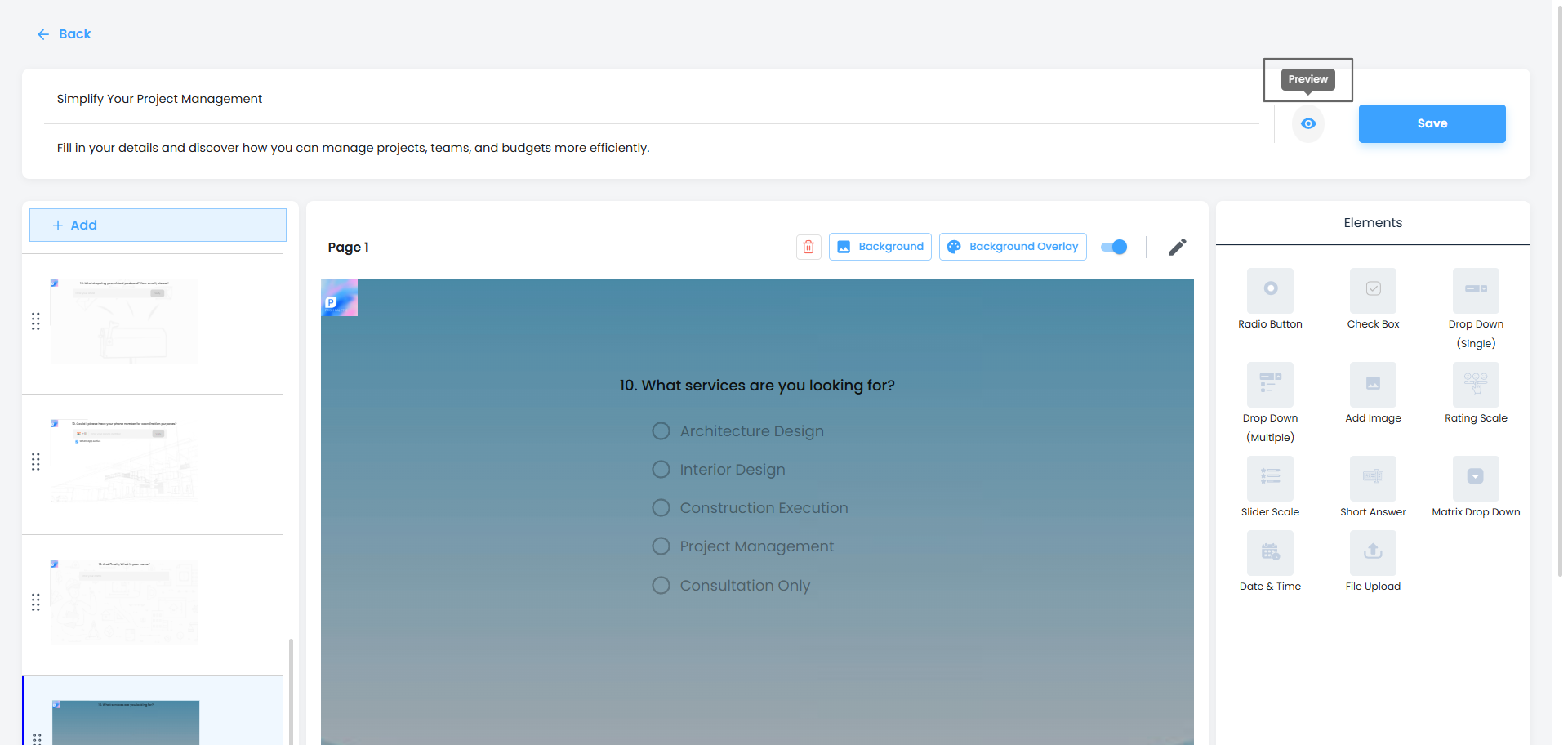
- Click the Preview icon (eye icon) in the top-right corner of the editor.
- This opens a live preview of your form exactly as your leads will see it.
- Go through each page to make sure everything looks right — fields, backgrounds, images, and content.
- Close the preview and make any final adjustments before saving.
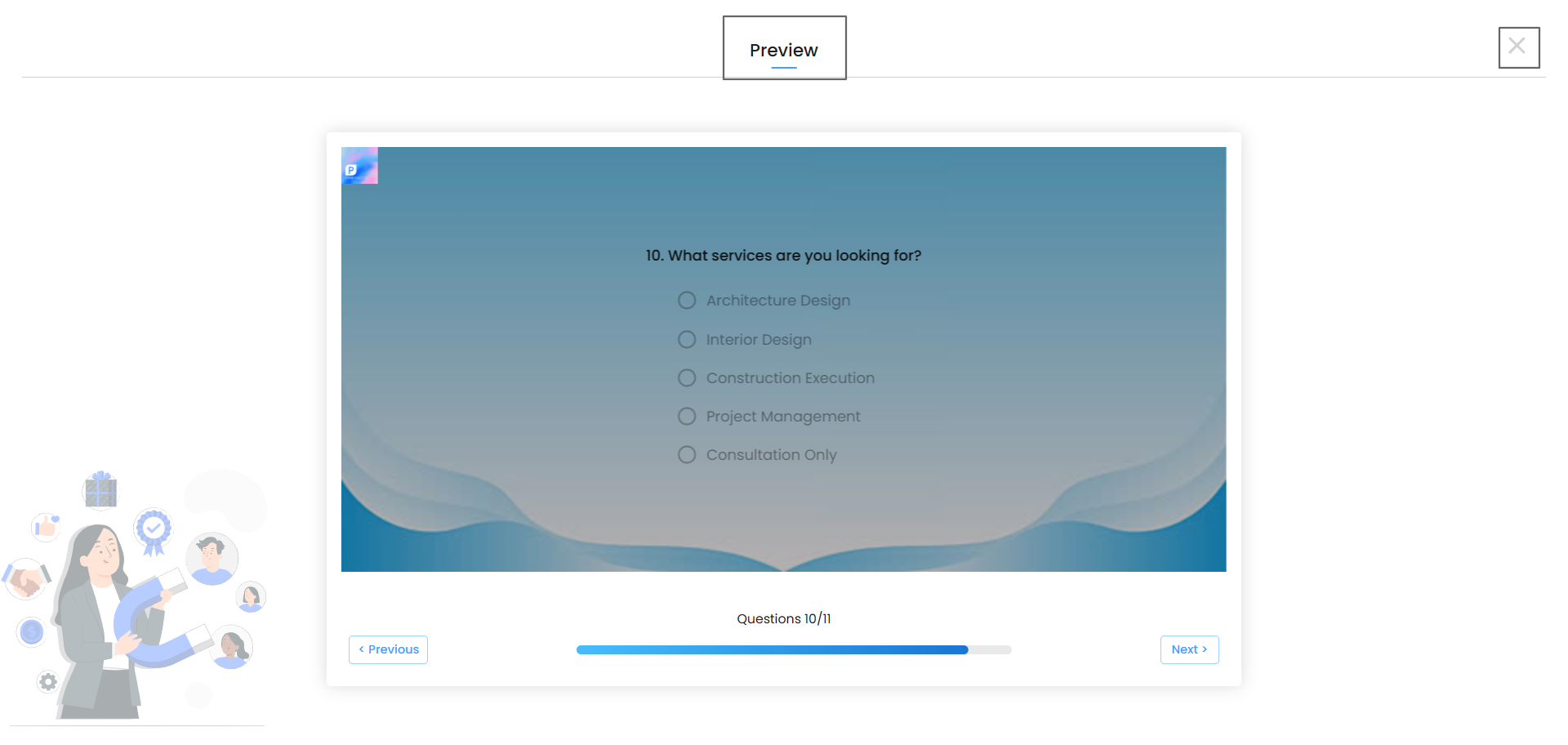
Pro Tip: Use the preview often while building — it helps you spot issues early and make sure your form looks exactly the way you want it before sharing it with your leads.
Step 4: Personalizing the Form with Variables
Variables let you automatically pull in information — like your company name or contact details — without typing it manually every time.
On the right-hand Variables panel, you'll find two categories:
- Organization – your company's name, address, logo, phone, email, website, and social media links.
- User – details like the User's role, email, phone number, and location.
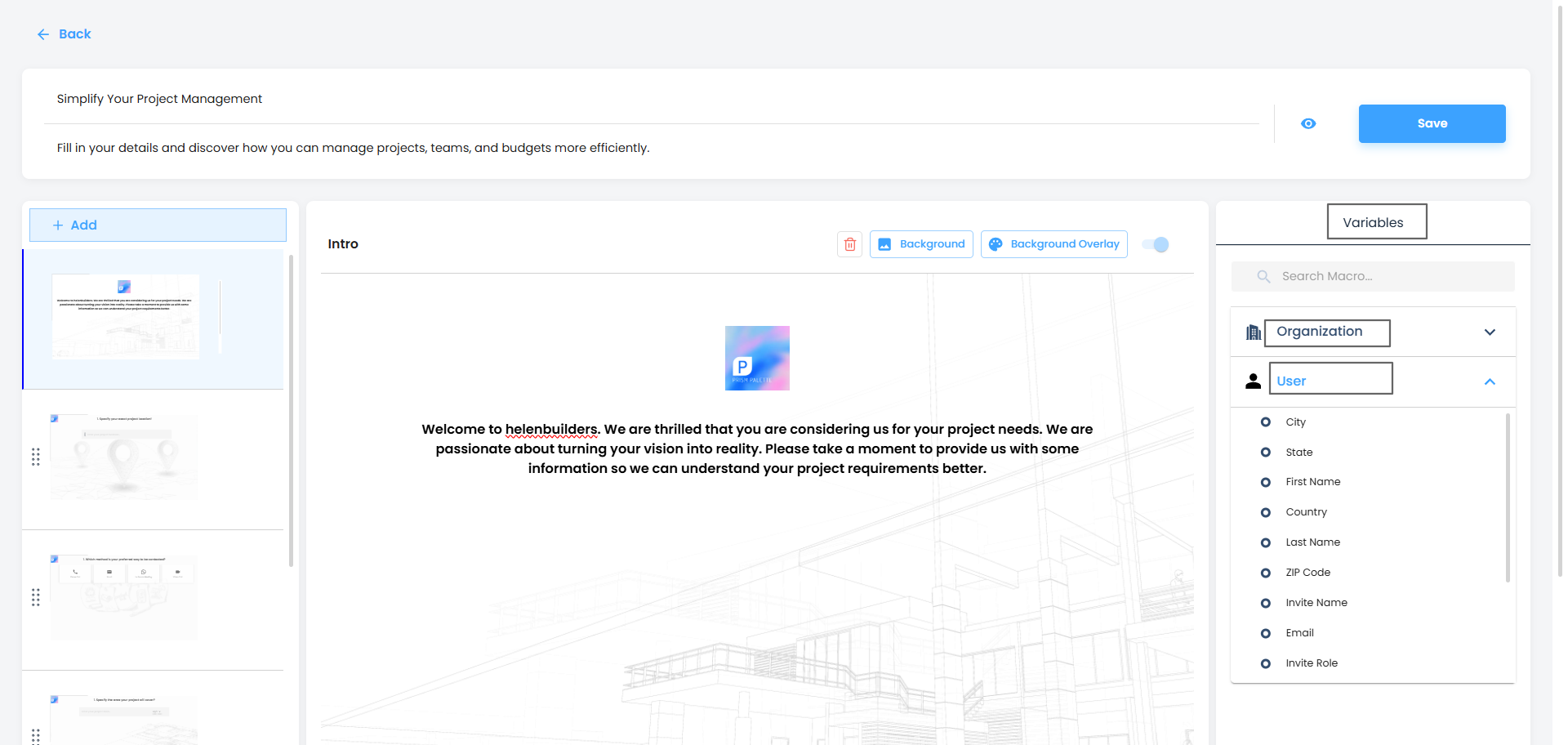
Simply click a variable to insert it into your form content.
Note: Lead email, name, and mobile are always included in every form by default — you don't need to add these manually.
Step 5: Setting Up the Thank You Page
After a lead submits your form, they'll see the Thank You page. This is your chance to leave a good impression and share your contact details.
You can customize: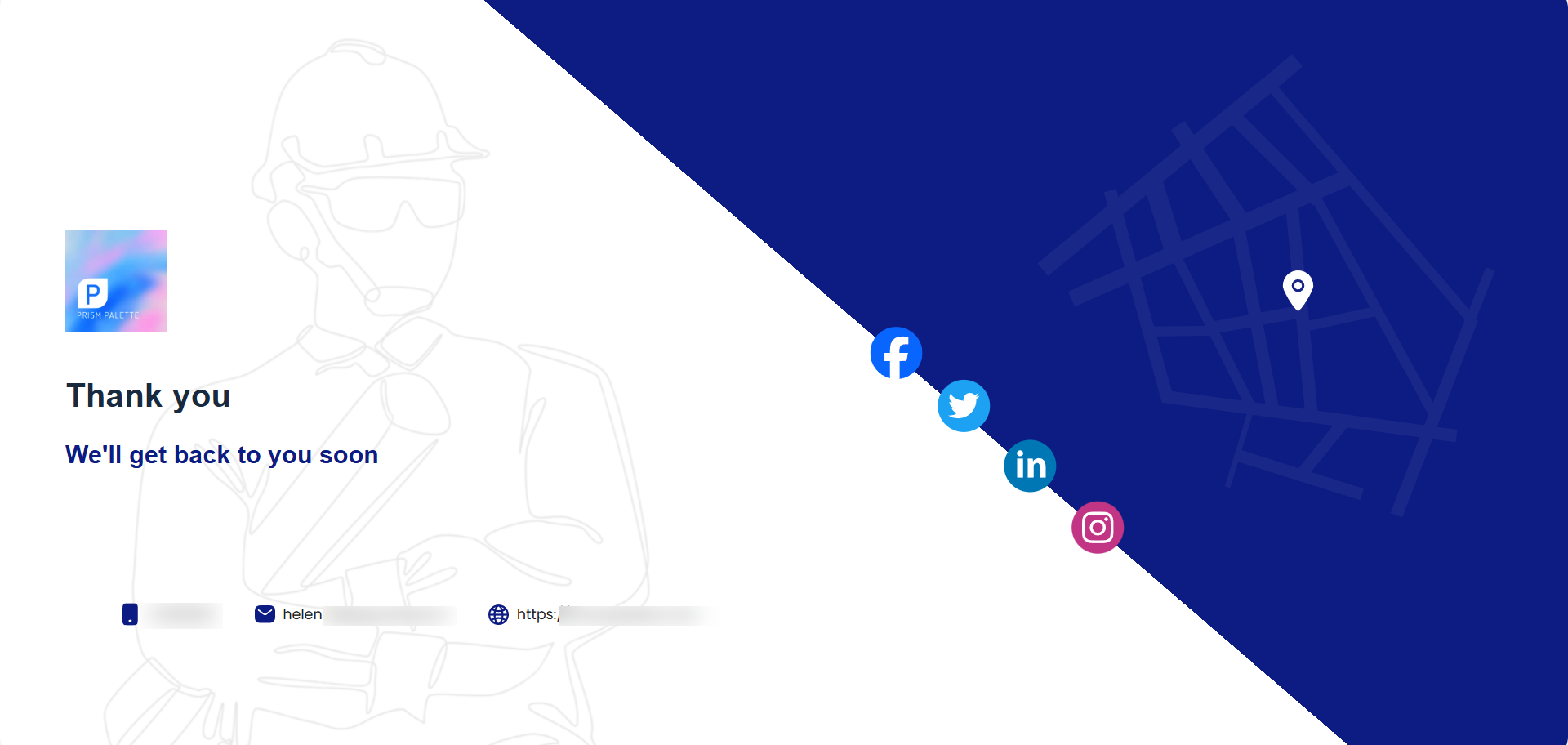
- Your logo and brand colors
- A thank-you message (e.g., "Thank you! We'll get back to you soon.")
- Social media icons (Facebook, Twitter, LinkedIn, Instagram) so leads can follow you
- Your phone number, email, and website
- A map showing your office or business location
Step 6: Saving Your Form
Once you're happy with your changes:
- Click the Save button in the top-right corner of the editor.
- Your changes are saved and applied to the form immediately.
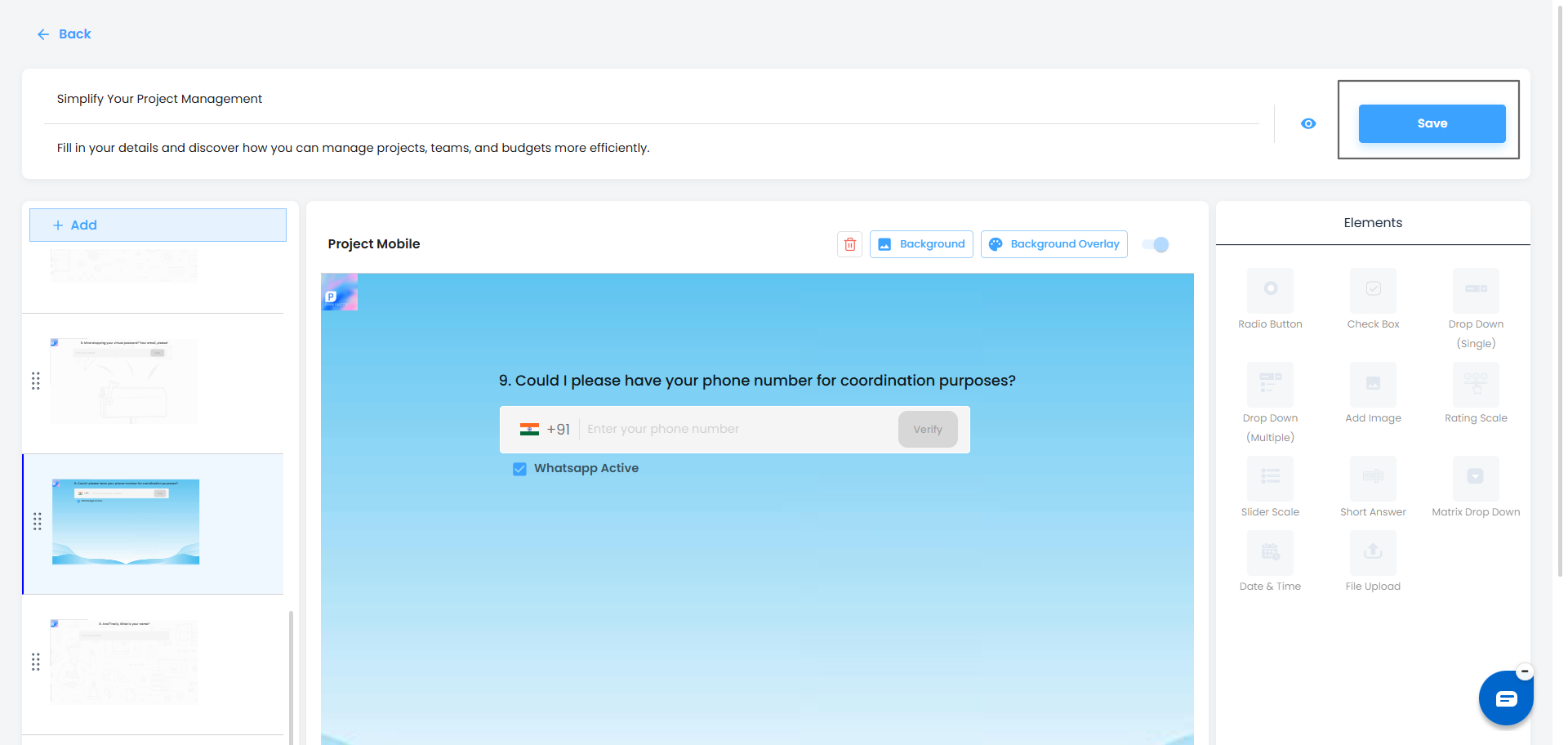
Pro Tip: Go through each page one more time before hitting Save — it's much easier to catch a mistake before saving than after.
Step 7: Sharing Your Lead Capture Form
Your form has a unique link that you can share anywhere — your website, emails, WhatsApp, or social media.
To copy the link:
- Go back to the Lead Capture list page.
- Click the three-dot menu (⋮) on your form.
- Select Copy Link.
- Paste and share it wherever you need.
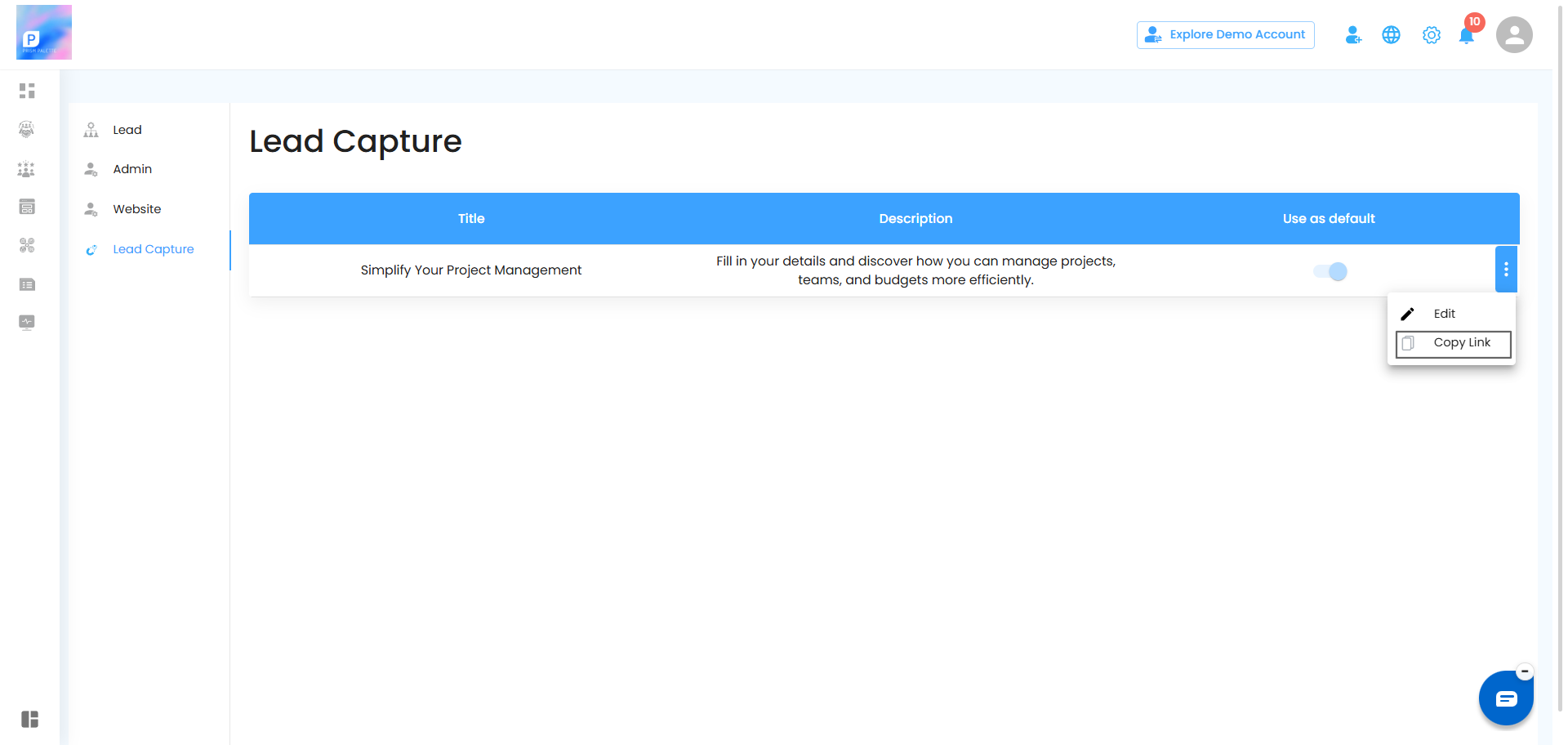
Pro Tip: Save the link somewhere easy to find — like a pinned note or browser bookmark — so you can share it quickly whenever you need to.
Viewing Form Response:
Once a lead fills out your form, their details are automatically updated in the CRM Lead Master Grid. To view their response:
- Go to CRM → Lead Manager.
- Find the lead in the Master Grid.
- Click the three-dot menu (⋮) next to the lead.
- Select View Details.
- A popup will appear with two tabs:
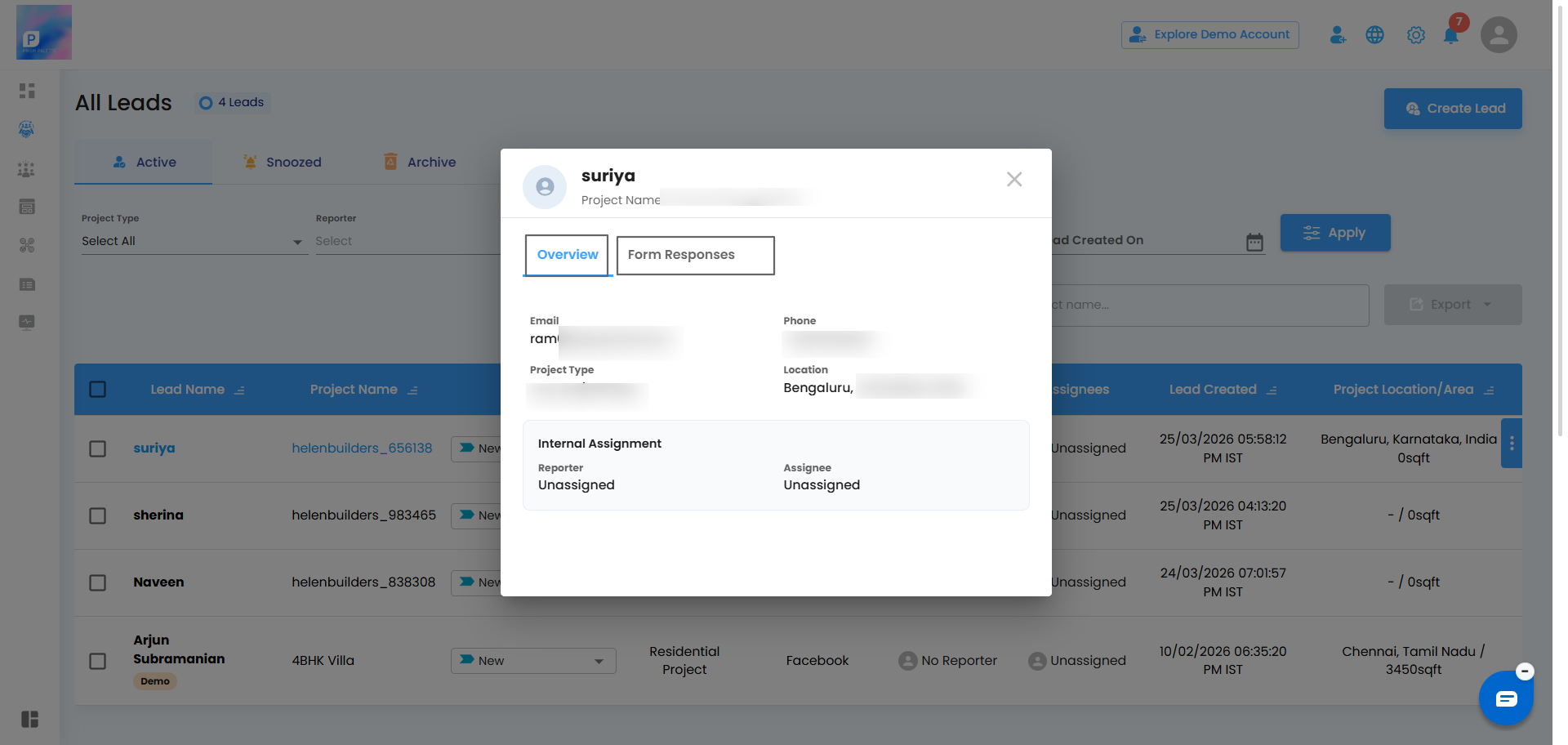
- Overview — displays the lead's basic details such as Email, Phone, Project Type, Location, and more.
- Form Response — displays all the answers submitted by the lead in the lead capture form.
Note: This helps you quickly review what a lead has filled in — without opening their full profile.
Was this article helpful?
That’s Great!
Thank you for your feedback
Sorry! We couldn't be helpful
Thank you for your feedback
Feedback sent
We appreciate your effort and will try to fix the article