Overview
The Forms module helps organizations create and manage digital forms for collecting information from leads, customers, employees, a
nd partners. Whether you need to capture new leads, generate instant proposals, gather customer feedback, manage complaints, or build custom workflows, Forms provides a centralized platform to design, publish, and track submissions.
With customizable form templates and step-based configuration, businesses can streamline data collection while ensuring a consistent user experience across websites, campaigns, and customer interactions.
Accessing the Forms Module
To access Forms:
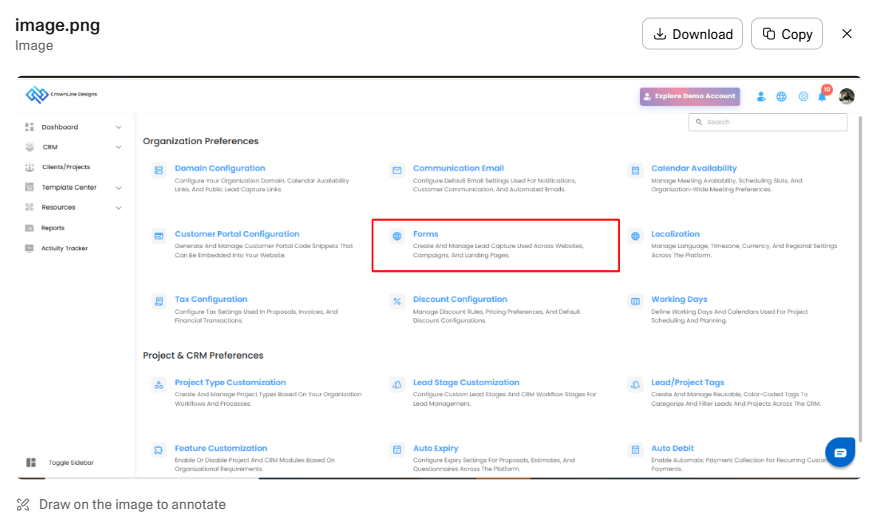
Click Settings from the top navigation menu.
Under Organization Preferences, select Forms.
(Refer to Screenshot 1)
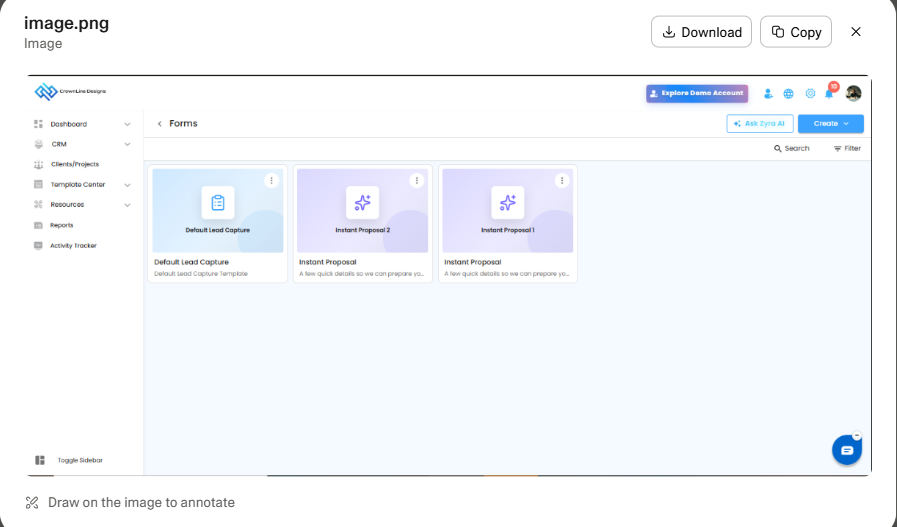
The Forms dashboard displays all available forms as individual cards, making it easy to manage, edit, and monitor existing forms.
(Refer to Screenshot 2)
From this screen, users can:
Search for forms by name
Filter available forms
Create new forms
Access Zyra AI assistance for form creation
Open and edit existing forms
Creating a New Form
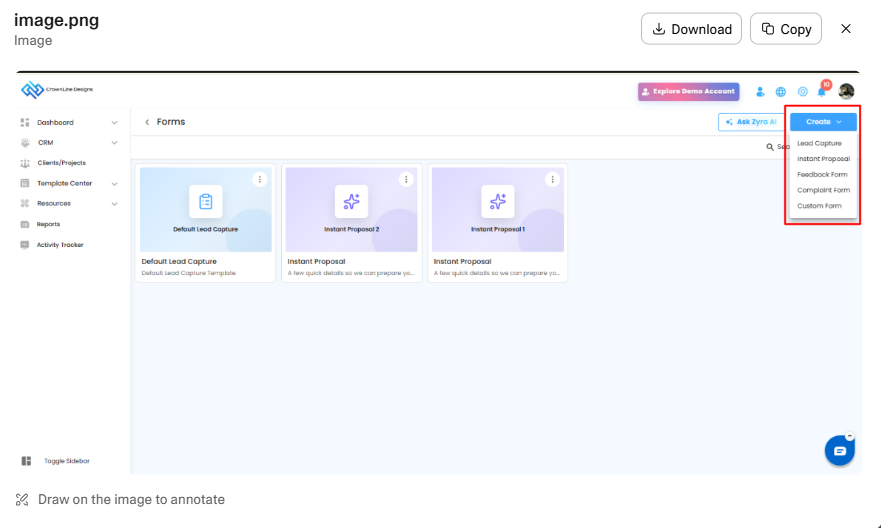
Click the Create button located in the top-right corner of the Forms dashboard.
A dropdown menu displays the available form types:
(Refer to Screenshot 3)
Available Form Types
| Form Type | Purpose |
|---|---|
| Lead Capture | Collect lead information from prospects |
| Instant Proposal | Generate proposals based on customer requirements |
| Feedback Form | Gather customer opinions and satisfaction ratings |
| Complaint Form | Allow customers to submit complaints and issues |
| Custom Form | Create fully customized forms for any business process |
Select the desired form type to begin configuration.
Lead Capture Form
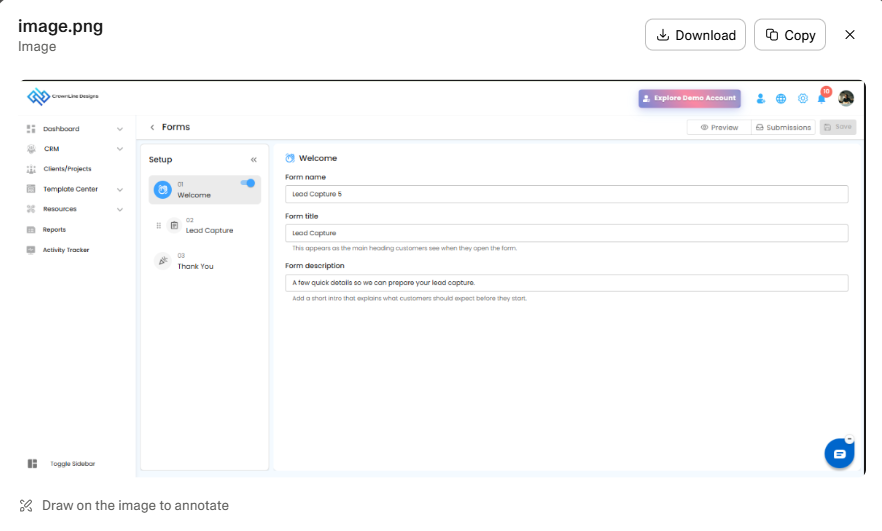
The Lead Capture Form is designed to collect prospect information and automatically create leads within the CRM.
(Refer to Screenshot 4)
Configuration Steps
Step 1: Welcome
Configure the introductory information displayed to users:
Form Name
Form Title
Form Description
Step 2: Lead Capture
Configure the fields required for lead collection, such as:
Full Name
Email Address
Mobile Number
Company Name
Service Requirements
Additional Information
Step 3: Thank You
Customize the confirmation message displayed after successful submission.
Key Benefits
Converts website visitors into CRM leads
Standardizes lead collection
Reduces manual data entry
Improves lead management efficiency
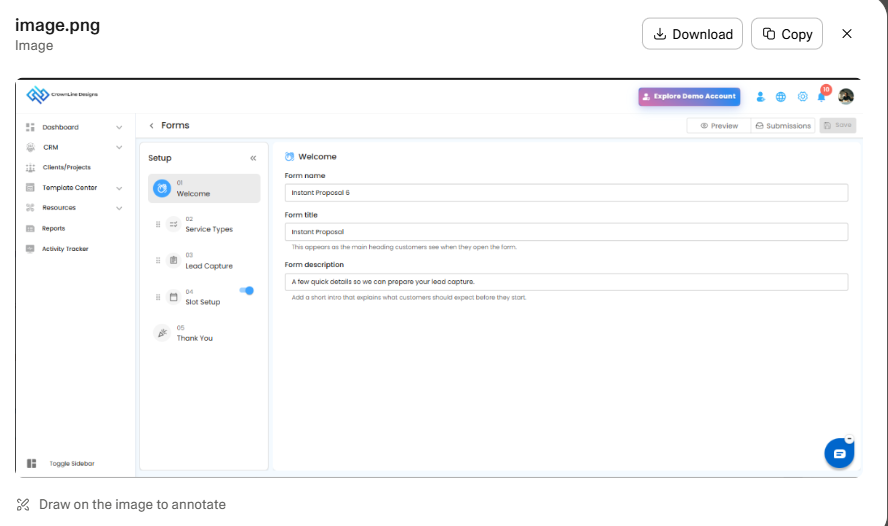
Instant Proposal Form
The Instant Proposal Form allows prospects to provide service requirements and receive proposal-related information through a structured workflow.
(Refer to Screenshot 5)
Configuration Steps
Step 1: Welcome
Define:
Form Name
Form Title
Form Description
Step 2: Service Types
Configure available service categories customers can select.
Examples:
Residential Cleaning
Commercial Cleaning
Interior Design
Landscaping
Construction Services
Step 3: Lead Capture
Collect customer contact details.
Step 4: Slot Setup
Allow customers to choose:
Meeting Slots
Consultation Slots
Site Visit Appointments
Step 5: Thank You
Display the final confirmation message.
Key Benefits
Qualifies leads automatically
Captures project requirements early
Supports appointment booking
Improves proposal turnaround time
Feedback Form
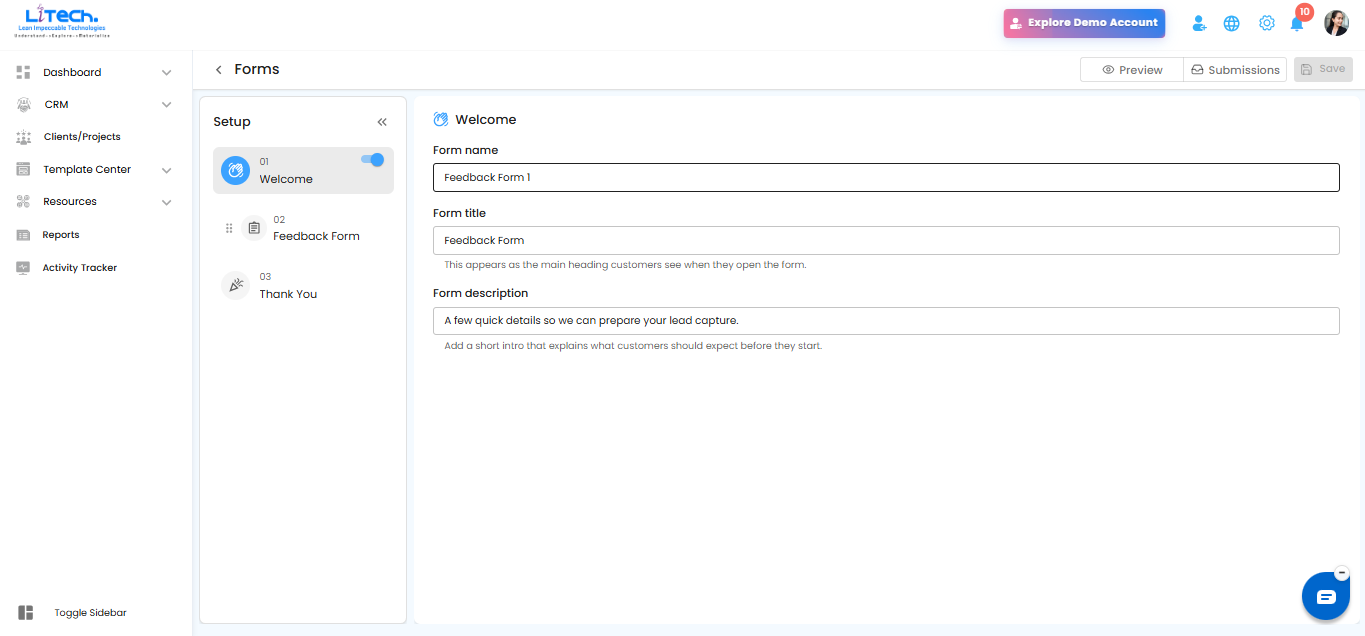
The Feedback Form helps organizations gather customer feedback after project completion, meetings, or service delivery.
Configuration Steps
Step 1: Welcome
Configure:
Form Name
Form Title
Form Description
Step 2: Feedback Questions
Add various question types, including:
Rating Scales
Multiple Choice Questions
Yes/No Questions
Text Feedback Fields
Step 3: Thank You
Create a personalized acknowledgement message.
Key Benefits
Measures customer satisfaction
Identifies improvement opportunities
Supports service quality monitoring
Builds stronger customer relationships
Complaint Form
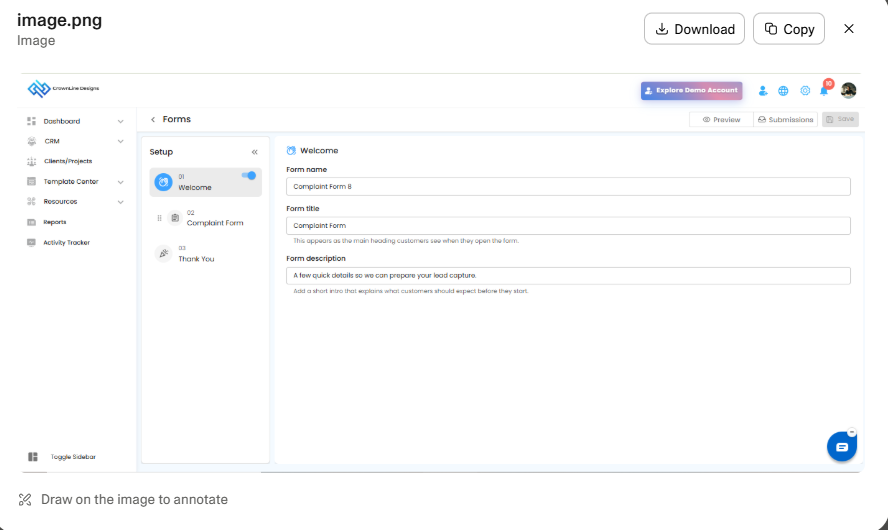
The Complaint Form allows customers to report issues directly through a structured submission process.
(Refer to Screenshots 6 & 7)
Configuration Steps
Step 1: Welcome
Configure:
Form Name
Form Title
Description
Step 2: Complaint Details
Create fields for:
Complaint Category
Issue Description
Priority Level
Attachments
Supporting Documents
Step 3: Thank You
Display a confirmation message informing customers that the complaint has been received and will be reviewed.
Key Benefits
Centralizes complaint management
Improves issue tracking
Creates accountability
Enhances customer service responsiveness
Custom Form
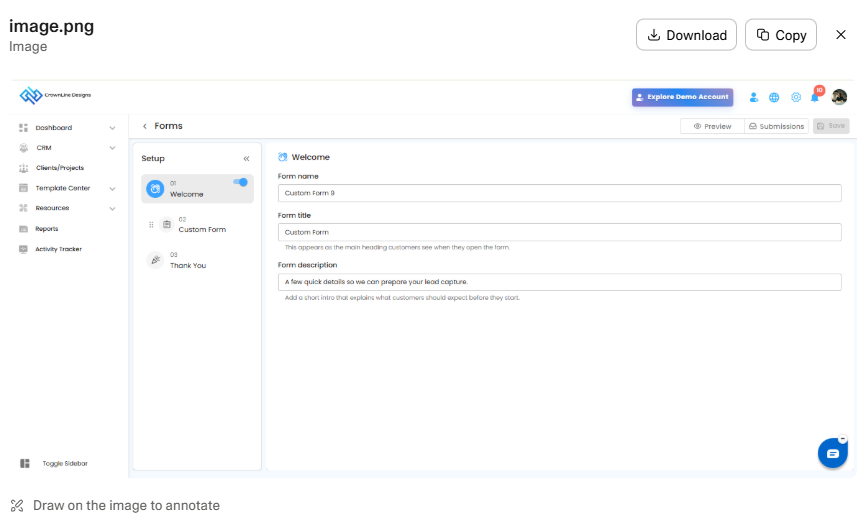
The Custom Form provides complete flexibility to create forms tailored to unique business processes.
(Refer to Screenshot 8)
Configuration Steps
Step 1: Welcome
Configure:
Form Name
Form Title
Form Description
Step 2: Custom Form Builder
Add any combination of:
Text Fields
Dropdown Lists
Checkboxes
Radio Buttons
File Upload Fields
Date Fields
Multi-Step Sections
Step 3: Thank You
Customize the final message displayed after submission.
Common Use Cases
Employee Onboarding
Vendor Registration
Event Registration
Survey Forms
Inspection Checklists
Internal Approval Requests
Common Form Management Actions
The following actions are available across all form types:
Preview
Displays the form exactly as end users will see it before publishing.
Submissions
Allows administrators to review all responses submitted through the form.
Save
Stores form changes and publishes updates when applicable.
Enable/Disable Steps
Use the toggle switch to activate or deactivate specific form steps.
Reorder Steps
Drag and drop steps using the drag handle to modify the form sequence.
Collapse Setup Panel
Hide the configuration panel to gain more editing space while designing the form.
Form Design Best Practices
Keep Forms Simple
Only request information that is necessary for your process.
Use Clear Titles and Descriptions
Help users understand the purpose of the form before they begin.
Preview Before Publishing
Always test the form experience before sharing it externally.
Review Submissions Regularly
Monitor incoming responses to ensure timely follow-up and action.
Optimize for User Experience
Arrange fields logically and minimize unnecessary steps.
Leverage Zyra AI
Use Ask Zyra AI to assist with:
Creating questions
Designing workflows
Writing descriptions
Improving form structure
Benefits of Using Forms
Centralized data collection
Faster lead generation
Improved customer engagement
Automated information gathering
Better complaint and feedback management
Consistent business processes
Reduced manual administration
Enhanced operational efficiency
The Forms module enables organizations to build structured, professional, and scalable data collection workflows while ensuring all submissions remain organized and accessible from a single location.
Was this article helpful?
That’s Great!
Thank you for your feedback
Sorry! We couldn't be helpful
Thank you for your feedback
Feedback sent
We appreciate your effort and will try to fix the article