Two-Factor Authentication (2FA) - Your Digital Safety Vault
Overview
In today's world, passwords are like the keys to your house. But what if someone makes a copy of that key? That's where Two-Factor Authentication (2FA) steps in - it's like adding a smart lock with a secret code.
With 2FA, logging into your account isn't just about knowing the password - you also need a unique verification code sent directly to you, via email or phone. Even if your password is compromised, no one gets in without that second code.
Enabling 2FA — Setting Up Your Digital Guardian
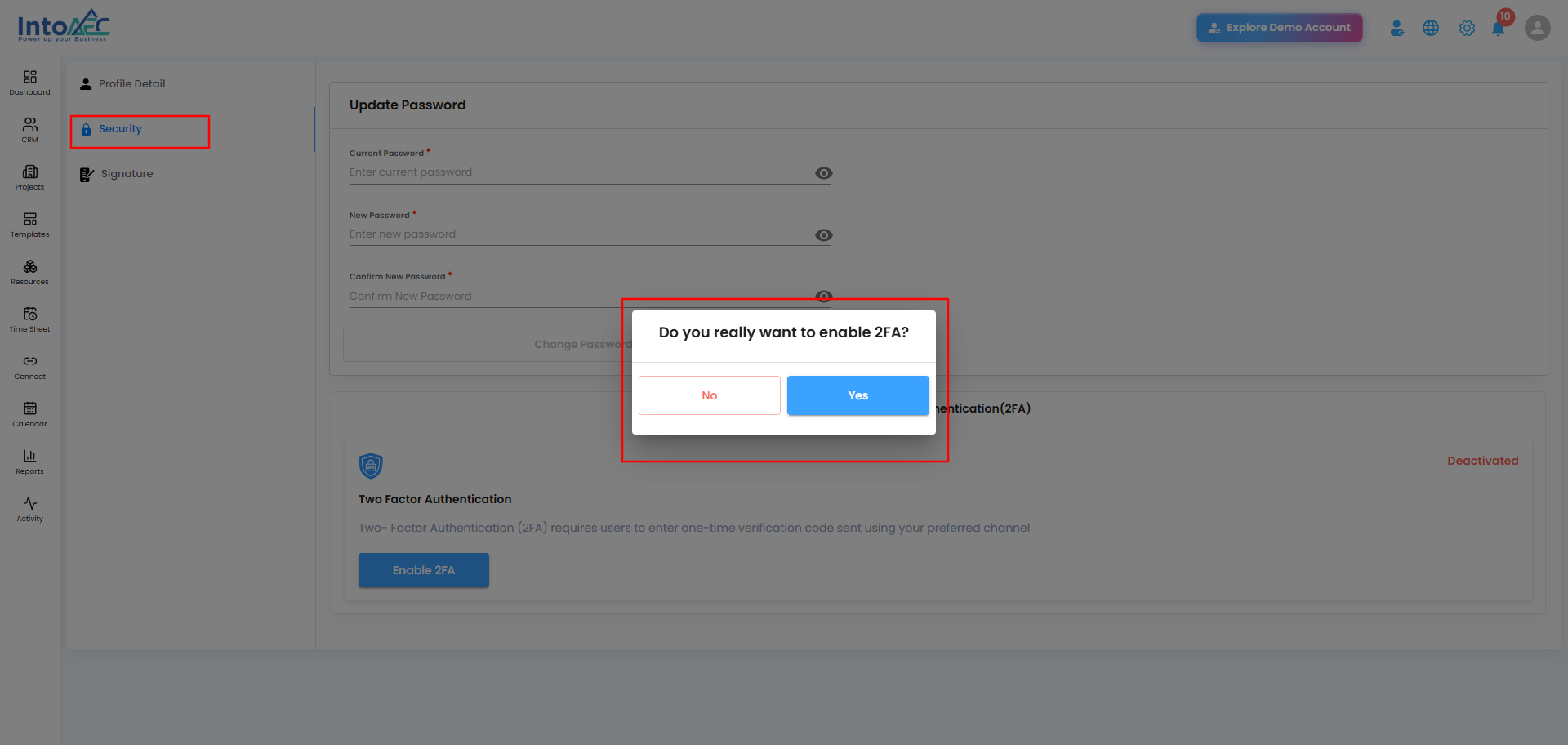
- Head to Security Settings - Go to My Account, then navigate to the Security section.
- Activate 2FA - Click the Enable 2FA button. A confirmation popup appears asking: "Do you want to enable Two-Factor Authentication?"
- Confirm Your Choice - Click Yes to proceed.
- Instant Protection - From now on, every time you log in, the system will ask for your password and then trigger the 2FA verification page. Your account is now double-shielded.
Pro Tip: Use an active and accessible email or phone number — this is your go-to channel for receiving OTPs.
Verifying 2FA - Logging in with Two Locks
When you log in after enabling 2FA, here's what happens:
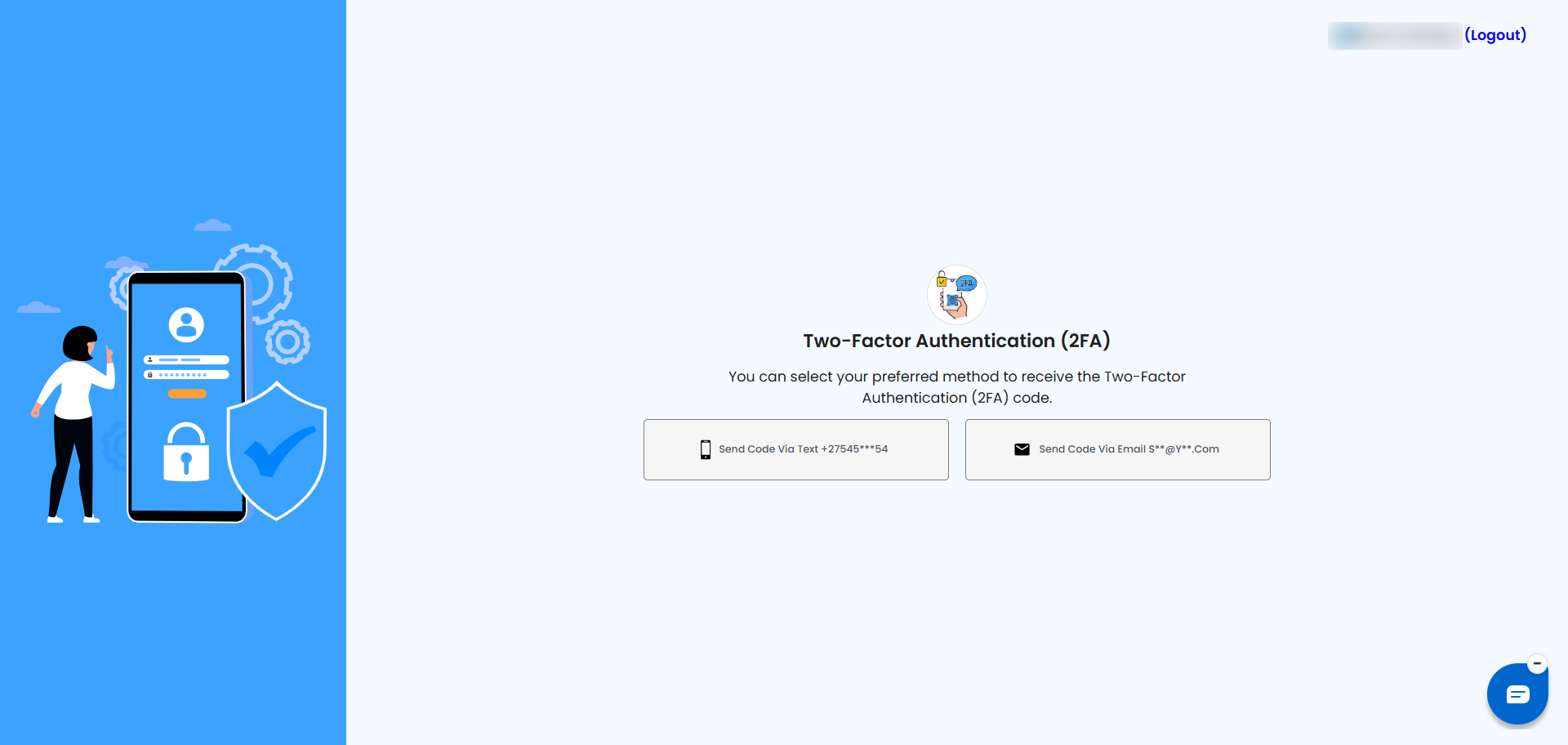
- Choose Verification Method - Select your OTP method (e.g., Email).
- Receive OTP (One-Time Password) - Check your inbox or SMS for the unique verification code.
- Verify & Unlock - Enter the OTP into the verification field and click Verify. Once verified, your dashboard opens safely.
This process takes seconds but multiplies your security tenfold.
Disabling 2FA — When You No Longer Need It
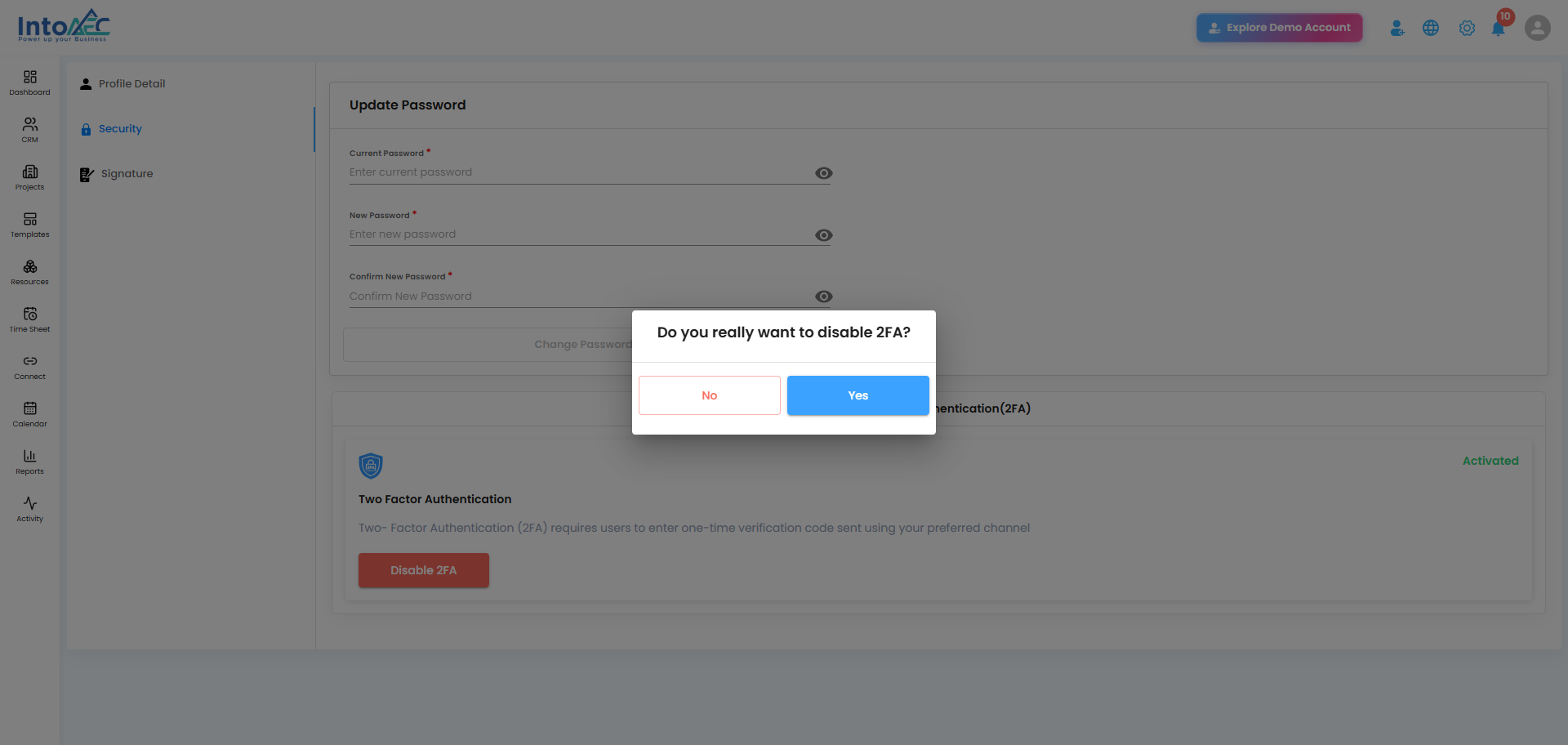
- Navigate to Security Settings - Go to My Account, then the Security section.
- Click Disable 2FA - Hit the Disable 2FA button.
- Confirm Action - A warning popup appears: "Are you sure you want to disable Two-Factor Authentication?" Click Yes to proceed.
- Return to Basic Login - From now on, you'll only need your username and password to sign in.
Important: Disabling 2FA lowers your account's protection. Keep it enabled unless absolutely necessary.
Was this article helpful?
That’s Great!
Thank you for your feedback
Sorry! We couldn't be helpful
Thank you for your feedback
Feedback sent
We appreciate your effort and will try to fix the article