Managing Schedules in the Gantt View
The Gantt View in IntoAEC lets you visualize project timelines, track progress, and manage dependencies efficiently. It’s your project’s timeline command center, keeping everything organized and on track.
Adding and Managing Schedules
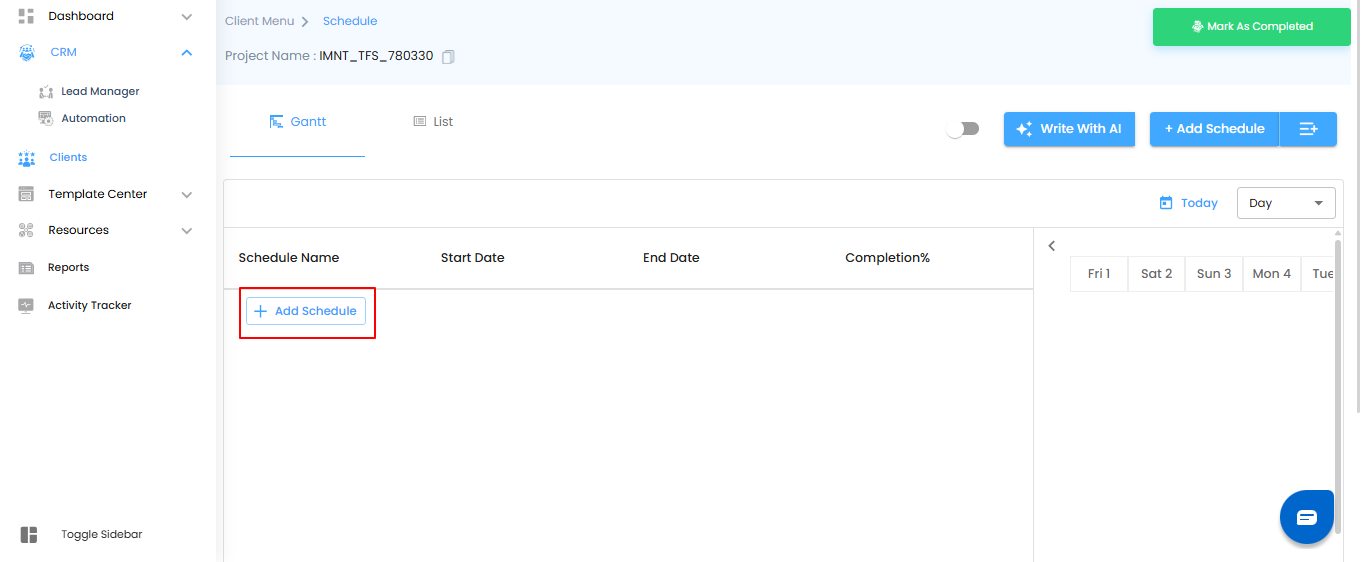
- Click the Add Schedule button to break your project into major segments. Each schedule helps structure your project and makes it easier to monitor progress.
Pro Tip: Use the Gantt view for the big picture of your project, and switch to the list view when you want to manage Schedule/phases in detail.
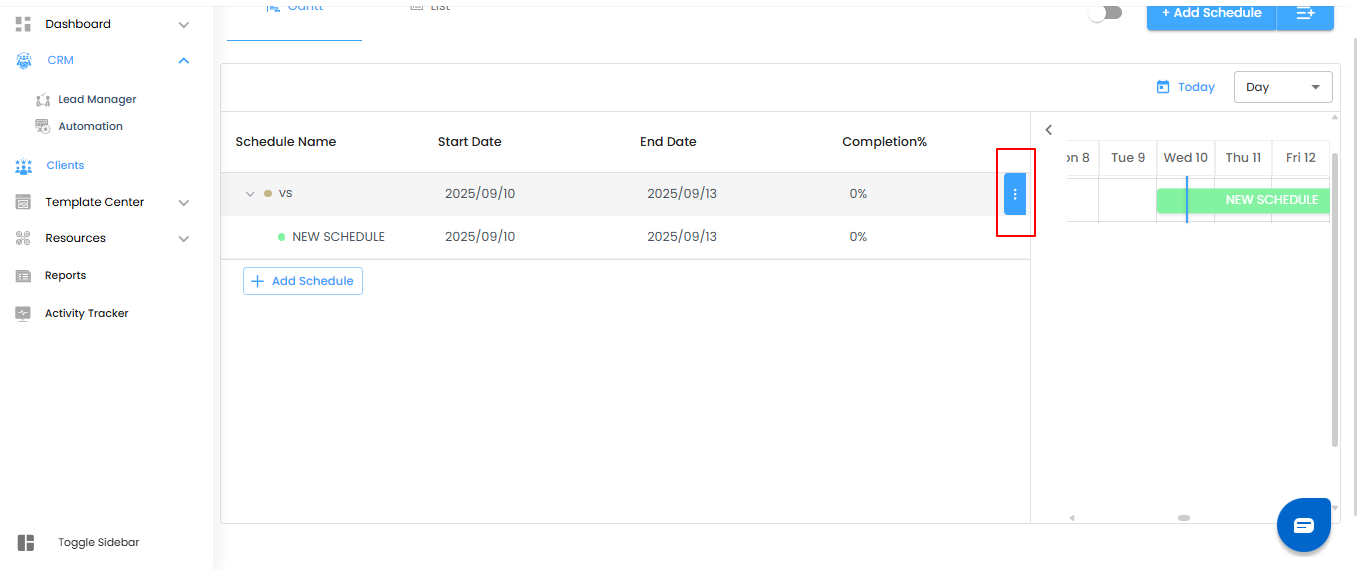
When you hover over a schedule, a three-dot menu (⋮) appears, letting you manage it easily—edit, delete, or adjust without leaving the timeline.
Add Schedule
Organize your project into clear, manageable blocks by clicking Add Schedule. Set a name, timeline, and duration for each schedule to keep phases structured and easy to track.
Three-Dot Menu
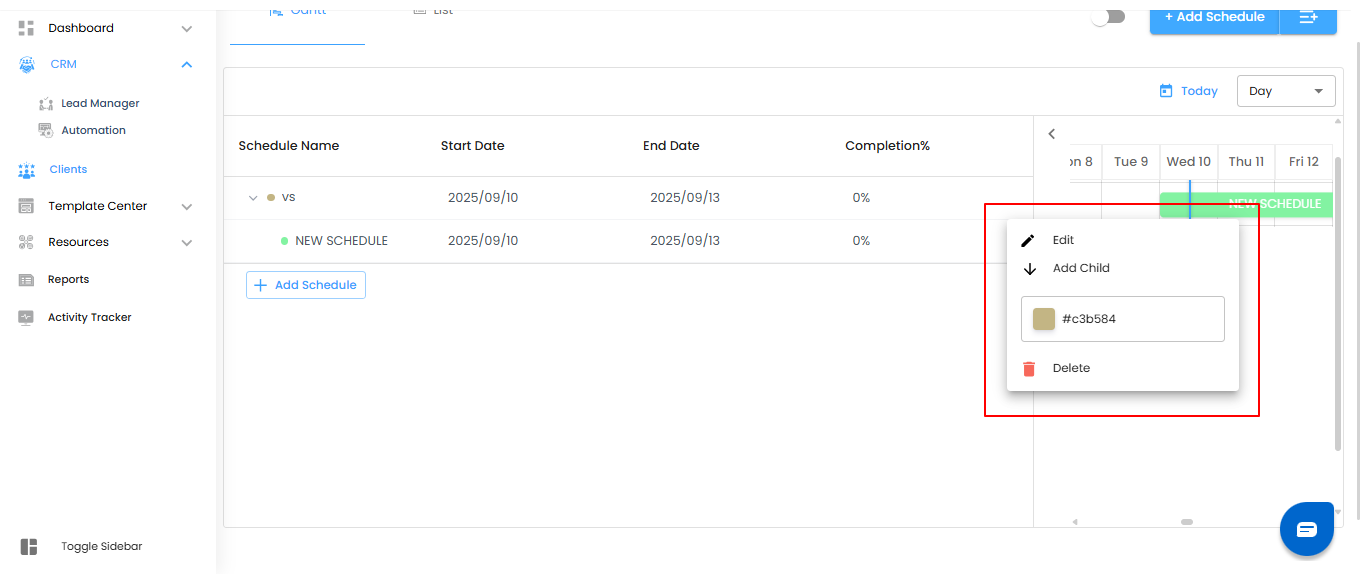
Hover over a schedule to access the three-dot menu, offering quick options to manage your schedules:
- Edit Schedule – Update the schedule’s name or details.
- Add Child – Create sub-schedules or activities under the selected schedule.
- Change Color – Assign a color to the schedule for easier identification..
- Delete Schedule – Remove the schedule and all associated sub-schedules if no longer needed.
Pro Tip:
Use color coding to visually track progress across multiple schedules.
After creating a schedule, you can break it down further to organize work into phases and tasks.
Adding Sub-Schedules (Phases)
- Under the newly created schedule, click “+ Add Schedule” to divide the work into different phases.
- Each sub-schedule represents a major segment of work within the parent schedule.
Adding Child Phase
- Inside a sub-schedule, add specific Child Phase and assign timelines to each.
- The phases are displayed in the Gantt chart as horizontal bars, reflecting their duration.
- Click and drag the bar to adjust its start and end dates quickly.
- Click “Mark As Completed” to update the progress once a task or sub-schedule is done.
Editing and Managing Schedules/Phase
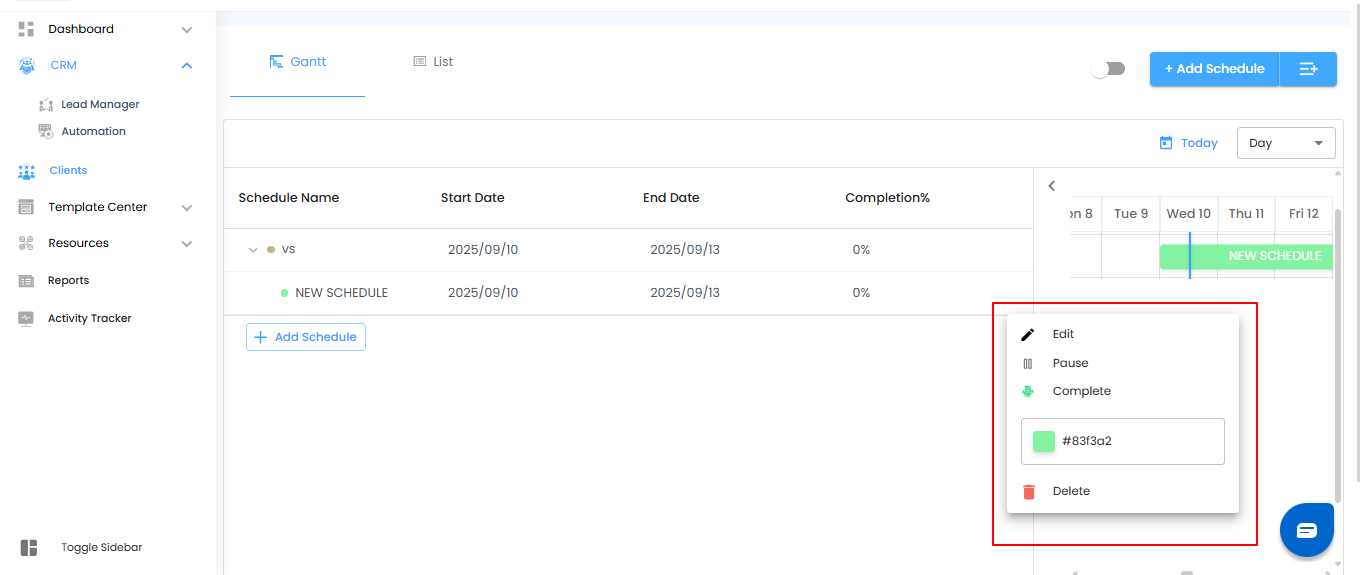
- To modify Schedule/Phase, locate it in the Gantt chart and click the Edit button next to it. You can then:
- Pause Schedule/Phase – Temporarily stop a task without deleting it.
- Edit Schedule/Phase – Modify details such as name, start date, and end date.
- Delete Schedule/Phase – Permanently remove the task if no longer needed.
- Change Schedule/Phase Color – Customize the task’s appearance for easier visualization.
Pro Tip:
Use sub-schedules to clearly structure your work, and apply color coding to tasks to track status, priority, or category at a glance.
This step-by-step process ensures that projects are organized, deadlines are met, and progress is tracked effectively using IntoAEC’s Gantt View. By structuring work into schedules and phases, teams can visualize timelines, manage dependencies, and keep the project on track.
Pro Tip: Regularly review the Gantt chart and update schedule/p statuses to maintain an accurate view of project progress—this helps identify potential delays early and ensures timely completion.
Milestone
A Milestone represents a critical one-day task, usually marking the completion of a phase or an important checkpoint in your project schedule. Milestones appear within your project timeline alongside tasks and phases helping you visually track progress in the Gantt chart.
Create Milestone
To create one, click on Add Milestone, and enter the name. Click on the three dots on the right and click edit which opens the Edit Milestone window. Here, you can edit the Name of the milestone and select the relevant Phase it belongs to, followed by assigning the responsible team members in the Assignees field. You can set the Priority, update the Completion % to reflect progress, and choose a Schedule Color to visually differentiate it in the timeline. Since milestones are single-day events, you only need to select a Start Date, which represents the scheduled completion date, and optionally add a Description to provide more context.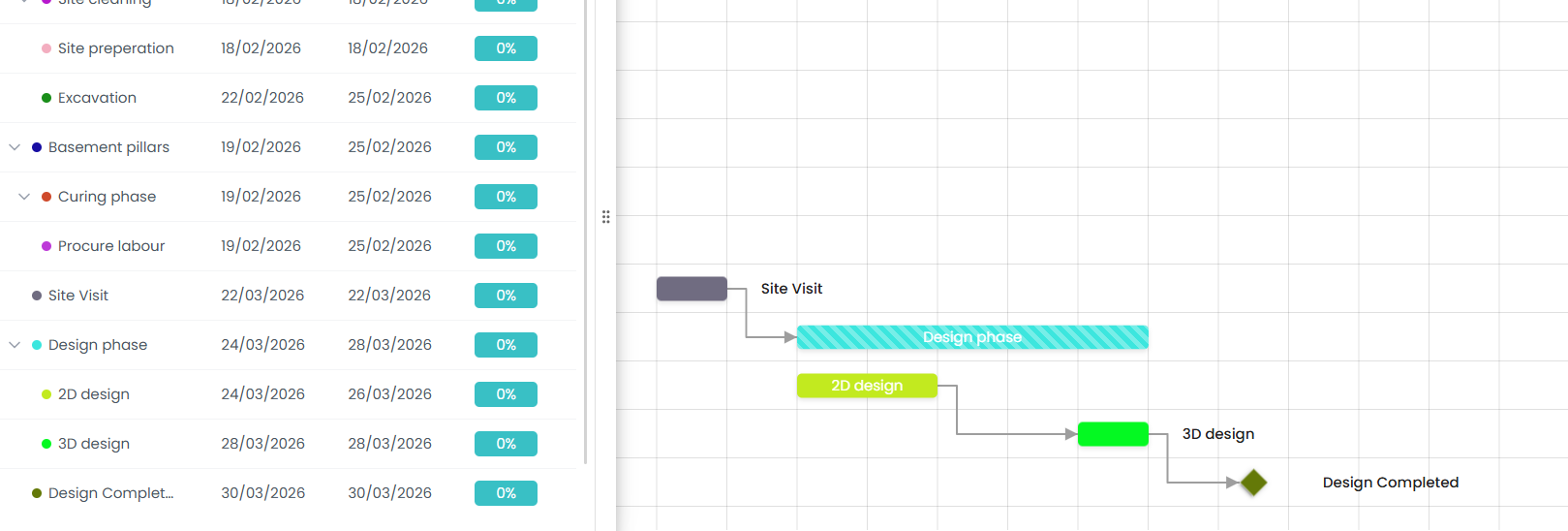
For advanced configuration, expand the Additional Details section. Her you can Add Dependency, Add Task, and Add Reminder, helping you manage related activities and notifications directly within the milestone. Additionally, you can upload and attach up to 5 files (maximum 500 MB) to keep all relevant documents centralized. Once all details are configured, click Update to save the milestone, which will then reflect in your scheduling view and Gantt chart for easy tracking.
Critical Path
What is the Critical Path?
The Critical Path highlights the longest sequence of dependent tasks that directly determines your project's finish date. Any delay in a critical path task will push back the entire project—making it essential to monitor these tasks closely.
In IntoAEC, the Critical Path is visually overlaid on your Gantt chart, so you can instantly see which tasks are driving your project timeline.
Pro Tip: Focus your resources and attention on critical path tasks first—they have zero float, meaning any delay directly impacts the project's end date.
How to Enable / Hide the Critical Path
Toggling the Critical Path view is simple:
- Open the Schedule tab and ensure you are in Gantt View.
- In the top-right toolbar, click the Critical Path icon (the icon that looks like a branching path / wave lines — highlighted in the toolbar next to the level indicator).
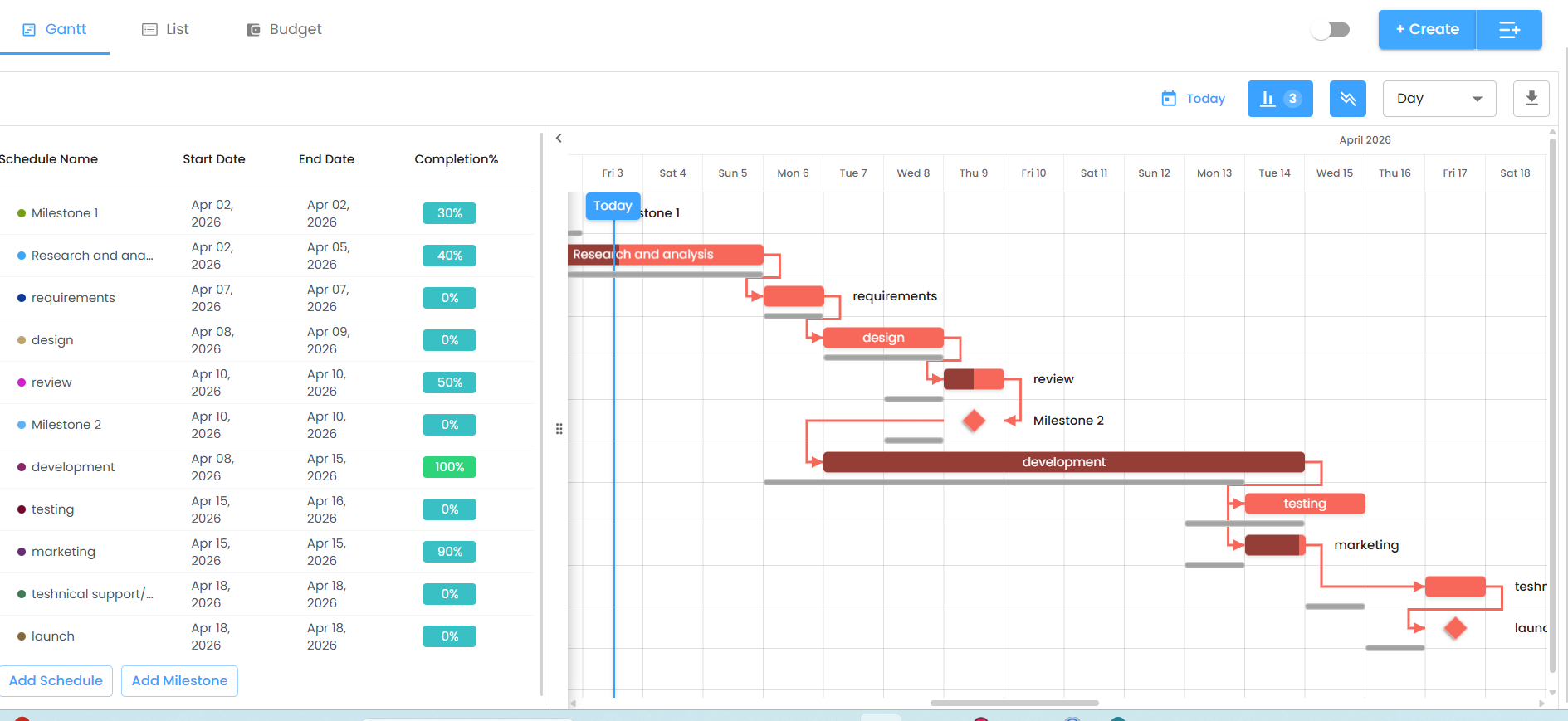
- The critical path tasks will immediately be highlighted in red on the Gantt chart, along with the dependency arrows connecting them.
- To hide the critical path, click the same icon again — a tooltip "Hide Critical Path" will confirm the action.
How the Critical Path Looks
When Critical Path is enabled, you will notice the following visual changes on the Gantt chart:
- Tasks on the critical path are highlighted in red/salmon color.
- Dependency arrows between critical tasks are shown in red, tracing the full chain from start to finish.
- Milestones on the critical path are also marked in red (diamond shape).
- Non-critical tasks remain in their original colors, so the contrast makes it easy to distinguish.
Why Use the Critical Path?
- Instantly identify which tasks cannot be delayed
- Prioritize resource allocation to high-impact tasks
- Spot bottlenecks before they cause project overruns
- Communicate project risks clearly to stakeholders
Pro Tip: Review the critical path every time you update task durations or add new dependencies — it may shift as your project evolves.
Baseline:
A Baseline in IntoAEC is a saved snapshot of your project schedule at a specific point in time, helping you track how your project evolves compared to the original or previously planned timeline. It is typically created before making major changes so you always have a reference point for comparison.
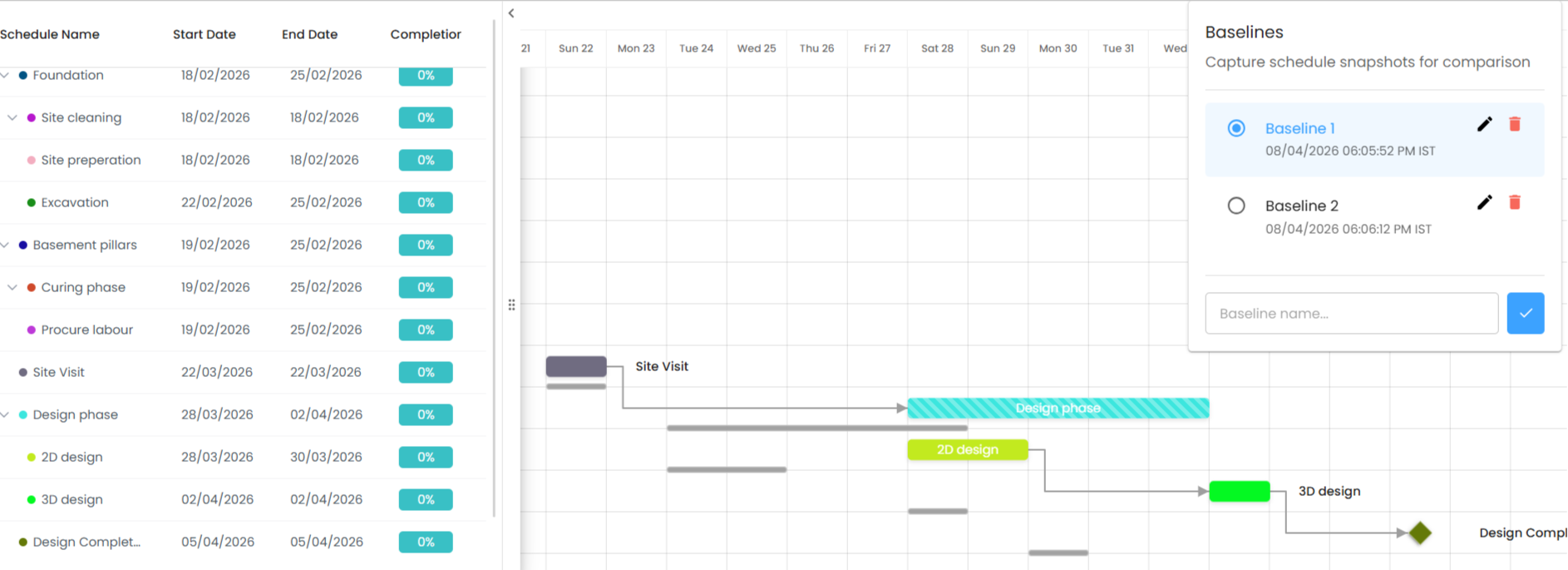
To create a baseline, go to the scheduling view and click on the Baseline option available at the top corner of the screen, then enter a suitable name to identify that version of the schedule (for example, “Initial Plan” or “Phase 1 Plan”) and save it. Once the baseline is created, you can continue updating your schedule—such as modifying task dates, adding dependencies, or adjusting timelines—without losing the original plan.When you want to review or compare changes, you can open any saved baseline, which will overlay the previous schedule onto your current one. As shown in the screenshot, the earlier planned schedule is displayed as gray lines across the timeline, while your current schedule remains in color. This visual comparison makes it easy to identify delays, shifts, or improvements in your project execution by showing exactly where tasks were originally planned versus where they are now. Baselines are especially useful for project tracking, reporting, and accountability, as they provide a clear historical record of planning changes and help teams stay aligned with project goals.
 Schedule Gantt Assignee List Visibility
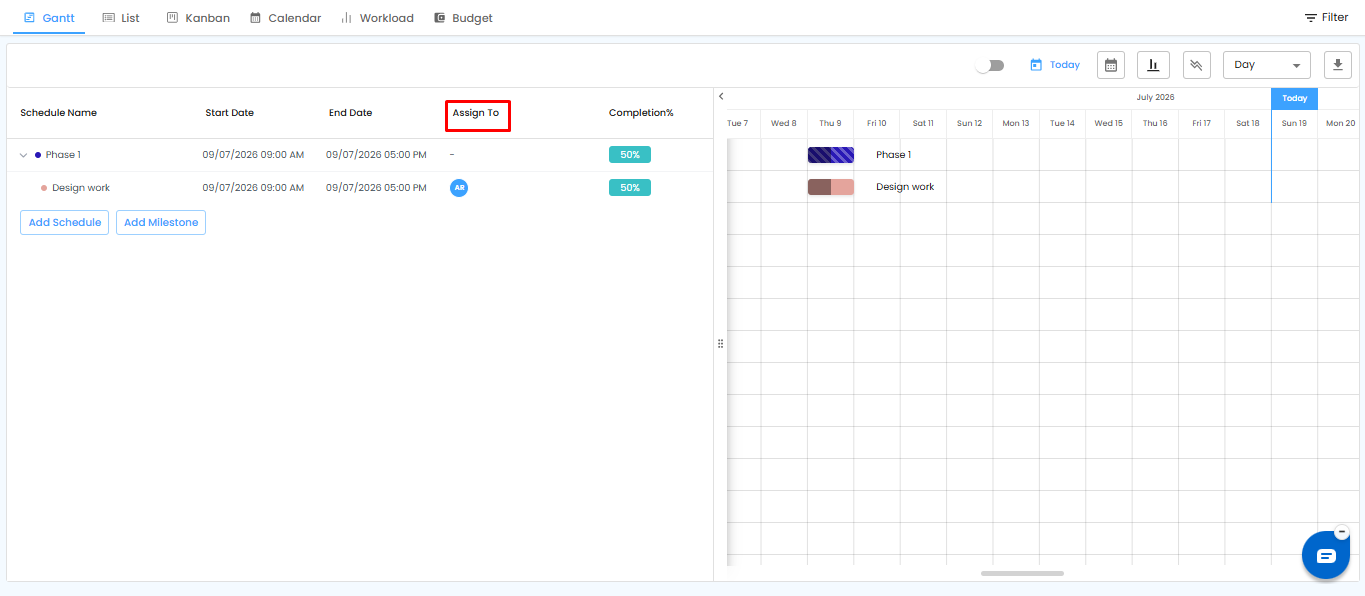
The assignee list is now visible in the Schedule Gantt view. This helps teams quickly identify who is assigned to each schedule activity without opening the schedule details separately.
Deadline in Project Schedule
The Schedule module now includes a Deadline option while creating or editing a schedule. Users can enable the Deadline toggle and select a specific deadline date for the schedule activity. This helps teams clearly track when a schedule must be completed, separate from the planned start and end dates, and improves visibility on upcoming or delayed work.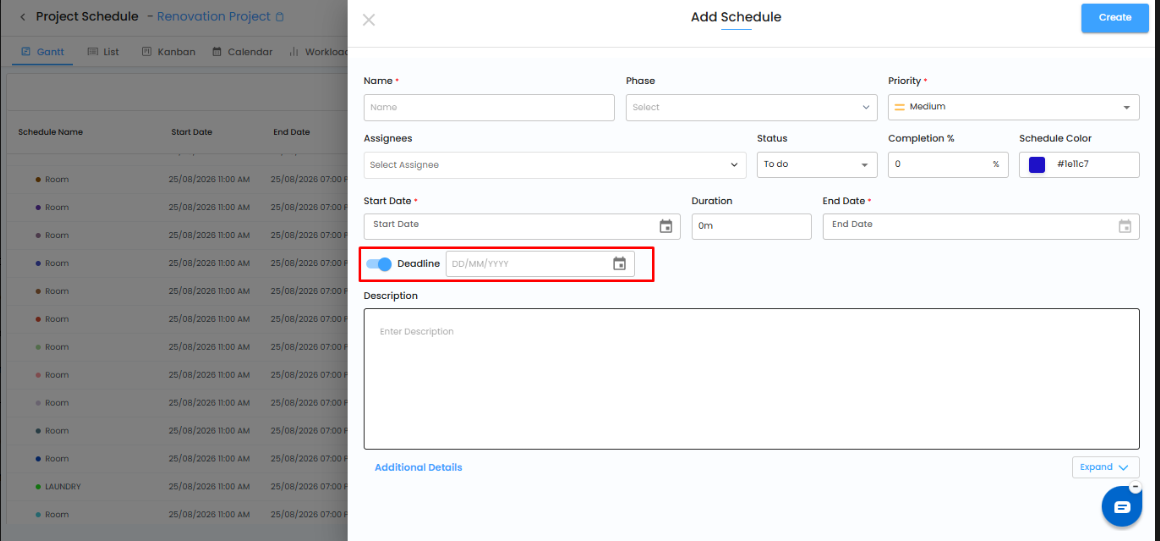
Was this article helpful?
That’s Great!
Thank you for your feedback
Sorry! We couldn't be helpful
Thank you for your feedback
Feedback sent
We appreciate your effort and will try to fix the article