The Schedule module provides multiple viewing options to help users plan, monitor, and manage project schedules effectively. Users can switch between different schedule layouts such as Gantt, List, Kanban, Calendar, Workload, and Budget views based on project tracking requirements.
Accessing the Schedule Module
Step 1: Open Clients/Projects
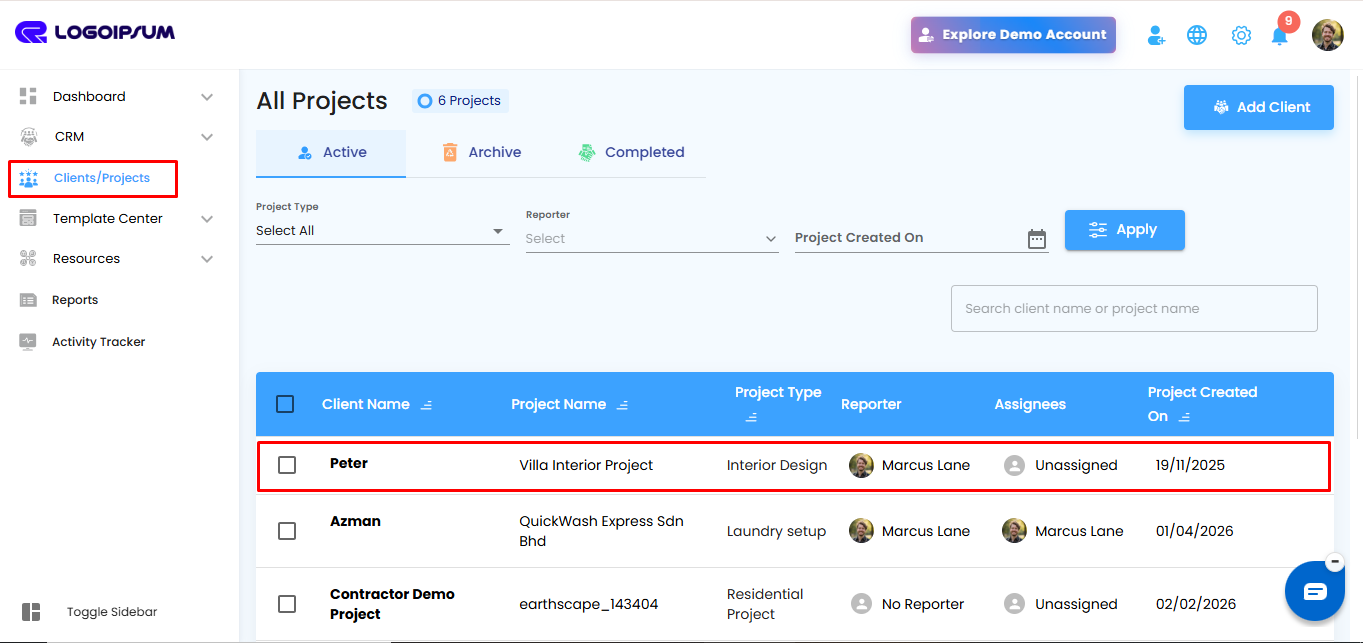
Navigate to the Clients/Projects module from the left-side menu.
Step 2: Open the Required Project
From the projects list, select and open the required project.
Step 3: Open Schedule Feature
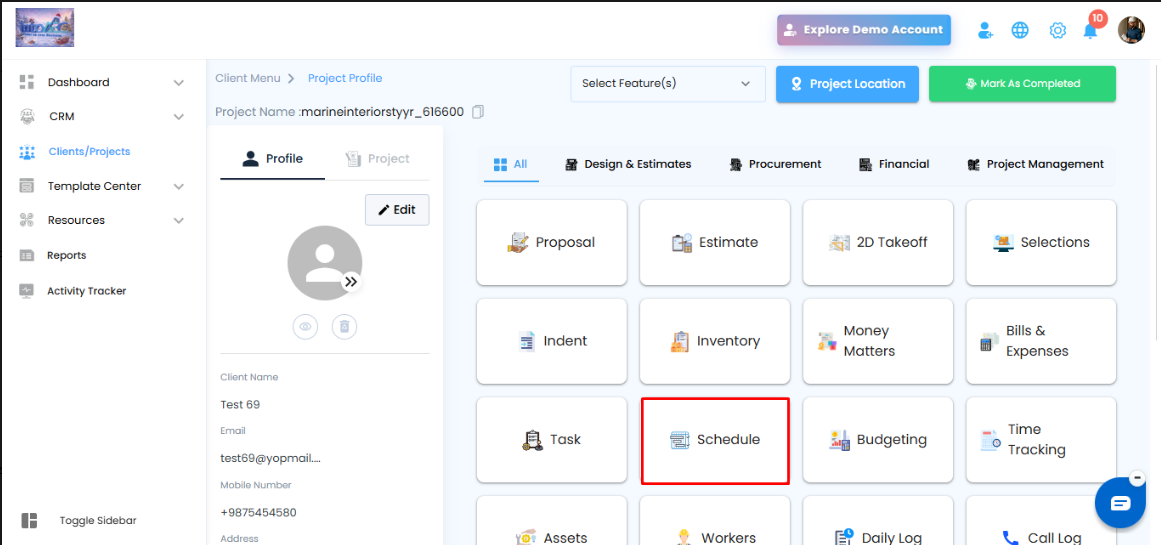
Inside the project dashboard, click on the Schedule feature from the available modules.
Once opened, the Project Schedule page will be displayed.
Available Schedule Views
The Schedule module supports multiple viewing formats for better project planning and execution.
1. Gantt View (Default View)
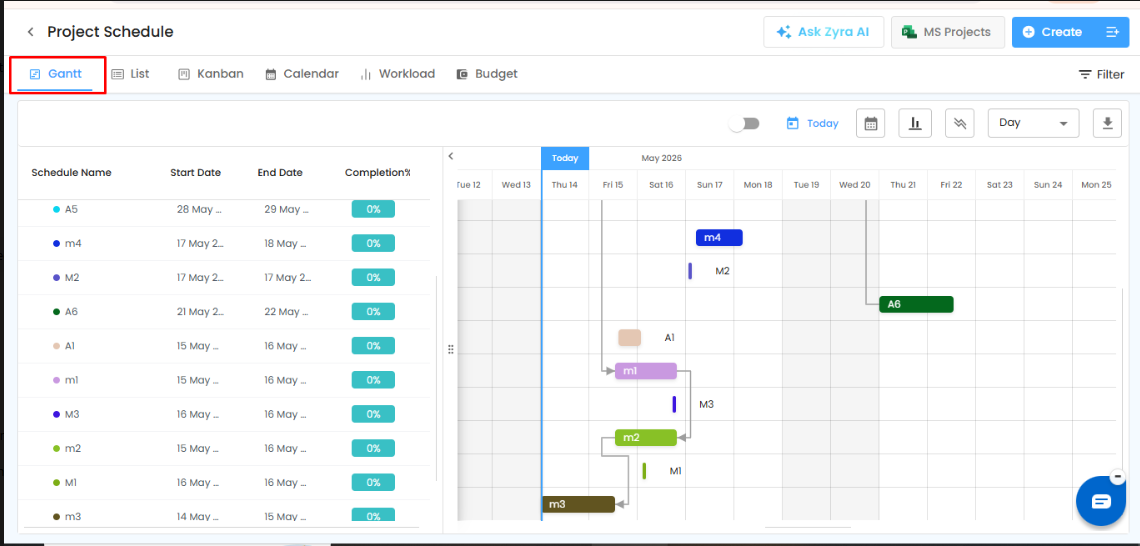
The Gantt View is opened by default when entering the Schedule module.
Features of Gantt View
- Displays schedules in a timeline format
- Helps visualize task duration and dependencies
- Allows tracking of project progress
- Provides date-wise planning visibility
- Useful for monitoring overall project execution
Key Benefits
- Easy timeline management
- Clear task sequencing
- Better project planning and coordination
2. List View
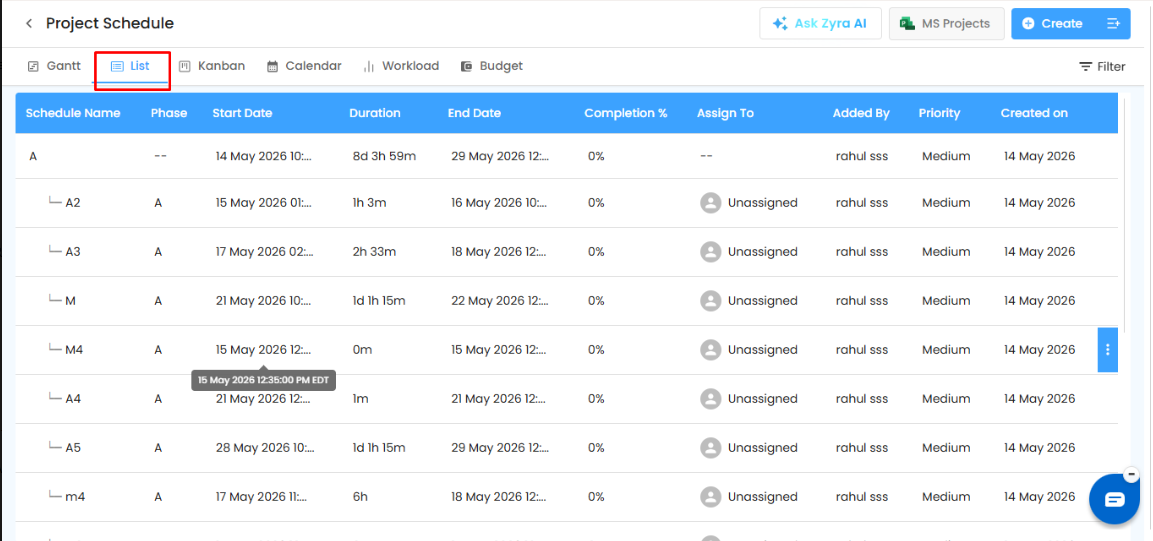
The List View displays all schedules in a structured table format.
Features of List View
- Displays schedule details in rows and columns
- Shows:
- Schedule Name
- Phase
- Start Date
- Duration
- End Date
- Completion %
- Assigned User
- Priority
- Created Date
Key Benefits
- Easy schedule filtering and review
- Quick access to detailed schedule information
- Suitable for administrative tracking
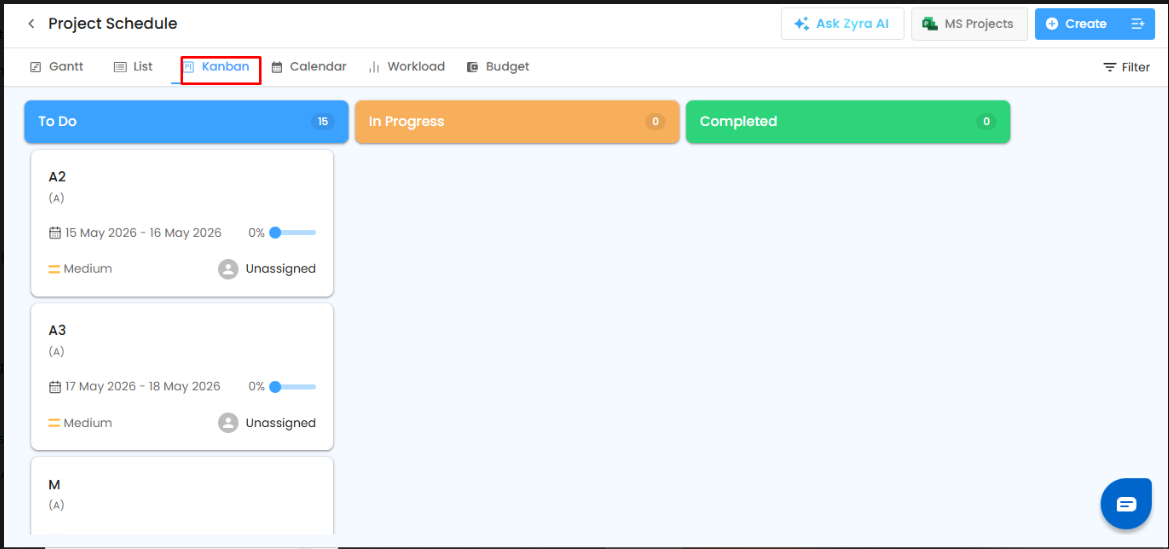
3. Kanban View
The Kanban View organizes schedules into workflow stages.
Features of Kanban View
- Displays schedules under:
- To Do
- In Progress
- Completed
- Visual task movement between stages
- Progress tracking using cards
Key Benefits
- Simplified workflow management
- Better task status visibility
- Improved team collaboration
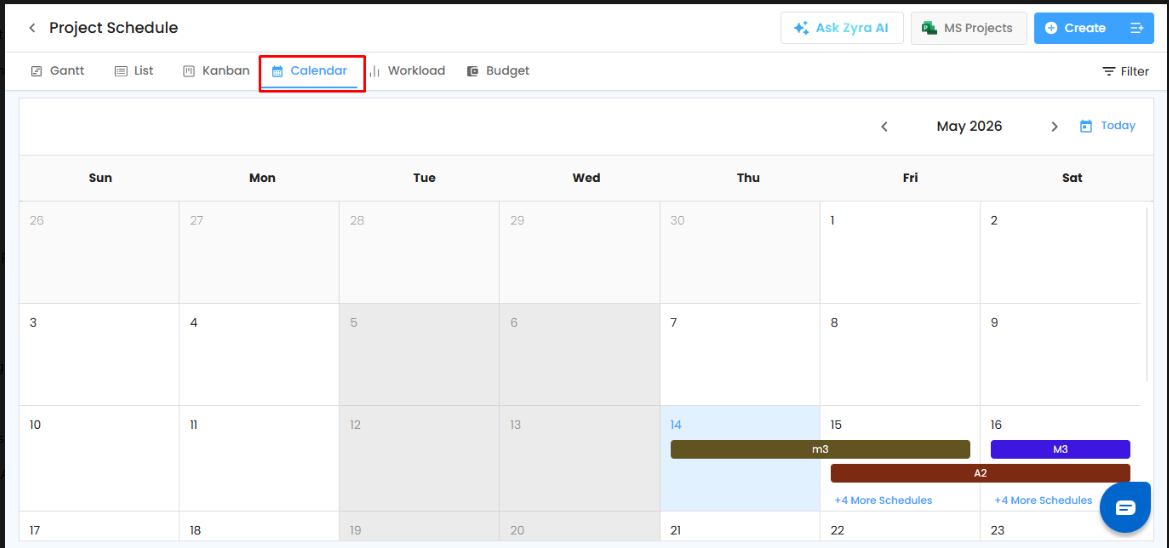
4. Calendar View
The Calendar View displays schedules based on dates in a monthly calendar layout.
Features of Calendar View
- Visual date-wise schedule representation
- Displays multiple schedules on corresponding dates
- Easy monthly planning and tracking
Key Benefits
- Better deadline visibility
- Improved schedule planning
- Quick identification of upcoming activities
5. Workload View
The Workload View helps monitor assigned schedules and resource allocation.
Features of Workload View
- Displays workload-related schedule assignments
- Helps identify resource availability
- Tracks assigned schedules for users
Key Benefits
- Better workload balancing
- Resource planning support
- Avoids task over-allocation
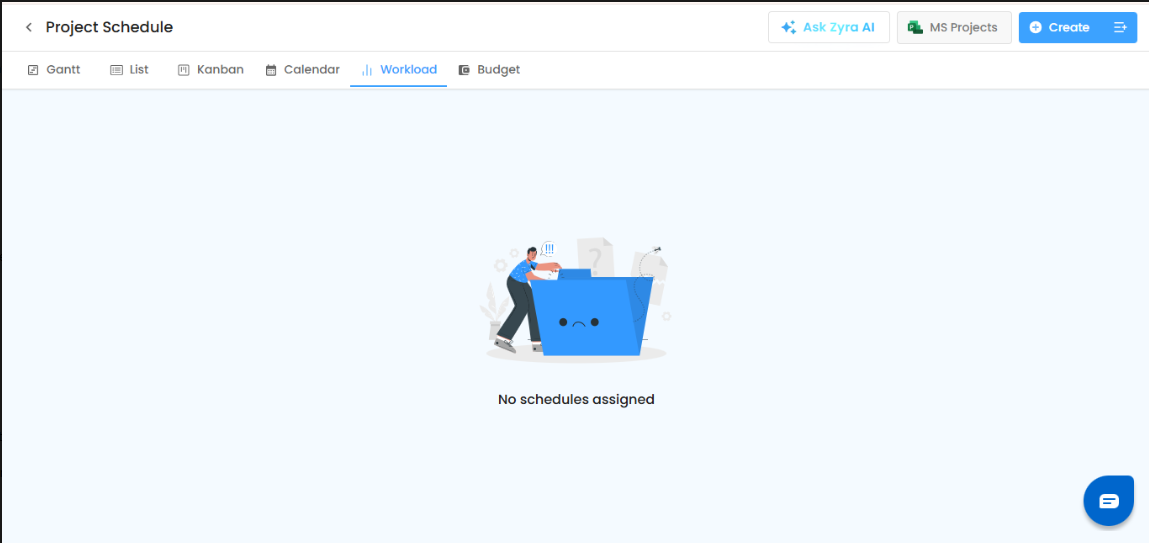
- Note: If no schedules are assigned, the system displays a “No schedules assigned” message.
6. Budget View
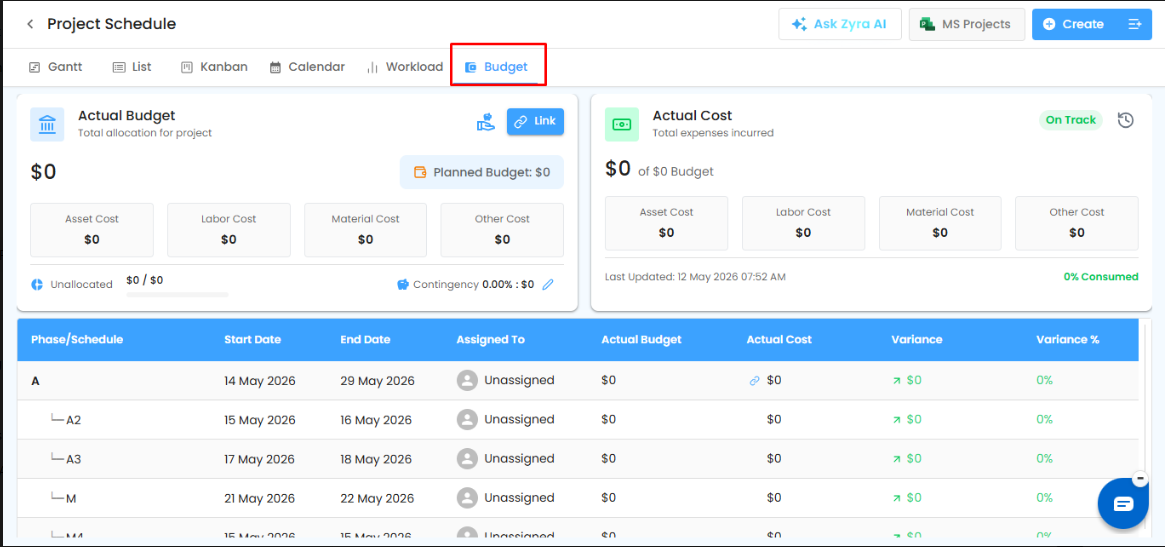
The Budget View provides financial tracking for schedules and project phases.
Features of Budget View
- Displays:
- Actual Budget
- Actual Cost
- Asset Cost
- Labor Cost
- Material Cost
- Other Costs
- Tracks variance and budget consumption
- Phase-wise budget monitoring
Key Benefits
- Improved cost control
- Budget vs actual tracking
- Financial visibility for project schedules
Was this article helpful?
That’s Great!
Thank you for your feedback
Sorry! We couldn't be helpful
Thank you for your feedback
Feedback sent
We appreciate your effort and will try to fix the article