How Scheduling Works in IntoAEC
Scheduling in IntoAEC is more than just setting dates—it’s about giving your projects structure, clarity, and momentum. With powerful Gantt charts and list views, you can plan tasks, set deadlines, and monitor progress in real time. Think of it as your project’s timeline command center, keeping everyone aligned and on track.
Getting Started: Accessing the Scheduling Module
- Open Clients – From the main menu, click on Clients.
- Choose a Client – Select the specific client whose project schedule you want to manage.
Pro Tip: Use the Gantt view when you need the big picture, and switch to the list view for detailed task-level management.
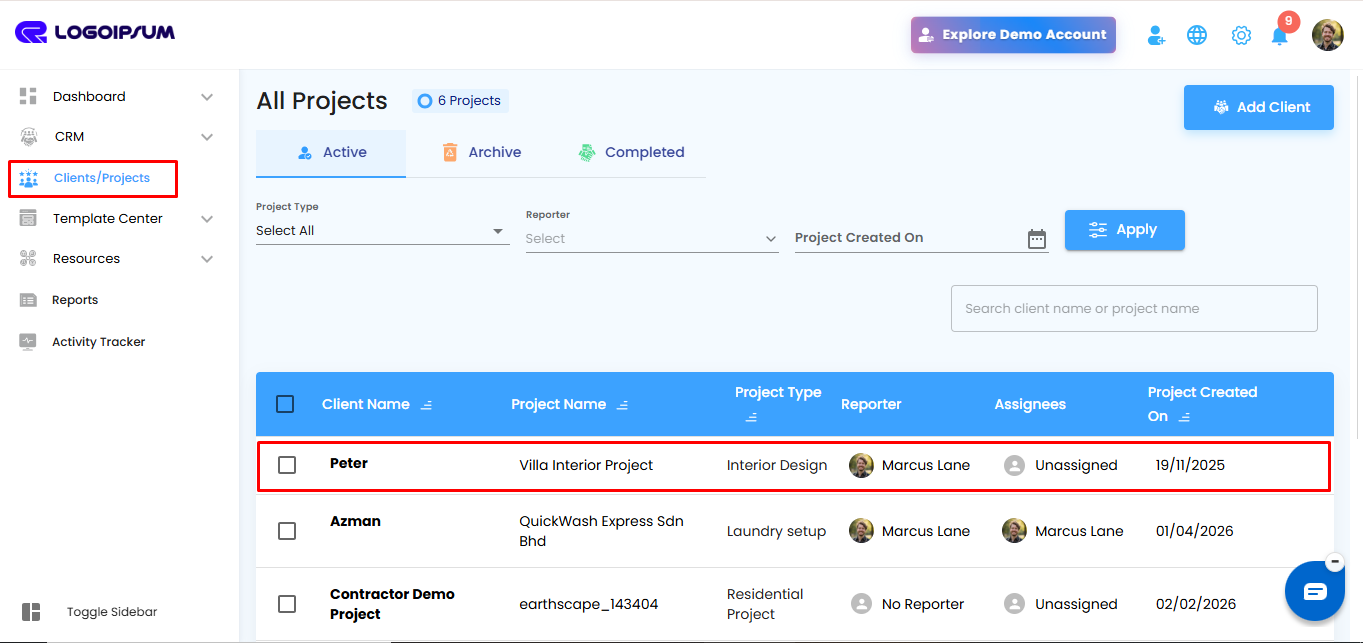
Open the Schedule Tab
Within the selected client’s profile, click on the Schedule tab to access and manage the project’s timeline. This is where you can view, create, and adjust tasks using either the Gantt chart or list view.
Pro Tip: Start with the Gantt chart to map out the overall project flow, then fine-tune details in the list view for accuracy.
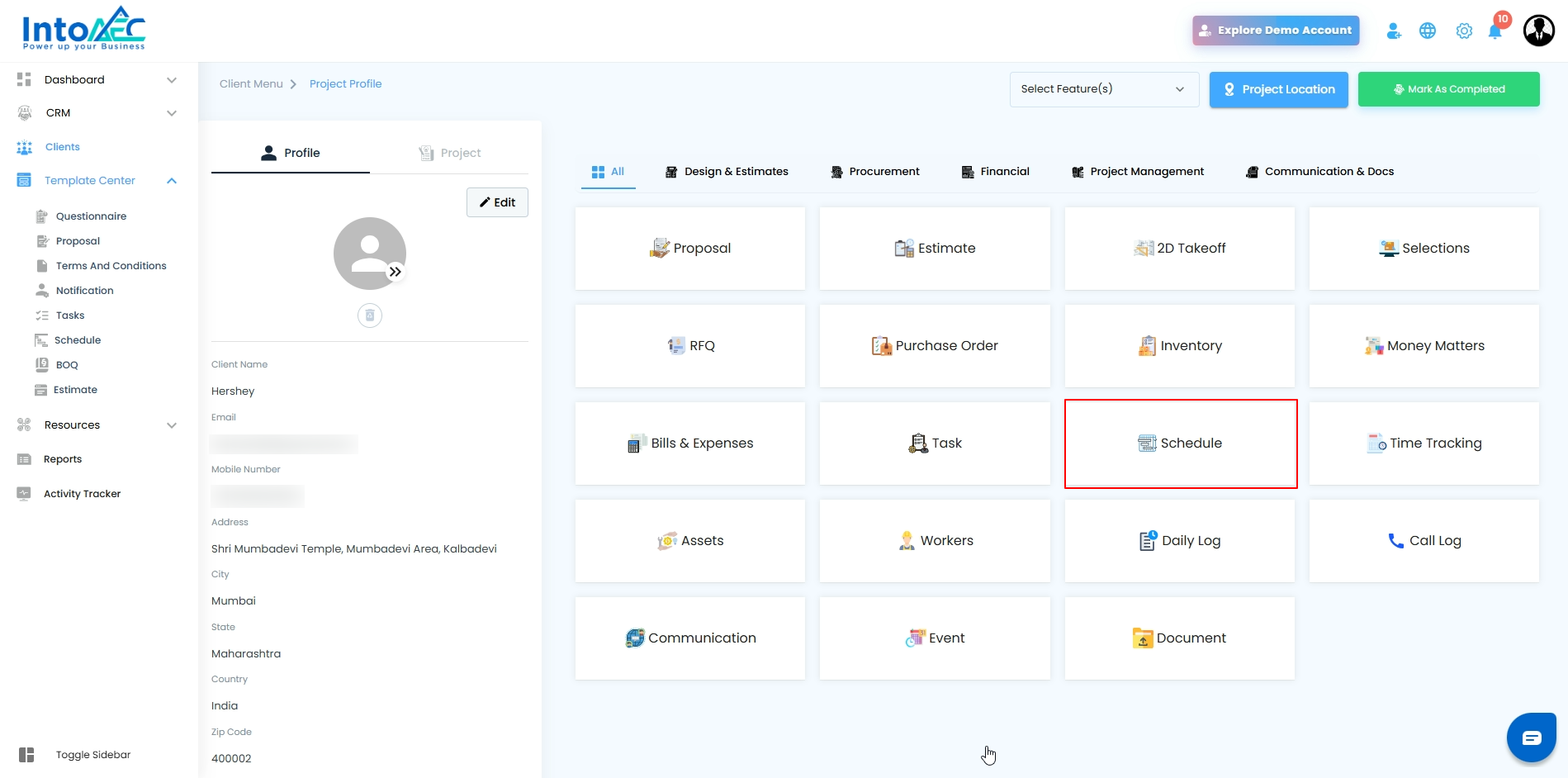
Default Gantt View
When you open the Schedule tab, the Gantt View is displayed by default. This provides a clear visual timeline of your project, showing tasks, their durations, and dependencies in a single glance.
Pro Tip: Use the Gantt view for high-level planning and spotting overlaps or bottlenecks before they become issues.
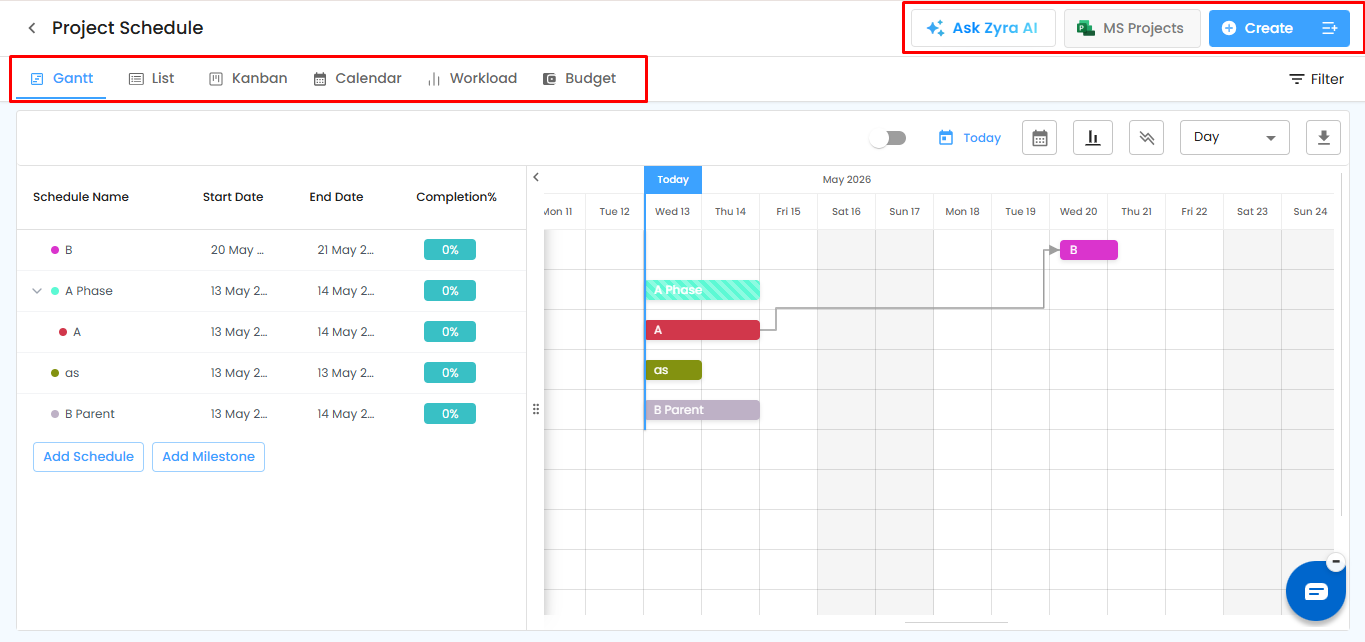
Explore Multiple Views
IntoAEC’s Project Schedule module provides multiple scheduling views designed to help teams manage projects with greater clarity, flexibility, and control. Users can switch between different views based on planning, tracking, resource management, and reporting requirements — all within a single centralized workspace.
The scheduling interface now includes the following views:
- Gantt View – Visualize task timelines, dependencies, milestones, and project progress through an interactive chart-based schedule layout.
- List View – Access schedules in a structured tabular format for quick editing, detailed task review, and easier data management.
- Kanban View – Organize and track activities using workflow-based status boards, helping teams monitor task progress efficiently.
- Calendar View – View scheduled activities by date to manage daily, weekly, or monthly planning and upcoming deadlines.
- Workload View – Analyze resource allocation and workload distribution across teams and activities to improve resource planning.
- Budget View – Monitor schedule-related budget information and track project financial alignment alongside execution progress.
Additionally, users can leverage advanced scheduling capabilities directly from the schedule workspace, including:
- Ask Zyra AI – Generate intelligent schedules and activity recommendations using AI-assisted planning.
- MS Projects Import – Import schedules from Microsoft Project for seamless migration and project continuation.
- Create Options – Quickly create schedules, milestones, and project activities from a unified action panel.
These multiple scheduling views work together to provide a complete project management experience, helping teams improve visibility, collaboration, decision-making, and execution efficiency across construction, engineering, architecture, and infrastructure projects.
Set Off-Days & Working Time
Define non-working days for your project to ensure schedules reflect real-world conditions. You can configure organization-wide working days, working time or customize off-days at the project level, including weekends and public holidays. Once set, all tasks automatically adjust to avoid non-working periods, giving you a more accurate and reliable timeline.
Set Baseline
Capture a snapshot of your project schedule at any point in time to track progress against the original plan. Baselines help you compare planned vs actual timelines, making it easier to identify delays, measure performance, and maintain accountability across your team.
See Critical Path Method
Identify the sequence of tasks that directly impact your project’s completion date. The Critical Path highlights the longest chain of dependent activities, helping you focus on what truly matters. Any delay in these tasks will directly affect the overall project timeline.
Pro Tip: Use each view strategically—plan timelines in the Gantt chart, track progress in the list view, and stay on top of deadlines with the calendar chart.
Was this article helpful?
That’s Great!
Thank you for your feedback
Sorry! We couldn't be helpful
Thank you for your feedback
Feedback sent
We appreciate your effort and will try to fix the article