The Purchase Order (PO) approval workflow ensures that all POs created within the system are reviewed and validated before being shared with vendors. This process helps maintain accuracy, avoid duplicate or incorrect orders, and ensures financial control within your procurement operations.
Whether you’re a creator drafting the PO or a super admin reviewing and approving it, this guide explains the complete workflow.
When Is PO Approval Required?
If you are the creator of the PO, you must submit it for approval to the Super Admin before you can send it to the vendor.
Super Admins have the authority to approve the PO or send it directly to the vendor.
How to Request Approval for a PO (As a User)
Step 1: Navigate to the Client
Go to Clients from the left menu.
Select the specific client for whom you want to create the PO.
Click on the PO section inside the client workspace.
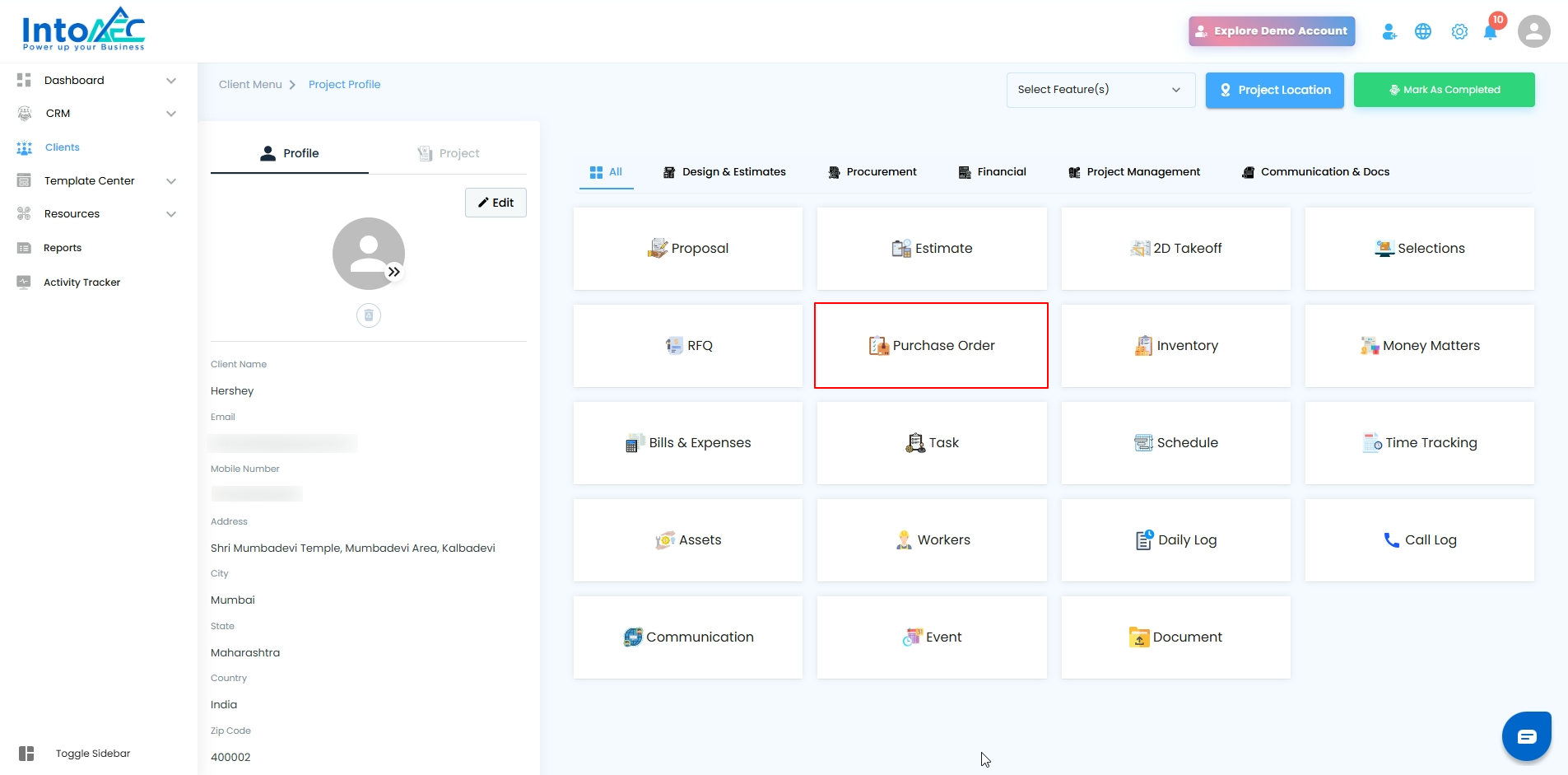
2. Create a New PO
Click on Create PO.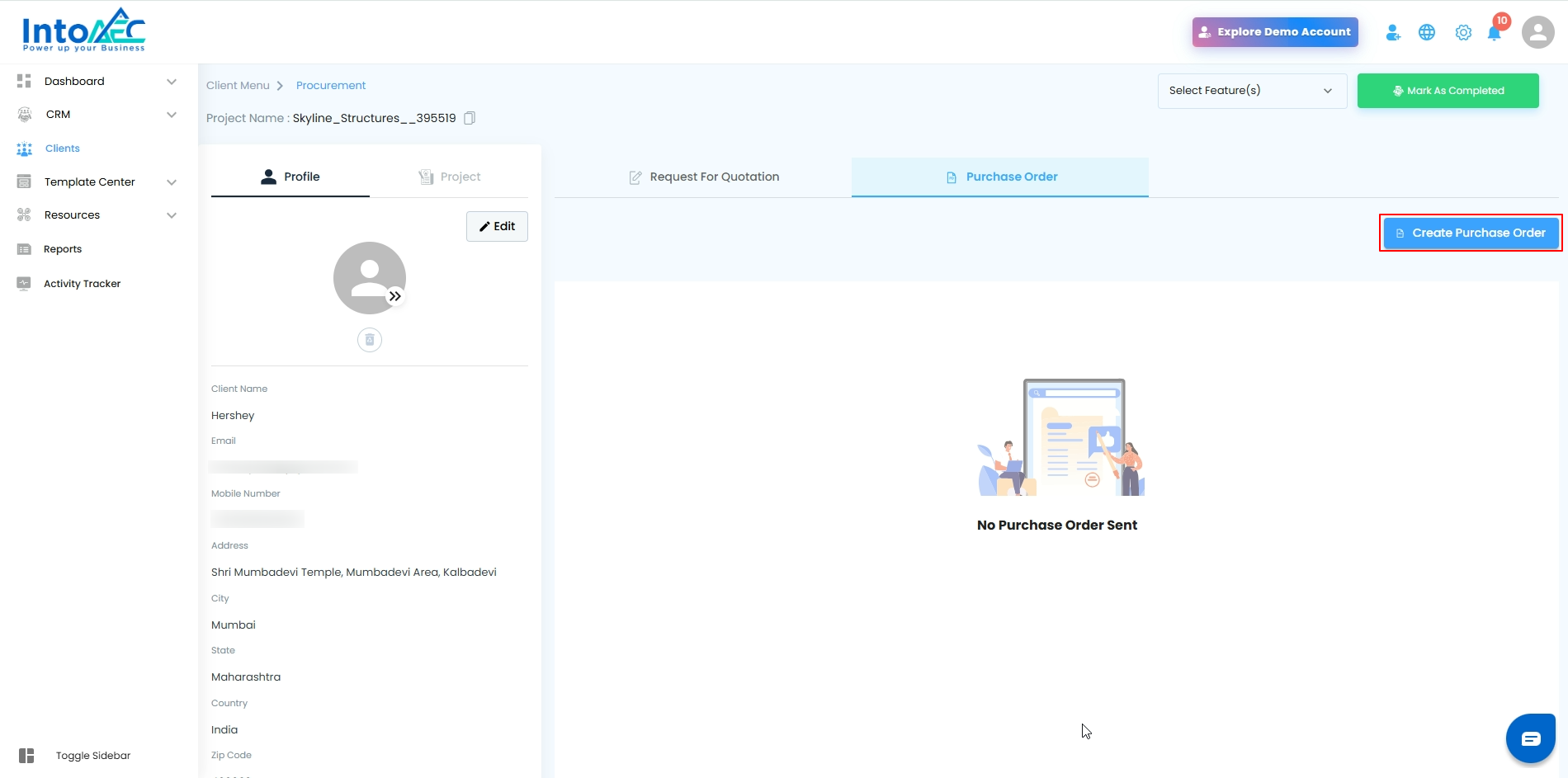
3. Enter PO Details
Fill in all the required information, including selecting the vendor to whom the PO will be sent.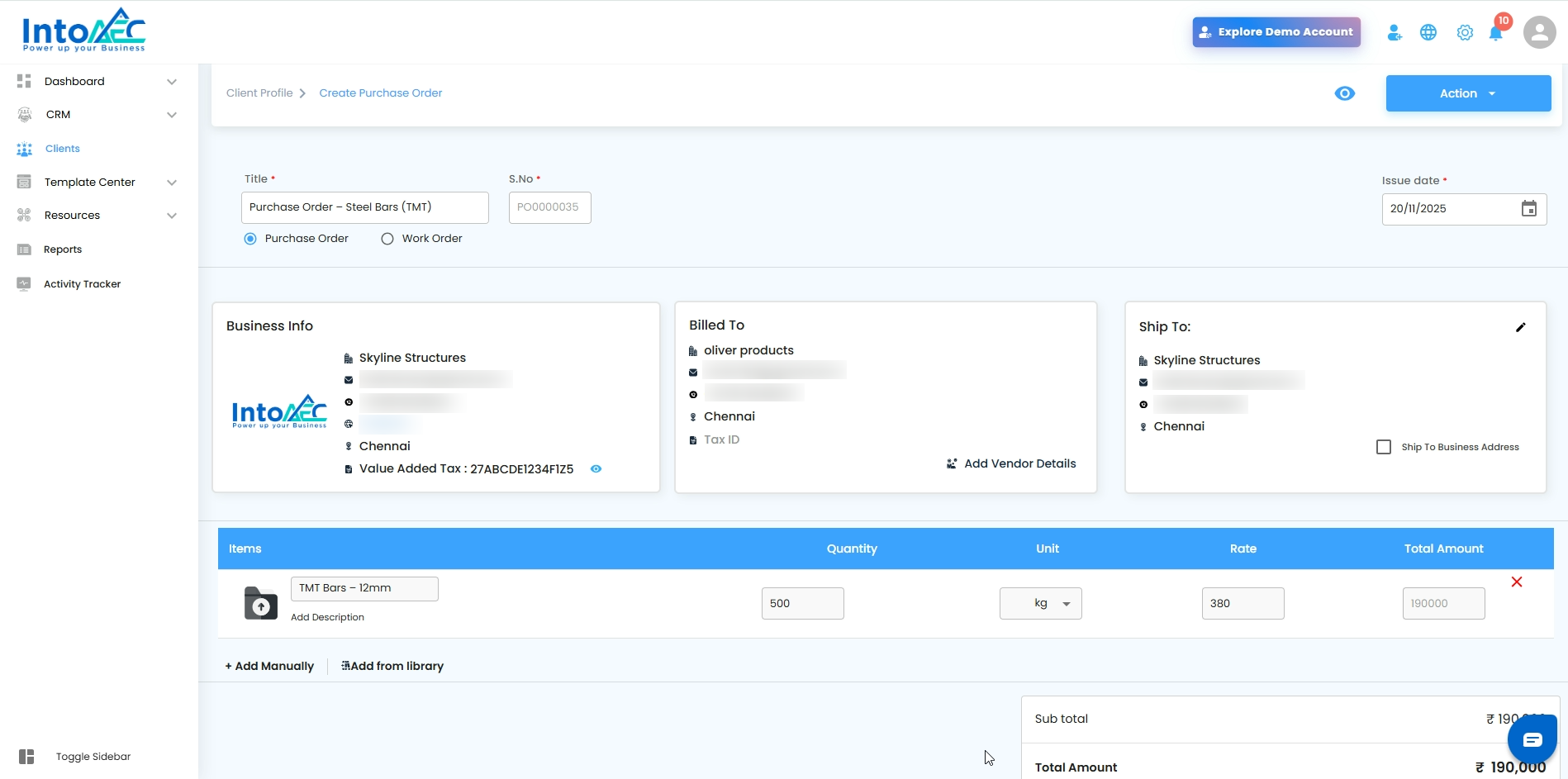
4. Submit for Approval
Click Action → Request for Approval
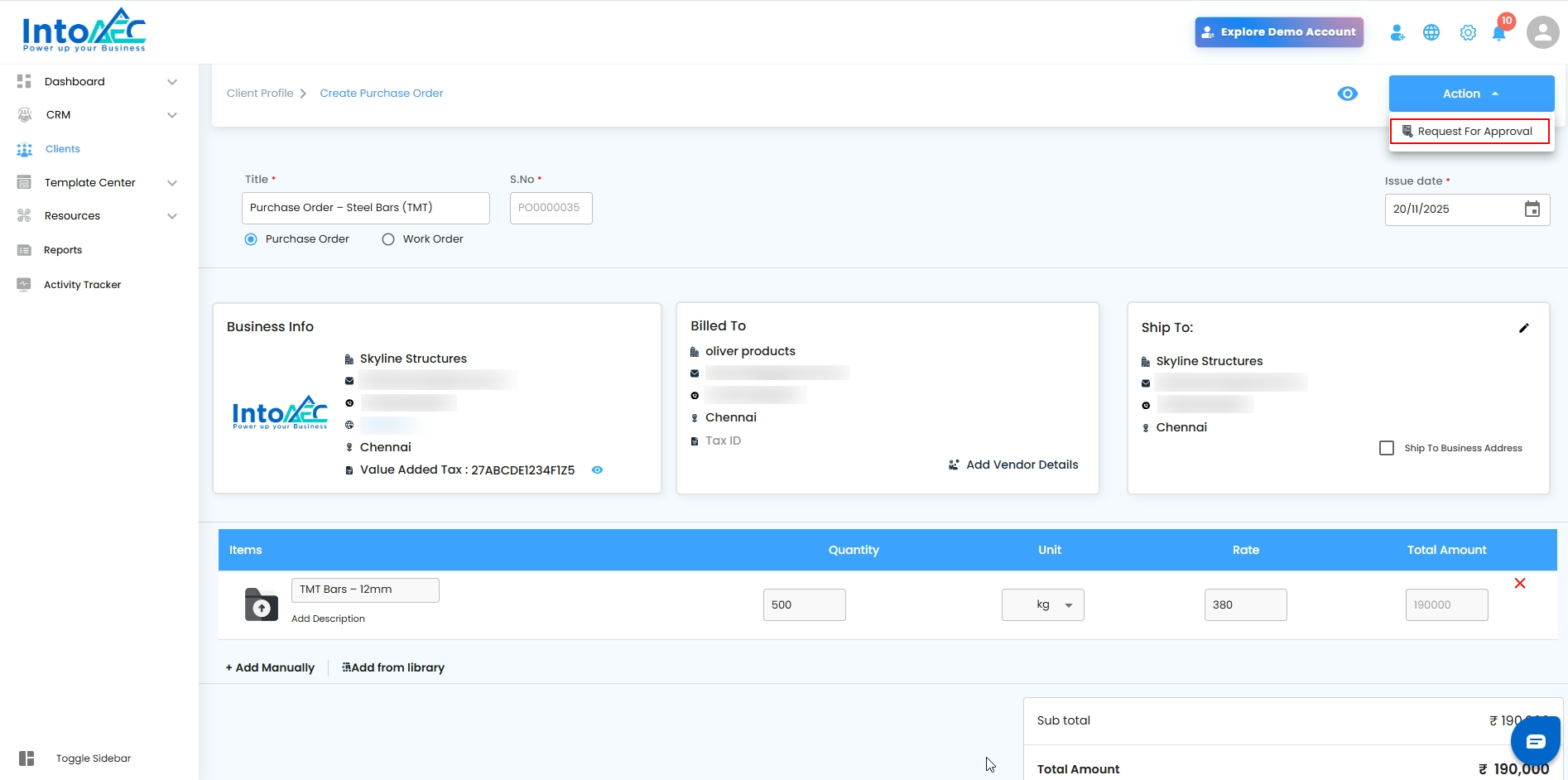
The PO will appear under the PO section with the status Pending Approval
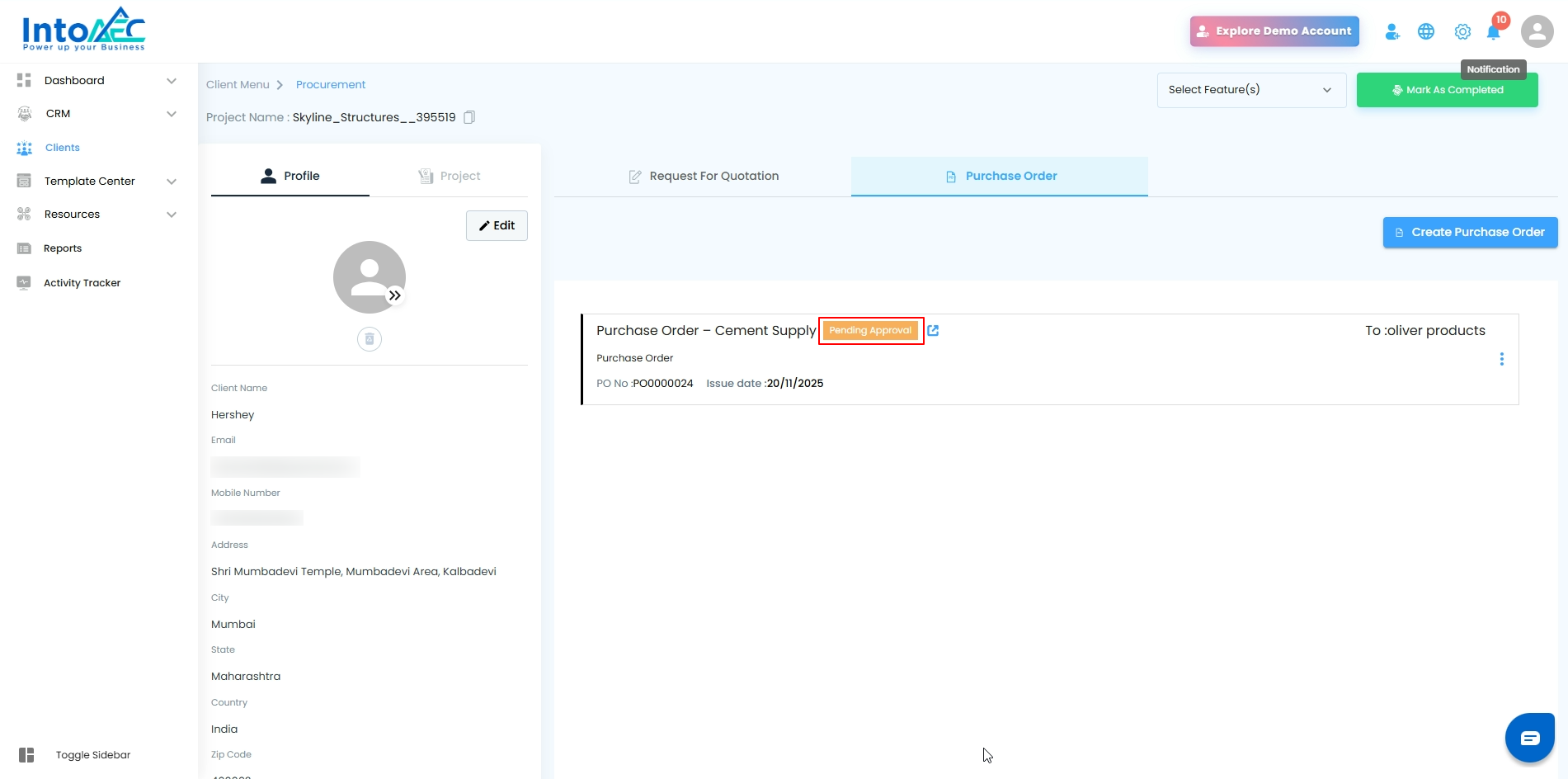
As a Super Admin: Approve or Send the PO
1. Approve the PO
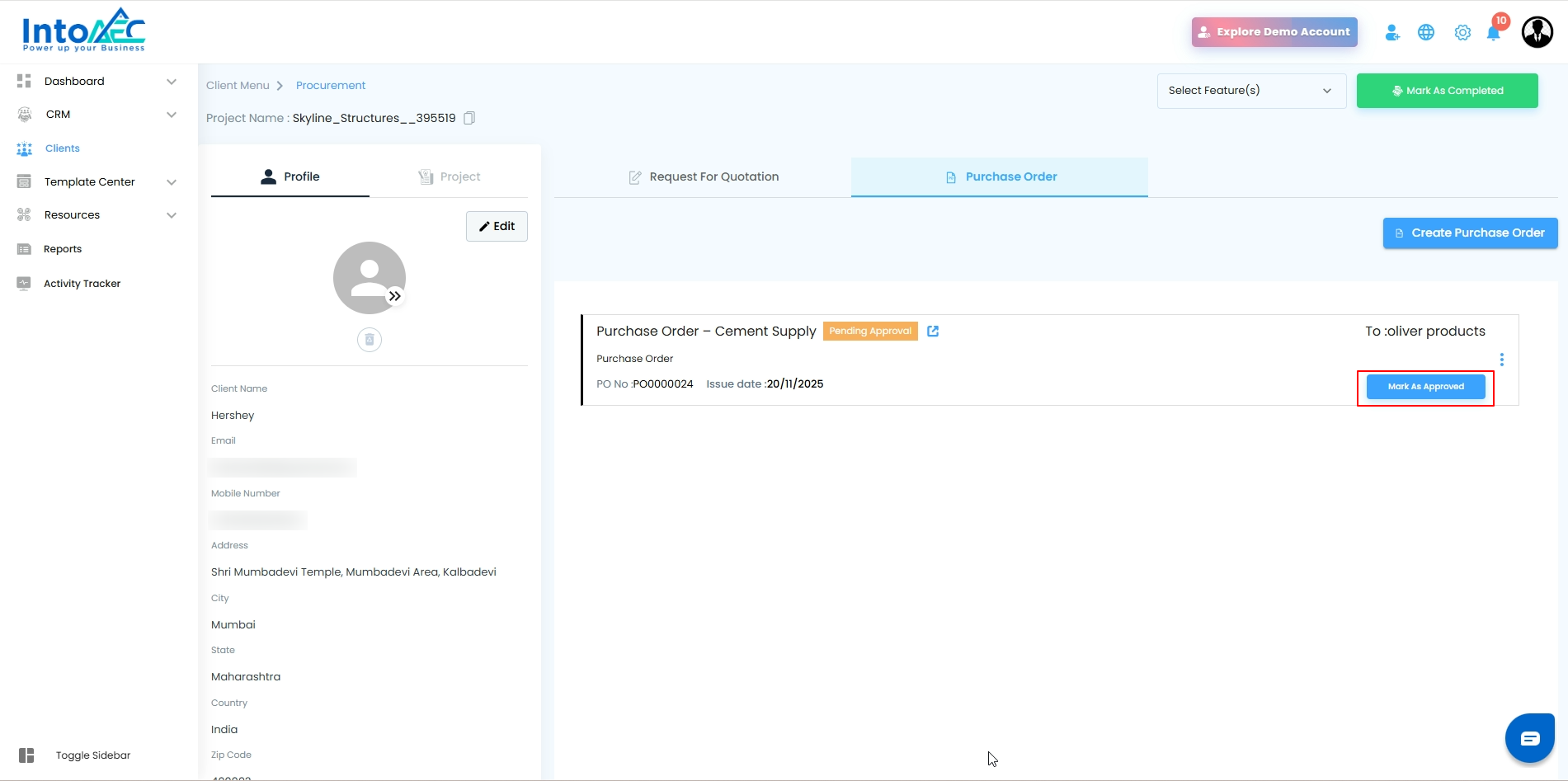
Open the PO from the Pending Approval list
Click Mark as Approved
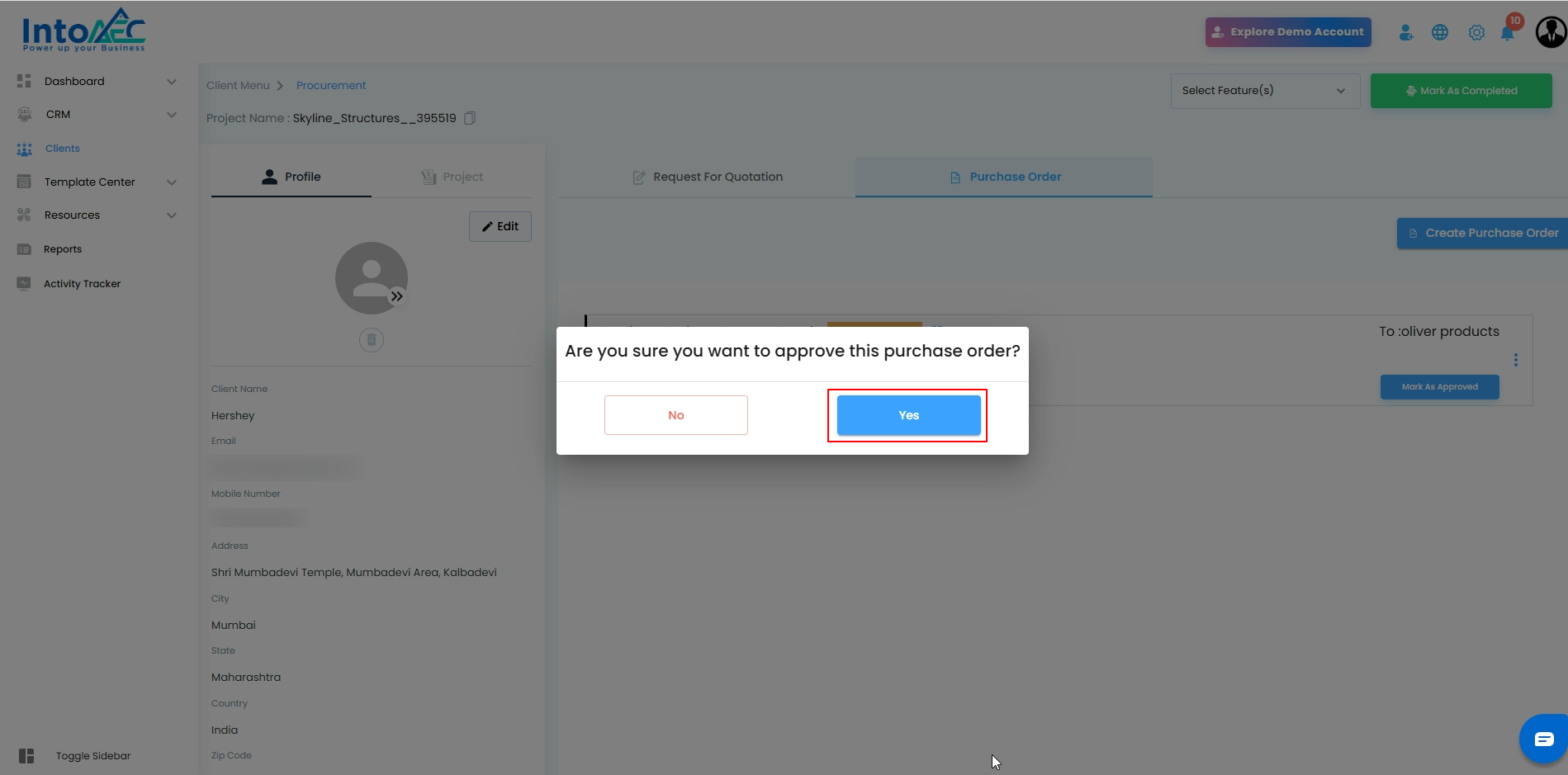
In the confirmation pop-up, click Yes to approve
2. Send the PO Directly
The super admin also has the option to send the PO directly to the vendor without approval from others.
After Approval: Sending the PO to the Vendor
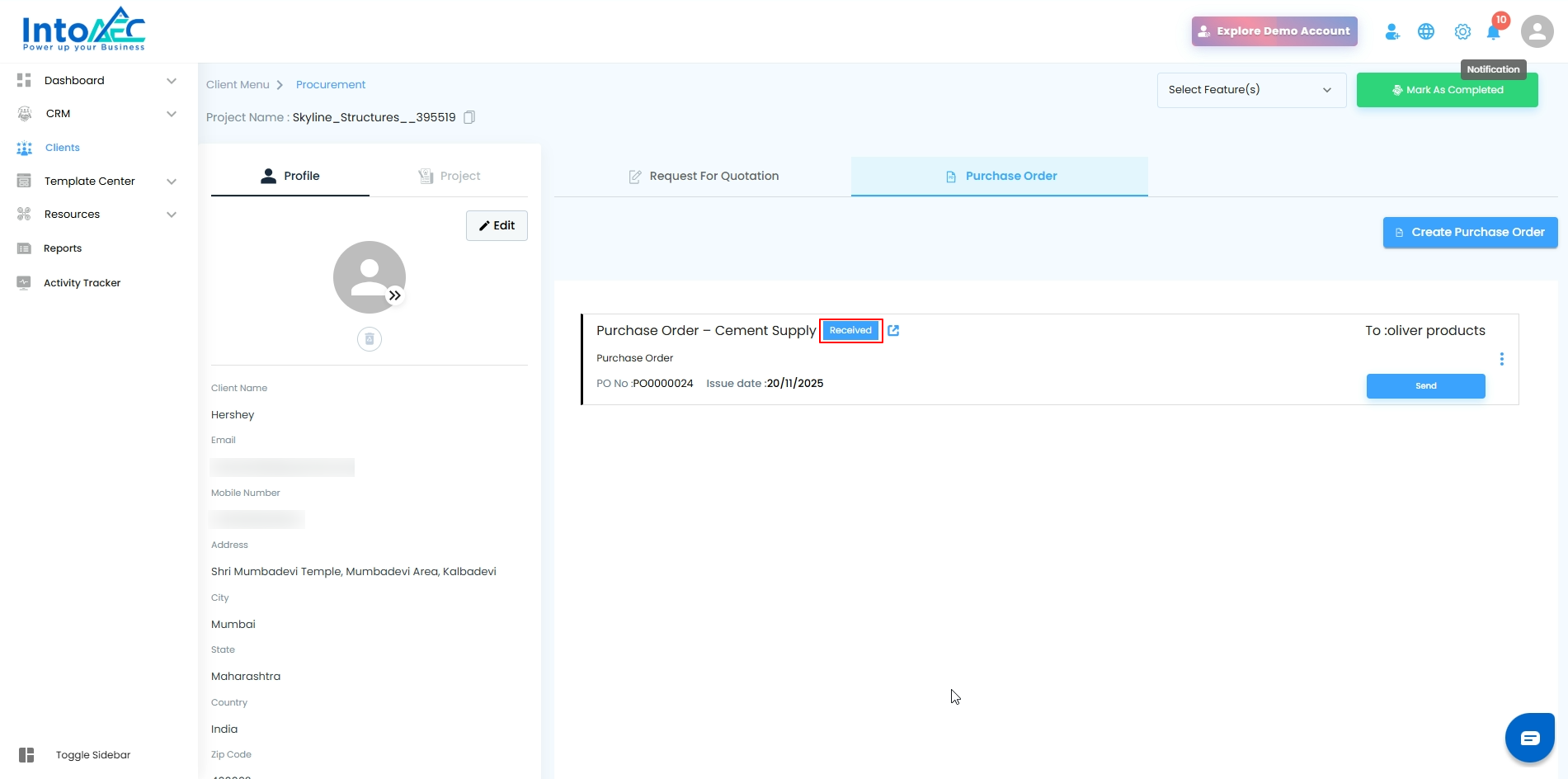
Once the super admin approves the PO:
The user can open the PO.
Click Send.
The PO will be sent to the vendor through the selected communication method.
How to Edit a Pending Approval PO
If you have already requested approval but need to make changes, follow the steps below:
1. Navigate to the PO
Go to:
Clients → Select Client → PO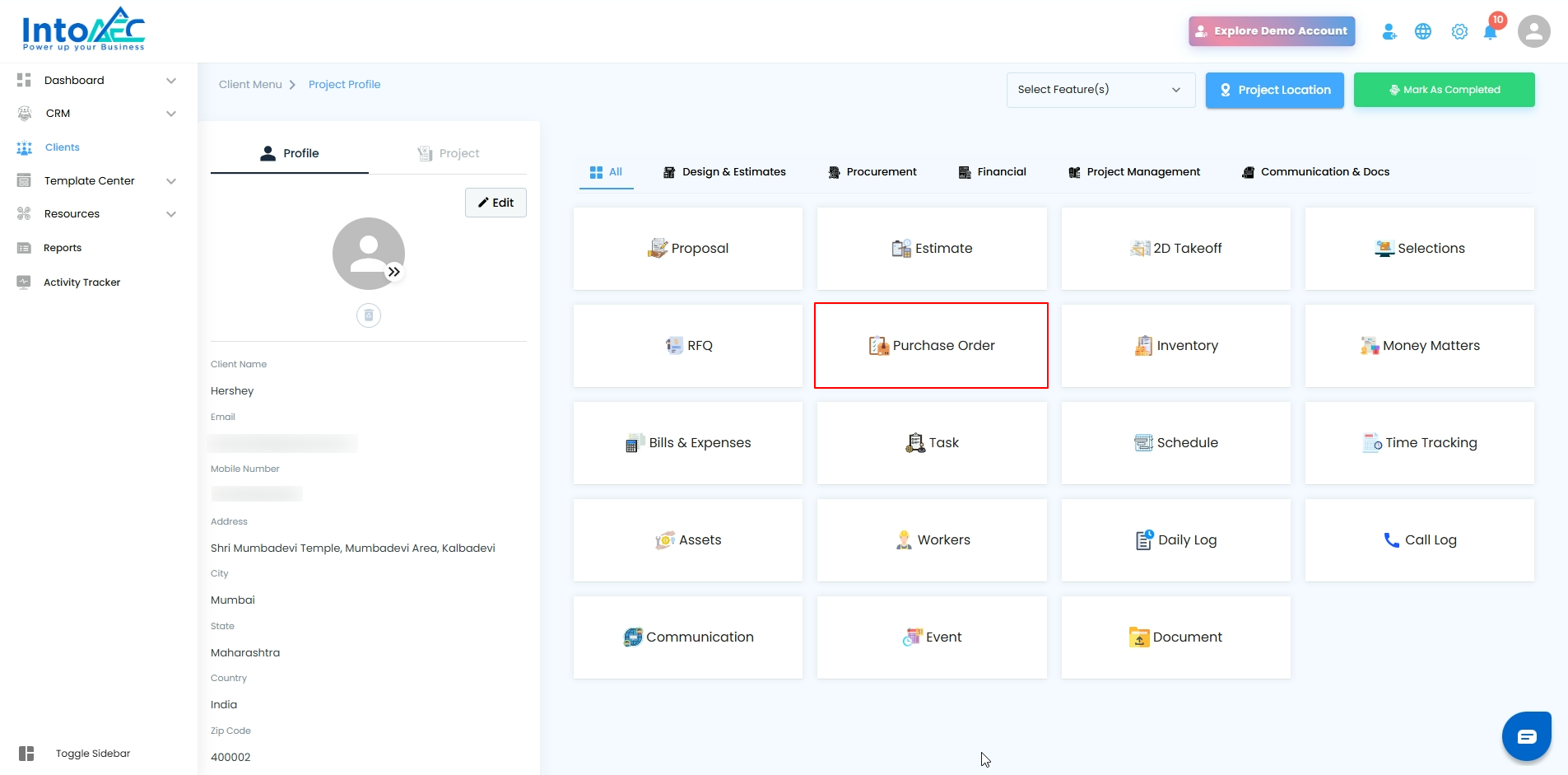
2. Edit the PO
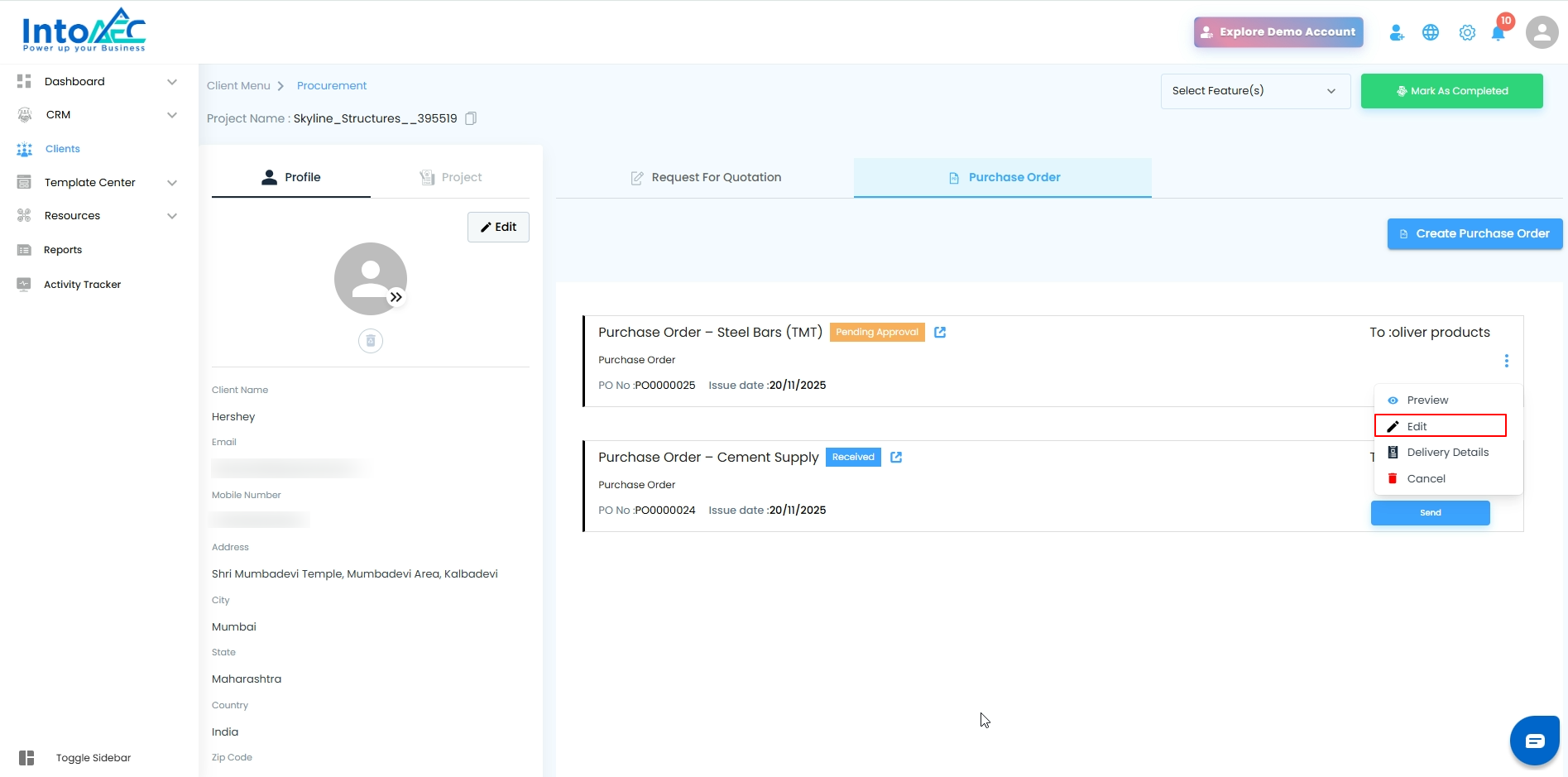
Click on the PO with the Pending Approval status
Click the three dots (⋮) and choose Edit
Make the necessary changes
3. Resubmit for Approval
Click Action → Request for Approval again
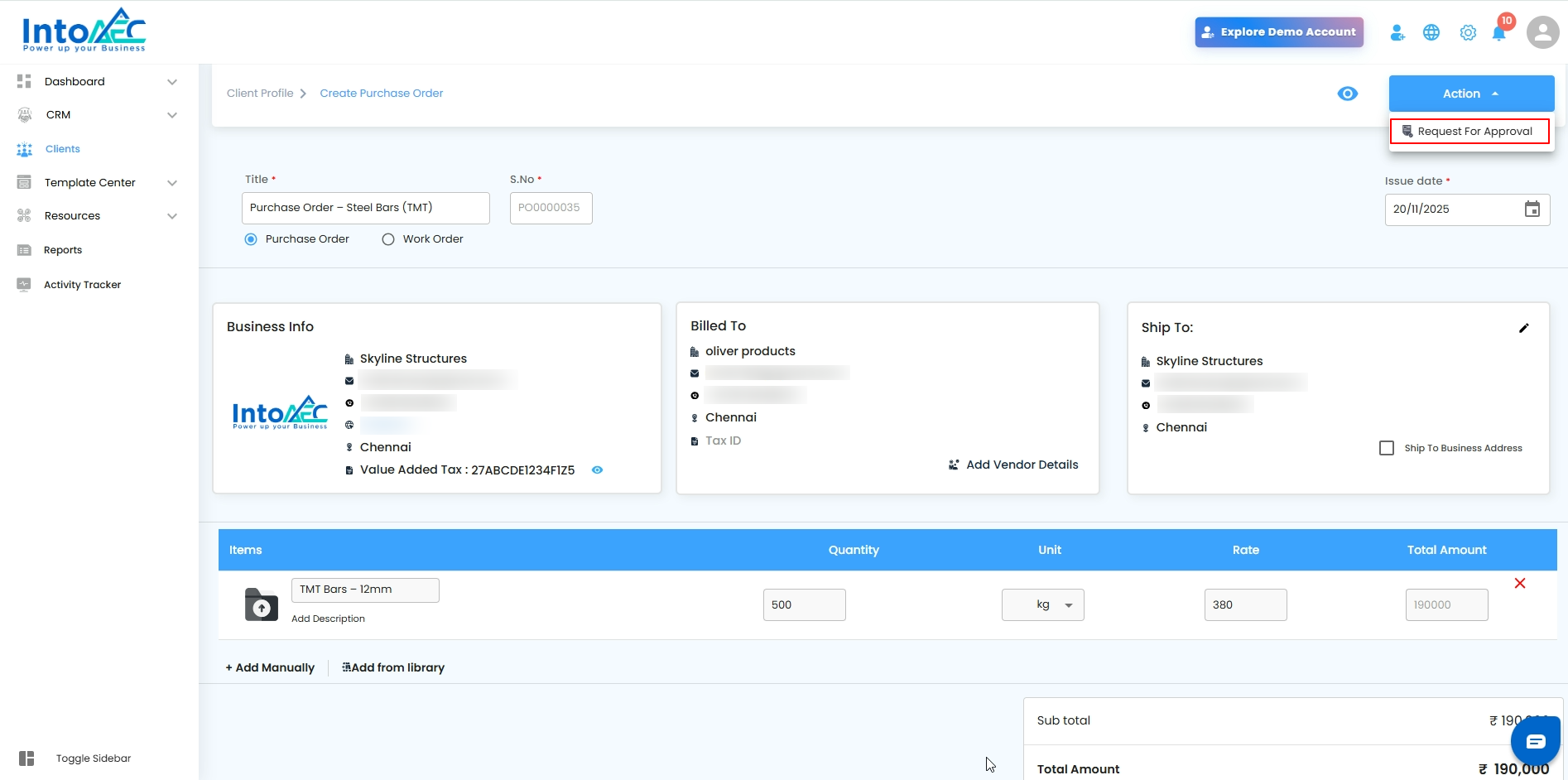
The updated PO will remain under the same section with the status Pending Approval
4. Approval Required Again
The super admin must approve the edited PO before it can be sent.
(The Super Admin can also send it directly if required.)
Was this article helpful?
That’s Great!
Thank you for your feedback
Sorry! We couldn't be helpful
Thank you for your feedback
Feedback sent
We appreciate your effort and will try to fix the article