Proposal revisions give you the flexibility to update a proposal even after it has been created or submitted for approval. Whether you need to adjust quantities, refine pricing, modify the scope of work, revisions help ensure every update is recorded with complete transparency. Each change automatically increases the Revision Count, allowing your team to maintain clear version control and eliminate miscommunication.
How to Revise a Proposal
Follow the steps below to edit and resubmit a proposal that is in Pending Approval or Draft status.
As a User: Creating a Proposal & Requesting Approval
Navigate to: Clients → Select a Client → Proposals
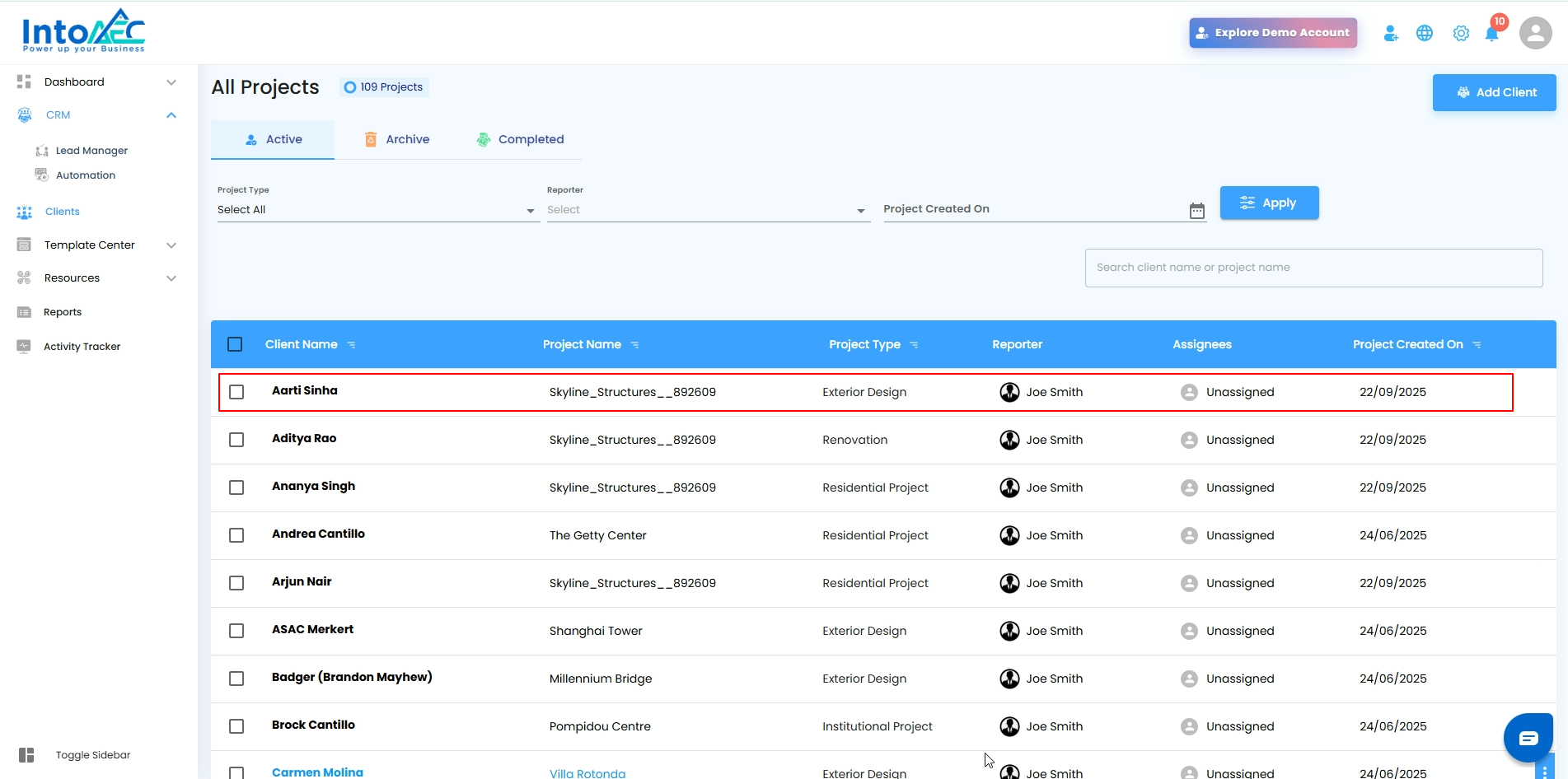
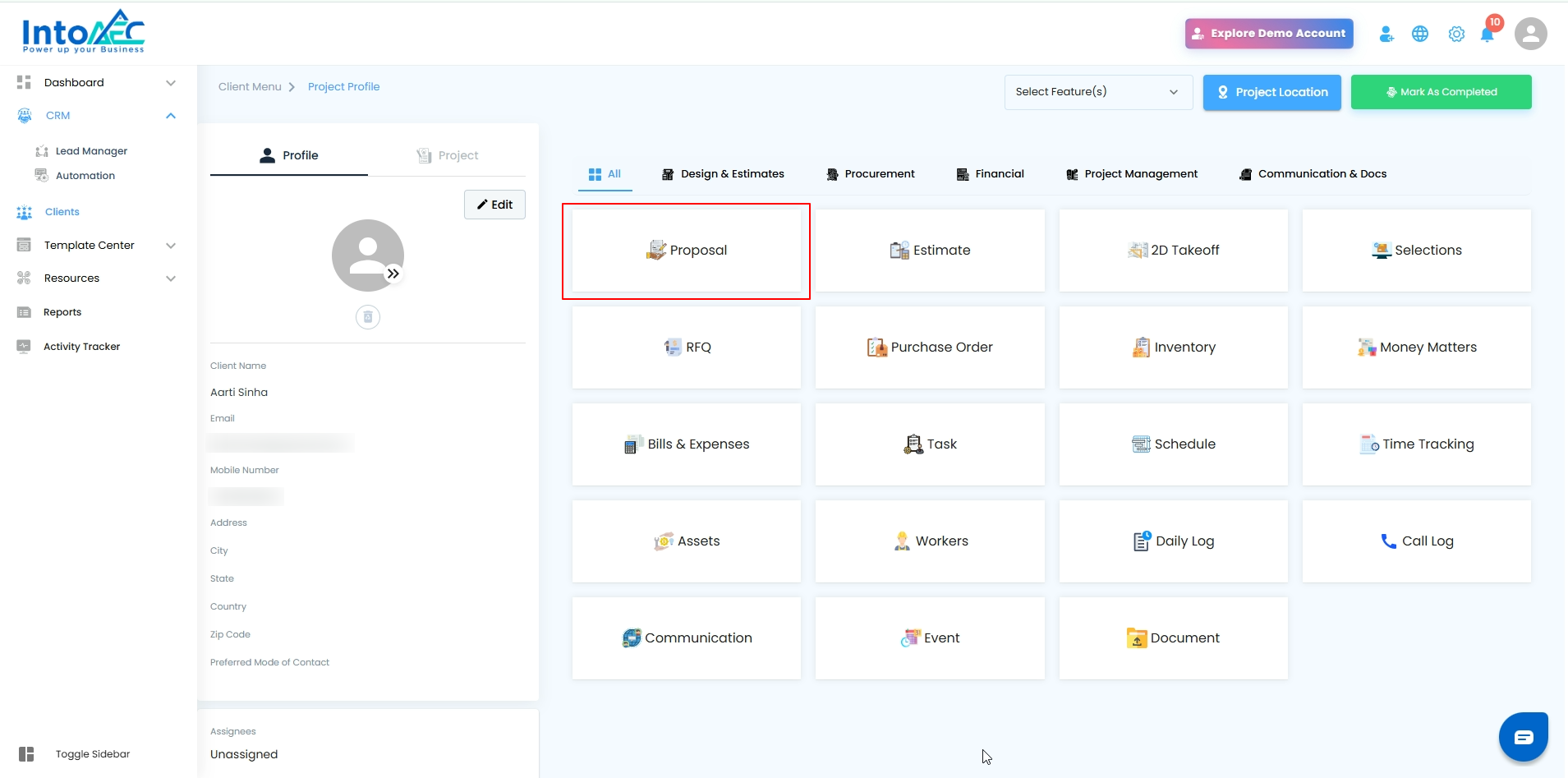
Click Create Proposal, choose the proposal type, and click Proceed.
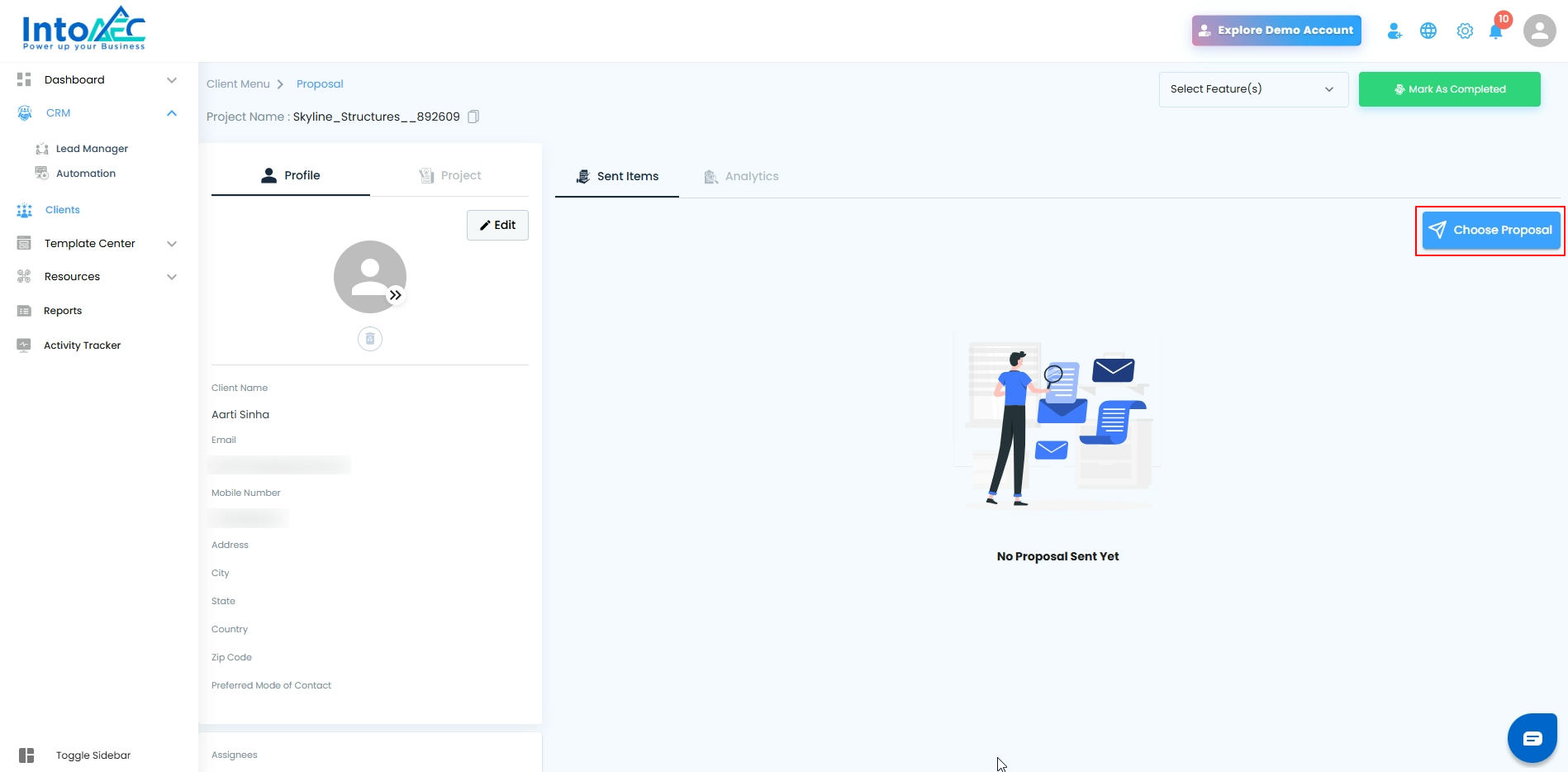
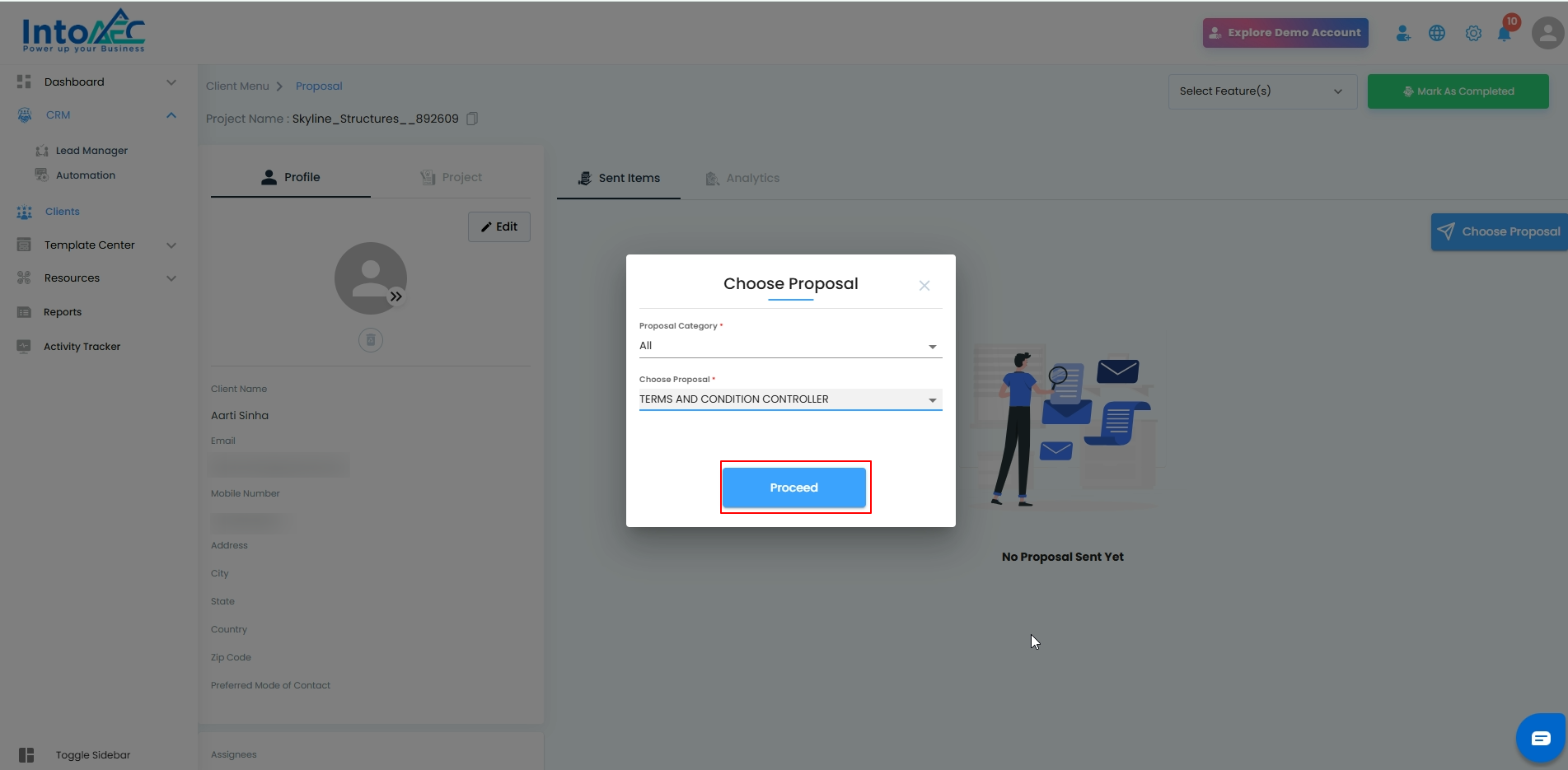
Enter all required details and create the proposal.
Click Send → Request for Approval.
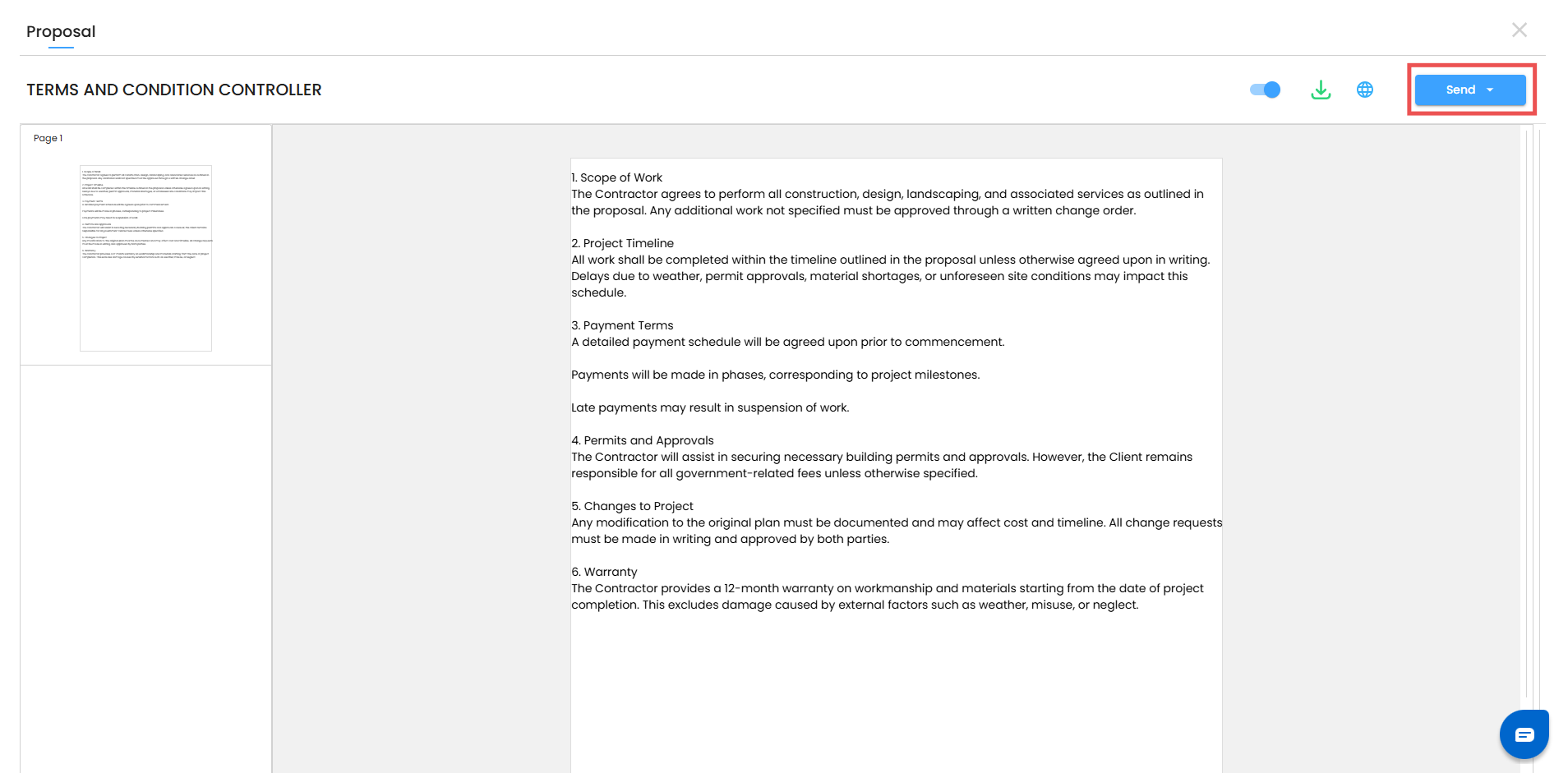
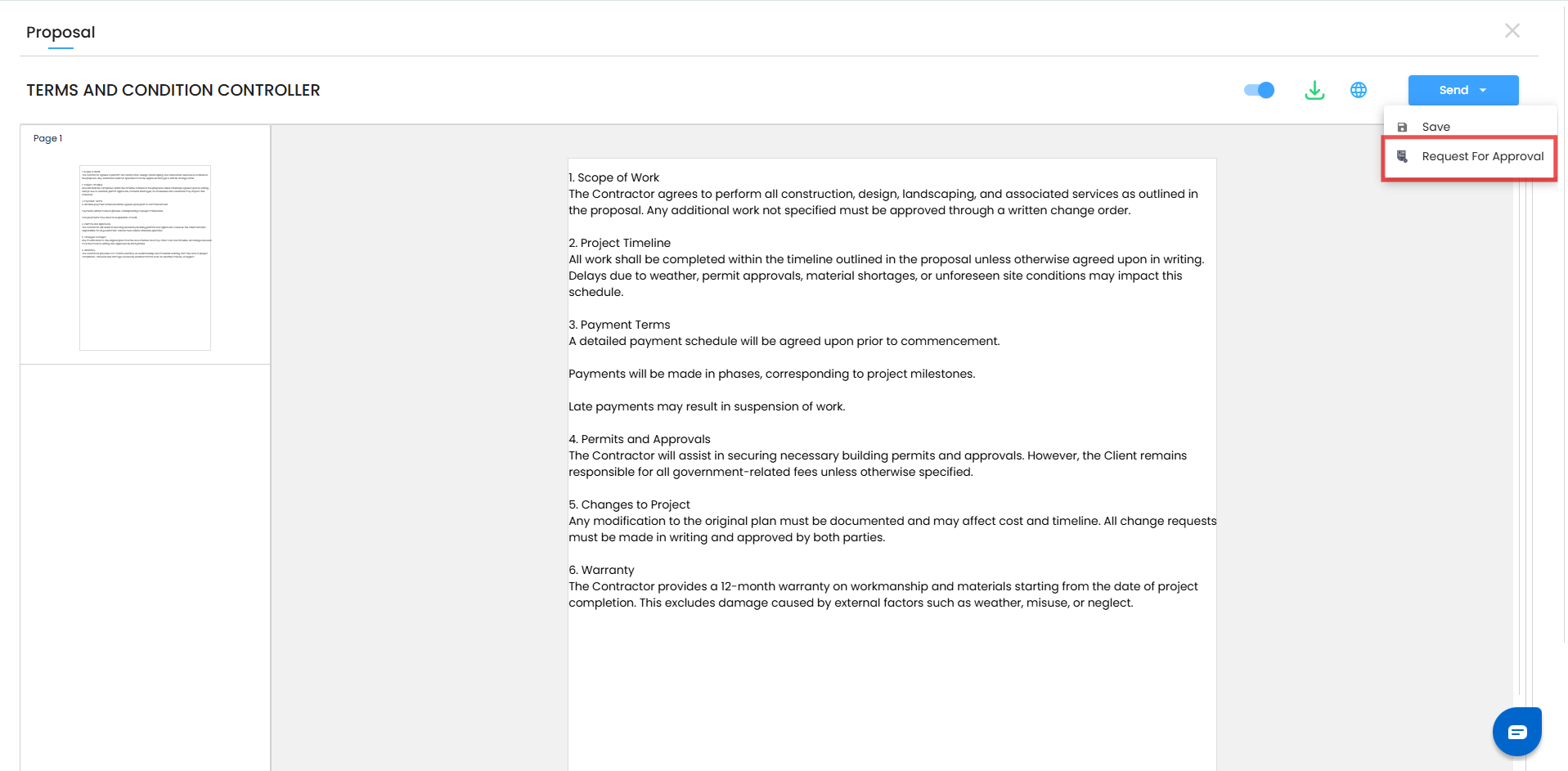
Once submitted, the proposal will appear in the send items section with the status Pending Approval.
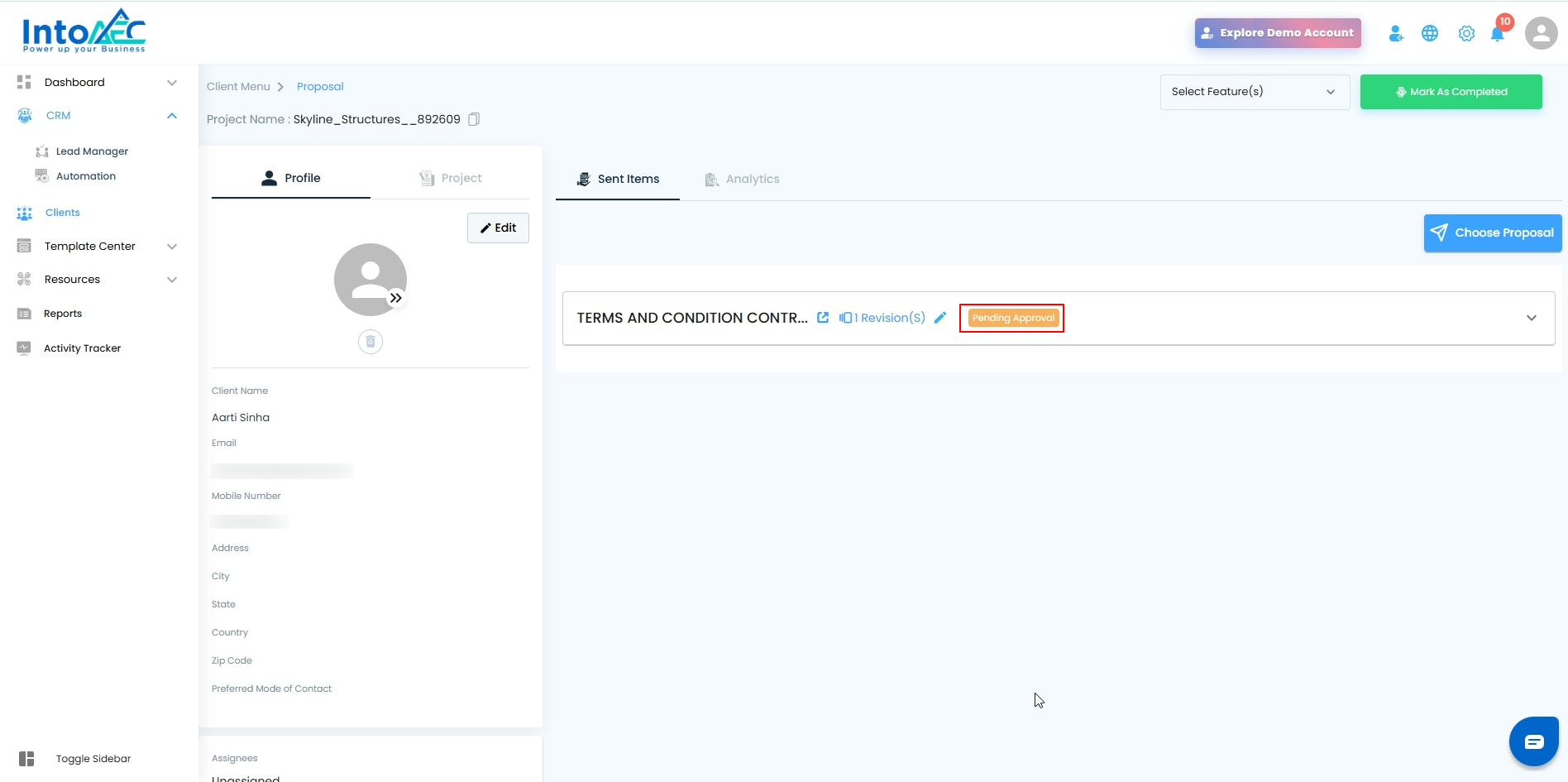
As the Super Admin: Approving the Proposal
Open the proposal that is in Pending Approval status.
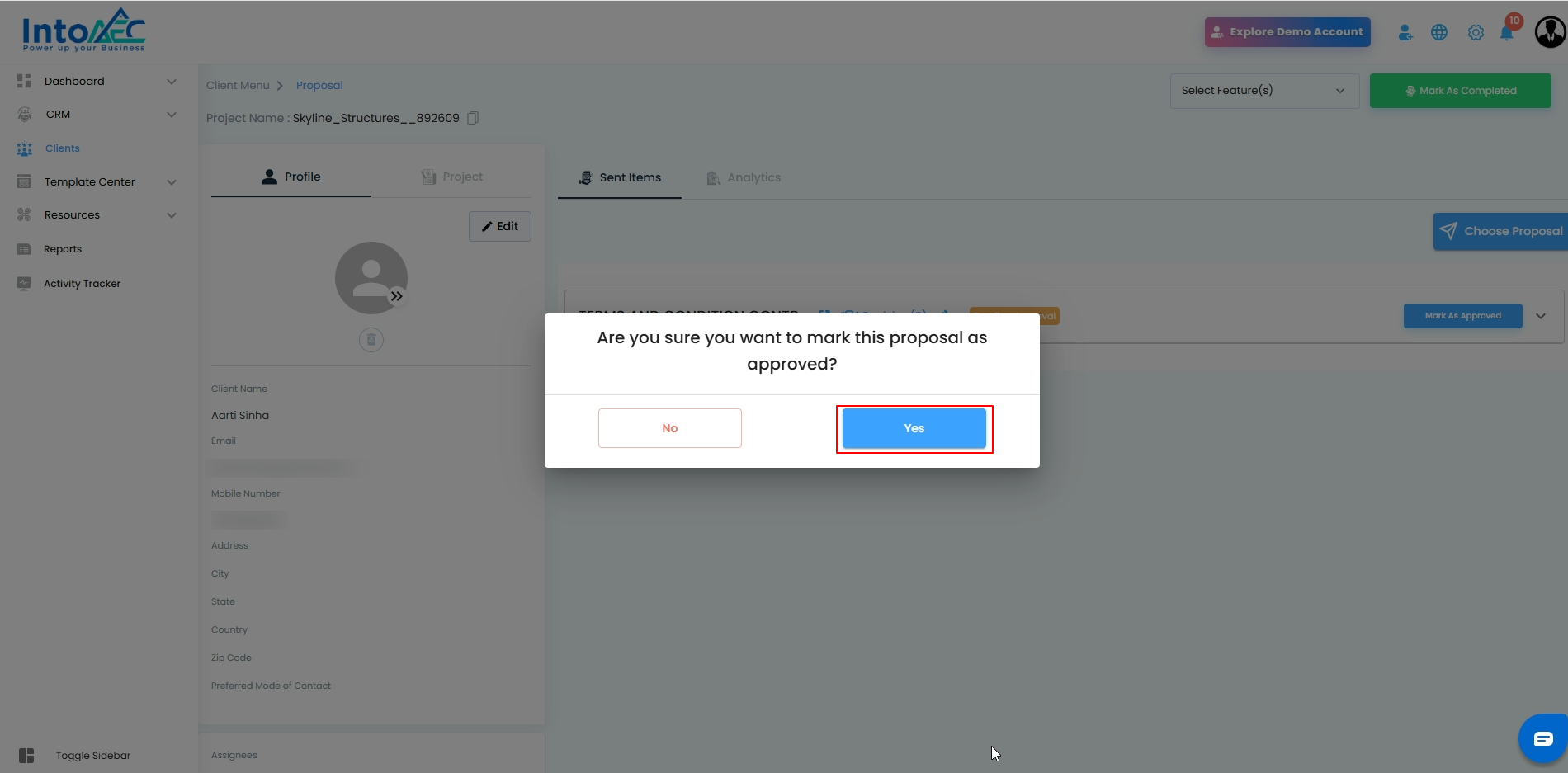
Click Mark as Approved.
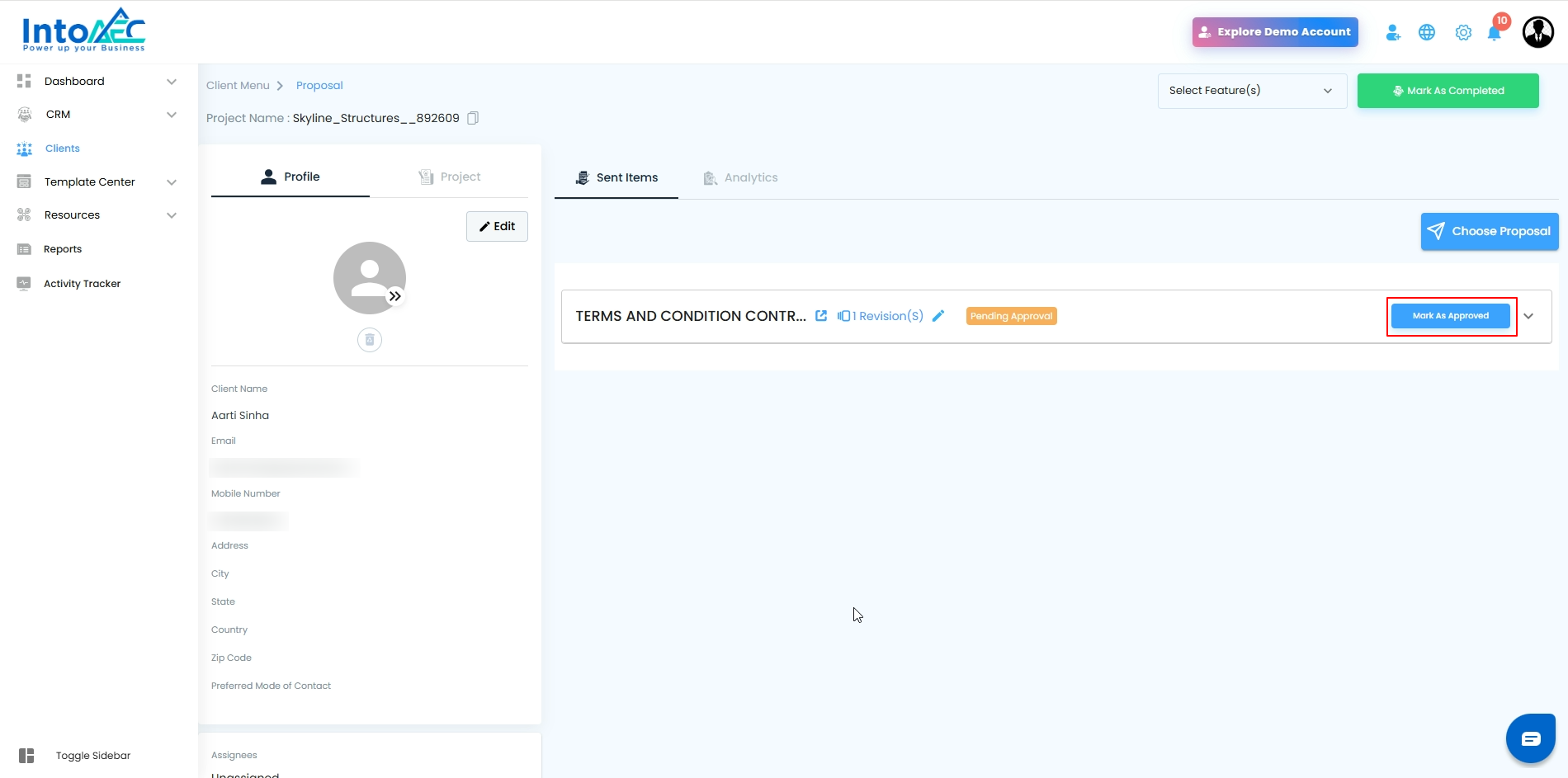
In the confirmation popup, click Yes to proceed.
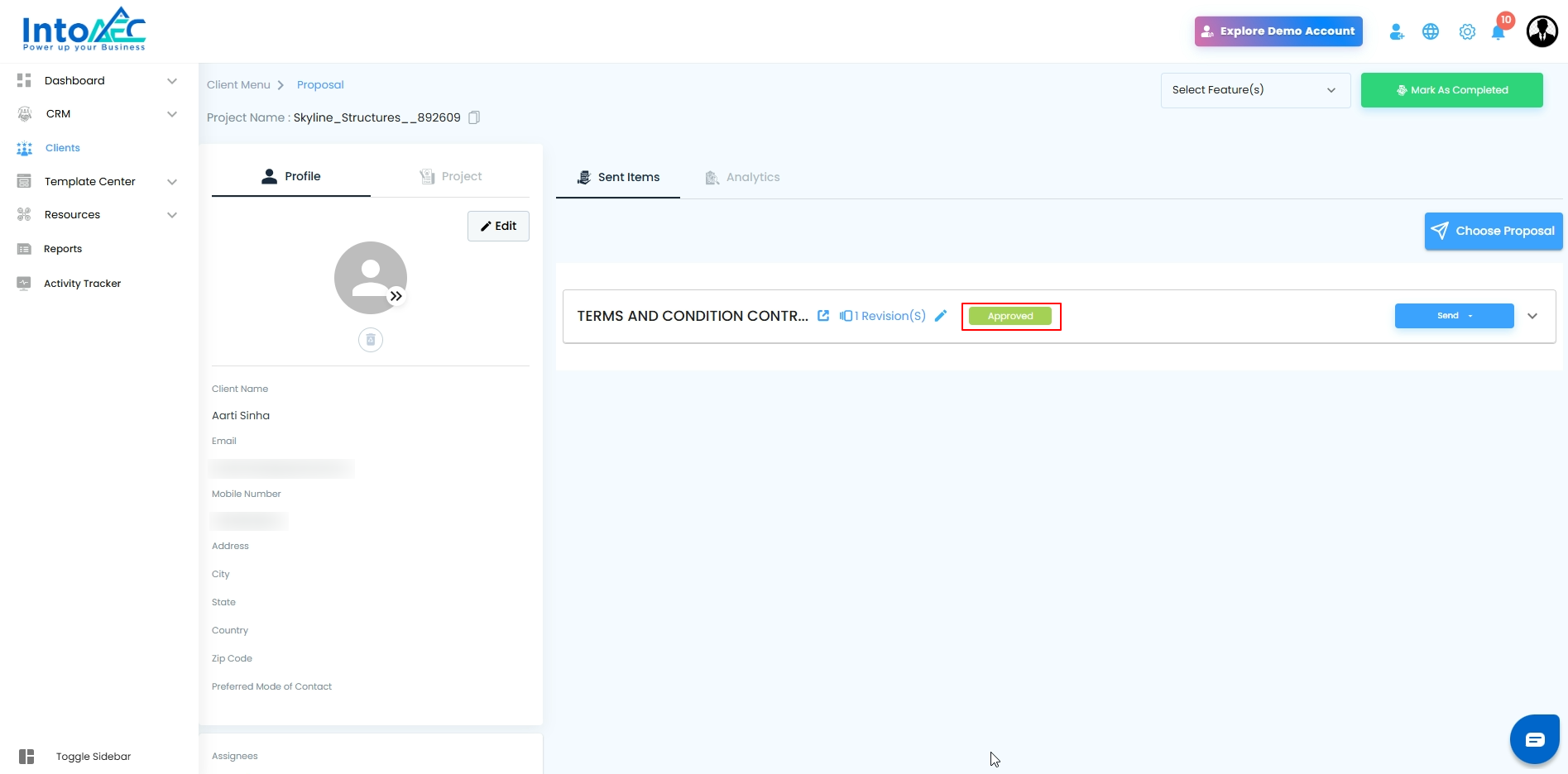
The proposal status will change to Approved within the Draft section.
As a User: Sending the Approved Proposal to the Client
After the Super Admin approves the proposal, open it from the Draft section.
Click Action, then choose the preferred method to send the proposal (Email, SMS, or WhatsApp).
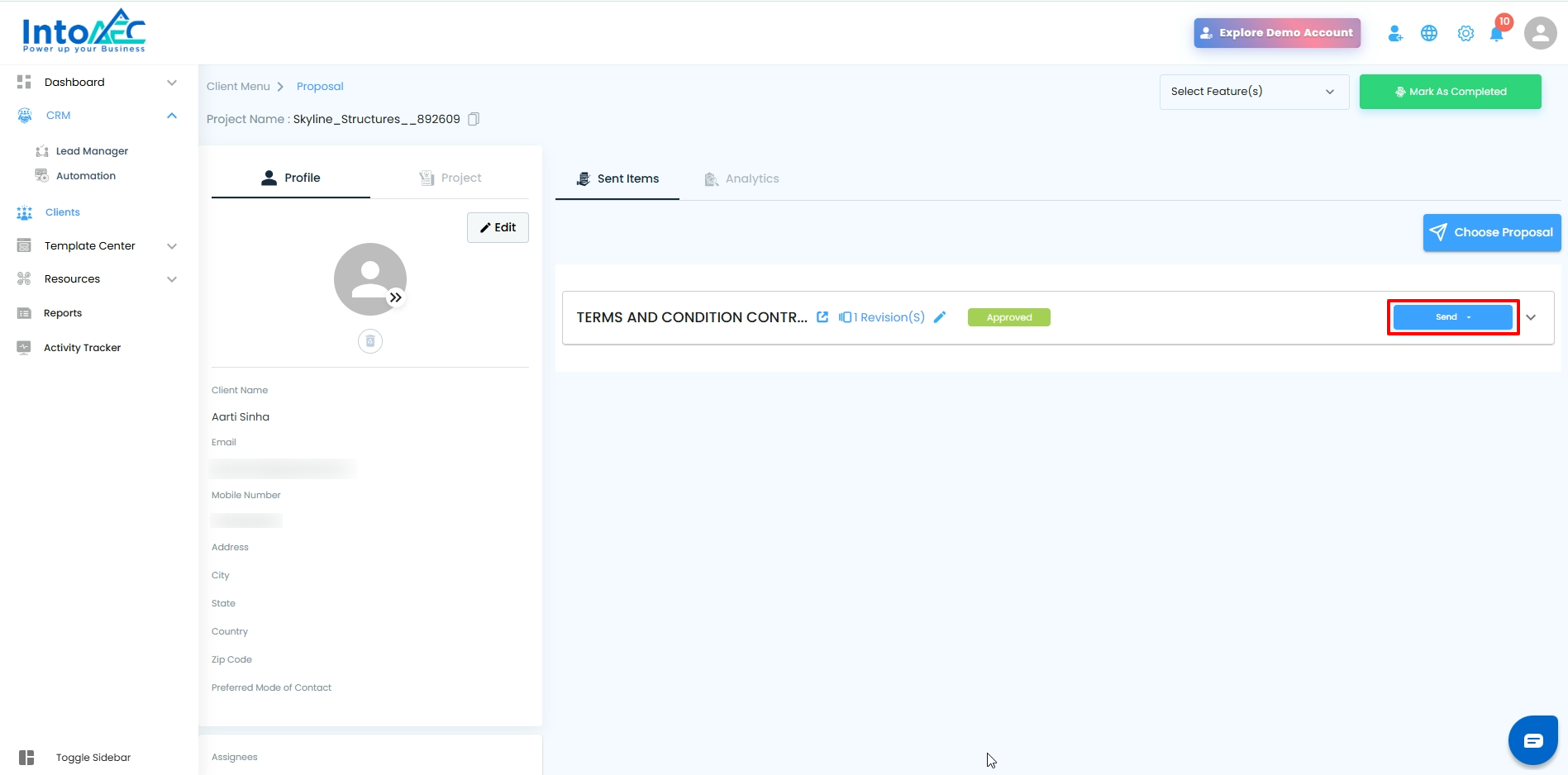
Once sent, the proposal will move to the Proposal Sent section.
Editing a Sent Proposal (Creating a Revision)
If you need to revise a previously sent proposal:
select Edit.
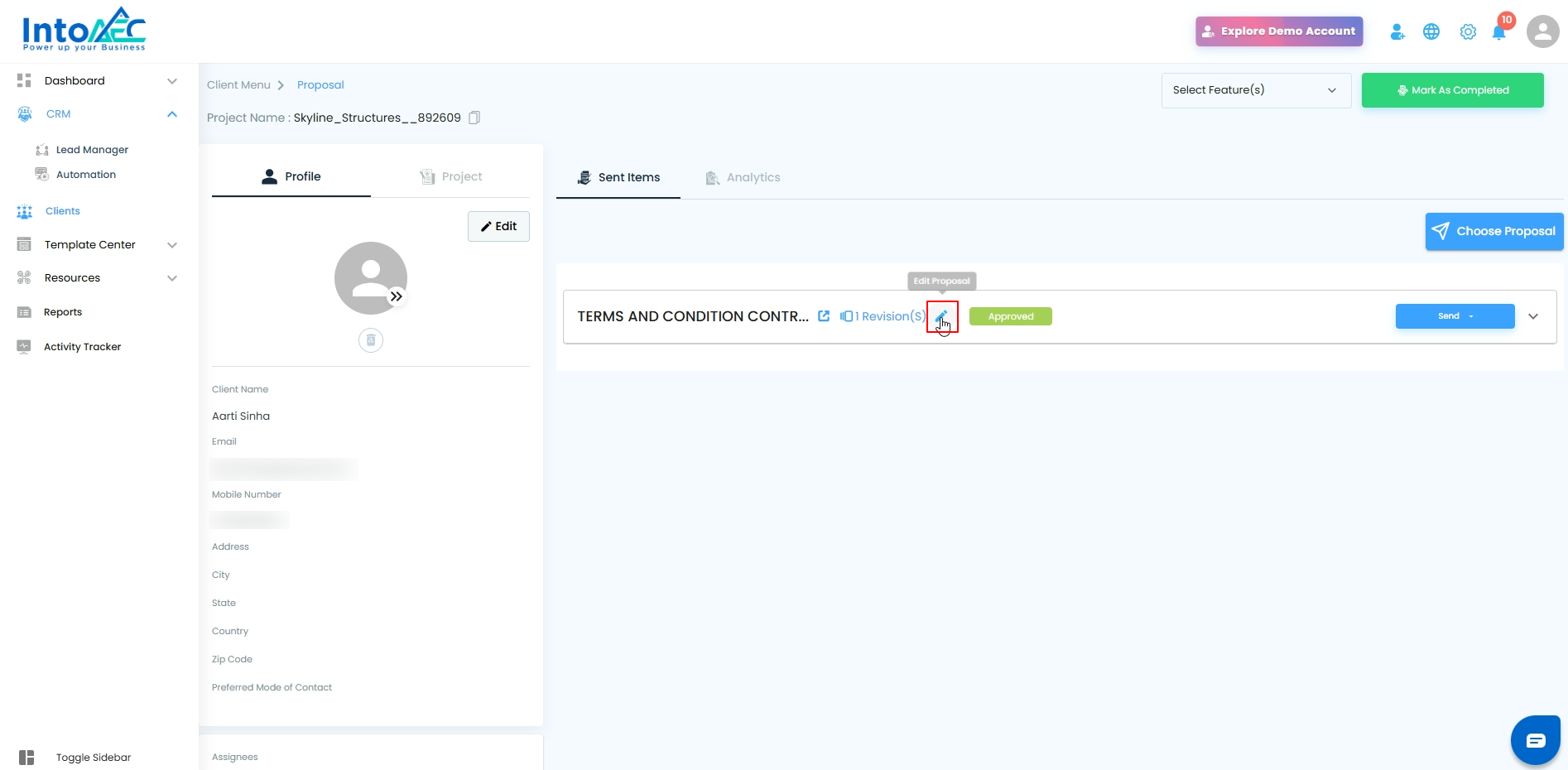
Make the necessary changes and click Next→ Request for Approval.
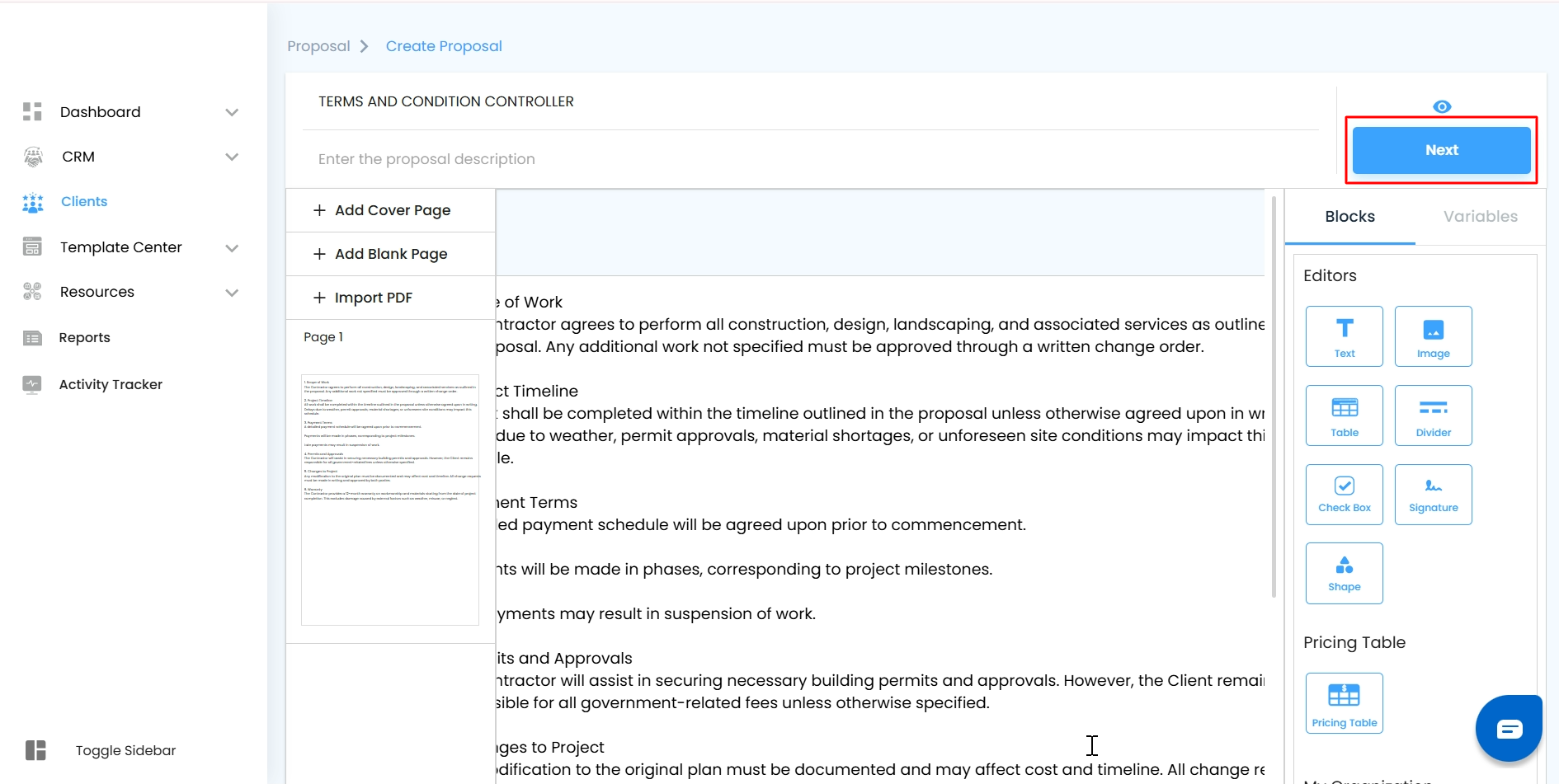
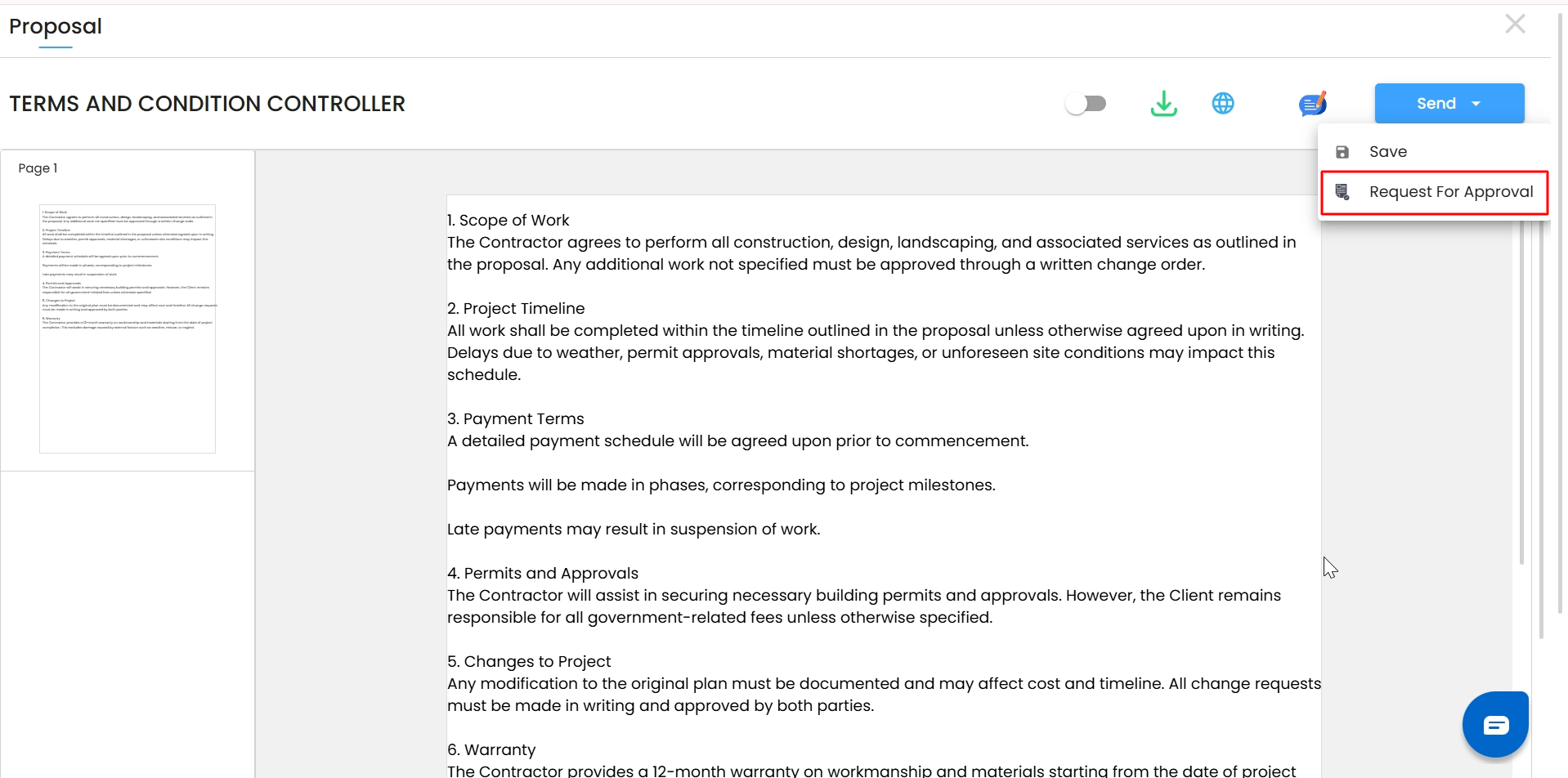
After editing:
A Revision Count will be displayed on the proposal.
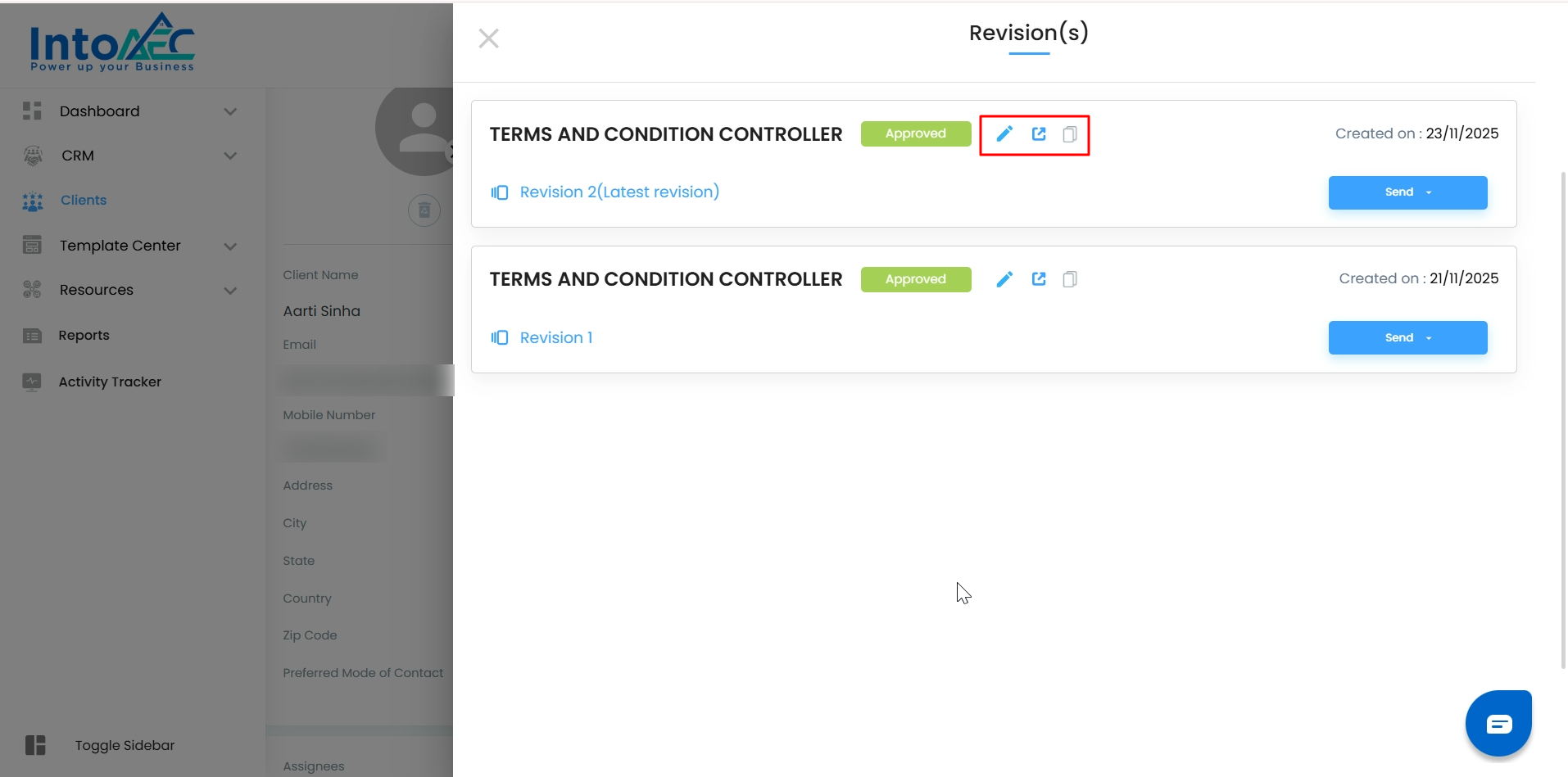
Clicking the revision count opens a half-screen panel showing the complete revision history.
Inside the revision history panel, you can access:
Preview
Edit
Copy Proposal Link
Sending the Revised Proposal
Once approved again by the Super Admin:
Click Action.
Select the method to send the revised proposal to the client.
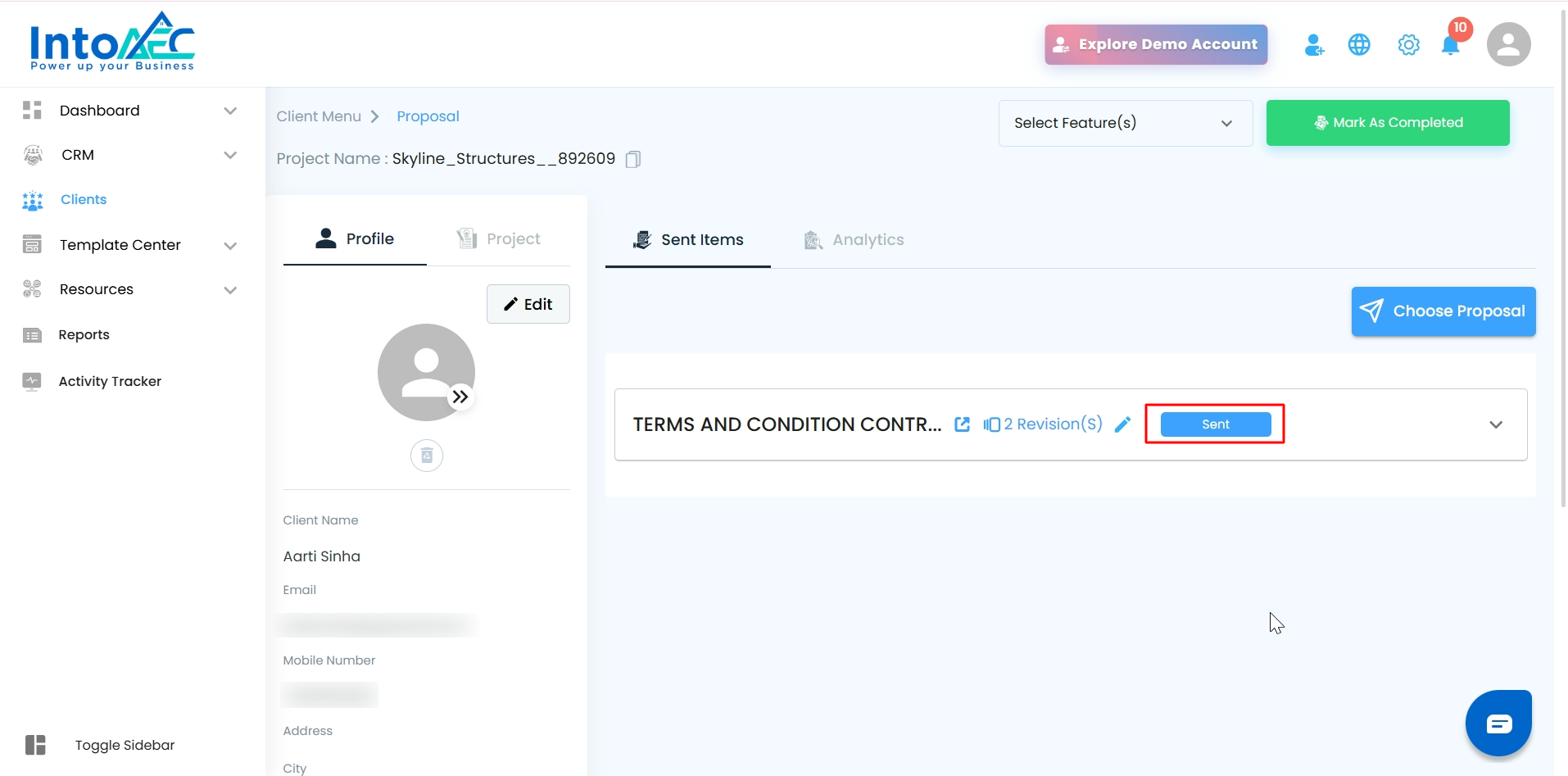
After sending, the proposal will show:
Status: Sent
Updated revision count
Revision History & Tracking
Every time a revision is submitted:
The Revision Count increases
All previous versions remain stored for accountability
The status stays as Pending Approval until approved
Users and admins can track what changed and when
This ensures a transparent workflow and a clean documentation trail.
Pro Tips
Use revisions instead of recreating proposals—this keeps your audit trail clean and organized.
Add clear comments in the internal notes section to explain why the revision was made.
Ensure all required fields are updated before resubmitting to avoid multiple approval cycles.
Was this article helpful?
That’s Great!
Thank you for your feedback
Sorry! We couldn't be helpful
Thank you for your feedback
Feedback sent
We appreciate your effort and will try to fix the article