The Lead Set Reminder feature in intoAEC helps you schedule follow-ups for leads so you never miss an important call, meeting, or action. Reminders are optional, easy to manage, and fully flexible.
Where to Find Lead Reminder
Path:
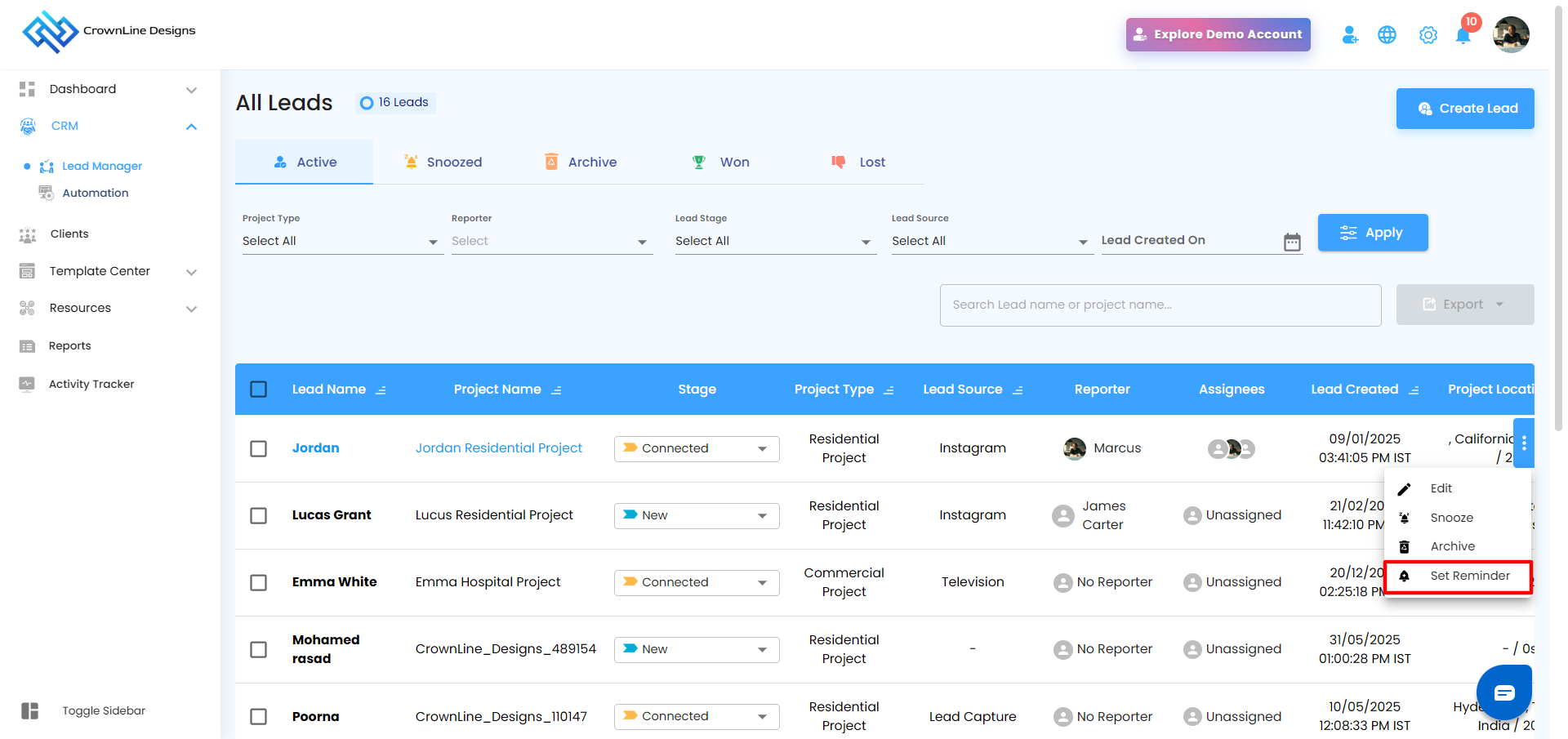
CRM → Lead Manager → All Leads → Active Leads
Each lead row has a three-dot (⋮) menu
Click Set Reminder (bell icon)
How to Set a Reminder
Click Set Reminder from the lead’s three-dot menu
The Set Reminder popup opens
Fill in the required details
Click Create
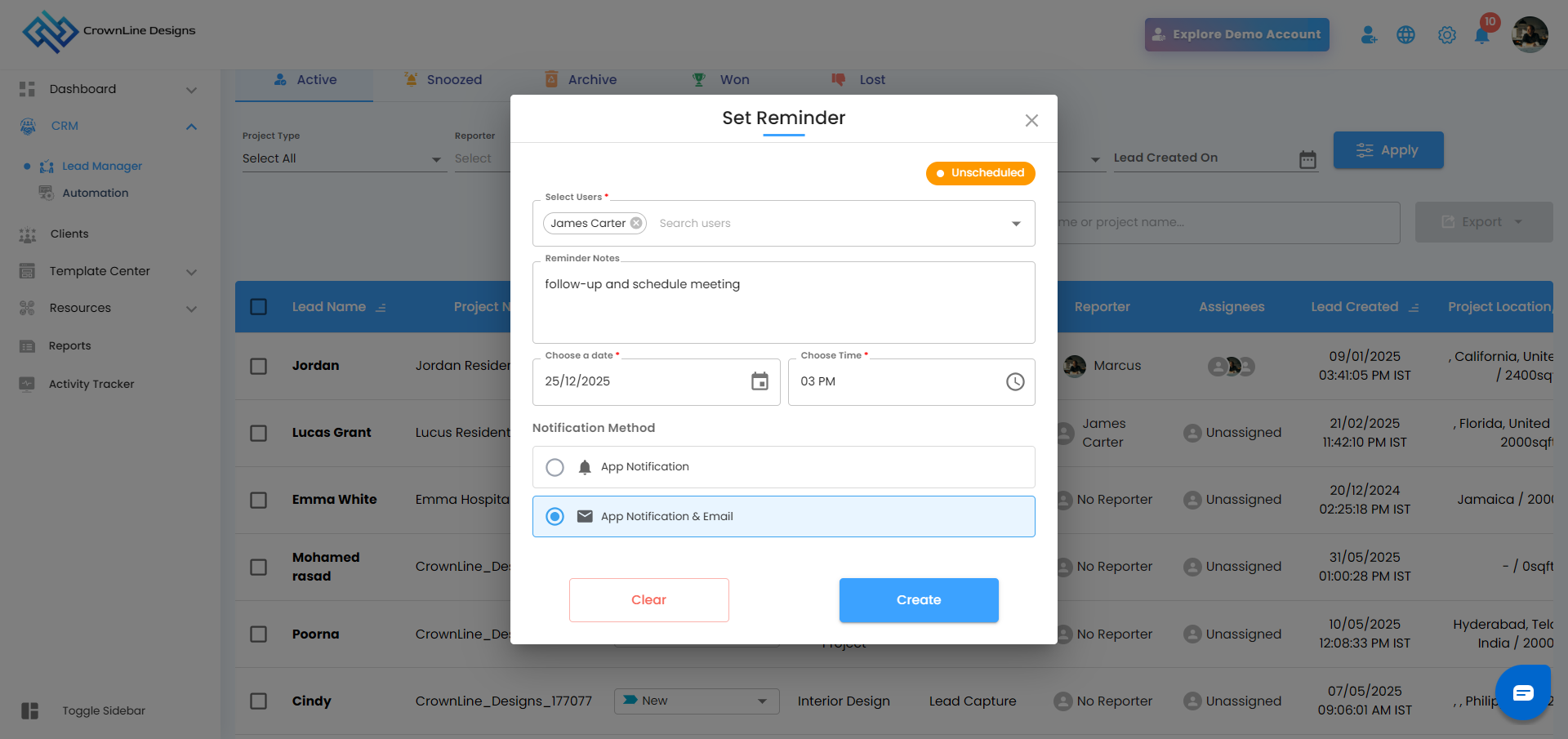
Set Reminder Fields
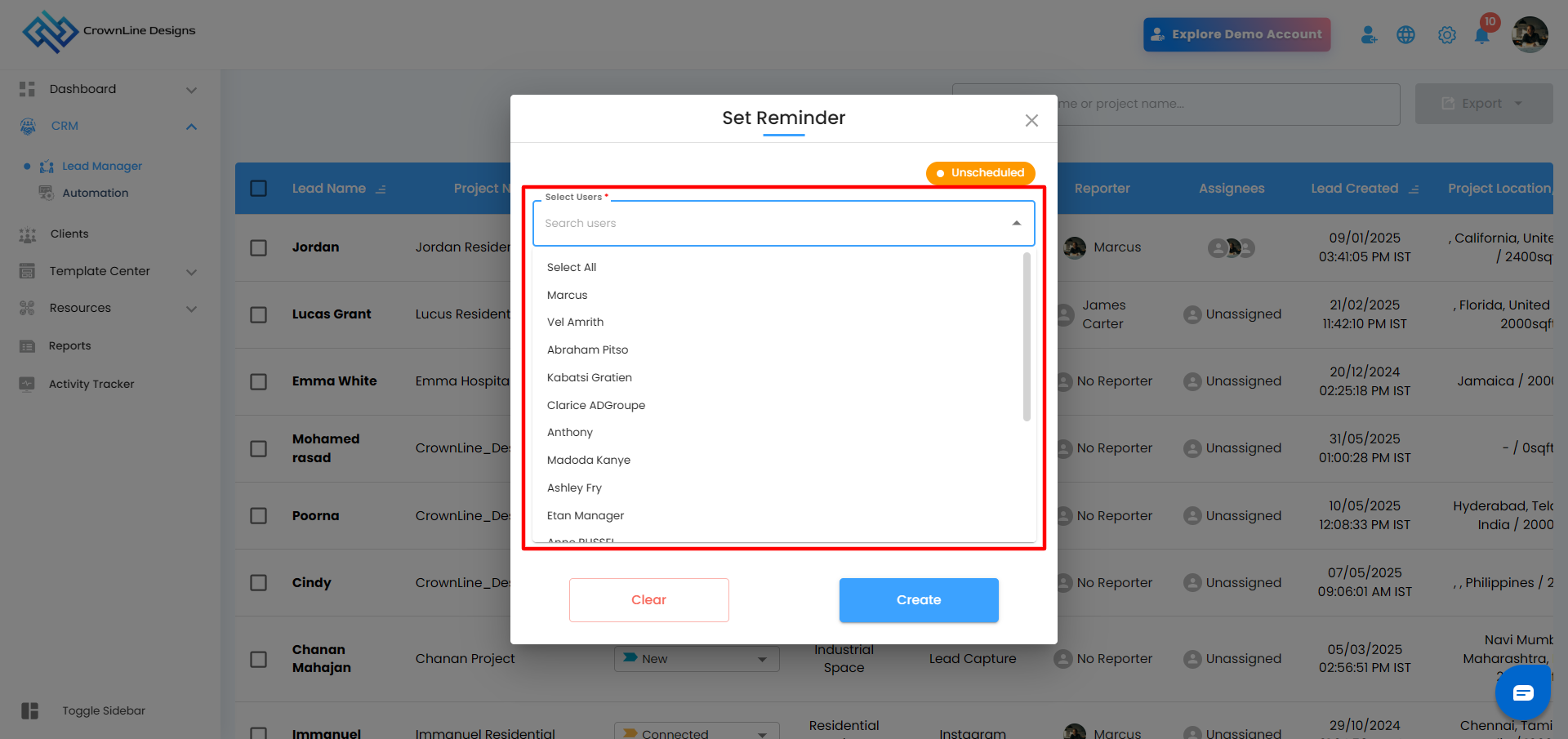
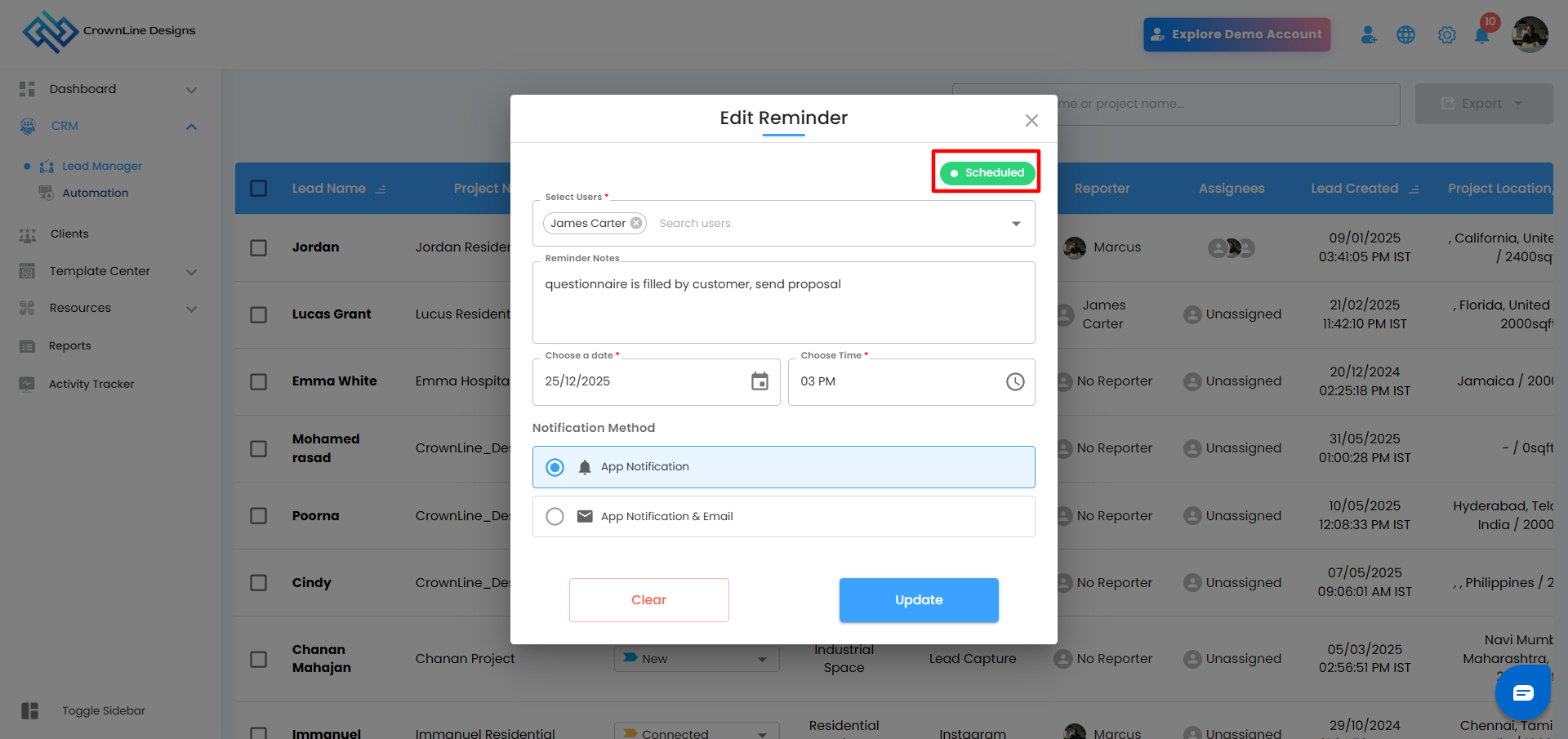
Select Users *
Choose who should receive the reminder.
User selection logic:
No reporter & no assignee → all users shown
Only reporter → reporter shown
Assignees added → only assignees shown
Includes Select All and individual users
Reminder Notes
Optional notes for context
Choose Date * & Choose Time *
Select a future date and time
Past date/time not allowed
In edit mode past values are highlighted in red
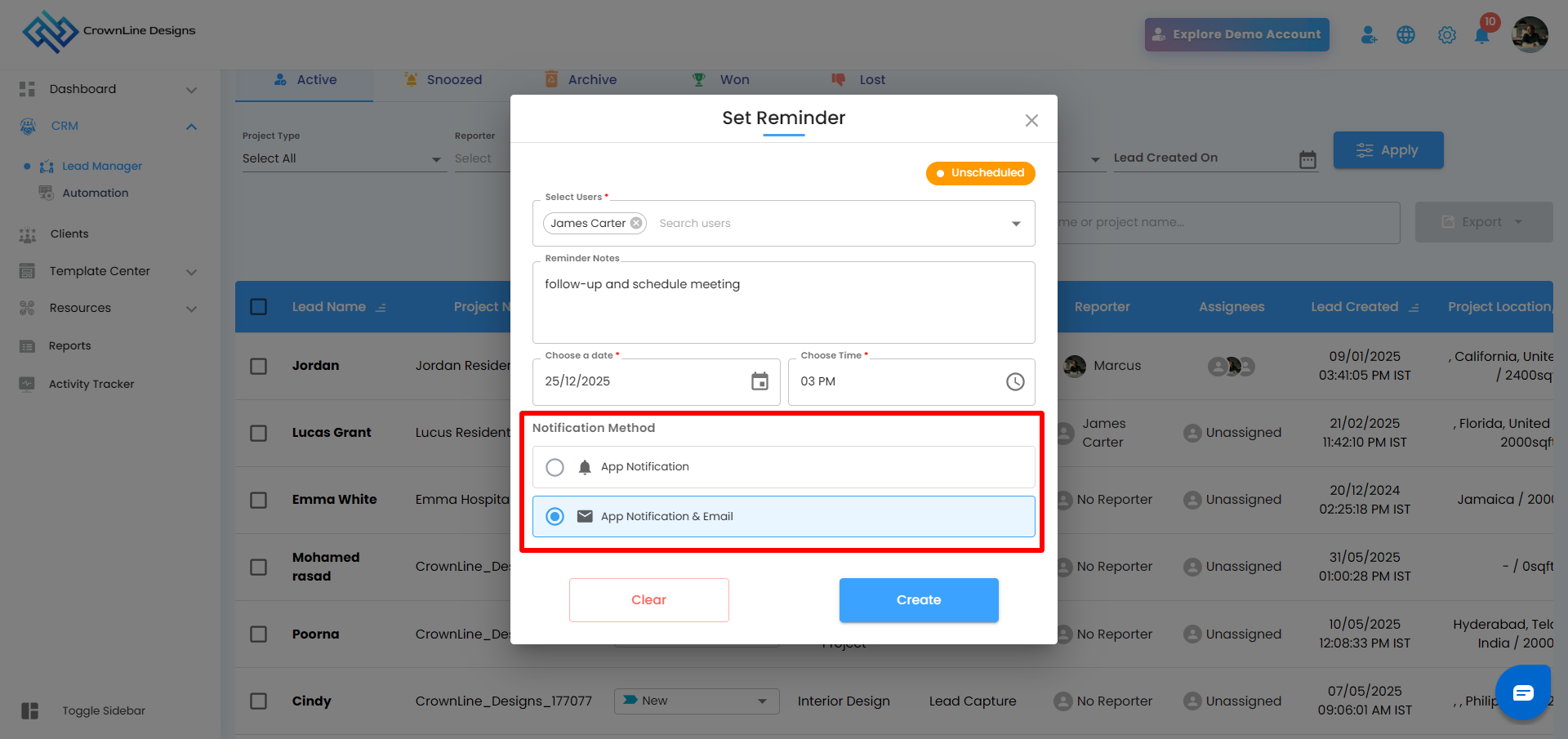
Notification Method
Choose how you want to be notified:
App Notification
App Notification & Email
Reminder Status & Actions
Unscheduled → Scheduled
Initially shows Unscheduled (orange)
After saving, changes to Scheduled (green)
Create button becomes Update
Success message:
“Reminder set successfully”
- Once the reminder notification (in-app and/or email, based on the selected notification method) is delivered, the status updates to Sent.
Edit or Delete a Reminder
Edit
Update users, notes, date, time, or notification method
Click Update to save changes
⚠️ If a past date/time is selected, you’ll be prompted to choose a future one.
Delete
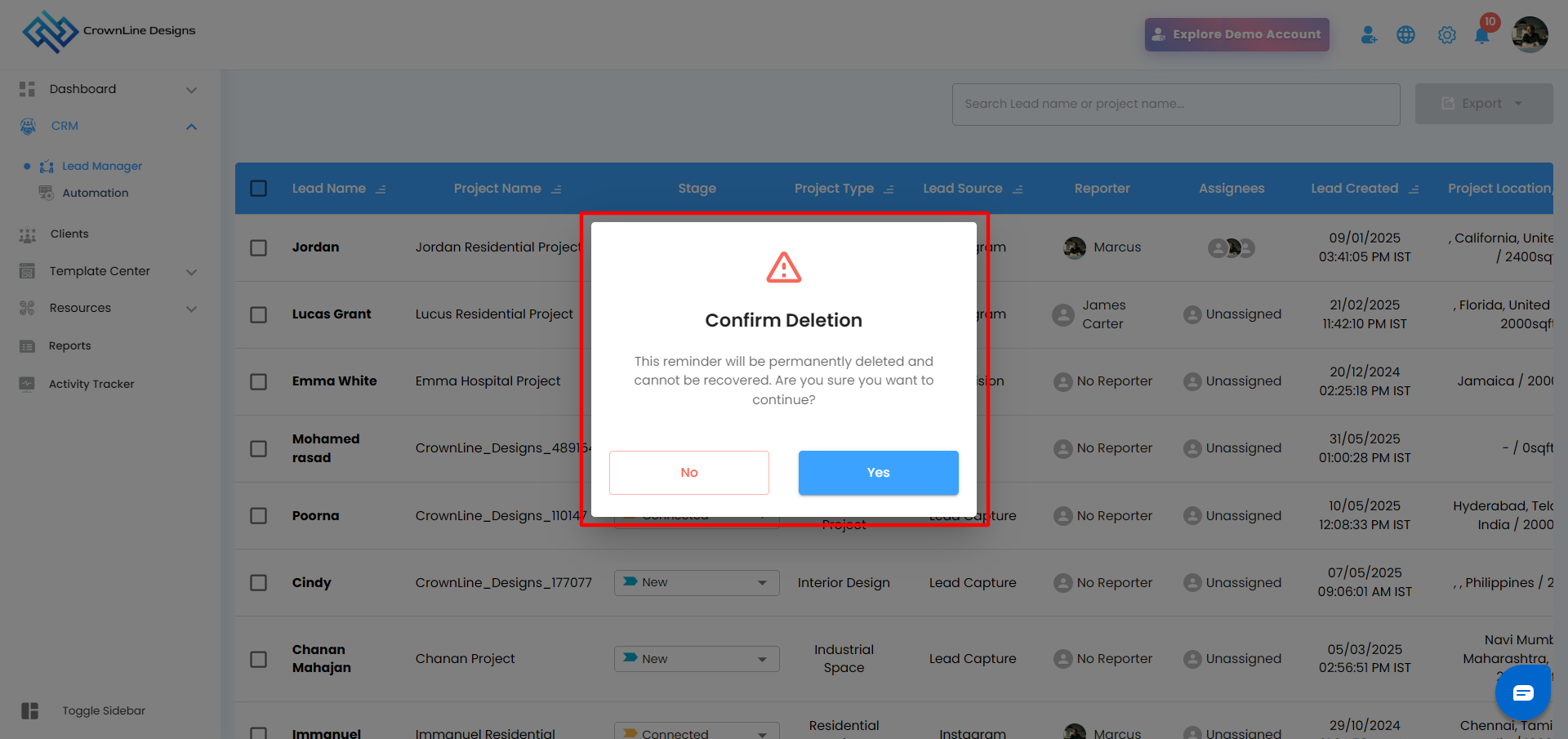
Click Clear
Reminder is removed
Success message:
“Reminder deleted successfully”
After scheduling, the reminder is delivered to the selected user(s) via in-app notification or in-app notification and email, as per the chosen notification method.
Was this article helpful?
That’s Great!
Thank you for your feedback
Sorry! We couldn't be helpful
Thank you for your feedback
Feedback sent
We appreciate your effort and will try to fix the article