.
Lead Management – Your Client Engagement Hub
Managing leads effectively is the lifeblood of a thriving business. The Leads section empowers your team to organize, track, and act on potential clients seamlessly. With features like Active, Snoozed, Archived, Won, and Lost, you can monitor the full journey of each lead and ensure nothing falls through the cracks.
No more messy spreadsheets or missed opportunities—every lead is visible, actionable, and ready for follow-up.
What You Can Do Here
View All Leads
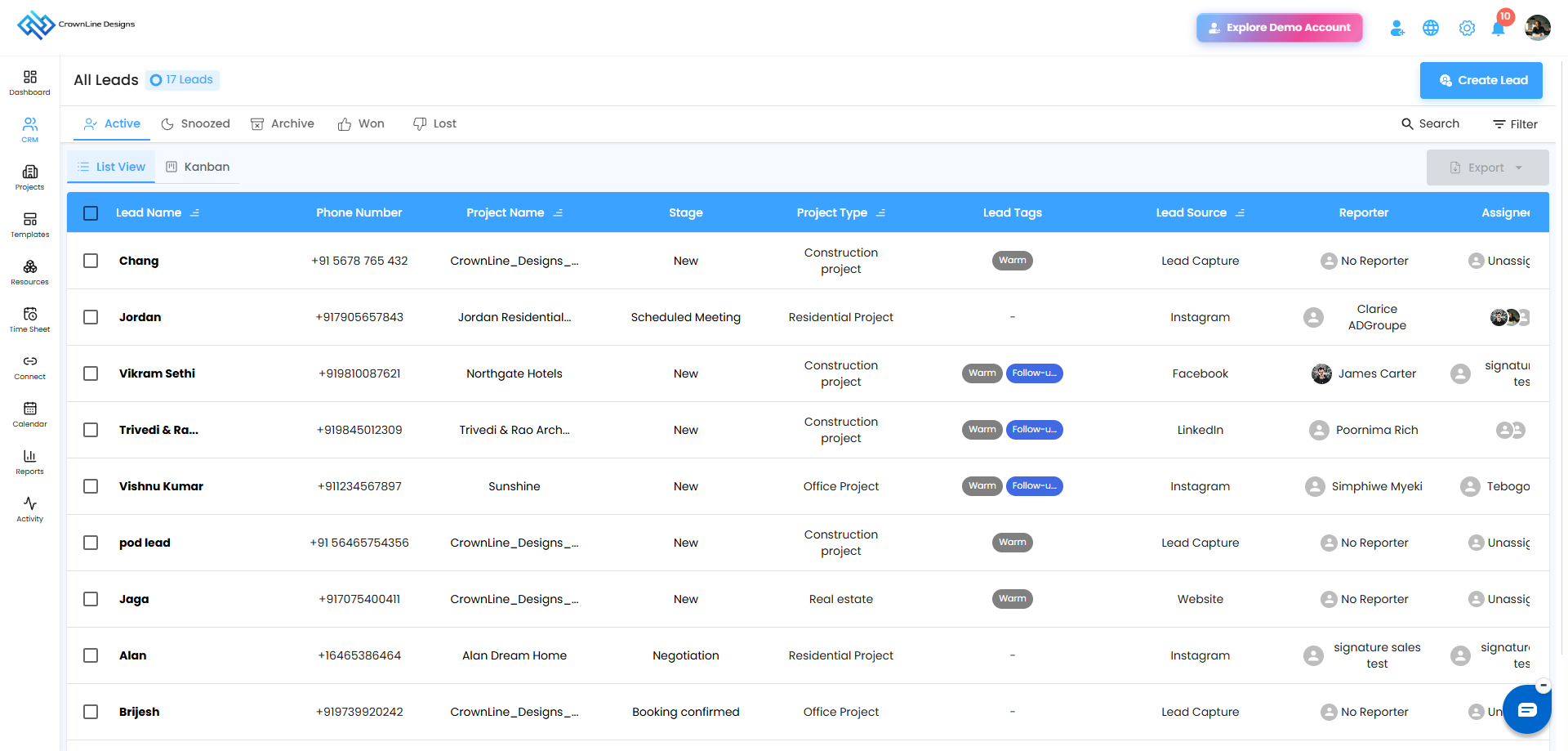
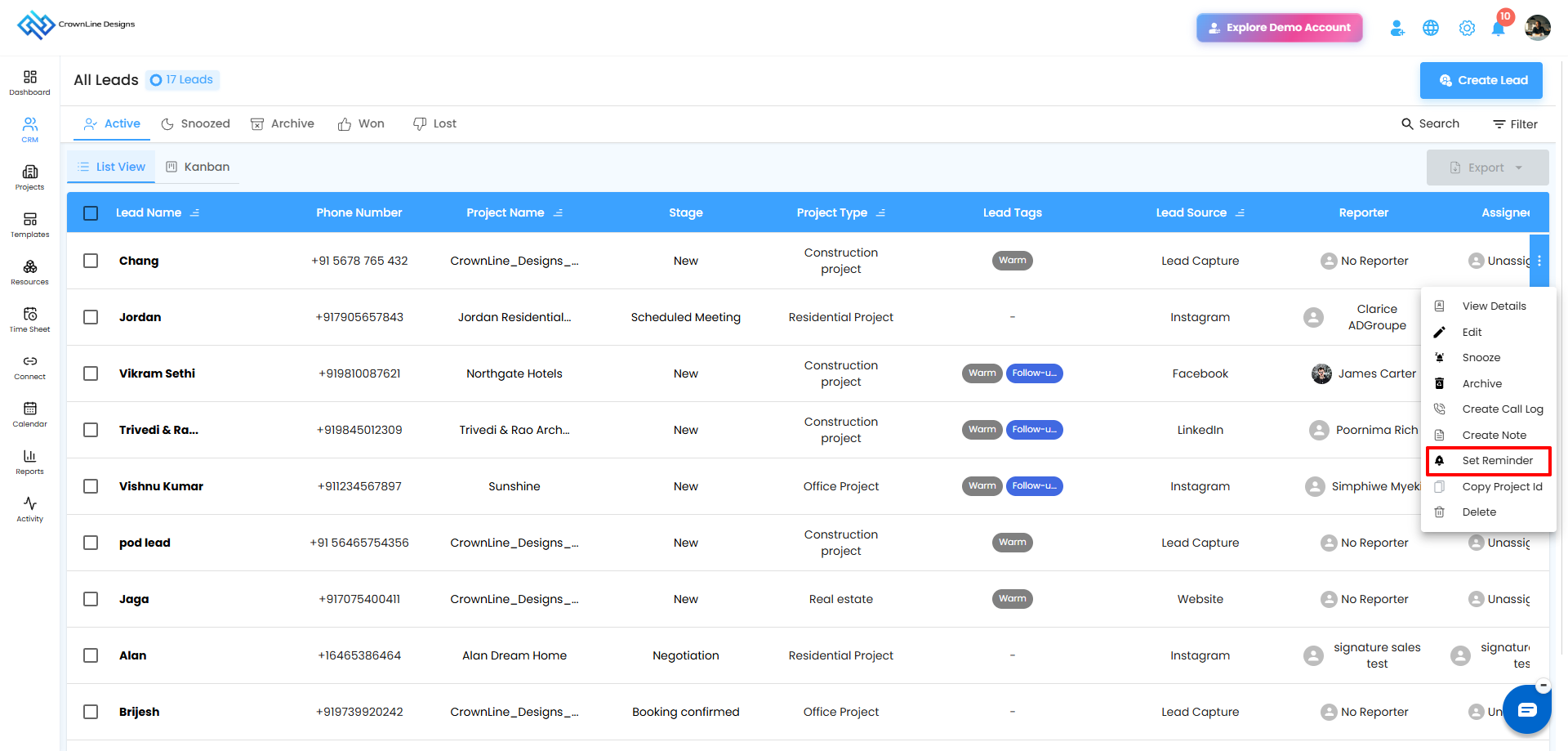
By default, only Active Leads are displayed. Each lead is presented in a clean, structured layout, giving you instant insight into its status. You can also search or filter to locate specific leads quickly.
Lead Details at a Glance
Lead Name: Displays the name of the lead.
Stage: Track the lead’s progress— you can setup your stage under settings-preferences or add new stage in Kanban view
Project Type: The type of project associated with the lead.
Lead Tags: Assign tags to every leads, you can setup tags under settings-preferences
Project Area: Location or area relevant to the project.
Lead Source: How the lead was generated (e.g., referral, website, event).
Assigned: The team member managing this lead.
Lead Created: The date the lead was added.
Project type: The type of the project will be displayed.
Project name : The name of the project will be displayed.
Actions You Can Perform
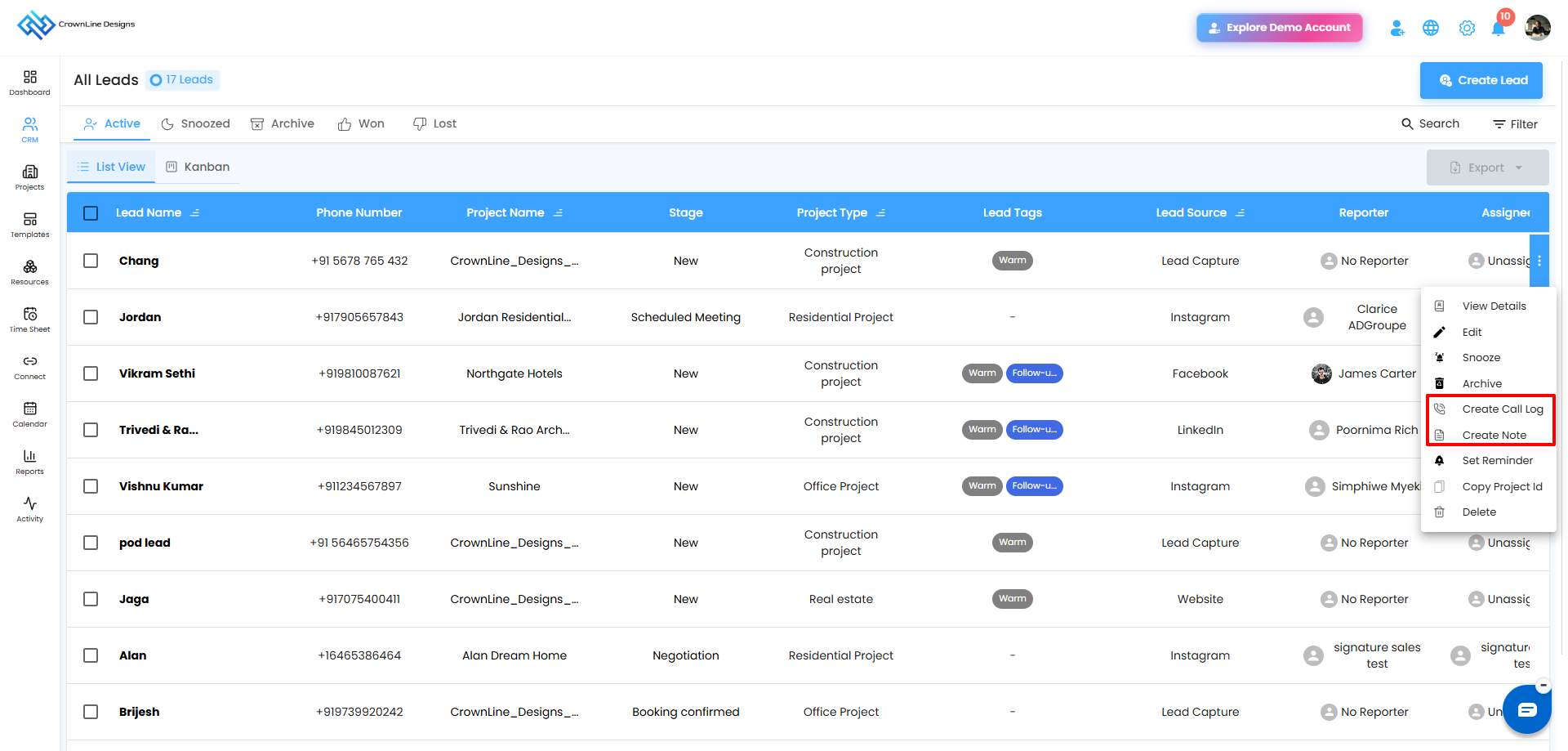
Notes and Call Log Quick Access in Lead Manager
Users can now access Create Note and Create Call Log options directly from the Lead Manager action menu. This makes it faster to record lead discussions, call updates, and follow-up notes.
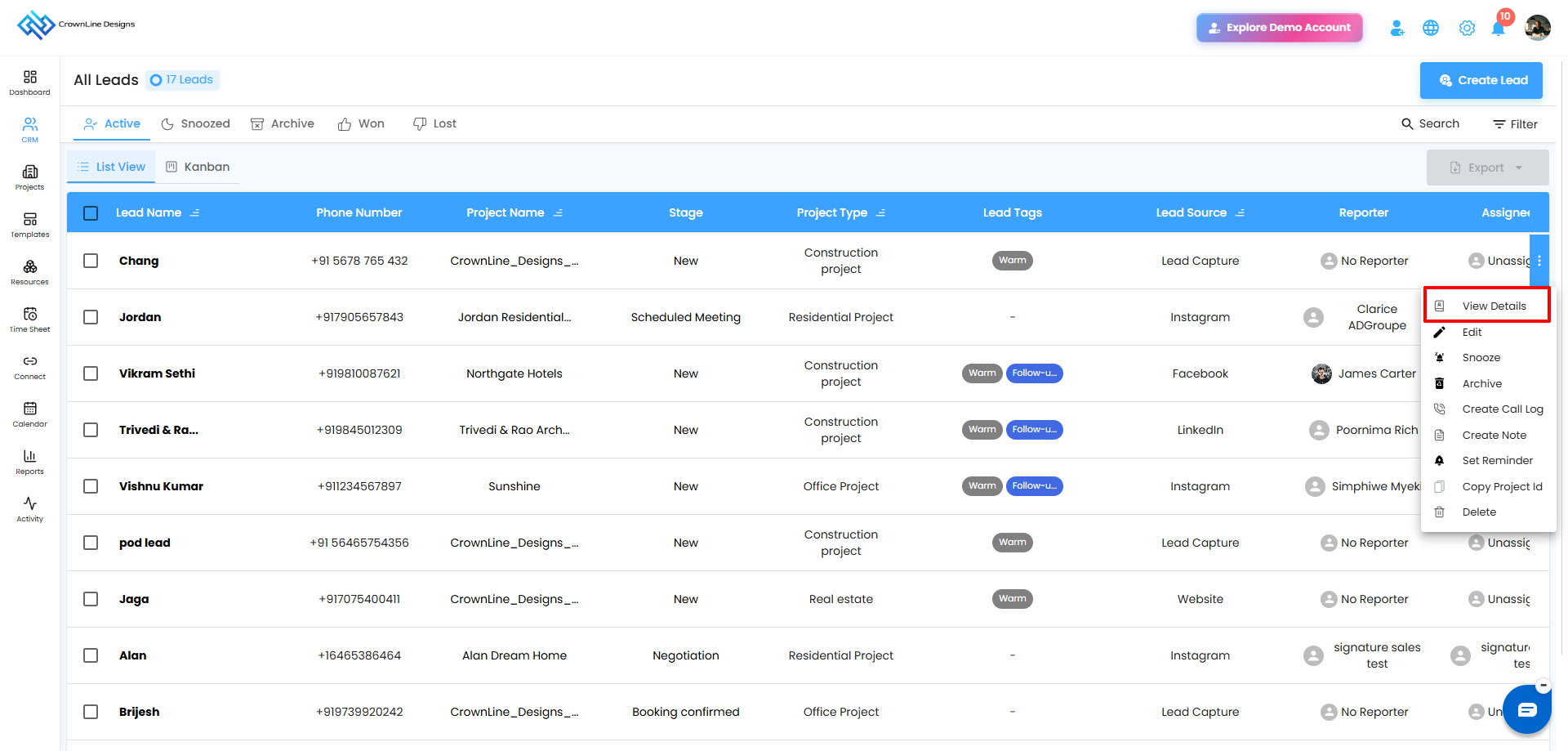
View Details
Click on view Details in List / Kanban view to see the overview of the leads including Lead name, Project name, Email, Phone, Project Type, Location, Reporter and Assignee.
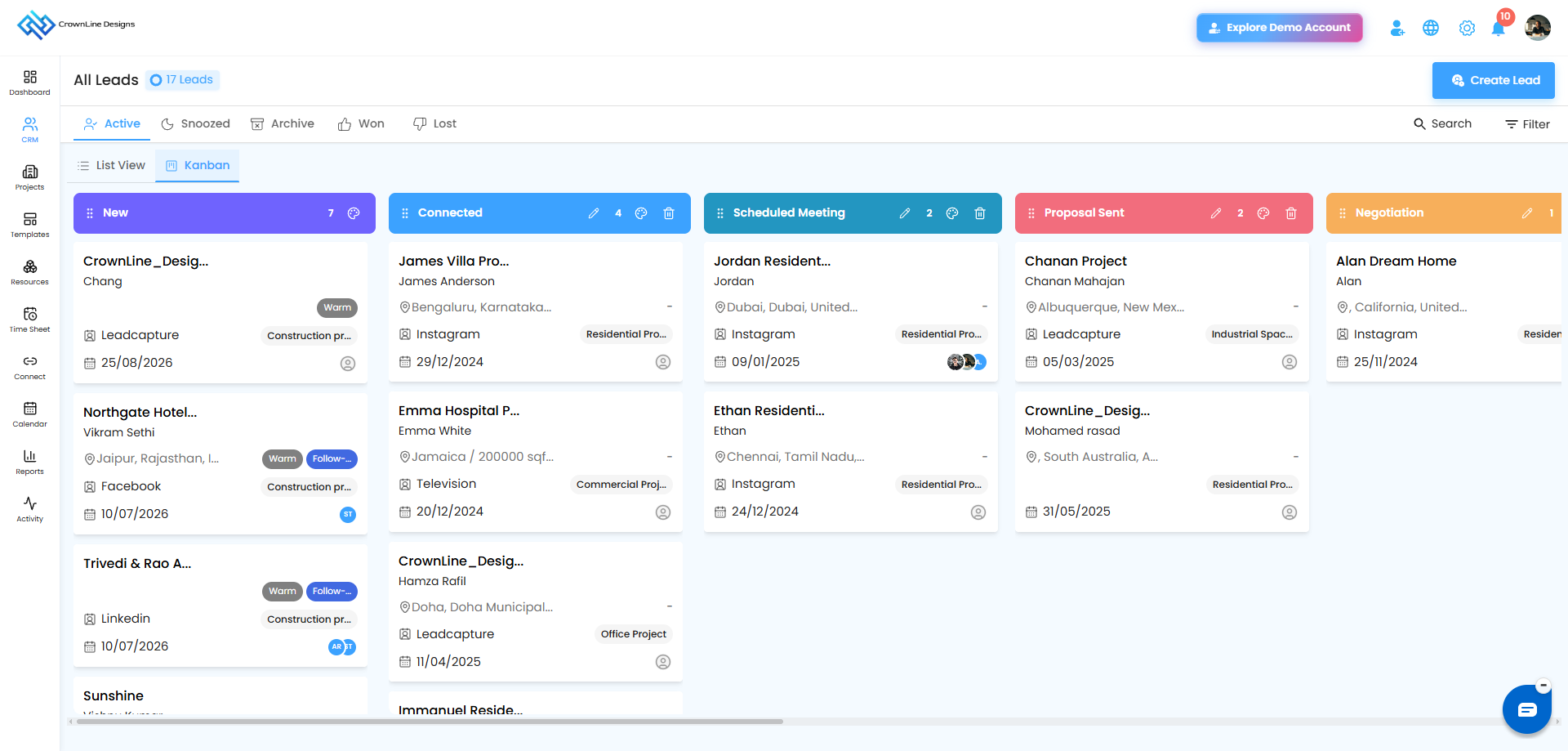
Kanban View
Managing leads becomes faster and more intuitive with the Kanban View. Instead of browsing through rows in a list, you can switch to a visual board layout where every lead appears as an interactive card. This makes it easier to track progress, manage stages, and keep your sales workflow organized at a glance.
Each lead is displayed in an organized card format, helping your team quickly understand project and lead details without opening the full profile.
What You Can Do in Kanban View
Drag lead cards from one stage to another.
Instantly update the lead status visually.
Track progress across the pipeline in real time.
Help teams collaborate more efficiently with a clear workflow overview.
Every organization follows a unique sales process, and the Kanban board adapts to your workflow.
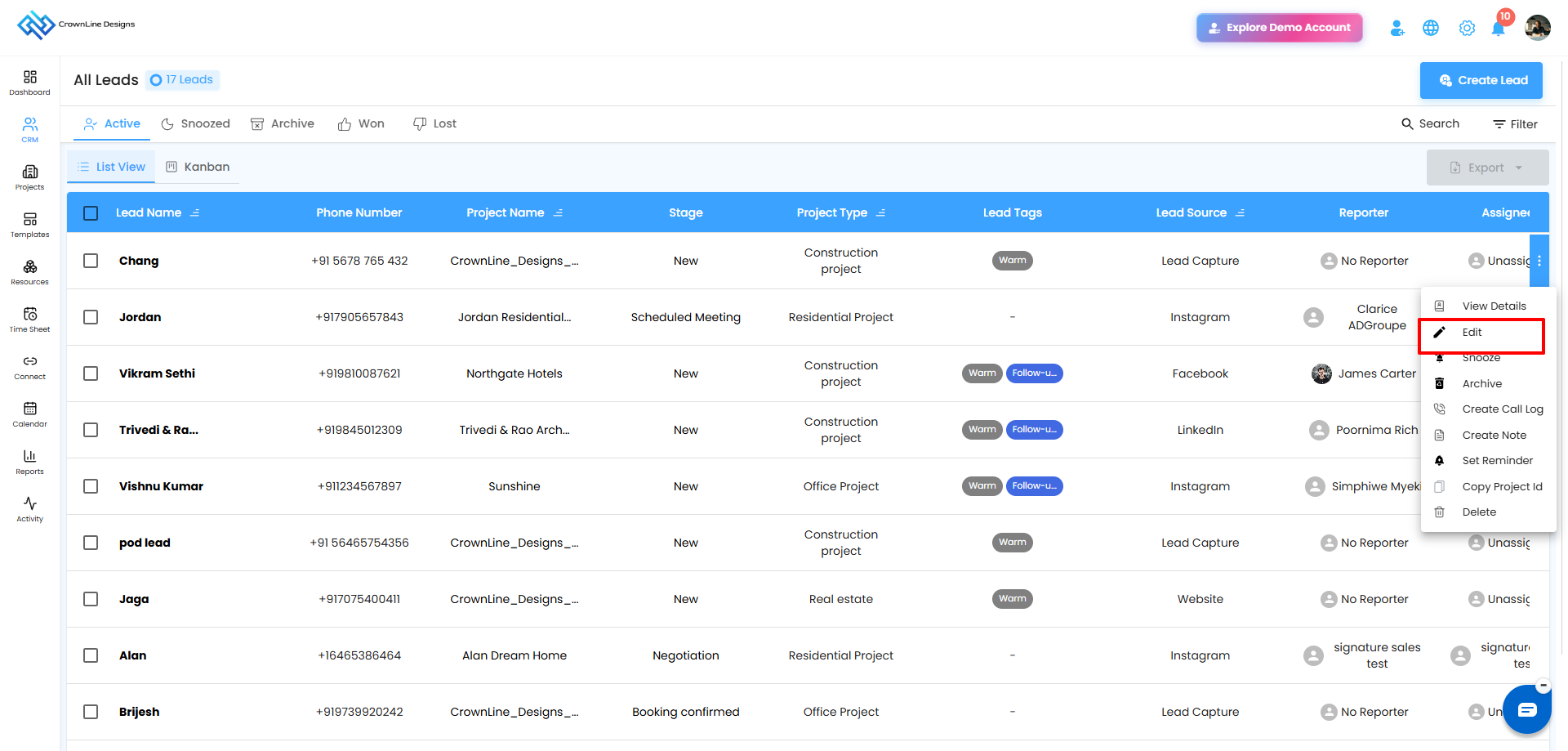
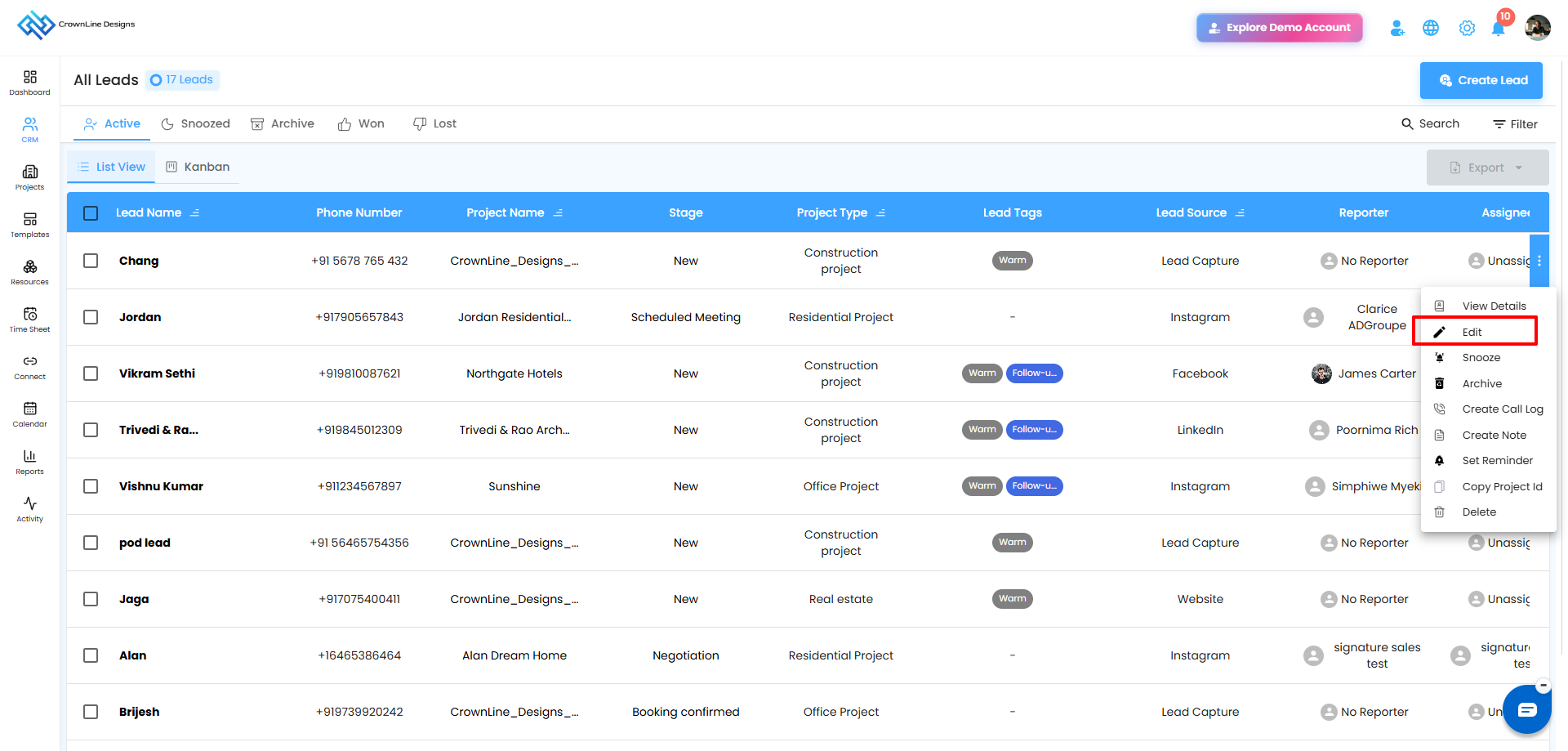
Edit Lead
Click Edit to modify lead information. Update details easily, and changes appear instantly in the Lead Master Grid.
Snooze Lead
Temporarily pause a lead without losing track:
Click Snooze.
Enter a reason and specify the snooze duration.
Confirm by clicking Yes.
The lead moves from Active to the Snoozed list.
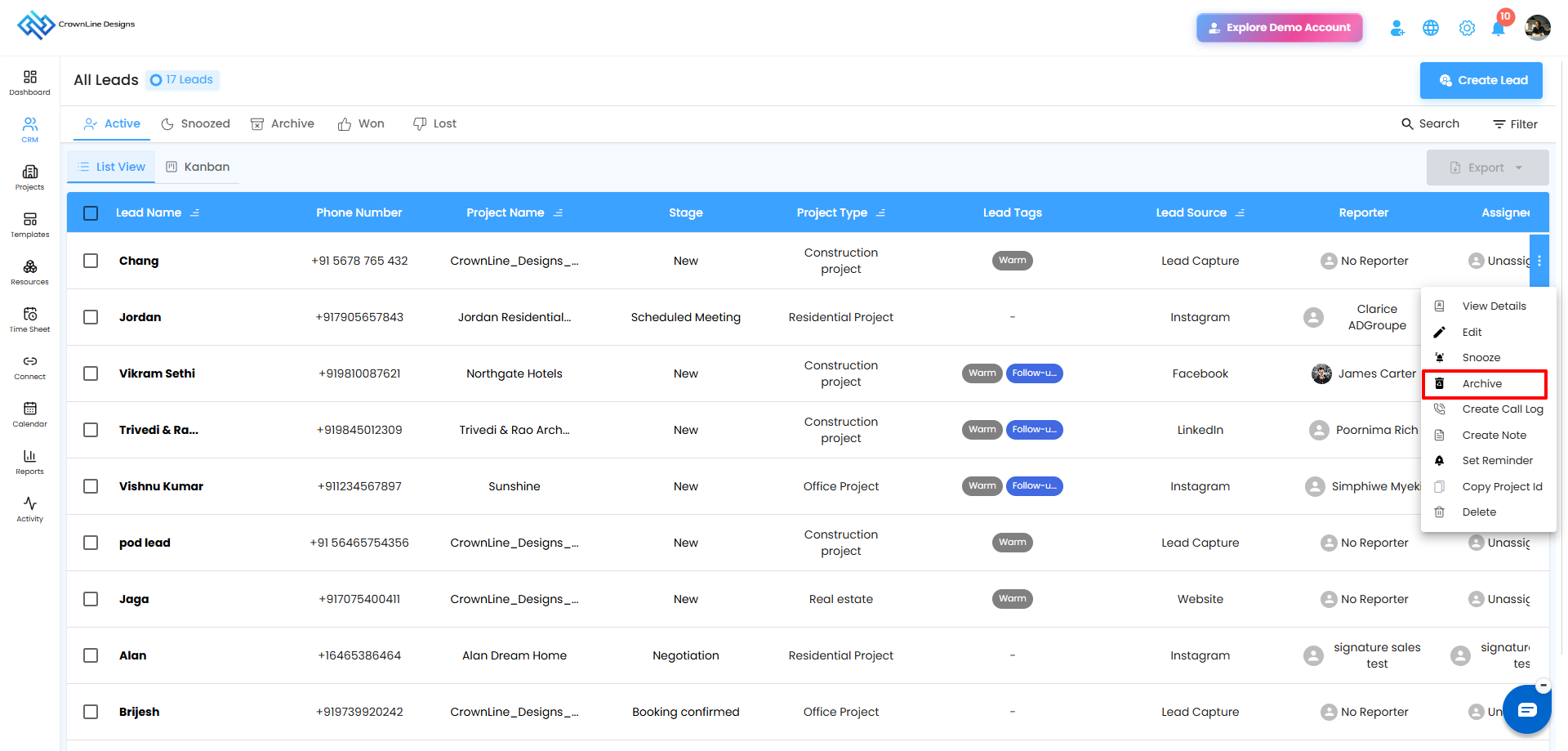
Archive Lead
Move old or inactive leads out of your active workflow:
Click Archive.
Provide a reason.
Confirm by clicking Yes.
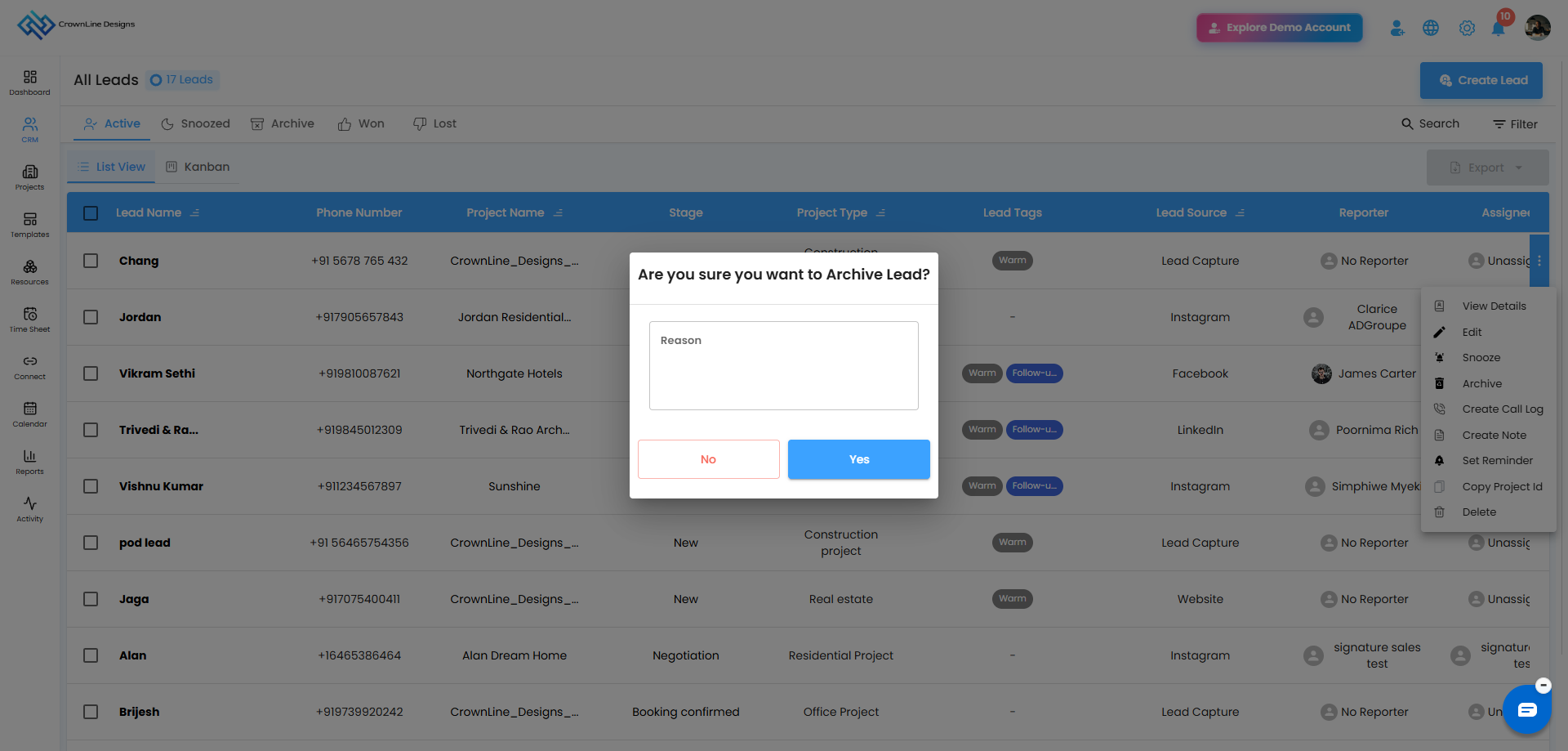
The lead will appear in the Archived list.
Set Reminder
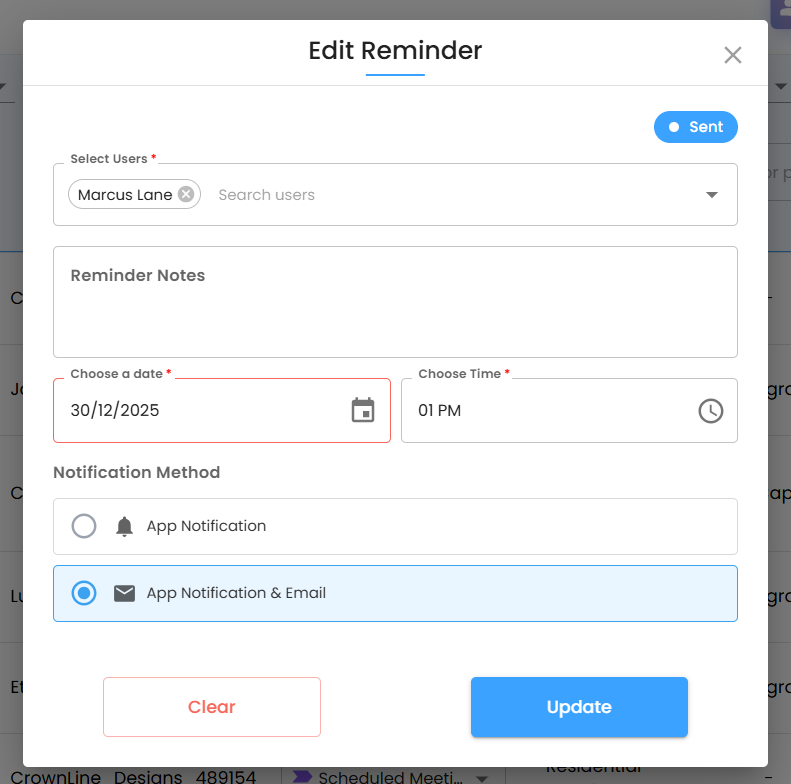
You can set the reminder for the leads by clicking the Set Reminder and a pop up box Edit Reminder opens.
In the Select Users field, choose the team member(s) who should receive the reminder by selecting from the list or searching by name. Add relevant details in the Reminder Notes section to clearly describe the purpose or action required. Then, select the date and time for the reminder—both are mandatory fields. Next, choose your preferred notification method, either App Notification or App Notification & Email, depending on the importance of the task. Once all details are filled in, click Update to save the reminder, or use Clear if you want to reset the fields.
Delete Leads
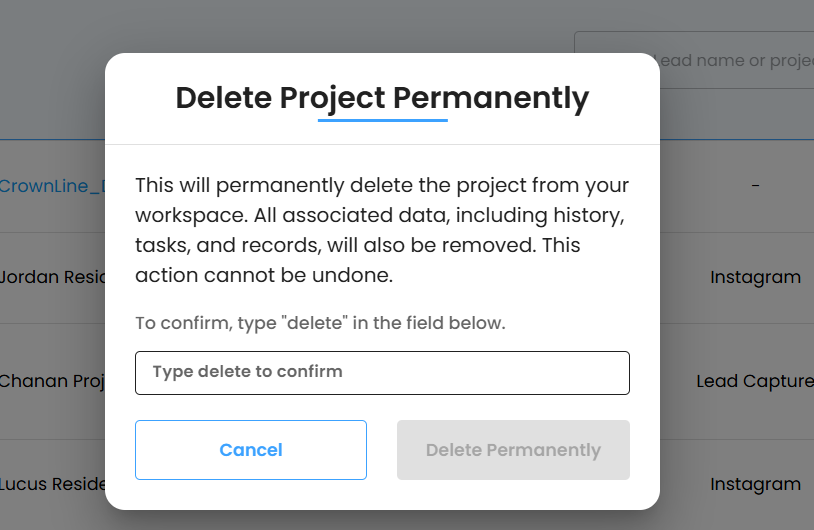
You can now delete the leads by choosing the delete option and a pop up window opens. To delete the lead you can type "delete" in the box below to confirm and all the data related to that particular lead will be deleted.
Working with Special Lead Lists
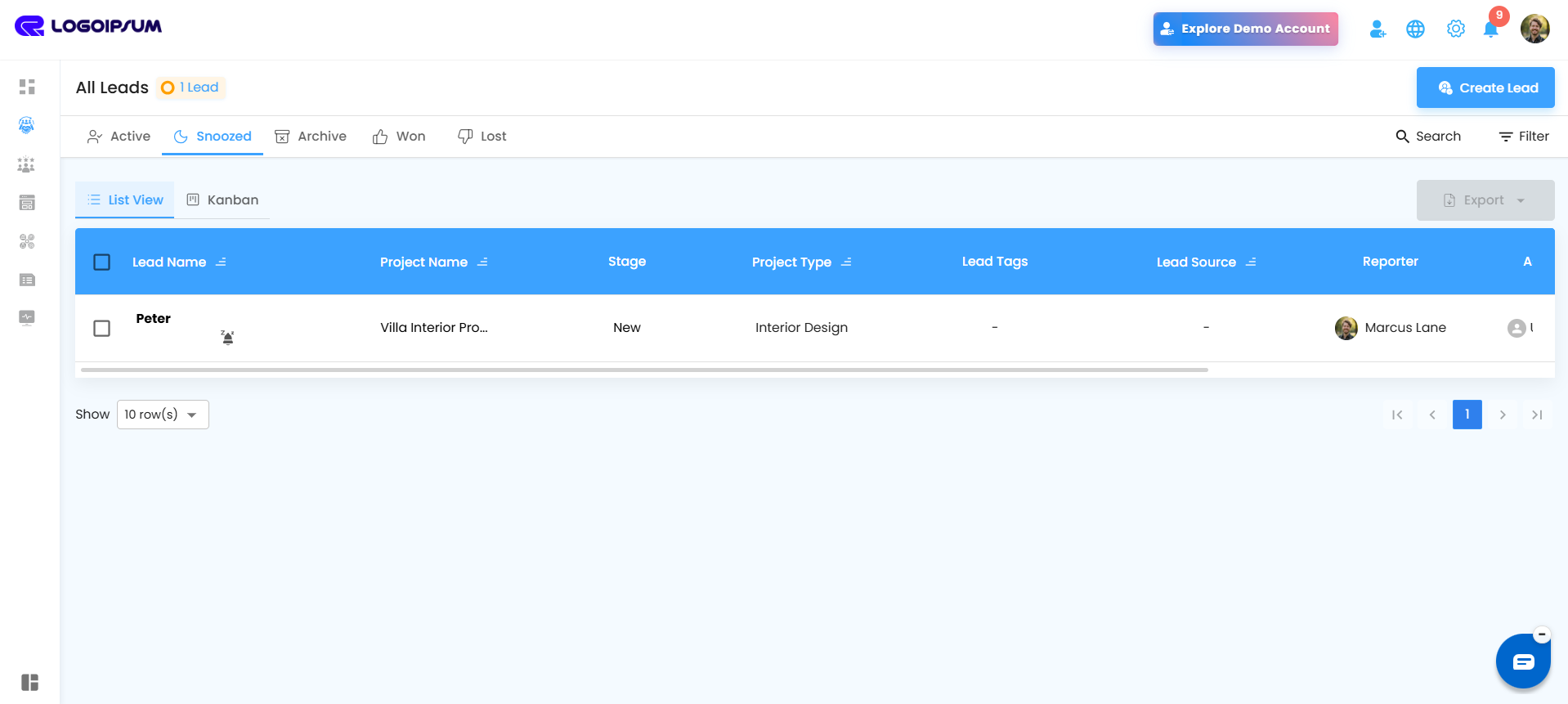
Snoozed Leads
View Detail: View the details of this Lead
Edit: Update lead information.
Make Active: Reactivate a snoozed lead. Enter a reason and it returns to Active.
Archive: Move to Archived if necessary.
Delete: Delete all data for that particular lead.
Archived Leads
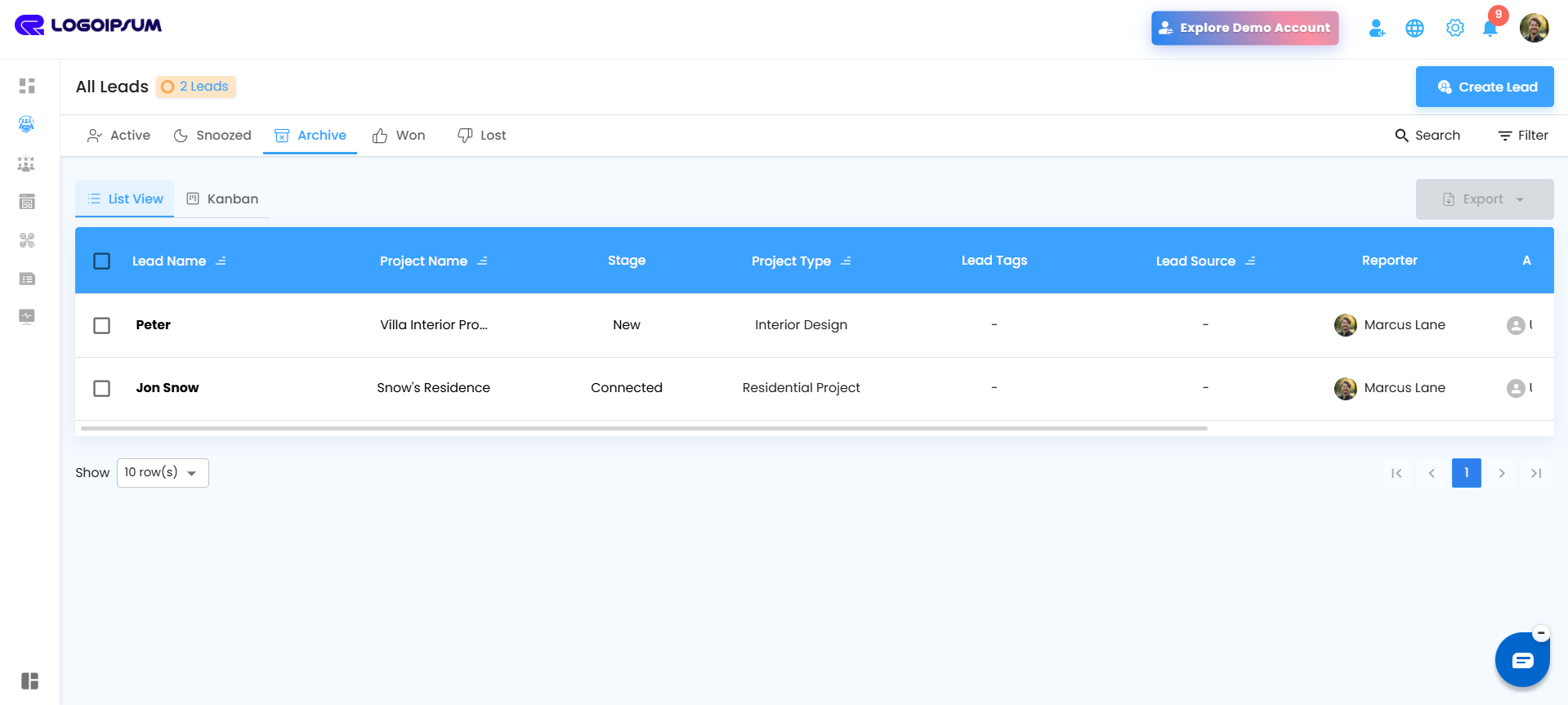
View :View the lead details
Undo: Restore archived leads to Active.
Edit: Update lead details directly from Archived.
Delete: Delete the lead and all its data
Won Leads
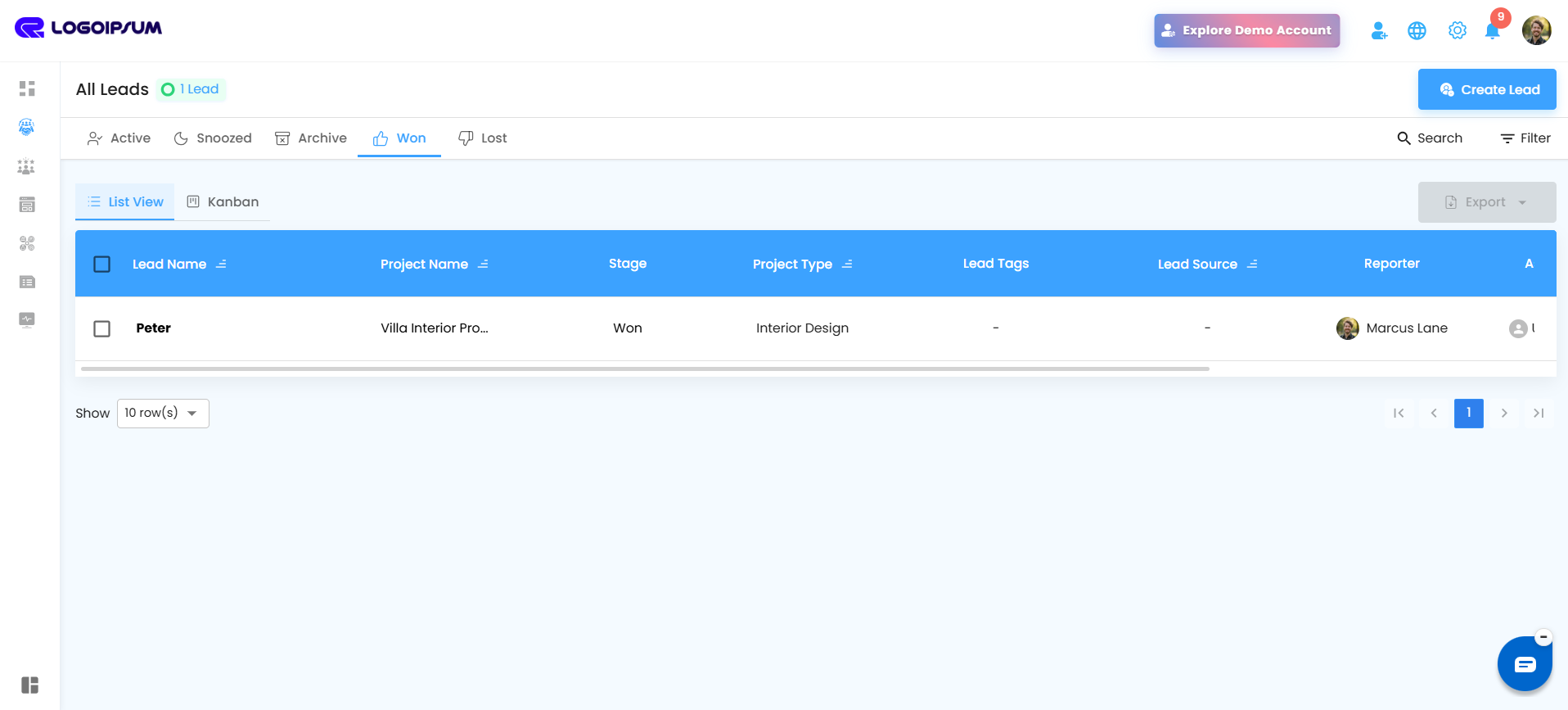
View All Won Leads
See every successfully converted lead in one place, complete with project details, lead source, type, reporter, and creation date.
Lost Leads
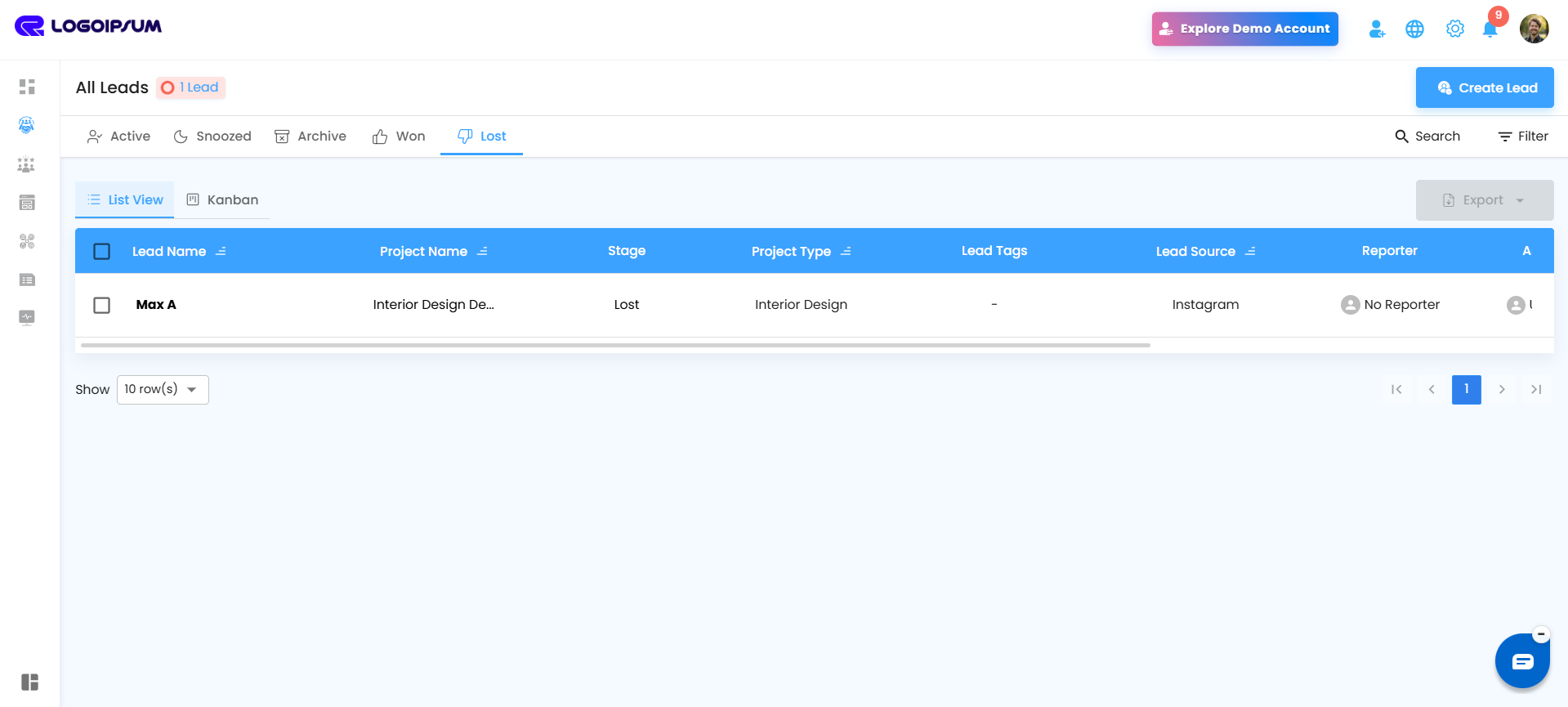
Edit: Update lead details directly from Lost.Snooze: Move the lead direclty to snooze.Archive: Move to Archived if necessary.
Edit: Update lead details directly from Lost.
Snooze: Move the lead direclty to snooze.
Archive: Move to Archived if necessary.
Track Performance Patterns
Spot trends easily—whether certain project types, sources, or timelines bring the best results.
Stay Read-Only, Stay Reliable
The Won tab is for viewing only. No edits or changes can be made here, ensuring your success records remain accurate, consistent, and secure.
Pro Tip
Revisit your Won Leads regularly to identify winning trends. Noticing which projects close faster or which sources bring high-value leads can guide your next strategy—and turn more potential leads into future wins
Filters for Precision Lead Management
Project Type
Select a project type from the dropdown and click Apply to update the table.
Lead Stage
Choose a stage and click Apply to filter leads accordingly.
Lead Source
Pick the lead source and click Apply to see relevant leads.
Assignee
Select a team member to view only their assigned leads, then click Apply.
Lead Created On
Set a date range and click Apply to filter leads based on creation date.
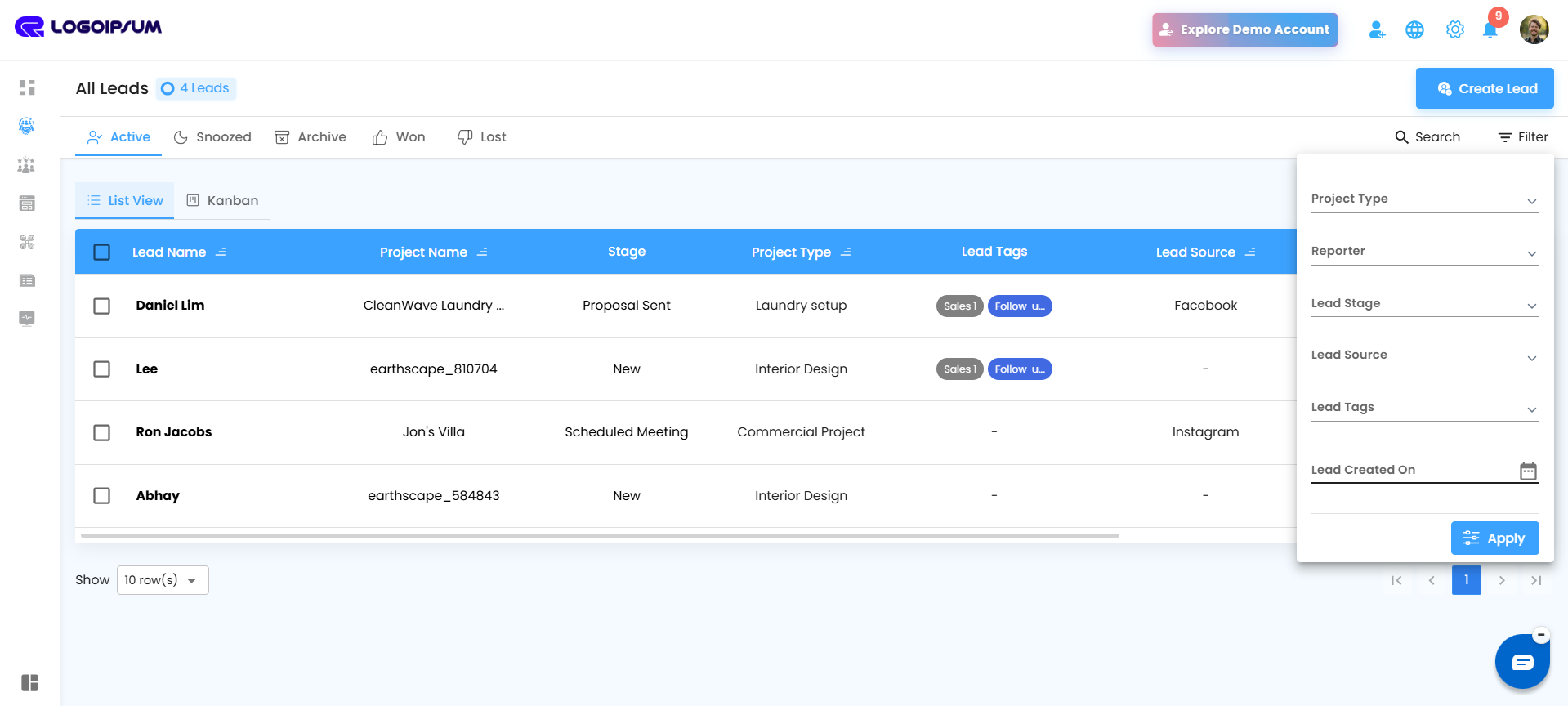
Pro Tip: Use filters strategically to focus on leads that need immediate attention and keep your pipeline moving smoothly.
Was this article helpful?
That’s Great!
Thank you for your feedback
Sorry! We couldn't be helpful
Thank you for your feedback
Feedback sent
We appreciate your effort and will try to fix the article