Goods Receipt (GRN)
The Goods Receipt Note (GRN) module in IntoAEC helps construction companies, architects, and engineering companies track the physical arrival of materials at project sites. It ensures that delivered quantities match approved Purchase Orders (POs) and maintains accurate inventory and cost control.
GRN acts as the critical bridge between Procurement and Inventory Management.
How to Access Goods Receipt
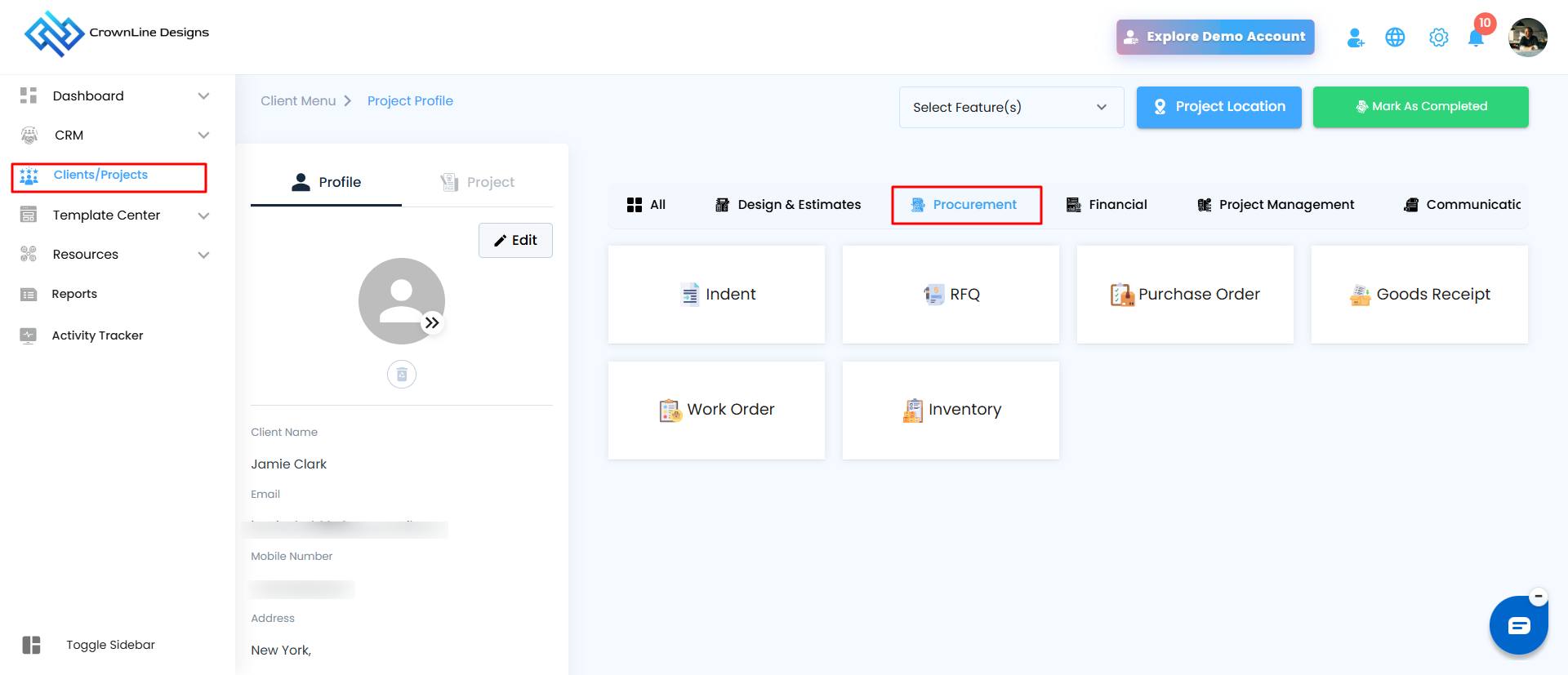
Navigate to Clients/Projects from the main sidebar.
Select the relevant project.
Click on Procurement.
Select Goods Receipt to open the GRN dashboard
How Materials Appear in the GRN Module
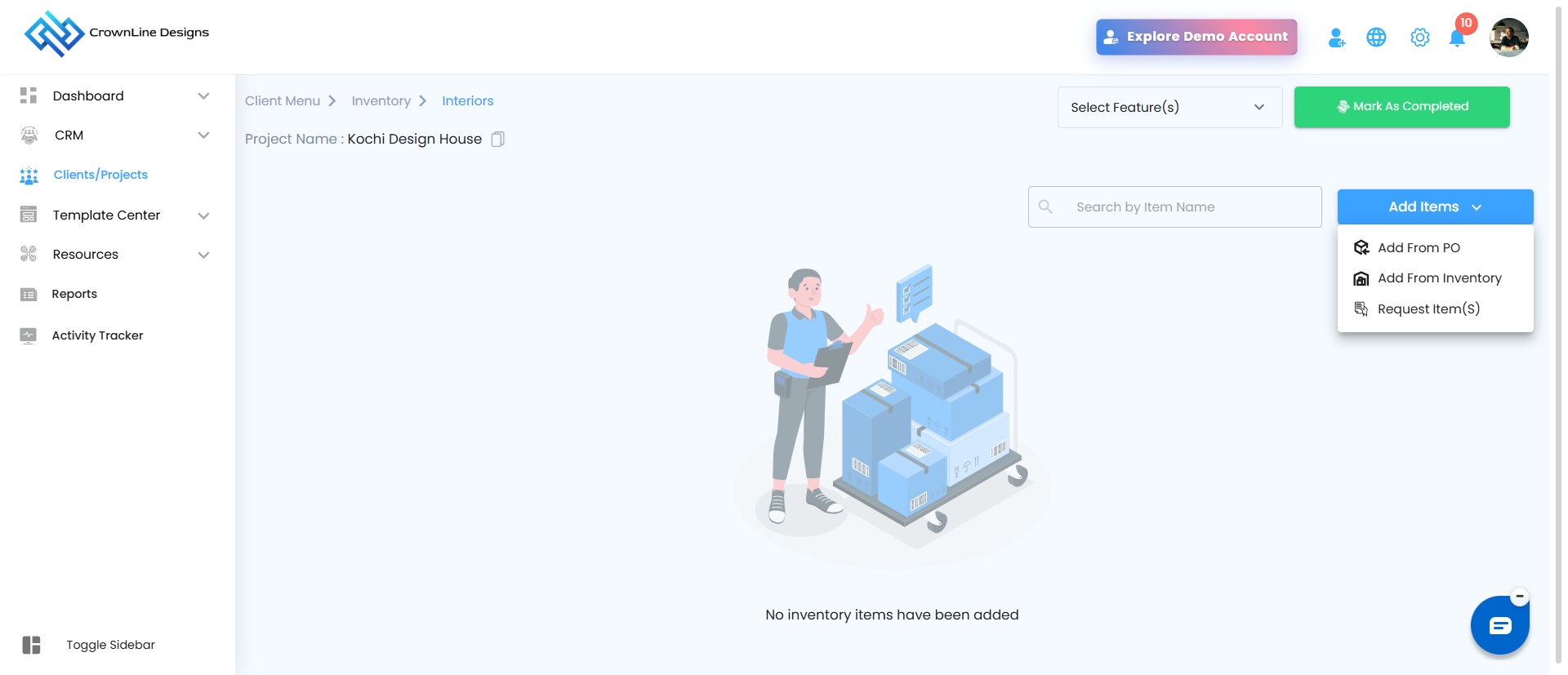
Materials enter the Goods Received section through two primary channels:
1️) Add from PO
Once a Purchase Order (PO) is approved, select Add from PO.The approved items are queued for receiving.These items automatically reflect in the Goods Received tab
2️) Inventory Requests
When materials are requested from existing stock,the request is converted into a Goods Received Note to track internal movement to the project site.
Goods Received Dashboard Overview
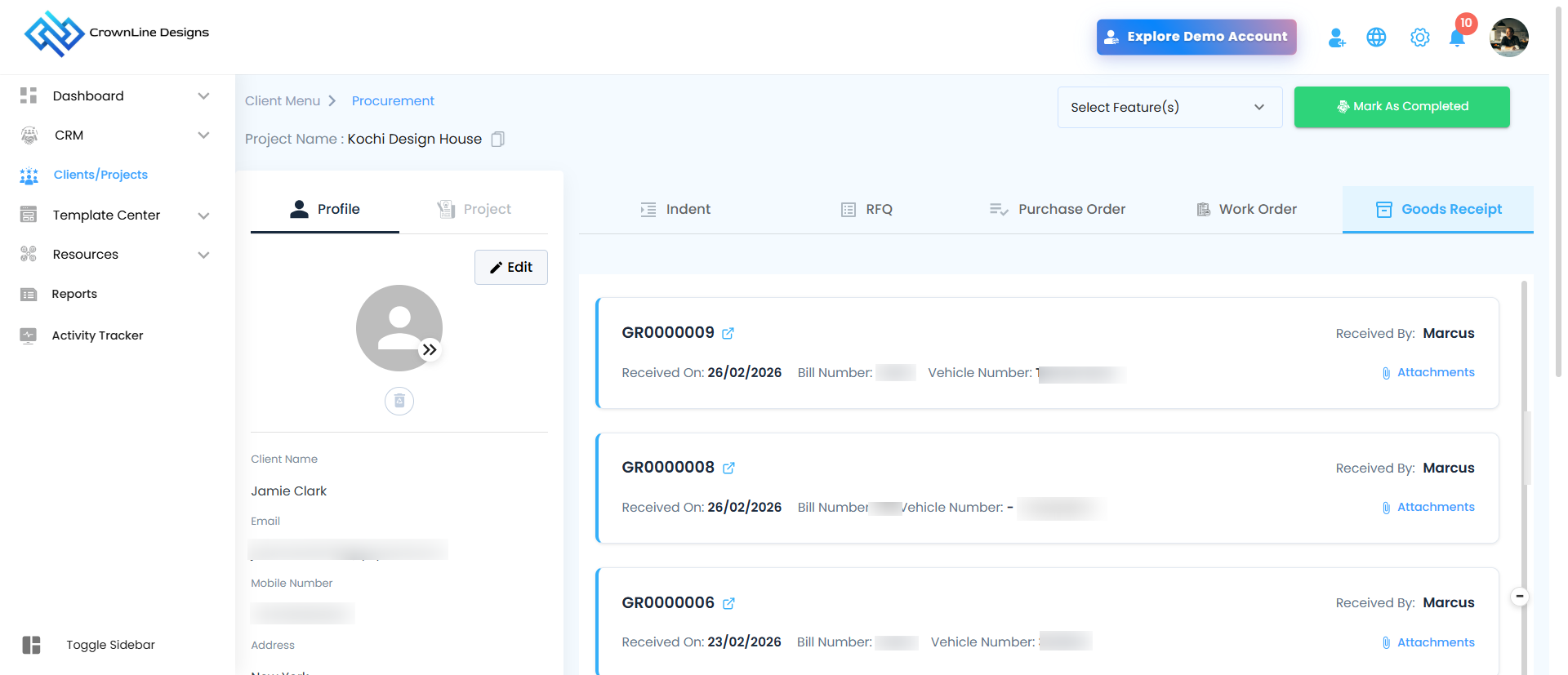
When you open the Goods Received module, you will see a list of all GRNs along with information such as:
Received By
Received On
Bill Number
Vehicle Number
Attachments option
Preview button
Clicking Preview opens the detailed GRN view (as shown in the image).
Clicking Preview opens the detailed GRN view.
GRN Dashboard
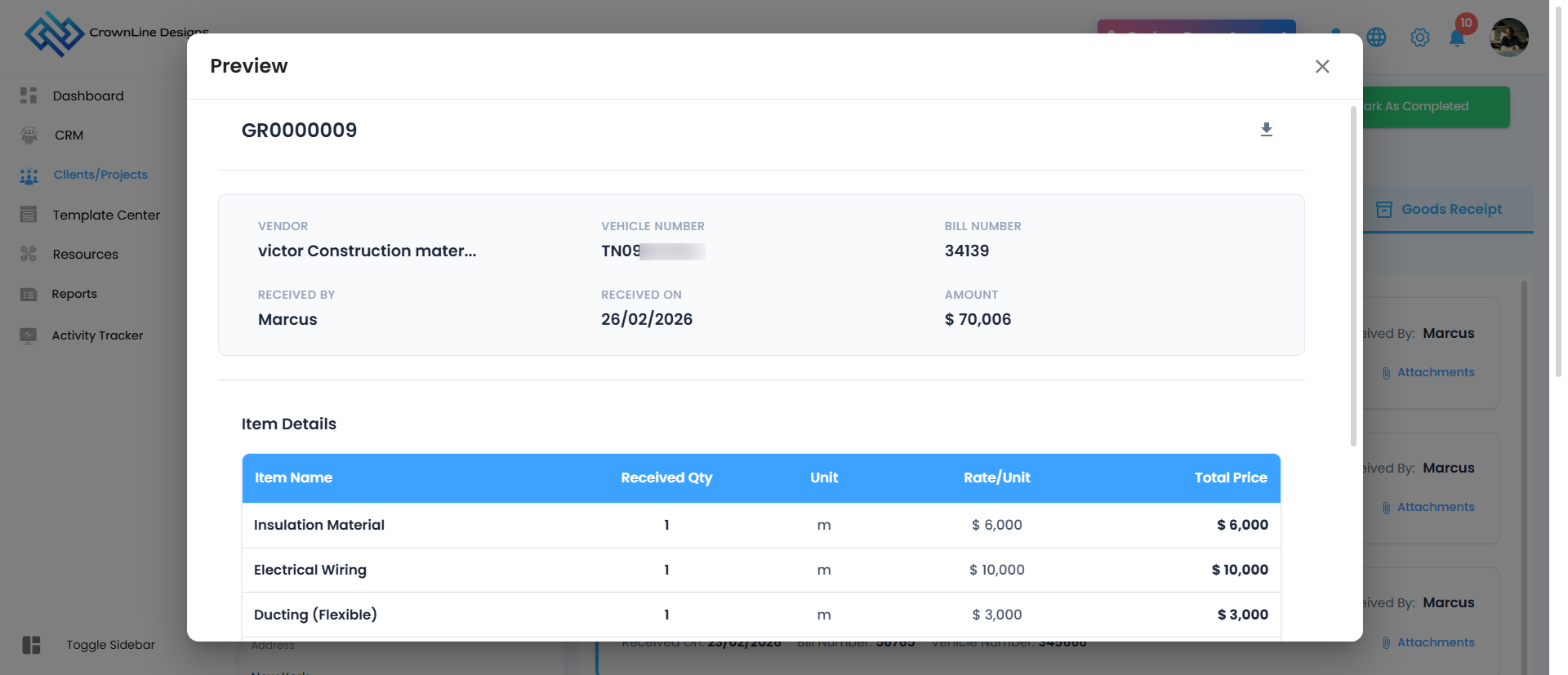
Below is a breakdown of each section visible in the GRN Preview screen.
- GRN Number :unique system-generated serial number assigned to the Goods Received Note
This is the unique system-generated serial number assigned to the Goods Received Note.
It ensures proper tracking, auditing, and documentation across projects.
You will also see a Download icon, which allows you to download or print the GRN record.
Vendor Details Section
Vendor :Displays the name of the supplier who delivered the materials.
Vehicle Number :Tracks the transport vehicle used for delivery — useful for site logistics and verification
Bill Number: Reference number from the supplier invoice for reconciliation purposes.
Received By: Indicates the site engineer, store manager, or authorized person who verified and accepted the materials.
Received On: The date when materials were physically received and recorded in the system.
Amount: Total monetary value associated with the GRN.
Item Details Section
This table provides a line-by-line breakdown of received materials.
Each column represents:
Item Name: The specific material received (e.g., Steel rods, Cement bags, Fixtures).
Received Qty: The actual quantity accepted at the site.
Unit: Measurement unit (Nos, kg, meters, bags, etc.).
Rate/Unit: Cost per individual unit as per the PO or vendor bill.
Total Price: Automatically calculated. This ensures transparent cost tracking for every material line item.
Grand Total: Located at the bottom right of the table.Displays the total value of all received line items combined.
Export & Record Keeping
From the Goods Received dashboard, you can:
Export GRN records to Excel
Maintain offline documentation
Share reports with accounts or project stakeholders
Was this article helpful?
That’s Great!
Thank you for your feedback
Sorry! We couldn't be helpful
Thank you for your feedback
Feedback sent
We appreciate your effort and will try to fix the article