Importing Schedules from MS Project
IntoAEC allows you to seamlessly import schedules created in Microsoft Project directly into the Project Schedule module. This feature helps teams migrate existing project plans without manually recreating schedules, saving time and ensuring continuity in project execution.
The imported schedule automatically integrates into the Gantt View, allowing teams to continue planning, tracking, and managing activities within IntoAEC’s collaborative scheduling environment.
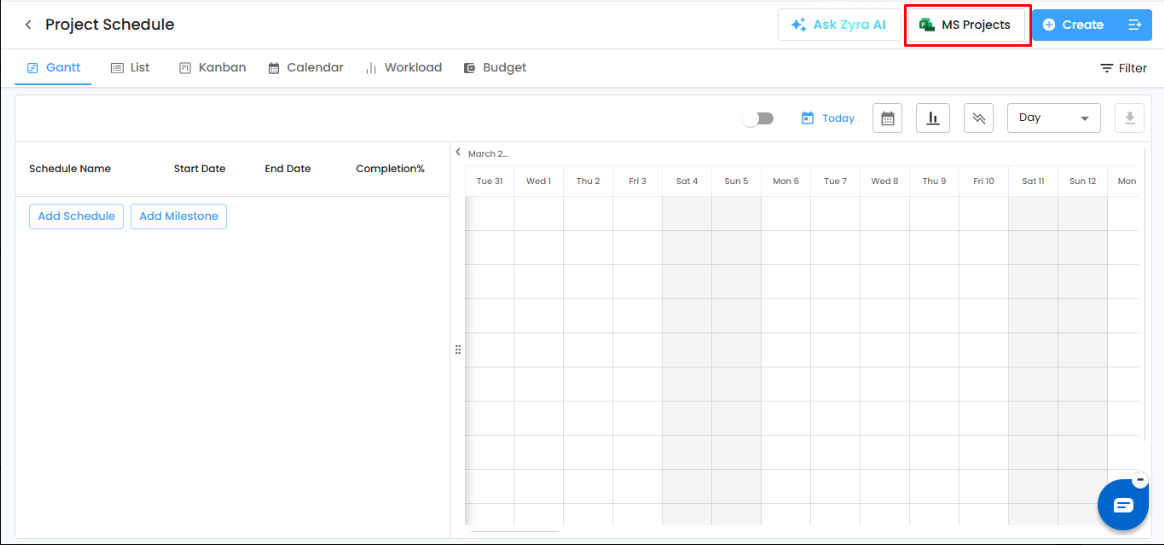
Accessing the MS Project Import Option
To import a schedule:
- Open the Project Schedule module.
- Navigate to the top-right toolbar.
- Click the MS Projects button.
This opens the MS Project import window, where you can upload your Microsoft Project schedule file.
Before Importing – Important Instructions
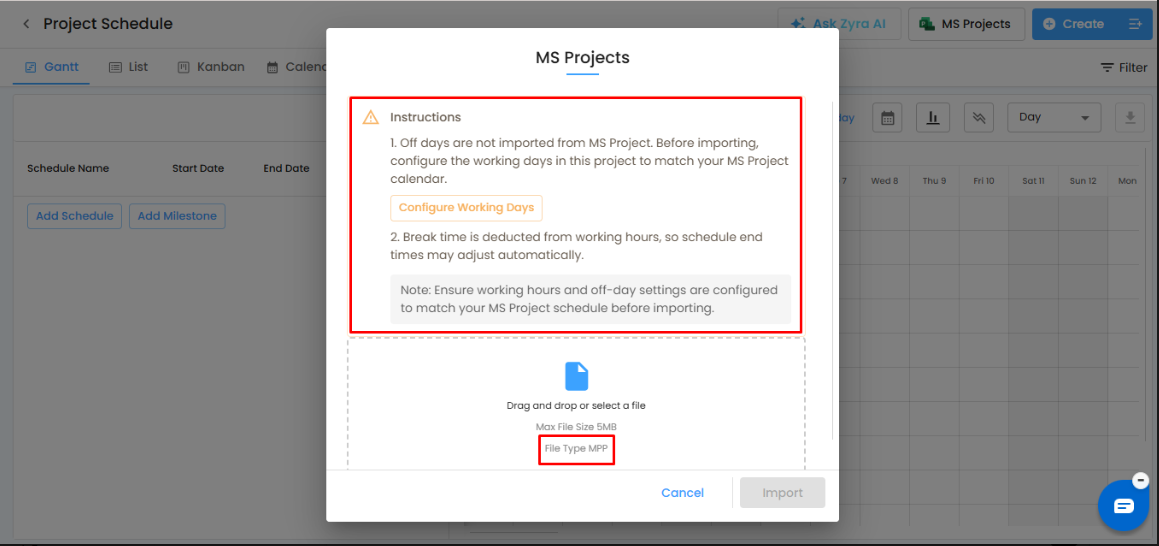
Before importing your schedule, IntoAEC displays important configuration instructions to ensure schedule accuracy and proper timeline calculation.
Configure Working Days
MS Project off-days and calendar settings are not automatically imported into IntoAEC. Before uploading your file, configure the project working days in IntoAEC to match your MS Project calendar.
Click Configure Working Days to:
- Set working days
- Define weekends or off-days
- Align project calendar settings
- Maintain accurate schedule durations
Pro Tip:
Ensure your IntoAEC working calendar matches the MS Project calendar before import to avoid timeline mismatches.
Working Hours & Break Time Adjustments
Break times are automatically deducted from working hours within IntoAEC. Because of this, schedule end times may slightly adjust after import if working hour settings differ from the original MS Project configuration.
The system recommends reviewing:
- Working hours
- Break durations
- Off-day settings
- Shift timings
before proceeding with the import.
Uploading the MS Project File
After configuring the project calendar:
- Drag and drop the file into the upload area
or - Click the upload section to browse files manually.
- Select the required .MPP file.
- Click Import to begin the schedule import process.
Supported File Type
- Microsoft Project File (.MPP)
Maximum File Size
- Up to 5 MB
What Gets Imported
The MS Project import process supports the migration of:
- Schedule structure
- Phases and sub-phases
- Task timelines
- Start and end dates
- Dependencies
- Milestones
- Progress information
- Hierarchy levels
Once imported, all schedules become editable within IntoAEC.
Imported Schedule Visualization
After successful import:
- Activities appear directly in the Gantt View
- Task timelines are visualized automatically
- Dependencies are retained and displayed
- Milestones are reflected within the schedule
- Users can continue editing, tracking, and managing schedules normally
The imported data fully integrates with IntoAEC scheduling features, including:
- Critical Path
- Baselines
- Multiple Schedule Views
- Progress Tracking
- Role-Based Access
- Zyra AI Enhancement
Was this article helpful?
That’s Great!
Thank you for your feedback
Sorry! We couldn't be helpful
Thank you for your feedback
Feedback sent
We appreciate your effort and will try to fix the article