Daily Report: Record and Track Daily Work
A Daily Report is a simple way for workers to keep track of what they do each day. It brings all the important updates together in one place, including time logs, notes, attachments, weather conditions, schedules, and tasks.
It helps the team clearly understand what was worked on and what was completed during the day.
1. Create a Daily Report
To start a Daily Report:
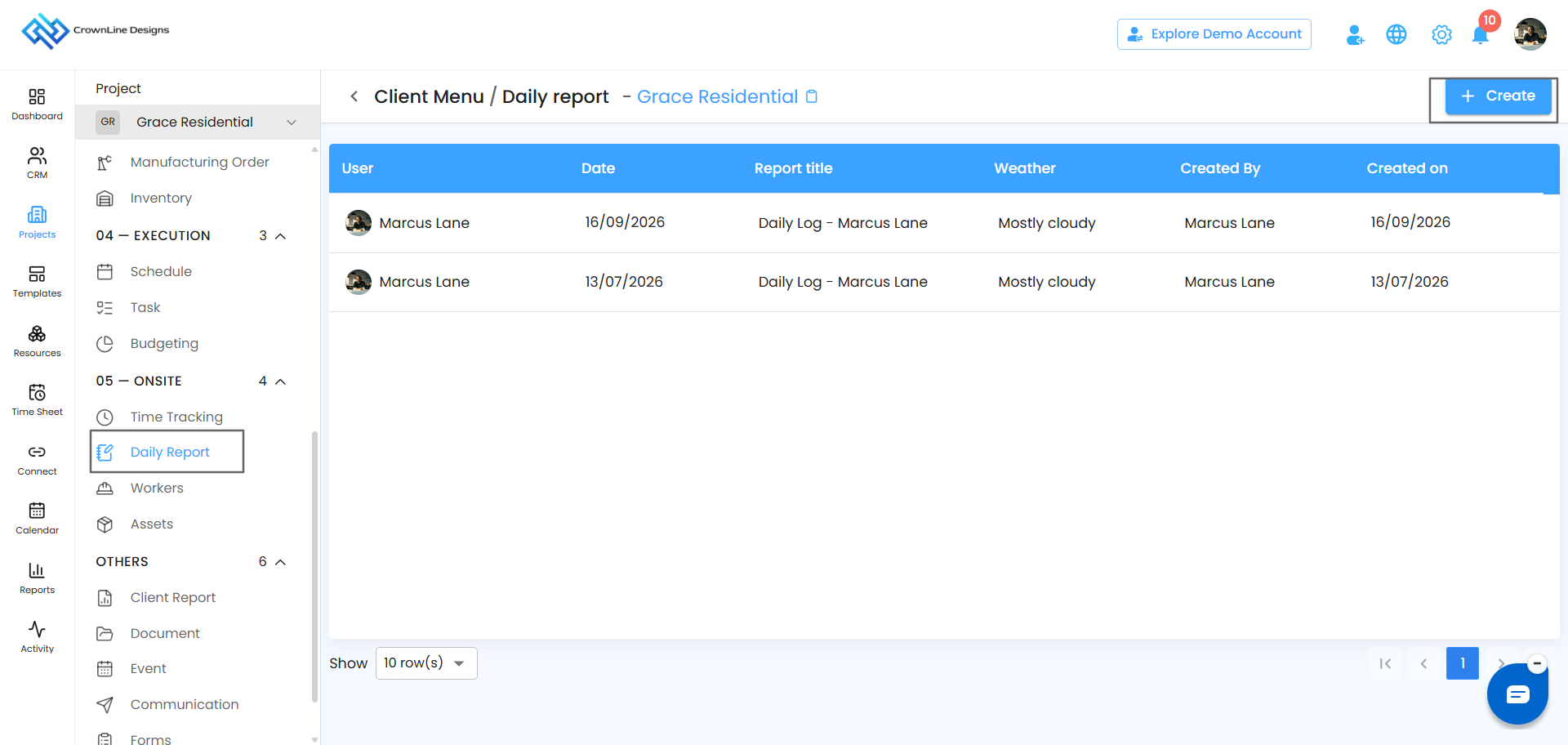
Go to Daily Report.
Click the Create button.
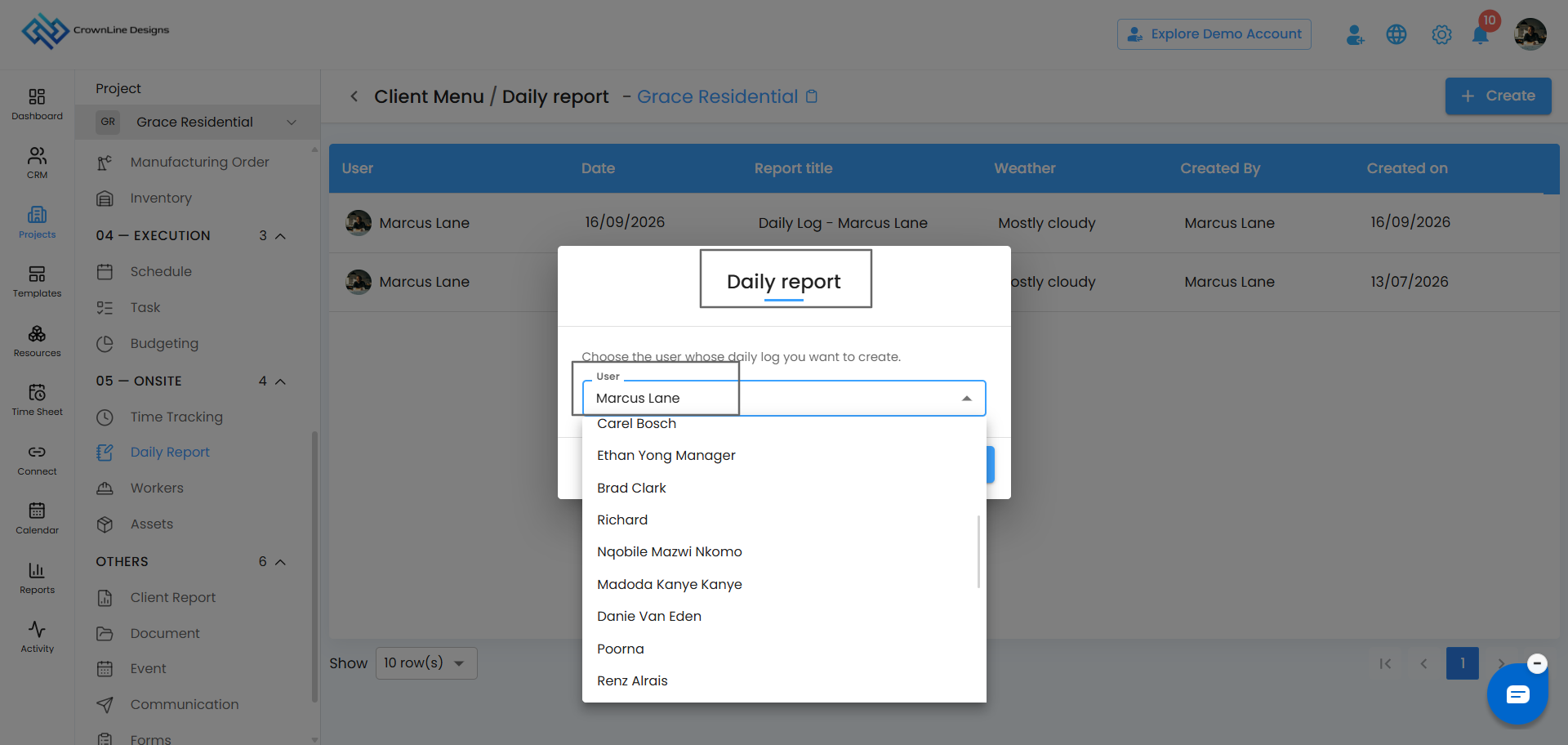
A Daily Report pop-up will appear.
From the User dropdown, choose the user whose daily work you want to record.
Click Create.
You will then be taken to the Daily Report page, where you can add the day's details.
Tip: The User dropdown shows the users available in your organization.
2. Add a Report Title
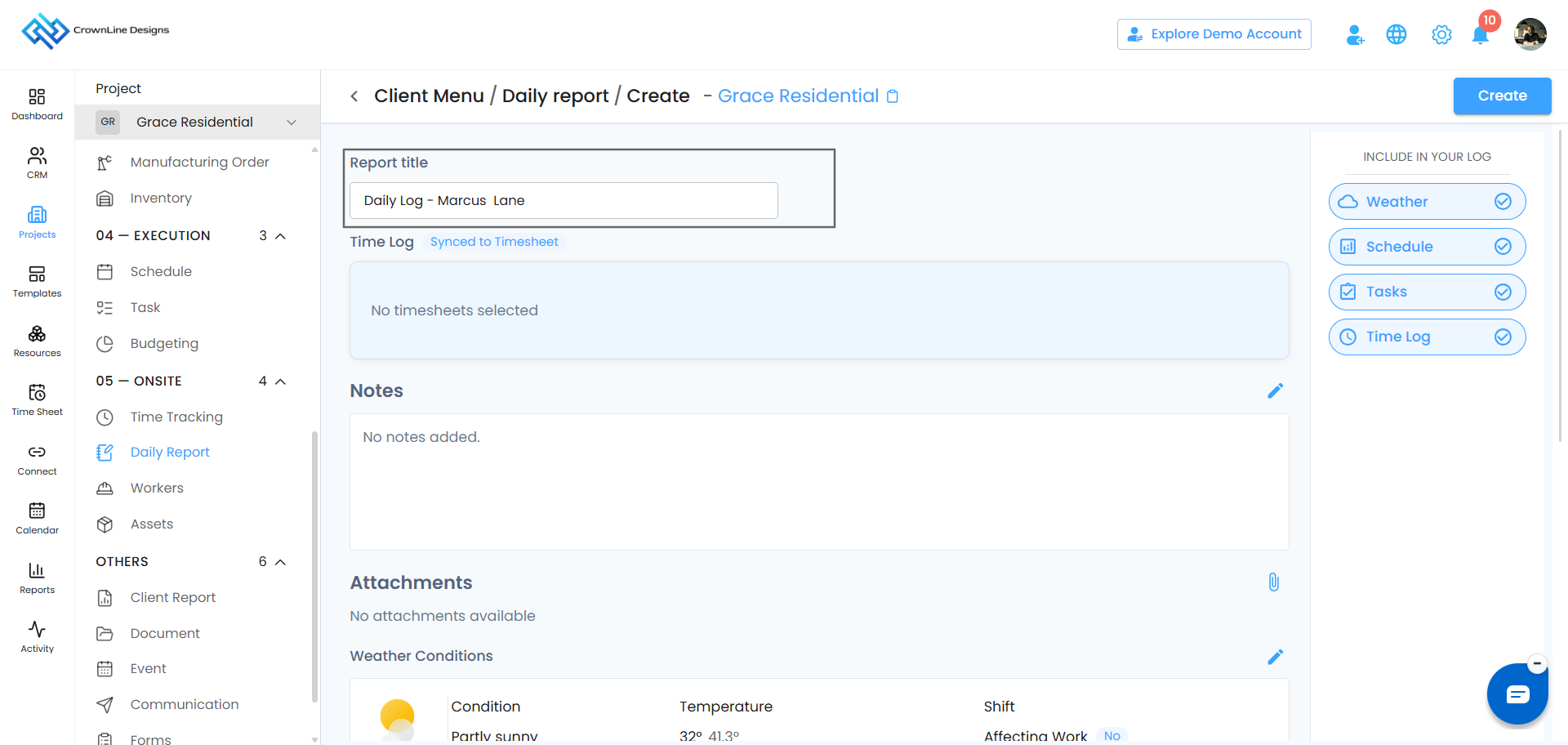
The Report Title is filled in automatically based on the selected user.
You can keep the suggested title or change it to a title that better describes the day's work.
3. Choose What to Include
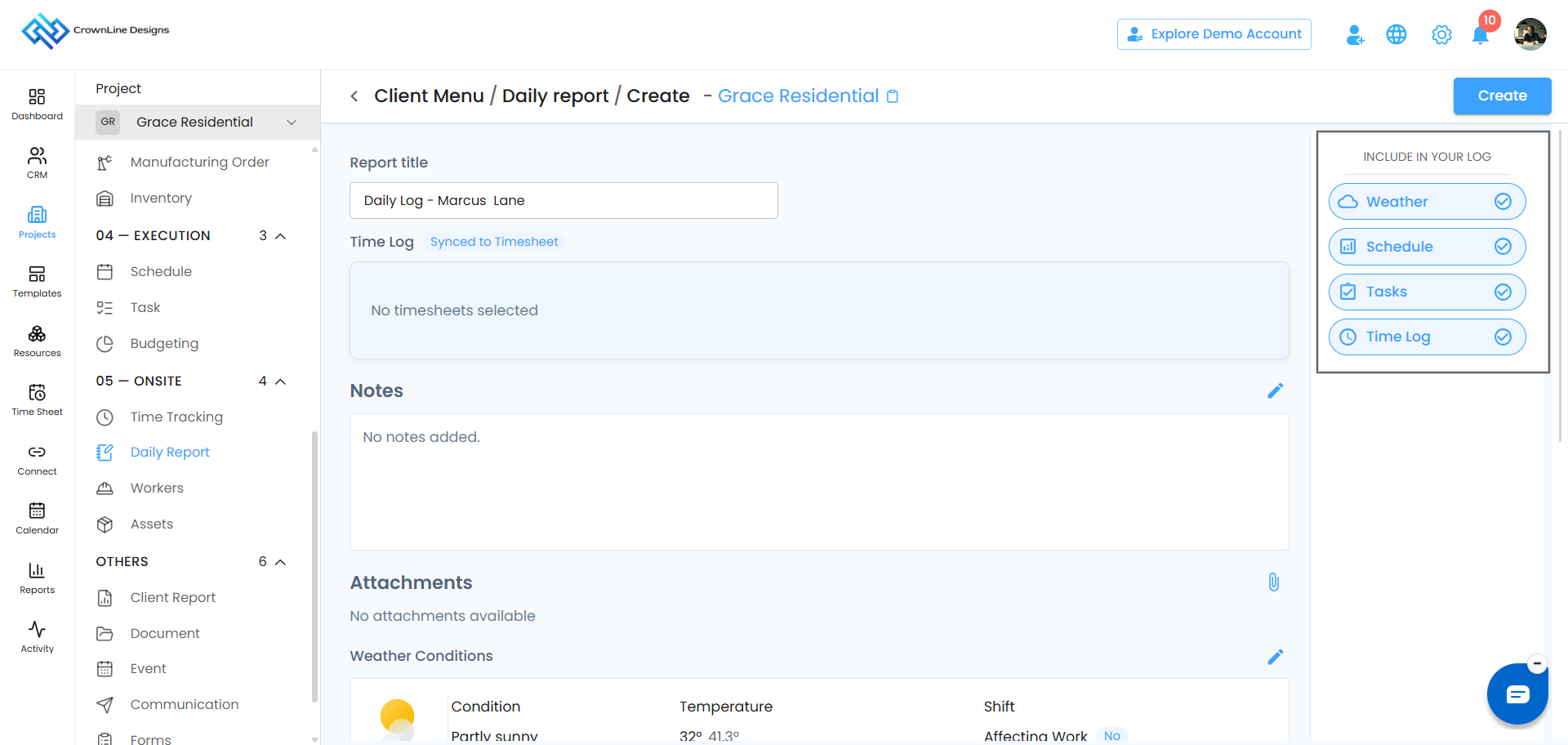
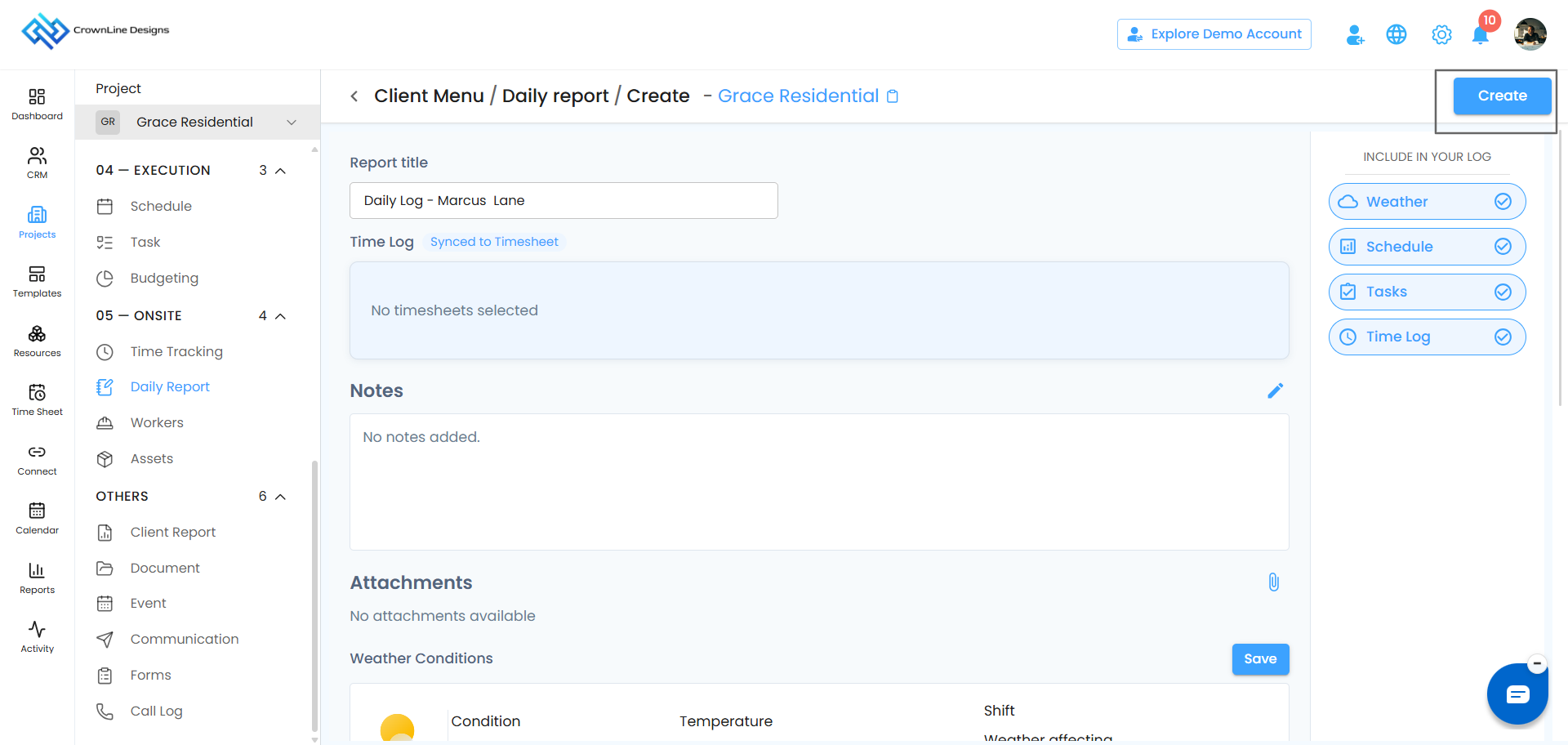
The Include in Your Log section lets you choose what you want to include in your Daily Report.
You can turn the following options on or off:
Weather
Schedule
Tasks
Time Log
Turn off any option that you do not want to include in the report.
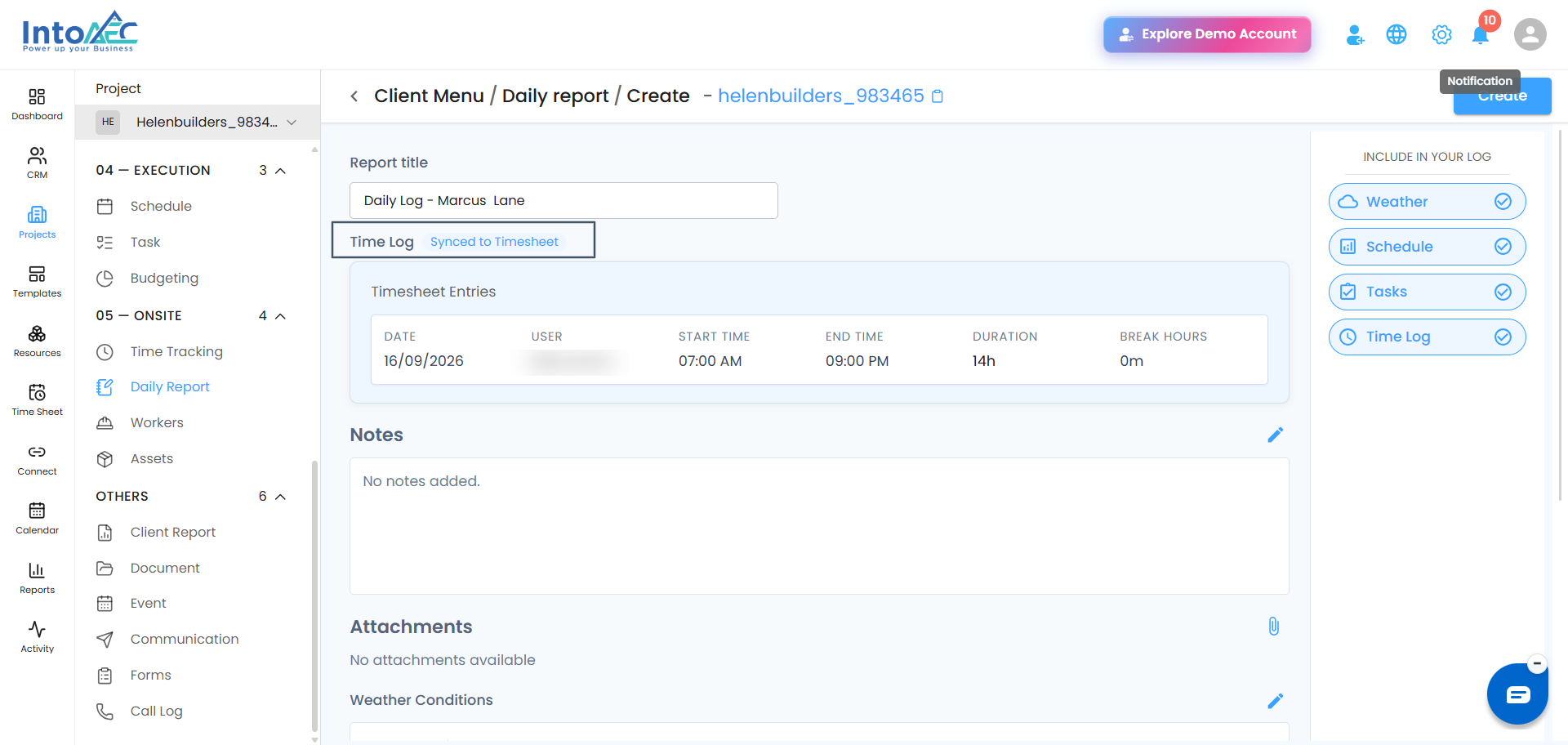
4. Add Time Logs
The Time Log section shows the time logs assigned to the selected user for the current day.
Choose the time logs you want to include in the Daily Report.
Good to know: Time logs from previous days will not appear. Only the selected user's time logs for the current day are available.
5. Add Notes
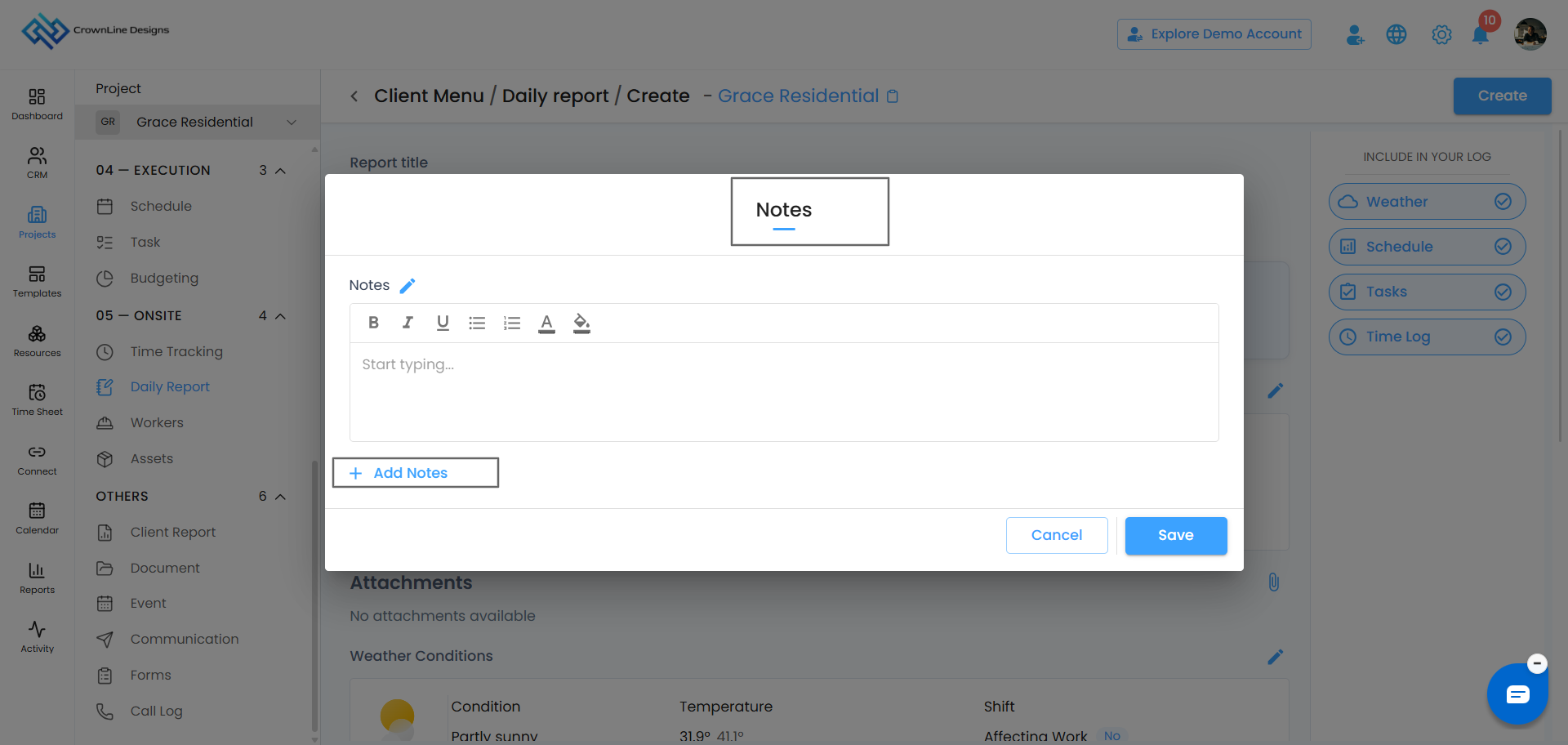
Use the Notes section to share important information about the day's work.
You can add a new note or update an existing one.
To update a note:
Click the Edit icon.
Enter or update the information.
Click Save.
You can use Notes for work updates, observations, or any other details you want to share.
6. Add Attachments
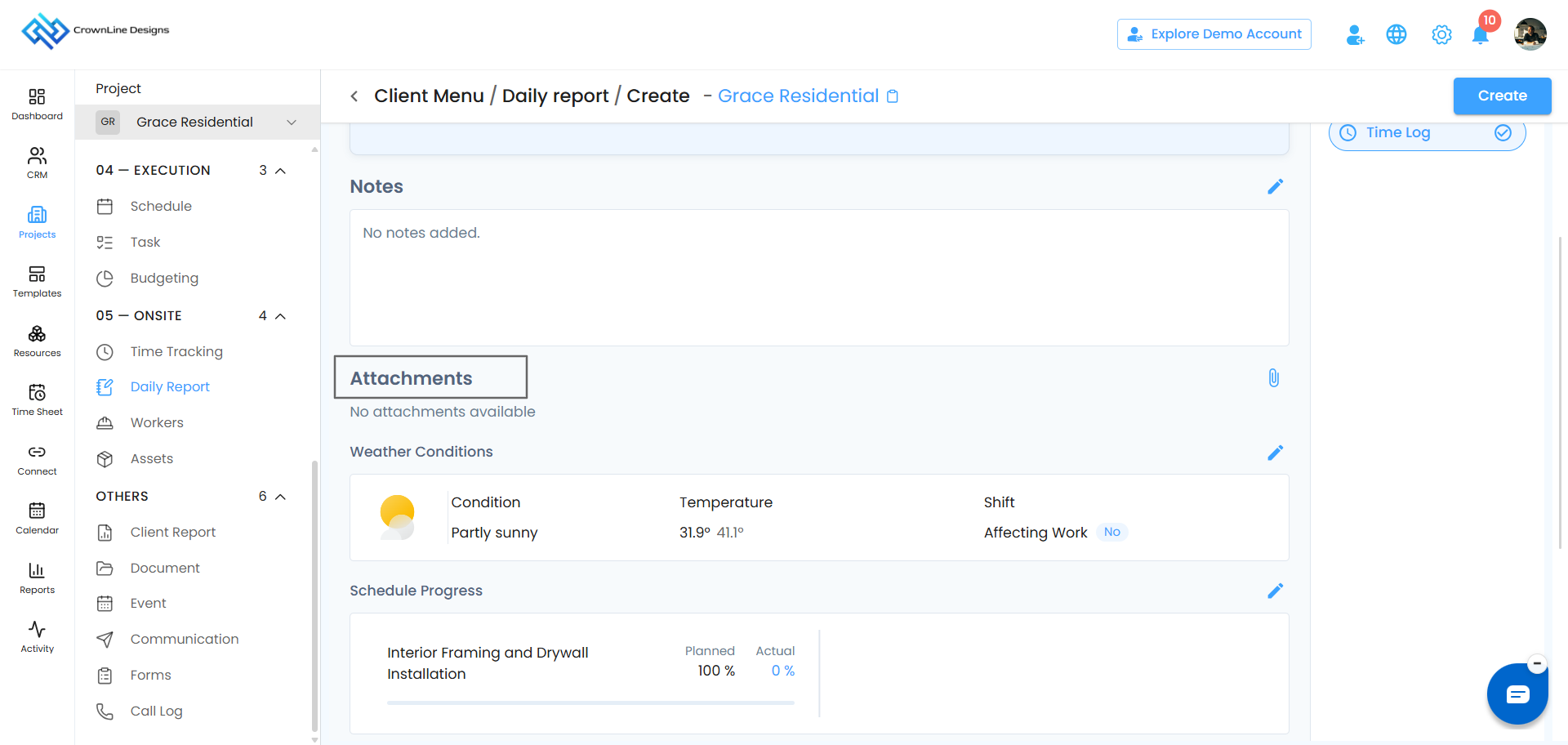
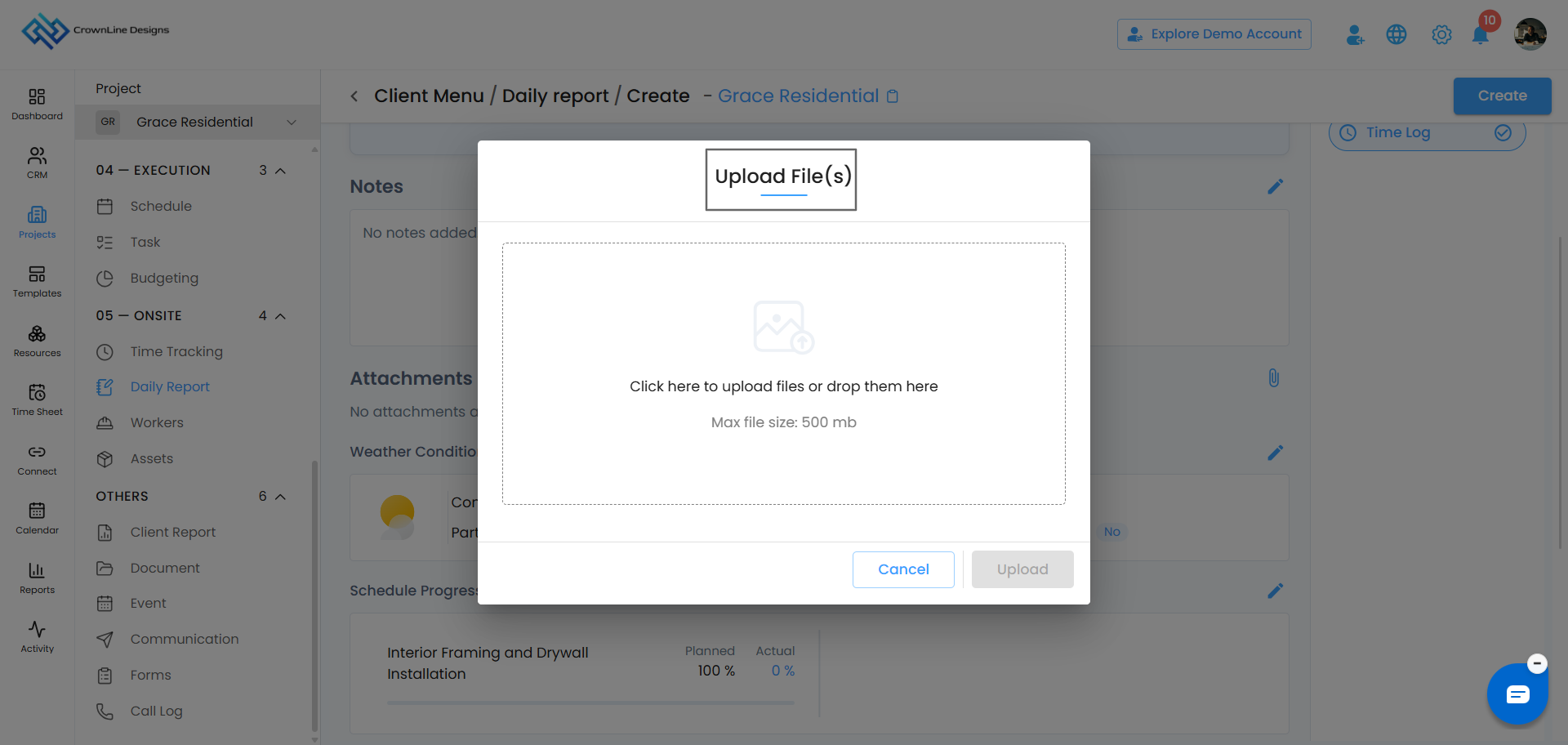
The Attachments section lets you add files related to the day's work.
You can attach photos, documents, or other helpful files to give more details about the work completed.
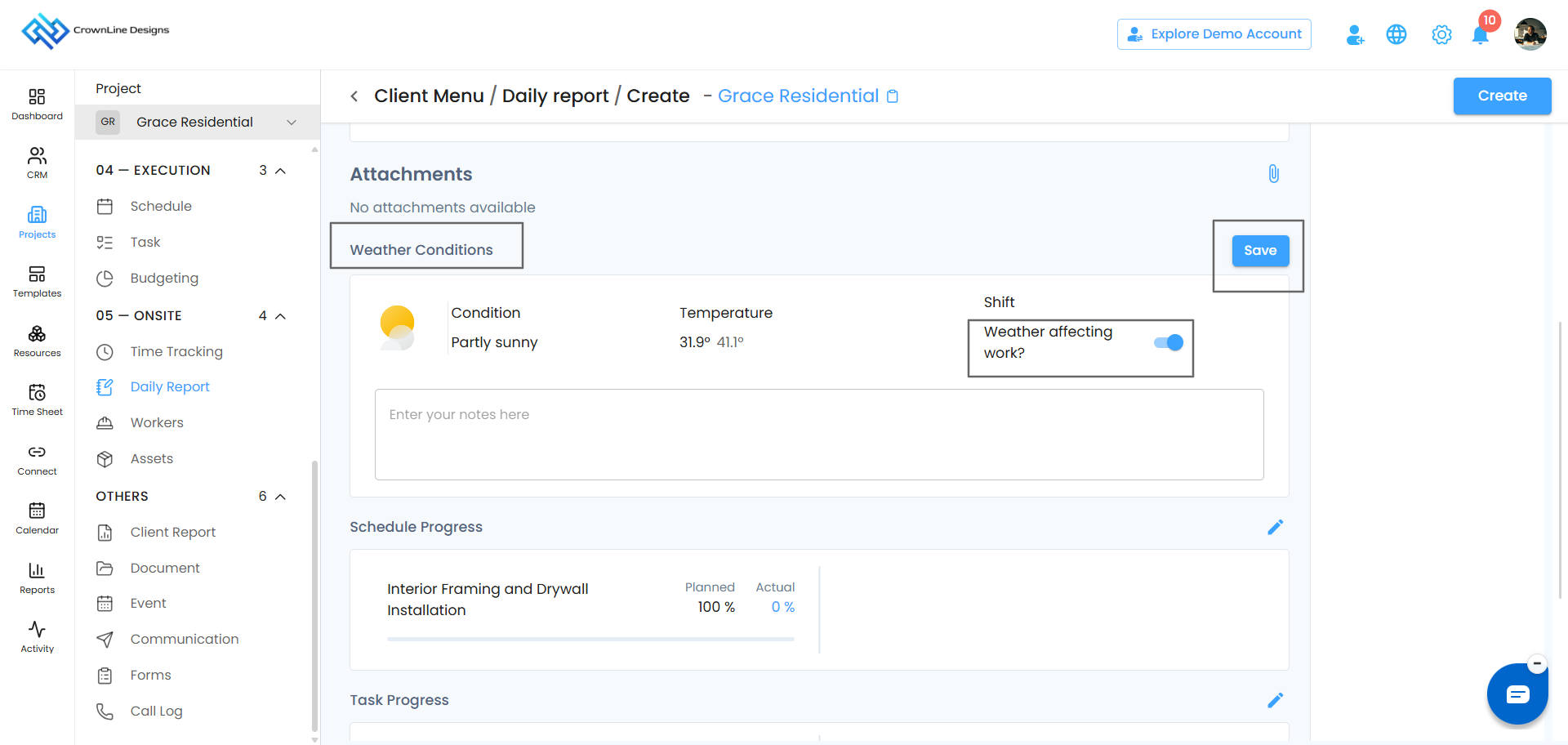
7. Record Weather Conditions
If the weather affects the day's work, you can record it in the Weather Conditions section.
To add weather details:
Click the Edit icon.
Turn on the option to indicate that the weather affected the work.
Enter the details.
Click Save.
This makes it easy for everyone to understand whether weather conditions affected the day's work.
8. Update the Schedule
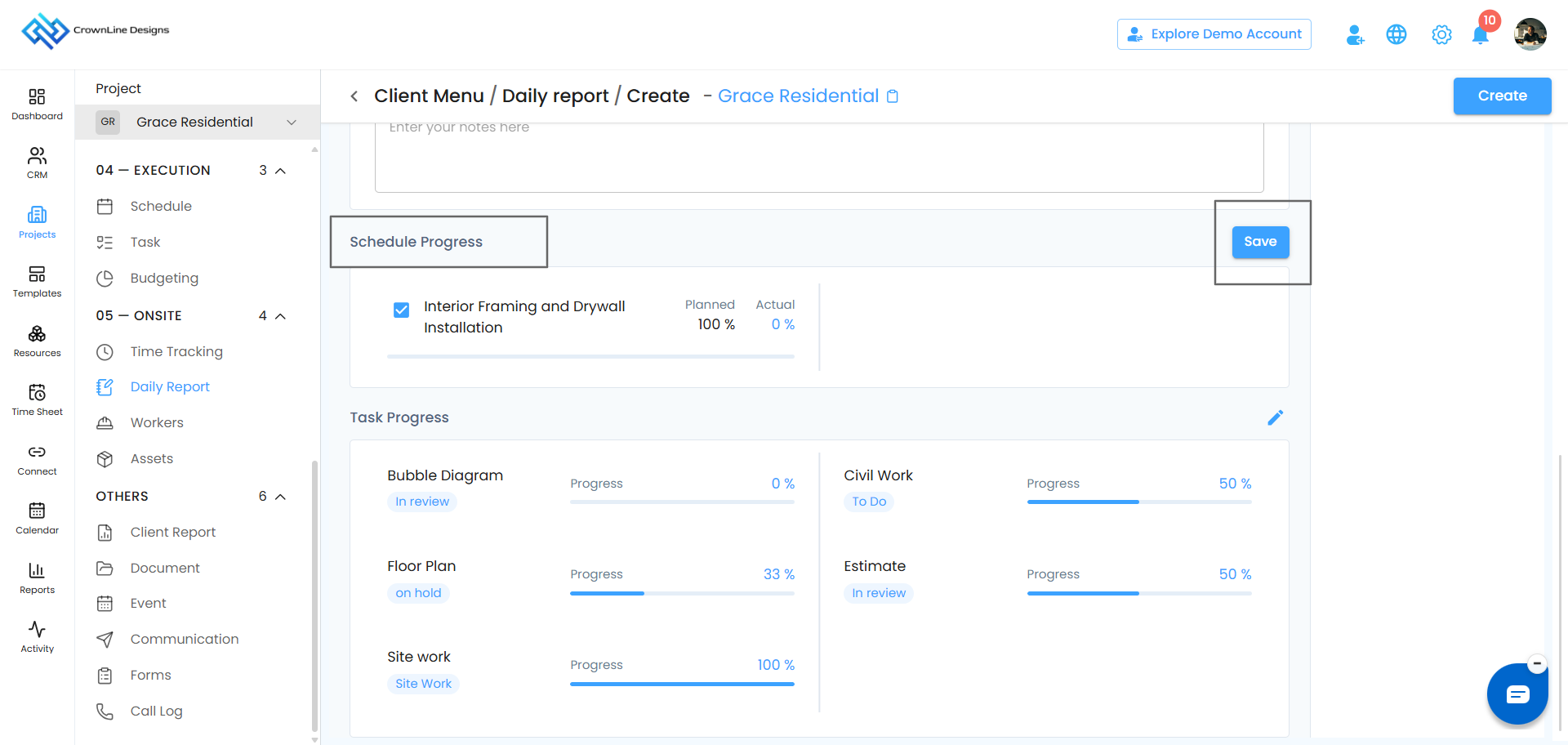
The Schedule section shows the schedules assigned to the selected user for the current day.
To choose the schedules you want to include:
Click the Edit icon.
Select the schedules you want to include.
Clear any schedules you do not want to include.
Click Save.
Only the schedules you select will be included in the Daily Report.
9. Update Tasks
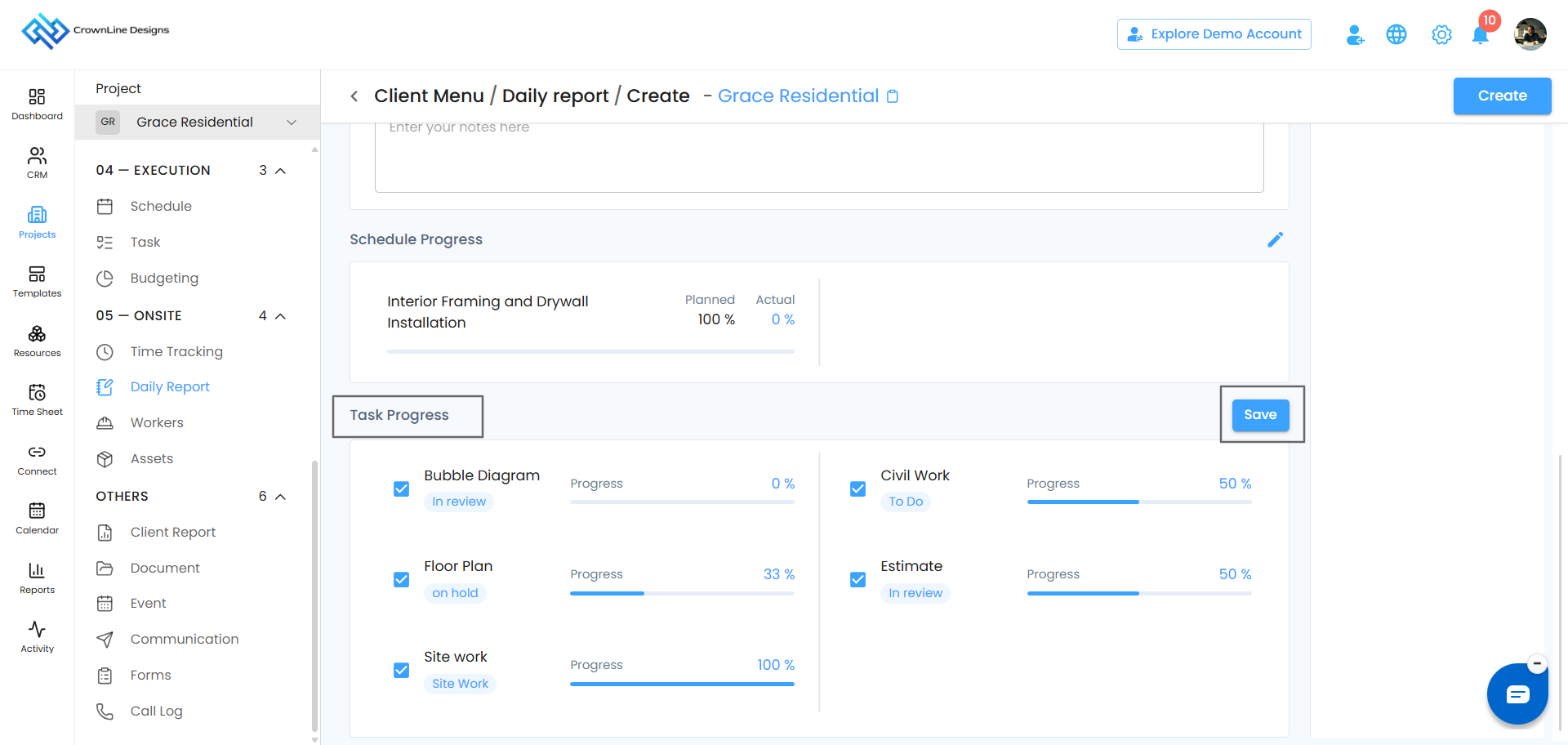
The Tasks section shows the tasks assigned to the selected user for the current day.
To choose the tasks you want to include:
Click the Edit icon.
Select the tasks you want to include.
Clear any tasks you do not want to include.
Click Save.
This helps you keep the Daily Report up to date with the work being handled that day.
10. Complete the Daily Report
Once you have added all the information you need, review your Daily Report to make sure everything is up to date.
The Daily Report is automatically created with the current date, so you do not need to enter the date yourself.
There is no separate Save step required to create the Daily Report.
11. Manage an Existing Daily Report
After creating a Daily Report, you can manage it from the Daily Report list.
Open the Actions menu for the report to see the available options.
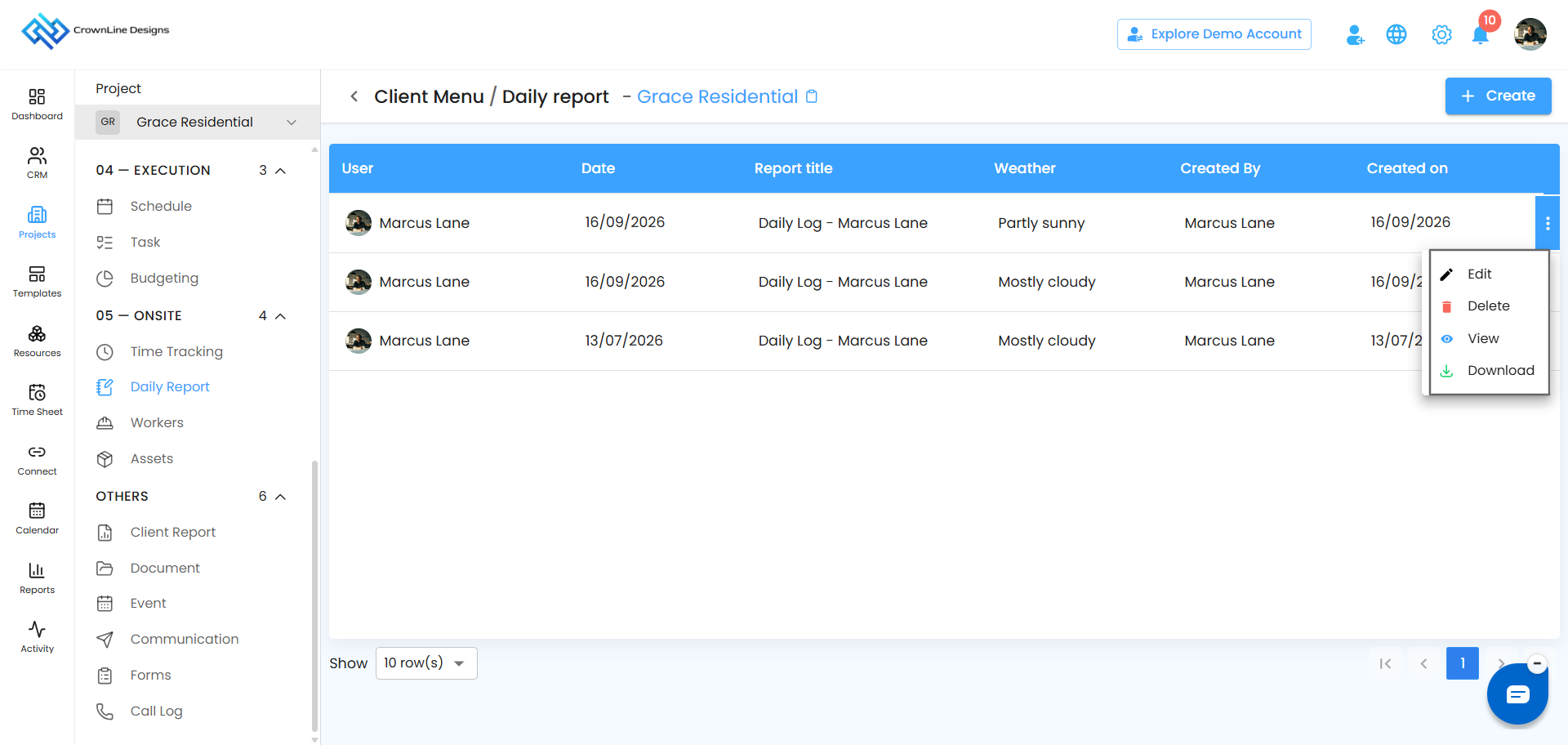
Edit
Select Edit when you want to make changes to an existing Daily Report.
Delete
Select Delete when you no longer need the Daily Report.
View
Select View to review the details recorded in the Daily Report.
Download
The Download option is available in the Actions menu.
Quick Overview
Creating a Daily Report is simple:
Daily Report → Create → Choose a User → Add Daily Updates → Review → Complete
You can add time logs, notes, attachments, weather, schedules, and tasks to give a clear picture of the day's work.
Tip: Keeping your Daily Report updated each day helps the team stay informed and keeps a clear record of daily work and progress.
Was this article helpful?
That’s Great!
Thank you for your feedback
Sorry! We couldn't be helpful
Thank you for your feedback
Feedback sent
We appreciate your effort and will try to fix the article