Every proposal you send, in one place. See who opened it, who accepted it, and which ones need a nudge.
What you can do here
- View every proposal sent and its current status
- Track when a client opens your proposal
- Resend a proposal that hasn't been opened yet
- Export proposal data to Excel
Pro tip: Proposals that haven't been opened are your easiest follow-ups. Check them first.
Open the Proposal Report
- Go to Reports in the main menu.
- Click Proposal Report.
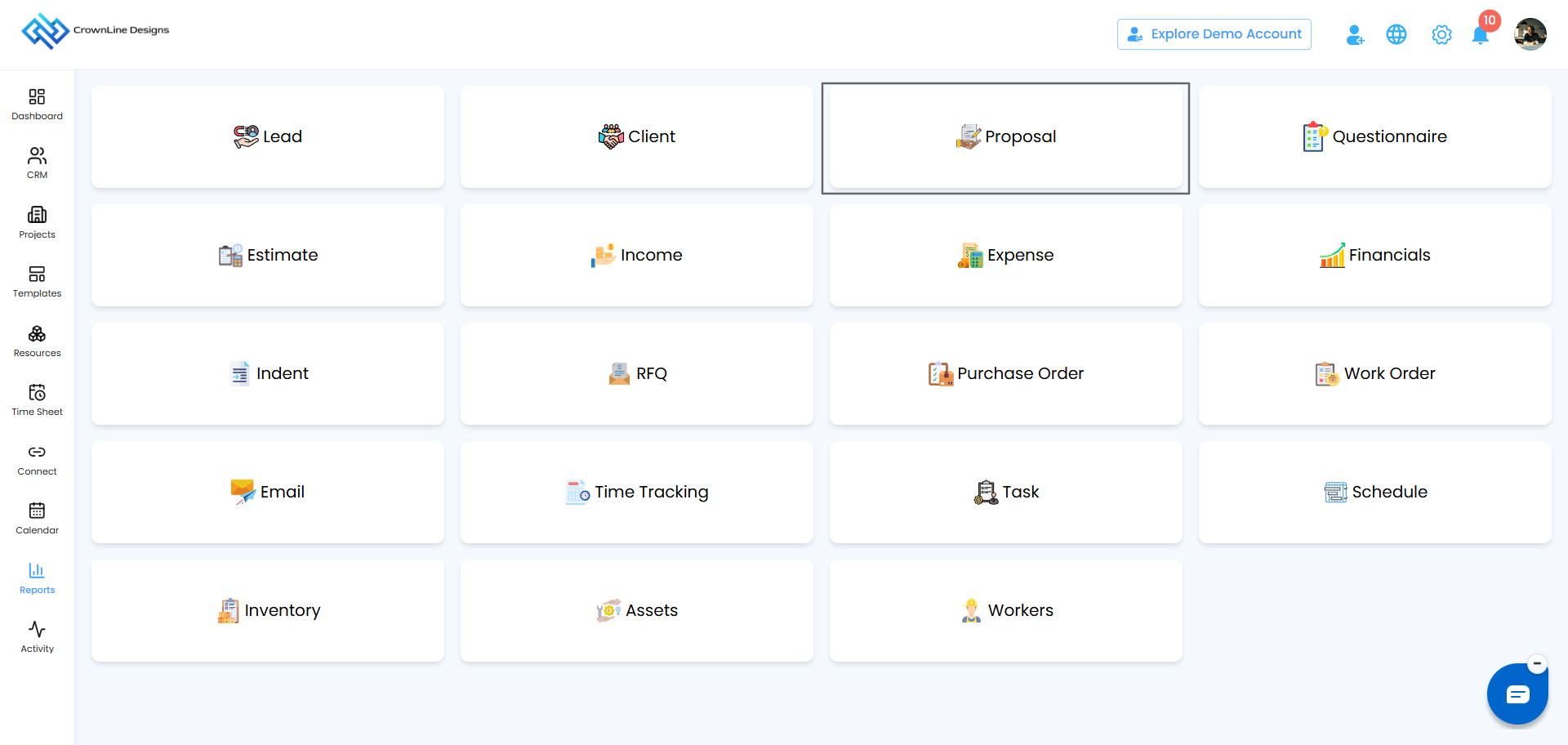
Pro tip: Bookmark this page if you check proposal activity often.
Filter your proposals
Narrow the list by:
- Project Name: proposals for one project
- Sent On: proposals sent on a date or within a date range
Click Apply to filter, or Clear to see everything again.
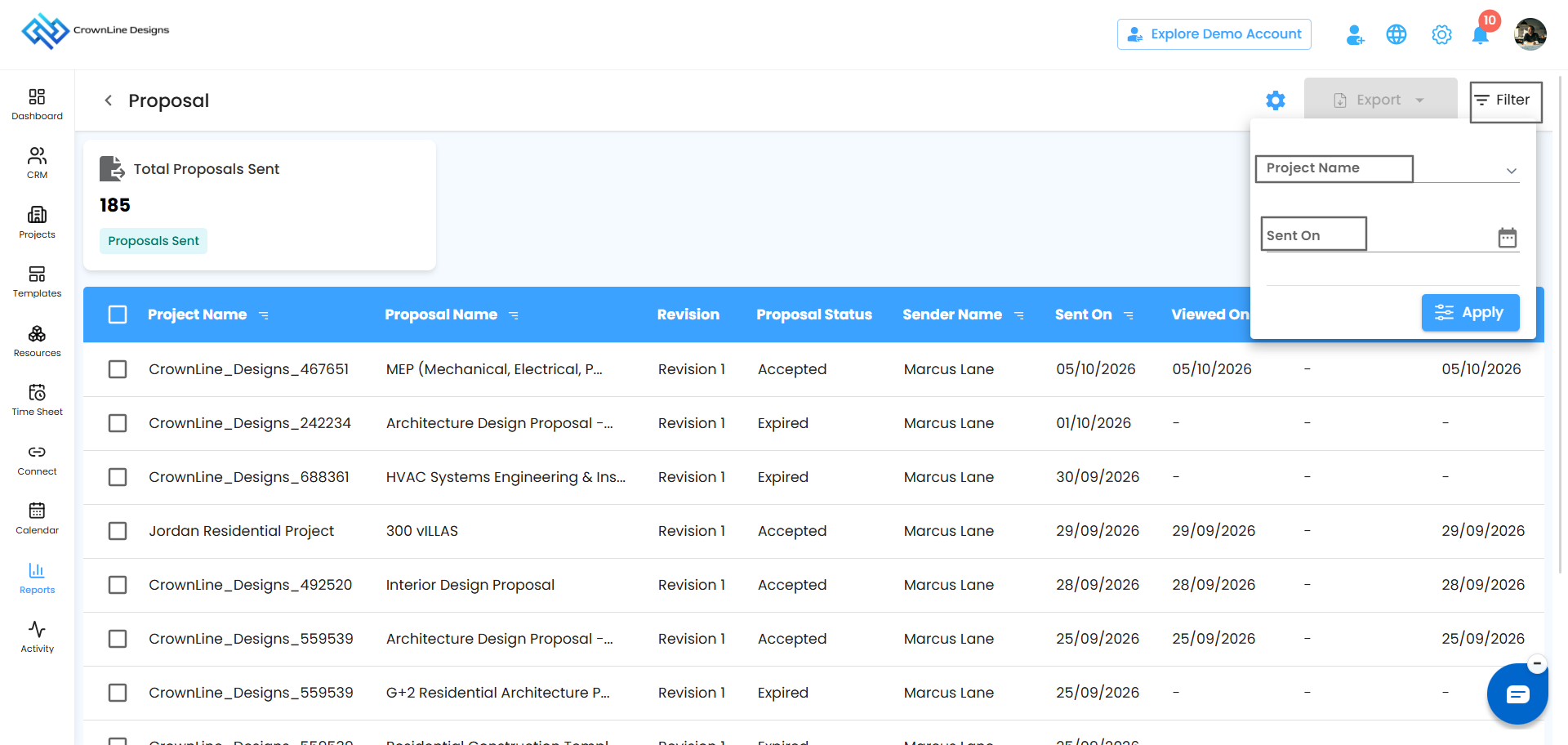
Pro tip: Filter by last week's date range for a ready-made follow-up list.
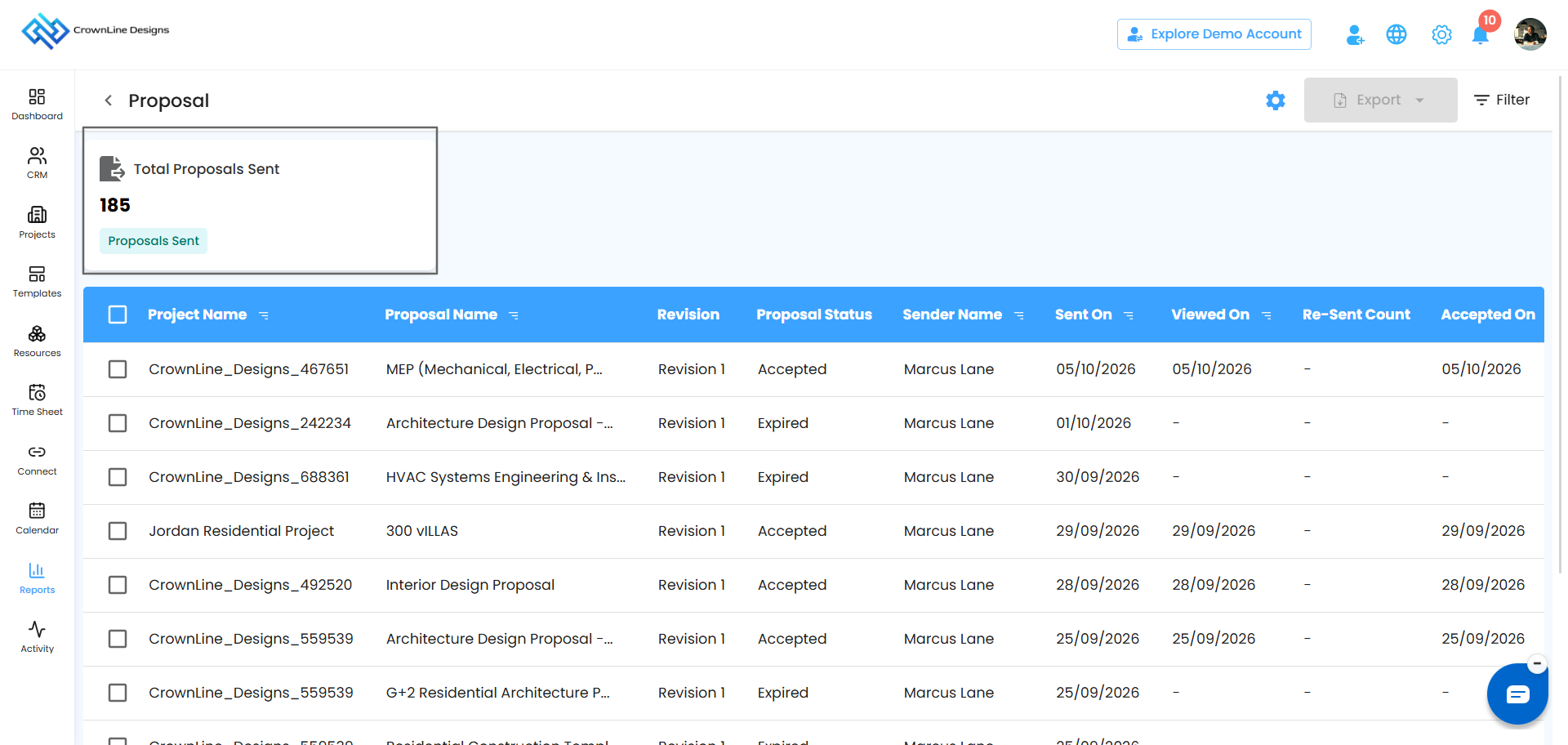
Dashboard insights
The top of the page shows Total Proposals Sent, a quick measure of how actively your team is sending proposals.
The proposal table
Each row tells you where a proposal stands.
| Column | Shows |
|---|---|
| Project Name | The linked project |
| Proposal Name | The proposal title |
| Proposal Status | Viewed, Accepted, Declined, and so on |
| Sender Name | Who sent it |
| Sent On | Date it was sent |
| Viewed On | Date the client opened it |
| Resent Count | How many times it was resent |
| Accepted On | Date it was accepted |
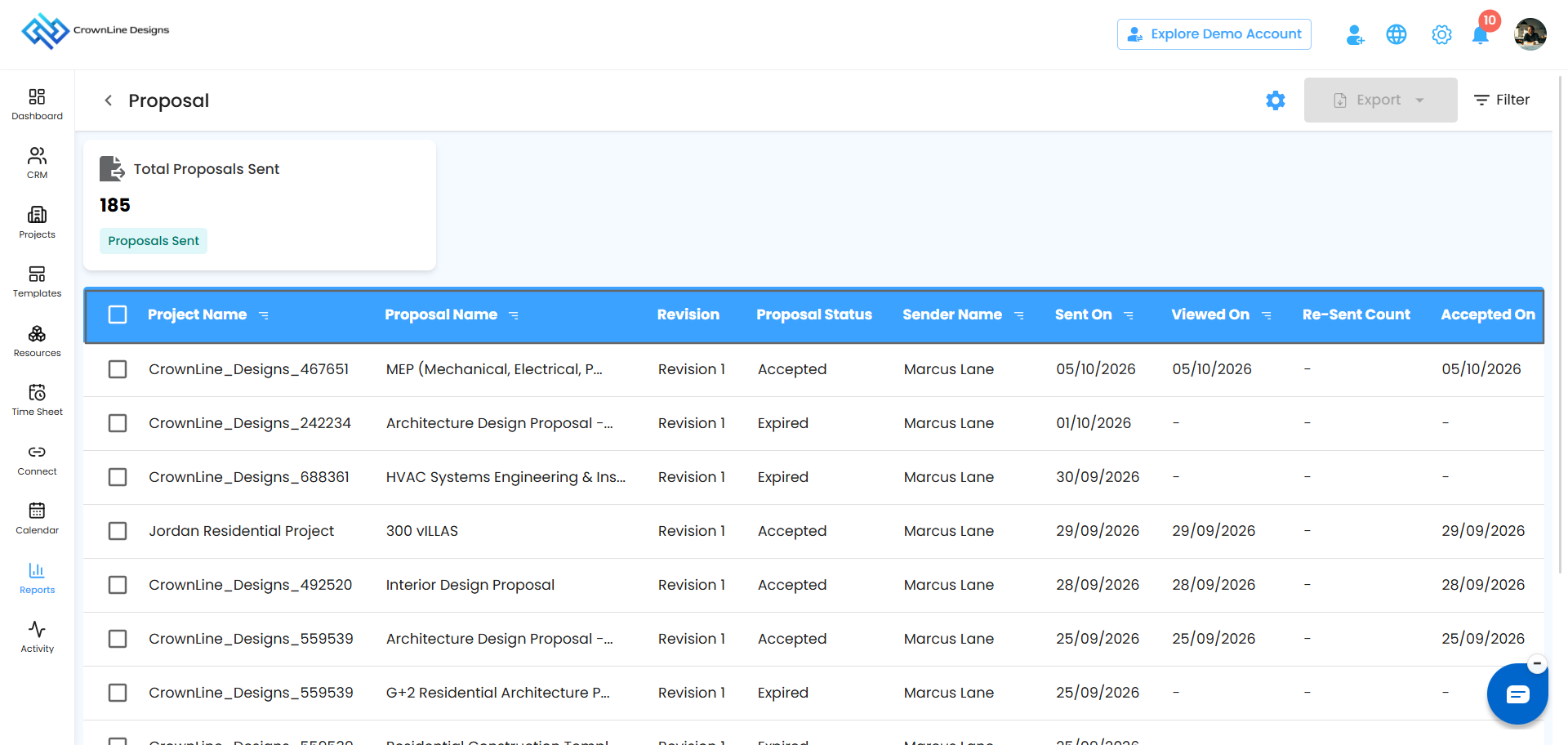
Pro tip: A proposal with a blank Viewed On date hasn't been seen yet, so it's a good time to follow up.
Export proposal data
- Tick the proposals you want.
- Click Export.
- The data downloads as an Excel file.
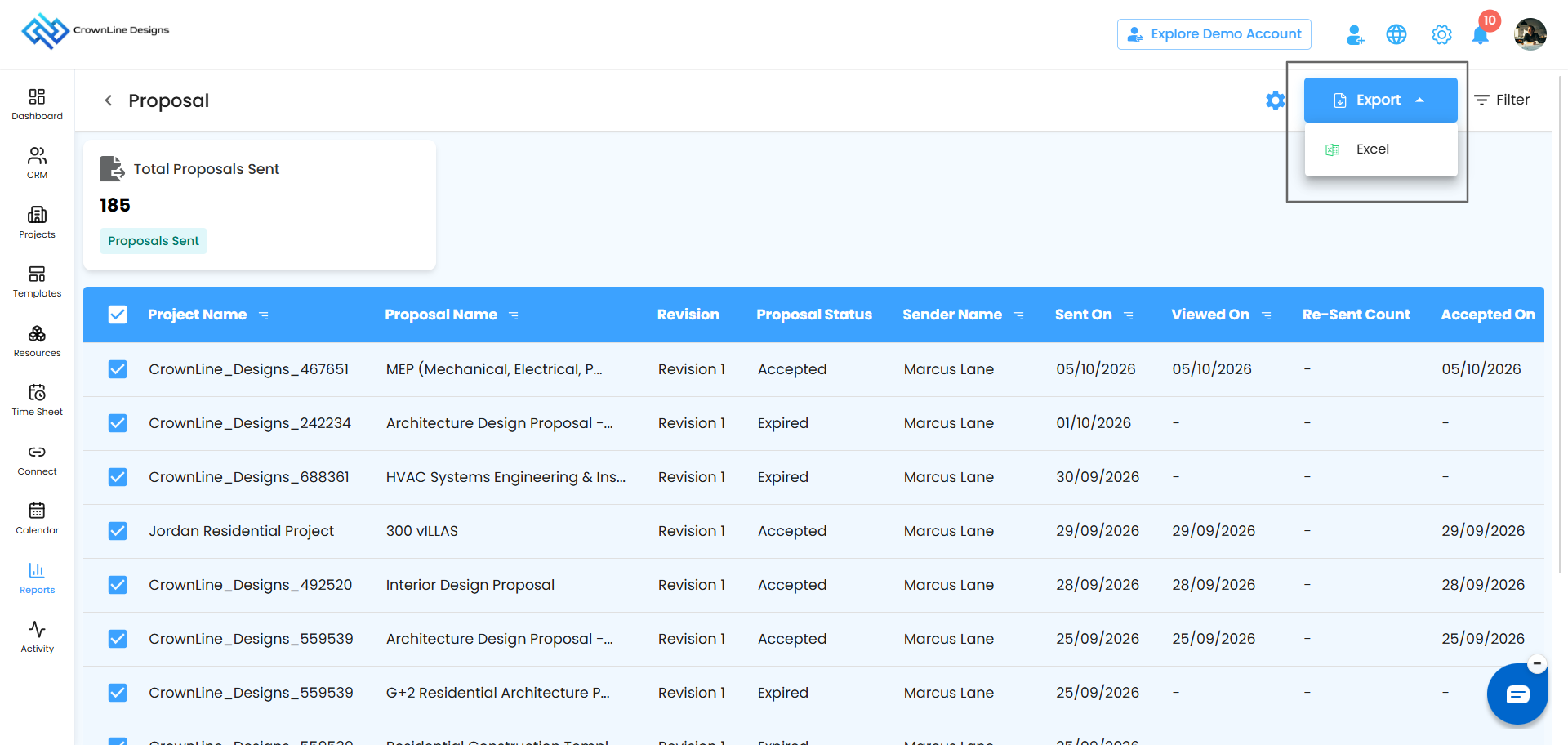
Pro tip: Export at month-end for a quick performance snapshot.
Automate the report
Have the report sent to your team automatically.
Click the Configure Report Automation icon.
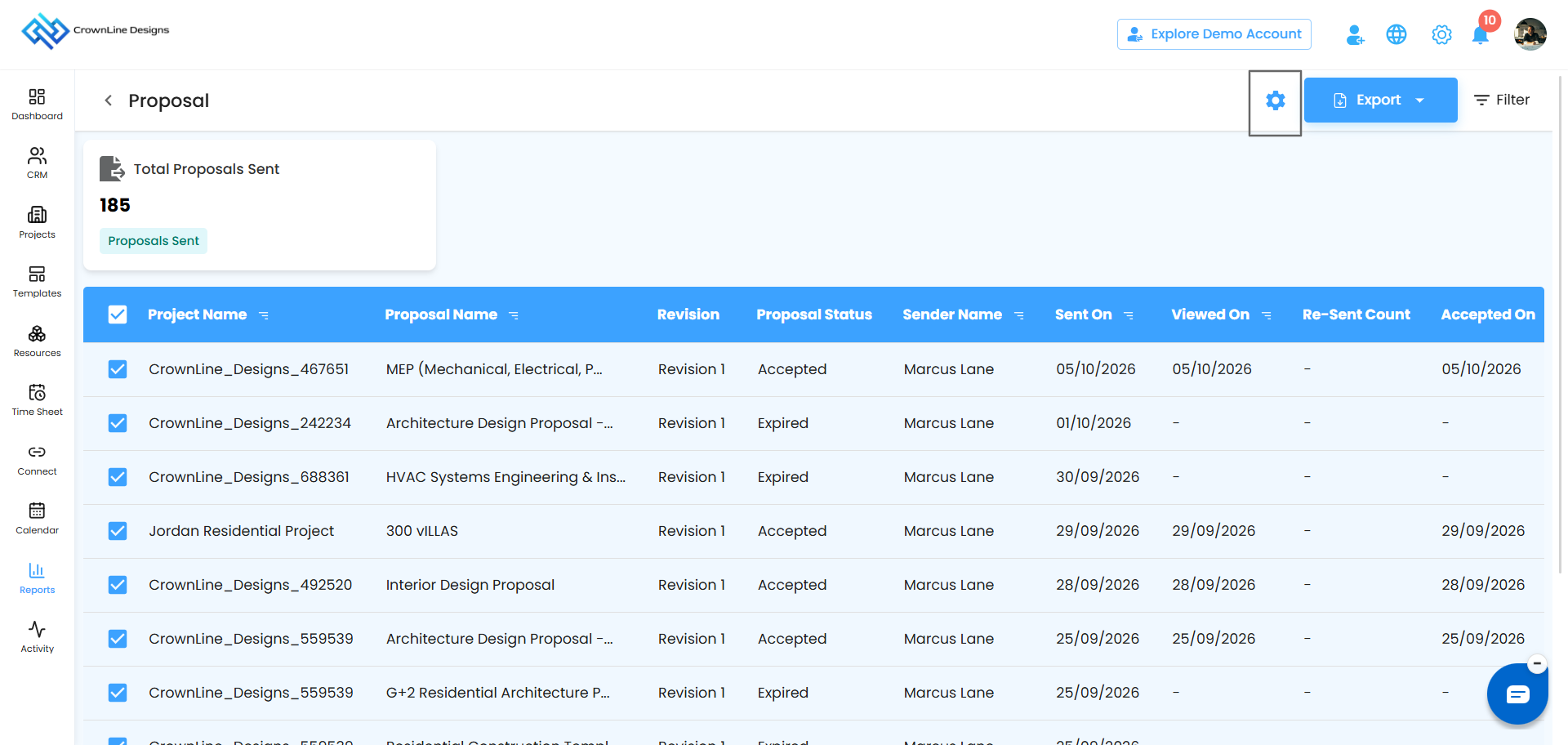
In the popup, choose recipients from Send To.
Pick a frequency from Generate Report:
- Daily (default): sent within an hour of your chosen time. If you set 6:00 PM, it arrives between 6:00 and 6:59 PM.
- Weekly: covers the current week and is sent at the same day and time the following week.
- Monthly: covers the current month and is sent on the same day and time next month.
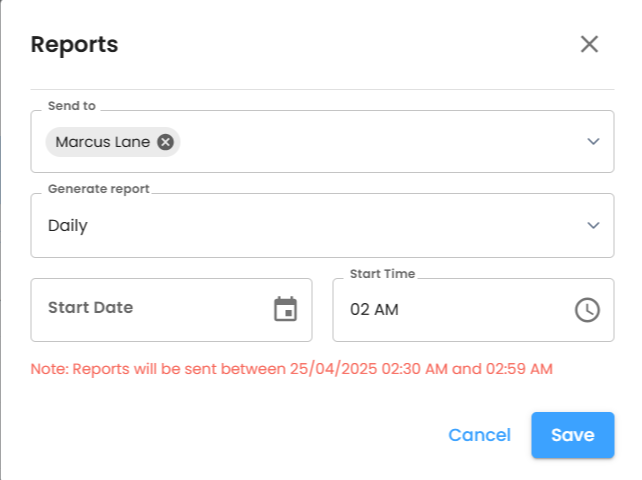
Set the Start Date and Start Time. The start time is required.
Click Save to activate, or Cancel to discard.
Pro tip: Match the frequency to how you review: daily for close tracking, weekly for team check-ins, monthly for leadership.
In short: The Proposal Report helps you track every proposal, spot the ones that need attention, and keep your team up to date automatically.
Was this article helpful?
That’s Great!
Thank you for your feedback
Sorry! We couldn't be helpful
Thank you for your feedback
Feedback sent
We appreciate your effort and will try to fix the article