How to Manage Emails in IntoAEC Mail
Once your Gmail or Outlook account is connected, you can manage your emails directly from Connect → Mail.
The Mail page provides separate tabs for your incoming, sent, and saved emails.
Email Tabs
You can manage your emails from three tabs:
Inbox
The Inbox tab displays the emails received in your connected mailbox.
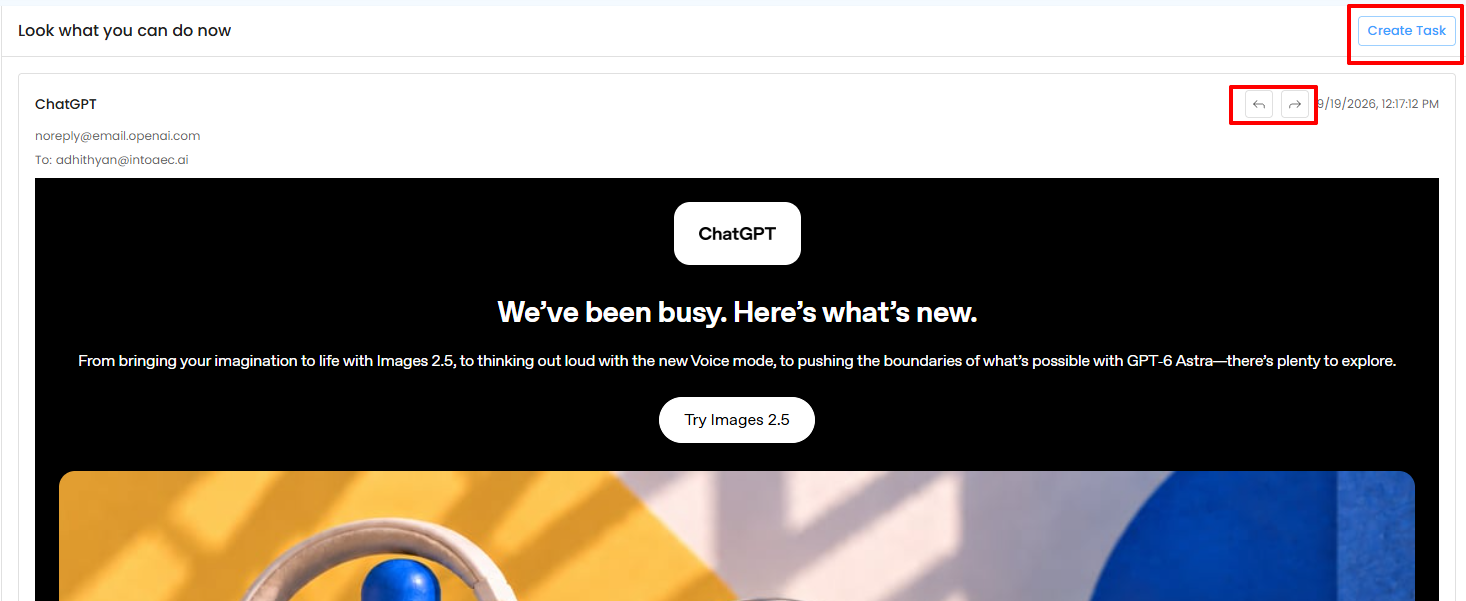
From an inbox email, you can:
Open and view the email.
Reply to the sender.
Forward the email.
Create a Task from the email.
Sent
The Sent tab displays emails that have been sent from your connected email account.
You can open sent emails to review their content and use the available email actions.
Drafts
The Drafts tab displays emails that have been saved without being sent.
Open a draft to continue composing the email.
Reply to an Email
To reply to an email:
Open the email from your Inbox.
Click Reply.
Enter your response.
Add CC or BCC recipients if required.
Send the email.
Forward an Email
To forward an email:
Open the email.
Click Forward.
Enter the recipient's email address.
Add CC or BCC recipients if required.
Add any additional message content.
Send the email.
Search Emails
Use the Search option to find a specific email.
Search helps you locate emails without manually going through the entire mailbox.
Filter Emails
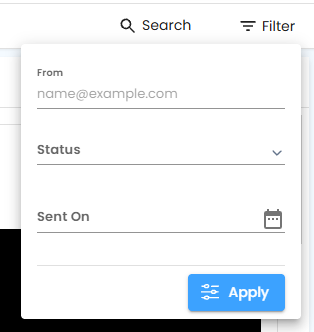
Use the Filter option to narrow down the email list.
You can filter emails based on:
From Email ID
Status
Sent On
With search and filters, you can quickly find the email you need and take action directly from IntoAEC Mail.
Was this article helpful?
That’s Great!
Thank you for your feedback
Sorry! We couldn't be helpful
Thank you for your feedback
Feedback sent
We appreciate your effort and will try to fix the article