How to Compose and Send an Email in IntoAEC
With IntoAEC Mail, you can compose and send emails directly from your connected Gmail or Outlook account.
You can also save an email as a Draft and continue working on it later.
Open the Compose Window
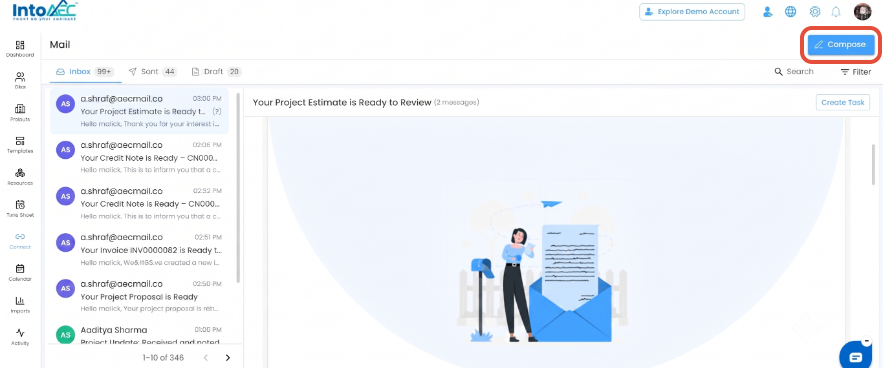
Go to Connect → Mail.
Click Compose Mail.
The email composition window opens.
Compose Your Email
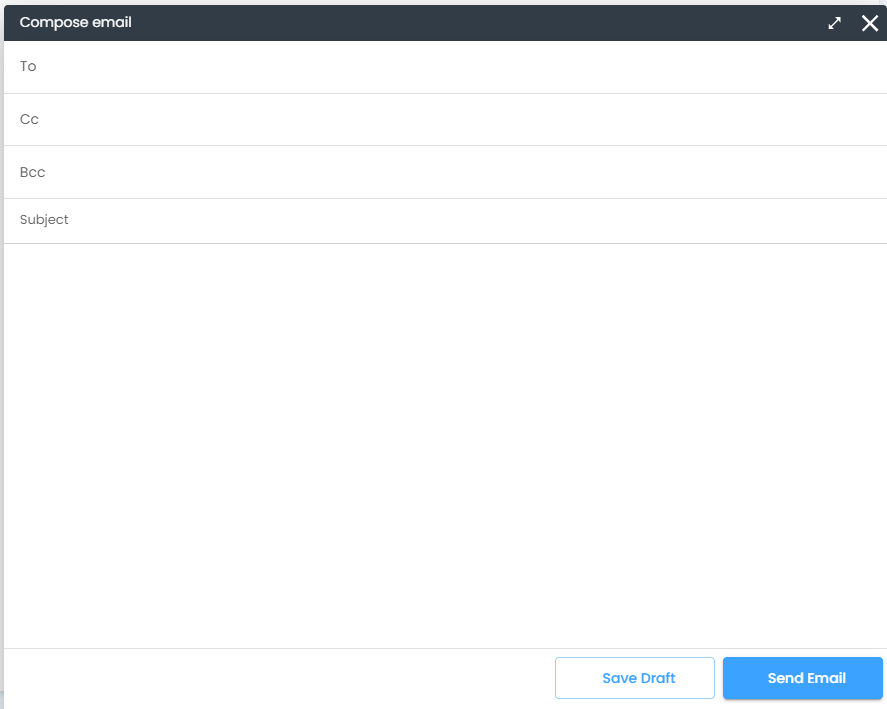
The Compose Mail window includes the following fields:
To – Enter the primary recipient's email address.
CC – Add recipients who should receive a copy of the email.
BCC – Add recipients who should receive a hidden copy of the email.
Subject – Enter the subject of the email.
Body – Enter the content of your email.
Send the Email
After entering the required email details:
Add the recipient in To.
Enter the Subject.
Write your message in the Body.
Add CC or BCC recipients if required.
Send the email.
The email is sent through your connected Gmail or Outlook account.
Save an Email as Draft
If you are not ready to send the email:
Enter the required email content.
Leave the email unsent.
Save it as a Draft.
The email will be available under the Drafts tab, where you can open it and continue editing later.
Was this article helpful?
That’s Great!
Thank you for your feedback
Sorry! We couldn't be helpful
Thank you for your feedback
Feedback sent
We appreciate your effort and will try to fix the article