How to Connect Gmail or Outlook to IntoAEC Mail
Connect your existing Gmail or Outlook account to IntoAEC and manage your emails directly from the application.
Once connected, your mailbox will be available in Connect → Mail, where you can view, send, reply to, and manage your emails.
Where to Find Mail Integration
Go to:
Connect → Mail
The Mail page provides the options to connect your email account.
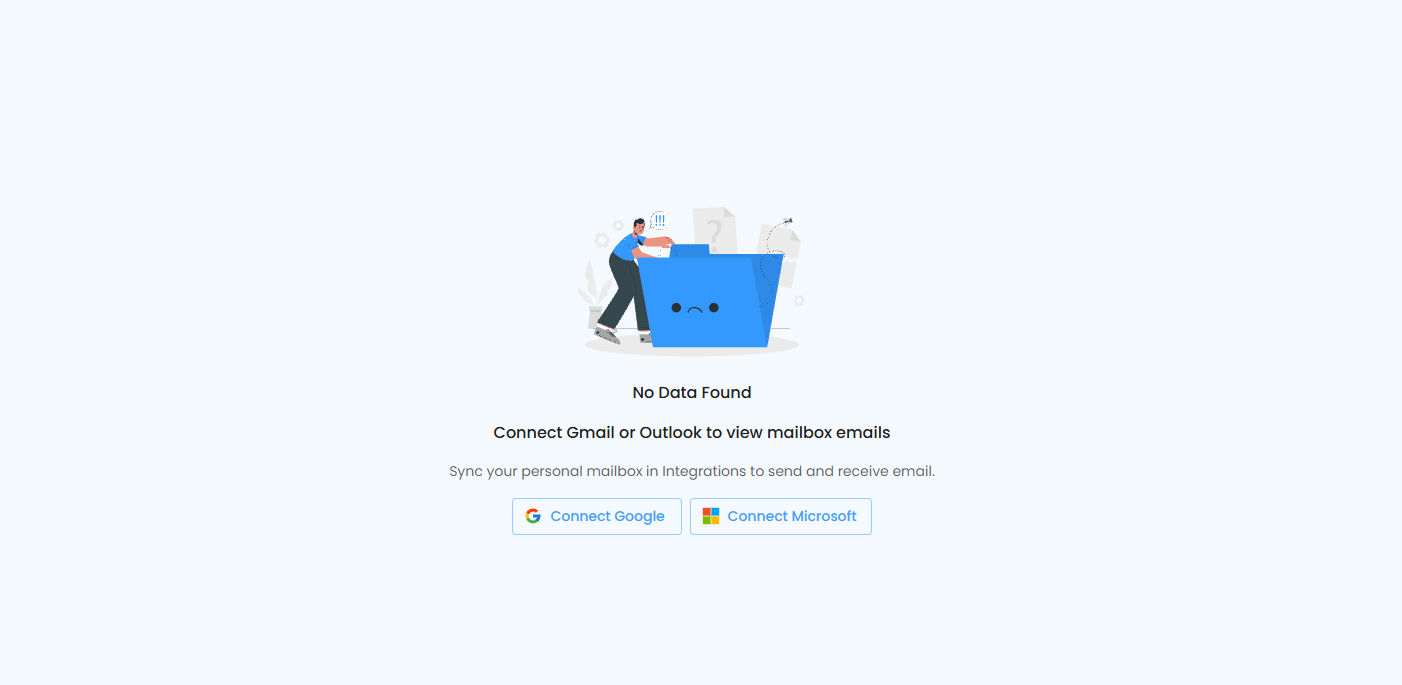
Connect Your Gmail Account
- Go to Connect → Mail.
- Select the Google option.
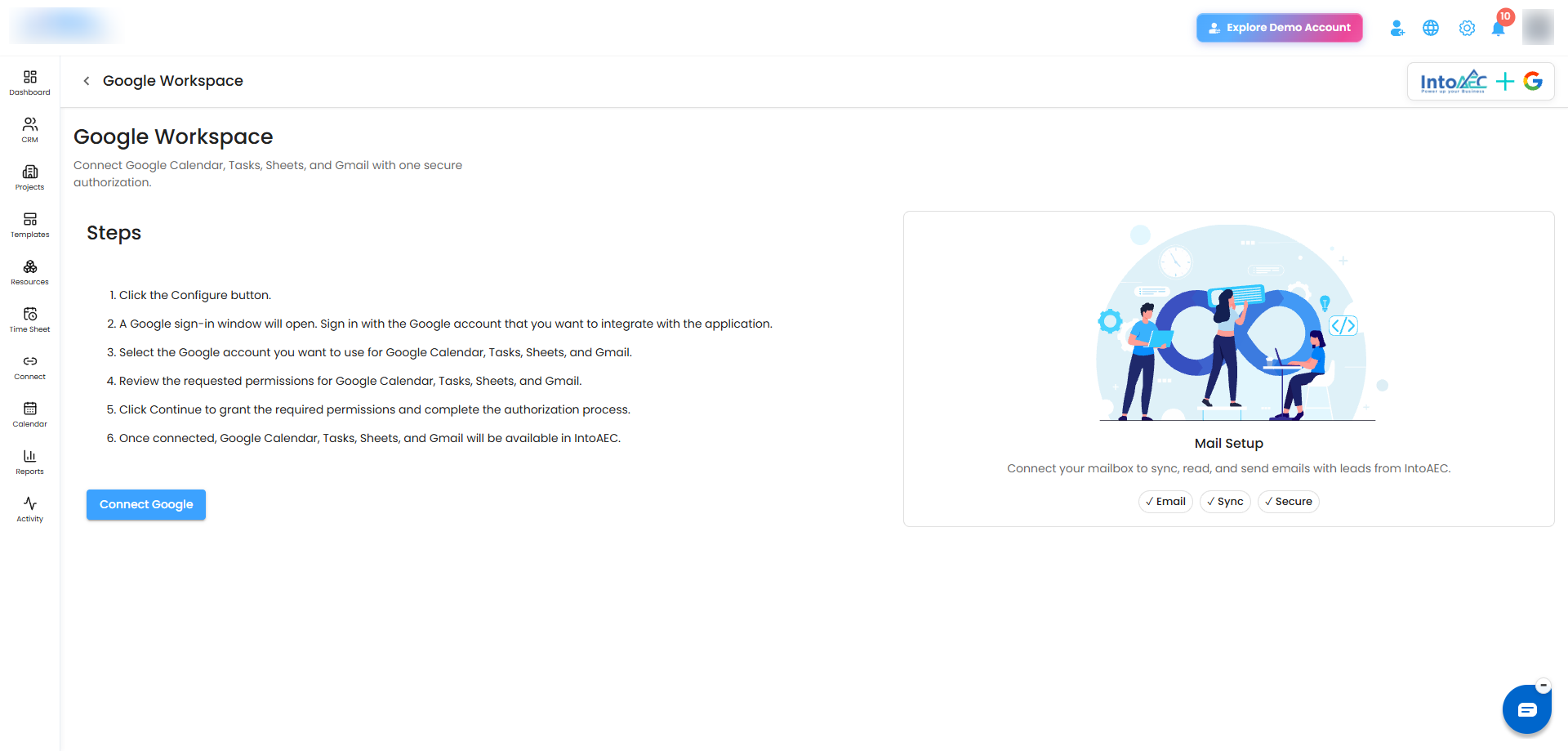
- You will be redirected to the Google integration page.
- Connect your Gmail account.
- Once the connection is completed, return to the Mail page.
Your Gmail emails will now be available in IntoAEC.
Connect Your Outlook Account
- Go to Connect → Mail.
- Select the Microsoft option.
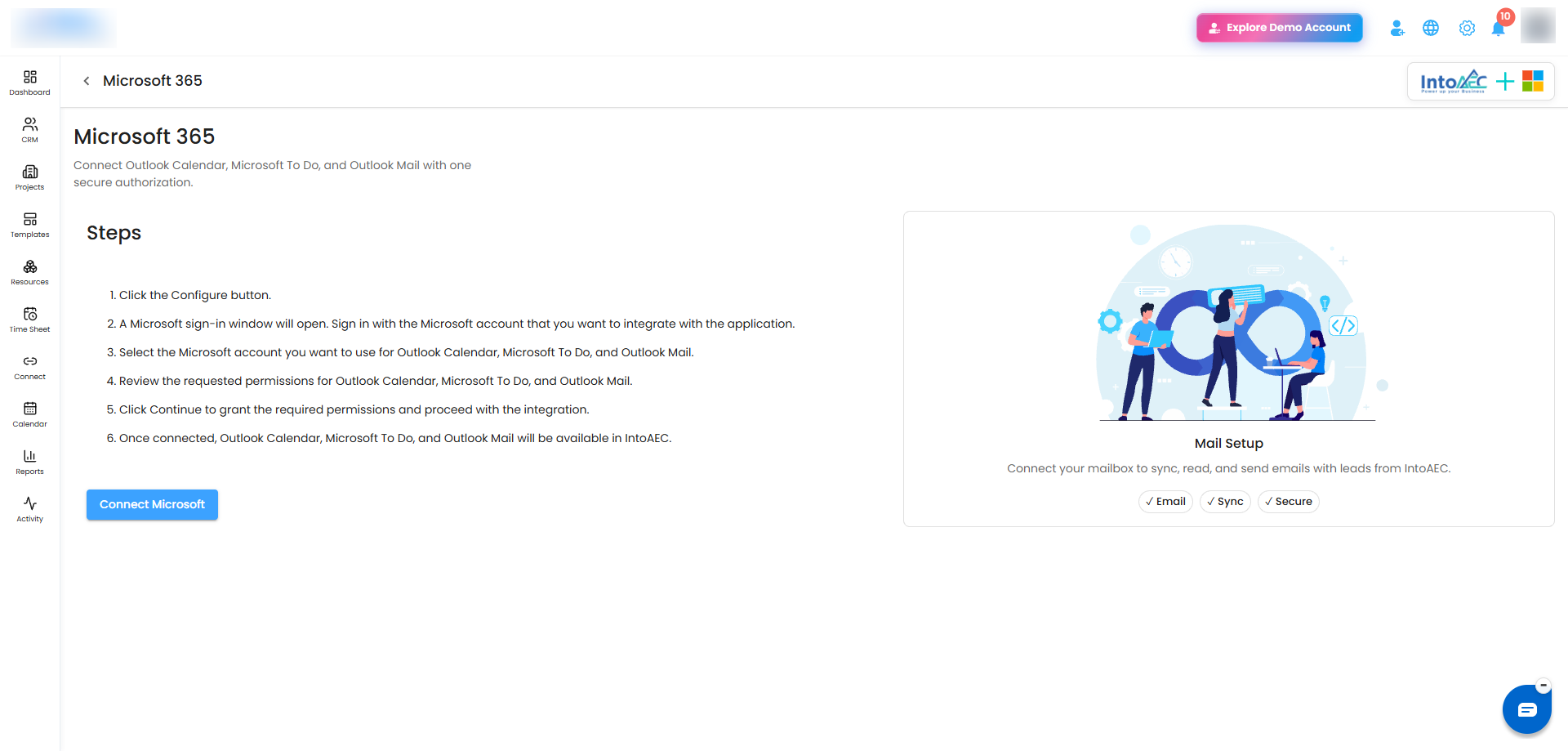
- You will be redirected to the Microsoft integration page.
- Connect your Outlook account.
- Once the connection is completed, return to the Mail page.
Your Outlook emails will now be available in IntoAEC.
After Connecting Your Account
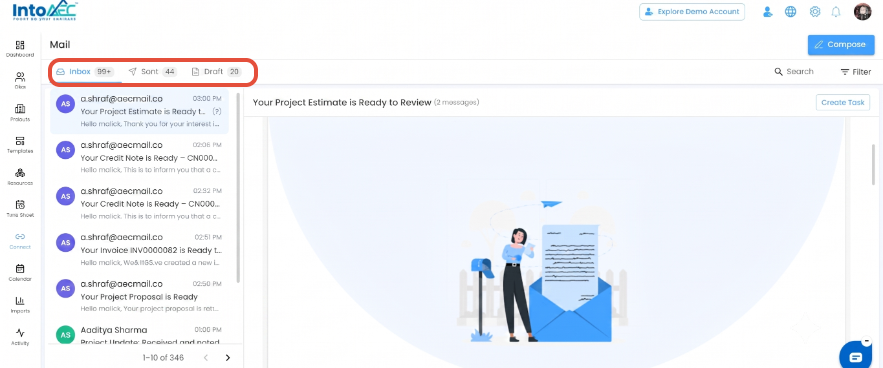
Once the integration is complete and you return to Connect → Mail, your mailbox will be loaded in IntoAEC.
You can access:
- Inbox
- Sent
- Drafts
You can also compose, reply to, and forward emails directly from IntoAEC.
Important
You need to connect your Gmail or Outlook account before you can access your emails through IntoAEC Mail.
Was this article helpful?
That’s Great!
Thank you for your feedback
Sorry! We couldn't be helpful
Thank you for your feedback
Feedback sent
We appreciate your effort and will try to fix the article