The Progress Claim & Retention feature helps users manage progress billing, claim submissions, accepted claim amounts, and retention tracking from one place.
Users can create progress claims, track work progress, review schedule quantities, include materials, resources, and assets, and manage retention amounts based on project-level settings.
Claim & Retention Settings
Users can configure claim and retention settings for each project.
The settings include two main sections:
Claims
This section allows users to control which tabs should be visible while creating a progress claim.
Available claim tabs include:
Show Materials
Show Resources
Show Assets
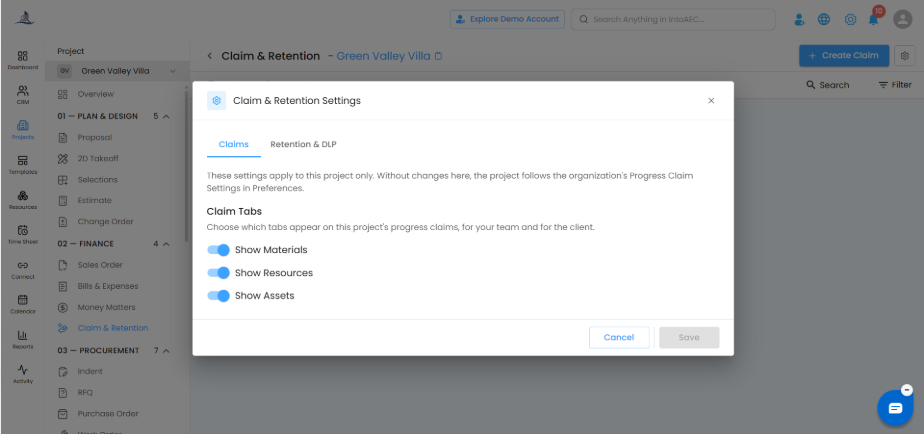
Users can enable or disable these options based on what needs to be included in the progress claim.
Retention & DLP
This section allows users to configure retention and defects liability period details.
Users can set:
Retention rate
Defects Liability Period duration
Post-completion release tranches
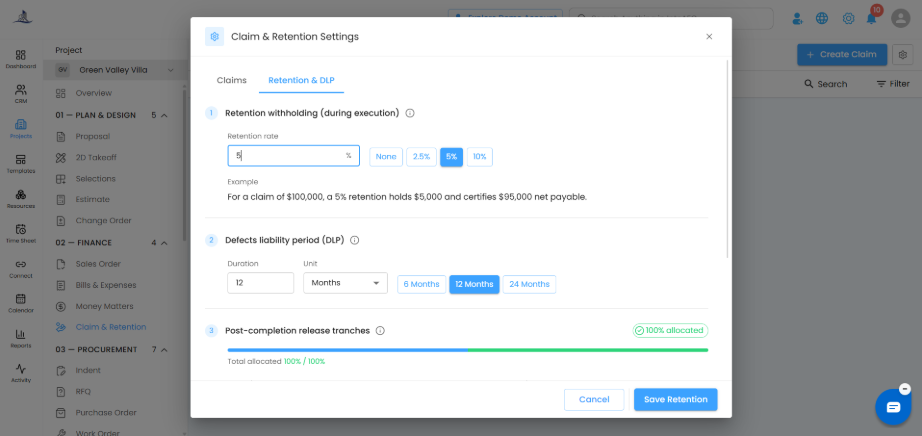
For example, if the claim amount is $100,000 and the retention rate is 5%, then $5,000 will be held as retention and $95,000 will be certified as the net payable amount.
Creating a Progress Claim
To create a progress claim:
Open the required project.
Go to Claim & Retention.
Click + Create Claim.
Enter or review the claim details.
Add progress details under the required tabs.
Submit the claim for acceptance.
Progress Claim Sections
While creating a progress claim, users can review and update details under different tabs.
| Tab | Purpose |
|---|---|
| Summary | Shows overall claim summary, work done value, variation orders, retention amount, and this period total |
| Schedules | Allows users to update progress based on schedule quantity and percentage |
| Quantity | Allows quantity-based claim entry |
| Materials | Shows planned, received, used, and unused material quantities |
| Resources | Shows resource-related claim details |
| Assets | Shows asset-related claim details |
Schedule-Based Claim Entry
In the Schedules tab, users can update the current claim quantity or percentage for each schedule item.
The system displays:
Total value
Previous claimed quantity and percentage
Current claim quantity and percentage
Total up to date
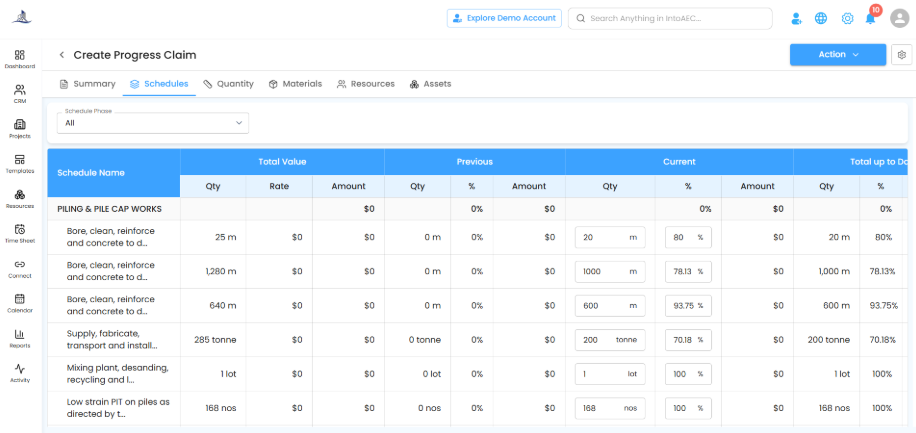
This helps users clearly track how much work has already been claimed and how much is being claimed in the current period.
Materials Tracking in Claims
The Materials tab shows material usage details linked to the project schedule.
Users can view:
Material name
Planned quantity
Received quantity
Used quantity
Unused quantity
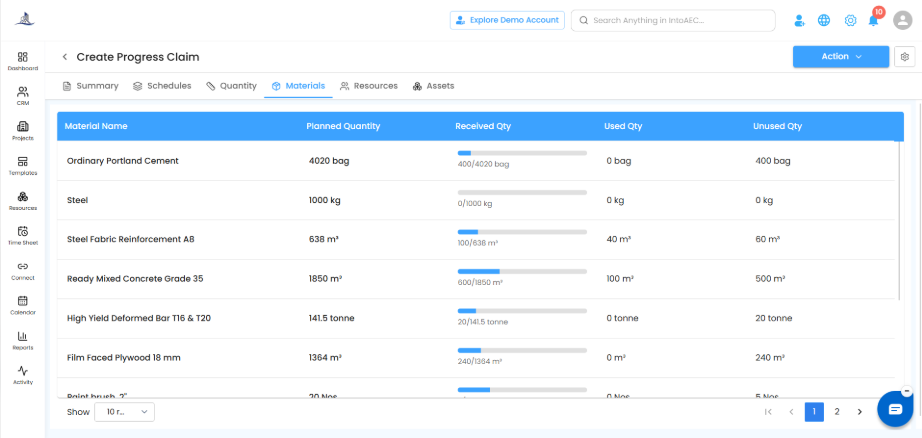
This helps the team verify material progress before submitting the claim.
Client Acceptance
Once the progress claim is submitted, the client can review the claim and update the accepted quantity, percentage, or amount.
The client can then use Sign & Accept to approve the claim.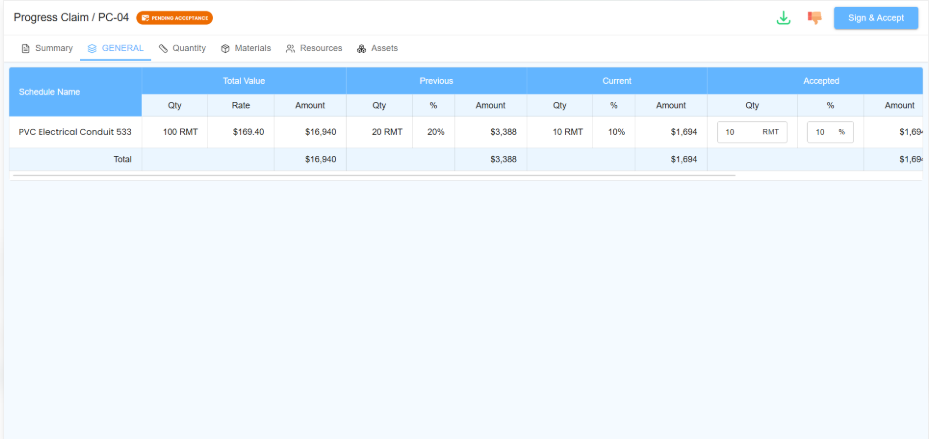
Claim Dashboard
The Claim dashboard displays all submitted and accepted progress claims.
Users can view:
Claim number
Submitted date
Claim amount
Accepted amount
Claim status
Convert to Invoice option
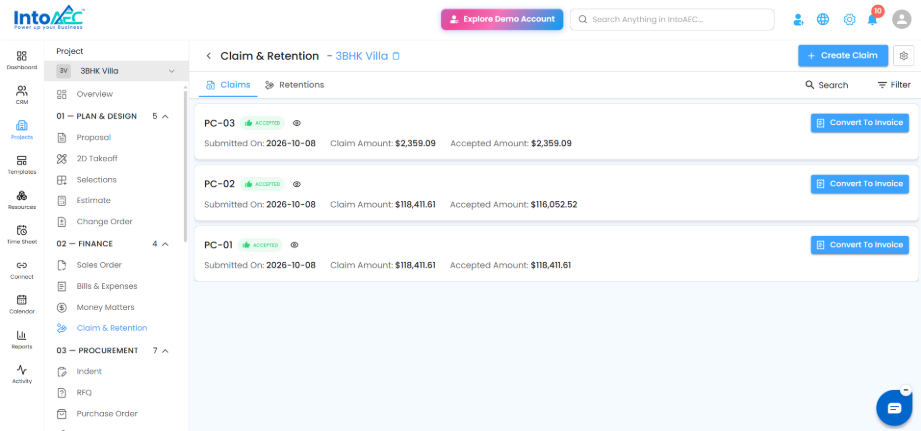
Accepted claims can be converted into invoices directly from the dashboard.
Retention Dashboard
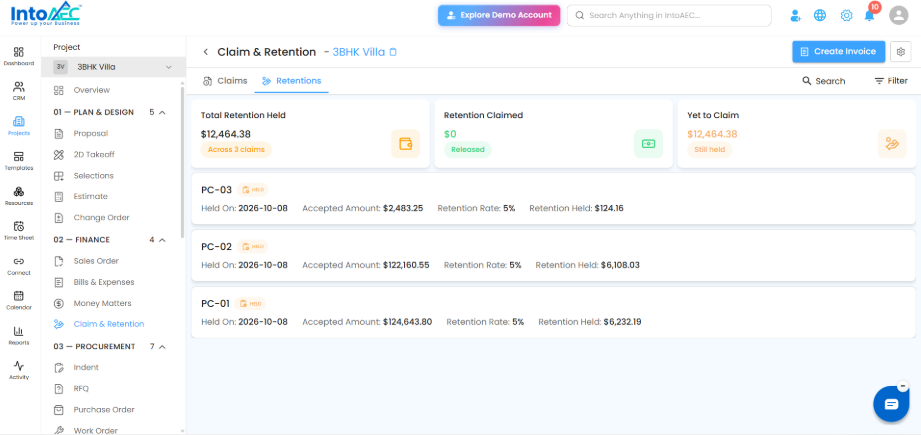
The Retentions tab helps users track all retention amounts for the project.
Users can view:
Total retention held
Retention claimed
Yet to claim amount
Retention held against each claim
Accepted amount
Retention rate
Retention held amount
Creating Retention Invoice
Users can create an invoice for retention release by clicking Create Invoice from the Retentions tab.
The system allows users to enter the percentage to invoice. Based on the entered percentage, the invoice amount will be calculated automatically.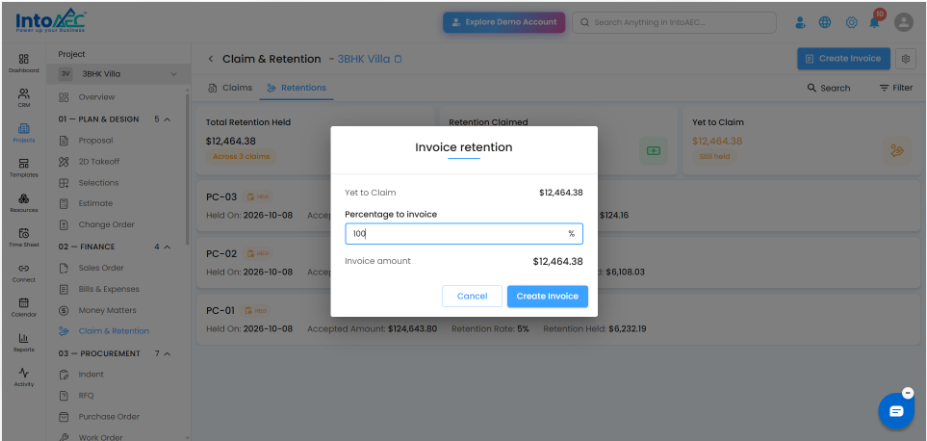
Summary
The Progress Claim & Retention Dashboard helps teams manage claim submissions, client acceptance, retention withholding, retention release, and invoice conversion in one connected workflow.
Was this article helpful?
That’s Great!
Thank you for your feedback
Sorry! We couldn't be helpful
Thank you for your feedback
Feedback sent
We appreciate your effort and will try to fix the article