Lead and Project Tags help your team categorize, organize, and identify leads or projects quickly. Whether you want to mark high-priority leads, project types, departments, or custom workflows, tags make filtering and management easier across the platform.
With customizable colors and flexible naming, tags help your team stay visually organized and aligned.
What You Can Do Here
Create custom tags for Leads and Projects.
Assign colors to tags for quick visual identification.
Use tags across different workflows and teams.
Edit or delete tags anytime as needed.
Improve filtering, organization, and project tracking.
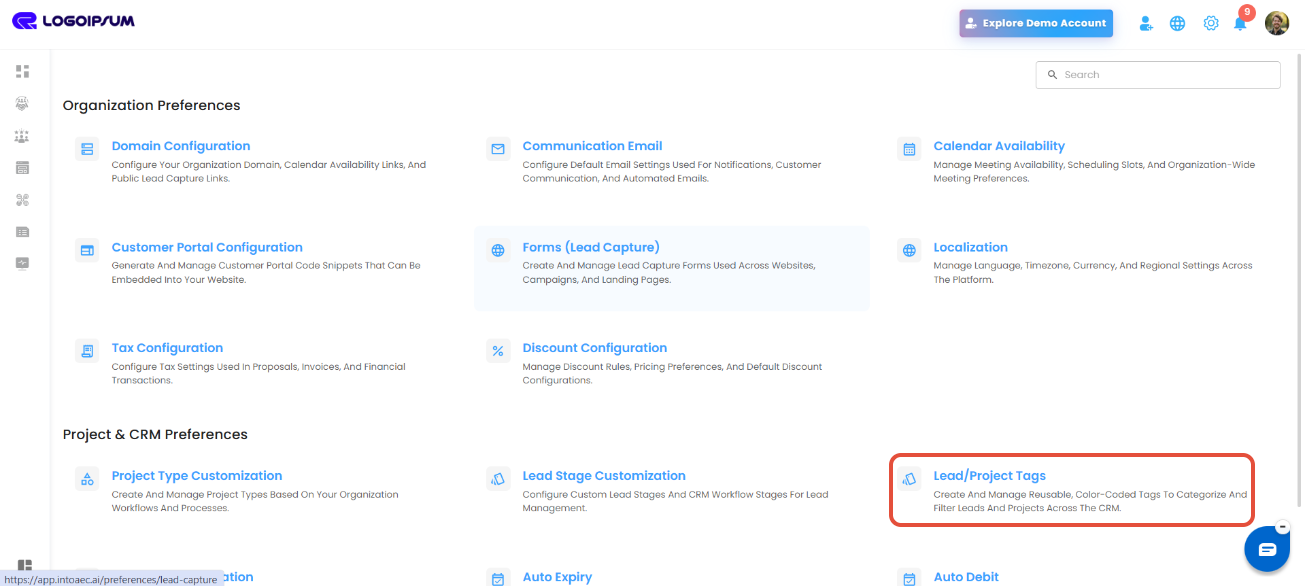
Accessing Lead & Project Tags
Navigate to Settings from the side menu.
Open Preferences.
Click Lead/Project Tags.
This will open the tag management section where you can create and manage all tags used across the system.
Create New Tags
Tags can be customized based on your organization’s workflow, project categories, priorities, or departments.
How to Create a Tag
Click Create Tag.
Enter the Tag Name.
Choose a preferred color for the tag.
Save the tag to make it available across Leads and Projects.
Once created, tags can be assigned directly while managing leads or projects.
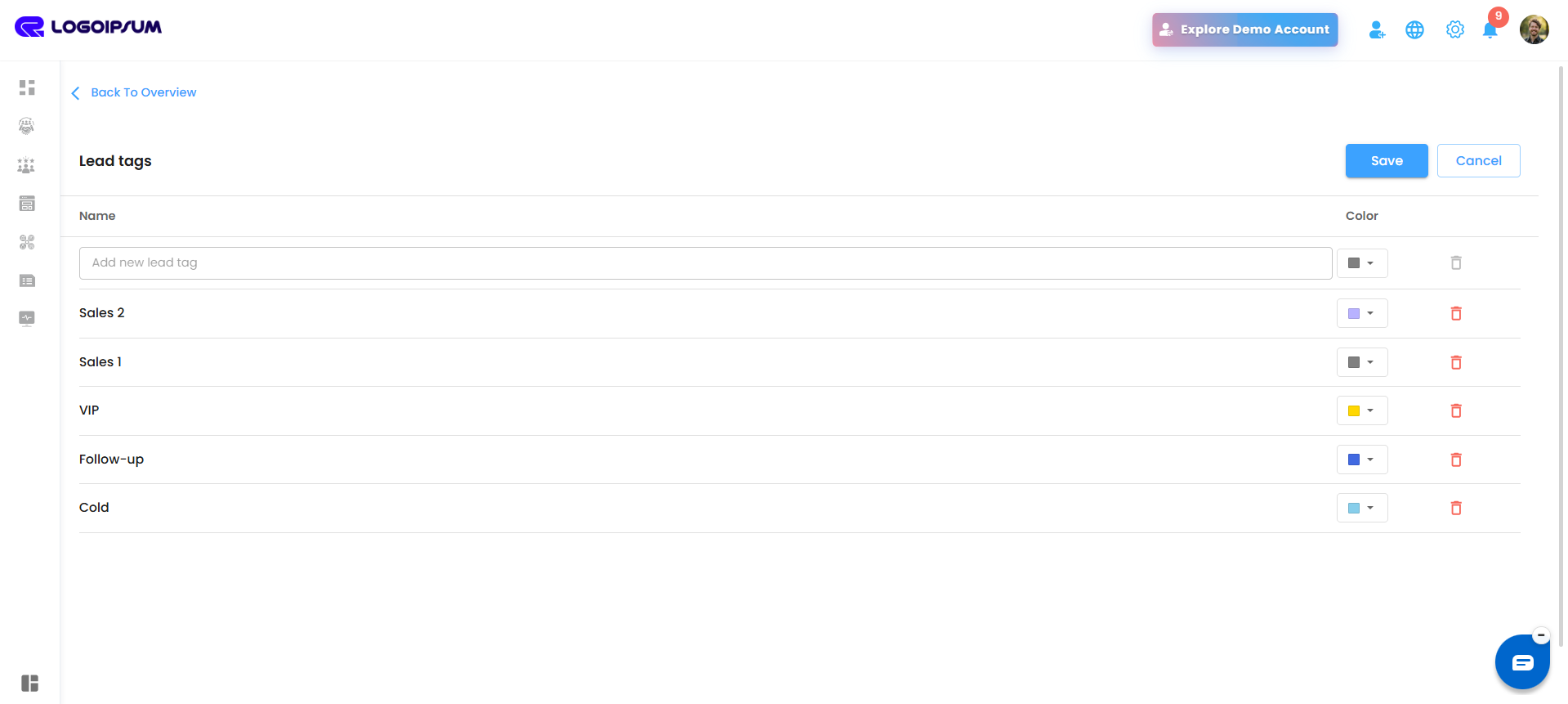
Assign Colors for Better Visibility
Color-coded tags help teams quickly identify categories, priorities, or statuses at a glance.
What You Can Do
Choose custom colors while creating or editing tags.
Use different colors for different workflows or departments.
Improve visibility and lead tracking with consistent color usage.
Pro Tip: Use standardized colors for priorities or departments—for example, red for urgent leads, blue for design projects, or green for completed tasks—to help teams identify information instantly.
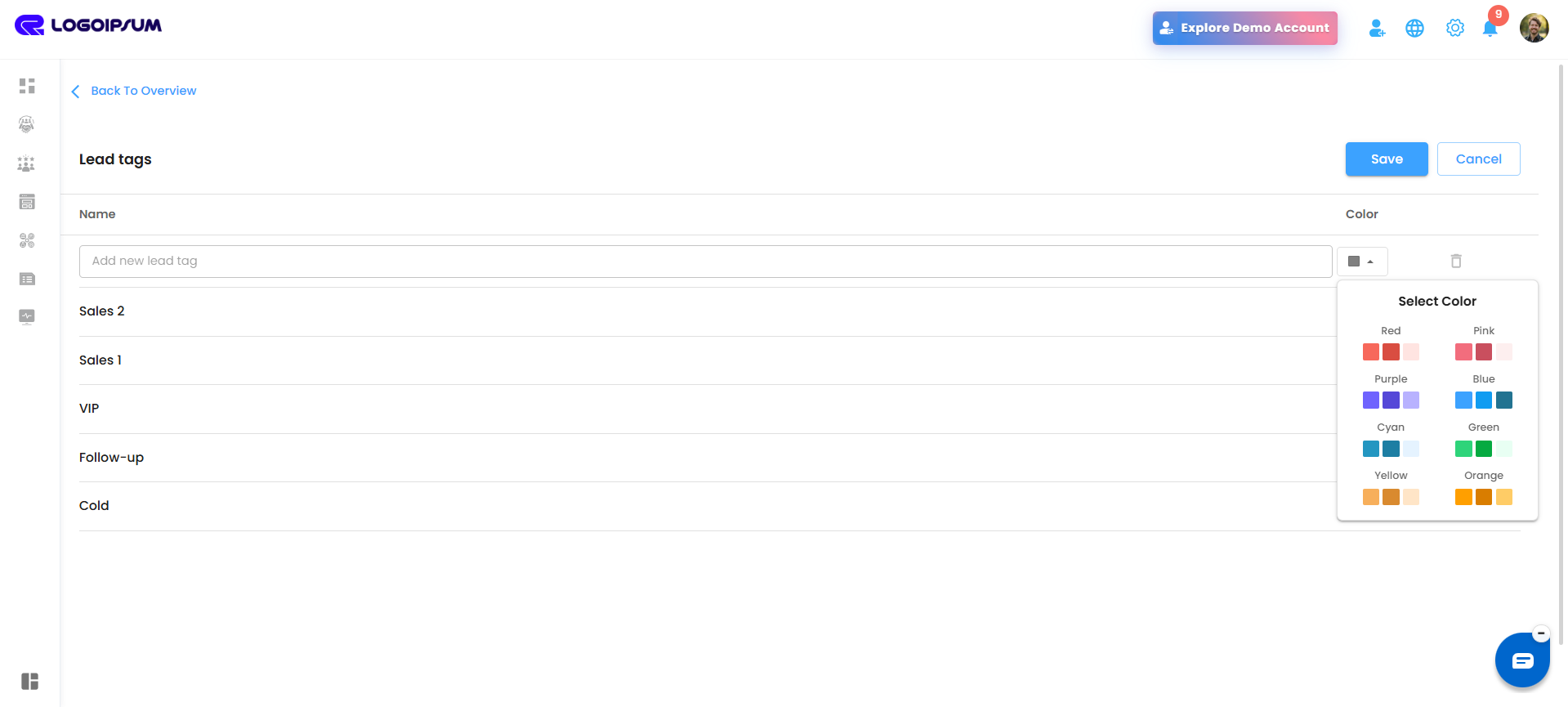
Edit or Delete Tags
As your workflows evolve, tags can be updated or removed anytime.
Available Actions
Edit existing tag names or colors.
Delete tags that are no longer required.
Keep your tag system clean, relevant, and organized.
Pro Tip: Keep tag names short, meaningful, and consistent across teams to improve search, filtering, and reporting accuracy.
Was this article helpful?
That’s Great!
Thank you for your feedback
Sorry! We couldn't be helpful
Thank you for your feedback
Feedback sent
We appreciate your effort and will try to fix the article