How to Schedule and Manage Meetings for a Lead
Overview
Use the Event feature inside a lead to set up meetings with your prospects and clients, either online or in person. You can pick a time yourself and send an invite, or share your open slots and let the lead book a time that suits them. Past and upcoming meetings are kept separately, so you always know what's done and what's still ahead.
Prerequisites
- The lead must already exist in your CRM.
- For online meetings, connect Google Meet or Outlook to your account first. IntoAEC uses whichever calendar you've connected to generate the meeting link automatically. If this isn't set up yet, follow the steps in Configuring Google Meet or Outlook Integration.
Creating a Meeting
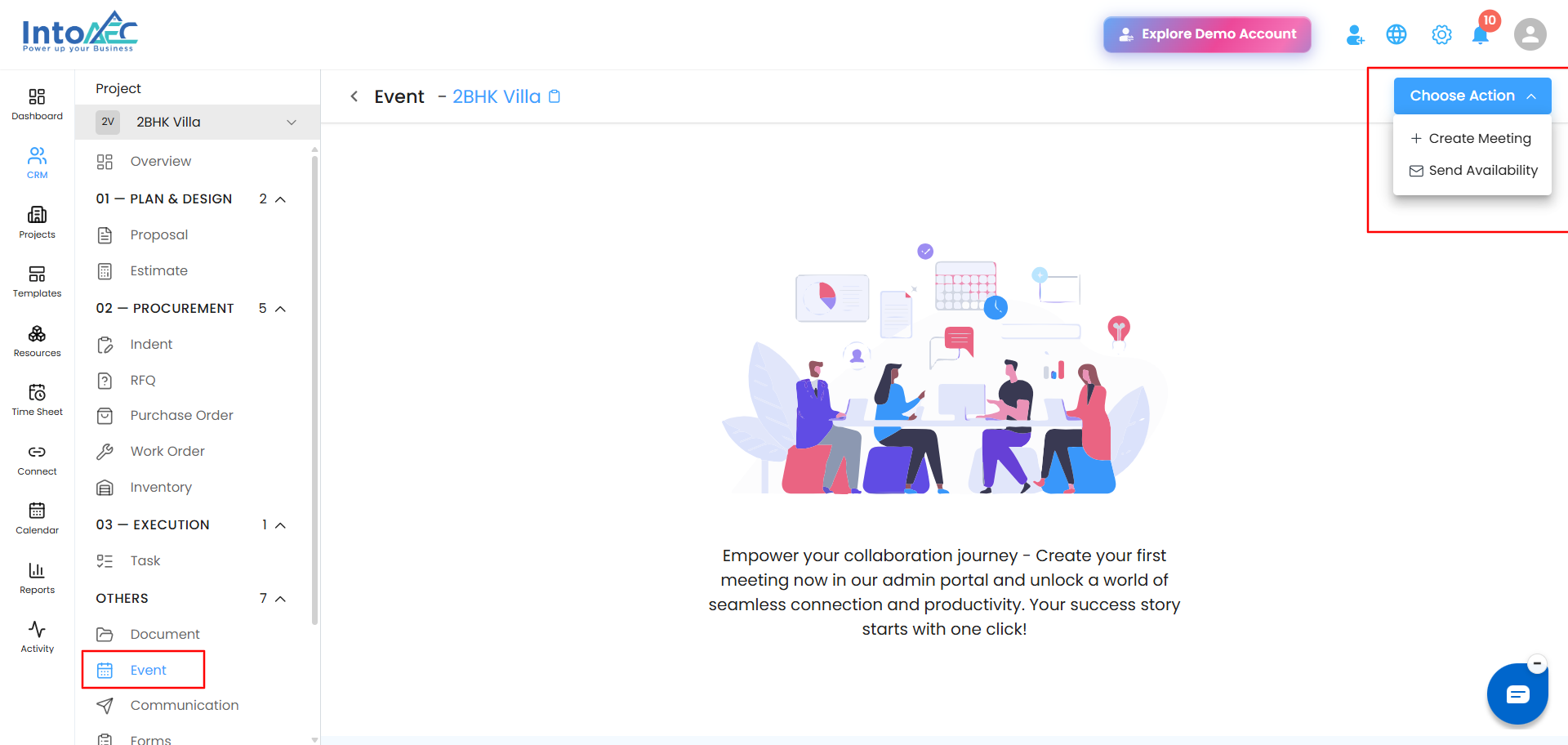
Step 1. Open the lead, then go to the Event tab.
Step 2. Click Choose Action in the top right, and select Create Meeting.
 Step 3. Pick a meeting type at the top of the panel — Online or Offline.
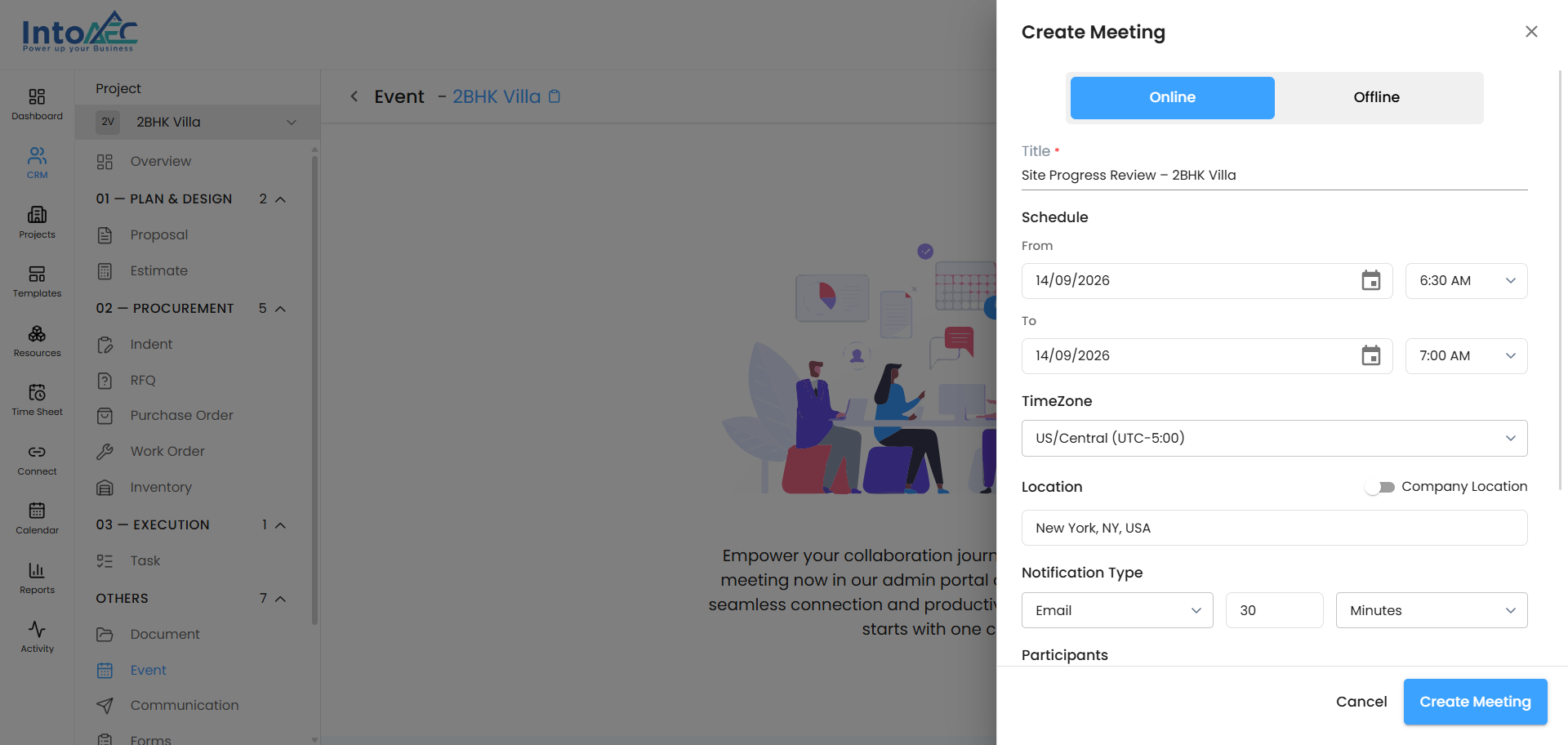 Online meeting fields:
- Title (required)
- Schedule — start and end date/time
- TimeZone
- Location — turn on Company Location to auto-fill your office address, or type in a different one
- Notification Type — how and when attendees get reminded, e.g. Email, 30 minutes before
- Participants — attendee emails
- Agenda — optional
Offline meeting fields:
- Title (required)
- Participants
- Schedule — start and end date/time
- Location
- Agenda — optional
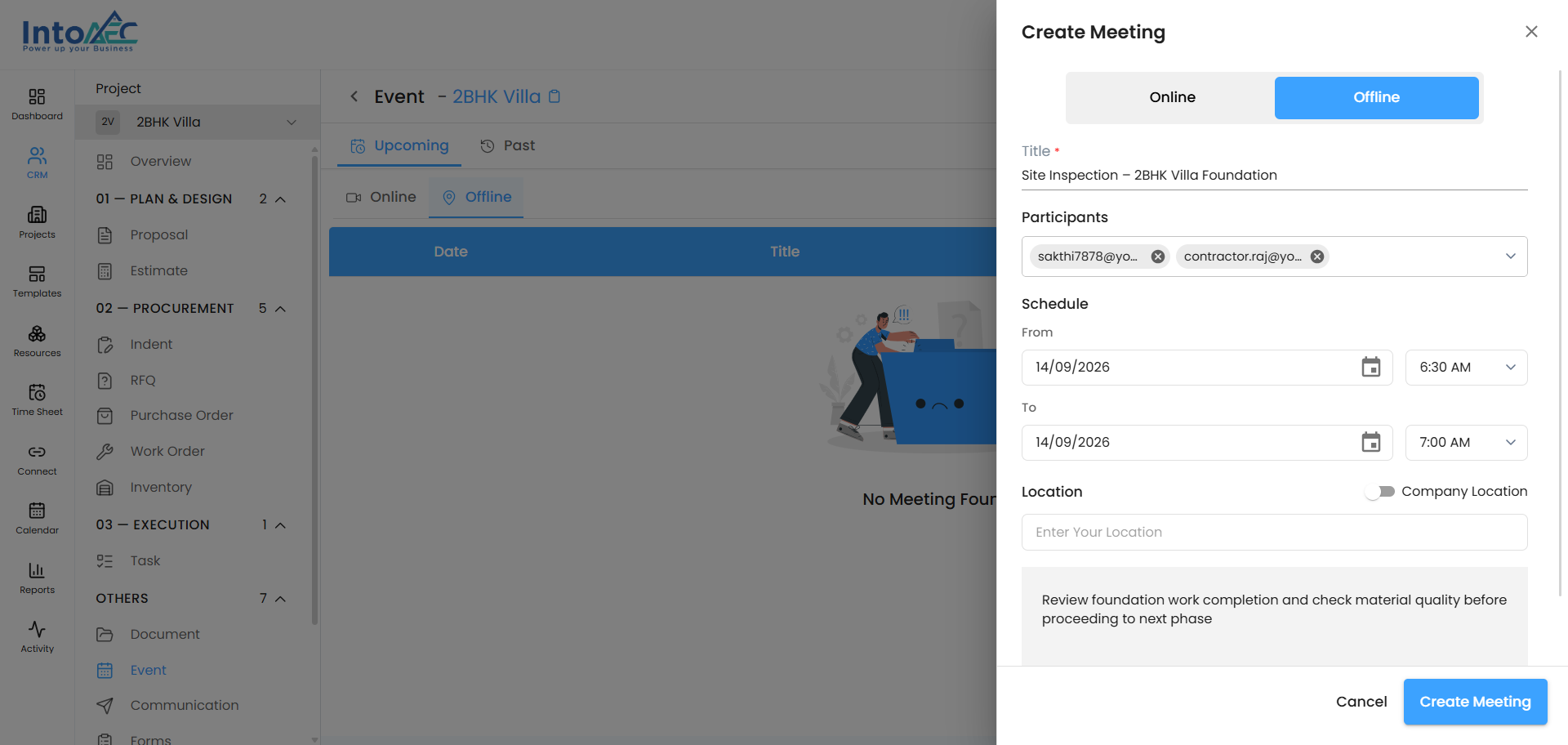
Step 4. Click Create Meeting. It'll show up under the Upcoming tab, filed under Online or Offline.
Sending Your Availability
Not sure what time works for the lead? Skip the back-and-forth and send them your open slots instead.
Step 1. In the Event tab, click Choose Action and select Send Availability.
Step 2. This opens a Compose Email window, pre-filled with the lead's email, a subject line, and a message with a View Availability button.
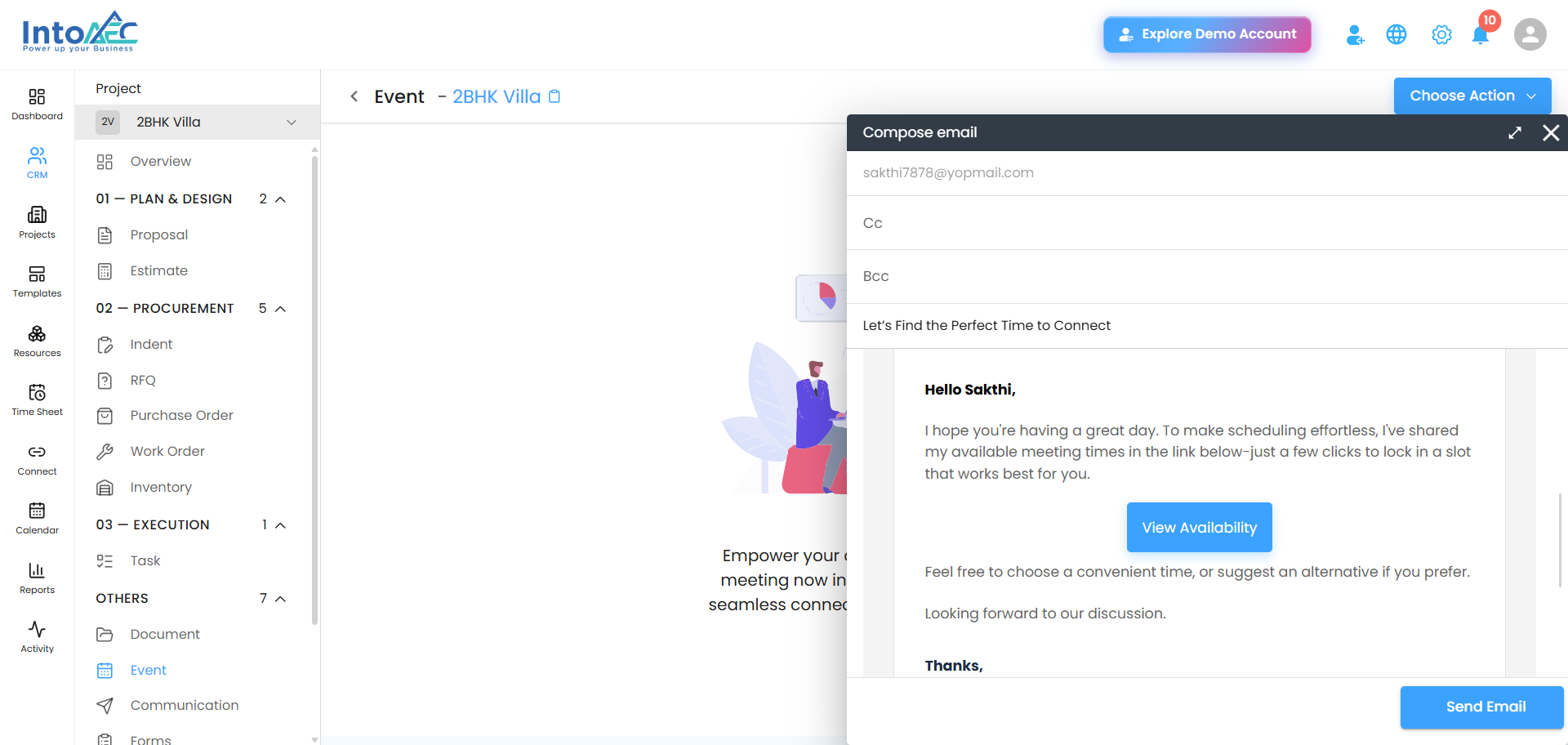 Step 3. Tweak the subject or message if you'd like, then hit Send Email.
The lead clicks View Availability, sees your open slots, and books whichever time works for them.
Upcoming, Past, Online, Offline — how the tabs work
- Upcoming — meetings that haven't happened yet
- Past — meetings that are already done
- Within each: Online and Offline split meetings by type
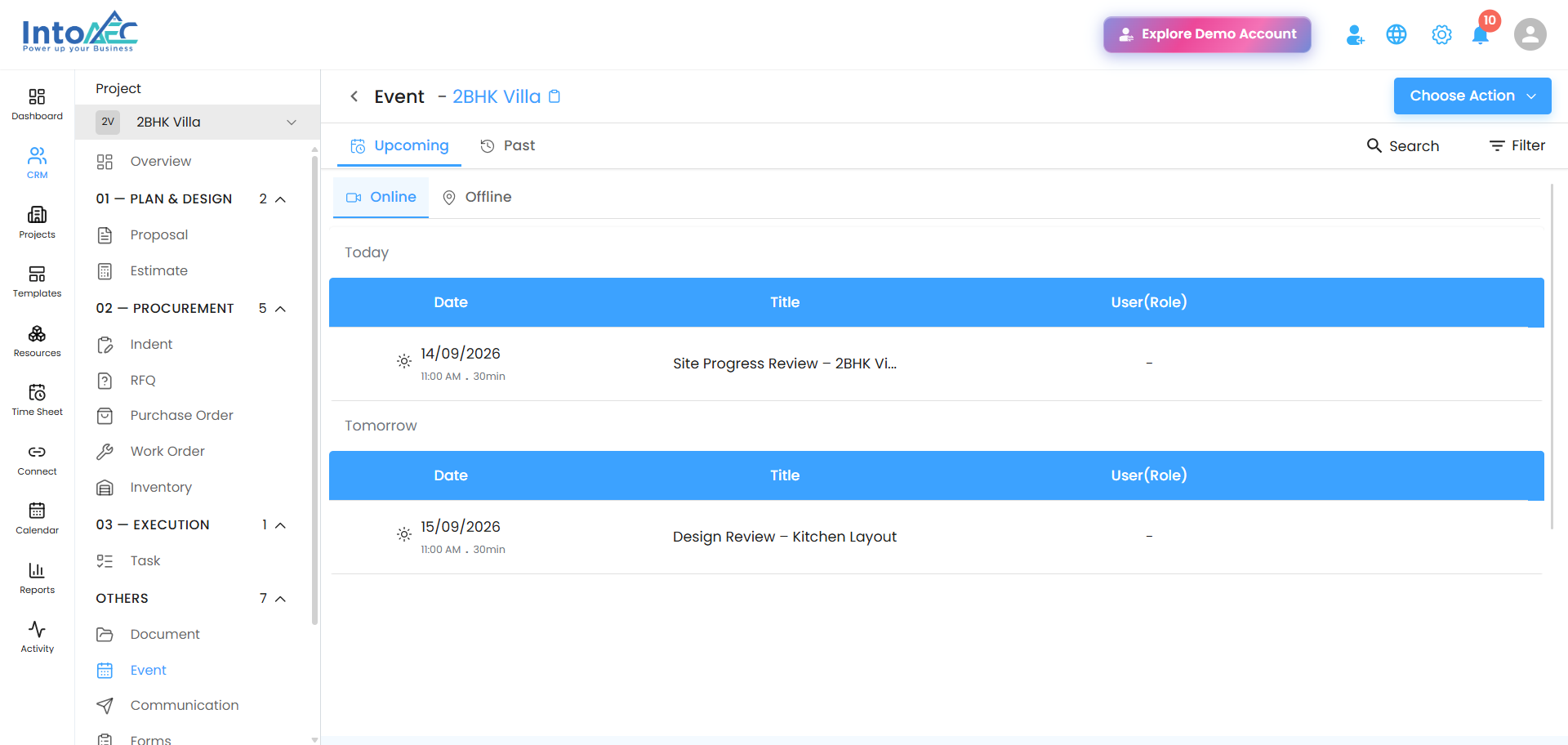
Each row shows the date, time, and duration, along with the title and who created it.
Editing, starting, or deleting a meeting
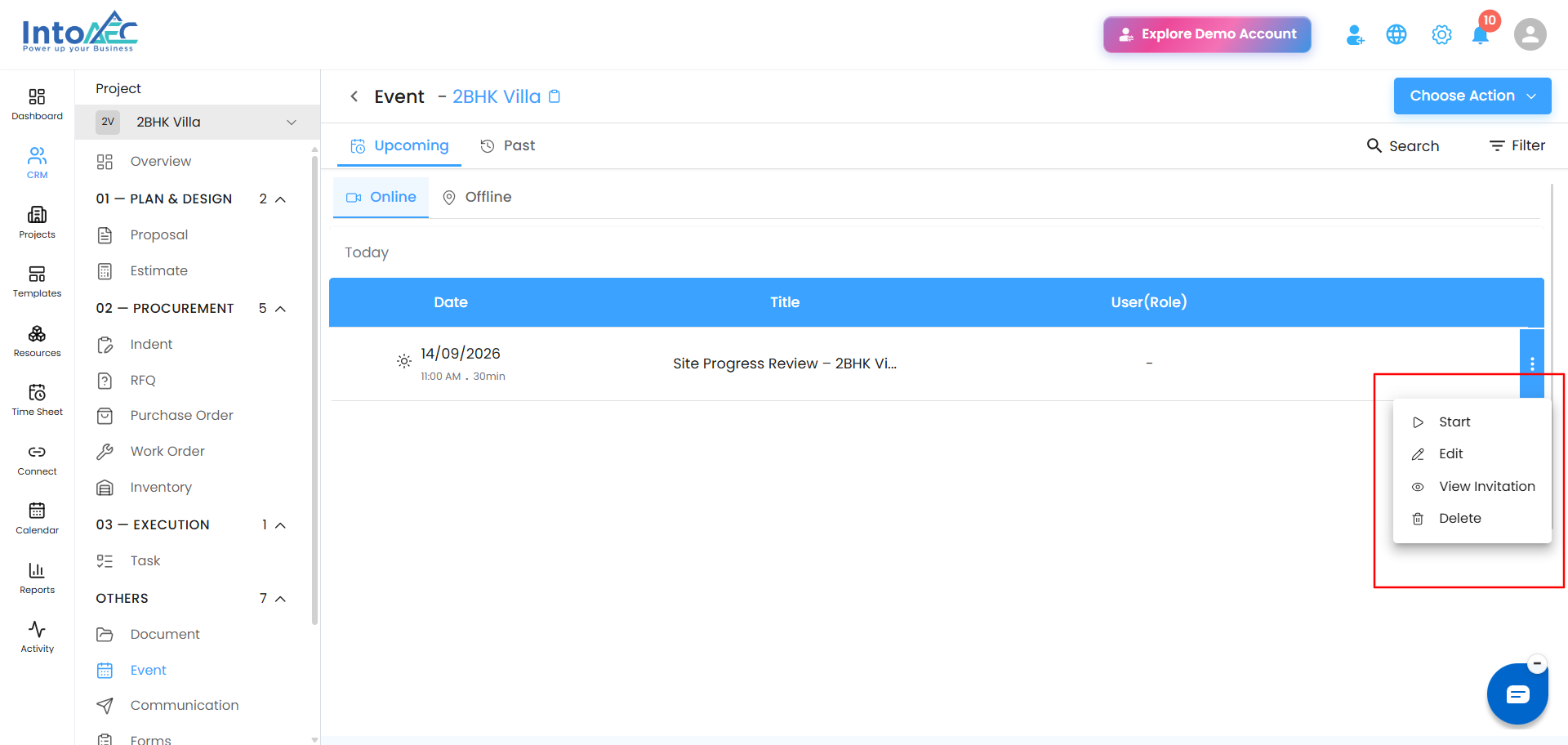
Click the three dots next to any meeting for:
- Start — jump into the online meeting (online only)
- Edit — change the details
- View Invitation — see what was sent out
- Delete
 Finding a meeting
Use Filter (top right) to narrow by who created it or by date, or use Search to look up a meeting by title.
Was this article helpful?
That’s Great!
Thank you for your feedback
Sorry! We couldn't be helpful
Thank you for your feedback
Feedback sent
We appreciate your effort and will try to fix the article