Keep your team list accurate and secure. Edit access, resend invites, pause users or remove them, all from User Hub.
Only Super Admins and users with User Hub permission can perform these actions.
Invitation statuses
| Status | Meaning | Available actions |
|---|---|---|
| Accepted | The user has joined | Edit, Make Inactive, Delete |
| Pending | Invite sent, not yet accepted | Delete |
| Expired | The invite link is no longer valid | Resend Invite, Edit, Delete |
| Inactivated | Access paused by an admin | Reactivate, Delete |
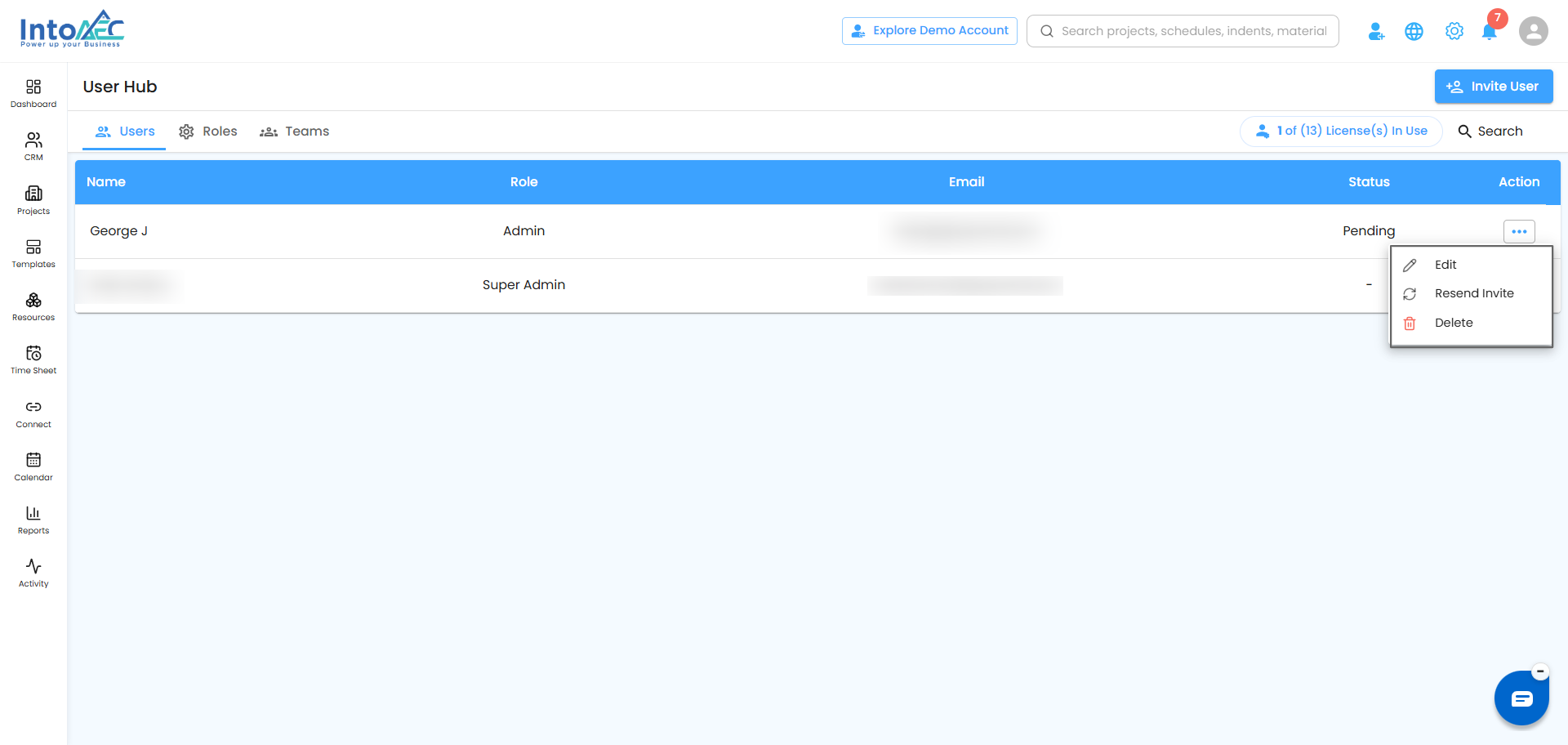
To find these actions, go to User Hub and click the three dots (Action) next to the user.
Edit a user
For Accepted users:
- Click the three dots next to the user and select Edit.
- Update their name, role, rates, permissions or settings.
- Click Update.
The email address can't be changed for Accepted users.
Pro tip: Review permissions whenever someone changes role, so access always matches their job.
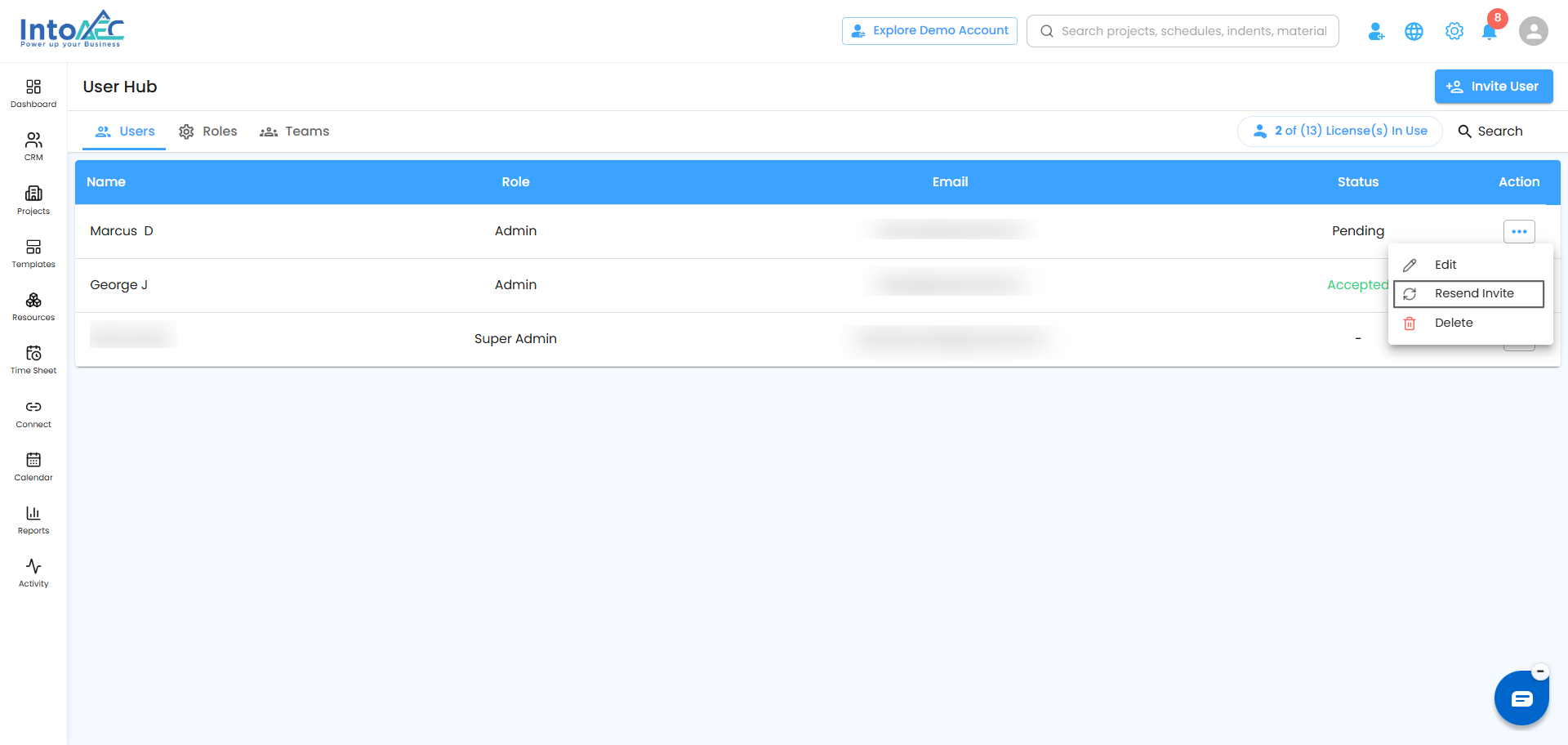
Resend an expired invite
- Find the user with Expired and Pending status.
- Click the three dots and select Resend Invite.
A fresh invitation email goes to the user.
Change the email on an expired invite
If the invite went to the wrong address:
- Find the user with Expired status and select Edit.
- Update the email, and any other details if needed.
- Click Send Invite to send the invitation to the new address.
Delete a user and hand over their work
When you delete an Accepted user, you can pass their work to someone else so nothing is left unassigned.
- Click the three dots next to the user and select Delete.
- In the popup, choose the new owner from the Assign To dropdown.
- Select an option and click Yes to confirm.
- Open any related Lead or Project and check that the Assigned To field shows the new user.
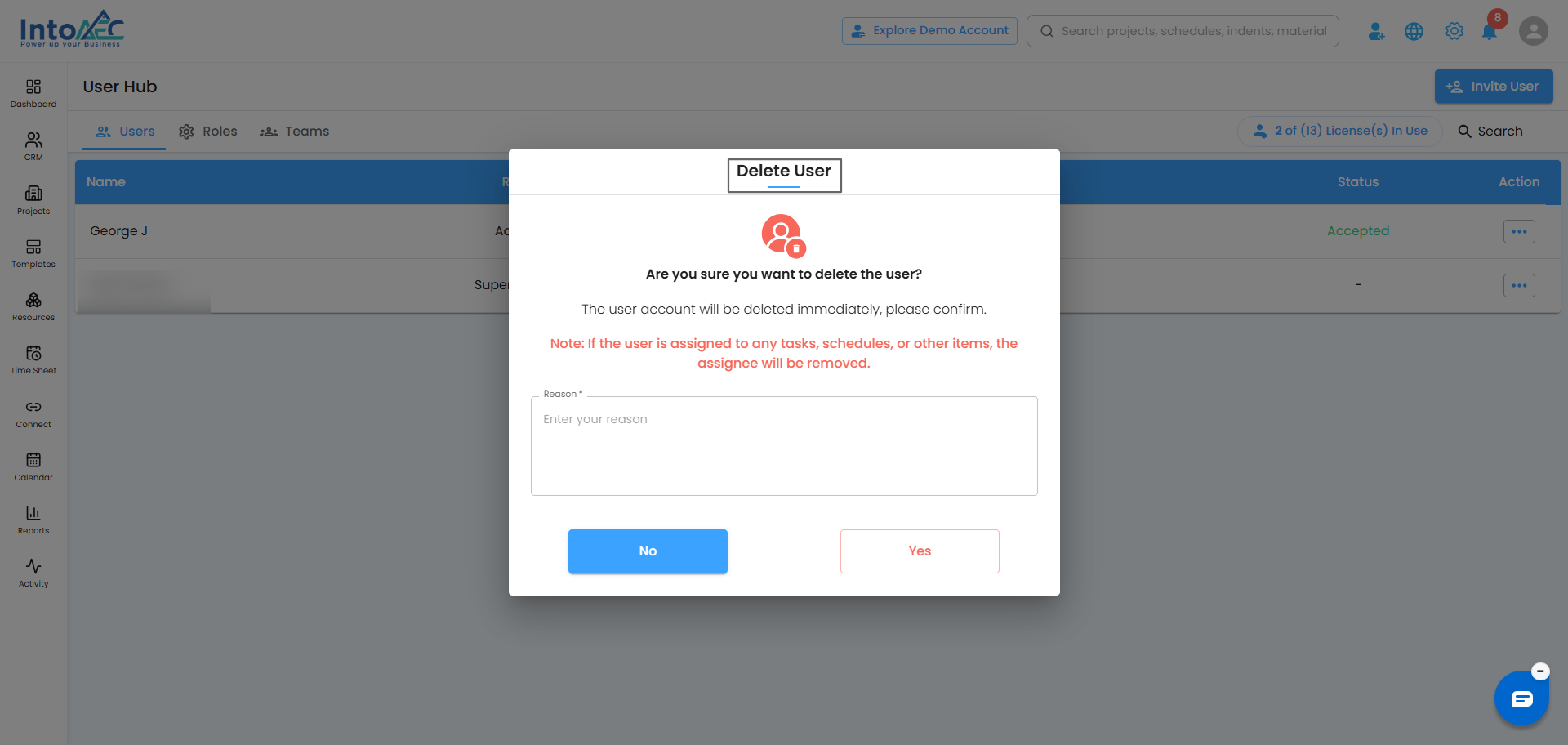
Deleted and inactivated users can no longer log in to your organization. Deleting a Pending or Expired invite also disables its email link.
Pro tip: Make sure the new owner has access to the right projects before you reassign work to them.
Was this article helpful?
That’s Great!
Thank you for your feedback
Sorry! We couldn't be helpful
Thank you for your feedback
Feedback sent
We appreciate your effort and will try to fix the article