Terms & Conditions - Setting a Default for Payment Receipts
Overview
Pick a Terms & Conditions template here, and it gets added automatically to every payment receipt your clients receive - no need to attach it manually each time.
Getting There
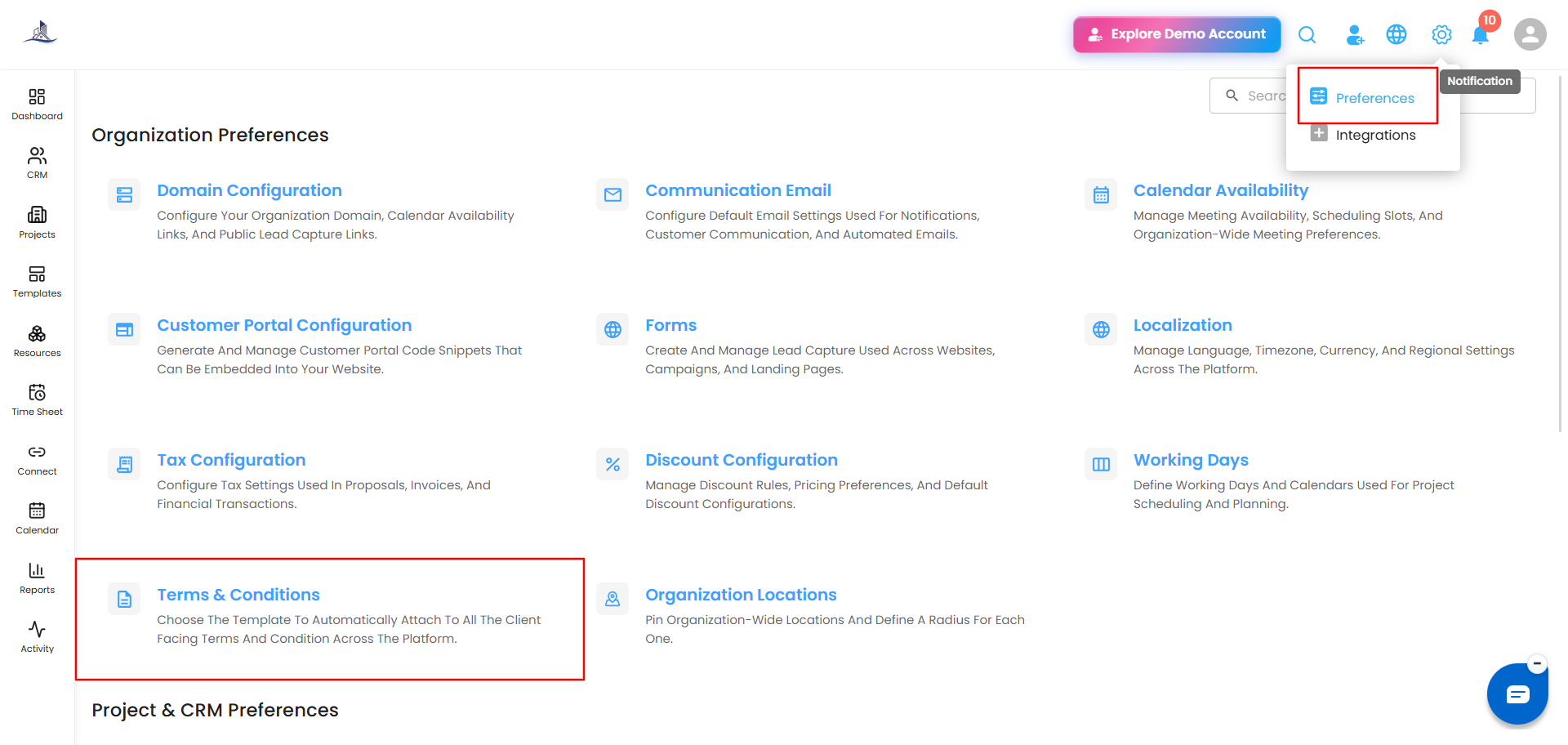
Click Settings (the gear icon) in the top right, select Preferences, then go to Terms & Conditions.
Setting a Default for Payment Receipts
- Under Payment Receipts, click the Select Terms & Conditions Template dropdown.
- Choose the template you want applied by default.
- Click Save.
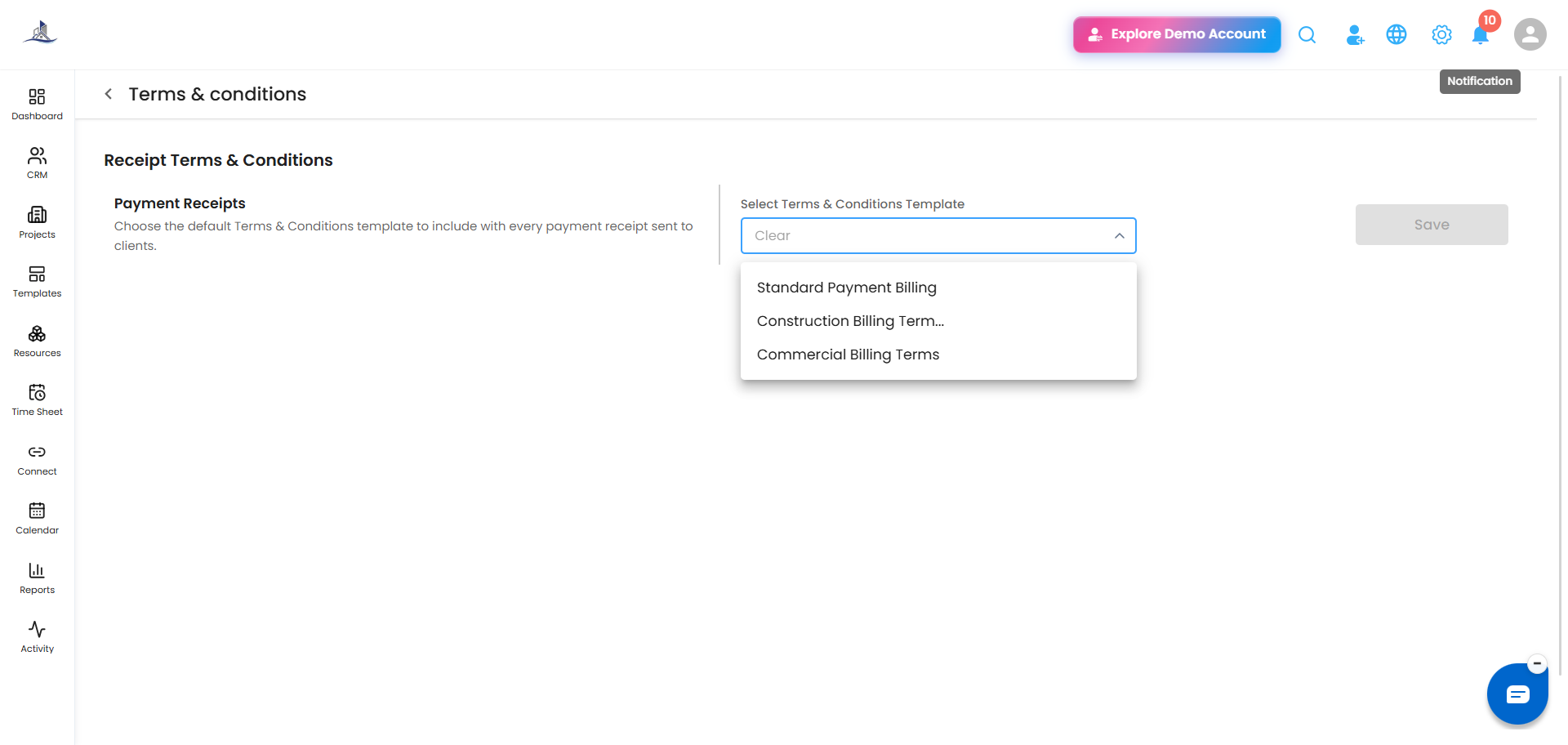
Note: Once saved, this template is reflected automatically on every payment receipt sent to clients going forward. If you update the template's content later (from the Terms and Conditions template library), that change carries through here too - you won't need to reselect it.
Was this article helpful?
That’s Great!
Thank you for your feedback
Sorry! We couldn't be helpful
Thank you for your feedback
Feedback sent
We appreciate your effort and will try to fix the article