Overview
Link payment terms from an estimate to schedules or milestones so you can connect project execution with payment schedules, manage receivables, and monitor upcoming payments.
1. Link Payment Terms to a Schedule
- Open the required Project.
- Go to Execution → Schedule and open the Gantt View.
- Find the schedule or milestone.
- Click the three-dot menu (⋮) and select Link Estimate Payment Terms.
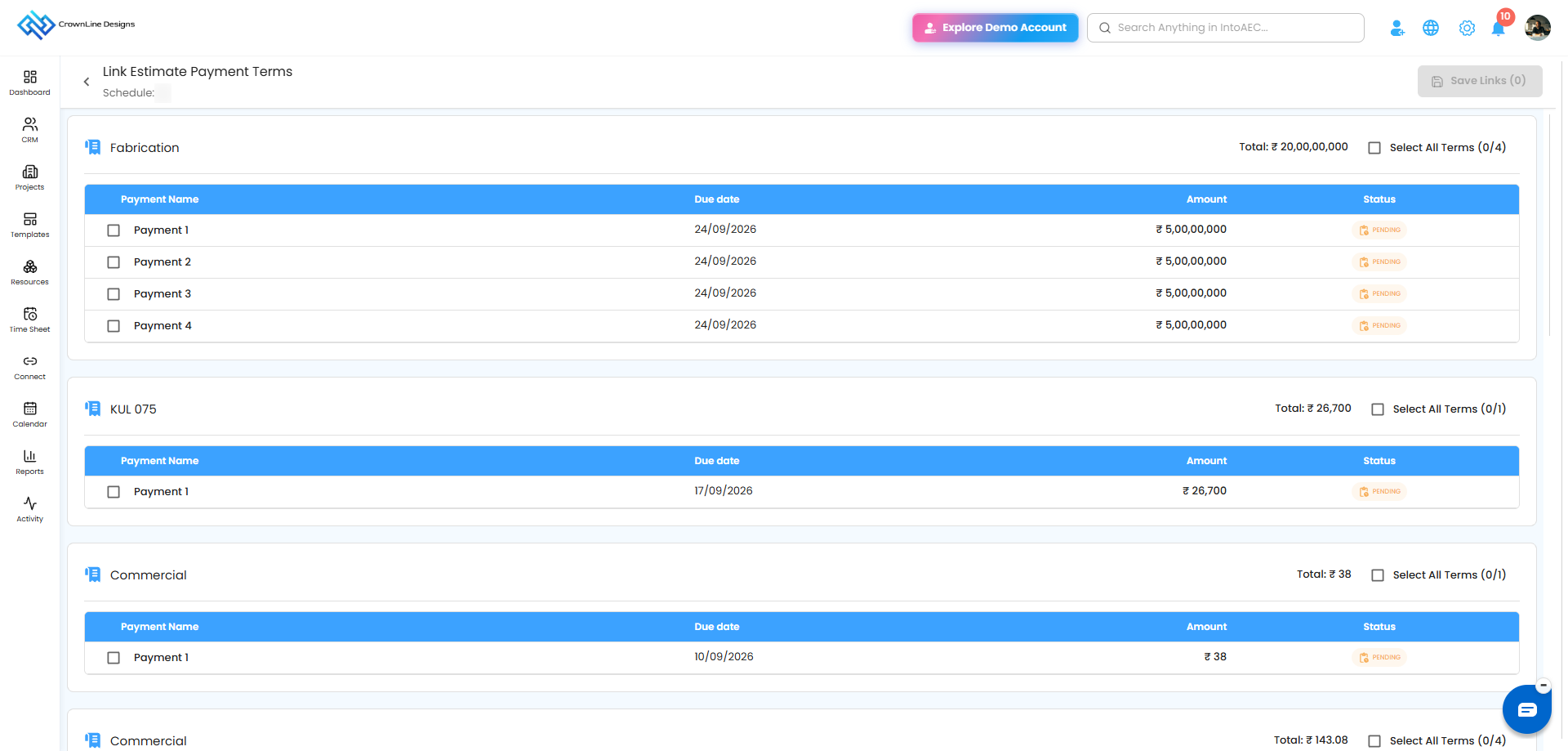
The Link Estimate Payment Terms page shows the estimate name, total estimate value, and the available installments:
| Field | Description |
|---|---|
| Payment Name | Name of the installment. |
| Due Date | Scheduled due date. |
| Amount | Installment amount. |
| Status | Current status, such as Pending. |
2. Select and Save Payment Terms
You can link one or several installments to the same schedule.
- Review the available payment terms.
- Select installments with their checkboxes, or use Select All Terms.
- Check the count shown on the Save Links button.
- Click Save Links.
For example, select Payment 1 and Payment 2 from an estimate with six installments and link both to one schedule.
3. View Linked Payment Terms
- Open the project schedule and find the schedule.
- Click the three-dot menu (⋮) and select Edit.
- Go to the Scheduled Payments tab.
- Select Receivables.
| Column | Description |
|---|---|
| Type | Payment source, such as Estimate. |
| Source | Name of the estimate. |
| Payment Name | Linked installment. |
| Amount | Payment amount. |
| Due Date | Scheduled payment date. |
| Status | Current payment status. |
When You Complete the Schedule or Milestone
If pending payment terms are linked, a popup offers Just Complete, Send Reminder, or Send Payment Link. See Gantt View for details.
Summary
Linking estimate payment terms to schedules and milestones improves payment visibility and keeps financial commitments next to the related work.
Related Articles
- Gantt View
- Schedule / Milestone Linking to Invoice
Need Further Assistance?
Contact your organization administrator or the IntoAEC support team.
Was this article helpful?
That’s Great!
Thank you for your feedback
Sorry! We couldn't be helpful
Thank you for your feedback
Feedback sent
We appreciate your effort and will try to fix the article