Get paid faster, straight from your projects. Once Stripe is connected, client payments flow from IntoAEC to your bank account securely and automatically, with no extra apps or spreadsheets.
Before you start
You'll need a Stripe account and your two Stripe API keys:
- Publishable key
- Secret key
To find them, log in to Stripe and go to Developers > API keys.
Pro tip: Keep your Secret key private. Never share it by email or chat.
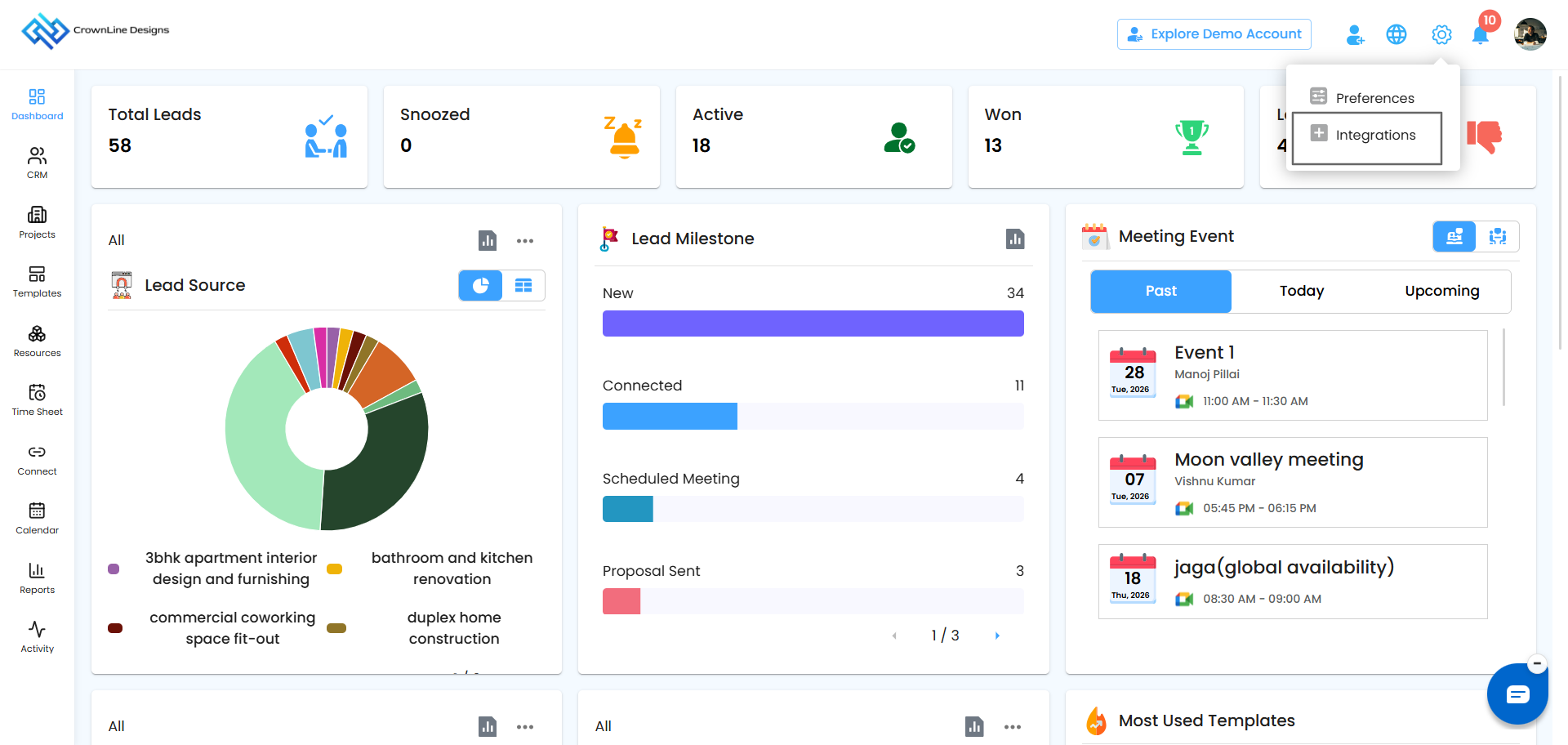
Step 1: Open Integrations
- In IntoAEC, go to Settings > Integration.
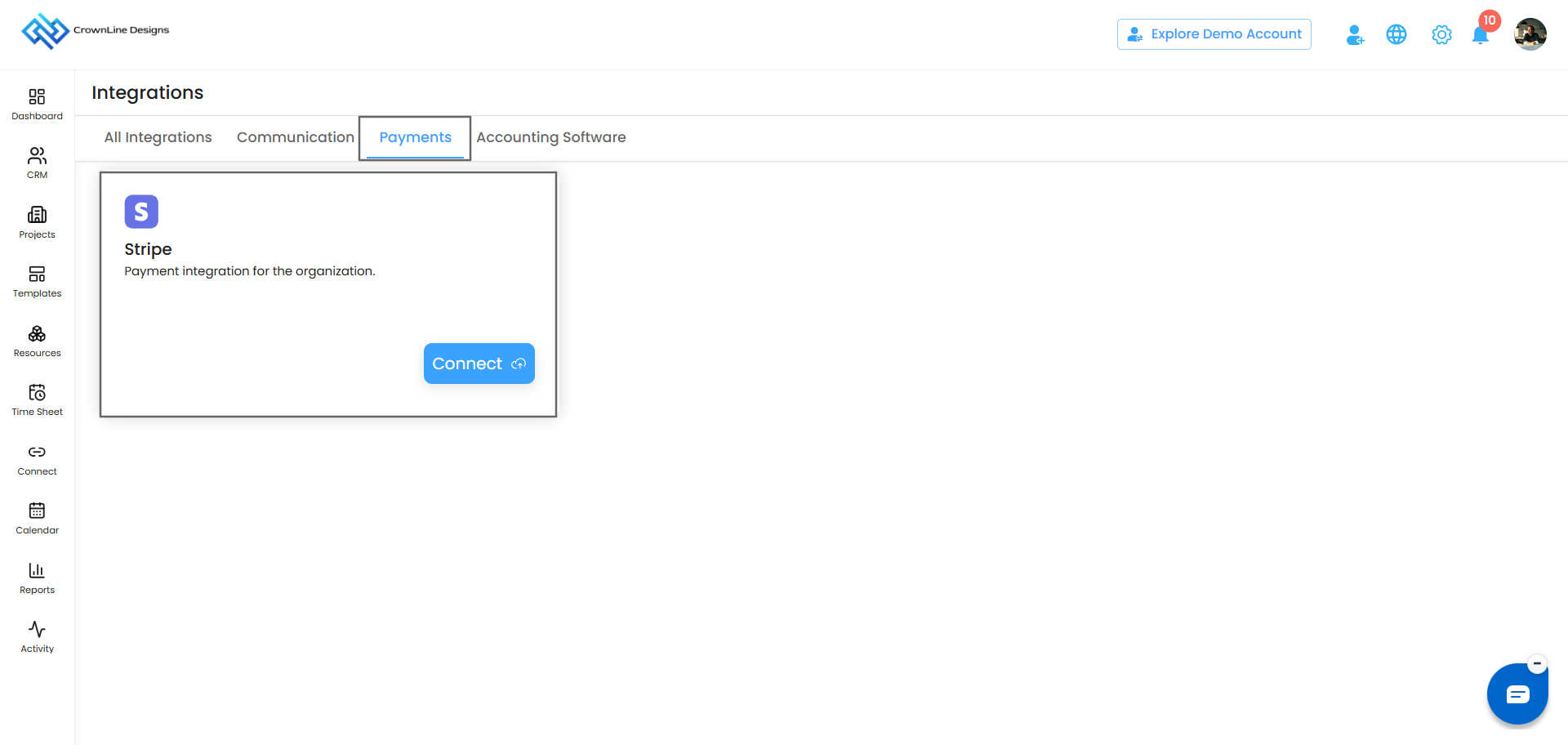
- Find Stripe and click Connect.
Step 2: Enter your Stripe keys
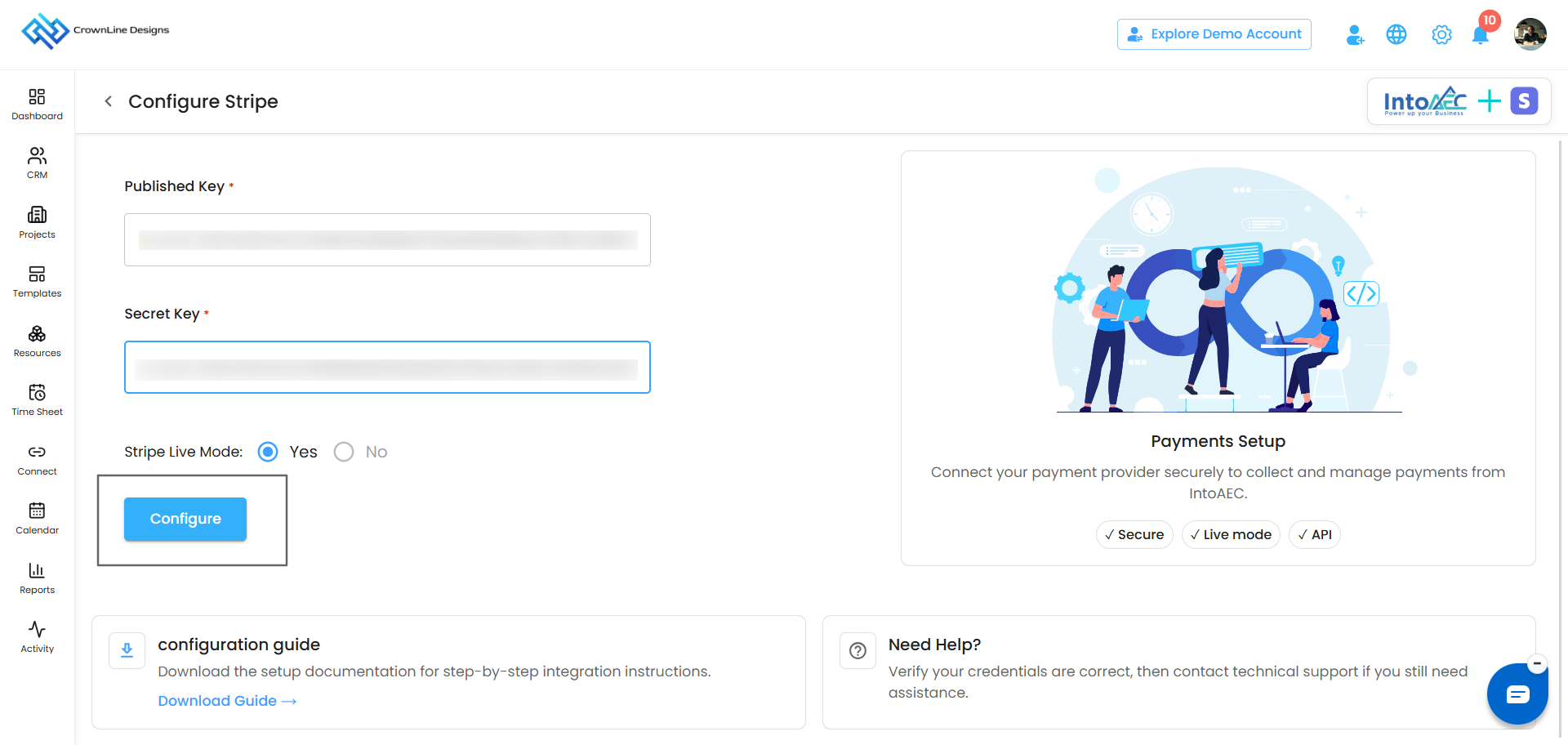
- In the Configure Stripe section, paste your Publishable key and Secret key.
- Choose Test Mode or Live Mode.
- Test Mode: try payments without moving real money.
- Live Mode: accept real payments from clients.
Pro tip: Stripe gives you separate keys for Test and Live. Make sure the keys you paste match the mode you select.
Step 3: Click Configure
Click Configure to complete the connection.
Step 4: Check the connection
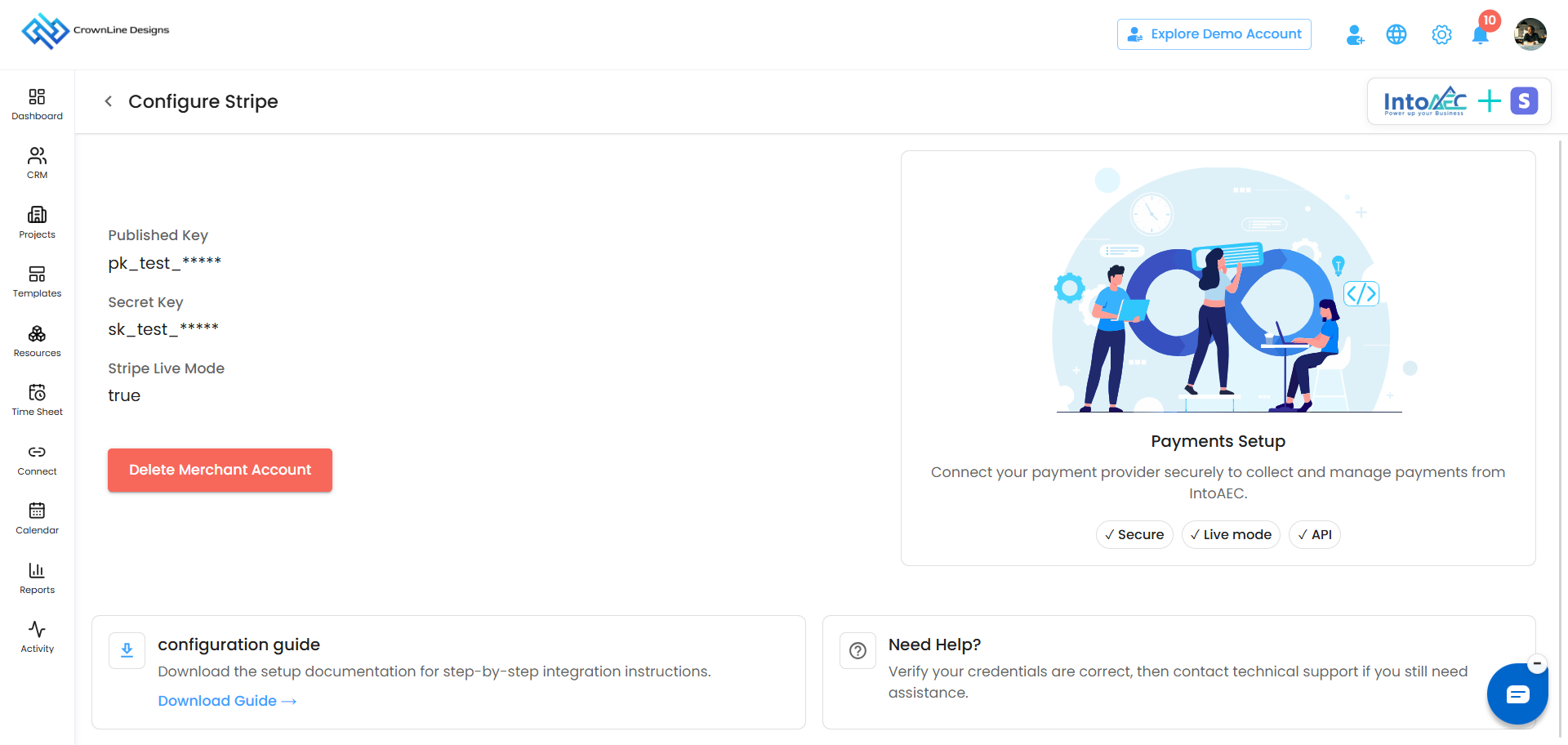
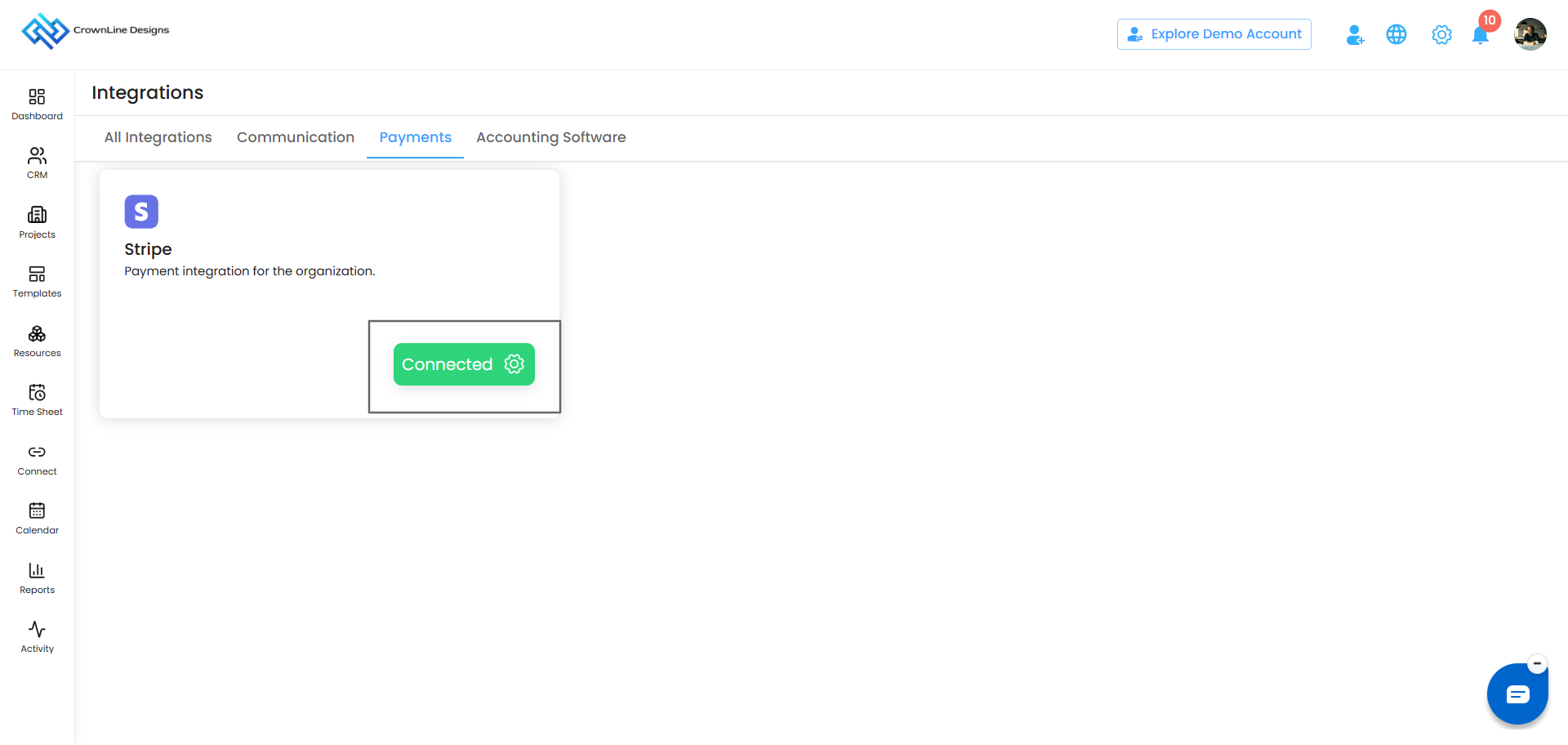
Back on the Integration page, the Stripe status changes to Connected.
From here, invoice payments are tracked automatically and visible in IntoAEC.
Pro tip: Start in Test Mode to make sure everything works, then switch to Live Mode with your live keys when you're ready to accept real payments.
Was this article helpful?
That’s Great!
Thank you for your feedback
Sorry! We couldn't be helpful
Thank you for your feedback
Feedback sent
We appreciate your effort and will try to fix the article