Overview
Your clients already use WhatsApp. Connecting it to IntoAEC means you can receive their messages and reply to them right inside your workspace, instead of juggling phones, personal chats, and screenshots.
Setup involves a few steps in Meta (the company behind WhatsApp and Facebook) and then one quick step in IntoAEC. You will collect four values along the way and paste them into IntoAEC at the end:
- Webhook Verify Token - a secret word that you choose. It lets Meta confirm it is talking to the right IntoAEC connection.
- Auth Token - a secure key that lets IntoAEC send messages on your behalf.
- Meta Phone Number ID - the ID of your WhatsApp Business number (not the phone number itself).
- WhatsApp Business Account ID - the ID of the WhatsApp Business Account that owns that number.
Before You Begin
- You can log in to Meta with the account linked to your business (the Gmail account used for your business).
- Your business already has a WhatsApp Business Account with a phone number connected.
- An app for the WhatsApp integration has already been created in Meta for Developers.
Part 1: Log In to Meta
- Log in to Meta (Facebook) using the Gmail account linked to your business.
- When prompted, select or enter your Business Facebook account, not a personal profile.
Part 2: Connect the Message Doorbell (Webhook)
A webhook is how Meta tells IntoAEC that a customer has sent you a message. Think of it as a doorbell: when someone rings, IntoAEC answers. Here you tell Meta where the doorbell is.
- Go to developers.facebook.com.
- From the top navigation, click My Apps.
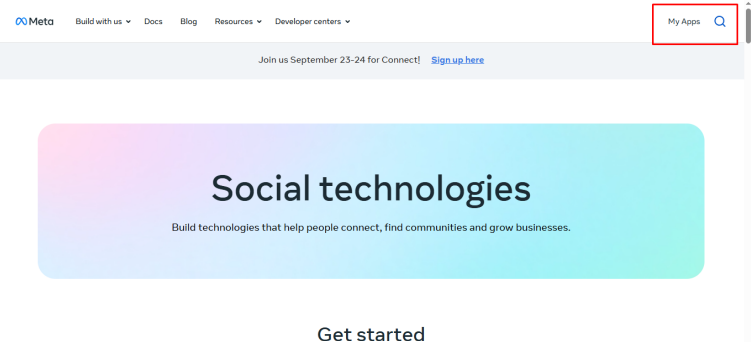
- Select the app that was created for the WhatsApp integration. This opens the App Dashboard.
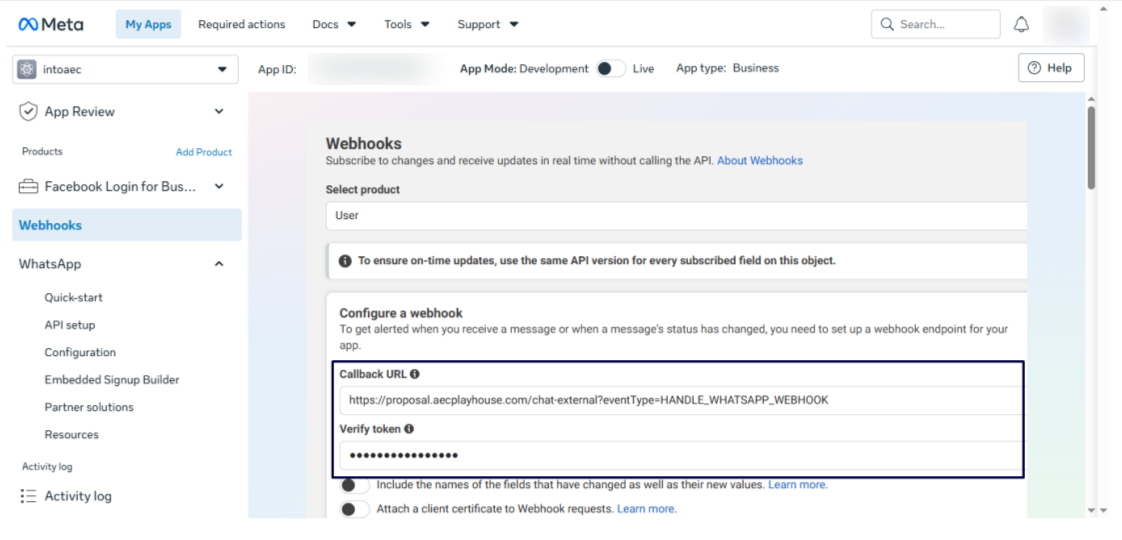
- In the left menu, click Webhooks.
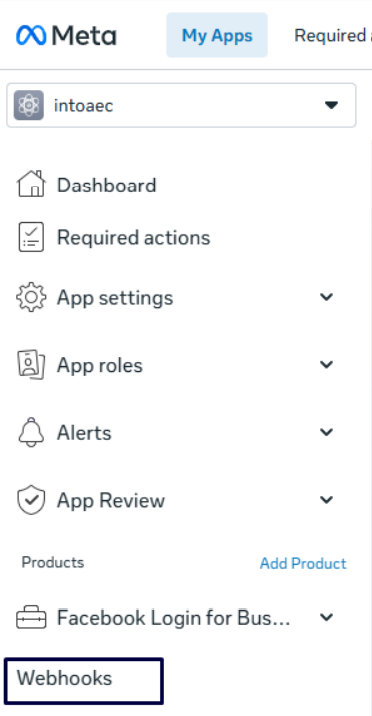
- In the Callback URL field, enter this address exactly as shown:
https://proposal.intoaec.ai/chat-external?eventType=HANDLE_WHATSAPP_WEBHOOK - In the Verify Token field, type a secret word or phrase of your choice, for example my-whatsapp-webhook-token-123.
- Click Verify and Save.
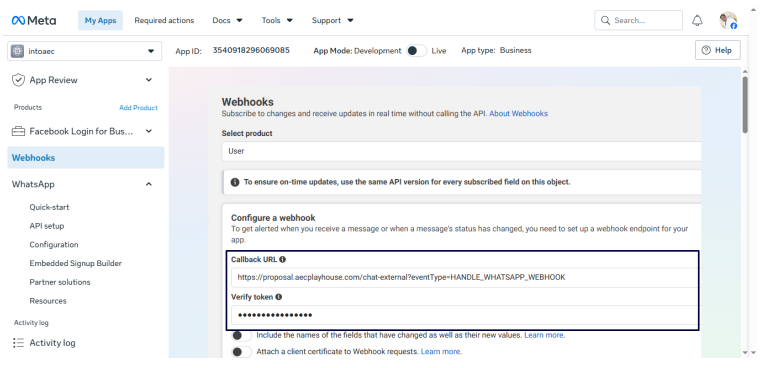
Meta checks the address and your token straight away. If both are correct, the webhook is saved.
Part 3: Create Your Auth Token
The Auth Token is a permanent key that lets IntoAEC send WhatsApp messages for your business. You create it by adding a "system user" in Meta Business Suite and giving it access to your app and WhatsApp account.
- Go to business.facebook.com (Meta Business Suite) and make sure the correct business portfolio is selected.
- Click Settings in the left menu.
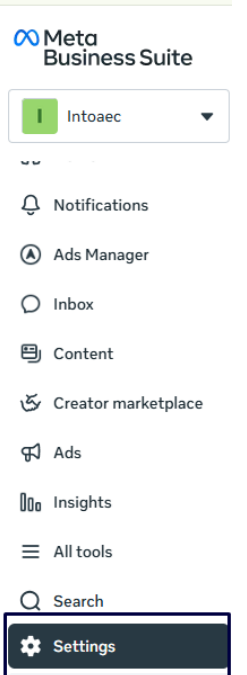
- Under Users, click System users.
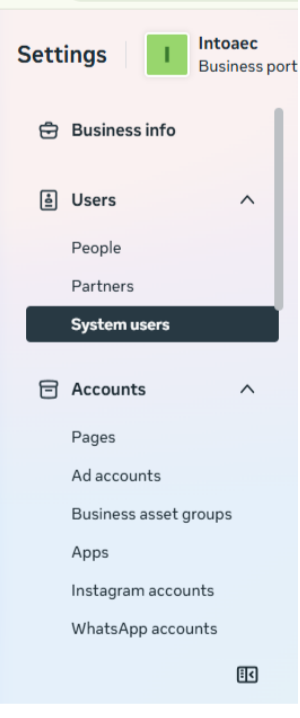
- Click Add to create a system user. Give it a name you will recognise (for example, "IntoAEC WhatsApp") and choose the Admin role, so the token has full access to your assets.
- With the new system user selected, click Assign Assets.
- Select your app and your WhatsApp Business Account.
- Give full control permissions for each one, then save.
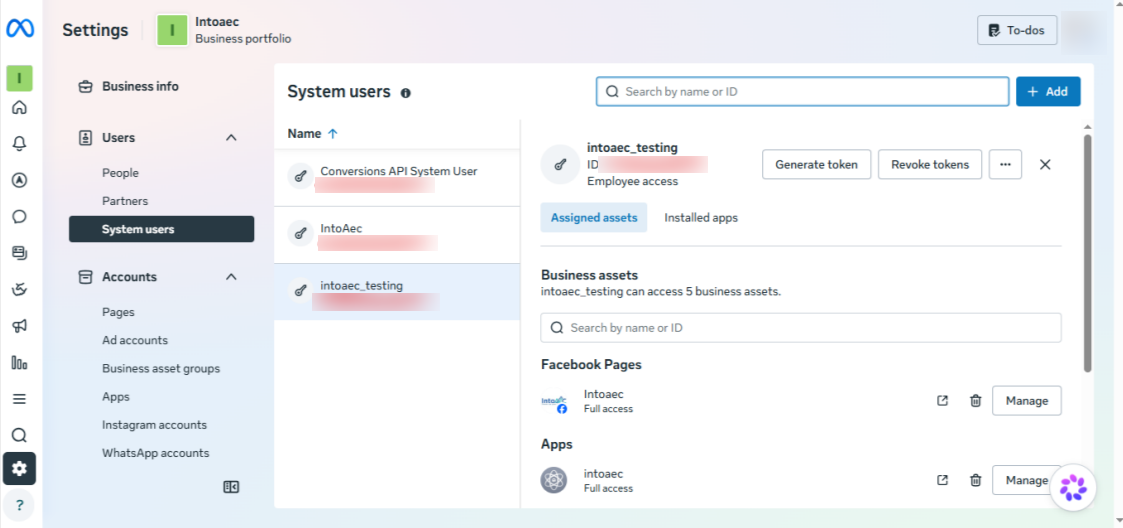
- Click Generate Token.
- In the window that opens:
- Select your app.
- Set the token expiration to Never, so the connection does not stop working later.
- Select these three permissions: whatsapp_business_messaging, whatsapp_business_management, and business_management.
- Scroll down and click Generate Token.
- Copy the token immediately and paste it into your notepad.
Part 4: Copy Your Phone Number ID and WhatsApp Business Account ID
- Go back to developers.facebook.com and open your app.
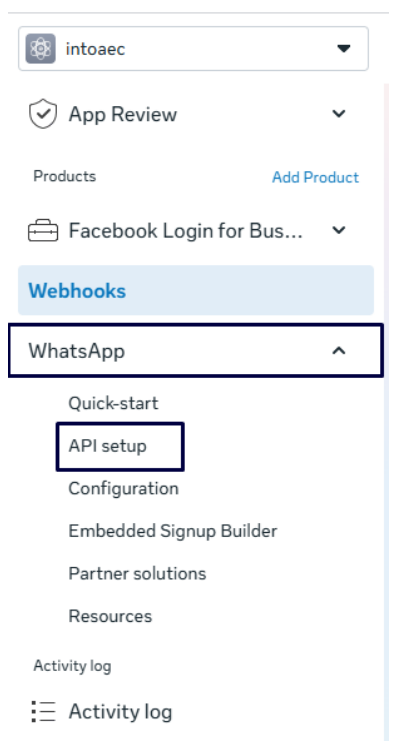
- In the left menu, click WhatsApp, then API Setup.
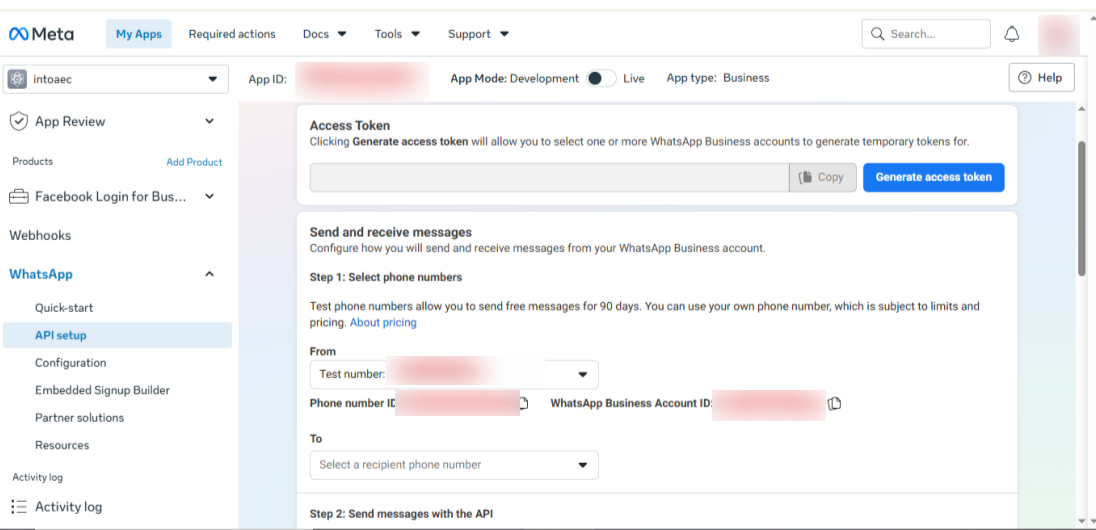
- Under the From phone number dropdown, copy the Phone Number ID.
- On the same screen, copy the WhatsApp Business Account ID.
Part 5: Turn On Incoming Messages
- Still in Meta for Developers, click WhatsApp > Configuration in the left menu.
- In the Webhook section, check that the Callback URL and Verify Token match the ones you entered in Part 2.
- Under Webhook fields, find messages and click Subscribe.
Part 6: Create Your Message Templates
WhatsApp only lets a business start a conversation using a pre-approved message, called a template. (Replying within an ongoing customer conversation is different.) You create templates in WhatsApp Manager, and Meta reviews them before you can use them.
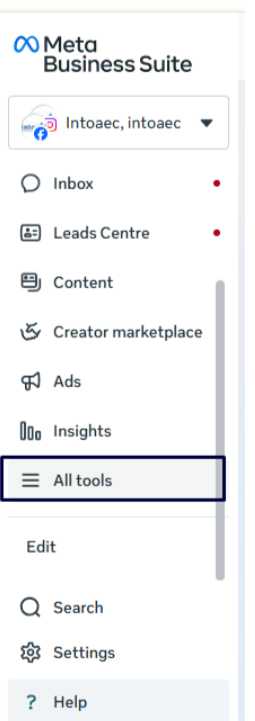
- Go to business.facebook.com (Meta Business Suite).
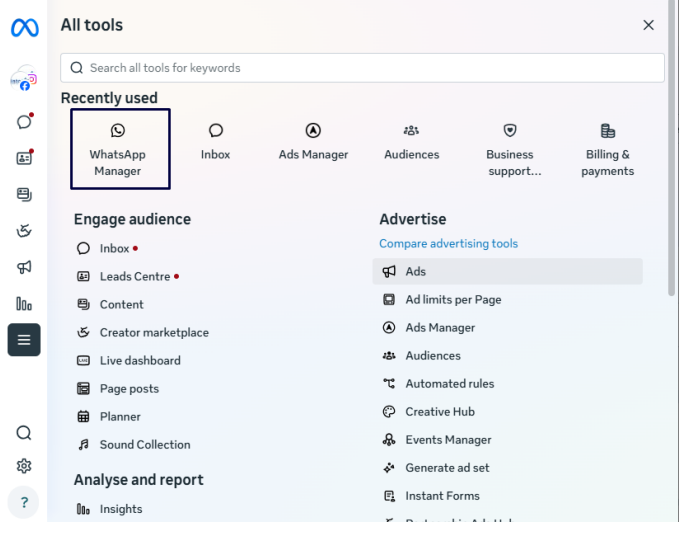
- In the left menu, click All tools.
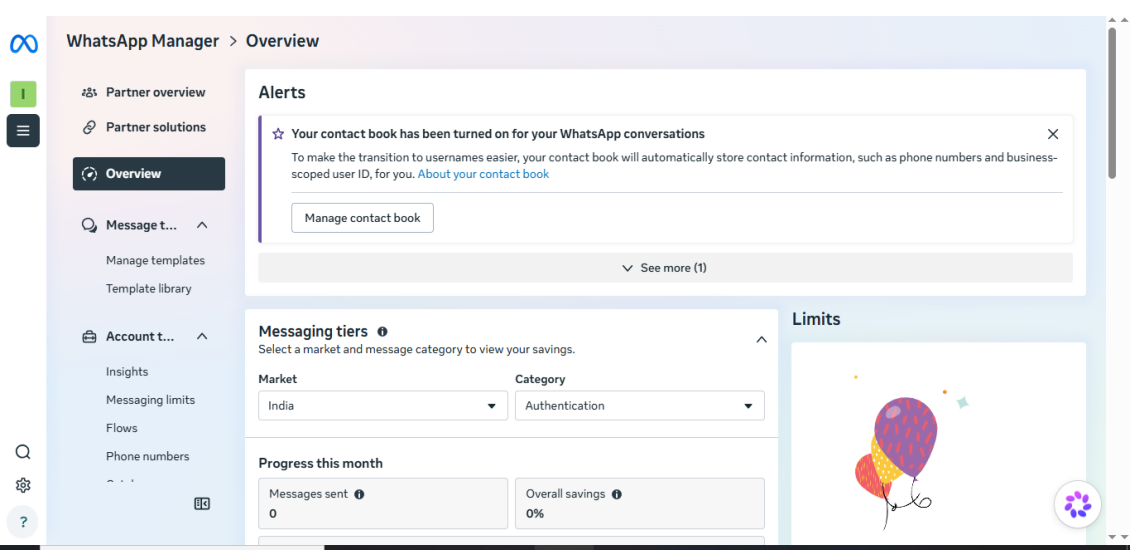
- Click WhatsApp Manager.
- Open Message Templates and click Create Template.
- Choose a category (for example, Utility or Marketing), enter a template name, and select the language.
- Write your message: header, body (with variables if needed), footer, and buttons as required.
- Submit the template for Meta review and approval.
Want a head start? On the Meta WhatsApp configuration page in IntoAEC, there is a link to download WhatsApp message templates that you can upload to your Meta account.
Part 7: Enter Your Details in IntoAEC
You now have all four values. Time to connect them.
- Log in to IntoAEC.
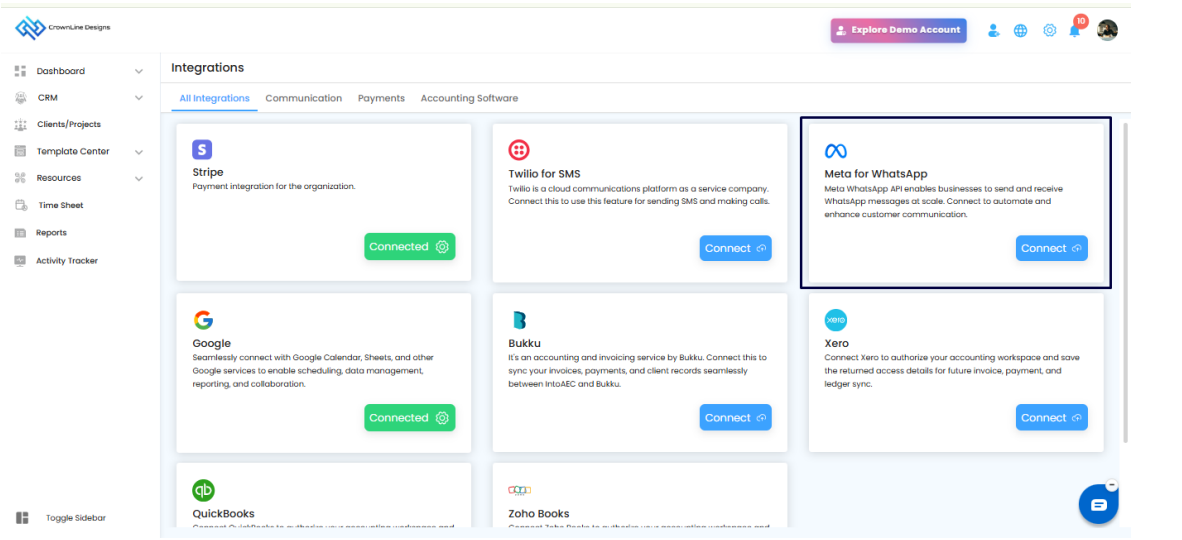
- Go to Integration and find Meta for WhatsApp.
- Click Connect to open the configuration page.
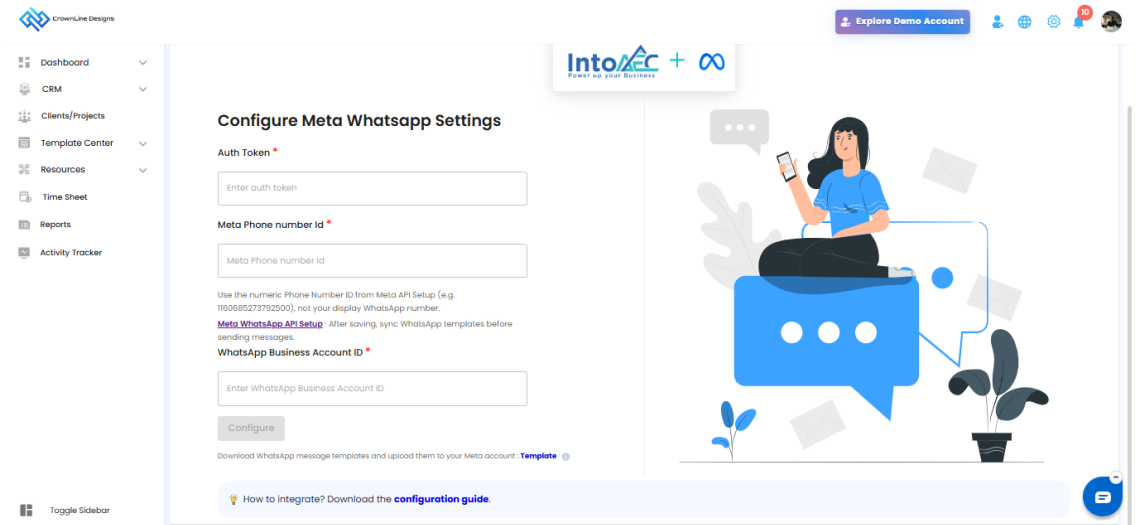
- Fill in the fields:
- Auth Token — the token you generated in Part 3.
- Meta Phone Number ID — copied in Part 4.
- WhatsApp Business Account ID — copied in Part 4.
- Webhook Verify Token — the same secret word you chose in Part 2.
- Click Configure to save.
Part 8: Test Your Connection
A quick two-way test confirms everything is working.
- Test incoming: From a different phone, send a WhatsApp message to your connected business number. Check that it appears in IntoAEC.
- Test outgoing: From IntoAEC, send a message using an approved template. Check that it arrives on WhatsApp.
If Something Does Not Work
- Meta will not verify the webhook: check that the Callback URL is entered exactly as shown, and that the Verify Token is identical in Meta and IntoAEC, with no extra spaces.
- Incoming messages do not appear in IntoAEC: check that the messages field is subscribed (Part 5).
- Outgoing messages are not delivered: check that your Auth Token was copied in full, and that the template you are using has an Approved status.
- Lost your Auth Token: generate a new one in Part 3 and update it in IntoAEC.
Need Help?
If something still does not work, please contact the IntoAEC Support Team and we will be happy to help.
Was this article helpful?
That’s Great!
Thank you for your feedback
Sorry! We couldn't be helpful
Thank you for your feedback
Feedback sent
We appreciate your effort and will try to fix the article