Overview
One connection is all it takes. Instead of linking each Google tool separately, a single secure authorization connects Google Calendar, Tasks, Sheets, and Gmail to IntoAEC together - so your schedule, tasks, spreadsheets, and email all plug into your workspace at once.
Connecting Your Google Account
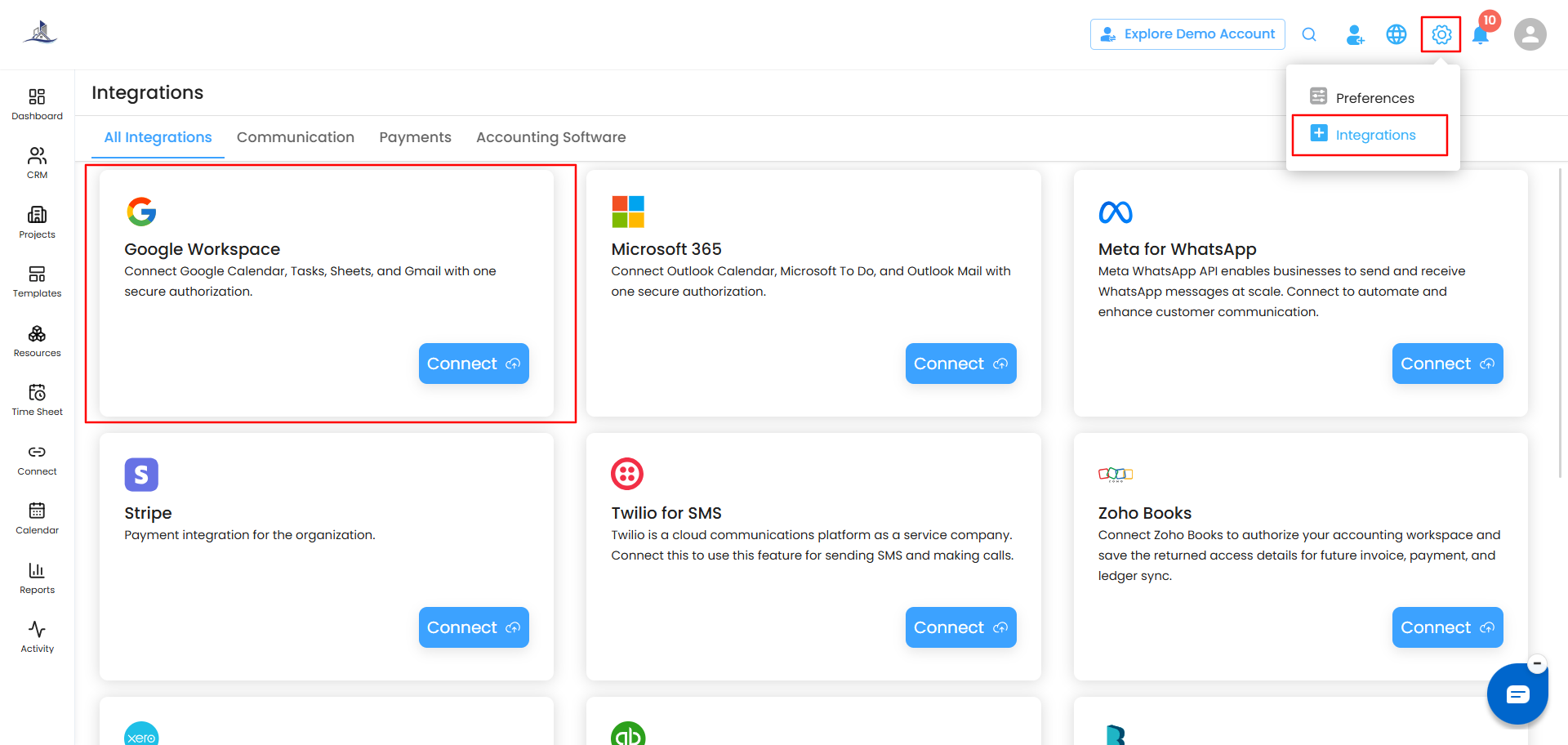
- Go to Settings > Integration.
- Find Google Workspace and click Configure.
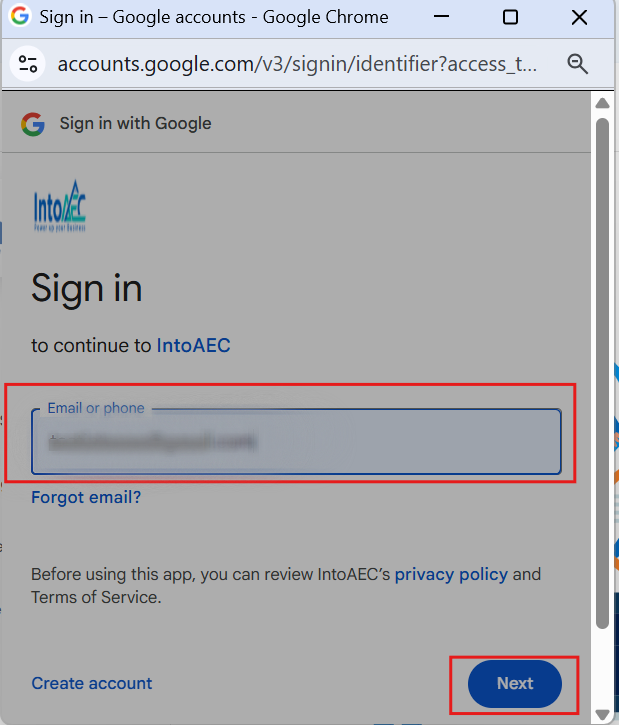
- A Google sign-in window opens. Sign in with the Google account you want to connect.
- Select the account you want to use for Calendar, Tasks, Sheets, and Gmail.
- Review the permissions being requested for each of the four services.
- Click Continue to grant the permissions and complete the authorization.
Once connected, your email ID appears under Configured Accounts, and the status flips to Connected - confirming Calendar, Tasks, Sheets, and Gmail are all now available inside IntoAEC.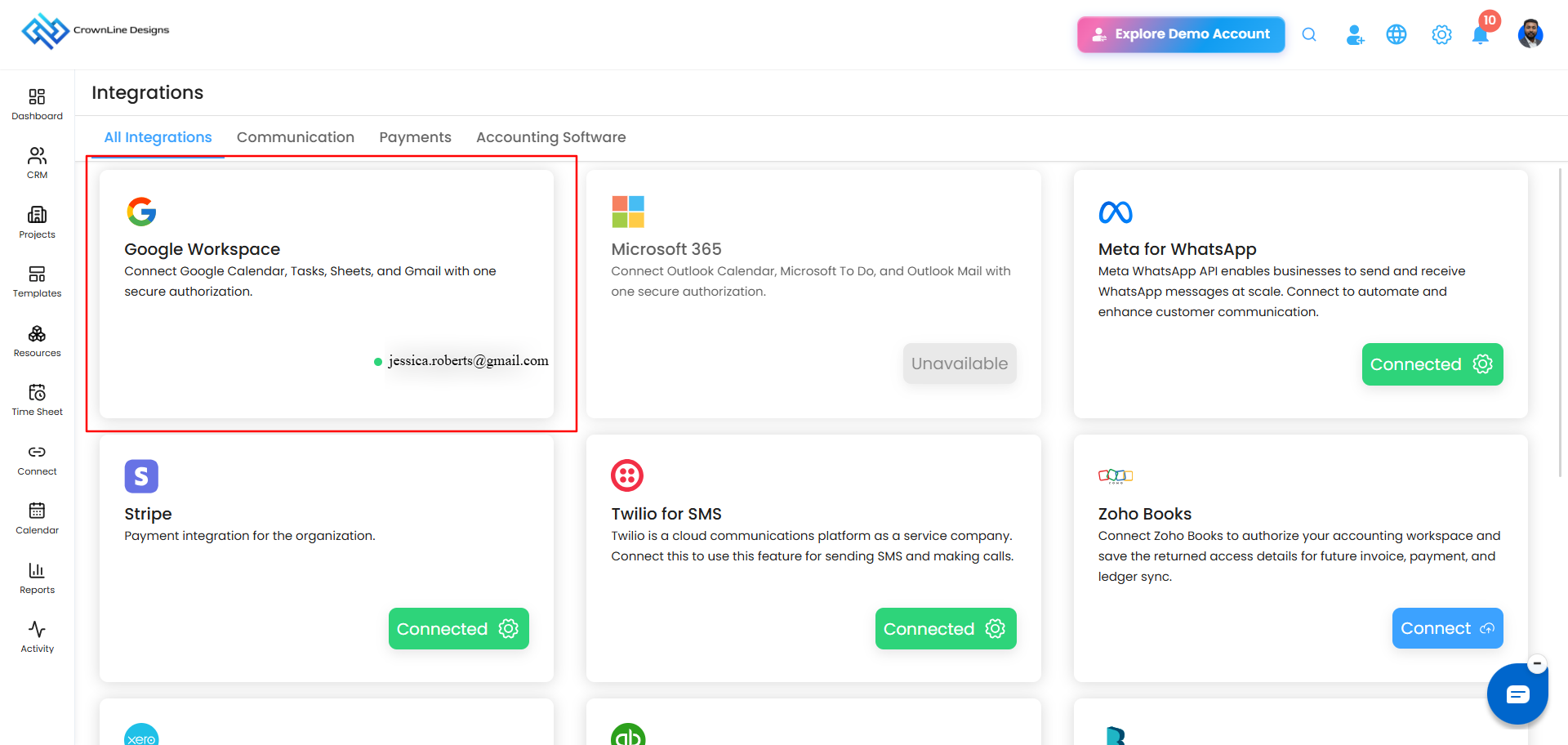
Managing Your Connection
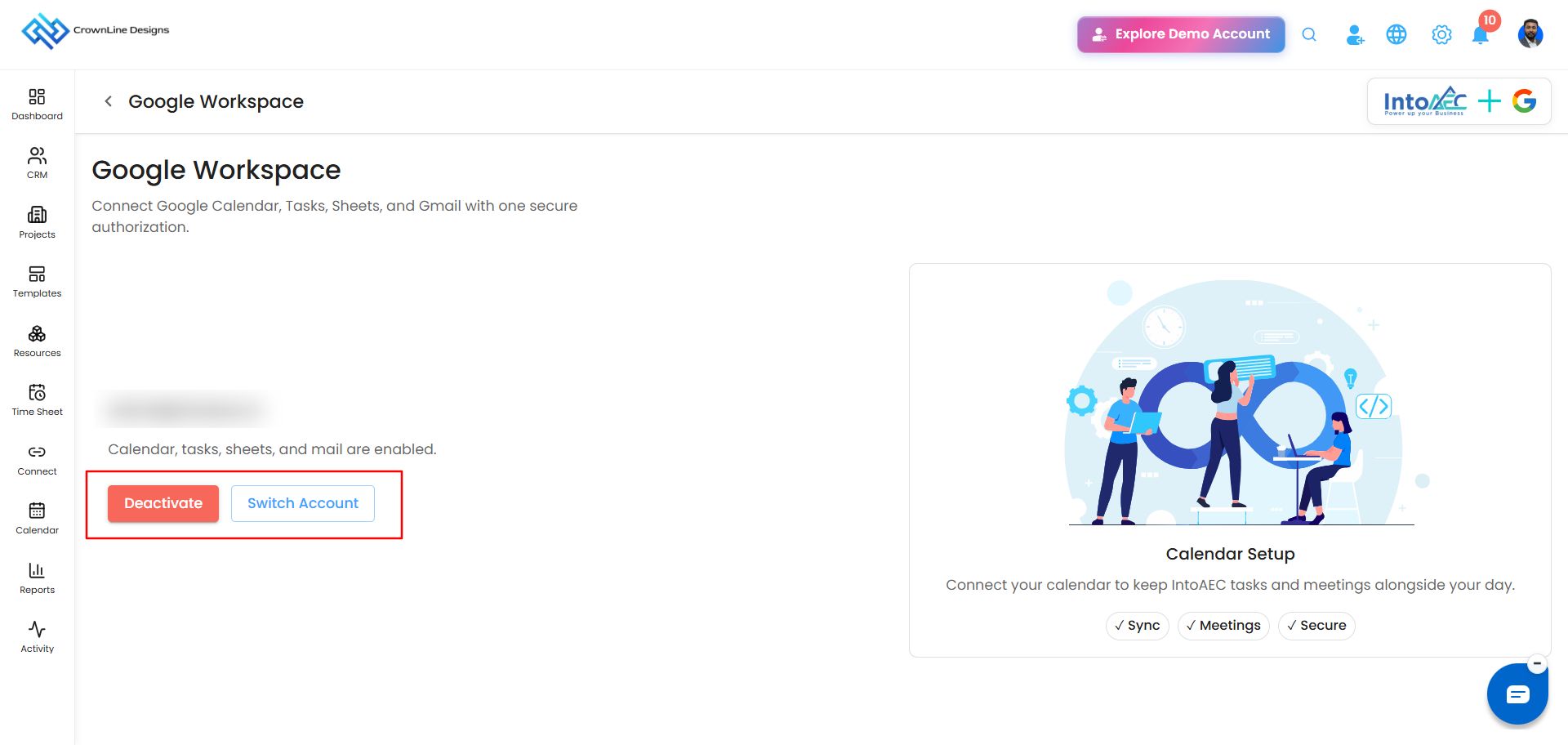
Once connected, the Google Workspace page shows your connected account and confirms what's enabled - "Calendar, tasks, sheets, and mail are enabled." From here, you have two options:
- Deactivate - disconnects the account, turning off sync for Calendar, Tasks, Sheets, and Gmail.
- Switch Account - connects a different Google account instead, without needing to deactivate first.
Google Workspace or Microsoft 365 - Choose One
This integration is set up per user, not organization-wide - each person connects their own account based on what they personally use. On your own account, you can connect Google Workspace or Microsoft 365, not both at the same time. Pick whichever matches your own email and calendar:
- If you use Gmail, Google Calendar, and Google Sheets, connect Google Workspace.
- If you use Outlook, Outlook Calendar, and Microsoft To Do, connect Microsoft 365 instead.
Other users in your organization are free to make their own choice - for example, one teammate can connect Google Workspace while another connects Microsoft 365, each independently.
Was this article helpful?
That’s Great!
Thank you for your feedback
Sorry! We couldn't be helpful
Thank you for your feedback
Feedback sent
We appreciate your effort and will try to fix the article