Your Proposal, Your Rules
Why set the same options again and again? With Preferences you decide how your proposals behave by default — set an expiry rule once and every proposal you send from then on follows it automatically. It’s efficiency on autopilot, freeing you up for the part that actually matters: closing deals.
Think of Preferences as your proposal’s pre-game strategy. Set it once, and every proposal plays by your rules.
Manual Expiry vs Auto Expiry
There are two ways to put a deadline on a proposal, and they solve different problems.
Manual Expiry – Set on the send screen, for one specific proposal. Use it when a particular client or a particular deal needs its own timeline.
Auto Expiry – Set once in Preferences and applied to every proposal automatically. Use it when your business has a standard validity period and you’re tired of remembering it each time.
Manual expiry is the exception. Auto expiry is the rule. Most teams set auto expiry and only reach for manual when a deal genuinely needs different terms.
How to Get There
Open Settings – From the side navigation menu, go to Settings.
Click Preferences – This is where your default behaviours live.
Open Auto Expiry – Select the Auto Expiry option.
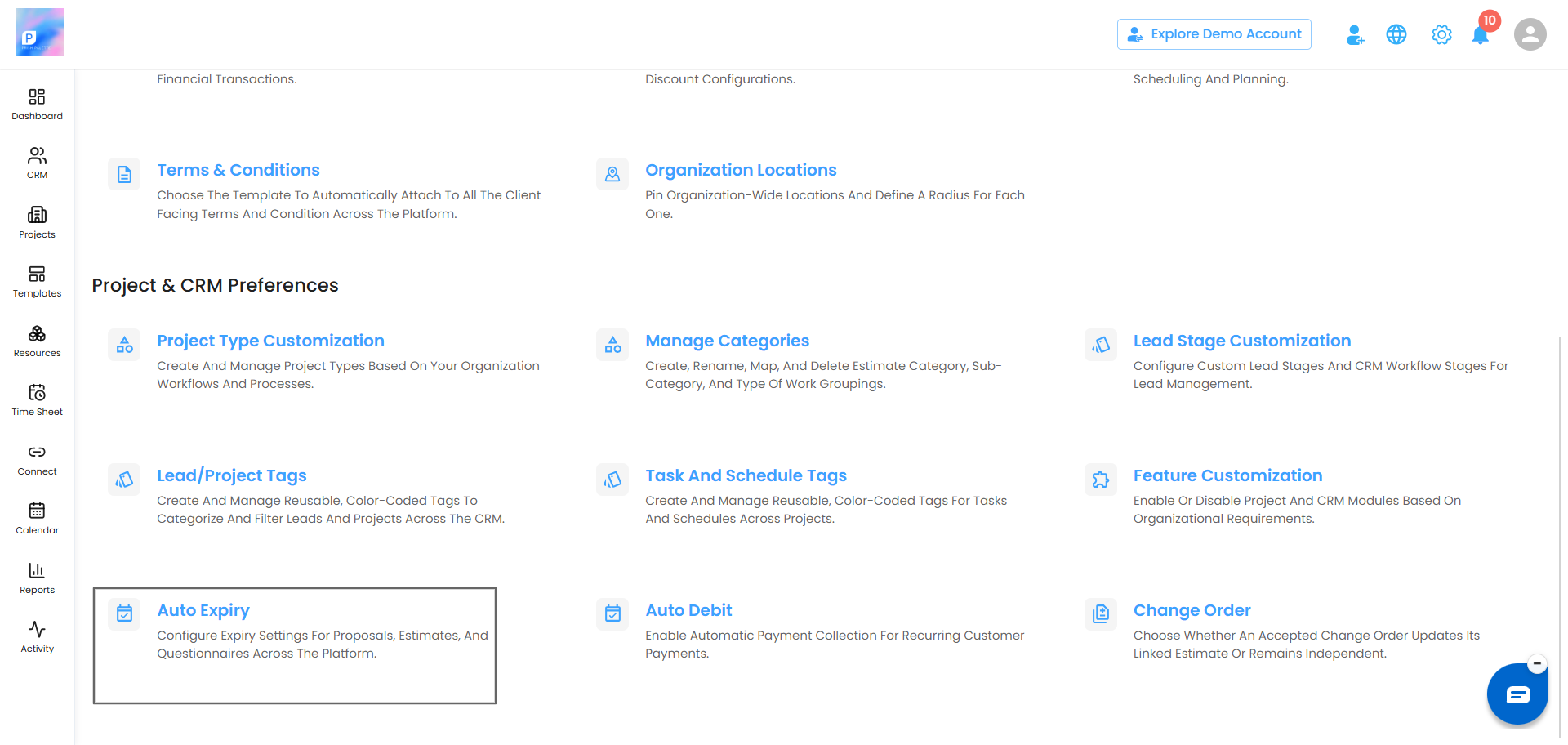 Setting Up Auto Expiry for Proposals
Find the Proposal checkbox – Inside Auto Expiry you’ll see a checkbox for Proposal.
Tick it to enable – This switches auto expiry on for every proposal you send.
Enter the number of days – Set how many days a proposal stays valid after it’s sent. Days is the unit here — a clean, predictable window.
Save – From this point on, every proposal you send carries that expiry automatically.
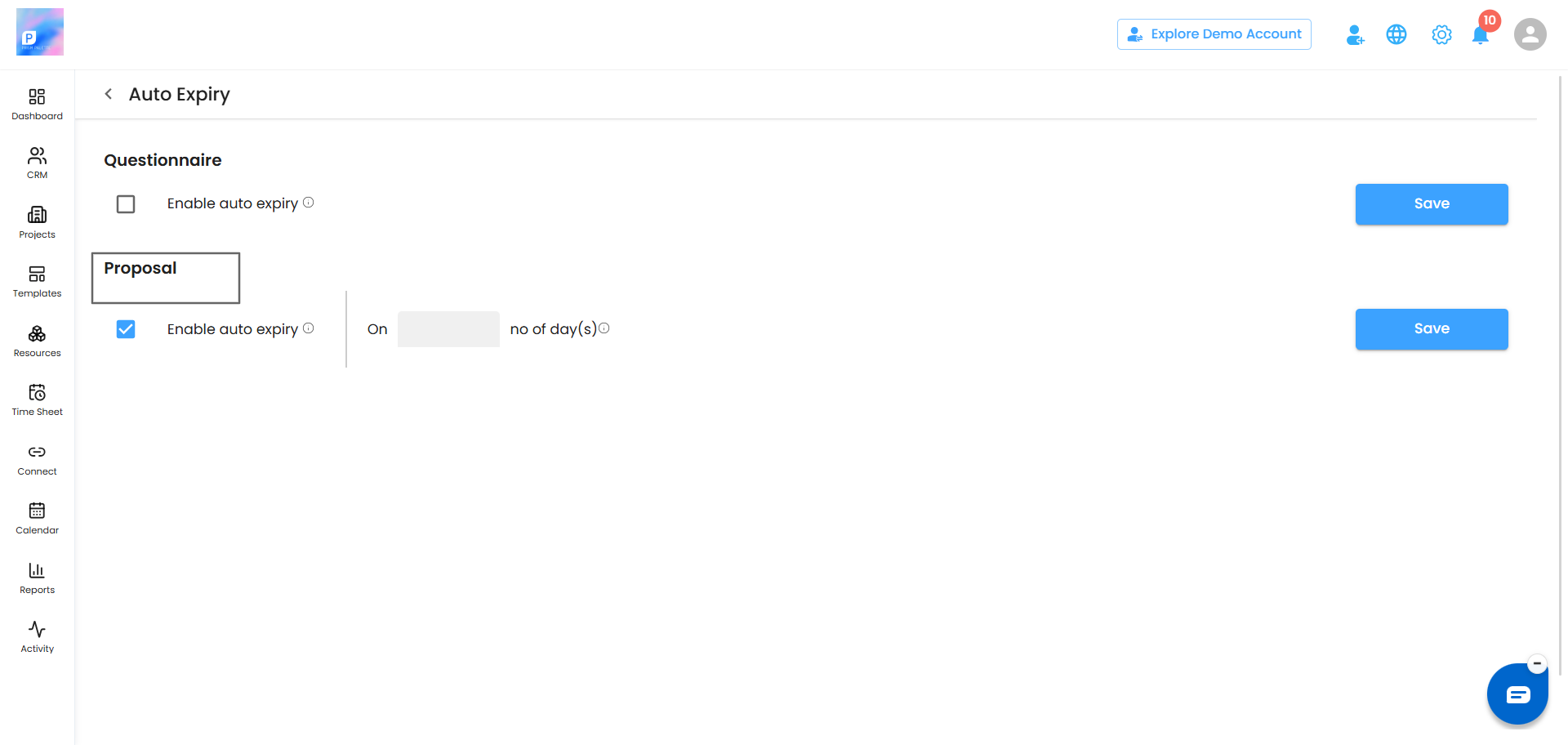
Once a proposal passes the number of days you’ve set, its status changes to Expired. Your client can no longer act on it — and you’ll see the status change in Proposal Tracking.
Note: If a proposal expires before the client responds, you don’t need to rebuild it. Open it, edit if needed, and resend — the expiry clock restarts from the new send date.
Overriding the Default
Auto expiry sets your baseline, not your ceiling. When a specific deal needs different timing, set a Manual Expiry on that proposal from the send screen. The manual date takes priority for that proposal only — your default stays untouched for everything else.
Pro Tip: Use Auto Expiry as your proposal’s built-in deadline. A proposal that never expires quietly tells your client there’s no reason to decide this week. A clear expiry date does the chasing for you.
Was this article helpful?
That’s Great!
Thank you for your feedback
Sorry! We couldn't be helpful
Thank you for your feedback
Feedback sent
We appreciate your effort and will try to fix the article