Inventory Management in IntoAEC
Smarter Stock, Smoother Projects
In construction, timing is everything—and so is material availability. A missing batch of concrete or a delayed delivery of tiles can bring an entire project to a standstill.
That’s why IntoAEC’s Inventory Management module is designed to give you:
Full control over your stock.
Clear visibility into material movement
Seamless coordination between warehouses and project sites.
Whether you're managing a single store or multiple locations, IntoAEC ensures your inventory stays aligned with your project needs, keeping everything on track and on time.
How to Access the Inventory Page
To manage inventory for a specific client, follow these steps:
1. Open the Clients Section
In the main navigation menu or sidebar, select “Clients” to view the list of clients.
2. Choose a Client
Click on the client whose inventory you want to access.This will open their profile or project details.
3. Go to the Inventory Menu card
Within the client’s page, find and select the “Inventory” or option in the navigation menu.
4 . Access the Inventory Page
You’ll be directed to the Inventory Page, where you can manage and track materials for that client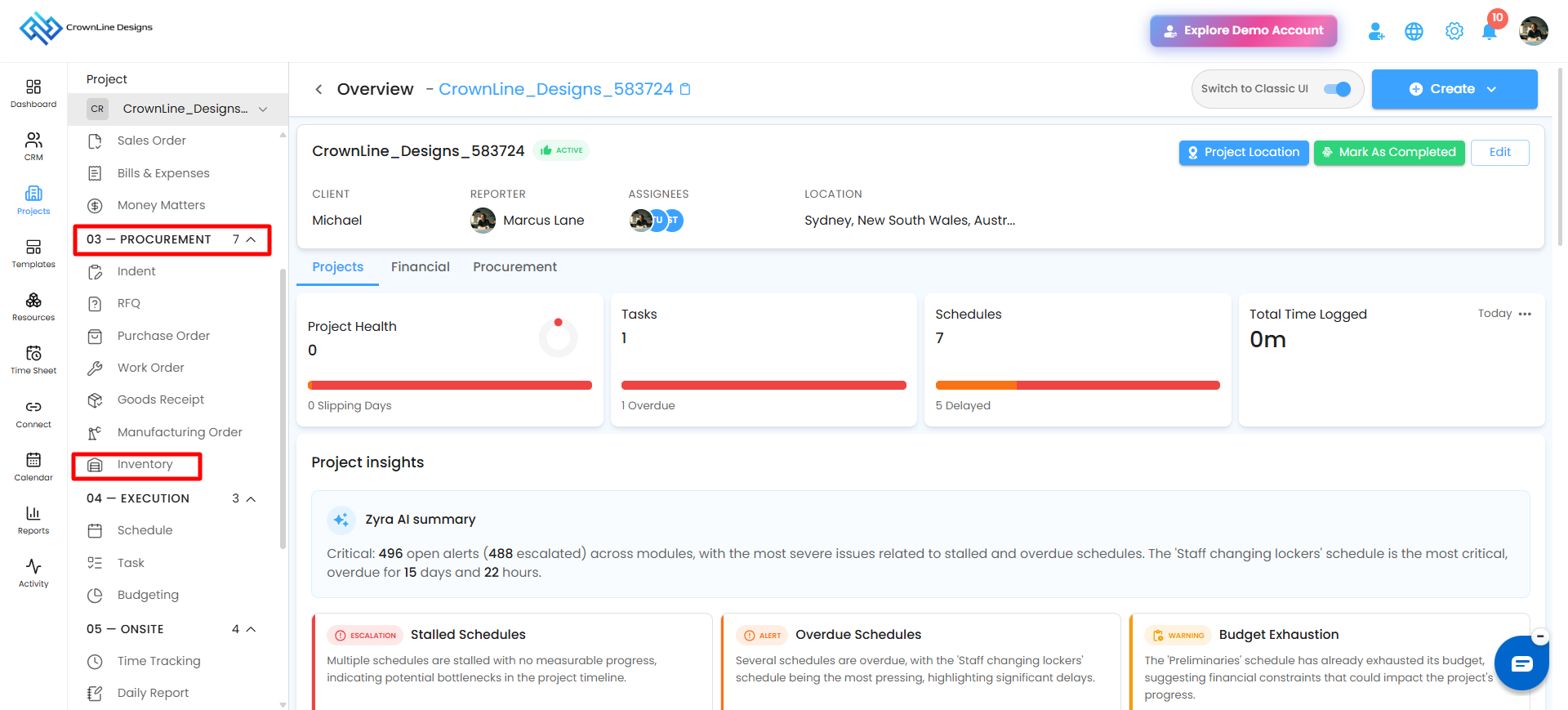
What You’ll Find on the Inventory Page
Once you’ve accessed the Inventory Page, you’ll see a structured layout that provides real-time insights and easy access to your material data. Here's an overview of the key components:
Inventory Dashboard Overview
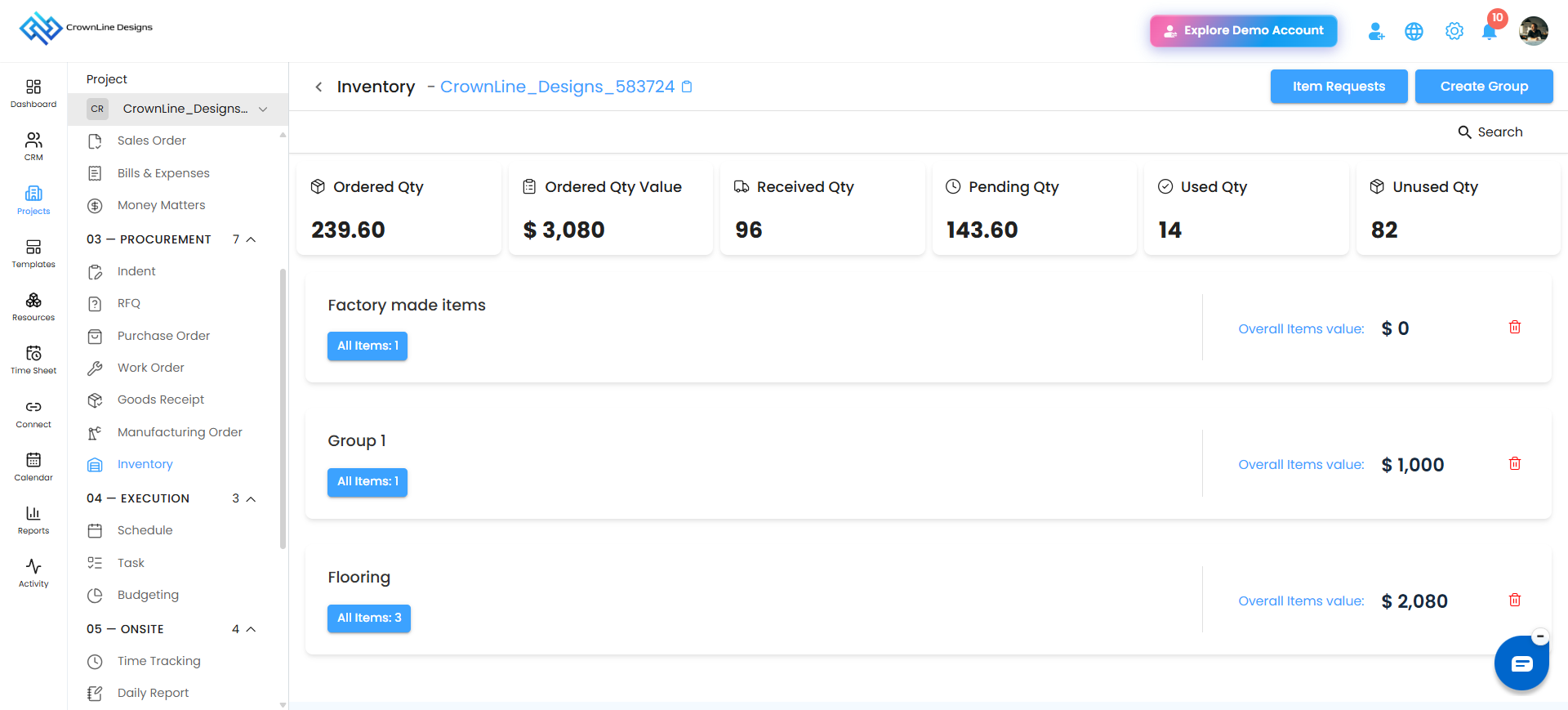
At the top of the page, the Inventory Dashboard displays real-time metrics to help you quickly understand the status of your materials. This section gives you a snapshot of stock movement and availability.
Key metrics include:
Ordered Quantity
Represents the total number of items requested or placed through an order that are awaiting receipt. This helps track ordered materials and plan upcoming deliveries effectively.
Ordered Value
Shows the total monetary value of all items currently on order, providing visibility into your pending purchase commitments.
Received Quantity
Indicates the number of items that have been delivered and officially marked as received in the system.
Pending Quantity
Displays the difference between ordered and received quantities, helping you identify items still in transit or awaiting confirmation.
Used Quantity
- Represents the total number of items that have been issued or utilized across projects.
Used Quantity
- Shows the quantity of materials that has been issued or utilized.
Damaged Quantity
- Displays the quantity of materials marked as damaged.
Replaced Quantity
- Shows the quantity of materials that has been replaced.
Moved to Warehouse
- Indicates the quantity of materials moved to another warehouse.
Unit
- Displays the unit of measurement for the item.
Rate
- Shows the rate or unit price of the material.
Total Rate
- Displays the total value of the item based on its quantity and rate.
Group Cards
Below the dashboard, all inventory items are displayed as Group Cards. Each card represents a category or batch of materials, allowing you to quickly access, review, and manage specific item groups with ease.
.
Each Group Card displays:
1. All Items in the Group
The total count of materials in the group (without listing each item individually).
2. Overall Item Value
The combined value of all items in the group, calculated by multiplying the quantity of each item by its unit price.
Once a group is created, its card appears on the Inventory Page, allowing quick access to the materials and details within that group.
Why It Matters
The Inventory Page is more than just numbers it’s your safeguard against delays. With real-time tracking, organized groups, and clear insights, you’ll always know what’s available, what’s missing, and what’s already in use. Projects stay on schedule, budgets stay under control, and your team stays confident.
Pro Tip: Think of Inventory as your project’s supply chain compass keep it updated, and you’ll always stay on course.
Was this article helpful?
That’s Great!
Thank you for your feedback
Sorry! We couldn't be helpful
Thank you for your feedback
Feedback sent
We appreciate your effort and will try to fix the article