Overview
Once an asset is created, the three-dot menu next to it gives you everything you need to keep its record accurate, print a QR code for it, or remove it entirely.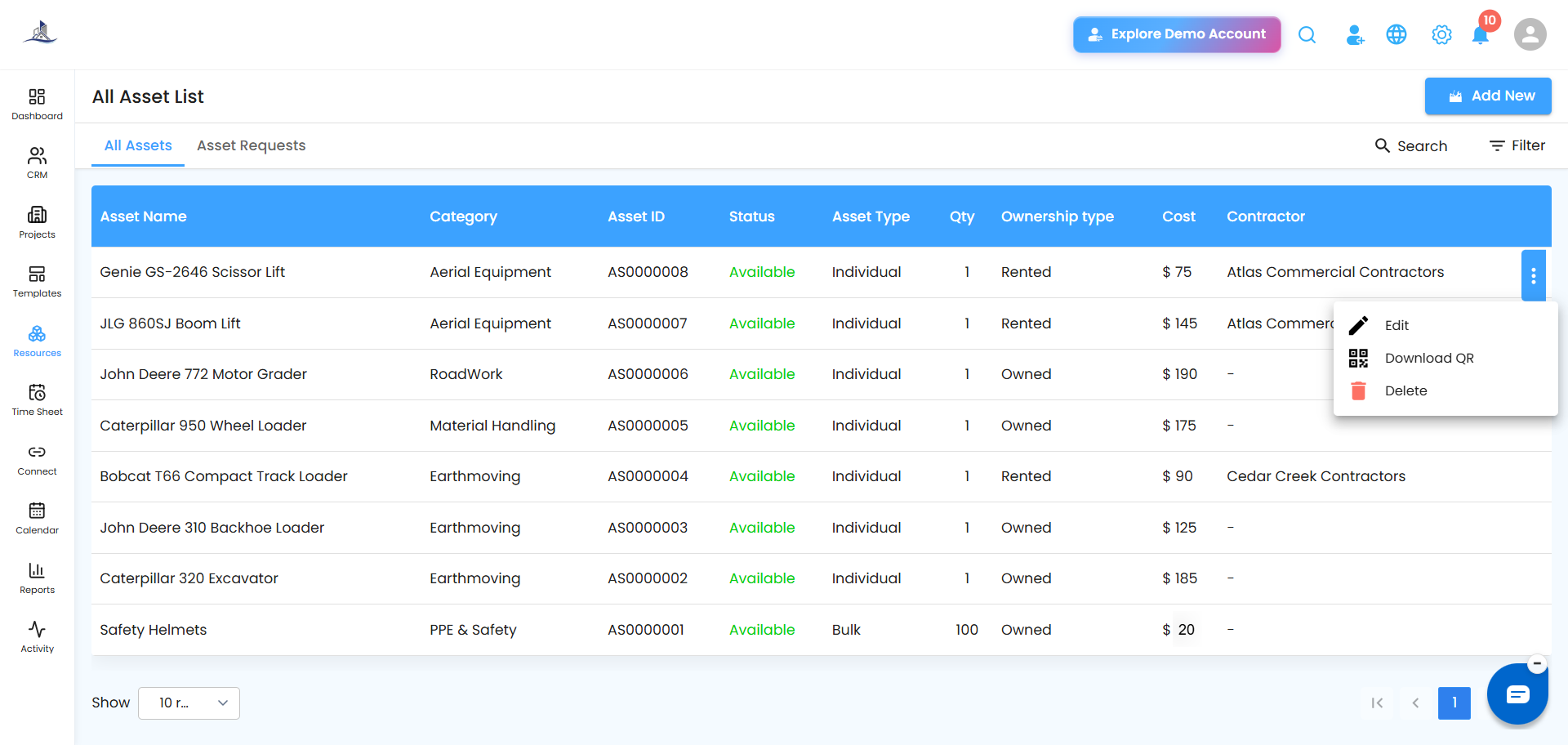
Editing an Asset
- Click the three-dot menu next to the asset.
- Select Edit.
- The Edit Asset half-canvas panel slides open, where you can update:
- Asset Name
- Category
- Description
- Asset Type (Individual or Bulk)
- Ownership Type (Owned or Rented)
- Contractor (if Rented)
- Cost parameters (per hour, week, or month)
- Quantity (for Bulk assets)
- Attachments
- Click Update to save your changes.
The All Assets List Page refreshes immediately to show the updated details.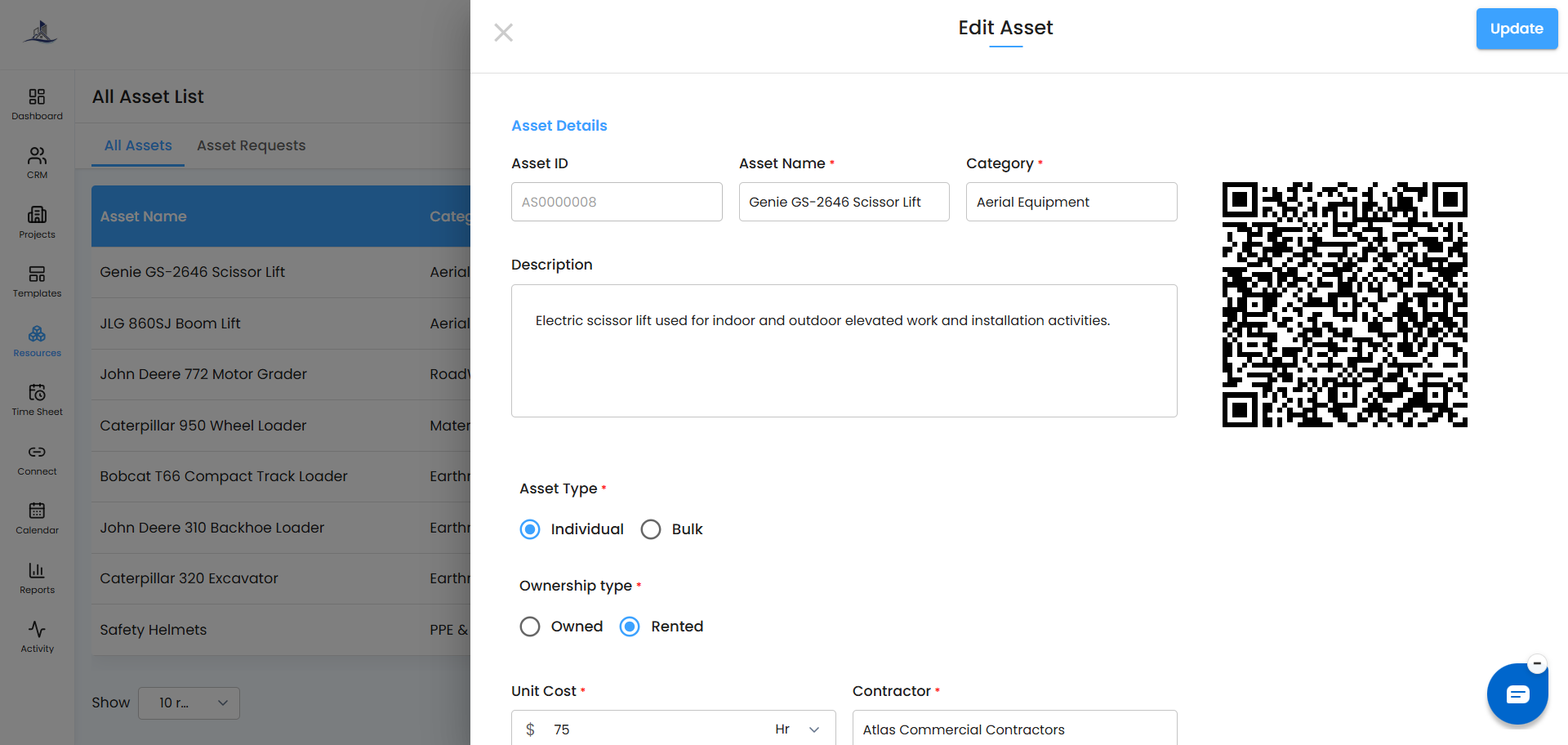
Downloading the QR Code
- Click the three-dot menu next to the asset.
- Select Download QR.
- Save or print the generated QR code.
Attach the printed QR code to the physical asset. In the field, it makes tracking effortless:
- Collect - scan the code to mark the asset as collected
- Return - scan again when it's sent back, to update its status
Why it helps: No more manually searching for who has what - scanning the code keeps asset movement accurate and paperless.
Deleting an Asset
- Click the three-dot menu next to the asset.
- Select Delete.
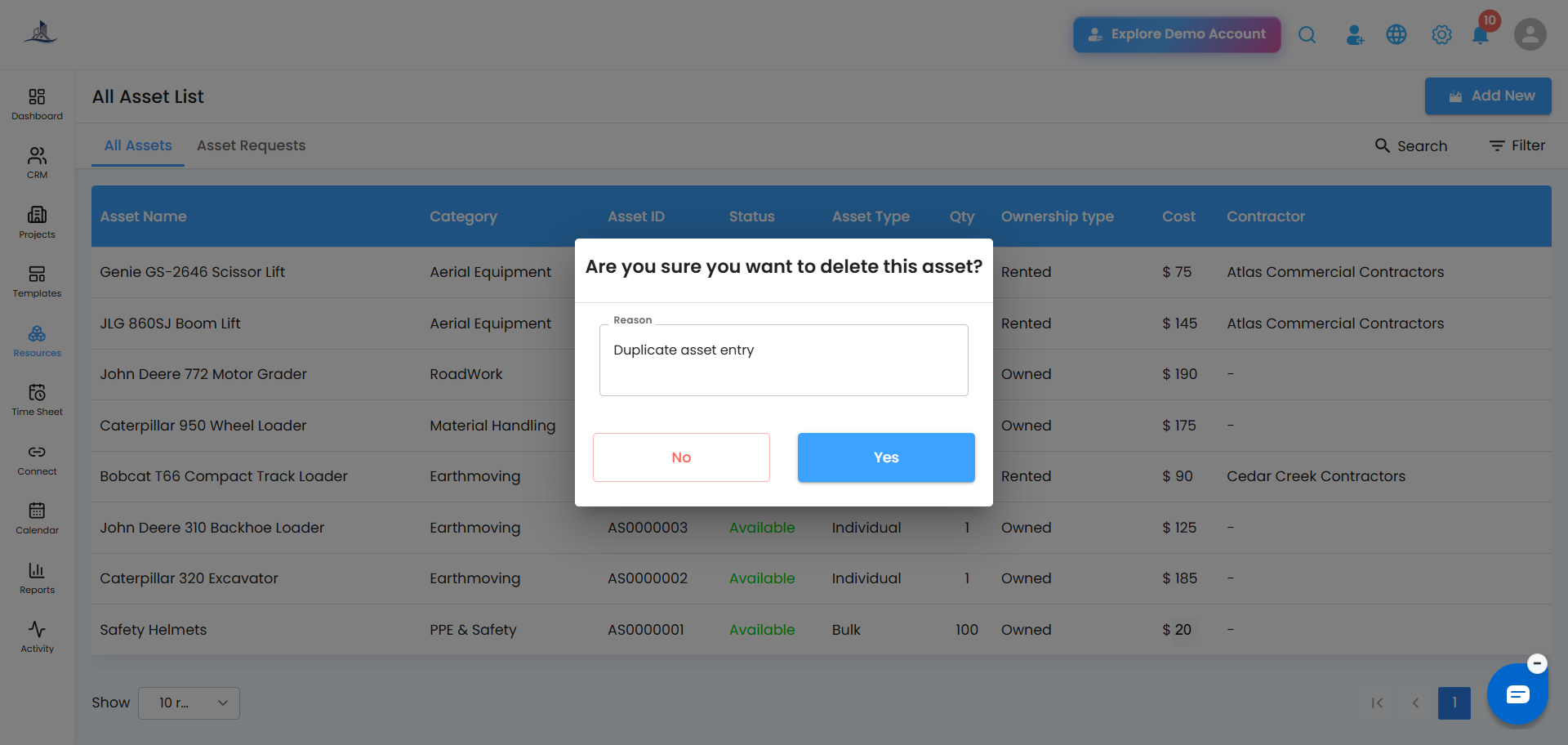
- In the confirmation pop-up ("Are you sure you want to delete this asset?"), enter a reason (e.g., "Asset damaged beyond repair," "Duplicate entry," "No longer in use").
- Click Yes to confirm.
Important: An asset currently marked "In Use" (allocated to a project or site) can't be deleted. It needs to be returned or released from active use first.
Was this article helpful?
That’s Great!
Thank you for your feedback
Sorry! We couldn't be helpful
Thank you for your feedback
Feedback sent
We appreciate your effort and will try to fix the article