Overview
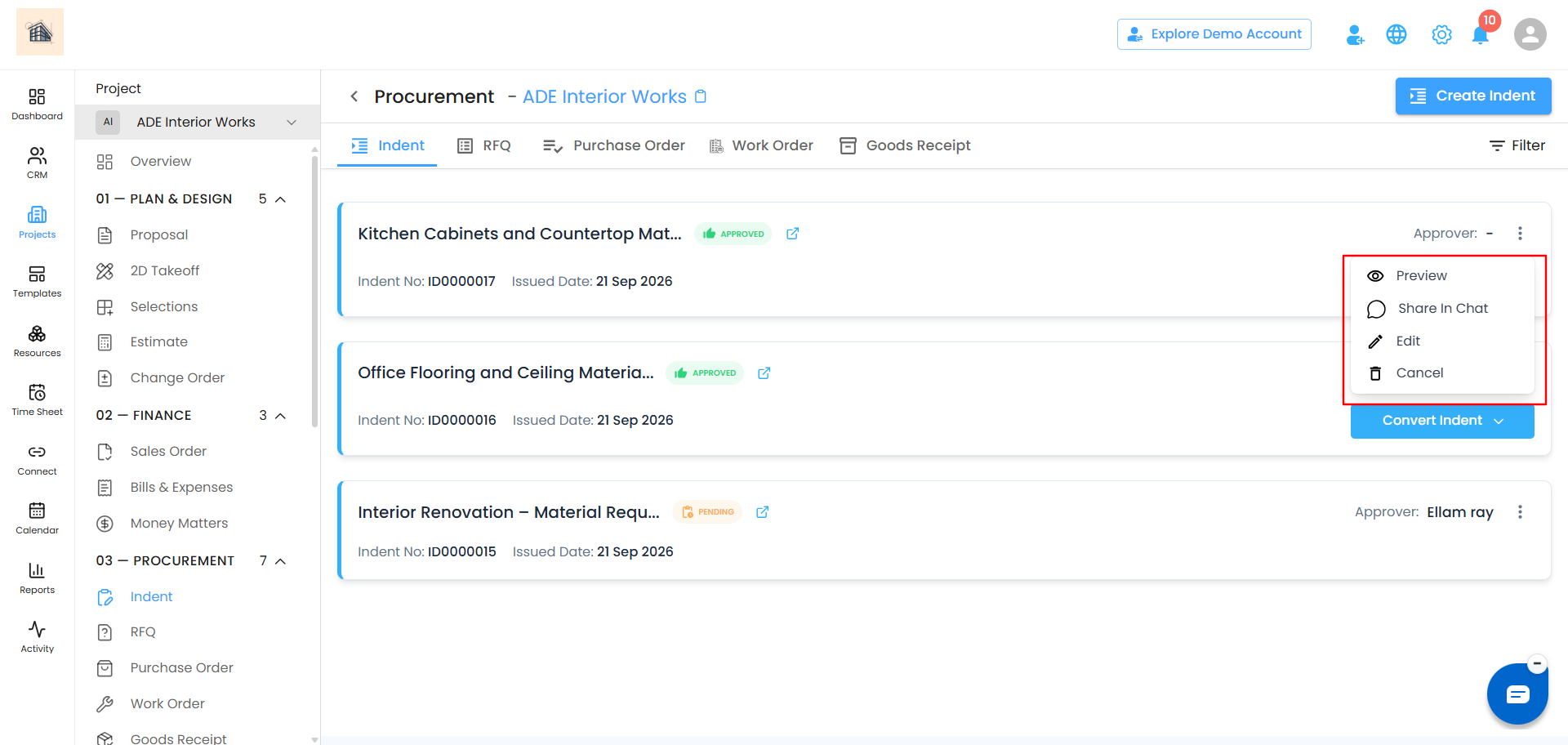
Each Indent card has a three-dot menu with options for viewing, editing, or cancelling it. Which options you see depends on the Indent's current status.
What's Available at Each Status
| Status | Available Options |
|---|---|
| Approved | Preview, Edit, Cancel, Reject |
| Pending | Preview, Edit, Cancel |
| Cancelled | Preview |
| Rejected | Preview, Edit |
| Completed | Preview |
Previewing and Downloading an Indent
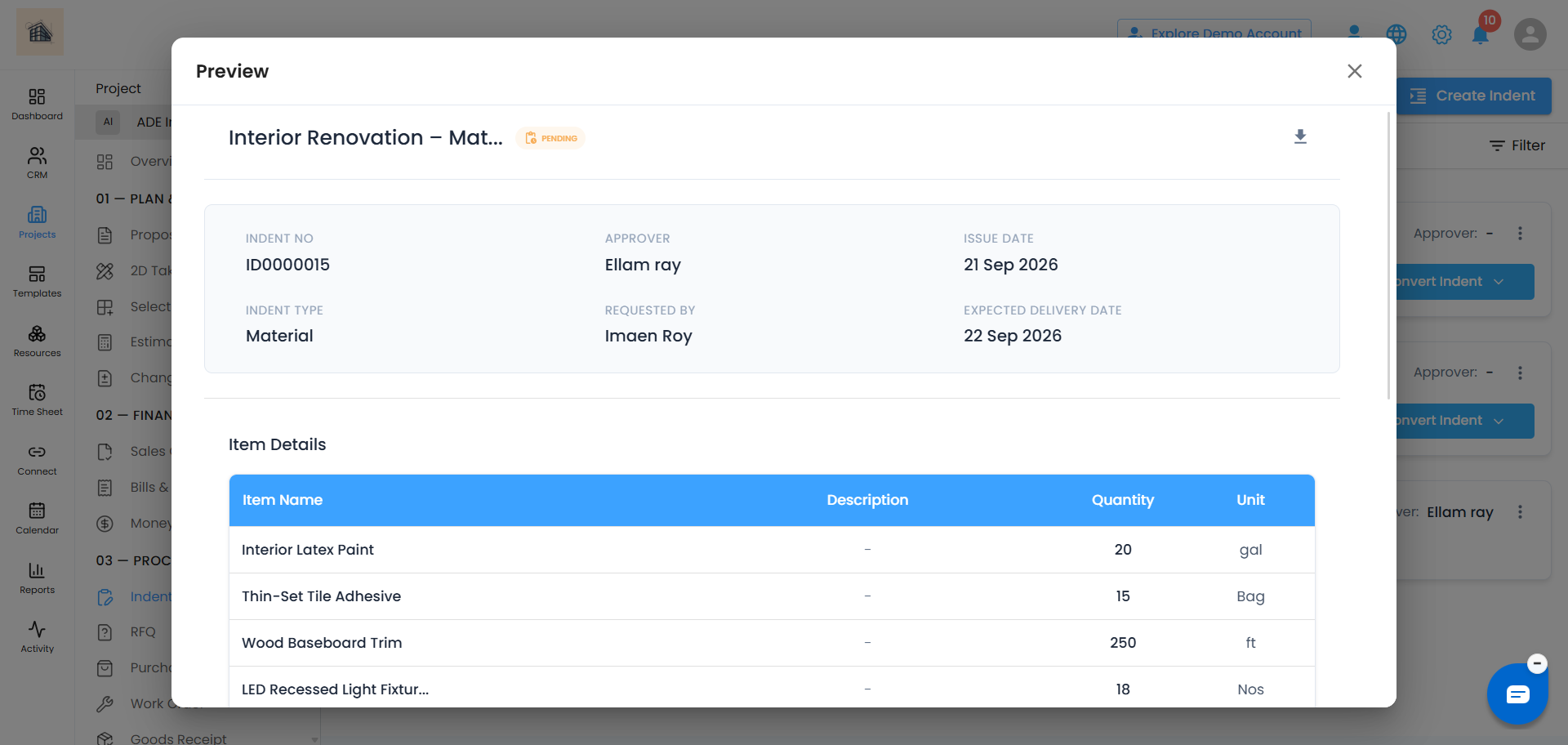
Click Preview to view the Indent as created. From there, you can also download it as a PDF for your records.
Editing an Indent
- Click Edit in the three-dot menu.
- Make your changes.
- Click Update to save them.
Cancelling an Indent
Click Cancel in the three-dot menu to cancel the Indent.
Important: Once cancelled, an Indent can only be previewed - it can't be edited or converted afterward. Make sure it's really no longer needed before cancelling.
Was this article helpful?
That’s Great!
Thank you for your feedback
Sorry! We couldn't be helpful
Thank you for your feedback
Feedback sent
We appreciate your effort and will try to fix the article