Creating an estimate that fits your workflow is now simple and flexible. IntoAEC allows you to add custom columns, rearrange them, and choose the right column types—so your estimates stay organized, detailed, and tailored to your projects.
Whether you're tracking quantities, notes, dates, or external links, managing columns helps you build estimates that are both professional and easy to follow.
What You Can Do Here
Add Custom Columns: Create additional fields to capture specific information for your estimate.
Choose Column Types: Use Number, Text, Link, or Date formats depending on your requirement.
Reorder Columns Easily: Move columns left or right to suit your preferred layout.
Manage Estimate Items: Add or remove items/materials as needed.
Maintain Clarity: Default fields like Description and Total Cost remain fixed to ensure consistency.
How to Manage Columns in an Estimate
1. Navigate to Estimate Templates
Go to Template Centre → Estimate.
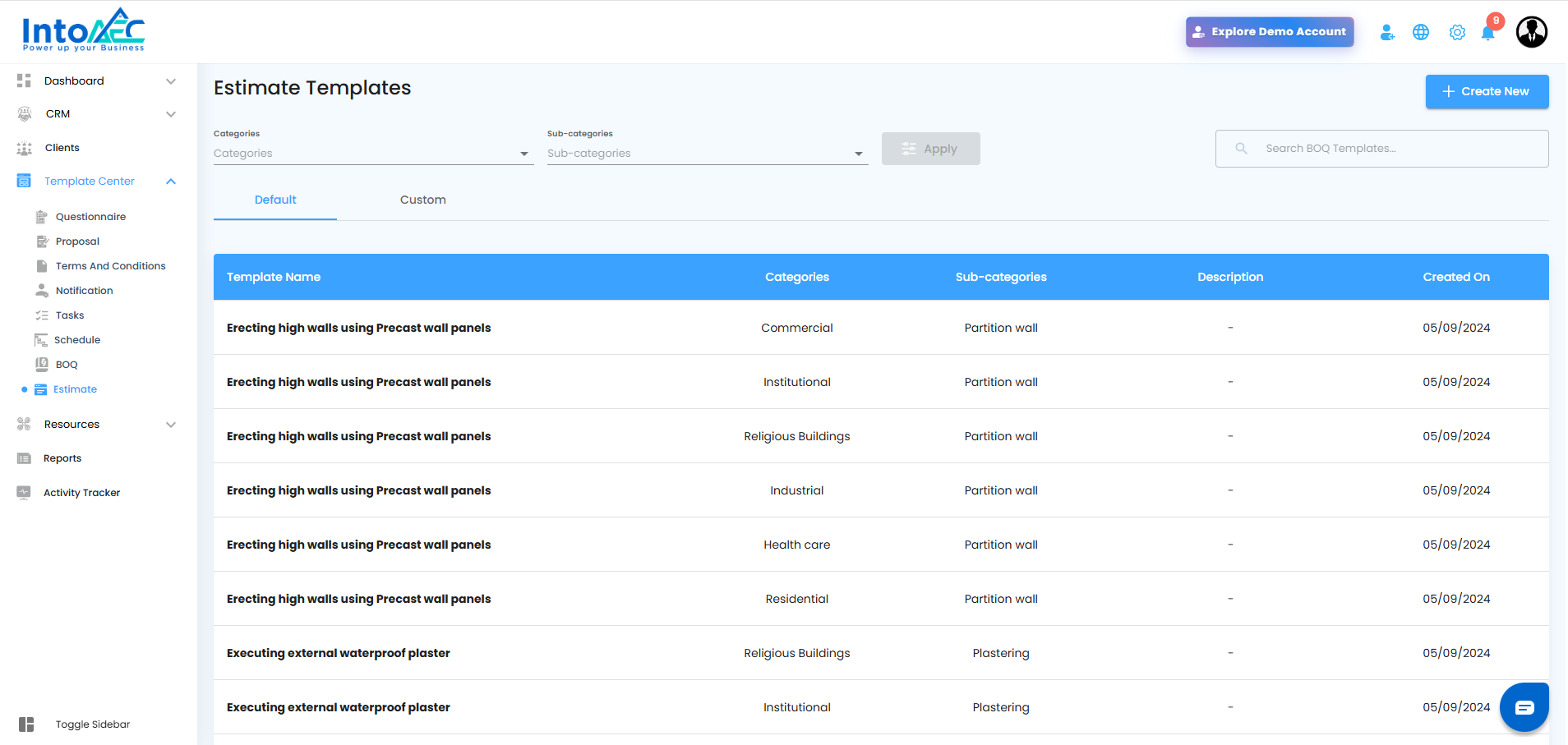
Click on Create New.
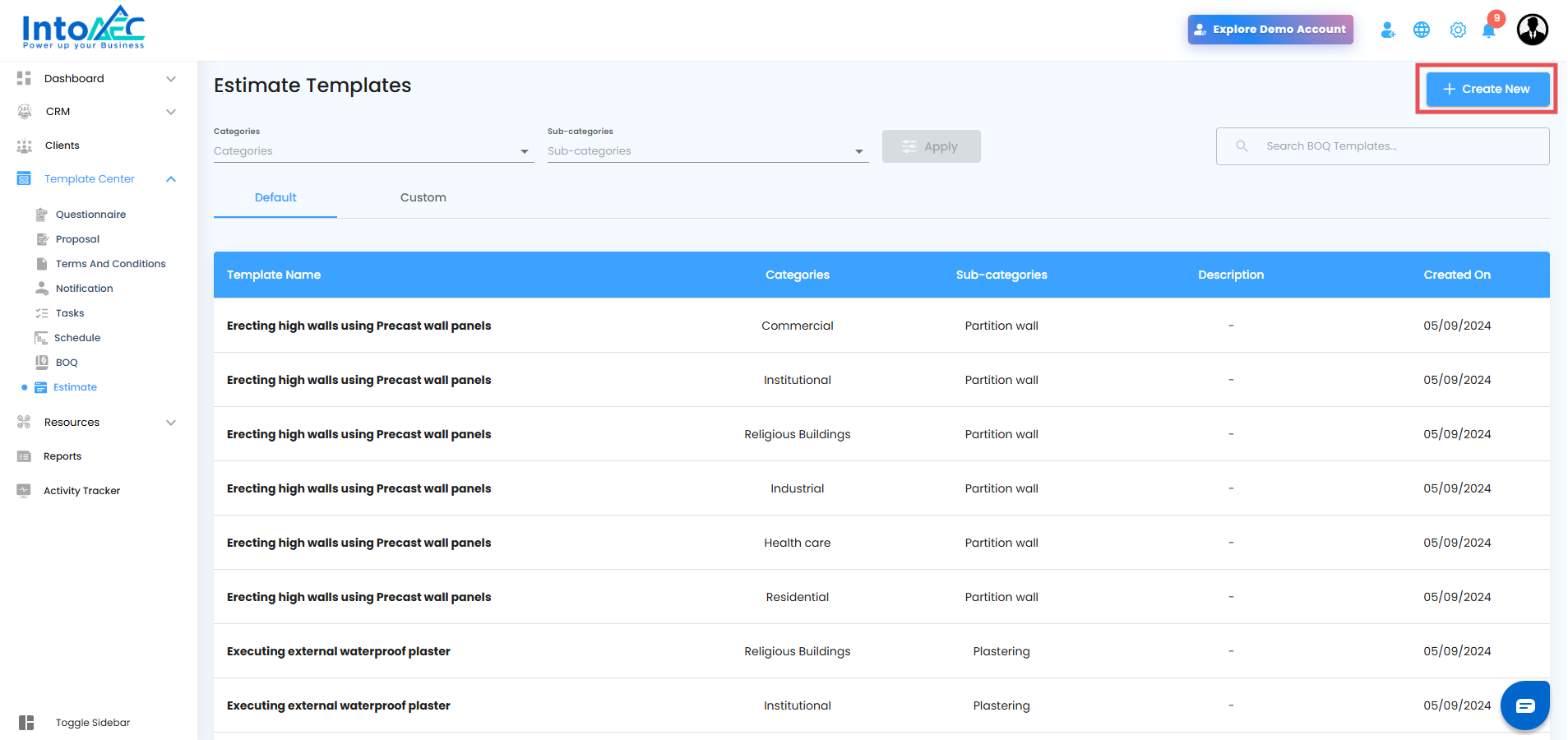
2. Set Up the Estimate Template
In the pop-up:
Select the Category, Subcategory, Type of Work, and Estimate Title.
Click Proceed.
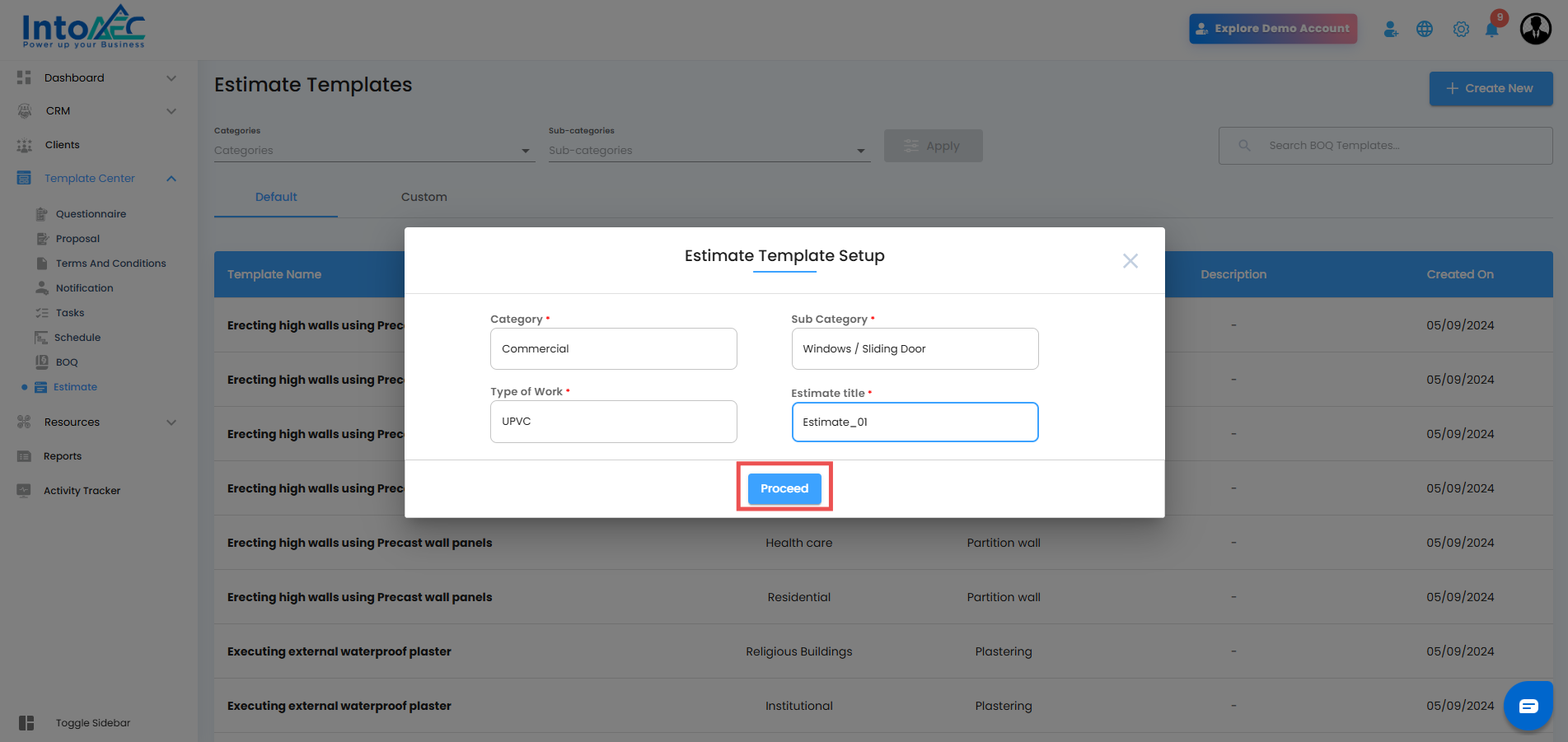
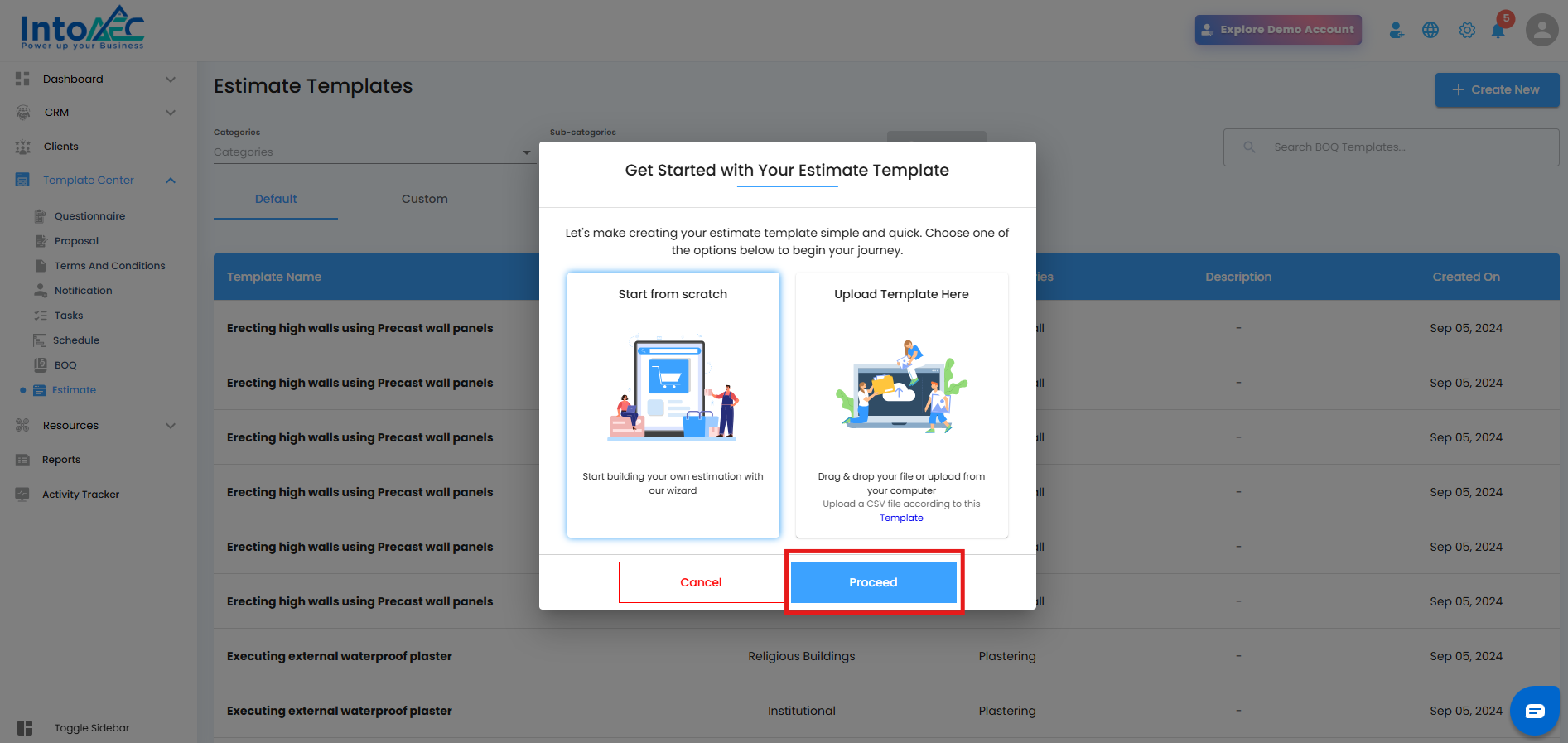
Choose the Estimate Type you want to follow(start from scratch) and continue.
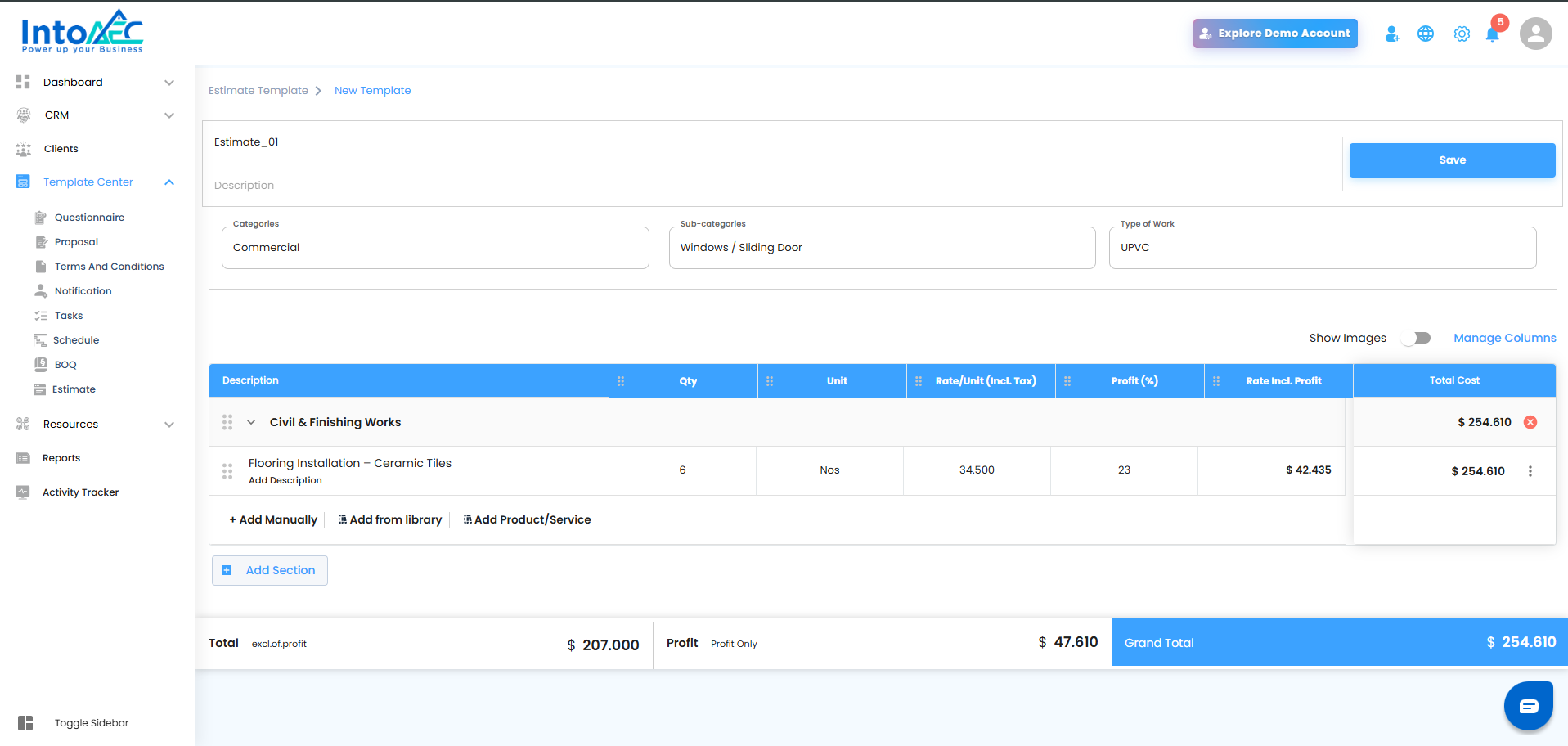
3. Add Sections and Items
Inside the estimate workspace, add a Section Name.
Add Item Name(s) under the section.
4. Open Manage Columns
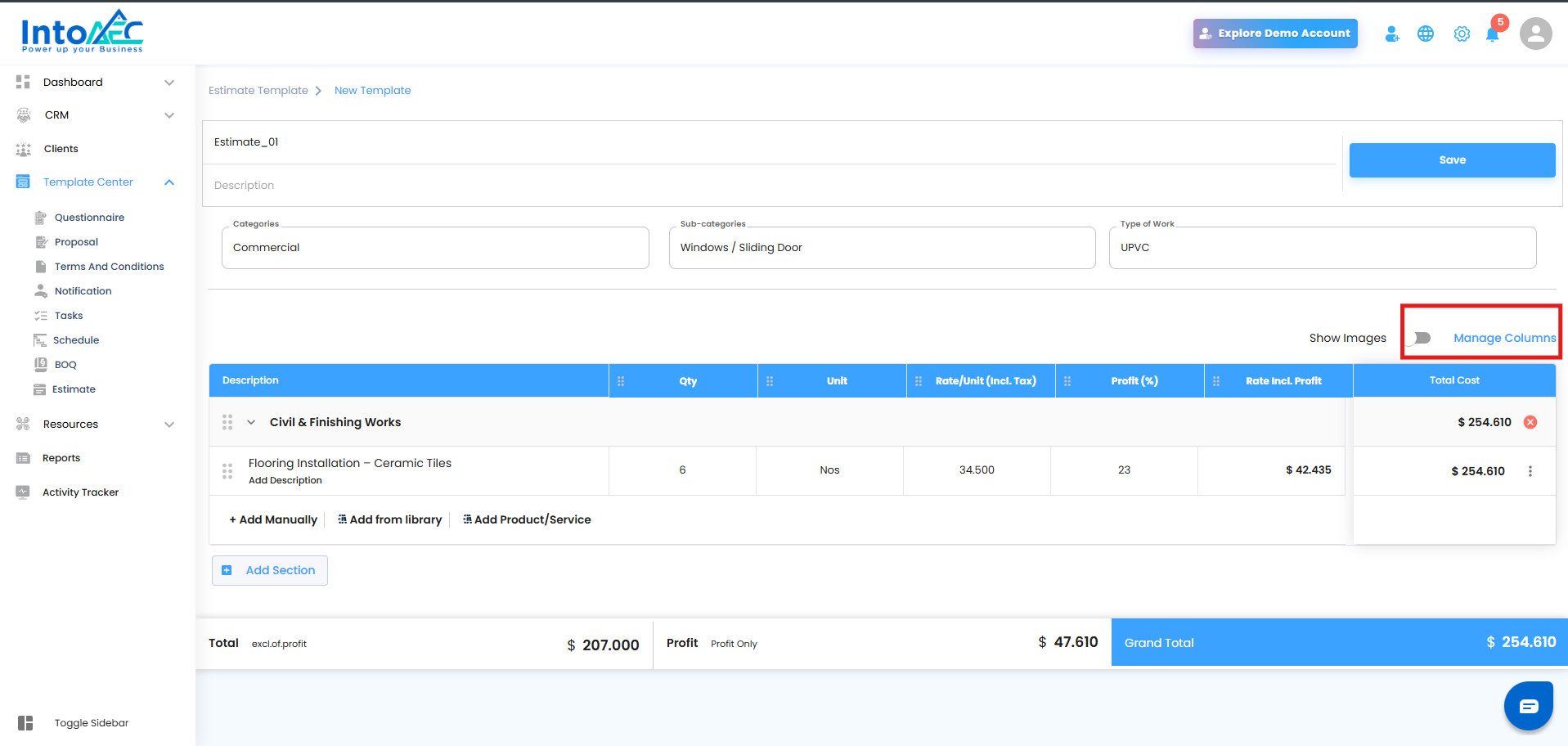
Click Manage Column to add additional columns to your estimate.
5. Add Columns
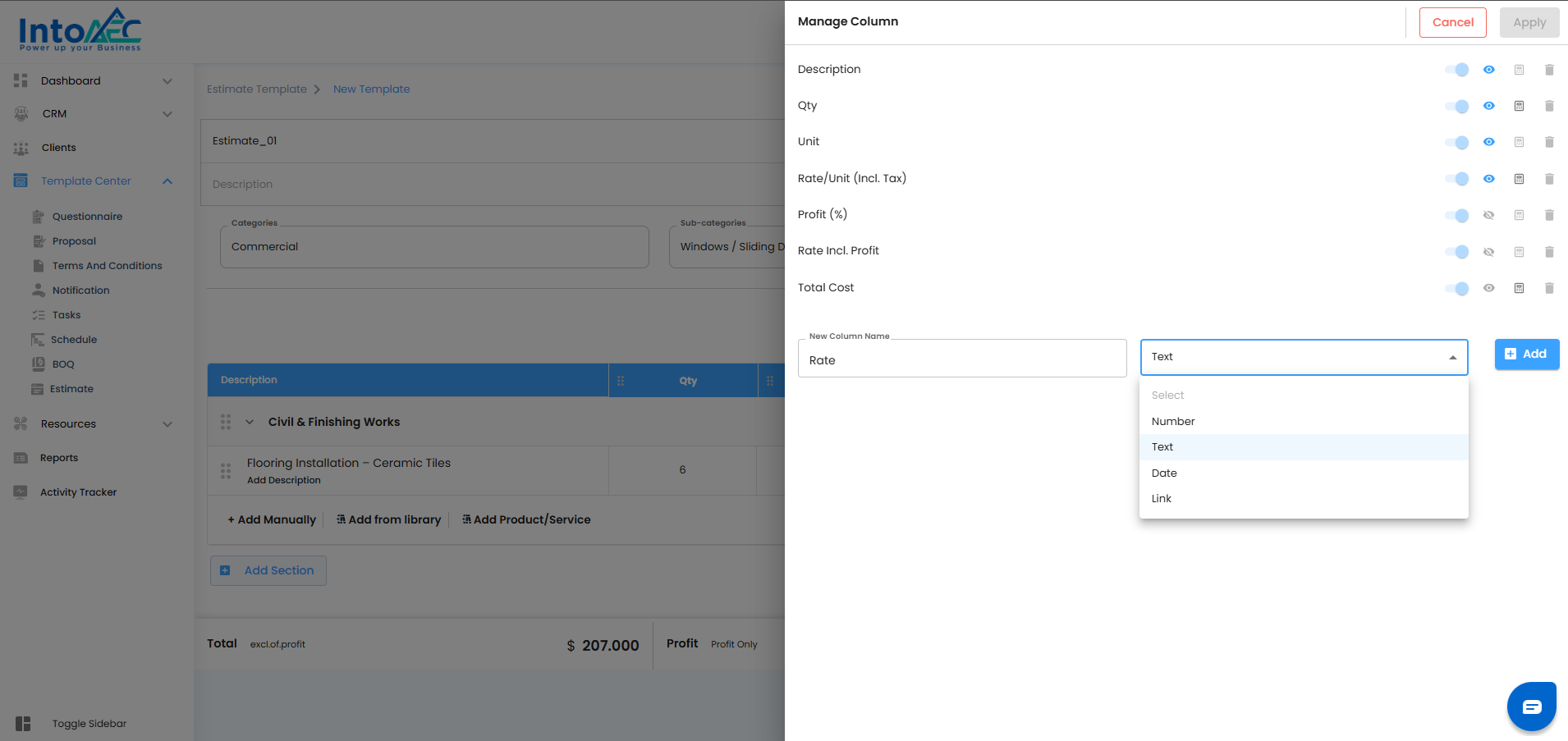
In the half canvas panel:
Enter the Column Name.
Select the Column Type.
Click Add Column.
Available Column Types
You can add four types of columns:
| Column Type | Purpose |
|---|---|
| Number | Enter numerical values (e.g., quantity, measurement). |
| Text | Add notes, descriptions, remarks, or labels. |
| Link | Insert URLs such as reference documents or external resources. |
| Date | Select a date such as delivery date or task deadline. |
6. Apply Columns
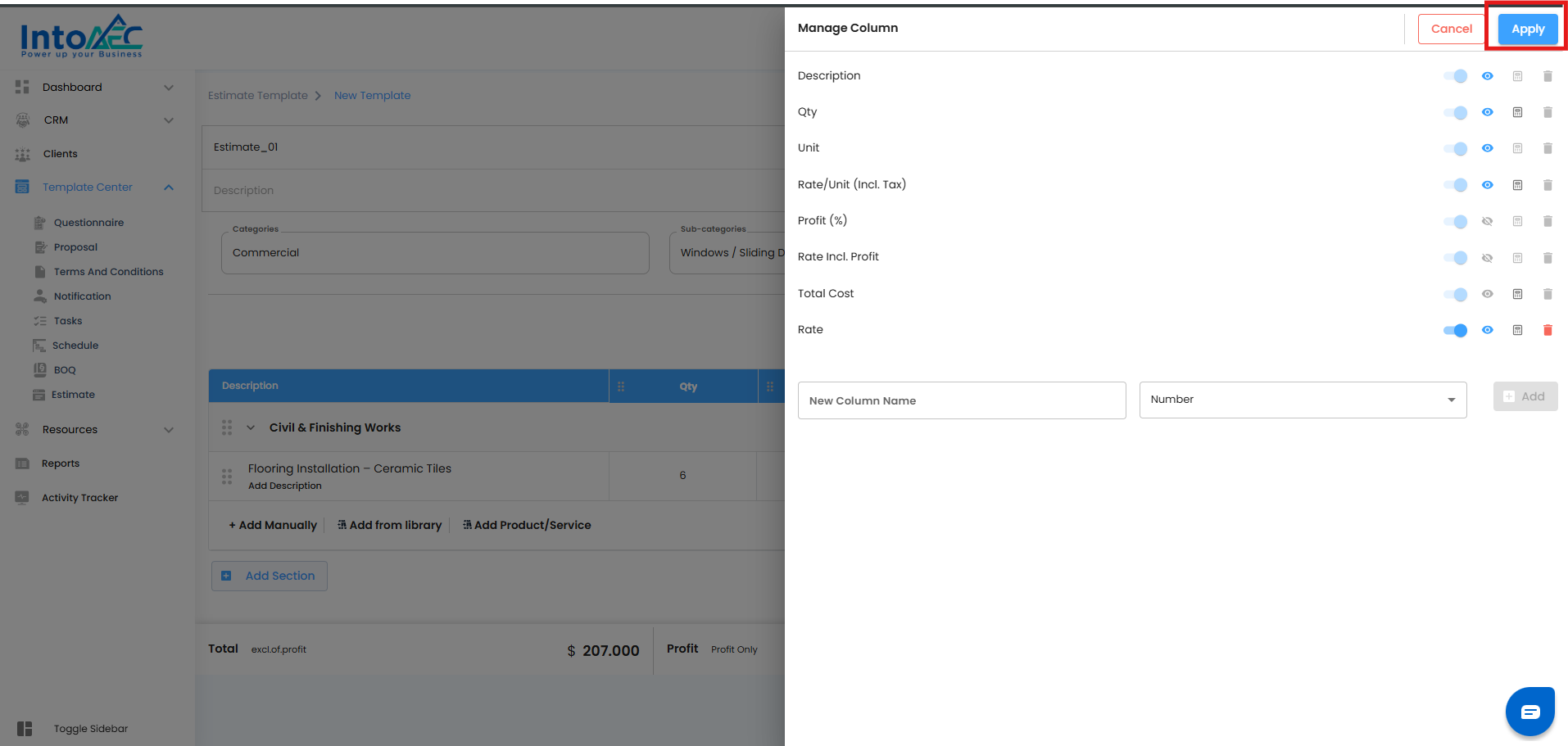
Once all columns are added, click Apply.
All new columns will now appear inside the estimate table.
Managing Column Layout
All added columns will be displayed in the estimate table immediately.
You can scroll horizontally to view columns.
Drag or reposition columns to place them where you need.
Note: Description and Total Cost columns are fixed and cannot be moved or removed.
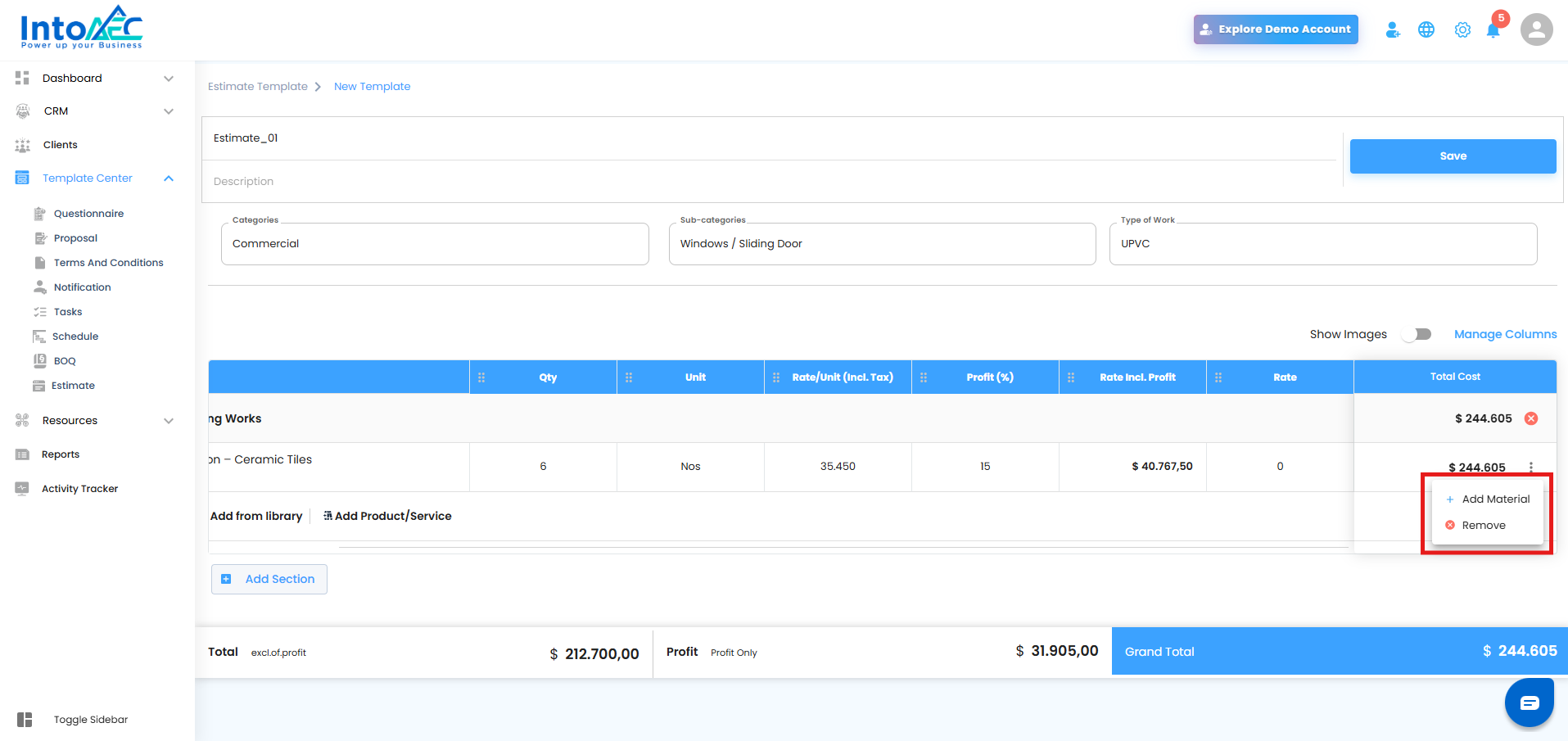
Managing Items / Materials
To remove an item: Click the three dots next to the item → Select remove.
To add a new item/material: Click the three dots → Select Add Item.
Finalizing Your Estimate
Once you finish adding, modifying, or rearranging columns and items, your customized estimate will be ready to use for your project.
Was this article helpful?
That’s Great!
Thank you for your feedback
Sorry! We couldn't be helpful
Thank you for your feedback
Feedback sent
We appreciate your effort and will try to fix the article