Workers Report – Complete Workforce & Wage Visibility
The Workers Report provides a consolidated view of workforce activity across projects, helping you track attendance, shifts, working hours, overtime, and wage costs in a single, filterable, and exportable dashboard.
What You Can Do Here
Track Worker Attendance & Shifts – Monitor worker presence, shifts, and working hours.
Analyze Workforce Costs – Get clear visibility into total wages and overtime expenses.
Filter & Export Data – Narrow down worker data and export selected records for reporting or payroll review.
How to Access Workers Report
Go to Reports from the main menu.
Select Workers Report to open the detailed workforce dashboard.
Pro Tip: Reviewing workers reports regularly helps control labor costs, track productivity, and avoid payroll discrepancies.
Using Filters to Refine Workers Data
Filters help you focus on worker data for specific projects and time periods.
What You Can Do Here
Project Name – Use the dropdown to select a project (projects appear based on created projects).
Date – Choose a date using the calendar to view worker data for a specific day.
Apply Filters – Click Apply to update the report based on selected criteria.
Clear Filters – Click Clear to remove filters and view all worker records.
Pro Tip: Combine project and date filters to quickly review daily workforce activity for a specific site.
Searching Workers by Name
Quickly find specific workers using the search option.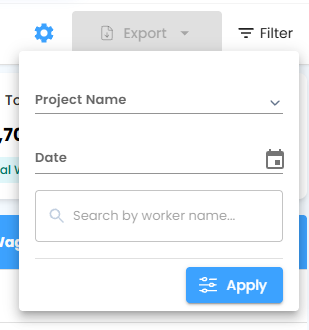
What You Can Do Here
Search by Worker Name – Enter the worker’s name to instantly filter the table results.
Pro Tip: Use search along with filters to locate individual worker attendance and wage details faster.
Workers Dashboard – Overview

The dashboard cards give a high-level summary of workforce activity and costs.
What You Can Do Here
Total Workers – Displays the total number of workers.
Total Shifts – Shows the total number of shifts created.
Total Hours – Indicates the total number of hours worked by all workers.
Overtime Hours – Displays the total overtime hours worked.
Total Wage Cost – Shows the total wages calculated for workers, including overtime.
Pro Tip: Use these cards to quickly assess labor utilization and overall wage impact.
Workers Report Table – Detailed View
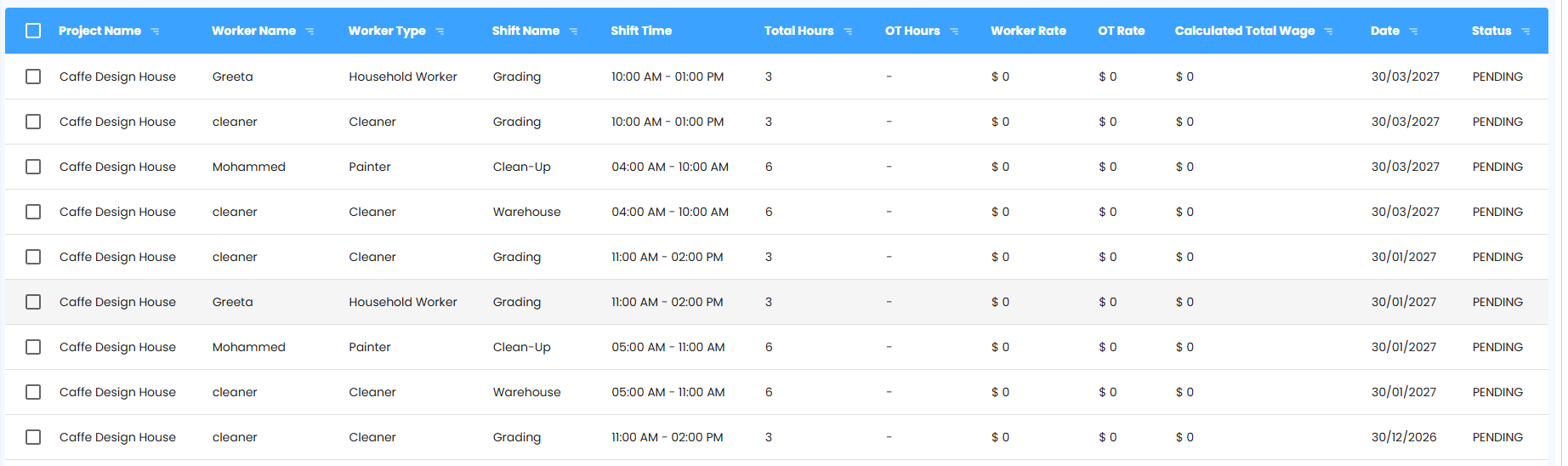
The table provides a detailed breakdown of worker attendance, shifts, hours, and wages.
What You Can Do Here
Project Name – Identify the project associated with the worker.
Worker Name – View the worker’s name.
Worker Type – Identify the worker category.
Shift Name – See the assigned shift.
Shift Time (From – To) – View shift working hours.
Total Hours – Track total hours worked.
OT Hours – Monitor overtime hours.
Worker Rate – View the regular wage rate.
OT Rate – View the overtime rate.
Calculated Total Wage – Automatically calculated using work rate and OT rate.
Date – See the work date.
Status – Track attendance status:
Pending
Present
Absent
Each column supports ascending and descending sorting for easier analysis.
Pro Tip: Sort by total hours or wage to quickly identify high-cost or high-utilization workers.
Bulk Actions & Exporting Workers Data
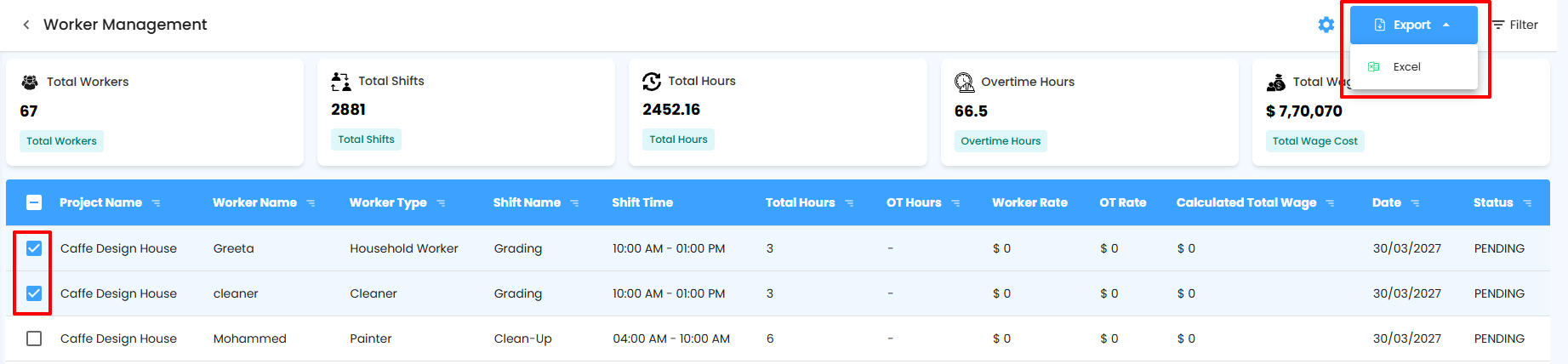
Export multiple worker records efficiently for payroll or reporting.
What You Can Do Here
Row Selection – Select individual workers using the checkboxes.
Select All – Use the checkbox in the table header to select all rows.
Export Button – Becomes active once rows are selected.
Export to Excel – Click the dropdown and select Excel to download selected worker records.
Pro Tip: Use bulk export for payroll processing, attendance audits, or internal reporting.
Configuring Workers Report Automation
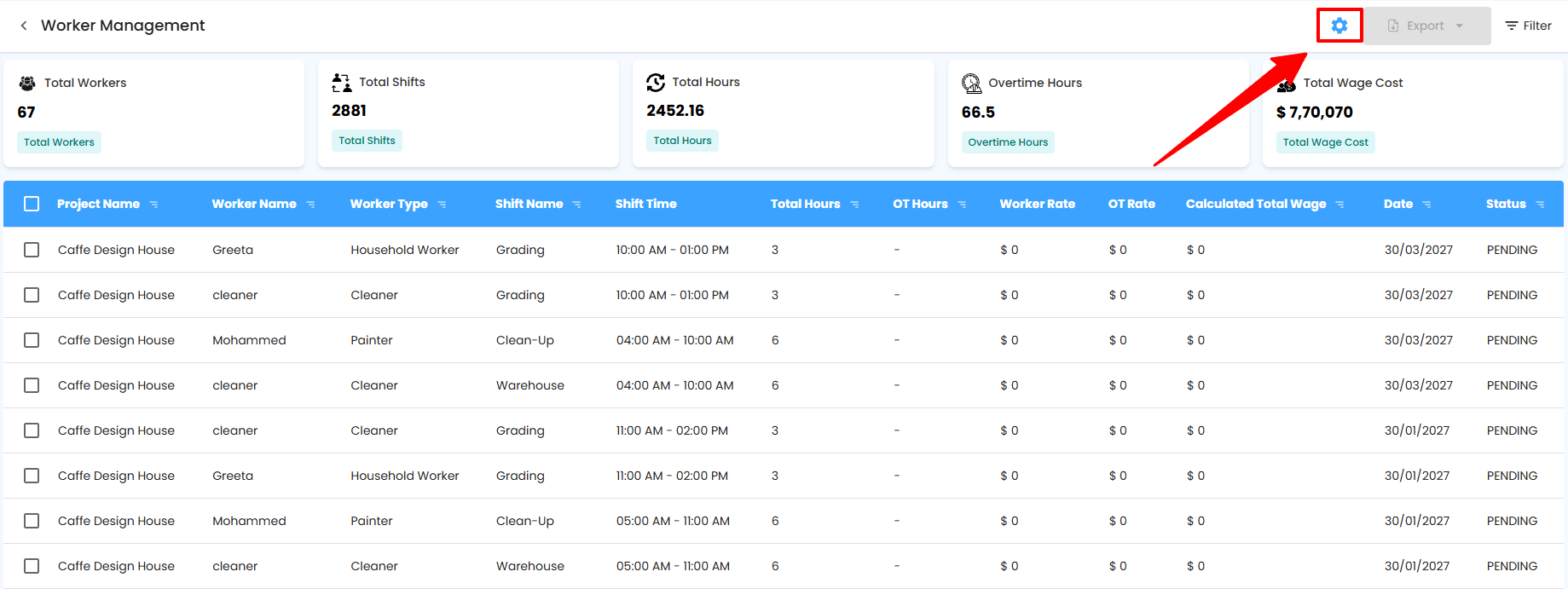
Automate workers reports to receive scheduled workforce updates without manual effort.
What You Can Do Here
Configure Report Automation – Click the button next to the export option.
Tooltip on Hover – Displays a brief description of report automation.
Open Automation Popup – Clicking the button opens the configuration popup.
Selecting Recipients & Report Frequency
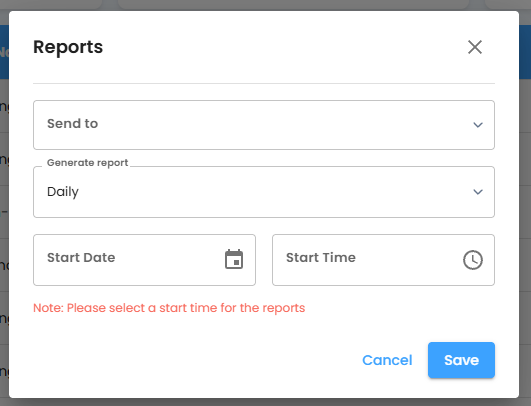
Choose who receives automated workers reports and how often they are generated.
What You Can Do Here
Send To – Select users from the dropdown to receive the report.
Generate Report – Choose report frequency:
Daily
Weekly
Monthly
Start Date – Select the start date using the calendar.
Start Time – Choose time and AM/PM from the dropdown.
Save – Activate report automation.
Cancel – Discard changes.
Close Icon – Close the popup without saving.
Pro Tip: Align report frequency with payroll or workforce review cycles for better efficiency.
Why Use Workers Reports
Workers reports help you maintain transparency, accuracy, and control over workforce operations.
What You Can Do Here
Track attendance and shift performance.
Monitor working and overtime hours.
Control labor and wage costs.
Export data for payroll, audits, and analysis.
Automate workforce reporting to save time.
Pro Tip: Regularly reviewing automated workers reports helps avoid payroll errors and improves workforce planning.
Was this article helpful?
That’s Great!
Thank you for your feedback
Sorry! We couldn't be helpful
Thank you for your feedback
Feedback sent
We appreciate your effort and will try to fix the article