Planning Your Project Spend
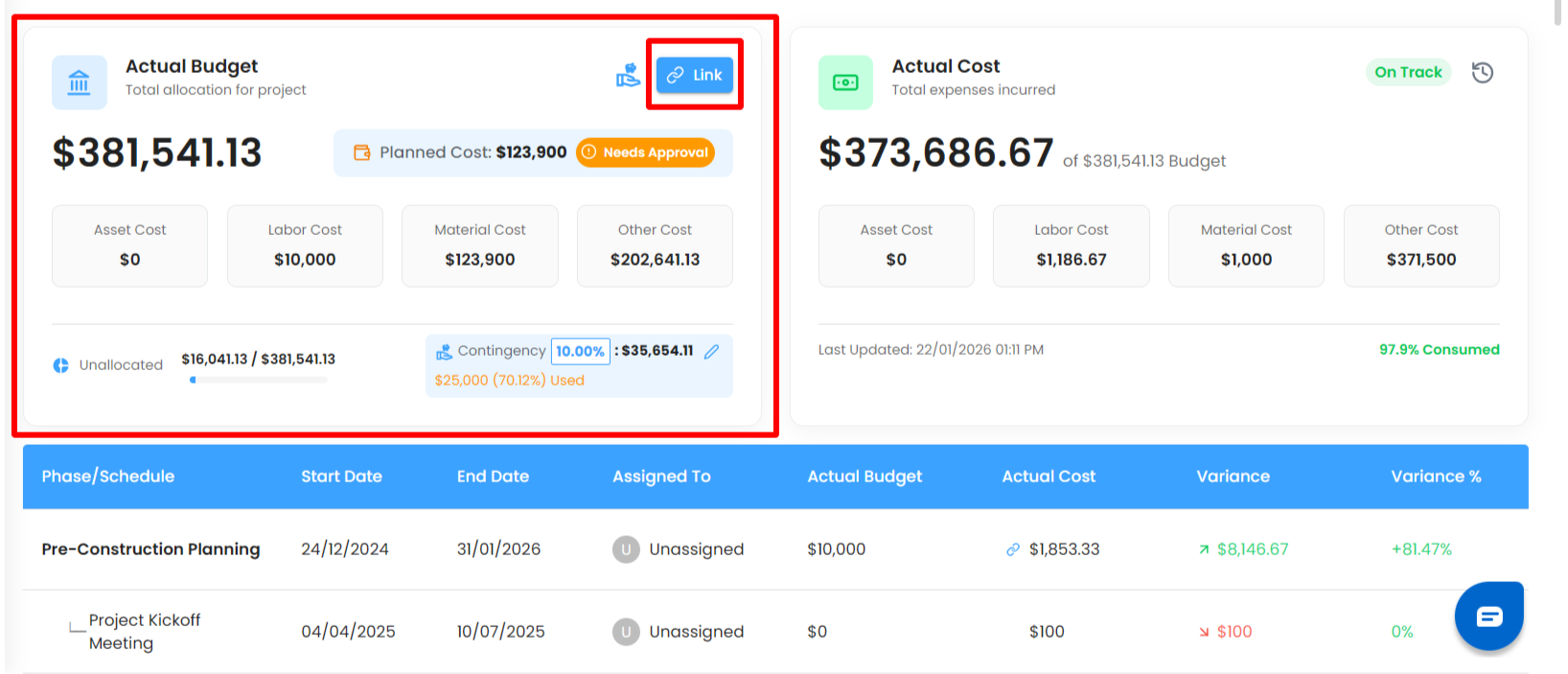
The Actual Budget card represents the total allocated budget for the project.
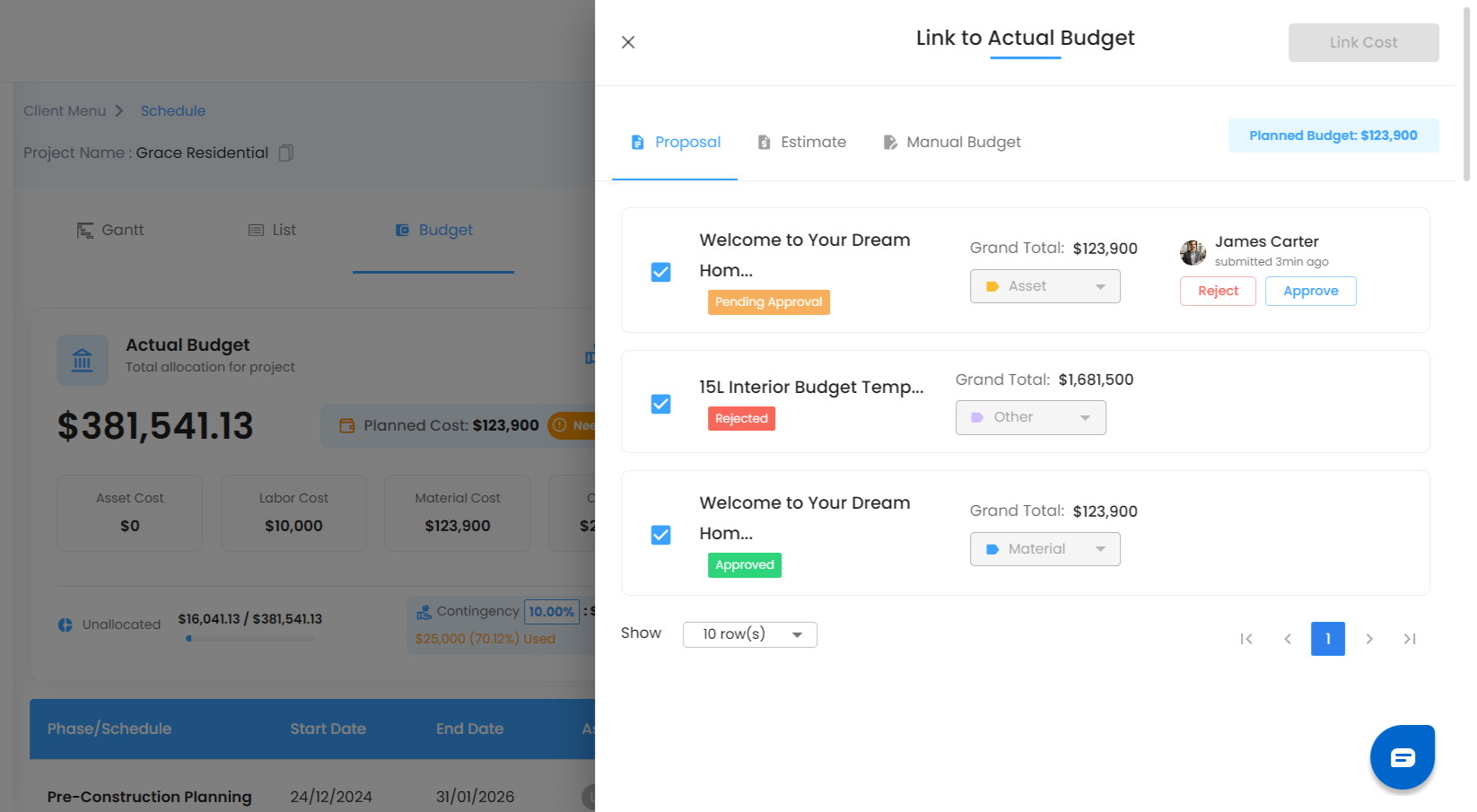
What You Can Do Here:
View Actual Budget – Displays the total budget allocated for the project.
Link Actual Budget – Click the Link button to add budget using:
Accepted Proposal
Accepted Estimate
Manual Budget Entry
Link Actual Budget from an Accepted Estimate
You can automatically link an Accepted Estimate to the project’s Actual Budget through the Schedule conversion flow.
Create and accept an Estimate.
Convert the accepted Estimate into a Schedule.
Once the Estimate is converted into a Schedule, the sections and line-item prices from the Estimate are fetched into the Actual Budget.
The converted Estimate is automatically linked to the project’s Actual Budget, allowing you to track the budget based on the scheduled work and its estimated costs.
The linked budget includes the relevant sections and line items, along with their prices, from the accepted Estimate
Split Budget by Category – While linking, the budget can be allocated across:
Asset
Labor
Material
Others
Each category is shown as a separate mini-card with the linked amount.
Planned Cost (Pending Approval)
Planned Cost shows budget amounts awaiting approval.
A warning message indicates that approval is required before it becomes part of the actual budget.
Pro Tip: Always split budgets by category to gain clear cost visibility during expense tracking.
Unallocated
The Unallocated Scale can be used to track remaining allocation and shows how much budget is still not distributed across schedules/phases.
Pro Tip: Keep unallocated budget minimal to ensure accurate phase-wise cost planning.
Contingency
Contingency is a reserved portion of the actual budget for unforeseen expenses. It can be allocated by percentage or amount and be requested later in full/partial amount with a mandatory reason. Track total contingency and available balance for clear financial visibility.
Was this article helpful?
That’s Great!
Thank you for your feedback
Sorry! We couldn't be helpful
Thank you for your feedback
Feedback sent
We appreciate your effort and will try to fix the article